
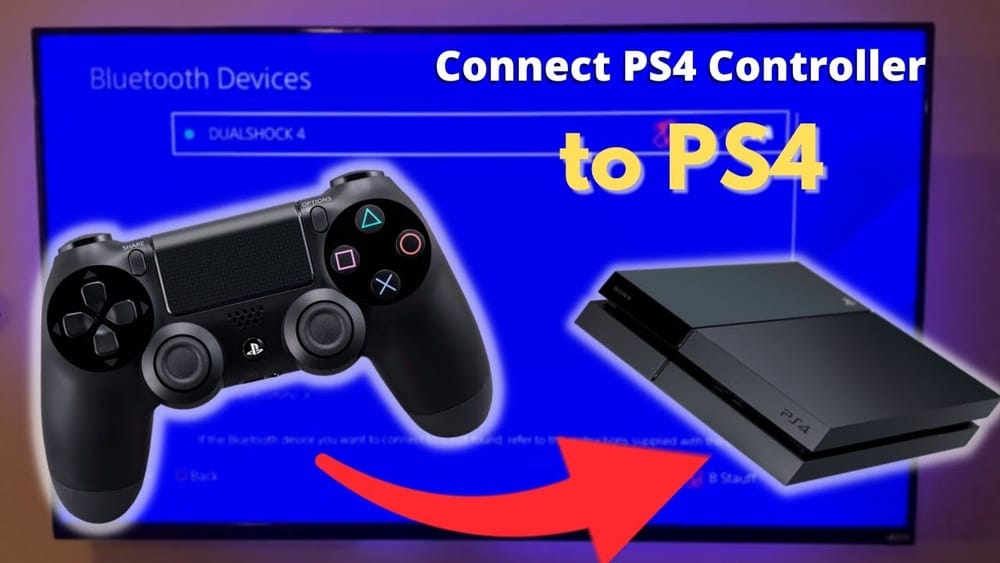
Connecting a remote control to your PlayStation 4 (PS4) may sound simple, but many users run into small issues that make the process confusing. Whether you want a media remote for streaming movies or need to pair a replacement DualShock 4 controller, understanding the right steps can save you time and frustration. This guide covers all the details you need, from choosing the right remote to troubleshooting common problems. By the end, you’ll know how to connect almost any remote to your PS4—and enjoy a smoother gaming or entertainment experience.
Why Connect A Remote To Your Ps4?
Many people use their PS4 for more than just gaming. Streaming apps like Netflix, YouTube, or Disney+ turn the console into an entertainment hub. A dedicated remote gives you easier control over volume, playback, and navigation. For families, it makes things simpler for those who don’t use game controllers much. And if your DualShock 4 is lost or broken, a remote can keep your PS4 useful until you get a new one.
Types Of Remotes You Can Use With Ps4
Not all remotes work the same way with a PS4. There are three main types:
- Official DualShock 4 Controllers – The standard wireless controller for gaming.
- Bluetooth Media Remotes – Special remotes made for controlling media apps, often sold by brands like PDP or Sony.
- Universal Remotes (Infrared) – Some universal remotes can work with PS4, but only if they support Bluetooth or come with a USB dongle.
Let’s compare these in a simple table:
| Remote Type | Connection Method | Main Use | Pros | Cons |
|---|---|---|---|---|
| DualShock 4 | Bluetooth | Gaming + Media | Full control, built-in | More expensive |
| Bluetooth Media Remote | Bluetooth | Media playback | Simple, easy to use | Limited for games |
| Universal Remote | Infrared/Bluetooth/USB Dongle | Media playback | Can control TV, soundbar too | Setup can be tricky |
DualShock 4 works for everything but is not the best for quick media controls. Bluetooth media remotes are easier for streaming but can’t play games. Universal remotes are flexible but may need extra steps or dongles.
Choosing The Right Remote For Your Needs
Selecting the best remote depends on how you use your PS4. Here are some tips to help you decide:
- If you only play games, stick with the DualShock 4.
- For watching movies or streaming, a Bluetooth media remote makes things easier.
- If you want one remote for your TV, PS4, and soundbar, look for a universal remote that supports Bluetooth or comes with a PS4-compatible dongle.
Some remotes advertise PS4 support but may not work with all apps. Always check the product description before you buy.
How To Connect A Dualshock 4 Controller
Pairing a new DualShock 4 is usually simple, but there are a few steps you should follow to avoid problems.
Step 1: Turn On Your Ps4
Press the power button on your PS4. Wait for the home screen to appear.
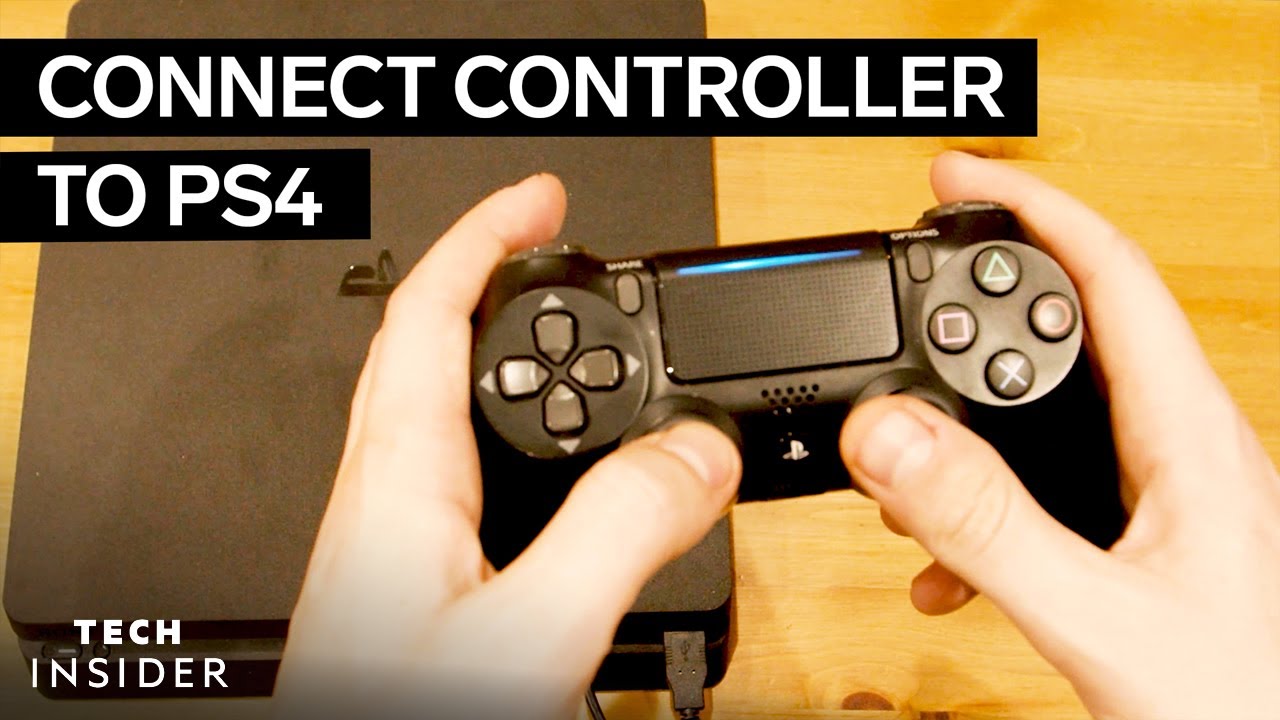
Step 2: Connect The Controller With A Usb Cable
Take the USB cable that came with your PS4. Plug one end into the controller, the other into the PS4’s USB port. This step is important for the first pairing.
Step 3: Press The Ps Button
On the controller, press the round PS button in the middle. The light bar will blink, then turn solid. This means the controller is now paired.
Step 4: Disconnect The Cable
You can now unplug the USB cable. The controller will work wirelessly via Bluetooth.
Step 5: Pair More Controllers (if Needed)
You can pair up to four controllers. Repeat steps 2–4 for each one.
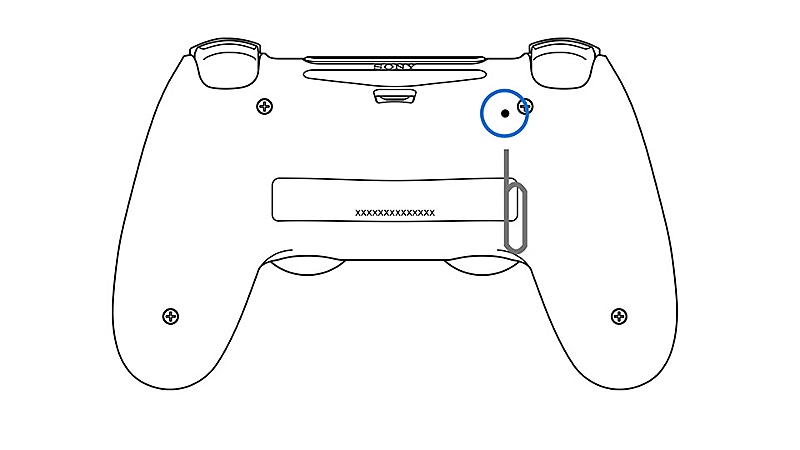
Insight: If your controller won’t pair, try resetting it. There’s a small reset button on the back near the L2 button. Use a paperclip to press and hold it for five seconds, then try again.
Credit: www.youtube.com
How To Connect A Bluetooth Media Remote
Bluetooth media remotes are made for easy navigation in streaming apps. Here’s how to connect one:
Step 1: Insert Batteries
Most media remotes need AAA or AA batteries. Install them according to the diagram inside the battery compartment.
Step 2: Put The Remote In Pairing Mode
Usually, there’s a pairing button or a sequence (for example, holding Play and OK together) to start pairing. Check your remote’s manual for the exact method.
Step 3: Go To Ps4 Settings
Using your existing controller, go to Settings > Devices > Bluetooth Devices.
Step 4: Select The Remote
Your remote should appear in the list as “Media Remote” or a brand name. Select it. The PS4 will finish pairing in a few seconds.
Step 5: Test The Remote
Try using the Play, Pause, and Arrow keys to check if it works in a streaming app.
Non-obvious tip: Some remotes need a firmware update before they work perfectly with all PS4 apps. Check the manufacturer’s website for updates.
How To Connect A Universal Remote
Not every universal remote works with the PS4. Most use infrared (IR), but the PS4 does not have an IR receiver. You need a remote that supports Bluetooth, or a special dongle that acts as a bridge. Here’s what to do:
Step 1: Check Compatibility
Look for “PS4 compatible” or “Bluetooth supported” on the box or product page. If your remote comes with a USB dongle, plug it into the PS4.
Step 2: Put The Remote In Pairing Mode
Follow the remote’s instructions for pairing. This may involve pressing a combination of buttons.
Step 3: Go To Bluetooth Devices On Ps4
From your controller, open Settings > Devices > Bluetooth Devices.
Step 4: Select The Remote
Choose your remote from the list. The PS4 will confirm the pairing.
Step 5: Test And Program Extra Buttons
Some universal remotes let you program buttons for TV or soundbar control. Follow the remote’s manual for these steps.
Hidden challenge: Some universal remotes may not support every button function, especially for advanced gaming or system menus.
Connecting A Replacement Or Second Dualshock 4
Sometimes, you want to connect a new controller because the old one is lost, broken, or you want two people to play. The process is the same as above, but here are a few extra tips:
- If your PS4 doesn’t recognize the new controller, try turning off the console, plugging in the controller via USB, then turning the PS4 back on.
- If the controller vibrates but does not connect, press and hold the PS button longer.
- For used controllers, reset them with the tiny button on the back before pairing.
Pro insight: Only one controller can be “Player 1.” If you have two controllers paired, pressing the PS button will assign the second one to “Player 2” or another user profile.
Using Your Smartphone As A Ps4 Remote
Your phone can also work as a remote for your PS4, but it’s not the same as a physical controller. Sony offers the PS4 Second Screen App (Android and iOS). Here’s how to set it up:
Step 1: Install The App
Download PS4 Second Screen from Google Play or the App Store.
Step 2: Connect To The Same Wi-fi
Make sure your phone and PS4 are on the same Wi-Fi network.
Step 3: Link Your Device
On your PS4, go to Settings > Mobile App Connection Settings > Add Device. You’ll see a code.
In the app, tap your PS4 name, and enter the code to connect.
Step 4: Use On-screen Controls
The app offers navigation buttons, a keyboard, and some shortcuts for media apps.
Drawback: The phone remote is great for typing or basic navigation, but it can’t play games.
Troubleshooting Common Problems
Even if you follow the right steps, sometimes things don’t work as expected. Here’s how to solve the most common issues:
Remote Not Showing Up In Bluetooth Devices
- Make sure your remote is in pairing mode.
- Move the remote closer to the PS4.
- Remove other Bluetooth devices nearby (headphones, other controllers) to prevent interference.
- Restart your PS4 before trying again.
Controller Or Remote Won’t Pair
- Try a different USB cable for controllers.
- Reset the controller or remote (look for a tiny button on the device).
- Delete unused Bluetooth devices from your PS4’s settings (limit is about 7 devices).
Remote Works In Menu, Not In Apps
- Some streaming apps don’t fully support all remotes.
- Update your PS4 system software.
- Check for remote firmware updates.
Buttons Not Responding
- For media remotes, try new batteries.
- Some universal remotes need to be reprogrammed for each device.
- If your remote supports macros, avoid programming complex sequences at first.
Extra tip: If your PS4 is in a TV cabinet or behind a wall, Bluetooth signal can be blocked. Move the console into the open if you have pairing issues.
Key Features To Look For In A Good Ps4 Remote
When buying a new remote for your PS4, some features can make a big difference:
- Dedicated PS button – Needed for accessing the home menu.
- Playback buttons – Play, Pause, Fast Forward, Rewind for media apps.
- Volume and mute controls – Only some remotes offer these.
- TV/soundbar support – For controlling more than just the PS4.
- Ergonomic design – Comfortable to hold for long periods.
Compare these features for a few popular remotes:
| Feature | DualShock 4 | PDP Media Remote | Universal Remote (e.g., Logitech Harmony) |
|---|---|---|---|
| PS Button | Yes | Yes | Sometimes |
| Playback Controls | Yes (but not dedicated) | Yes | Yes |
| Volume/Mute | No | Yes | Yes |
| TV Control | No | Limited | Yes |
| Game Support | Full | No | No |
Credit: www.playstation.com
Advanced Setup: Using Multiple Remotes
If you have more than one remote or controller, you can assign them to different users. Here’s how:
- Turn on all remotes/controllers you want to use.
- Each time you press the PS button, the PS4 will ask which user to assign.
- You can switch users or remotes from the quick menu.
Expert advice: If you use a universal remote alongside a controller, some button combinations might conflict. Test your setup with your favorite apps or games before regular use.
Special Cases: Ps4 Pro And Ps4 Slim
The PS4 Pro and PS4 Slim models follow the same pairing steps as the original PS4. However, the USB ports may be in different locations, and Bluetooth range can vary slightly due to hardware changes. If you have trouble pairing, move closer to the console and avoid metal objects nearby.
Software Updates And Compatibility
Sony updates the PS4 system software regularly. Sometimes these updates improve remote compatibility or add new features. To check for updates:
- Go to Settings > System Software Update.
- If an update is available, download and install it.
Non-obvious insight: If you buy a new remote and it doesn’t work right away, check if a recent update is required. Some remotes only work with certain PS4 firmware versions.
Comparing Ps4 Remote Options
Let’s look at a real-world example for three popular options:
| Model | Price Range | Best For | Setup Difficulty |
|---|---|---|---|
| DualShock 4 | $40–$60 | Gaming + Media | Easy |
| PDP Media Remote | $20–$30 | Streaming/Movies | Very Easy |
| Logitech Harmony Hub | $80–$120 | All Devices | Moderate |
Practical Tips For Daily Use
- Keep a spare set of batteries for your media remote.
- If you use a universal remote, label the PS4 input for easy switching.
- Store your controller safely to prevent accidental button presses that turn on the PS4 at night.
- For families, teach everyone how to use the remote to avoid confusion.
- Consider a charging station for DualShock 4 controllers to keep them ready.
Real-life example: Many users find that after switching to a media remote for Netflix and Disney+, family members use the PS4 more often because it feels like a regular TV remote.
Security And Privacy Considerations
When pairing Bluetooth devices, your PS4 is visible to any device in range for a short time. To stay secure:
- Only pair new remotes in your home, not in public spaces.
- Remove old or unused Bluetooth devices from the PS4’s settings.
- If you lose a controller or remote, unpair it from the device list.
Extra insight: Some universal remotes can store your device list in the cloud. Make sure to use secure passwords for your accounts.
What To Do If Your Remote Stops Working
Remotes can stop working for a few reasons: low battery, Bluetooth interference, or software bugs. Here’s what to try:
- Replace or recharge the batteries.
- Unpair the remote from the PS4, then pair again.
- Restart the PS4 completely (not just rest mode).
- Check for software updates on both the remote (if possible) and the PS4.
- Try a different USB port for controllers.
If you still have problems, search for your remote model on the manufacturer’s support site. For official Sony remotes and controllers, you can find troubleshooting help at PlayStation Support.
When To Buy A New Remote
If your remote is over three years old, or if buttons stop working even after replacing batteries, it may be time for a new one. Signs you need a replacement:
- The PS4 doesn’t recognize the remote at all.
- Multiple buttons stop working.
- The remote disconnects often, even with fresh batteries.
Remember, technology can wear out. Investing in a good remote can make using your PS4 much more enjoyable.

Credit: www.brookaccessory.com
Frequently Asked Questions
How Many Remotes Or Controllers Can I Connect To My Ps4 At Once?
You can connect up to four Bluetooth devices at the same time, including controllers and media remotes. If you reach the limit, you’ll need to remove one device before adding another.
Can I Use A Regular Tv Remote With My Ps4?
Most regular TV remotes use infrared and will not work with the PS4 unless you have a special adapter or dongle. Some newer TVs with HDMI-CEC can send basic commands to the PS4, but this is limited.
Why Won’t My Ps4 Recognize My New Remote?
Common reasons include the remote not being in pairing mode, low batteries, or too many Bluetooth devices already paired. Try resetting the remote, replacing batteries, or removing old devices from the PS4’s Bluetooth list.
Is It Safe To Use Third-party Remotes With My Ps4?
Yes, but choose a remote from a reputable brand. Some very cheap remotes may not support all PS4 features or could have poor build quality. Always check reviews before buying.
Can I Use My Phone As A Full Replacement For A Ps4 Controller?
No, the PS4 Second Screen app lets you navigate menus and use the keyboard, but it does not support playing games. For gaming, you need a DualShock 4 or compatible Bluetooth controller.
Connecting a remote control to your PS4 can make gaming and streaming much easier. Whether you choose a dedicated media remote, a universal remote, or just want to add a new controller, following the right steps means less hassle and more fun.
Try different options to see what fits your home best. With the right setup, your PS4 becomes more than just a game console—it’s a true entertainment center for everyone.