
Controlling Alt Delete On A Remote Desktop: Complete Guide
Many people use Remote Desktop to work from home, manage servers, or help friends and colleagues. One common challenge is sending the Ctrl+Alt+Del command to a remote computer. This key combination is important—it lets you lock the screen, open Task Manager, change passwords, or log in. But if you press Ctrl+Alt+Del on your keyboard while connected to Remote Desktop, your local computer responds, not the remote one. So, how can you send this command to the remote system?
Understanding how to send Ctrl+Alt+Del through Remote Desktop is more than a simple shortcut. It’s a skill that saves time, improves security, and keeps your workflow smooth. In this guide, you’ll learn the practical ways to control Alt Delete on a Remote Desktop, discover advanced options, see real-world examples, and understand common mistakes.
Whether you use Windows, macOS, or mobile devices, you’ll find clear solutions for your needs. You’ll also discover how different tools and platforms handle this command, so you never get stuck or frustrated, no matter where you work from.
Why Ctrl+alt+del Matters On Remote Desktop
The Ctrl+Alt+Del command is a security feature in Windows. It stops programs from stealing your password by forcing Windows to display the login screen, lock workstation, or open Task Manager. When you use Remote Desktop, you may need this command to:
- Log into the remote machine.
- Change your password.
- Lock the remote screen.
- Access Task Manager to end unresponsive programs.
Let’s look at each use more closely:
Logging In: When you first connect to a remote PC, Windows may ask you to press Ctrl+Alt+Del before entering your password. Without the right method, you can’t proceed.
Changing Passwords: Many companies require users to change passwords often for security. The Ctrl+Alt+Del screen is where you do this. If you can’t access it, you may be locked out.
Locking the Screen: If you leave your desk or step away, locking the remote machine is vital to protect sensitive information. Ctrl+Alt+Del gives you quick access to this.
Accessing Task Manager: When a remote app freezes, Task Manager is the fastest way to fix it. Some users only know how to open Task Manager through the Ctrl+Alt+Del screen.
If you can’t send Ctrl+Alt+Del properly, you might get stuck or expose sensitive data. For IT support, this shortcut is vital to troubleshoot and fix issues fast. In some organizations, not being able to lock a remote session can even break company policy or data protection laws.
Why Standard Ctrl+alt+del Doesn’t Work In Remote Desktop
Remote Desktop sends your keyboard input to the remote computer, but some key combinations—like Ctrl+Alt+Del—are captured by the local operating system for security reasons. If you press Ctrl+Alt+Del, your local computer locks, opens Task Manager, or shows the login screen. The remote session doesn’t see it.
This is because Windows treats Ctrl+Alt+Del as a “secure attention sequence. ” It’s not passed through Remote Desktop for safety. So, you must use special shortcuts or menu options to send it.
Many users wonder why this is necessary. The reason is simple: If Remote Desktop passed Ctrl+Alt+Del directly, malware on your local machine could use it to trick you or disrupt your session. By forcing you to use a different combination, Windows ensures only trusted actions reach the remote machine.
Another non-obvious problem is with keyboard layouts. If your keyboard is set to a different language or region than the remote computer, special keys might not match up. For example, on some laptops, the “End” key is shared with another key, making the shortcut even more confusing.
Sending Ctrl+alt+del Using Remote Desktop Shortcuts
Windows Remote Desktop (rdp)
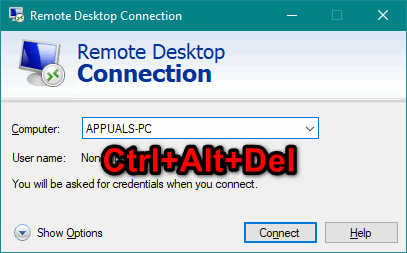
If you use Windows Remote Desktop Connection (RDP), Microsoft has designed an alternative shortcut. Instead of Ctrl+Alt+Del, you can use:
- Ctrl+Alt+End
This sends the secure attention sequence to the remote machine. It works on most Windows versions, including Windows 10, 11, Server 2016, Server 2019, and Server 2022.
Example Scenario
Suppose you connect to a Windows Server via RDP and need to change your password. Press Ctrl+Alt+End. The remote server shows the Windows Security screen. You can then select “Change Password.” This is also useful if your company forces password changes at login.
Common Mistake
Many users press Ctrl+Alt+Del and wonder why nothing happens. Remember, use Ctrl+Alt+End for RDP sessions.
Extra tip: If you use a laptop or compact keyboard, the “End” key may be hidden. Try holding the “Function” (Fn) key, or remap your keys if needed.
Remote Desktop From Mac
If you use Microsoft Remote Desktop for Mac, the shortcut is different. Mac keyboards do not have an End key. Instead:
- Open the Remote Desktop app.
- Select “Send Ctrl+Alt+Del” from the menu bar (under Session or Actions).
- Or use Fn+Control+Option+Delete (sometimes Command+Option+Delete, depending on the keyboard).
Example
You’re helping a Windows user from your Mac. You need to lock their remote workstation. Use the menu option or the shortcut above.
Extra insight: If you use an external Windows keyboard with your Mac, shortcuts may change. Always check your keyboard settings in System Preferences.
Remote Desktop Web Client
The web client lets you connect to a remote PC through a browser. To send Ctrl+Alt+Del:
- Click the “Send Ctrl+Alt+Del” button in the web interface.
This option is easy for non-technical users, as no keyboard shortcut is required.
Practical detail: Some web clients also allow you to bring up a virtual keyboard inside the browser, which can be used to send other special key sequences.
Mobile Devices (android/ios)
Remote Desktop apps for Android and iOS have special menu options:
- Tap the menu icon (three dots or gear).
- Select “Send Ctrl+Alt+Del” from the menu.
Touch devices cannot use keyboard shortcuts, so menu options are essential.
Helpful tip: Some mobile apps let you create a toolbar button for Ctrl+Alt+Del, so you don’t need to dig through menus every time.
Alternative Methods For Sending Ctrl+alt+del
On-screen Keyboard
If the shortcut doesn’t work, try the On-Screen Keyboard on the remote machine:
- Open the Start menu on the remote desktop.
- Type “On-Screen Keyboard” and open it.
- Click Ctrl, then Alt, then Del on the virtual keyboard.
This method is helpful when your physical keyboard layout doesn’t match, or when using a tablet.
Extra example: If you’re supporting users with accessibility needs, the On-Screen Keyboard is a great solution, as it can be used with a mouse, eye tracker, or touch screen.
Using Task Manager
If you want to open Task Manager without Ctrl+Alt+Del:
- Press Ctrl+Shift+Esc directly. This opens Task Manager on the remote machine.
It’s faster and avoids secure attention sequence limitations.
Extra detail: Some remote tools also have their own shortcuts to open Task Manager or similar tools without touching the Windows security screen.
Powershell Or Command Prompt
For advanced users, you can lock the remote PC or log off using PowerShell commands:
- To lock:
`rundll32.exe User32.dll,lockworkstation`
- To log off:
`shutdown /l`
These commands can be run in a PowerShell or Command Prompt window.
Pro tip: You can create a desktop shortcut on the remote machine with these commands for quick access, especially on shared or public systems.
Credit: appuals.com
Comparing Remote Desktop Platforms And Their Shortcuts
Different remote desktop tools have different ways to send Ctrl+Alt+Del. Here’s a quick comparison for clarity:
| Platform | Shortcut/Method | Notes |
|---|---|---|
| Windows RDP | Ctrl+Alt+End | Works on most Windows versions |
| Mac RDP Client | Fn+Control+Option+Delete | Menu option available |
| Web Client | Send Ctrl+Alt+Del button | Browser-based |
| Android/iOS | Menu option | No keyboard shortcut |
| TeamViewer/AnyDesk | Action menu option | Works across platforms |
Extra tip: Always check for updates in your remote desktop app, as developers sometimes change shortcut methods or add new ones.
Using Third-party Remote Desktop Tools
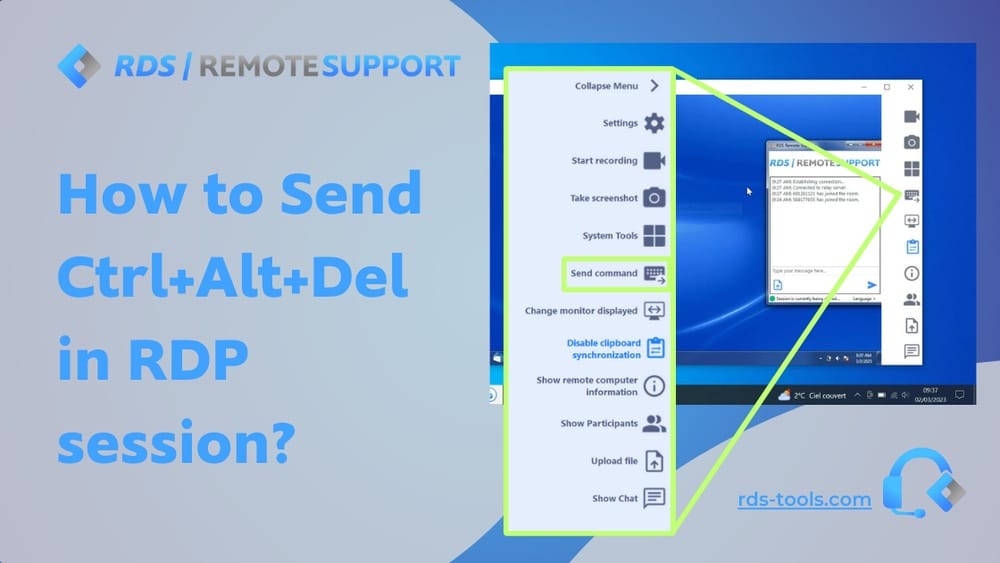
Remote Desktop isn’t the only way to control computers remotely. Tools like TeamViewer, AnyDesk, and Chrome Remote Desktop have their own solutions.
Teamviewer
- Use the “Actions” menu and select “Ctrl+Alt+Del.”
- Useful for cross-platform support (Windows, Mac, Linux).
Detail: TeamViewer allows you to send other key combinations and even reboot the remote PC in “safe mode” from the same menu, which is useful for deep troubleshooting.
Anydesk
- Click the “Actions” button and choose “Ctrl+Alt+Del.”
- Works for remote support and unattended access.
Tip: AnyDesk also lets you configure permissions. If you don’t see the option, check that you have “Send keyboard shortcuts” enabled in the session settings.
Chrome Remote Desktop
- Open the session menu and select “Send Ctrl+Alt+Del.”
- Easy for casual users and quick access.
Extra: Chrome Remote Desktop is ideal for quick personal access, but businesses might need more control or logging features.
Comparison Of Third-party Tools
| Tool | Ease of Use | Cross-Platform | Ctrl+Alt+Del Support |
|---|---|---|---|
| TeamViewer | Very Easy | Yes | Menu Option |
| AnyDesk | Easy | Yes | Menu Option |
| Chrome Remote Desktop | Moderate | Yes | Menu Option |
Non-obvious tip: Some third-party tools allow you to record sessions, which can help with auditing or training new IT staff.

Credit: rds-tools.com
Security Considerations When Using Ctrl+alt+del Remotely
Sending Ctrl+Alt+Del is not just about convenience. It’s a security feature. Windows uses this sequence to prevent malware from faking the login screen. When you use Remote Desktop, you must ensure:
- The remote session is secure (use strong passwords, encryption).
- You do not expose login screens to the public or unauthorized users.
- Avoid using public Wi-Fi unless connected via VPN.
Hidden risk: If you leave a remote session open and unlocked, anyone with access to your computer or network could control the remote machine. Always lock or disconnect when leaving your desk.
Real-world Security Example
A company allowed remote workers to log into servers using Remote Desktop. One worker left their session open on a shared computer. Another person accessed confidential data. Using Ctrl+Alt+Del to lock the session would have prevented this.
Practical advice: Set your remote session to disconnect or lock automatically after a few minutes of inactivity. This reduces risk if you forget.
Troubleshooting: When Ctrl+alt+del Doesn’t Work
Sometimes, shortcuts fail. Here are practical troubleshooting steps:
- Check keyboard mapping: If you use a non-standard keyboard, shortcuts may not work.
- Try menu options: Most remote desktop apps have menu buttons for Ctrl+Alt+Del.
- Update your Remote Desktop client: Outdated software can cause bugs.
- Use On-Screen Keyboard: As described earlier, it works even if shortcuts fail.
- Verify remote session settings: Some remote desktops block secure attention sequences for security.
Advanced troubleshooting: If you use nested remote sessions (remote into a machine, then remote again), shortcuts often only reach the first session. In these cases, the On-Screen Keyboard is usually the most reliable method.
Common Mistakes
- Pressing Ctrl+Alt+Del on your local machine instead of the remote one.
- Using the wrong shortcut for the platform (e.g., Ctrl+Alt+End vs Fn+Control+Option+Delete).
- Not updating remote desktop software, leading to compatibility issues.
- Forgetting to lock the remote session when stepping away.
Pro insight: Some remote apps (like TeamViewer) have settings to block or pass all special key combinations. Adjust these if you consistently have problems.
Advanced Tips For It Pros And Power Users
Multiple Remote Sessions
If you manage several remote desktops at once, shortcuts can get confusing. You may be connected to a server from your laptop, then connect to another server from that server. In this “nested” session:
- Ctrl+Alt+End sends the command to the first remote machine.
- To send it to the second nested session, use the on-screen keyboard or menu option.
Real-world tip: Save time by pinning the On-Screen Keyboard to the taskbar in all remote machines, so you’re always ready.
Automating Ctrl+alt+del
IT administrators sometimes use scripts to automate sending Ctrl+Alt+Del, locking workstations, or logging off users. Windows PowerShell can help:
- Lock workstation:
`rundll32.exe User32.dll,lockworkstation`
- Log off:
`shutdown /l`
These commands can be scheduled or triggered remotely.
Example: You can use Remote PowerShell sessions to lock all user desktops at the end of the workday for better security.
Group Policy Control
In corporate environments, IT can restrict who can use Ctrl+Alt+Del with Group Policy. This prevents unauthorized access or changes.
- Control lock screen behavior.
- Force password changes at regular intervals.
- Restrict access to Task Manager.
Non-obvious benefit: Group Policy can also show custom messages on the Ctrl+Alt+Del screen, reminding users about security or company rules.
Real-world Use Cases
Remote Support
Help desk workers often need to send Ctrl+Alt+Del to unlock machines, reset passwords, or open Task Manager. The correct shortcut saves time and avoids confusion.
Example: A support agent uses TeamViewer to help a user whose PC is locked. Instead of asking for the user’s password, they send Ctrl+Alt+Del and let the user log in privately.
Server Management
System administrators use Remote Desktop to manage servers in data centers. They rely on Ctrl+Alt+Del to log in securely, change passwords, or lock the server when finished.
Best practice: Always lock the remote server before disconnecting, especially in multi-user environments.
Work-from-home
Remote workers log into office desktops via Remote Desktop. Using Ctrl+Alt+Del ensures their session stays secure when stepping away.
Tip: Some companies require two-factor authentication on top of Ctrl+Alt+Del for extra security.
Education And Training
In computer labs, teachers can remotely control student machines and send Ctrl+Alt+Del to reset sessions, lock screens, or fix problems.
Detail: Some educational software lets teachers send Ctrl+Alt+Del to all student PCs at once, saving time during class changes.
Data And Statistics
Remote Desktop usage has grown fast in recent years. According to Microsoft, over 300 million users connect remotely to Windows PCs every month. Security remains a top concern:
- 74% of IT departments say remote access is now essential.
- 68% report at least one security incident related to remote desktop in the past year.
- 90% use secure attention sequences to protect login screens.
These numbers show how important it is to understand the correct way to send Ctrl+Alt+Del.
Interesting fact: Remote work increased by over 400% since 2010, making remote desktop tools and secure login practices a daily reality for millions.
Practical Examples
Example 1: Changing Password Remotely
John works from home and connects to his office PC via Remote Desktop. His password expires. He presses Ctrl+Alt+End, changes his password, and continues working—no hassle.
Lesson: John knew the right shortcut. If he used Ctrl+Alt+Del, he’d only change his local password, not the one on his office PC.
Example 2: Unlocking A Remote Session
Maria’s server is locked. She connects via TeamViewer, uses the Actions menu to send Ctrl+Alt+Del, and logs in.
Detail: If Maria tried Ctrl+Alt+Del on her own keyboard, nothing would happen on the server.
Example 3: Fixing A Frozen Program
David’s application crashes on his remote Windows Server. He presses Ctrl+Shift+Esc to open Task Manager, finds the unresponsive program, and ends it quickly.
Insight: Using Ctrl+Shift+Esc is faster and works even if the secure attention sequence fails.
Non-obvious Insights
Insight 1: Ctrl+shift+esc Is Often Better
Many beginners think only Ctrl+Alt+Del opens Task Manager. But Ctrl+Shift+Esc works directly, skipping the extra menu. This saves time and works in most remote sessions.
Example: If you’re training new staff, teach them this shortcut first. It avoids the confusion of secure attention sequences.
Insight 2: Keyboard Layouts Matter
If your keyboard layout is different from the remote PC (for example, a Mac connecting to Windows), shortcuts may not match. Always check the menu options or use the on-screen keyboard.
Extra: Keyboard mapping problems are common in international teams. If you often switch languages, set both your local and remote keyboards to the same layout for fewer surprises.
Comparison Of Shortcuts For Common Tasks
Here’s a quick look at which shortcuts work best for different remote desktop actions:
| Task | Shortcut | Works In |
|---|---|---|
| Open Security Screen | Ctrl+Alt+End | Windows RDP |
| Open Task Manager | Ctrl+Shift+Esc | Windows RDP, TeamViewer, AnyDesk |
| Lock Workstation | Win+L or PowerShell command | Windows RDP |
| Log Off | shutdown /l | Windows RDP, PowerShell |
Tip: If you ever forget a shortcut, look for an Actions or Session menu in your remote desktop app—most have the option built in.
Credit: monovm.com
Frequently Asked Questions
What Happens If I Press Ctrl+alt+del In A Remote Desktop Session?
Your local computer responds, not the remote one. You must use the correct shortcut (such as Ctrl+Alt+End for Windows RDP) or a menu option to send the command to the remote machine.
Can I Use Ctrl+alt+del In Nested Remote Desktop Sessions?
Yes, but it’s tricky. Ctrl+Alt+End sends the command to the first remote machine. For deeper nested sessions, use the On-Screen Keyboard or the remote desktop app’s menu option.
Is There A Way To Send Ctrl+alt+del From A Mobile Device?
Remote Desktop apps for Android and iOS have a menu option for sending Ctrl+Alt+Del. Tap the menu icon and select the option—no keyboard shortcut needed.
Why Is Ctrl+alt+del Considered A Secure Attention Sequence?
Windows uses Ctrl+Alt+Del to protect login screens and password changes from malware. It cannot be faked by software, so it’s only processed by the operating system.
Where Can I Learn More About Remote Desktop Security?
For more details, see Microsoft’s official remote desktop security guide at Microsoft Security Basics.
Remote Desktop is a powerful tool, but knowing how to send Ctrl+Alt+Del safely and correctly is essential for security and productivity. With the right shortcuts, menu options, and a clear understanding of the platform you use, you can control your remote sessions confidently and avoid common mistakes. This knowledge helps you work faster, solve problems, and protect your data every day.