
Working with Remote Desktop can sometimes feel confusing, especially when you need to perform tasks you do all the time on your local computer. One of the most common challenges is sending the Ctrl+Alt+Del command to a remote machine. This simple shortcut is used for logging in, changing a password, locking the computer, or opening the Task Manager. But when you’re connected to another PC using Remote Desktop Protocol (RDP), pressing Ctrl+Alt+Del on your keyboard affects your local computer instead of the remote one. This can leave users frustrated and wondering how to perform this essential action.
In this guide, you’ll learn exactly how to send Ctrl+Alt+Del on Remote Desktop, no matter what version of Windows you use. We’ll cover different devices, including Windows, Mac, and even mobile. You’ll also discover why the shortcut behaves differently, the security reasons behind it, and what to do if things don’t work as expected.
Whether you’re a beginner or have some experience, you’ll find practical solutions, clear steps, and expert tips to make your remote sessions smoother.
Why Ctrl+alt+del Works Differently On Remote Desktop
When you use Remote Desktop, you are controlling another computer from a distance. But not all keyboard shortcuts pass through to the remote machine. The Ctrl+Alt+Del combination is special because your own operating system intercepts it. This is a security feature—Windows, for example, requires this command to be handled locally to prevent malicious software from capturing your login details. So, pressing Ctrl+Alt+Del in a remote session will trigger the command on your own device, not the remote one.
This behavior is by design. It keeps your local system secure and prevents remote computers from stealing sensitive information. But it also means you need a different method to send this command remotely. Understanding this difference is key to mastering Remote Desktop tasks.
The Standard Shortcut: Ctrl+alt+end
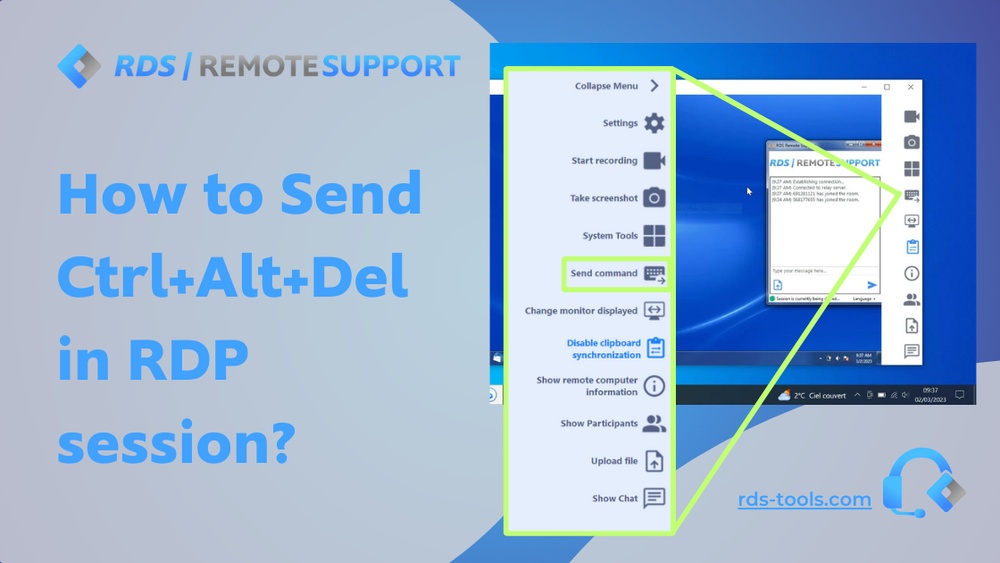
Windows provides an alternative to Ctrl+Alt+Del for Remote Desktop sessions: Ctrl+Alt+End. This shortcut is recognized by the remote computer and opens the same security options window as Ctrl+Alt+Del would on a local machine.
How to use Ctrl+Alt+End:
- Start your Remote Desktop session.
- Press and hold Ctrl and Alt on your keyboard.
- While holding them, press the End key.
You should see the security screen appear on the remote computer, allowing you to lock the PC, sign out, change your password, or open Task Manager.
Key points:
- The End key is usually located at the upper right side of your keyboard.
- On laptops, you might need to press Fn + End if the key shares a spot with another function.
Why does this work? Windows treats Ctrl+Alt+End inside RDP as the equivalent of Ctrl+Alt+Del on the remote system. This only works inside the active Remote Desktop window.
)
Credit: rds-tools.com
Using The On-screen Keyboard
Sometimes, you might not have an End key, or your keyboard layout is different. In these cases, Windows’ On-Screen Keyboard (OSK) can help.
Steps:
- On the remote desktop, click Start and type osk. Press Enter.
- The on-screen keyboard appears.
- Hold Ctrl and Alt on your physical keyboard, and click Del on the on-screen keyboard.
- Alternatively, use your mouse to click Ctrl, Alt, and Del in sequence on the OSK.
This sends the Ctrl+Alt+Del command to the remote system, even if your physical keyboard lacks the right keys.
Bonus tip: If you have a touchscreen, you can tap the keys on the on-screen keyboard for the same effect.
Shortcuts For Different Devices
Different devices and operating systems sometimes require different approaches to send Ctrl+Alt+Del in RDP sessions. Here’s how it works across popular platforms.
Windows Desktop And Laptop
- Primary method: Ctrl+Alt+End
- If End key is missing: Use the On-Screen Keyboard
Mac Computers
If you’re using Microsoft Remote Desktop on a Mac, the key combinations are different. The Mac keyboard does not have an End key, and the Ctrl and Alt keys are mapped differently.
Try these:
- Fn + Control + Option + Delete: This is the closest equivalent.
- If not working, use the On-Screen Keyboard on the remote Windows session.
- Some users remap keys or use third-party apps for easier access.
Mobile Devices (ios, Android)
Remote Desktop apps on mobile devices often include a special button for Ctrl+Alt+Del.
- In Microsoft Remote Desktop for iOS/Android, look for a menu or keyboard icon.
- Tap the icon, then tap Ctrl+Alt+Del from the list of commands.
Thin Clients And Special Keyboards
If you’re using a thin client or a custom keyboard, shortcuts may differ. Always check the user manual or the software’s help section for the correct key combination.
Sending Ctrl+alt+del In Nested Remote Sessions
A less common, but tricky situation is when you connect from your computer to a remote desktop, and from there open another remote desktop session (nested RDP). For example, you control PC1, connect to PC2, and from PC2 connect to PC3.
In this case, even Ctrl+Alt+End might not work as expected. Here are practical solutions:
- On-Screen Keyboard: Open OSK on the innermost remote machine (PC3) and use it to send Ctrl+Alt+Del.
- Remote Desktop Menu: If using Remote Desktop Connection (mstsc.exe), click the menu bar at the top of the session and see if there is a “Send Ctrl+Alt+Del” option.
- Third-Party Tools: Some advanced remote software, like TeamViewer, offers special buttons to send this command.
Nested sessions can introduce lag, so be patient if it doesn’t respond instantly.
Comparison Of Shortcuts Across Platforms
Here’s a clear comparison of how to send Ctrl+Alt+Del in Remote Desktop on different devices.
| Device/OS | Shortcut/Method | Notes |
|---|---|---|
| Windows PC | Ctrl+Alt+End | Works in RDP window; use OSK if End key missing |
| Mac | Fn+Control+Option+Delete | May need OSK or remapping for some keyboards |
| iOS/Android | Special button in RDP app | Look for keyboard or menu icon |
| Thin Client | Varies | Check device documentation |
| Nested RDP | OSK or menu option | Try OSK on the innermost session |
Using The Remote Desktop Menu
In some versions of Windows Remote Desktop, there is a menu bar at the top of the connection window. This menu often includes a “Send Ctrl+Alt+Del” option. Here’s how to use it:
- Move your mouse to the top of the Remote Desktop window to reveal the menu bar.
- Click on the “Ctrl+Alt+Del” button.
This method is simple and avoids confusing keyboard shortcuts, but it’s only available in some RDP clients (mainly the classic Windows “mstsc. exe”).
Alternatives To Ctrl+alt+del
Sometimes you don’t need the entire Ctrl+Alt+Del menu—just one function, like opening Task Manager. There are other shortcuts and methods for common tasks:
- Task Manager: Press Ctrl+Shift+Esc on the remote desktop. This opens Task Manager directly.
- Change Password: Press Ctrl+Alt+End, then select “Change a password.”
- Lock Computer: Use Windows+L, but note it may not always work in RDP sessions.
Understanding these alternatives can save you time and avoid unnecessary steps.
Credit: monovm.com
What To Do If Ctrl+alt+end Doesn’t Work
Occasionally, the standard shortcut might not work due to keyboard settings, software conflicts, or device limitations. Here’s what you can try:
- Check Focus: Make sure the Remote Desktop window is active (clicked on) before pressing the keys.
- Try OSK: Use the On-Screen Keyboard on the remote machine.
- Update RDP Client: Ensure you’re using the latest version of your Remote Desktop software.
- Keyboard Layout: Check if your keyboard layout matches the remote machine’s settings.
- Check for Key Remapping: Some laptops or keyboards have remapped keys—try using Fn or an alternative key combination.
If all else fails, you may need to log off and restart the remote session.
Security Reasons For Ctrl+alt+del Handling
There’s an important reason why Ctrl+Alt+Del is treated differently. Windows uses this shortcut as a secure attention sequence. Only the operating system can respond to this command—no app or malware can intercept it. This ensures that when you log in or enter your password, you’re interacting directly with Windows, not a fake screen or malicious program.
When using Remote Desktop, this security is maintained by blocking the shortcut from reaching the remote machine unless you use the special alternatives described above. This keeps both your local and remote systems safe.
Remote Desktop Tools And Their Shortcut Support
Not all remote access tools handle Ctrl+Alt+Del the same way. Here’s a comparison of popular remote control software:
| Software | Ctrl+Alt+Del Support | Special Method |
|---|---|---|
| Windows Remote Desktop | Yes | Ctrl+Alt+End, OSK, menu button |
| TeamViewer | Yes | Toolbar button |
| AnyDesk | Yes | Toolbar button or menu |
| Chrome Remote Desktop | Partial | Send keys menu, OSK |
| VNC | Partial | Menu option in viewer |
This shows that while most tools offer a way to send Ctrl+Alt+Del, the method can vary, and sometimes you need to look in the toolbar or options menu.
Changing Password Remotely
A common reason to use Ctrl+Alt+Del on Remote Desktop is to change your password. In Windows, this is part of the security menu. To do this remotely:
- Press Ctrl+Alt+End.
- Click Change a password.
- Enter your old and new passwords.
If Ctrl+Alt+End is not possible, use the On-Screen Keyboard method.
Important: If your password expires while you are only able to access the system remotely, and you cannot send Ctrl+Alt+Del or access “Change a password,” contact your IT department for help. Some companies also allow password changes through web portals.
Credit: appuals.com
Common Mistakes When Sending Ctrl+alt+del
Many users run into trouble with this shortcut. Here are mistakes to avoid:
- Pressing Ctrl+Alt+Del on your local computer: This will lock or log off your own device, not the remote one.
- Wrong window focus: If the Remote Desktop window is not active, the command goes to your own computer.
- Missing End key: On some keyboards, especially laptops, the End key is hidden or requires the Fn key.
- Nested remote sessions: Using the shortcut in the wrong window may send it to the wrong system.
To avoid these mistakes, always make sure you’re focused on the correct window, and use the right shortcut for your device.
Advanced Tips And Non-obvious Insights
Even experienced users can overlook some practical tricks:
- Remapping Keys: If your keyboard lacks the End key, you can remap another key to act as End using tools like SharpKeys or built-in Windows features.
- Custom Shortcuts: Some remote desktop clients allow you to create custom keyboard shortcuts in their settings.
- Accessibility: The On-Screen Keyboard is also useful for users with disabilities or broken keyboards.
Another insight: On some systems, the Ctrl+Alt+Break shortcut toggles between windowed and full-screen mode in RDP. This can be useful if you need to access your local desktop quickly.
Troubleshooting Ctrl+alt+del Issues
If you’re having trouble sending the command, try these steps:
- Restart the Remote Desktop session. Sometimes the connection gets stuck, and a fresh session fixes the problem.
- Check for software updates. Old RDP clients may have bugs.
- Test with a different keyboard. Occasionally, a hardware issue or missing key can cause the problem.
- Check group policy settings. In rare cases, administrators may block the Ctrl+Alt+End command for security reasons.
- Try a different remote tool. If nothing works, try using TeamViewer or AnyDesk, which have their own ways to send the command.
If you’re in a business environment, your IT department can often fix these issues quickly.
Real-world Scenarios
Let’s look at some examples where sending Ctrl+Alt+Del is essential:
- Unlocking a remote server: After a reboot, Windows may require a Ctrl+Alt+Del to log in. Using Ctrl+Alt+End (or the menu option) is the only way to access the login screen.
- Changing an expired password: When your password expires, you must use the security screen to set a new one. Remote Desktop shortcuts make this possible without being physically at the computer.
- Accessing Task Manager: If a remote program freezes, Ctrl+Alt+Del or Ctrl+Shift+Esc lets you open Task Manager and end the task.
In each case, knowing the right shortcut saves time and prevents unnecessary support calls.
Benefits Of Mastering Remote Desktop Shortcuts
Learning these shortcuts does more than just solve a small problem—it makes you much more efficient. You can:
- Troubleshoot remote machines faster
- Help colleagues and clients with less confusion
- Avoid being locked out due to password issues
- Save time switching between tasks
Professionals who work with many servers or virtual machines rely on these shortcuts every day.
How To Customize Shortcuts For Remote Desktop
Some advanced users want to change the default shortcuts for easier access. Here’s how:
- Third-party utilities: Programs like AutoHotkey let you create custom keyboard shortcuts that send Ctrl+Alt+End or other commands.
- Remote Desktop settings: Some RDP clients allow you to adjust keyboard mapping in the options menu.
- Windows registry edits: For IT professionals, registry tweaks can adjust how keyboard shortcuts are handled.
Warning: Customization can break other keyboard functions if not done carefully. Always test changes on a non-essential system first.
What If You’re Using A Web-based Remote Desktop?
Some organizations use web-based remote desktops, like Azure Virtual Desktop or Citrix. These platforms often include a special button in the web interface to send Ctrl+Alt+Del.
- Look for a toolbar at the top or side of the browser window.
- Click the “Send Ctrl+Alt+Del” button.
- If not found, use the On-Screen Keyboard inside the remote session.
Pro tip: Bookmark the help or support pages for your remote system. They often have step-by-step guides for sending special keys.
Accessibility And Ctrl+alt+del
For users with disabilities, sending keyboard shortcuts can be a challenge. Windows and other operating systems include accessibility features:
- Sticky Keys: Lets you press one key at a time for combinations like Ctrl+Alt+End.
- Speech recognition: In some cases, you can dictate commands to the OSK.
- Custom input devices: Specialized keyboards and mice can be programmed to send these shortcuts.
If you or someone you support has accessibility needs, explore these features in the system’s settings.
Security Best Practices When Using Remote Desktop
Because Ctrl+Alt+Del is a security feature, it’s important to follow safe practices:
- Only connect to trusted remote machines.
- Always lock your local and remote desktops when leaving your desk.
- Never share your passwords over chat or email.
- Update your Remote Desktop software regularly to fix security bugs.
For more details on security, see the Microsoft official Remote Desktop page: Microsoft Remote Desktop Clients.
Quick Reference: Ctrl+alt+del Methods
To wrap up, here’s a summary of the main methods for sending Ctrl+Alt+Del in Remote Desktop sessions:
- Ctrl+Alt+End — Standard shortcut for Windows RDP.
- On-Screen Keyboard — Works on all platforms.
- Menu Option — Available in some clients.
- Special Button — Common in mobile and web-based apps.
- Custom Shortcuts/Remapping — For advanced users.
Choose the method that fits your device and workflow.
Frequently Asked Questions
How Do I Send Ctrl+alt+del On A Mac In Remote Desktop?
On a Mac, the closest equivalent is Fn + Control + Option + Delete when using Microsoft Remote Desktop. If this doesn’t work, open the On-Screen Keyboard inside the remote Windows session and use your mouse to click the keys.
What If My Laptop Doesn’t Have An End Key?
If your keyboard lacks an End key, use the On-Screen Keyboard on the remote machine, or remap another key to act as End. Some laptops use Fn + Right Arrow as End.
Can I Send Ctrl+alt+del Through A Web-based Remote Desktop?
Yes, most web-based remote desktops include a toolbar button or menu option for Ctrl+Alt+Del. If you can’t find it, open the On-Screen Keyboard inside the remote session.
What’s The Difference Between Ctrl+alt+del And Ctrl+alt+end?
Ctrl+Alt+Del works on your local computer, while Ctrl+Alt+End sends the command to the remote computer when using Windows Remote Desktop. They open the same security options window on their respective machines.
Is It Safe To Use Ctrl+alt+del Over Remote Desktop?
Yes, it’s safe. Windows is designed so that only the operating system, not apps or malware, can respond to Ctrl+Alt+Del. Remote Desktop uses secure methods to handle this command, protecting your credentials.
Mastering Ctrl+Alt+Del on Remote Desktop is a simple skill, but it can make your workflow much smoother and help you avoid common frustrations. With the right shortcut or tool, you’ll always be able to access the functions you need, no matter where you are working.