
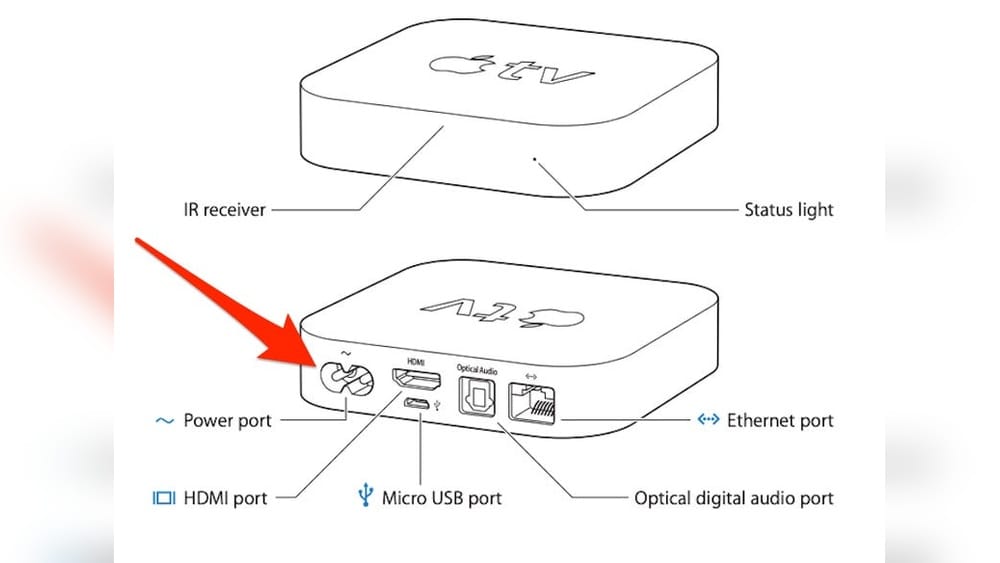
Using an Apple TV is a smooth experience—until you lose the remote. If you’ve ever searched between couch cushions or under the bed for the thin, easy-to-misplace Apple TV remote, you’re not alone. The good news is: you’re not stuck. Apple TV can be controlled in several smart ways, even if the remote is missing or broken. This article will guide you through all practical methods to control your Apple TV without its remote, from using your iPhone to setting up universal remotes and beyond. You’ll learn step-by-step actions, discover helpful tips, and get answers to common questions—so you can get back to streaming your favorite shows without delay.
Why Control Apple Tv Without The Remote?
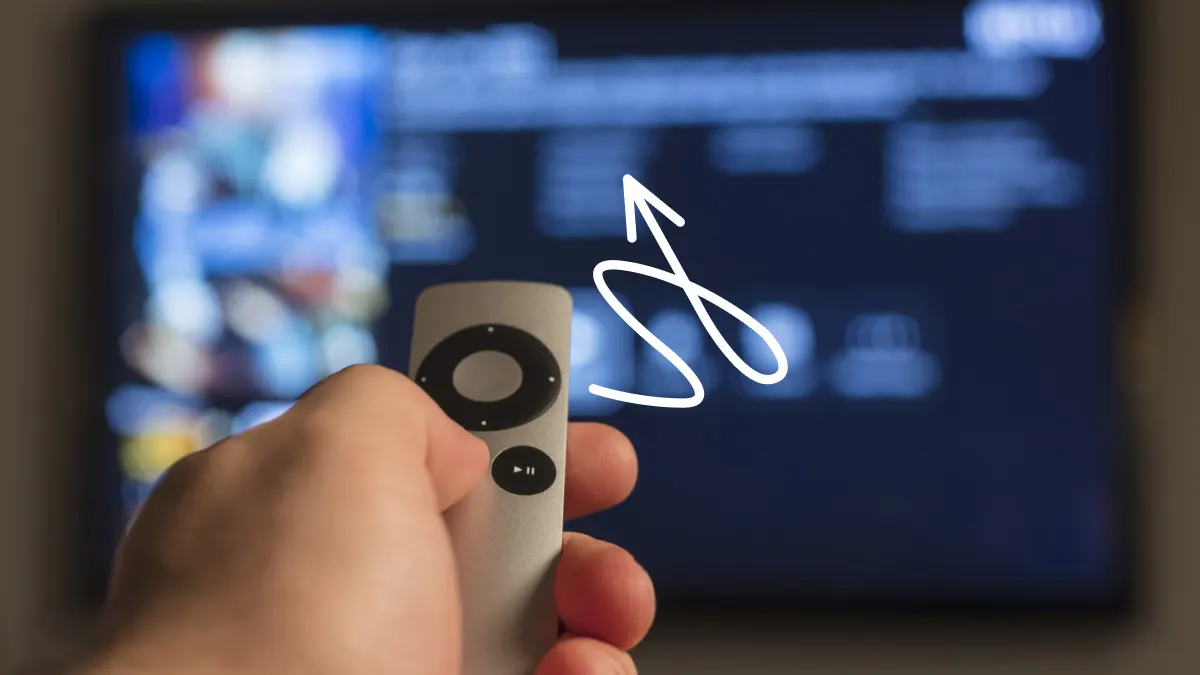
The Apple TV remote, while modern and sleek, is also small and easy to lose. Sometimes it breaks or the battery runs out just when you want to watch something. If you have kids or pets, the risk of a lost or damaged remote grows.
In some cases, you might want a better way to control your Apple TV—one with more features or comfort. That’s why knowing alternative control methods isn’t just a backup plan; it can actually make your Apple TV easier and more fun to use.
Using An Iphone Or Ipad: Apple Tv Remote App
Apple has thought ahead. If you use an iPhone or iPad, you already have a built-in solution. The Apple TV Remote is part of the Control Center in iOS and iPadOS. Here’s how you can use it:
Setting Up The Apple Tv Remote In Control Center
- Open the Control Center: On iPhone X or later, swipe down from the top right corner. On older iPhones, swipe up from the bottom.
- Find the Apple TV Remote icon: If you don’t see it, go to Settings > Control Center and add it.
- Tap the Apple TV Remote: Your device will scan for nearby Apple TVs.
- Select your Apple TV: Tap the name of your Apple TV from the list.
- Enter the 4-digit code: If prompted, enter the code that appears on your TV screen.
Once connected, your iPhone or iPad works as a full Apple TV remote. You can swipe, tap, use the keyboard for typing, and even ask Siri to control playback.
Key Features And Shortcuts
- Touchpad navigation for easy swiping.
- Keyboard input for quick text entry.
- Siri voice commands if your device supports it.
- Volume control (if your TV supports HDMI-CEC).
Hidden Power: More Than A Replacement
One thing many users miss is that typing passwords or searching for movies is much faster on your phone than on the physical remote. You can also turn on closed captions or quickly switch users.
Troubleshooting Tips
If your Apple TV doesn’t appear, make sure:
- Both devices are on the same Wi-Fi network.
- Bluetooth is enabled on your iOS device.
- Your Apple TV is powered on.
If you can’t connect, restart both devices and try again. If the remote app is still missing, update your iOS to the latest version.
Using A Mac To Control Apple Tv
If you own a MacBook, iMac, or Mac mini, you can use your computer to control Apple TV, though with some limitations.
Airplay For Content Control
You can use AirPlay to stream content directly from your Mac to your Apple TV. This is helpful for playing music, videos, presentations, or even mirroring your Mac screen.
- Connect both devices to the same Wi-Fi network.
- Click the AirPlay icon in the menu bar on your Mac.
- Select your Apple TV.
- Choose to mirror or use as a separate display.
This doesn’t give you full remote control (for navigating menus), but you can play, pause, and skip content from your Mac.
Using Third-party Mac Apps
Some apps, like CiderTV or Remote Buddy, claim to let you control Apple TV from your Mac using network commands. These apps often require both devices to be on the same network. However, official support from Apple is limited, and some apps may not work with all Apple TV generations. Use caution and check reviews before installing.
Using Android Phones To Control Apple Tv
Apple’s ecosystem is designed for its own devices, but Android users are not left out. While there’s no official Apple TV remote app for Android, there are workarounds.
Universal Remote Apps
Several third-party apps, such as AnyMote, Universal Remote TV, or ASmart Remote IR, can control Apple TV if your Android phone has an infrared (IR) blaster. If your phone lacks IR, these apps won’t work.
- Download a universal remote app from Google Play Store.
- Set up the app and choose Apple TV or a similar device profile.
- Follow the app’s on-screen instructions to pair with your Apple TV.
Bluetooth Keyboard As A Workaround
If you can’t use an Android app, pairing a Bluetooth keyboard to your Apple TV (explained in detail below) is another way to enter text and navigate menus.
Pairing A Bluetooth Keyboard
A Bluetooth keyboard offers a simple and reliable way to control an Apple TV, especially when entering text or passwords.
How To Pair A Bluetooth Keyboard
- Put your keyboard in pairing mode.
- On Apple TV, go to Settings > Remotes and Devices > Bluetooth.
- Select your keyboard from the list of available devices.
- Follow any pairing prompts (you may need to enter a code).
Once paired, you can use the arrow keys to move, Enter to select, and Esc to go back. Typing is much faster with a real keyboard.
Limitations
- You can’t control volume or turn off the TV.
- Navigation may feel less “natural” than with a touchpad.
Real-world Insight
Many users don’t realize that a keyboard can help if you’re stuck on the Wi-Fi setup screen and can’t connect your remote. This is a common beginner mistake—using a keyboard can save a lot of stress in initial setup situations.
Pairing A Universal Remote
Many universal remotes can control Apple TV. This is useful if you prefer physical buttons or have multiple devices in your home theater.
How To Pair An Ir Universal Remote
Apple TV supports most IR-based universal remotes. Here’s how to set one up:
- On Apple TV, go to Settings > Remotes and Devices > Learn Remote.
- Follow the on-screen instructions. You’ll press buttons on your universal remote to “teach” Apple TV the controls.
- Complete the setup by assigning play, pause, menu, and directional buttons.
Hdmi-cec: Use Your Tv Remote
If your TV supports HDMI-CEC (Consumer Electronics Control), you can use your TV’s own remote to control Apple TV. Most modern TVs support this feature, though it may be called something different (like Anynet+, Bravia Sync, or Simplink).
- Make sure HDMI-CEC is enabled in your TV’s settings.
- Connect Apple TV with an HDMI cable that supports CEC.
- Use your TV remote to control basic Apple TV functions.
Table: Apple Tv Control Methods Vs Features
Here’s a comparison of different control methods for Apple TV:
| Method | Navigation | Text Entry | Voice Control | Volume Control | Setup Required |
|---|---|---|---|---|---|
| iPhone/iPad (Remote App) | Full | Yes | Yes (Siri) | Yes* | Minimal |
| Bluetooth Keyboard | Basic | Yes | No | No | Pairing |
| Universal Remote (IR) | Full | Limited | No | Sometimes | Learning mode |
| TV Remote (HDMI-CEC) | Basic | No | No | Yes | HDMI-CEC setup |
*Volume control works if your TV supports HDMI-CEC.
Two Non-obvious Insights
- IR universal remotes can be taught to control Apple TV even if they’re not labeled as “Apple TV” remotes. Many people assume only “smart” remotes work, but even old remotes can be programmed.
- Bluetooth keyboards can help recover from being locked out—such as when you’re stuck on the setup screen and have no way to pair a remote.
Credit: www.youtube.com
Using Homepod Or Siri To Control Apple Tv
If you own a HomePod (Apple’s smart speaker), you can use Siri voice commands to control your Apple TV hands-free.
How To Use Siri With Apple Tv
- Make sure your HomePod and Apple TV are on the same Apple ID and Wi-Fi network.
- Say commands like “Hey Siri, play ‘Ted Lasso’ on the living room Apple TV” or “Hey Siri, pause Apple TV.”
- You can also ask Siri to fast-forward, rewind, or open apps.
Advanced Voice Commands
You can even tell Siri to turn on subtitles, jump forward 30 seconds, or start a playlist. This is especially useful if your hands are busy or you can’t find any remote.
Limitations
- Siri on HomePod works only for certain Apple TV models (Apple TV 4K or HD with tvOS 15 or later).
- Some commands may be limited by region or language settings.
Using Apple Watch To Control Apple Tv
If you wear an Apple Watch, you have another backup remote on your wrist.
How To Use Apple Watch As A Remote
- Download the Apple TV Remote app from the App Store (on older watchOS; on newer versions, use the built-in feature).
- Open the app, choose your Apple TV, and follow pairing instructions.
- Use the watch’s digital crown and screen to navigate, play, pause, or enter text.
When Is This Useful?
Using your Apple Watch is great for pausing shows quickly or adjusting volume if your phone isn’t nearby. However, the small screen can be limiting for complex tasks.
Using A Wired Keyboard (usb Or Lightning)
Apple TV doesn’t support wired keyboards directly, but if you have an Apple TV 4th generation or later, you can use a Lightning to USB adapter to connect a wired keyboard with limited success. This is not officially supported and may only work for text entry in some apps.
- Connect the adapter to the Apple TV.
- Plug in your wired keyboard.
- Try using the keyboard for text input.
This method is less reliable and is mostly useful if you have no Bluetooth keyboard available.
Recovering From A Lost Remote: Initial Setup Tricks
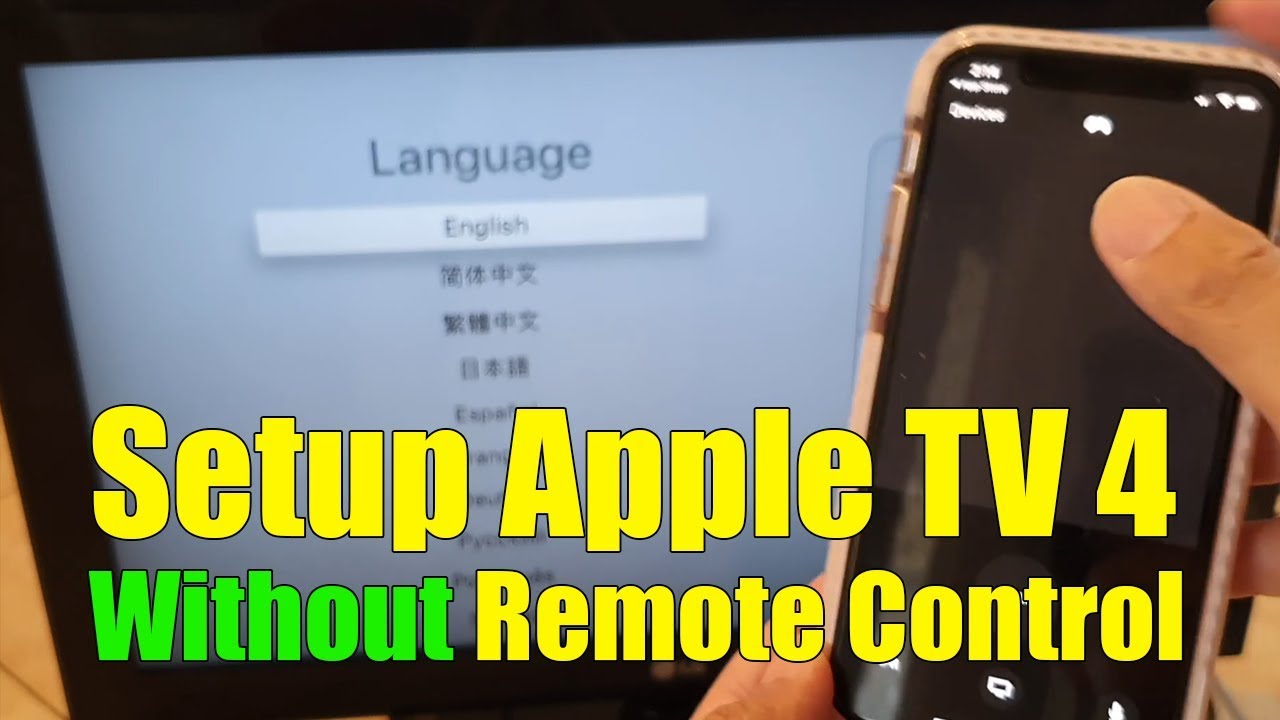
If you just bought a new Apple TV or have done a factory reset, you might be stuck at the setup screen with no remote. Here’s what to do:
Use An Iphone For Initial Setup
- Bring your iPhone close to the Apple TV during setup.
- Follow the on-screen prompts to use your iPhone for configuration and Wi-Fi setup.
- Once connected to Wi-Fi, use the Apple TV Remote in Control Center.
Use A Keyboard For Setup
If your Apple TV supports it, pair a Bluetooth keyboard as described above to complete setup.
Ethernet For Wi-fi Setup
If you’re unable to connect to Wi-Fi without a remote, plug your Apple TV into your router using an Ethernet cable. This allows you to control it from your iPhone or iPad, since both devices will be on the same network.
Setting Up Accessibility Controls
Apple TV offers accessibility features that can help with control, especially for users with disabilities.
Switch Control
With Switch Control, you can use external switches or even your iPhone as a switch to navigate the Apple TV interface.
- Go to Settings > Accessibility > Switch Control.
- Turn on Switch Control and pair your device.
- Use the switch to move through menus and select items.
Voice Control
While Apple TV itself doesn’t have full Voice Control like iOS, you can use Siri voice commands for many tasks.
Table: Accessibility Options For Apple Tv
Below is a summary of accessibility options and their uses:
| Feature | Main Use | Setup Required | Best For |
|---|---|---|---|
| Switch Control | Menu navigation | Settings menu | Motor disabilities |
| Siri Commands | Playback, search | Same Apple ID | Hands-free use |
| Closed Captions | Reading dialogue | Settings menu | Hearing disabilities |
Using Hdmi-cec: Control With Your Tv Remote
Many users overlook HDMI-CEC, a technology that lets your TV remote control Apple TV. Here’s how to check and enable it:
How To Enable Hdmi-cec
- On your TV, go to Settings > HDMI-CEC (may be called Anynet+, Bravia Sync, Simplink, Viera Link, etc. ).
- Turn on HDMI-CEC.
- Restart your Apple TV and your TV.
- Use the TV remote’s arrow keys and OK/Enter to navigate Apple TV menus.
When Hdmi-cec Doesn’t Work
- Not all HDMI cables support CEC—use a high-quality cable.
- Some TVs have CEC off by default. Check your TV’s manual for exact steps.
Hidden Benefit
With HDMI-CEC, turning on your Apple TV can also turn on your TV and switch to the correct input automatically.

Credit: www.youtube.com
Using Smart Home Systems (homekit, Alexa, Google Home)
Apple TV integrates with HomeKit, Apple’s smart home platform. While you can’t fully control Apple TV with Alexa or Google Home, there are some clever tricks.
Homekit Scenes
You can include your Apple TV in HomeKit scenes. For example, you can say, “Hey Siri, movie night,” and have your lights dim, the TV turn on, and Apple TV start playing.
Alexa Or Google Home
Direct control is limited, but you can use smart plugs to turn your Apple TV on/off, or use routines that start other devices at the same time.
Advanced: Using Network Commands And Automation
Some tech-savvy users set up network commands (using apps like Home Assistant or Shortcuts) to automate Apple TV actions. This requires advanced setup and may not be suitable for everyone, but it can give deep control.
- Use Home Assistant with the Apple TV integration to control playback, apps, and volume from a web interface.
- Set up Shortcuts on iOS to trigger actions on your Apple TV.
What To Do If All Else Fails
If you can’t control your Apple TV using any of the above methods, you have a few last options:
- Buy a replacement Apple TV remote from Apple or a third-party seller.
- Borrow a friend’s remote for initial setup, then use another method.
- Reset your Apple TV using iTunes (for older models with a USB port).
Table: Troubleshooting Steps For Common Control Problems
Here’s a quick reference for fixing common Apple TV control issues:
| Problem | Possible Cause | Solution |
|---|---|---|
| iPhone/iPad won’t connect as remote | Different Wi-Fi, Bluetooth off | Connect to same Wi-Fi, enable Bluetooth |
| Universal remote doesn’t work | Wrong setup, IR not aligned | Re-run learning mode, check line of sight |
| HDMI-CEC not working | CEC off, bad cable | Enable CEC, use a certified cable |
| Bluetooth keyboard won’t pair | Not discoverable, battery dead | Charge keyboard, restart Apple TV, try again |
Credit: www.asurion.com
Security And Privacy Considerations
Controlling your Apple TV using networked devices (like your iPhone or HomePod) is generally safe, but keep these points in mind:
- Make sure you’re on a secure Wi-Fi network to prevent unauthorized access.
- Only use official Apple apps or trusted third-party apps to reduce risk of malware.
- If you sell or give away your Apple TV, sign out of all devices and reset to factory settings.
When To Buy A New Remote
While the methods above work well, sometimes the best option is to buy a new remote. Here’s when you should consider it:
- Frequent disconnections or lag with alternate controls.
- Multiple users in your home who prefer physical remotes.
- Advanced gaming—some games require a remote with a touchpad.
Replacement remotes are available from Apple and third-party sellers. Check for compatibility with your Apple TV model.
Frequently Asked Questions
Can I Use My Android Phone As A Full Apple Tv Remote?
There is no official Apple TV remote app for Android, but you can use third-party universal remote apps if your phone has an IR blaster. However, these only offer basic navigation and may not support advanced features like Siri or text entry.
What If My Apple Tv Won’t Connect To Wi-fi And I Have No Remote?
Plug your Apple TV directly into your router with an Ethernet cable. This will allow you to set up and control Apple TV using your iPhone or iPad’s remote app, as both devices will be on the same network.
Does Apple Tv Work With All Universal Remotes?
Most IR-based universal remotes will work with Apple TV if you set them up using the “Learn Remote” feature. However, advanced features like Siri or touchpad navigation are only available on the official Apple TV remote or iOS devices.
Will I Lose Any Features If I Don’t Use The Official Apple Tv Remote?
Some features, like Siri voice search and advanced touch gestures, are only available on the official remote or the Apple TV Remote app on iPhone/iPad. Basic navigation and playback should work with universal remotes or HDMI-CEC.
Can I Use Multiple Control Methods At The Same Time?
Yes, you can use your iPhone, a Bluetooth keyboard, and a universal remote all at once. This can be helpful if you have different users in your home or need to switch between methods quickly.
Controlling Apple TV without its remote is not just possible—it can be easier and more flexible than you think. Whether you use an iPhone, a universal remote, your TV remote, or even a Bluetooth keyboard, you have plenty of options. For some users, combining these methods offers the best experience. If you want more details or troubleshooting tips, the official Apple Support page is a good reference: Apple TV Support.
With a little setup and the right tools, losing your Apple TV remote is no longer a streaming emergency. You can relax and enjoy your shows, knowing you’re in control—no matter where that tiny remote has disappeared to.