
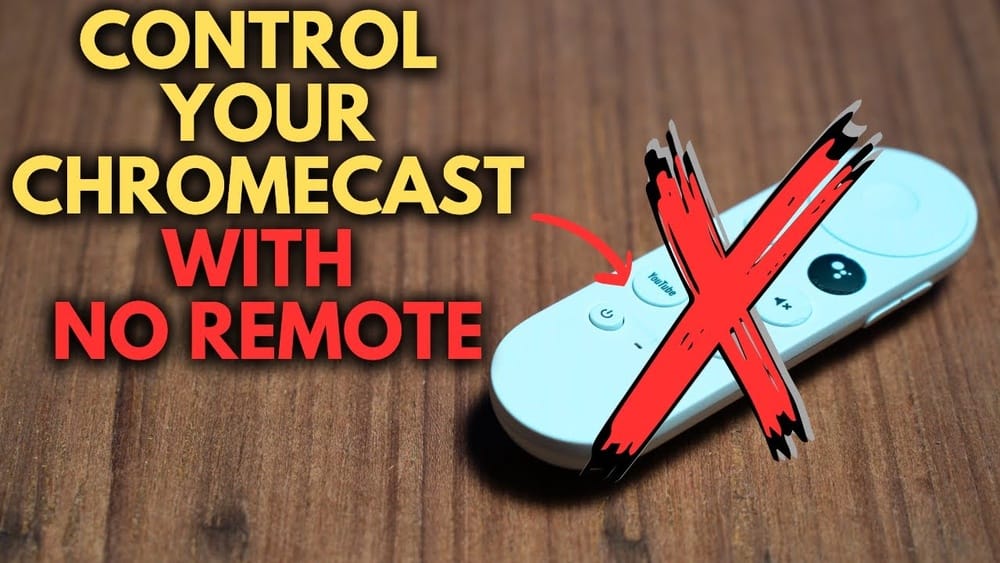
Streaming video is now a normal part of daily life. The Chromecast is a popular device that makes streaming easy. But many people are surprised—Chromecast does not have a physical remote. This can be confusing. How do you control Chromecast? What options do you have? Is it possible to control Chromecast without a remote, and what tricks make it easier?
This guide will show you all the ways to control Chromecast without a remote. You’ll learn step-by-step methods, practical tips, and common mistakes to avoid. Whether you’re new to Chromecast or want to use it better, you’ll find answers here.
We’ll look at smartphone apps, voice controls, browser streaming, and even advanced tricks. You’ll also see how Chromecast compares to other streaming devices. By the end, you’ll feel confident using Chromecast without needing a remote at all.
Understanding Chromecast: Why No Remote?
Chromecast was designed to be simple. Instead of a remote, you use your phone, tablet, or computer to send videos to your TV. This is called casting. You open an app (like YouTube or Netflix), tap the Cast button, and the video appears on your TV. Your device becomes the controller.
This design has some big advantages:
- You can control Chromecast from anywhere in the house.
- No need to keep track of a remote.
- Your phone or tablet already has all the apps you need.
But there are also challenges:
- Not everyone finds the Cast button quickly.
- Some people miss the feel of a physical remote.
- You may not know all the control options.
Let’s explore every method to control Chromecast without a remote.
Using Your Smartphone Or Tablet
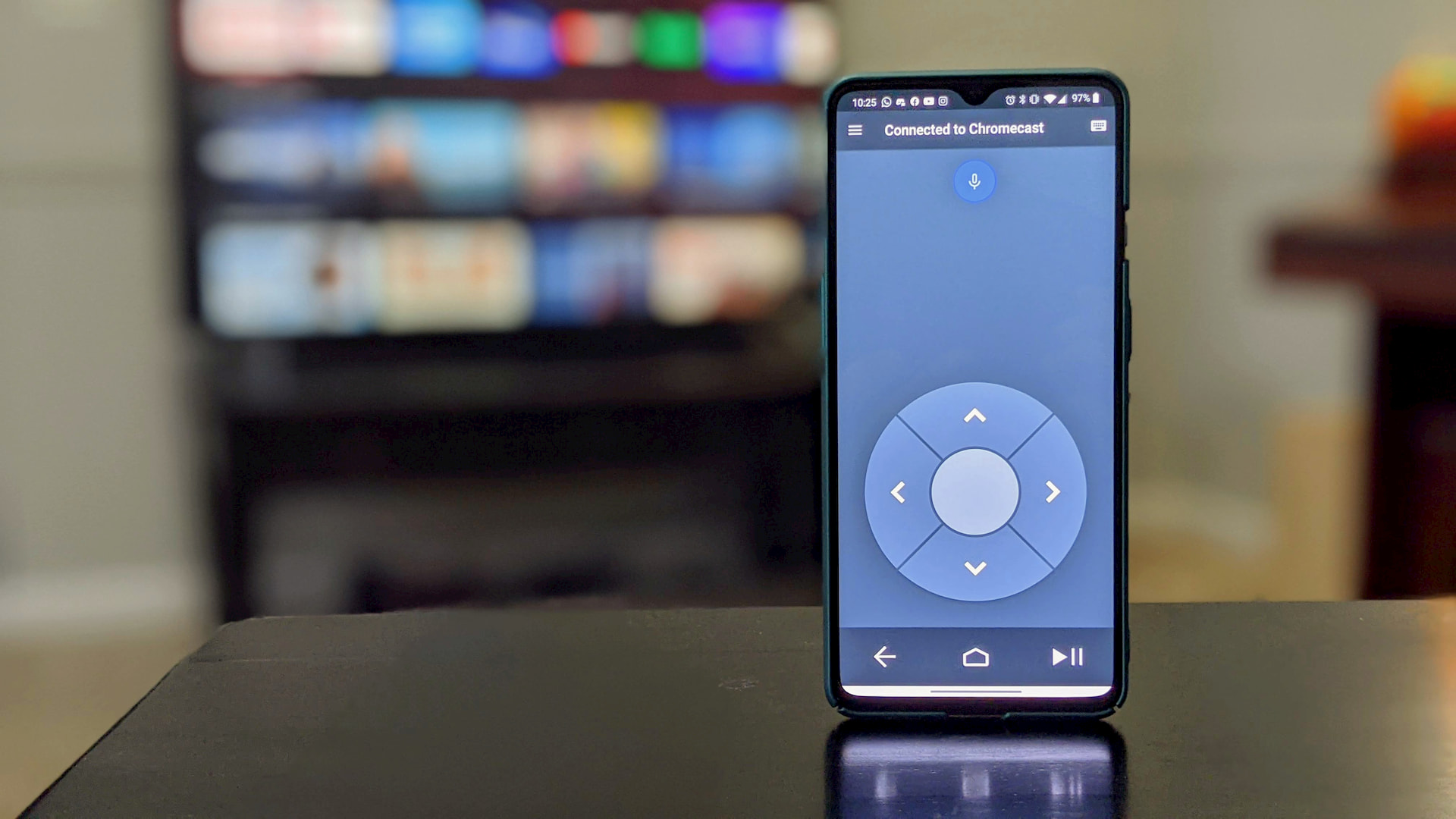
Your phone or tablet is the main way to control Chromecast. You don’t need anything extra—just your normal device and Wi-Fi.
Chromecast Setup
Before you can control Chromecast, make sure it’s set up:
- Plug Chromecast into your TV’s HDMI port.
- Connect the power cable.
- Download the Google Home app on your phone or tablet.
- Open Google Home, follow the instructions to connect Chromecast to your Wi-Fi.
- Once setup is complete, your Chromecast appears in the app.
Casting From Apps
Most streaming apps support Chromecast. Look for the Cast icon (rectangle with waves) in the app. Here’s how to use it:
- Open the app (YouTube, Netflix, Spotify, etc. ).
- Find the Cast icon.
- Tap the icon, select your Chromecast device.
- Choose a video, song, or show.
- The content plays on your TV. Your phone becomes the remote.
You can:
- Pause, play, fast-forward, rewind
- Change volume (if your TV supports HDMI-CEC)
- Switch content
Google Home App Controls
The Google Home app is a powerful controller:
- You see all active Chromecast devices.
- You can start or stop casting.
- Adjust volume.
- Stop casting from any device.
The app also lets you group multiple Chromecast devices for multi-room audio. This is useful if you have Chromecast Audio or Google Nest speakers.
Common Beginner Mistake
Many people forget that you can cast from almost any app—not just streaming video. Try casting photos, music, or even presentations. Some apps hide the Cast button until you start playing content. Look carefully for the icon.
Credit: chromeunboxed.com
Using Your Computer: Chrome Browser
You don’t need a phone to control Chromecast. If you have a computer with the Chrome browser, you can stream to Chromecast directly.
Casting A Browser Tab
To cast from Chrome:
- Open Chrome browser on your computer.
- Click the three dots menu (top right).
- Select Cast.
- Choose your Chromecast device.
- Pick “Cast tab” to stream the current browser tab.
This is great for:
- Streaming websites that don’t have Chromecast apps
- Watching videos online
- Showing photos or presentations
Casting Local Files
You can also cast files stored on your computer:
- Drag a video file into a Chrome tab.
- Use the Cast menu to send it to Chromecast.
- Supported formats: MP4, WebM, and a few others.
Casting The Entire Desktop
For advanced users, you can cast your entire desktop:
- In the Cast menu, choose “Cast desktop.”
- Select your device.
- Everything on your screen will appear on the TV.
This is useful for:
- Video calls
- Gaming
- Demonstrations
Data Comparison: Casting Methods
Here’s a quick comparison of casting methods from Chrome.
| Method | Best For | Limitations |
|---|---|---|
| Cast Tab | Websites, online videos | Low video quality for fast-moving content |
| Cast File | Local video files | Limited to supported formats |
| Cast Desktop | Presentations, video calls | Can lag, lower quality |
Pro Tip
Casting from Chrome uses your computer’s Wi-Fi. If your network is slow, video can lag. For smooth streaming, use a strong Wi-Fi signal and close other programs.
Voice Control With Google Assistant
If you have a Google Nest speaker or phone with Google Assistant, you can control Chromecast using your voice. This is one of the easiest hands-free methods.
Setting Up Voice Control
- Make sure Chromecast and Google Assistant device are on the same Wi-Fi.
- Link your streaming accounts in the Google Home app.
- Use voice commands like:
- “Hey Google, play Stranger Things on Netflix on Living Room TV.”
- “Hey Google, pause the TV.”
- “Hey Google, play music on Chromecast.”
Supported Commands
You can:
- Play, pause, stop, rewind, fast-forward
- Adjust volume
- Change input (if your TV supports it)
- Launch apps
Limitations
Voice control works best with popular streaming apps. Some apps or local files may not respond to voice commands. You also need to speak clearly and use the exact name of the show or song.
Data Table: Voice Control Features
Let’s see which voice commands are most reliable.
| Command | Works With | Reliability |
|---|---|---|
| Play video | Netflix, YouTube, Disney+ | High |
| Pause/Play | All supported apps | High |
| Volume up/down | TVs with HDMI-CEC | Medium |
| Open app | Most apps | Medium |
Non-obvious Insight
You can use routines in Google Assistant to control multiple devices at once. For example, “Movie night” could dim lights and start Chromecast. Many users never try this.
Hdmi-cec: Using Your Tv Remote
Many TVs have a feature called HDMI-CEC. This lets your TV remote control devices connected by HDMI, like Chromecast.
How Hdmi-cec Works
HDMI-CEC stands for Consumer Electronics Control. When enabled:
- You can use your TV remote to play/pause Chromecast.
- Sometimes, you can change volume.
- You can turn on the TV and switch input when casting.
How To Enable Hdmi-cec
- Go to your TV’s settings.
- Look for HDMI-CEC. It may have a brand name like Anynet+ (Samsung), Bravia Sync (Sony), Simplink (LG).
- Turn it on.
- Use your TV remote with Chromecast.
Table: Hdmi-cec Features By Brand
| Brand | HDMI-CEC Name | Chromecast Controls |
|---|---|---|
| Samsung | Anynet+ | Play/Pause, Volume |
| Sony | Bravia Sync | Play/Pause, Volume |
| LG | Simplink | Play/Pause |
| Vizio | CEC | Play/Pause |
Common Mistake
Many users don’t realize HDMI-CEC must be enabled manually. If your TV remote isn’t controlling Chromecast, check the settings.
Universal Remote Apps
If you prefer a remote-like experience, you can use universal remote apps on your phone or tablet. These apps simulate a physical remote and can control Chromecast and other devices.
Choosing A Universal Remote App
Look for apps that support Chromecast. Examples include:
- Google Home
- AnyMote
- Unified Remote
- Peel Smart Remote
Some apps use Wi-Fi, others use built-in IR blasters (less common on modern phones).
Setup
- Download the app.
- Connect to the same Wi-Fi as Chromecast.
- Follow instructions to add Chromecast.
- Use the app’s remote interface to control playback, volume, and more.
Non-obvious Insight
Universal remote apps can control multiple devices—TV, soundbar, streaming box. You can switch between remotes in the app. This is useful for home theaters.
Limitations
Not all universal remote apps support Chromecast directly. Some only work with TVs or other streaming devices. Always check compatibility before downloading.
Credit: www.thegreenfactor.eu
Advanced Tricks: Automation And Customization
Once you master basic controls, you can go further. Chromecast supports automation and custom controls.
Automating Chromecast With Smart Home Tools
Tools like IFTTT (If This Then That) or Home Assistant let you automate Chromecast actions:
- Start streaming at a certain time.
- Pause playback when you leave the house.
- Change volume based on events.
To use automation:
- Sign up for IFTTT or install Home Assistant.
- Connect Chromecast and Google Home accounts.
- Set up simple recipes or automations.
Creating Custom Routines
In the Google Home app, you can create routines:
- “Good morning” plays news on Chromecast.
- “Party time” starts a playlist and adjusts lights.
Routines save time and make Chromecast part of your smart home.
Example: Movie Night Routine
Set up a routine that:
- Turns on Chromecast
- Switches TV input
- Dims smart lights
- Plays a movie
This adds convenience and impresses guests.
Common Mistake
Many users don’t explore routines or automation. They miss out on unique ways to control Chromecast without a remote.
Troubleshooting: Common Problems And Solutions
Chromecast is usually reliable, but problems can happen. Here are frequent issues and how to solve them.
Chromecast Not Responding
- Restart Chromecast by unplugging it, wait 10 seconds, plug back in.
- Restart your router.
- Make sure your phone and Chromecast are on the same Wi-Fi.
Cast Icon Not Showing
- Make sure your app supports Chromecast.
- Update the app and phone software.
- Restart the app.
Playback Lag Or Buffering
- Move Chromecast closer to the Wi-Fi router.
- Reduce other devices using the network.
- Use 5GHz Wi-Fi if possible.
Device Not Found In Google Home
- Check Wi-Fi network.
- Restart Google Home app.
- Factory reset Chromecast if needed (hold button for 25 seconds).
Volume Not Changing
- Enable HDMI-CEC in TV settings.
- Use Google Home app to adjust volume.
Table: Quick Troubleshooting Steps
| Problem | Solution | Success Rate |
|---|---|---|
| No Cast Icon | Update app, restart device | 80% |
| Playback Lag | Improve Wi-Fi, close apps | 70% |
| Chromecast Not Found | Restart, check Wi-Fi | 90% |
| Volume Control Issues | Enable HDMI-CEC | 60% |
Comparing Chromecast To Other Streaming Devices
Chromecast is unique because it relies on your phone, tablet, or computer instead of a remote. Let’s see how it compares to other devices.
Roku And Fire Tv
- Roku and Fire TV both have physical remotes.
- Apps on the device, not your phone.
- Voice control available (some models).
Apple Tv
- Has a remote, but also supports casting (AirPlay).
- More expensive, but includes extra features.
Chromecast
- No physical remote.
- Control from phone, tablet, computer, or voice.
- Cheaper than most competitors.
Comparison Table: Streaming Devices
| Device | Remote Included | Control Options | Price Range |
|---|---|---|---|
| Chromecast | No | Phone, voice, TV remote (HDMI-CEC) | $30–$50 |
| Roku | Yes | Remote, phone app, voice | $30–$100 |
| Fire TV | Yes | Remote, phone app, Alexa | $40–$120 |
| Apple TV | Yes | Remote, AirPlay, Siri | $100–$180 |
Non-obvious Insight
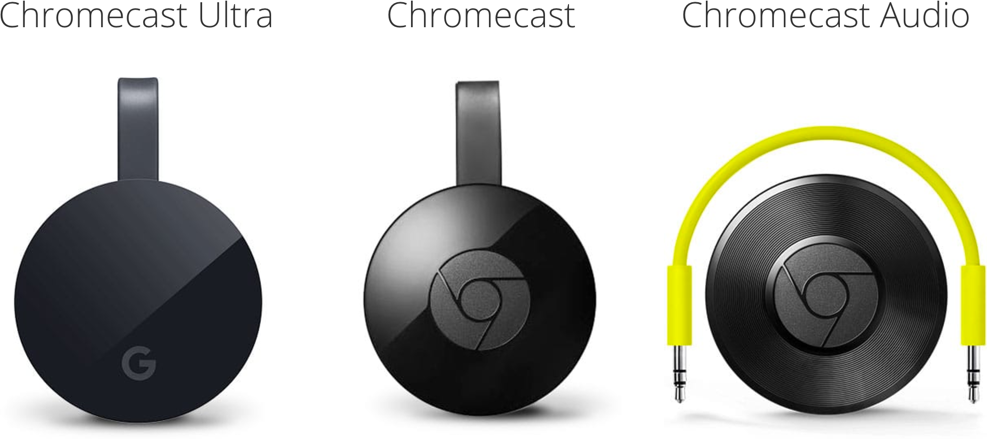
If you want a remote for Chromecast, consider the Chromecast with Google TV. It comes with a remote and combines casting with regular streaming apps. Many users don’t realize this option exists.
Practical Tips For Better Chromecast Control
To make the most of Chromecast without a remote, try these tips:
- Organize your streaming apps on your phone for quick access.
- Set up voice routines for frequent actions.
- Use Chrome browser for casting web content.
- Enable HDMI-CEC for basic TV remote control.
- Experiment with universal remote apps if you want remote-like control.
- Keep your Wi-Fi strong—poor signal causes lag.
- Try automation tools for advanced actions.
- Group Chromecast devices for multi-room audio.
- Always keep your apps and Chromecast firmware up to date.
- If you travel, use guest mode so friends can cast without joining your Wi-Fi.
Frequently Asked Questions
Can I Control Chromecast From My Iphone?
Yes, you can use your iPhone to control Chromecast. Download the Google Home app from the App Store. Many streaming apps on iPhone support Chromecast. Look for the Cast icon and follow the steps in this article. You can also use Google Assistant voice commands on iPhone.
Is It Possible To Use A Physical Remote With Chromecast?
You can use your TV’s remote if your TV supports HDMI-CEC. Many modern TVs do. Enable HDMI-CEC in your TV settings. You can control basic functions like play, pause, and sometimes volume. There are also universal remote apps for your phone that simulate a remote.
Why Does My Chromecast Not Show Up In The Google Home App?
If Chromecast is missing from Google Home:
- Make sure your phone and Chromecast are on the same Wi-Fi.
- Restart both devices.
- Check that Chromecast is powered and connected to the TV.
- Update the Google Home app.
- If still missing, try a factory reset.
Can I Cast From Apps That Don’t Have A Cast Button?
Yes, you can cast from the Chrome browser on your computer. Open Chrome, click the menu, select Cast, and choose your device. You can cast a browser tab, local files, or your entire desktop. This works for websites and content that don’t have a Cast button.
What Is Guest Mode On Chromecast?
Guest mode lets visitors cast to your Chromecast without joining your Wi-Fi. Enable guest mode in the Google Home app. Chromecast uses a PIN to allow access. This is useful for parties or when friends visit. It keeps your Wi-Fi secure while allowing guests to use Chromecast.
Final Thoughts
Chromecast is easy to control—even without a remote. Your phone, tablet, computer, and voice are powerful tools. With the Google Home app, Chrome browser, and voice commands, you get flexibility and convenience. Features like HDMI-CEC and universal remote apps add even more options. Smart routines and automation unlock advanced control. If you ever have trouble, simple troubleshooting steps can solve most problems.
Many users miss out on routines, automation, or multi-room audio. Try these features—they make Chromecast even more useful. Compared to devices with remotes, Chromecast is lightweight, affordable, and flexible. For more tips and official help, visit Google Chromecast Support.
Now you know every way to control Chromecast without a remote. Streaming should be easy—enjoy your content on the big screen with confidence and creativity.

Credit: www.youtube.com