
If you own a Dyson fan and have lost or broken the remote, you might feel stuck. Modern Dyson fans are known for their innovative technology and stylish design, but many users depend on the remote to control settings. When the remote is missing, it can seem difficult to adjust speed, oscillation, or timer. Luckily, there are several ways to control your Dyson fan without the remote. This article will guide you through practical solutions, step-by-step instructions, and tips to make sure you get the most out of your fan. Whether you want to use manual controls, connect through your smartphone, or explore smart home integrations, you’ll find answers here. Plus, you’ll learn about common mistakes, hidden features, and how to prevent future problems. Let’s discover how you can take back control of your Dyson fan—even without the original remote.
Manual Controls On Dyson Fans
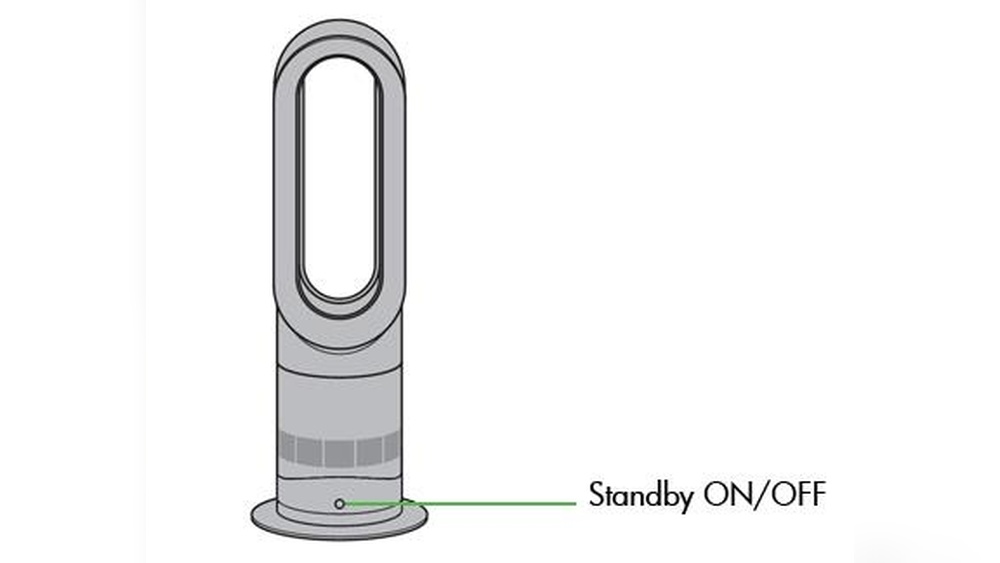
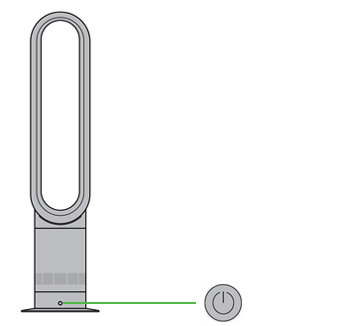
Many Dyson fans include physical buttons on the device itself. These buttons can help you manage basic functions without a remote. While not all features may be accessible, you can still use your fan for cooling or air purification.
Locating Physical Buttons
Dyson fan models like the AM06, AM07, and Pure Cool series usually have buttons near the base or on the top edge. Look for:
- Power button: Turns the fan on or off.
- Speed control button: Changes airflow speed.
- Oscillation button: Starts or stops rotation.
If you cannot find the buttons, check the user manual or look for small icons. Some newer models hide buttons for a sleek look, but they are usually easy to spot once you know what to look for.
Using Manual Controls
Here’s how to use common manual controls:
- Power: Press the main button to turn the fan on. Hold for a few seconds to turn it off.
- Speed: Tap the speed button to cycle through available settings (usually 1 to 10).
- Oscillation: Press the oscillation button to begin rotating. Press again to stop.
For fans with a touch-sensitive ring (like the Pure Cool Link), swipe your finger around the ring to adjust airflow.
Limitations Of Manual Controls
Manual controls are useful but limited. You cannot set timers, activate night mode, or access advanced purification settings without the remote or app. If your fan supports extra functions, you’ll need another method to unlock them.
Using The Dyson Link App
Dyson developed the Dyson Link app to give users more flexibility. If your fan is Wi-Fi enabled, you can control it from your phone or tablet. This works for most Dyson Pure Cool, Pure Hot+Cool, and newer models.
Setting Up The Dyson Link App
To use the app, follow these steps:
- Download the app: Available for iOS and Android from the App Store or Google Play.
- Connect to Wi-Fi: Make sure your Dyson fan is within Wi-Fi range.
- Register your device: Open the app, create an account, and add your fan.
- Pair the fan: Follow on-screen instructions to connect the fan to your phone. Usually, you press and hold a button on the fan until the Wi-Fi light blinks.
Once connected, the app allows you to:
- Change fan speed
- Toggle oscillation
- Set timers
- Adjust air purification settings
- Monitor air quality
Benefits Of App Control
The Dyson Link app offers more features than manual buttons. You get real-time air quality data, can schedule operation, and control your fan from anywhere. This is especially helpful if you’re away from home or want to automate cooling.
Troubleshooting App Setup
Sometimes, pairing fails or the fan won’t connect. Try these tips:
- Restart your router
- Make sure the fan’s firmware is updated
- Move the fan closer to the router
- Use the correct Wi-Fi band (most Dyson fans use 2.4GHz)
If you still have trouble, visit the official Dyson support page or check forums for advice.
Credit: support.dyson.co.nz
Smart Home Integration
If you have smart home devices, you might be able to control your Dyson fan through platforms like Alexa, Google Assistant, or Apple HomeKit. This is possible for newer Wi-Fi enabled Dyson fans.
Connecting To Alexa Or Google Assistant
First, link your Dyson fan to the Dyson Link app. Then, add the Dyson skill or action to your smart home platform. For example:
- With Alexa: Enable the Dyson skill, log in, and discover devices. You can say, “Alexa, turn on the Dyson fan.”
- With Google Assistant: Add Dyson to your Google Home app, then use voice commands.
What You Can Control
Through smart home integration, you can:
- Turn the fan on or off
- Adjust speed
- Set oscillation
- Check air quality
Some features may not be available for older models. Make sure your fan supports smart home control by checking Dyson’s official compatibility list.
Table: Smart Home Platform Compatibility
Here’s a quick comparison of Dyson fan compatibility with popular smart home platforms:
| Dyson Fan Model | Alexa | Google Assistant | Apple HomeKit |
|---|---|---|---|
| Pure Cool Link | Yes | Yes | No |
| Pure Hot+Cool | Yes | Yes | No |
| AM06/AM07 | No | No | No |
| TP04/DP04 | Yes | Yes | No |
Note: Only Wi-Fi enabled fans support smart home integration.
Universal Remote Solutions
If you want a physical remote but don’t have the original, consider a universal remote. Many universal remotes can be programmed to work with Dyson fans, especially infrared models like the AM06 and AM07.
Choosing A Universal Remote
Look for remotes that support infrared learning. This means the remote can “learn” signals from another device. Popular brands include Logitech Harmony, GE, and RCA. Check that your Dyson fan uses infrared (not Bluetooth or Wi-Fi) before buying.
Programming A Universal Remote
Follow these steps:
- Put the remote in learning mode
- Point the remote at the Dyson fan
- Press the desired button (e.g., power, speed)
- Test the commands
If you have access to another Dyson remote, use it to teach the universal remote. If not, try searching for Dyson codes in the remote’s manual.
Limitations
Universal remotes may not support all Dyson functions. Usually, you can control power, speed, and oscillation. Advanced features like air purification settings or timers may not be available.

Credit: www.youtube.com
Using Third-party Apps And Devices
Some tech enthusiasts use third-party apps or infrared blasters to control their Dyson fans. This method is not official, but it can work for older models.
Infrared Blaster Apps
If your phone has an infrared sensor, you can download apps like ZaZa Remote or AnyMote. These apps let you send commands to your Dyson fan. Select Dyson from the app’s device list or enter remote codes.
Smart Ir Blasters
Devices like BroadLink or Xiaomi Mi Smart Home IR Blaster can control multiple appliances. Connect the IR blaster to your Wi-Fi, set up the Dyson fan, and use the companion app to control it.
Table: Dyson Fan Control Methods (without Remote)
Here’s a comparison of different ways to control your Dyson fan without the original remote:
| Method | Supported Models | Features Accessible | Ease of Setup |
|---|---|---|---|
| Manual Buttons | All | Power, Speed, Oscillation | Easy |
| Dyson Link App | Wi-Fi Models | All Features | Moderate |
| Smart Home Voice | Wi-Fi Models | Most Features | Moderate |
| Universal Remote | Infrared Models | Basic Features | Moderate |
| IR Blaster Apps | Infrared Models | Basic Features | Moderate |
Advanced Tips For Maximizing Dyson Fan Control
Controlling a Dyson fan without the remote can be tricky. Here are some advanced tips to make your experience smoother.
Resetting The Fan
If your fan isn’t responding or you want to change Wi-Fi settings, try a factory reset. Usually, you hold down the power button for 10 seconds. The fan will restart and be ready for new setup. Always check your model’s manual for exact instructions.
Using Multiple Methods
It’s possible to combine different control methods. For example, you can use manual buttons for quick adjustments and the Dyson Link app for advanced settings. If you use a smart IR blaster, you can control the fan from your phone and integrate it with routines.
Hidden Functions
Some Dyson fans have hidden features. For example, holding the oscillation button may activate a special mode. Experiment with button combinations or check online forums for tips.
Non-obvious Insights
- Wi-Fi models can be controlled even if the remote is lost—as long as you have the app and are connected to Wi-Fi.
- Universal remotes work only for infrared models; if your fan is Bluetooth or Wi-Fi only, universal remotes won’t help.
Many beginners overlook these facts and waste money on incompatible devices.
Maintaining And Protecting Your Dyson Fan
Controlling your fan is only part of the story. Maintenance is important for long-term use. Here’s how to keep your fan in top condition.
Cleaning The Fan
Dust and dirt can reduce airflow and make buttons sticky. Clean your Dyson fan every month:
- Unplug the fan
- Wipe the surface with a soft, damp cloth
- Use a brush for tight spaces
- Avoid harsh chemicals
Preventing Remote Loss
Remote loss is common. Try these tips:
- Attach a remote holder to your fan
- Use sticky pads or magnets
- Designate a spot for remotes in your home
Buying Replacement Remotes
If you prefer the original remote, Dyson sells replacements. Visit their website or contact customer service. Prices range from $15 to $40, depending on the model.
Common Mistakes And How To Avoid Them
Many users make errors when trying to control their Dyson fan without a remote. Here are the most frequent mistakes—and how to avoid them.
- Buying the wrong universal remote: Check if your fan uses infrared before purchasing.
- Trying Bluetooth remotes on non-compatible fans: Dyson fans rarely use Bluetooth for control.
- Skipping firmware updates: New features and bug fixes often require updates. Use the Dyson Link app to check for updates.
- Ignoring manual controls: Some users forget the physical buttons, which are always available.
- Not resetting the fan before setup: If your fan won’t connect to Wi-Fi, reset it and try again.
Comparing Dyson Fan Control Methods
To help you decide which method is best, here’s a summary comparison:
| Control Method | Cost | Setup Time | Accessibility | Advanced Features |
|---|---|---|---|---|
| Manual Controls | Free | Instant | Anyone | No |
| Dyson Link App | Free | 10-20 min | Smartphone users | Yes |
| Smart Home Integration | Free | 20-30 min | Smart home users | Partial |
| Universal Remote | $10-$50 | 10-30 min | Anyone | No |
| IR Blaster/Apps | $20-$70 | 20-40 min | Tech users | No |
Choose the option that fits your needs, budget, and technical skill.
Real-life Examples
Let’s look at some real-world situations where users controlled their Dyson fans without the remote.
Example 1: Manual Control Success
Sarah lost her remote for a Dyson AM07. She used the physical buttons to turn the fan on, adjust speed, and start oscillation. While she couldn’t set timers, she found the manual controls covered most daily needs.
Example 2: App Integration
John owns a Dyson Pure Cool TP04. After losing his remote, he downloaded the Dyson Link app. He was able to monitor air quality, set schedules, and control the fan from his phone—even when he was away from home.
Example 3: Universal Remote Frustration
Mike bought a universal remote for his Dyson Pure Hot+Cool. He discovered the fan was Wi-Fi only and did not support infrared. Mike had to switch to app and smart home control instead. This highlights the importance of checking compatibility before buying.
Example 4: Smart Home Voice Control
Lisa connected her Dyson Pure Cool Link to Alexa. She set up routines to turn the fan on at bedtime and adjust speed automatically. No remote needed, just her voice.
Preventing Future Remote Problems
Remote loss is common, but you can minimize problems by:
- Keeping the remote in a dedicated holder
- Using app and smart home integration as backups
- Registering your fan with Dyson for easy support
If you travel or move often, consider attaching the remote to the fan with Velcro or a lanyard.
Dyson Official Support And Resources
If you run into trouble, Dyson offers official support. Visit their website for manuals, troubleshooting guides, and replacement parts. For detailed technical info, see Dyson Support.

Credit: www.youtube.com
Frequently Asked Questions
How Can I Turn My Dyson Fan On Without The Remote?
Most Dyson fans have a power button on the unit. Press this button to turn the fan on or off. For advanced models, you might find additional buttons for speed and oscillation.
Is It Possible To Control A Dyson Fan With My Smartphone?
If your Dyson fan supports Wi-Fi, you can use the Dyson Link app to control settings from your phone. Download the app, connect your fan, and use your phone to adjust speed, oscillation, and more.
Can I Use A Universal Remote With My Dyson Fan?
Yes, but only for infrared models like AM06 and AM07. Make sure your universal remote supports infrared learning. Wi-Fi or Bluetooth-only Dyson fans are not compatible with universal remotes.
What Should I Do If My Dyson Fan Won’t Connect To Wi-fi?
First, reset your fan by holding the power button for 10 seconds. Move the fan closer to your router and make sure you use the correct Wi-Fi band. Update the fan’s firmware if needed.
Where Can I Buy A Replacement Dyson Remote?
You can buy a replacement remote from Dyson’s official website or authorized retailers. Prices vary by model. Always check compatibility before purchasing.
Controlling your Dyson fan without a remote is easier than you might think. Whether you use manual buttons, smartphone apps, smart home integration, or universal remotes, you have options. With the right setup, you can enjoy the comfort and convenience of your Dyson fan—even when the original remote is missing.
Remember to check compatibility, use official resources, and take steps to prevent remote loss in the future. Your Dyson fan can stay cool and functional, no matter what.