
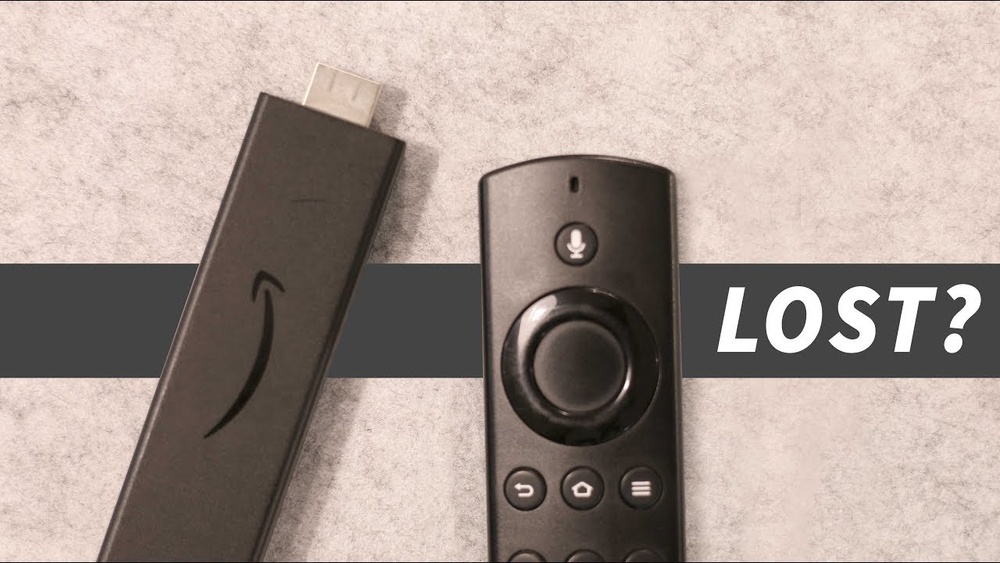
Losing or breaking your Fire TV remote can be frustrating, especially when you want to relax and watch your favorite show. Many people worry that they cannot use their Fire TV without the remote. But the truth is, you have several reliable ways to control your Fire TV, even if the physical remote is lost, broken, or out of batteries. With technology and a few simple tools, you can keep enjoying your streaming experience with little hassle.
In this guide, you’ll discover all the effective methods to control Fire TV without a remote. We’ll explore mobile apps, voice assistants, physical buttons, and even creative solutions using your TV or other devices. Along the way, you’ll find practical tips, common troubleshooting advice, and some useful comparisons to help you choose the best method for your situation.
Whether you’re a tech beginner or experienced user, you’ll learn everything you need to stay in control of your entertainment, no remote required.
Why You Might Need To Control Fire Tv Without A Remote
Most Fire TV users rely on the included remote for everyday navigation. However, remotes are small and easy to lose. Batteries can run out at the worst moments. Sometimes remotes get damaged, or you may buy a used device without a remote included.
In a family home, children or pets might misplace the remote, too.
Other situations include traveling, staying in a hotel, or sharing a device among several people. In these scenarios, having alternative control options can save time and prevent stress.
Understanding your backup options is not just about convenience—it’s about making sure you can always access your content, adjust settings, and get the most from your Fire TV investment.
Main Methods To Control Fire Tv Without A Remote
Let’s dive into the most effective and popular ways to control your Fire TV when the remote is missing or unusable. Each method has its own advantages, requirements, and limitations. Some work instantly, while others need a bit of setup.
Using The Amazon Fire Tv App
The Amazon Fire TV app is the official solution designed by Amazon. It turns your smartphone or tablet into a fully functional Fire TV remote. Most users find this method quick, reliable, and feature-rich.
How To Set Up The Amazon Fire Tv App
- Download the app: The Fire TV app is available for free on both the Google Play Store (Android) and Apple App Store (iOS).
- Connect your phone to Wi-Fi: Make sure your mobile device is on the same Wi-Fi network as your Fire TV.
- Open the app: Launch the app and sign in with your Amazon account.
- Select your Fire TV device: The app should automatically detect any Fire TV devices on your network. Tap your device to connect.
- Enter the code: Your Fire TV screen will show a 4-digit code. Enter this code in the app to pair your phone with your Fire TV.
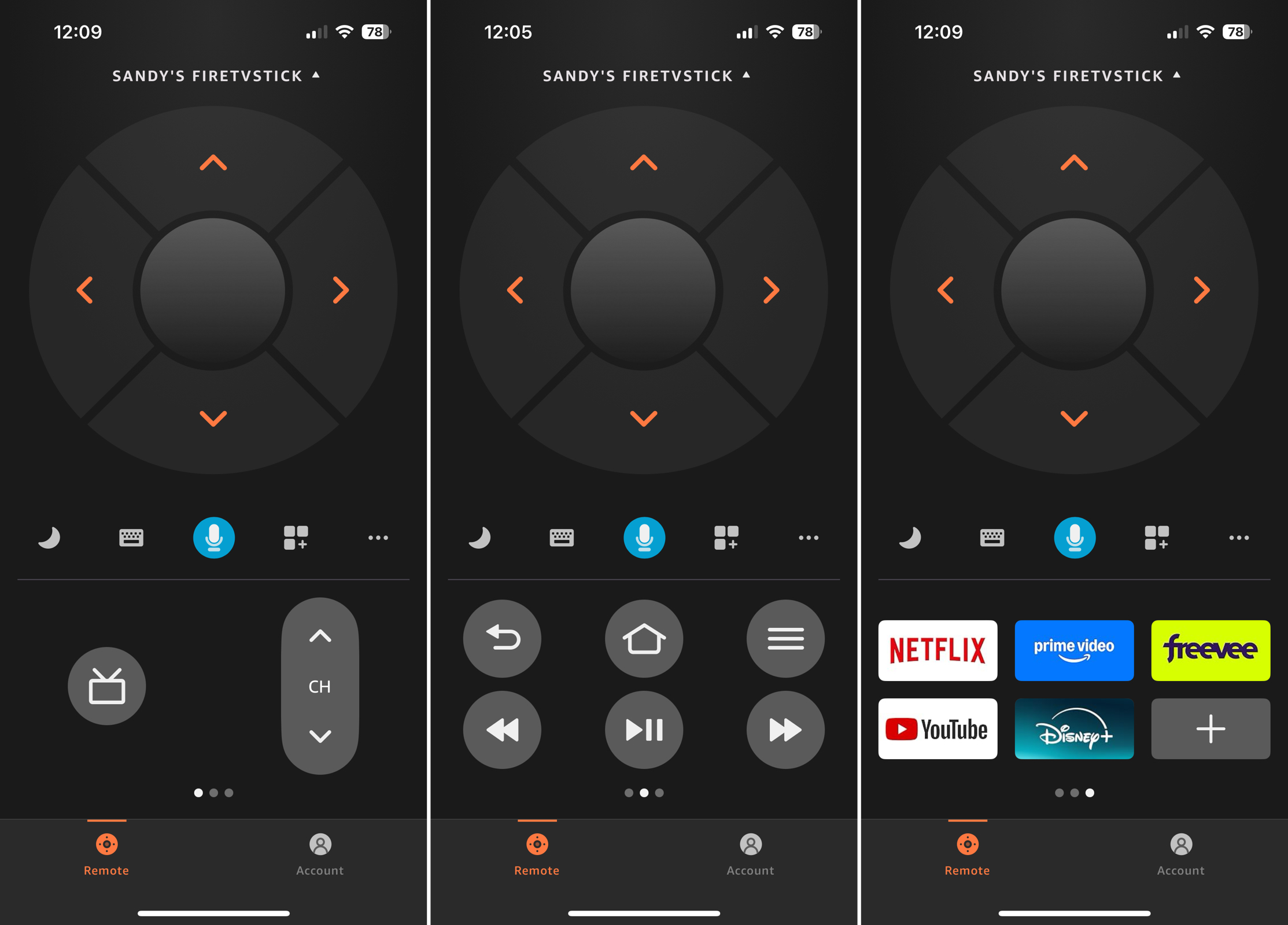
Once set up, you’ll see a remote interface on your phone. It includes navigation buttons, a keyboard for text input, voice search, and quick access to your apps.
Key Features And Shortcuts
- Voice search: Tap the microphone icon and speak into your phone to search across apps.
- Keyboard input: Typing is much faster using your phone’s keyboard than the on-screen Fire TV keyboard.
- Quick access to apps: You can launch apps directly from the mobile app.
Pros And Cons
| Feature | Pros | Cons |
|---|---|---|
| Setup | Easy, quick pairing | Needs same Wi-Fi network |
| Functionality | Full remote features, keyboard, voice | Phone battery usage |
| Reliability | Official Amazon support | Requires internet connection |
Practical Tips
- If your Fire TV and phone are not on the same network, use a mobile hotspot (more on this later).
- If you often misplace remotes, add the app to your phone’s home screen for quick access.
Using Alexa Voice Control
If you have an Amazon Echo or any Alexa-enabled device, you can control your Fire TV with voice commands. This method is hands-free and works well for many common actions.
How To Link Your Fire Tv With Alexa
- Open the Alexa app on your phone.
- Tap Devices at the bottom of the screen.
- Choose the + icon, then Add Device.
- Select TV and then Fire TV.
- Follow the prompts to link your Fire TV.
Alternatively, You Can Say, “alexa, Discover My Devices.”
Useful Alexa Voice Commands
- “Alexa, open Netflix on Fire TV.”
- “Alexa, play The Boys on Fire TV.”
- “Alexa, pause.”
- “Alexa, rewind 30 seconds.”
Alexa can launch apps, search for shows, adjust volume, and control playback.
Pros And Cons
- Pros: Hands-free, convenient for basic commands, works from anywhere in the room.
- Cons: Not ideal for complex menu navigation, requires Alexa setup, needs an internet connection.
Non-obvious Insight
You can control multiple Fire TV devices in your home by naming them in the Alexa app (e. g. , “Living Room Fire TV”). This avoids confusion if you have more than one.
Using Hdmi-cec On Your Tv
Most modern TVs support a feature called HDMI-CEC (Consumer Electronics Control). This allows your TV’s regular remote to control connected devices, including Fire TV.
How To Enable Hdmi-cec
- On your TV’s menu, find the HDMI-CEC setting. It may be called:
- Anynet+ (Samsung)
- Bravia Sync (Sony)
- Simplink (LG)
- Viera Link (Panasonic)
- CEC (Generic)
- Turn this feature ON.
- Make sure your Fire TV is connected via HDMI.
Now, use your TV’s remote to navigate the Fire TV menu, select apps, and even control playback.
Comparison Of Hdmi-cec Names By Tv Brand
| Brand | HDMI-CEC Name |
|---|---|
| Samsung | Anynet+ |
| Sony | Bravia Sync |
| LG | Simplink |
| Panasonic | Viera Link |
| Philips | EasyLink |
| Toshiba | Regza Link |
Limitations
- Some older TV models may not support HDMI-CEC.
- The TV remote may not provide advanced features like voice search.
- CEC must be enabled on both the TV and Fire TV settings (Settings > Display & Sounds > HDMI CEC Device Control).
Using A Universal Remote
A universal remote can control many devices in your home, including Fire TV. Some universal remotes have built-in support for Fire TV or work via infrared (IR) or Bluetooth.
How To Set Up A Universal Remote
- Check if your universal remote supports Fire TV. Many newer models do.
- Follow the manufacturer’s instructions to program the remote. You may need a code specific to Fire TV.
- Test basic functions like navigation, play/pause, and home.
When Universal Remotes Work Best
Universal remotes are ideal if you want to control multiple devices (TV, soundbar, Fire TV) with one remote. They’re great for families or people who dislike juggling several remotes.
Caution
Not all universal remotes support Fire TV Stick, because many Fire TV devices use Bluetooth instead of IR. Look for models that mention Fire TV compatibility.
Using A Keyboard Or Mouse
Some Fire TV models allow you to connect a USB keyboard or mouse (using an OTG cable for Fire TV Stick) or pair a Bluetooth keyboard. This can help with navigation and typing.
How To Connect
- For Fire TV Stick: Use an OTG cable to add a USB port.
- For Fire TV Cube/Box: Plug in directly to the USB port.
- For Bluetooth: Go to Settings > Controllers & Bluetooth Devices > Other Bluetooth Devices, and pair your device.
Now, use the arrow keys to move, Enter to select, and Escape for back. A mouse lets you point and click.
Non-obvious Insight
A keyboard is especially useful for entering long Wi-Fi passwords or searching for apps, saving you lots of time.
Setting Up A Mobile Hotspot (if Wi-fi Changes)
Sometimes, your Fire TV and phone are not on the same Wi-Fi network, and you can’t use the app. If you change your router or move to a new location, your Fire TV can get “stranded,” waiting for a remote to connect to Wi-Fi.
Using A Mobile Hotspot To Reconnect
- On another phone, set up a mobile hotspot. Name it exactly the same as your old Wi-Fi network and use the same password.
- Your Fire TV will connect to this hotspot automatically.
- Now, connect your main phone (with the Fire TV app) to the same hotspot.
- Use the app to control your Fire TV, change Wi-Fi settings, or connect to a new network.
Real-world Example
A user travels and finds their Fire TV won’t connect to the hotel Wi-Fi. By creating a hotspot with their home network’s name, they regain control and update settings.
Limitation
Mobile hotspot use can consume data quickly. Be careful of data charges if you’re not on an unlimited plan.
Using Computer-based Control
Some advanced users can control Fire TV using a computer and the ADB (Android Debug Bridge) tool. This method is more technical but can help if other options fail.
Basic Steps
- Enable ADB Debugging on your Fire TV (Settings > My Fire TV > Developer Options).
- Connect your computer and Fire TV to the same network.
- Use ADB commands to control navigation, install apps, or take screenshots.
Who Should Use This?
Only recommended for tech-savvy users or when other methods are unavailable.
Credit: mac.eltima.com
When To Buy A Replacement Remote
While the methods above can help you use your Fire TV right away, some users prefer having a dedicated physical remote. Amazon sells replacement Fire TV remotes with all the standard features and sometimes even extra buttons for quick access to popular apps.
Replacement remotes are easy to pair and usually work out of the box. They are a good investment if you want the classic remote feel, especially for guests or less tech-savvy family members.
Comparison Of Remote-free Control Methods
Choosing the right method depends on your needs, devices, and tech comfort. Here’s a side-by-side look at the main options:
| Method | Setup Difficulty | Features | Requires Extra Device? | Offline Use |
|---|---|---|---|---|
| Amazon Fire TV App | Easy | Full remote, voice, keyboard | Yes (phone/tablet) | No |
| Alexa Voice Control | Medium | Voice commands, smart home integration | Yes (Echo/Alexa) | No |
| HDMI-CEC/TV Remote | Easy | Navigation, playback | No | Yes |
| Universal Remote | Medium | Navigation, playback, multi-device | Yes (universal remote) | Yes (if IR) |
| Keyboard/Mouse | Medium | Typing, navigation | Yes (keyboard/mouse) | Yes (wired/Bluetooth) |
| Mobile Hotspot | Medium | Wi-Fi setup only | Yes (2 phones) | No |
| Computer (ADB) | Hard | Advanced control | Yes (PC/Mac) | No |
Common Problems And Fixes
Even with these options, you may face issues. Here are practical solutions to common Fire TV control problems:
Fire Tv App Cannot Find Your Device
- Make sure your phone and Fire TV are on the same Wi-Fi network.
- Restart your Fire TV by unplugging it for 30 seconds.
- Disable any VPN or firewall on your phone.
- Try reinstalling the app.
Alexa Cannot Control Your Fire Tv
- Check that both devices are registered to the same Amazon account.
- Update your Alexa app and Fire TV software.
- Disconnect and re-link the devices in the Alexa app.
Tv Remote Not Working (hdmi-cec)
- Ensure HDMI-CEC is enabled on both the TV and Fire TV.
- Try a different HDMI port.
- Unplug and replug your Fire TV stick.
Mobile Hotspot Not Connecting
- Double-check the hotspot name and password match your old Wi-Fi.
- Some phones disable hotspot if no devices connect—keep it active.
- Data limits may block connections; check your carrier settings.
Bluetooth Keyboard/mouse Won’t Pair
- Remove any previously paired devices under Settings > Controllers & Bluetooth Devices.
- Make sure your keyboard/mouse is in pairing mode.
- Restart your Fire TV and try again.
Advanced Tips For Power Users
If you use Fire TV often, consider these advanced tricks for smoother control:
- Create routines with Alexa: For example, “Alexa, Movie Time” can turn on your TV, dim smart lights, and start Netflix.
- Use multiple control methods: Keep the Fire TV app on all family phones, so anyone can step in if the remote is lost.
- Secure your Fire TV: Set up a PIN in Parental Controls to prevent accidental purchases or app changes when using shared control options.
- Automate with smart home hubs: Integrate Fire TV with smart home systems like SmartThings or Home Assistant for even more control.

Credit: www.reddit.com
What Beginners Often Miss
Many new users don’t realize that HDMI-CEC is often turned OFF by default on their TV. You must go into your TV’s settings menu and enable it for the TV remote to work. Also, if you change your Wi-Fi network, your Fire TV can become inaccessible until you re-link it—knowing the mobile hotspot trick saves a lot of trouble.
Another common mistake is assuming that all universal remotes work with Fire TV. Bluetooth-only Fire TV devices (like most Sticks) need a compatible remote, not just any universal model.
When Not To Use Remote-free Methods
While these options are great in a pinch, a physical remote is still best for some situations:
- For guests or less tech-savvy family members.
- When troubleshooting or factory resetting Fire TV.
- In homes with multiple Fire TVs where apps may get confused about which device to control.

Credit: www.youtube.com
Security And Privacy Considerations
When using mobile apps or linking Alexa, always use secure Wi-Fi networks and keep your Amazon account credentials private. If you use a public or hotel Wi-Fi, be aware that others could potentially see your device on the network.
How To Prevent Losing Your Remote Again
To avoid future headaches:
- Attach a tracker: Small Bluetooth trackers (like Tile) can help you find a lost remote quickly.
- Use a remote holder: Place remotes in a dedicated spot near the TV.
- Keep spare batteries: For remotes that use batteries, store extra sets nearby.
- Backup with the Fire TV app: Install and set up the app on all family phones as a backup.
Frequently Asked Questions
Can I Use My Fire Tv If I Lose My Remote And Don’t Have The App Installed?
Yes, you can use the HDMI-CEC feature with your TV’s remote, or set up a mobile hotspot to regain app control. For older TVs without HDMI-CEC, you may need to buy a replacement remote.
Will A Universal Remote Always Work With My Fire Tv Stick?
No, not all universal remotes support Fire TV Stick. Look for remotes that specifically mention Fire TV compatibility and support Bluetooth if your device does not have an IR receiver.
How Can I Reset My Fire Tv Without A Remote?
You can use the Fire TV app to access the settings and perform a factory reset. If the app is not available, try using a USB keyboard or ask Alexa to “restart Fire TV. ” For some models, holding down the TV’s physical buttons while plugging in the Fire TV can trigger a reset.
Is It Safe To Link My Fire Tv To Alexa?
Yes, it is safe if you use a secure Amazon account and home Wi-Fi. Always monitor your linked devices in the Alexa app and remove any you no longer use. For more details, see the official Amazon help page.
What Should I Do If My Fire Tv App Keeps Disconnecting?
First, check that both your Fire TV and phone are on the same Wi-Fi network. Restart your router, Fire TV, and phone. If problems continue, update the app and Fire TV software, and clear the app’s cache.
Staying in control of your Fire TV doesn’t need to be stressful when the remote goes missing. With these practical methods, you’ll always have a way to watch, search, and enjoy your favorite content—no matter where your remote is hiding.