
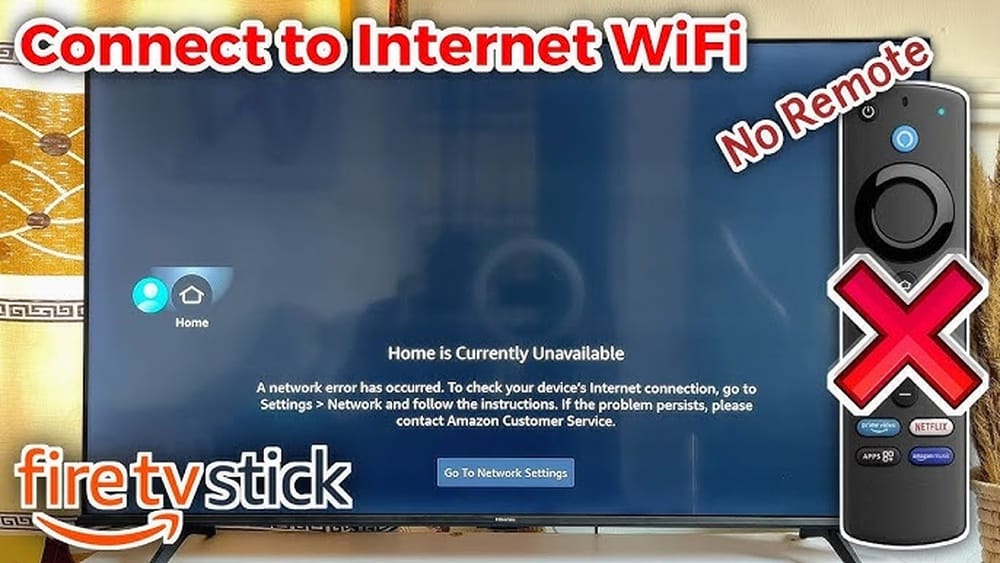
Losing your Firestick remote or finding yourself without Wi-Fi can be stressful. You want to watch your favorite shows, but suddenly you have no way to control your device. Many people face this problem at some point. Maybe the batteries in your remote died, the remote is lost, or your Wi-Fi stopped working.
The good news is that there are several ways to control your Firestick without a remote or Wi-Fi. Some methods are simple and quick, while others need a bit of planning or extra tools. In this guide, you’ll learn practical solutions, including smart workarounds that most beginners overlook.
Whether you’re at home or traveling, these tips can help you get back to streaming with minimal fuss.
Understanding The Challenge: Why Firestick Needs A Remote Or Wi-fi
The Amazon Firestick is designed to work with its own remote and needs Wi-Fi for most functions. The remote uses Bluetooth, not infrared, so universal remotes often don’t work. Without Wi-Fi, you can’t connect to streaming apps, and the Firestick app on your phone also won’t work because it needs the same network.
Here’s why controlling Firestick without a remote or Wi-Fi is tricky:
- The Firestick has no physical buttons for navigation.
- The remote pairs via Bluetooth during setup.
- The Firestick app also requires Wi-Fi.
So, to control your Firestick without a remote or Wi-Fi, you need creative solutions. Some involve using other devices, while others require using the Firestick’s settings before you lose your remote or Wi-Fi.
Preparing For Remote Or Wi-fi Loss
If you still have access to your remote or Wi-Fi, you can make things easier for the future. Think of this as a way to “disaster-proof” your streaming experience.
Tips for Preparation:
- Pair a Bluetooth Keyboard or Mouse: In Settings, go to Controllers & Bluetooth Devices > Other Bluetooth Devices. Pair a keyboard or mouse, so you can use it later if you lose your remote.
- Install the Fire TV App on Multiple Devices: Having the app ready on your phone or tablet allows quick access if your remote breaks.
- Write Down Your Wi-Fi Details: Keep your SSID and password handy for reconnecting devices easily.
- Enable HDMI-CEC on Your TV: This lets you use your TV remote to control your Firestick (explained later).
- Update Your Firestick Regularly: The latest software often adds features and bug fixes that can help with device discovery and pairing.
These steps can make recovery much easier if you ever lose your remote or Wi-Fi.
How To Control Firestick Without A Remote (but With Wi-fi)
If your Wi-Fi is working but the remote is missing or broken, you have several options.
1. Use The Amazon Fire Tv App
The easiest way is the Amazon Fire TV app for Android and iOS. It connects to your Firestick over Wi-Fi and offers a virtual remote.
How to Use:
- Download the Fire TV app from Google Play or the App Store.
- Connect your phone or tablet to the same Wi-Fi network as your Firestick.
- Open the app and select your Fire TV device.
- Enter the code shown on your TV to pair.
The app lets you:
- Navigate menus
- Use the keyboard for easy typing
- Access settings and apps
- Control playback
Pro Tip: The app can be installed on multiple devices for backup.
2. Use Your Tv Remote With Hdmi-cec
Most modern TVs support HDMI-CEC (Consumer Electronics Control). This feature lets you use your TV’s remote to control devices connected via HDMI, like Firestick.
How to Enable:
- Check your TV’s settings for HDMI-CEC (name varies: Anynet+ for Samsung, Bravia Sync for Sony, etc. ).
- Turn HDMI-CEC on.
- Restart your TV and Firestick.
After setup, your TV remote’s arrow keys and OK button should navigate your Firestick’s menus.
Limitations:
- Not all TV remotes support advanced controls (voice, fast forward).
- Some TVs have limited CEC functionality.
3. Pair A Bluetooth Keyboard Or Mouse
If you paired a Bluetooth keyboard or mouse earlier, you can use it to control your Firestick. Navigate using arrow keys or a mouse pointer.
Steps:
- Power on your keyboard or mouse.
- Firestick should auto-connect if it was previously paired.
If not, you’ll need the remote or app to pair a new device.
4. Use An Otg Cable With Usb Keyboard/mouse
Some Firestick models support USB OTG (On-The-Go) cables. This allows you to plug in a USB keyboard or mouse.
How to Use:
- Connect an OTG cable to your Firestick.
- Plug a USB keyboard or mouse into the OTG cable.
- Power up your Firestick.
Now you can use the keyboard or mouse to navigate menus.
5. Use Alexa Devices
If you have an Alexa-enabled smart speaker (like Echo Dot) on the same Amazon account as your Firestick, you can give voice commands to control playback, launch apps, or search for content.
Examples:
- “Alexa, play The Boys on Fire TV.”
- “Alexa, pause Fire TV.”
Note: Your Firestick and Alexa device must be on the same Wi-Fi network and account.
How To Control Firestick Without Remote And Without Wi-fi
This is the most difficult situation. The Firestick needs Wi-Fi to respond to commands, and most solutions require a remote or app. But a few workarounds are possible, especially if you plan ahead or have access to other devices.
1. Set Up A Temporary Hotspot With The Same Wi-fi Details
If your Wi-Fi is down, but you have a phone or another device that can create a mobile hotspot, you can “trick” your Firestick into connecting to it.
How It Works:
The Firestick remembers the last Wi-Fi network SSID and password. If you create a hotspot with exactly the same name (SSID) and password, the Firestick will connect automatically.
Step-by-Step:
- On another phone or laptop, create a hotspot. Use the same SSID and password as your home Wi-Fi.
- Turn on your Firestick; it should auto-connect.
- Use the Fire TV app on another device (also connected to the hotspot) to control your Firestick.
Example:
If your home Wi-Fi SSID is “MyHomeWiFi” and the password is “password123”, set up your phone’s hotspot with those exact details.
Practical Tip: Not all phones allow custom SSIDs. Some restrict hotspot names.
2. Use An Otg Cable With A Wired Keyboard Or Mouse
Even without Wi-Fi, you can navigate the Firestick’s menus using a wired keyboard or mouse connected via OTG cable.
What You Can Do:
- Access settings
- Pair Bluetooth devices
- Change Wi-Fi networks
This method is helpful for changing Wi-Fi settings when you’re locked out of the remote and app.
3. Pair A New Remote Using Usb Keyboard/mouse
If you buy a replacement Firestick remote, you’ll need to pair it. Without Wi-Fi or the app, a USB keyboard or mouse can help:
- Connect the keyboard/mouse with OTG.
- Navigate to Settings > Controllers & Bluetooth Devices > Amazon Fire TV Remotes > Add New Remote.
- Follow on-screen instructions.
4. Use Hdmi-cec With Tv Remote (limited Without Wi-fi)
HDMI-CEC works even if the Firestick is not online. You can use your TV remote to navigate to the Wi-Fi settings and connect to a new network.
Note: You still need to enter Wi-Fi details manually, which is easier with a keyboard.
5. Factory Reset As A Last Resort
If you’re completely locked out (no remote, no Wi-Fi, no paired devices), you can factory reset your Firestick. This erases all data, including Wi-Fi settings and paired remotes.
How to Reset Without a Remote:
- Hold down the Firestick’s button (if present) for 10+ seconds.
- If no button, unplug the Firestick, wait, then plug back in while holding the TV’s power button (varies by model).
After resetting, you’ll need to set up everything again—so this is a last resort.
Comparison Of Control Methods
Here’s a quick look at the pros and cons of different methods for controlling your Firestick without a remote or Wi-Fi:
| Method | Needs Wi-Fi? | Needs Planning? | Difficulty | Best Use |
|---|---|---|---|---|
| Fire TV App | Yes | No | Easy | Lost remote, Wi-Fi OK |
| HDMI-CEC TV Remote | No | Yes (enable CEC) | Easy | Basic navigation |
| Bluetooth Keyboard/Mouse | No | Yes (pair first) | Medium | Setup, troubleshooting |
| OTG + USB Keyboard/Mouse | No | No | Medium | Setup, recovery |
| Mobile Hotspot Trick | No home Wi-Fi, but phone data | Yes | Medium | Wi-Fi down, urgent use |
| Alexa Devices | Yes | Yes (same account) | Easy | Voice commands |
In-depth: Hdmi-cec—a Hidden Lifesaver
Many users don’t know about HDMI-CEC. This feature can save you when your remote is lost. Here’s why it matters:
- No setup needed if your TV has it enabled.
- Works even if your Firestick isn’t connected to Wi-Fi.
- Lets you use basic navigation (arrows, OK, back).
Examples of TV CEC Names:
- Samsung: Anynet+
- Sony: Bravia Sync
- LG: SimpLink
- Panasonic: VIERA Link
- Toshiba: Regza Link
How to Enable:
- Go to your TV’s settings menu.
- Find HDMI-CEC and turn it on.
- Restart your TV and Firestick.
Pro Insight: Some TVs have limited CEC controls. For best results, try different buttons on your TV remote.
Using Firestick App—step By Step
The Fire TV app is the easiest solution when you have Wi-Fi. Here’s a deeper look at how to set it up and use advanced features.
Download And Setup
- Get the Fire TV app from the App Store or Google Play.
- Connect your phone/tablet to the same Wi-Fi as your Firestick.
- Open the app; it will scan for Fire devices.
- Tap your Firestick’s name.
- Enter the 4-digit code shown on your TV.
Features
- Navigation pad for menus and apps.
- Keyboard for quick typing (great for passwords).
- Voice search using your phone’s mic.
- Quick access to installed apps and settings.
- Multiple devices: You can control more than one Firestick.
Pro Tip: If you have several Firesticks, you can switch between them in the app.
Troubleshooting
If the app can’t find your Firestick:
- Check both devices are on the same Wi-Fi network.
- Restart your Firestick and phone.
- Disable VPNs or firewalls that may block device discovery.
What If You Have No Internet Or Hotspot?
Sometimes you have no Wi-Fi and no way to create a hotspot. Here are some lesser-known ideas:
Use A Wired Connection (ethernet Adapter)
Some Firestick models (like 4K) support Ethernet adapters. If you have one, plug your Firestick into a wired network. This can restore connectivity without Wi-Fi.
Borrow A Neighbor’s Wi-fi
If you know a neighbor’s Wi-Fi details (with permission), you can move your Firestick and phone to their network temporarily. Then use the Fire TV app or pair a new remote.
Use A Universal Remote With Hdmi-cec
Some universal remotes can send HDMI-CEC commands if programmed for your TV. This gives basic control even if you never set up CEC before.
The Hotspot Trick: What Beginners Miss
Many people try to use their phone as a hotspot, but miss a key detail: The SSID and password MUST match your original Wi-Fi exactly. Even one letter different, and the Firestick won’t connect.
Common Mistakes:
- Not matching capitalization (“HomeWifi” vs “homewifi”)
- Leaving default hotspot names
- Using a different password
- Using a phone that doesn’t allow SSID changes
Practical Example:
If your home Wi-Fi was “SmithHome” with password “firestick2023”, set your hotspot to those exact details.
Advanced Tip: If you travel a lot, set your Firestick’s Wi-Fi to a network you can easily recreate with your phone (like “MyFirestick” and a password you remember).
Pairing A New Remote Without Wi-fi
Buying a new Firestick remote? Here’s how to pair it without Wi-Fi or the old remote.
- Insert batteries into the new remote.
- Hold down the Home button for 10 seconds while close to the Firestick.
- The Firestick should detect and pair with the new remote.
- If not, use a USB/OTG keyboard or mouse to navigate to Settings and add the new remote.
Note: Some remotes pair automatically, but others need to be added from the settings menu.
Quick Comparison: Firestick Models And Control Options
Different Firestick models support different control options. Here’s a summary:
| Firestick Model | Supports Bluetooth Devices | Supports OTG (USB) | HDMI-CEC | Ethernet Adapter |
|---|---|---|---|---|
| Fire TV Stick (Basic) | Yes | Limited | Yes | With adapter |
| Fire TV Stick 4K | Yes | Yes | Yes | Yes |
| Fire TV Stick 4K Max | Yes | Yes | Yes | Yes |
| Fire TV Cube | Yes | Yes | Yes | Yes (built-in) |
Preventing Remote And Connectivity Problems
It’s easier to avoid these problems than to fix them later. Here’s what you can do to protect yourself in the future:
- Keep spare remotes or batteries: Store an extra Firestick remote or batteries where you can find them.
- Enable HDMI-CEC: Always leave this on in your TV settings.
- Pair a Bluetooth keyboard/mouse: Do this while you still have your remote.
- Back up Wi-Fi details: Write them down or save them securely on your phone.
- Teach family members: Show others in your home how to use the Fire TV app.
- Label your remotes: Prevent losing them by adding stickers or labels.
- Regularly update your Firestick: Keep software current for best compatibility.
Real-world Examples
Let’s look at a couple of real-life situations where these solutions saved the day.
Case 1: Lost Remote on Vacation
Maria brought her Firestick on vacation but lost the remote. The hotel Wi-Fi had a complex login. She used her phone’s hotspot, set to her home SSID and password, and controlled the Firestick with the Fire TV app.
Case 2: Broken Wi-Fi Router
Jake’s Wi-Fi router died, and he needed to connect his Firestick to a new network. He plugged in a USB mouse with an OTG cable, navigated to Wi-Fi settings, and connected to his phone’s hotspot.
Case 3: Elderly Parent at Home
Sam set up HDMI-CEC on his mom’s TV. When she misplaced the Firestick remote, she used her TV remote to keep watching her favorite shows.
These examples show that a bit of planning can turn a disaster into a minor problem.
Less-known Solutions And Extra Insights
Here are two things most beginners don’t realize:
- Firestick remembers multiple networks: If you use your Firestick in different places, it can remember several Wi-Fi networks. This makes reconnecting easier if you move between home and work or travel.
- Some universal remotes work if they send CEC signals: Most universal remotes can’t directly control Firestick, but if they’re programmed for your TV and the TV supports CEC, you can control Firestick basics (arrows, OK, back) through the TV.
When To Buy A Replacement Remote
Sometimes, nothing works, and you need a new remote. Here’s when it makes sense:
- You lost your only remote and can’t use the Fire TV app.
- Your Firestick won’t pair with any Bluetooth devices.
- HDMI-CEC isn’t available on your TV.
- You prefer a physical remote over phone apps or keyboards.
Replacement remotes are available on Amazon and electronics stores. Make sure to buy one compatible with your Firestick model.
Safety Tips When Using Hotspots And Usb Devices
- Use strong passwords for your hotspot to avoid unwanted connections.
- Buy quality OTG cables from trusted brands to avoid device damage.
- Do not leave your hotspot open in public places.
- Disconnect USB devices after use to prevent battery drain or overheating.

Credit: www.wikihow.com
Frequently Asked Questions
How Can I Use My Firestick If I Lose My Remote And Don’t Have Wi-fi?
If you’ve lost your remote and don’t have Wi-Fi, the best way is to create a mobile hotspot with the same SSID and password as your home Wi-Fi. Your Firestick will connect automatically, and you can use the Fire TV app on another device to control it.
You can also use a USB keyboard or mouse with an OTG cable to navigate the menus.
Credit: www.youtube.com
Can I Use A Universal Remote To Control My Firestick?
Most universal remotes don’t work directly with the Firestick because it uses Bluetooth. However, if your TV supports HDMI-CEC and your universal remote can control the TV, you may be able to navigate Firestick’s basic menus through the TV remote.
What Should I Do If My Firestick Won’t Pair With The Fire Tv App?
Make sure both your phone/tablet and Firestick are on the same Wi-Fi network. Restart both devices and check for any VPNs or firewalls blocking connections. If you still have issues, try resetting your Firestick or using a different control method.
:max_bytes(150000):strip_icc()/007_connect-firestick-to-hotel-wifi-without-remote-5201863-34b9dab764c04b6b9efd8d2ce102577f.jpg)
Credit: www.lifewire.com
Is It Possible To Control Firestick With A Mouse Or Keyboard?
Yes, if you pair a Bluetooth mouse or keyboard before losing your remote, or if you use a USB OTG cable with a wired device, you can control your Firestick. This is useful for navigating menus, entering text, or pairing new remotes.
Where Can I Find Official Help For Firestick Problems?
You can find official help and troubleshooting guides on the Amazon Fire TV Help page. It covers setup, remote pairing, Wi-Fi issues, and more.
Getting locked out of your Firestick doesn’t have to ruin your streaming plans. With a bit of preparation and the right tips, you can take control even without a remote or Wi-Fi. Try out these methods now, so you’re ready if a problem comes up.
That way, your next movie night will always be just a click—or tap—away.