
Losing your TV remote or finding it broken is a common headache. If you own a Hisense TV, this problem can feel even worse, especially when you want to relax and watch your favorite shows. But the good news is, you have many ways to control your Hisense TV without a remote. From using built-in buttons, smartphone apps, and voice assistants to connecting external devices, you can unlock your TV’s features with just a little effort. This guide explains every method in clear, simple English. You’ll learn practical steps, discover hidden tricks, and avoid common mistakes that beginners often make.
Understanding Hisense Tv Controls
Before you try alternative control methods, it helps to know how your Hisense TV is designed. Most models have backup controls on the TV itself. These controls may be hidden or placed in areas you don’t expect.
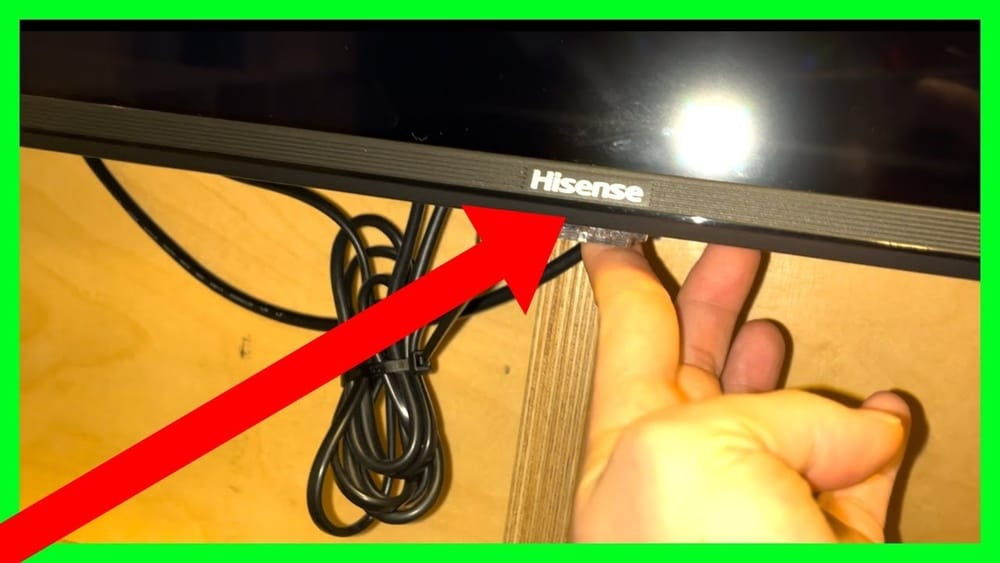
Location Of Physical Buttons
Hisense TVs usually have physical buttons for basic functions. These buttons are often:
- On the bottom edge of the TV
- At the back, near the right or left side
- Under the front panel, close to the logo
The number of buttons and their functions depend on the model. Some TVs have a single joystick-style button; others have several buttons for power, volume, menu, and input.
Button Functions
Typical physical buttons let you:
- Turn the TV on/off
- Adjust volume up/down
- Change channels
- Access the menu/settings
- Switch input source (HDMI, AV, USB)
If your TV has a joystick button, pressing it once turns the TV on, holding it opens the menu, and tilting it changes volume or channel.
Knowing these basics is helpful before you try any advanced methods.
Using Built-in Tv Buttons
When the remote is missing, the first thing to try is the built-in buttons.
How To Locate And Use Tv Buttons
- Inspect all sides of the TV: Check under the front panel, along the bottom, and on the back.
- Look for a label or icon: Most buttons are marked with symbols for power, volume, menu, and input.
- Press gently: Don’t press too hard—modern TVs have sensitive buttons.
Controlling Common Functions
- Power: Press the power button to turn the TV on or off.
- Volume: Use the volume buttons (+/-) to adjust sound.
- Channel: Channel buttons (up/down) let you change stations.
- Menu: Press the menu button to open settings.
- Input: Switch between HDMI, USB, or AV by pressing the input button.
Some models combine functions into a single joystick button. For example, pushing up increases volume, left/right changes channels, pressing in opens the menu.
Limitations
Built-in buttons can control basic functions, but they may not let you:
- Access advanced settings
- Navigate smart TV apps easily
- Enter passwords or search for content
If you need more control, try other methods below.

Credit: www.amazon.com
Controlling Hisense Tv With Smartphone Apps
Smartphones can turn into powerful TV remotes. Hisense TVs, especially smart TV models, support several apps for remote control.
Supported App Types
There are two main app types:
- Official Hisense Remote App: Some models have their own app, but not all regions support it.
- Universal Remote Apps: Apps like Android TV Remote, Roku Remote, Google Home, and Third-party IR remote apps can work.
Requirements
- The TV must be connected to Wi-Fi
- Your phone must be on the same Wi-Fi network
- For IR apps, your phone must have an infrared blaster (rare in recent phones)
Setting Up A Remote App
- Download the app: Use Google Play or Apple App Store.
- Connect to Wi-Fi: Make sure both TV and phone share the same network.
- Launch the app: Follow setup instructions. Most apps scan for nearby TVs automatically.
- Pair the TV: Select your Hisense TV from the list. Some apps ask for a PIN—this appears on the TV screen.
Recommended Apps For Hisense Tvs
- Android TV Remote Control (for Hisense Android TVs)
- Roku Remote (for Hisense Roku TVs)
- Google Home (for casting and basic controls)
- Peel Universal Remote (for IR-enabled phones)
Example: Using Android Tv Remote Control
If your Hisense TV runs Android TV:
- Install “Android TV Remote Control” app.
- Open the app and let it scan for devices.
- Choose your TV and enter the pairing code.
- Control volume, channel, apps, and even type with your phone keyboard.
Example: Using Roku Remote App
For Hisense Roku models:
- Download “Roku Remote” app.
- Connect to the same Wi-Fi.
- Pair with your TV.
- Use the app to launch streaming channels, adjust volume, and search.
Advantages
- Full control of smart features
- Easy navigation and typing
- Voice search (in many apps)
- Quick access to apps and settings
Common Mistakes
- Forgetting to connect TV and phone to the same Wi-Fi
- Using an unsupported app for your TV model
- Expecting IR apps to work without an IR blaster
Comparison Of Popular Apps
Here’s a side-by-side look at three leading remote apps:
| App Name | Supported TV Types | Features | Requires Wi-Fi |
|---|---|---|---|
| Android TV Remote Control | Hisense Android TV | Navigation, typing, voice | Yes |
| Roku Remote | Hisense Roku TV | Channel launch, search, volume | Yes |
| Peel Universal Remote | Any IR-enabled TV | Basic functions, channel control | No (uses IR) |
If unsure, check your TV’s model number and operating system before choosing an app.
Using Voice Control
Voice assistants are becoming popular on smart TVs. Many Hisense TV models support Google Assistant or Alexa.
Requirements For Voice Control
- Your TV must be a smart TV
- The TV must be connected to Wi-Fi
- You need a microphone (usually on the TV or paired device)
Activating Voice Control
Some TVs have a microphone button on the TV body. Others require pairing with a smart speaker or using a smartphone app.
Steps For Google Assistant
- Make sure your TV is connected to Wi-Fi.
- Sign in with your Google account.
- Use the microphone on the TV or the Google Home app on your phone.
- Say commands like:
- “Turn on the TV”
- “Open Netflix”
- “Increase volume”
- “Switch to HDMI 1”
Steps For Alexa
- Use the Alexa app or a linked Echo device.
- Connect your Hisense TV to your Amazon account.
- Use voice commands to control power, volume, input, and apps.
Limitations
- Not all functions are available (some models only support basic controls)
- Voice commands may not work if the TV is off or not connected to Wi-Fi
- Some accents or languages may not be recognized
Practical Insight
Few users realize you can use voice control even when the remote is missing, as long as the TV is connected. Pairing your phone with Google Home or Alexa can unlock more features.
Connecting External Devices For Control
You can also control your Hisense TV using external devices like game consoles, streaming sticks, and keyboards.
Hdmi-cec Functionality
Hisense TVs support HDMI-CEC (“Consumer Electronics Control”). This lets devices connected via HDMI send commands to the TV.
Example Devices
- PlayStation and Xbox consoles
- Amazon Fire Stick
- Google Chromecast
- Apple TV
How Hdmi-cec Works
When you turn on the connected device, the TV turns on and switches to the correct HDMI input. Some devices let you adjust volume and power from their controller.
Setting Up Hdmi-cec
- Connect the device to an HDMI port.
- Enable HDMI-CEC in your TV’s settings (usually called “Anyview” or “CEC”).
- Use the device’s remote or controller to turn on/off the TV, change inputs, and adjust volume.
Using Wireless Keyboards And Mice
Smart TVs with USB ports can accept wireless keyboards and mice. Plug the receiver into the USB port, and you can:
- Navigate menus with arrow keys
- Enter text in search boxes
- Open apps with shortcuts
Comparison: External Device Control
How Do These Methods Compare?
| Device | Functions Controlled | Setup Difficulty | Extra Features |
|---|---|---|---|
| Game Console | Power, input, volume | Easy | Gaming, streaming |
| Streaming Stick | Power, input, volume, apps | Easy | Streaming, voice search |
| Wireless Keyboard | Navigation, typing | Medium | Text entry, browser use |
Using these devices is a smart way to control your TV if you need more features than basic buttons offer.
Using Universal Remote Controls
If you have access to a universal remote, it can replace your original Hisense remote.
Choosing The Right Universal Remote
Universal remotes come in many styles, from simple models to advanced smart remotes. The key factors are:
- Compatibility: Check if it supports Hisense TVs
- Programming method: Some require manual code entry; others auto-detect
- Function coverage: Look for remotes that support smart TV features
Setting Up A Universal Remote
- Find the Hisense code in the remote’s manual or online.
- Enter the code as instructed.
- Test all buttons—especially menu, input, and smart features.
- If functions are missing, try another code or use “auto-search” mode.
Common Mistakes
- Using the wrong code for your Hisense model
- Forgetting to check smart feature support
- Not testing all functions before use
Data: Universal Remotes Vs. Original Remotes
Here’s a quick comparison:
| Remote Type | Setup Time | Function Coverage | Reliability |
|---|---|---|---|
| Original Hisense Remote | None | Full | High |
| Universal Remote | 2-10 min | Most (varies) | Medium-High |
| Smartphone App | 2-5 min | Full (if compatible) | Medium |
Universal remotes are good for long-term use if you can’t find an original replacement.

Credit: www.youtube.com
Advanced Tips For Smart Tv Control
Many users miss some advanced tricks when controlling their TV without a remote.
Using Smart Home Integration
If your home uses smart home devices, you can control your Hisense TV with routines and automation.
- Set routines to turn the TV on/off at set times
- Use voice commands from smart speakers
- Link TV control to other devices (lights, speakers)
Customizing App Shortcuts
Remote apps often let you set shortcuts for favorite channels or apps. This saves time and avoids repeated navigation.
Updating Tv Firmware
Smart TVs sometimes lose compatibility with apps or devices. Updating the TV’s firmware can fix bugs and improve support for remote apps and voice control.
- Go to settings using TV buttons or external keyboard
- Check for updates under “System” or “About”
- Install updates and restart the TV
Using Web Browser Control
Some Hisense TVs allow control from a web browser. Enter your TV’s IP address in a browser, and you can access basic controls.
- Check your TV manual for support
- Make sure the TV is connected to your network
- Use the browser interface for power, volume, input
Practical Example: Solving Input Problems
If you need to switch inputs but can’t reach the menu:
- Use the physical input button
- Connect a streaming stick and activate HDMI-CEC
- Use a keyboard to navigate the menu
This avoids the common mistake of thinking the TV is stuck on one input.
Troubleshooting Common Issues
Sometimes, alternative control methods don’t work as expected. Here’s how to solve typical problems.
Tv Doesn’t Respond To Physical Buttons
- Check power connection: Make sure the TV is plugged in and switched on.
- Try a long press: Some TVs require holding the button for a few seconds.
- Reset the TV: Unplug for 30 seconds, then plug back in.
App Can’t Find Tv
- Confirm Wi-Fi connection: Both devices must be on the same network.
- Restart both devices: Reboot the TV and phone.
- Check TV settings: Make sure “Remote Control” or “Network Control” is enabled.
Hdmi-cec Not Working
- Enable CEC in settings: Look for “Anyview” or “CEC” option and turn it on.
- Use supported HDMI cable: Some cheap cables don’t support CEC.
- Restart connected device and TV: This helps the devices recognize each other.
Universal Remote Doesn’t Work
- Try different codes: Not all codes work for every Hisense model.
- Check batteries: Weak batteries can cause issues.
- Test on another TV: Make sure the remote itself is working.

Credit: www.ytechb.com
When To Get A Replacement Remote
While these methods work well, there are situations where buying a new remote is the best option.
Reasons To Replace
- You need full access to advanced settings and features
- You use the TV often and want easy navigation
- Your TV doesn’t support apps or external control
Where To Buy
- Official Hisense website
- Electronics stores
- Online platforms like Amazon or eBay
Make sure the remote matches your TV model. Generic remotes may lack smart features.
Frequently Asked Questions
What If My Hisense Tv Has No Visible Buttons?
Some newer models hide buttons under the front panel or near the logo. If you can’t find any, check the manual or search your TV’s model number online. In rare cases, the TV may only be controllable by remote or app.
Can I Use A Phone As A Remote If My Tv Is Not A Smart Tv?
If your phone has an IR blaster, you can use IR remote apps. Otherwise, you’ll need a smart TV or external device for app-based control.
How Do I Connect My Hisense Tv To Wi-fi Without A Remote?
Use the physical menu button to navigate to network settings. If that’s too slow, connect a wireless keyboard or mouse to the TV’s USB port and use it to enter Wi-Fi details.
Is It Possible To Control All Functions From A Universal Remote?
Most universal remotes handle basic functions. Advanced smart TV features (like app navigation or voice search) may not work unless the remote supports them and is properly programmed.
What Is Hdmi-cec And How Do I Enable It?
HDMI-CEC allows connected devices (like game consoles or streaming sticks) to control your TV’s power and input. To enable, go to TV settings, find “Anyview” or “CEC,” and turn it on. Make sure your HDMI device supports CEC.
Final Thoughts
Controlling your Hisense TV without a remote is easier than you might think. From using built-in buttons and smartphone apps to taking advantage of voice assistants and external devices, you have many options. Each method offers unique benefits and suits different situations. If you’re missing out on advanced features, consider updating your TV’s firmware or using a universal remote. With a little creativity and patience, you can unlock nearly all functions of your TV—even without the original remote. For official information and troubleshooting, visit the Hisense Support site. Enjoy your TV experience, no matter what happens to the remote!