
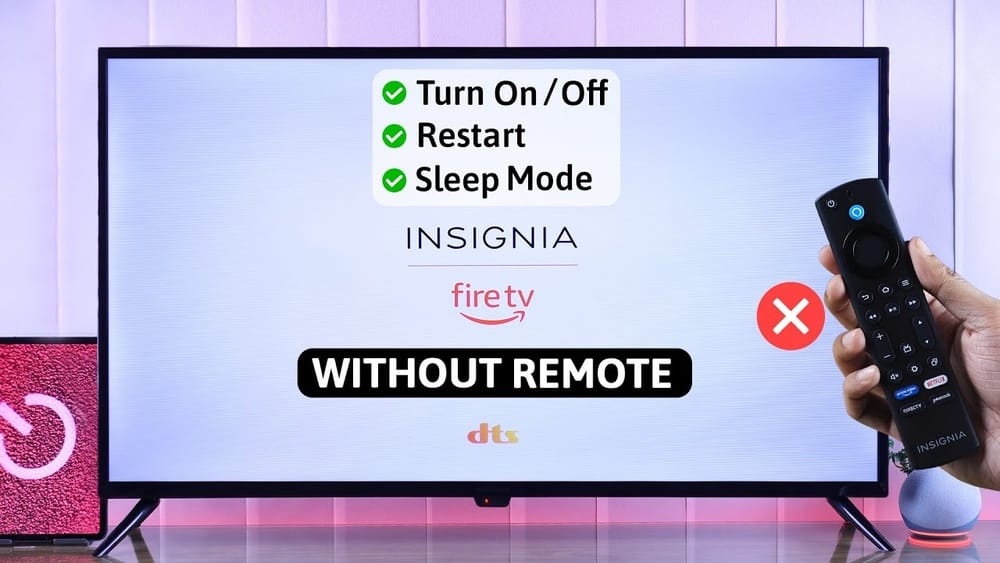
Losing your Insignia TV remote or not having WiFi can feel frustrating. Many people believe their television becomes almost useless without these two tools. But that’s not true. You can still control your Insignia TV and enjoy your favorite shows, adjust the volume, and even change settings.
Understanding how to manage your TV in this situation can save you time, money, and stress. This guide will show you multiple methods to control an Insignia TV without the remote or WiFi, using clear steps, examples, and practical advice.
Why You Might Lose Remote Or Wifi Access
A remote can be lost easily—between couch cushions, under furniture, or misplaced during cleaning. Sometimes, remotes break or their batteries die at the worst moments. WiFi issues can happen due to router problems, service outages, or if you move your TV to a location without internet.
Some older Insignia TVs don’t even support WiFi or smart features.
Knowing how to control your TV in these moments is useful for everyone, especially if you have children or elderly family members who rely on simple TV access.
Understanding Insignia Tv Controls
Insignia TVs, like many other brands, include physical control buttons on the TV itself. The location and number of these buttons can vary by model and year.
Common Button Functions
Most Insignia TVs include these buttons:
- Power
- Volume Up/Down
- Channel Up/Down
- Input/Source
Some models also have a Menu or Settings button. The button layout may be on the bottom edge, side, or back of the TV. Sometimes, these buttons are small and not clearly labeled, so you may need to look closely or feel for them.
Locating The Buttons
If you’re unsure where the buttons are:
- Check the lower right or left edge of the TV frame.
- Run your fingers along the back corners.
- Look underneath the center of the TV.
- Refer to the user manual for your specific model.
Many Insignia TVs from recent years place the buttons under the logo or on the right side when facing the screen.
Using Tv Buttons To Control Your Insignia Tv
Knowing the functions of the physical buttons is the simplest way to operate your Insignia TV without a remote or WiFi.
Turning The Tv On And Off
Press the Power button briefly to turn the TV on or off. If your TV has only one button (a “joystick” style), press and hold it to access the power menu.
Adjusting Volume And Channels
- Volume: Use the Volume Up (+) or Volume Down (-) buttons to adjust sound.
- Channels: Use Channel Up or Channel Down to change channels.
On TVs with a joystick control, press it once to bring up the menu, then move it left or right to adjust volume, up or down to change channels.
Changing Input Source
Switching between HDMI ports or AV input is common. Press the Input or Source button. If your TV does not label this button, try pressing each one until you see the input menu.
Use the Channel or Volume buttons to move between input options, then press Input or Menu again to select.
Accessing The Menu
Not every Insignia TV includes a Menu button on the panel. If yours does:
- Press Menu to open settings.
- Use Volume or Channel buttons to move.
- Press Menu again to select.
If your TV uses a joystick, pressing it in different directions will navigate the menu.
Example: Navigating To Hdmi 2
Let’s say you want to switch to HDMI 2:
- Press Input until the input menu appears.
- Use Channel Up/Down to highlight HDMI 2.
- Press Input again to confirm.
This basic navigation works for most Insignia models, but some older TVs have slightly different button layouts.
Using Universal Remote Controls
If you can’t find your Insignia remote, a universal remote is an affordable alternative. Universal remotes work with almost any TV brand and are available in electronics stores and online.
Setting Up A Universal Remote
- Insert batteries into the remote.
- Turn on your Insignia TV using the physical button.
- Find the TV code for Insignia in the universal remote’s manual.
- Press and hold the “TV” or “Setup” button on the remote.
- Enter the code using the number buttons.
- Test the remote by pressing Power or Volume.
If the first code doesn’t work, try the next Insignia code in the list.
Universal Remote Pros And Cons
| Pros | Cons |
|---|---|
| Works with many devices | Setup can be confusing for beginners |
| Affordable (often $10-$25) | May not support advanced features |
| Easy to replace | Some remotes feel cheap |
Non-obvious tip: Some universal remotes include a “learning” feature. You can program them using another working remote (from any TV), which is helpful if your Insignia remote is only missing a few specific buttons.
Credit: www.youtube.com
Using A Smartphone With Built-in Ir Blaster
Some Android smartphones include an infrared (IR) blaster. This hardware allows your phone to act as a remote control, just like the original Insignia remote.
Checking For Ir Blaster
- Look for a small, black dot on the top edge of your phone.
- Check your phone’s specs online.
- IR blasters are common in some older Samsung, Xiaomi, or Huawei models.
Installing A Tv Remote App
- Search for a “TV remote” app in the Google Play Store. Popular options include “Mi Remote,” “AnyMote,” or “Peel Smart Remote.”
- Open the app and select your TV brand (Insignia).
- Point your phone at the TV and test Power, Volume, and Input buttons.
Most IR remote apps work without WiFi. Make sure your phone has an IR blaster—if not, this option won’t work.
Advantages And Limitations
- Advantages: Free, always with you if your phone supports IR.
- Limitations: Not all phones have IR blaster; iPhones do NOT have this feature.
Non-obvious insight: Some universal TV apps let you customize button layouts, which can make navigation easier for seniors or children.
Using Hdmi-cec (consumer Electronics Control)
Many Insignia TVs support HDMI-CEC, a feature that lets you control your TV using buttons from another connected device, like a streaming stick or Blu-ray player.
How Hdmi-cec Works
If your TV and connected device both support HDMI-CEC:
- Turning on the device can turn on the TV.
- The device remote can control basic TV functions (power, volume, input).
Enabling Hdmi-cec
- Use your TV’s physical buttons to access the menu.
- Look for “CEC,” “HDMI-CEC,” or “Control” in the settings.
- Turn on HDMI-CEC.
- Make sure your streaming device (Roku, Fire Stick, etc.) Has CEC enabled.
Example: If you have a Roku or Fire Stick, you can use its remote to turn the TV on/off and control the volume.
Hdmi-cec Pros And Cons
| Pros | Cons |
|---|---|
| Reduces number of remotes needed | Not all devices support CEC |
| No extra cost if you own a device | Some features may be limited |
| Simple setup | Settings menu may be hard to access without remote |
Using Wired Keyboard Or Mouse
A USB keyboard or mouse can control many smart Insignia TVs. This method works best for models running Fire TV OS or Roku OS, but some non-smart TVs also support USB input.
How To Use A Keyboard Or Mouse
- Plug a wired USB keyboard or mouse into the TV’s USB port.
- The TV should recognize the device automatically.
- Use the keyboard arrows to navigate menus or enter text.
- A USB mouse can move the on-screen pointer.
This method is especially useful if you need to enter WiFi passwords or navigate apps.
Non-obvious insight: A simple “Enter” key on the keyboard often acts as the “OK” or “Select” button, making it easier to confirm choices in menus.
Keyboard Shortcuts For Smart Tvs
While not all Insignia TVs support shortcuts, try these common keys:
- Arrows: Navigate menus
- Enter: Select/OK
- Esc: Back/Exit
- Volume keys: May adjust sound on some models
If you own a wireless keyboard with a USB dongle, it may also work.
Using Streaming Device Remotes
If you use a Roku, Amazon Fire Stick, or similar device, their remotes can often control basic TV functions.
How This Works
- Plug your device into the TV’s HDMI port.
- Use the device’s remote to turn the TV on/off, control volume, and switch inputs if HDMI-CEC is enabled.
Not all Insignia TVs support every function, but this method is reliable if you already use a streaming stick.
Example: Fire Stick Remote
Amazon Fire Stick remotes are often programmed during setup to control TV volume and power. If you move your Fire Stick to a different Insignia TV, the remote may need to be set up again. Follow on-screen instructions using the Fire Stick remote—no TV remote needed.
Tip: If you lose your streaming remote, most streaming devices also have mobile apps with remote features, but these require WiFi.
Programming Tv Functions With A Cable Or Satellite Box Remote
Many cable and satellite boxes offer universal remotes that can be programmed to control your TV.
Programming Steps
- Find the TV section in your cable/satellite remote’s manual.
- Use the code search method or enter the Insignia code.
- Test Power, Volume, and Input buttons.
These remotes usually cover basic functions but may not support advanced menus or smart features.
What If None Of These Methods Work?
If your TV’s buttons are broken, your phone has no IR, and you have no universal remote, you still have options.
Buying A Replacement Remote
- Purchase a replacement Insignia remote online or from the manufacturer.
- Generic remotes are usually cheaper but may not support all features.
- Original Insignia remotes often cost $15–$30.
Contacting Customer Support
If your TV is still under warranty or if you’re unsure about model compatibility, contact Insignia’s support team. They can recommend compatible remotes or service options.
For more information on universal remotes, you can check this Wikipedia article.

Credit: www.wikihow.com
Comparing The Main Control Methods
Below is a quick comparison of the most popular methods for controlling your Insignia TV without a remote or WiFi.
| Method | Setup Needed | Works Without WiFi? | Access to All Features? | Cost |
|---|---|---|---|---|
| Physical TV Buttons | None | Yes | Basic | Free |
| Universal Remote | Code Entry | Yes | Most | Low ($10–$25) |
| Phone IR Blaster | App Install | Yes | Most | Free |
| HDMI-CEC/Streaming Remote | Settings Change | Yes | Basic | Device Price |
| USB Keyboard/Mouse | Plug In | Yes | Menus/Text Entry | Free if you have one |
Special Cases: Smart Vs Non-smart Insignia Tvs
Smart Insignia Tvs (fire Tv, Roku Tv)
These models usually have more menu options and support for USB input. You can use a USB keyboard to log in, set up WiFi, or install new apps. If your TV runs Fire TV OS or Roku OS, some physical buttons and universal remotes may not access every smart feature.
Non-smart Insignia Tvs
Older or basic models rely more heavily on physical buttons and universal remotes. You won’t miss out on smart features, but setting up HDMI-CEC is less common.
Non-obvious insight: Older non-smart TVs often have more physical buttons, making them easier to use without a remote compared to newer slim models.

Credit: www.wikihow.com
Troubleshooting Common Problems
Even with all these methods, you may face specific challenges. Here’s how to solve the most common issues:
Problem: Tv Buttons Not Responding
- Possible causes: Dirt, stuck buttons, or hardware failure.
- Solutions: Gently clean buttons with a dry cloth, check for damage, or unplug the TV for a few minutes to reset.
Problem: Universal Remote Not Working
- Possible causes: Wrong code, low batteries, or incompatible model.
- Solutions: Double-check the code, try other Insignia codes, replace batteries, or reset the remote.
Problem: No Ir Blaster On Phone
- Solution: Try a universal remote or TV buttons instead. There’s no way to add IR to most phones.
Problem: Hdmi-cec Not Functioning
- Possible causes: CEC not enabled on TV or device, wrong HDMI port, or incompatible device.
- Solutions: Use the TV’s menu to enable CEC, check device manual, and use the correct HDMI input.
Practical Tips For Everyday Use
- Label your TV buttons with small stickers to make them easier to find, especially for elderly users.
- Keep a universal remote in a fixed place (like a drawer or basket) to avoid losing it.
- Take a picture of your TV’s model number so you can quickly find compatible remotes or instructions online.
- Test all methods before you need them. For example, try plugging in a keyboard or using HDMI-CEC when you still have the remote, so you know what works on your model.
- Write down important codes (for universal remotes) and store them in your phone or near your TV.
Frequently Asked Questions
What Should I Do If My Insignia Tv Has Only One Button?
Many newer Insignia TVs use a single joystick-style button. You can usually press and hold to open the menu, then move the joystick in different directions to adjust volume, change channels, or switch input. If this doesn’t work, check your TV’s manual for model-specific instructions.
Can I Use My Iphone As A Remote For Insignia Tv Without Wifi?
No, iPhones do not have an IR blaster, so they cannot act as a remote for TVs without WiFi. However, if your Insignia TV supports Apple AirPlay or you have a smart streaming device, you may use the device’s app as a remote, but WiFi is required.
Are There Any Risks To Using Third-party Universal Remotes?
Most universal remotes are safe and reliable. The main risk is buying a remote that isn’t fully compatible with your Insignia TV, which may prevent access to some features. Always check reviews and make sure the remote lists Insignia as a supported brand.
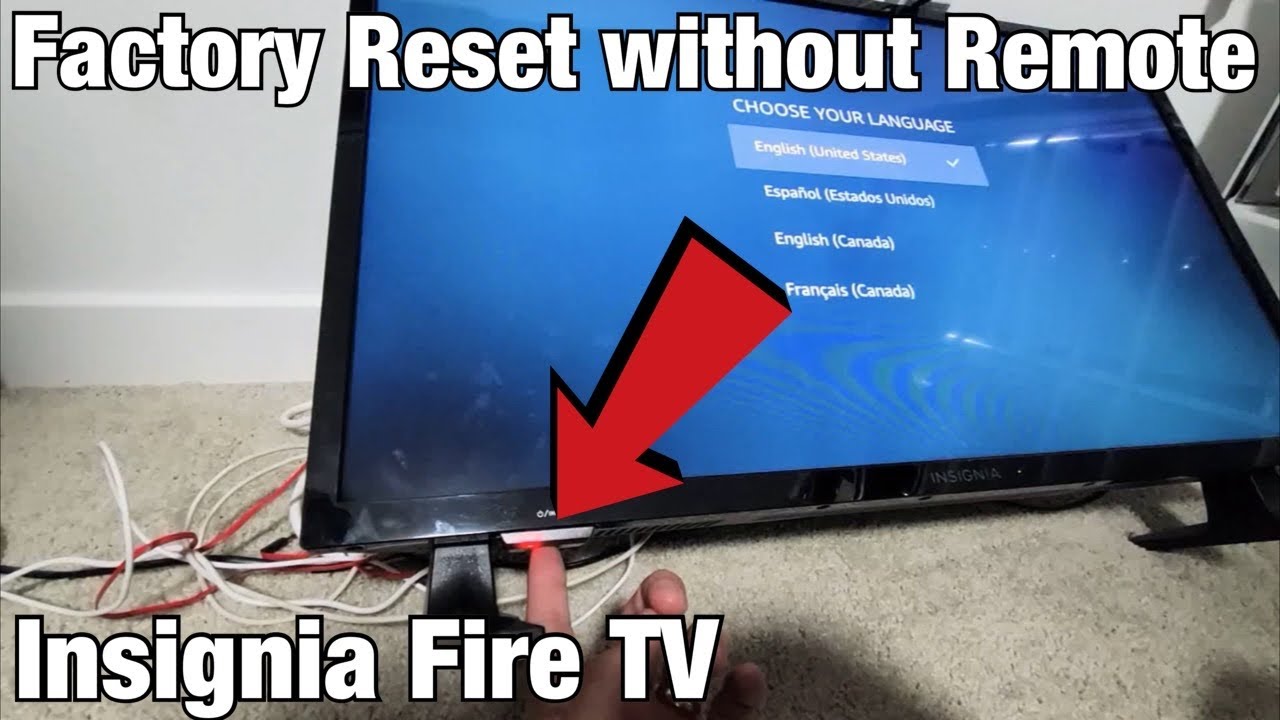
Can I Reset My Insignia Tv Without A Remote?
Yes, you can perform a factory reset using the TV’s physical buttons, but the process varies by model. Typically, you’ll need to unplug the TV, press and hold the “Power” or “Input” button, then plug the TV back in while holding the button. The TV should enter recovery or reset mode. Refer to your TV’s manual for exact steps.
How Can I Find My Insignia Tv Model Number Without The Remote?
Look for a sticker on the back or side of your TV. The model number is usually printed near the serial number or on the original box. Take a photo for future reference.
Controlling your Insignia TV without a remote or WiFi is possible using several methods. Whether you use the TV’s physical buttons, a universal remote, a phone with an IR blaster, HDMI-CEC, or a USB keyboard, you can still access most features.
Trying these solutions before you lose your remote will help you feel confident and prepared. And if all else fails, a replacement remote is easy to order. With a little creativity and knowledge, you’ll never be stuck staring at a blank screen again.