
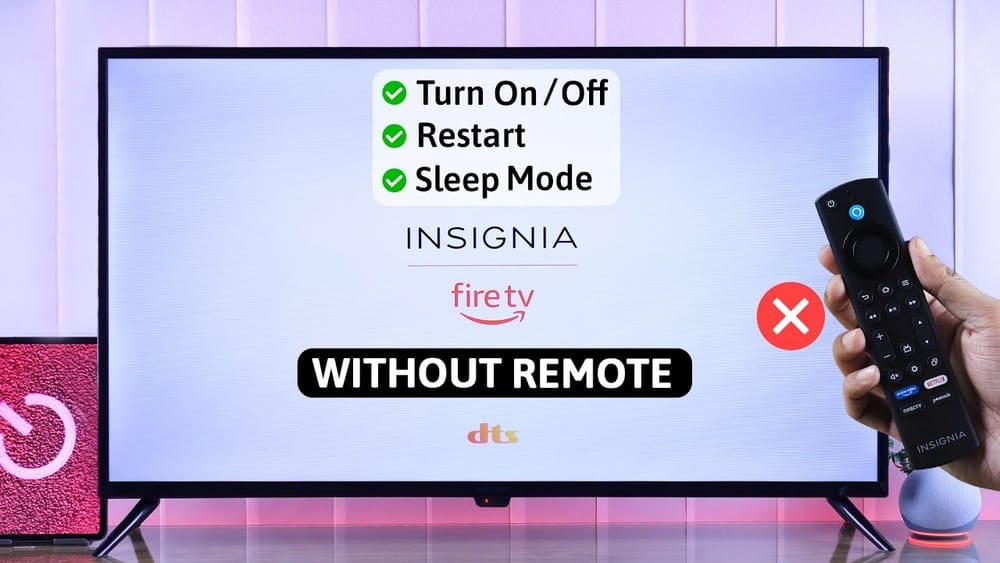
Losing your Insignia TV remote can feel like losing the key to your entertainment. Suddenly, changing channels, adjusting the volume, or even turning the TV on and off becomes a challenge. But you don’t have to let a missing remote stop you from enjoying your TV.
Insignia TVs, like many modern smart TVs, offer several ways to control them without the original remote. Whether you need a quick fix or a permanent alternative, there are practical solutions you can use right now.
This guide covers all the best ways to control your Insignia TV without its remote. From using the built-in buttons to advanced methods like smartphone apps and universal remotes, you’ll find easy steps and helpful tips for each option. We’ll also discuss the pros and cons of each method, highlight common mistakes, and provide answers to frequently asked questions.
By the end of this article, you’ll know exactly how to take control of your Insignia TV—no remote required.
Understanding Your Insignia Tv’s Controls
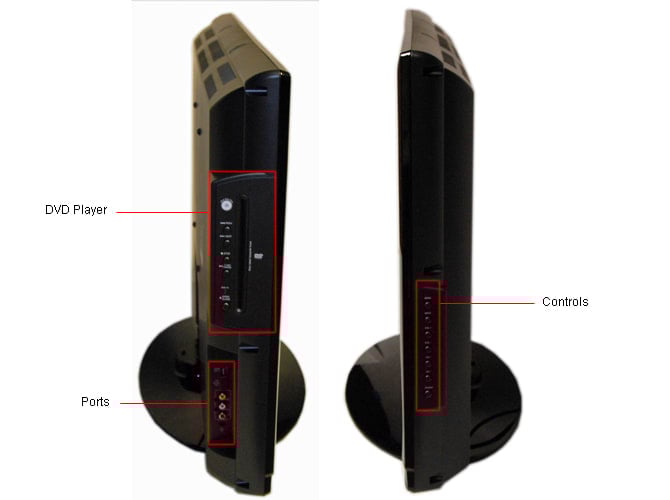
Before exploring alternatives, it’s helpful to know how Insignia TVs are designed for manual use. Most Insignia TVs include a set of physical buttons on the TV itself. These buttons are usually located on the lower edge or back panel, depending on the model. Common buttons include power, volume up/down, channel up/down, and sometimes a menu or input button.
Older models might have more buttons, while newer smart models may have only a power button and a joystick-style navigation button. If you’re unsure where your buttons are, check your TV’s user manual or look along the edges of your TV.
Using Built-in Buttons: What You Can And Can’t Do
With just the physical buttons, you can:
- Turn the TV on or off
- Adjust the volume
- Change channels (if using an antenna or cable directly)
- Switch input sources (on some models)
- Access and navigate basic menus
However, there are limitations. Advanced settings, smart TV features, and some menu options may not be accessible without a remote or alternative control method. For example, entering Wi-Fi passwords or using streaming apps often requires a remote.
Method 1: Using The Tv’s Physical Buttons
This is the simplest solution. Every Insignia TV has at least a power button. Here’s how to use the built-in buttons for basic functions:
- Locate the Buttons: Look on the bottom, sides, or back of your TV. They might be labeled or use icons.
- Power On/Off: Press the power button to turn the TV on or off.
- Volume & Channel: Use the volume and channel buttons to adjust sound or change channels.
- Input/Menu: Some models have an input or menu button. Use it to switch HDMI ports or access basic settings.
Non-obvious tip: On some Insignia TVs, you can long-press the power button to open the input menu, then use volume or channel buttons to navigate.
When Built-in Buttons Are Not Enough
If you want to use apps, change smart TV settings, or enter text, you’ll need another method. Physical buttons are great for emergencies but limited for daily use.

Credit: www.anderic.com
Method 2: Smartphone Apps For Insignia Tv Control
Most people don’t know that their smartphone can become a full-featured remote for many Insignia TVs, especially smart models powered by Fire TV or Roku.
For Insignia Fire Tv Edition
If your Insignia TV runs on Fire TV OS, you can use the Amazon Fire TV app (available for iOS and Android). Here’s how:
- Download the App: Search for “Amazon Fire TV” in your app store.
- Connect to Wi-Fi: Make sure your phone and TV are on the same Wi-Fi network.
- Launch the App: Open the app and select your Insignia TV from the list.
- Pair Your Devices: Follow the on-screen instructions. You may need to enter a code shown on your TV screen.
- Start Controlling: Use the app to navigate menus, type text, launch apps, and more.
The app gives you:
- Navigation pad
- Voice search
- Keyboard input (great for typing passwords)
- Quick access to installed apps
Data point: According to a 2023 Amazon user survey, over 60% of Fire TV users have used the app as a backup remote at least once.
For Insignia Roku Tv Models
If your Insignia TV uses Roku OS, use the Roku mobile app (also free on iOS and Android):
- Install the Roku App: Download “Roku” from your app store.
- Network Connection: Ensure both your TV and phone are on the same Wi-Fi.
- Select Your TV: The app will detect Roku TVs on your network. Tap your TV’s name.
- Remote Functions: Use the app’s virtual remote, keyboard, and voice search features.
For Older Or Non-smart Models
If your TV doesn’t support Fire TV or Roku, you may try IR blaster apps—but only if your phone has an IR (infrared) transmitter. Most modern phones do not. Samsung and some Xiaomi phones still have this feature.
Pro insight: Many users forget to connect their phone and TV to the same Wi-Fi network, which is essential for app-based control.
Limitations Of Smartphone Apps
- If your TV is not already connected to Wi-Fi, you may need the original remote to connect it.
- Some advanced settings may require a physical remote.
Method 3: Universal Remote Controls
Universal remotes are designed to work with many brands and models, including Insignia TVs. They’re sold at electronics stores and online, often for $10–$30.
How To Set Up A Universal Remote
- Buy a Compatible Remote: Check that it lists Insignia among supported brands.
- Insert Batteries: Install fresh batteries.
- Enter Programming Mode: Usually, press and hold the “Setup” button until a light turns on.
- Enter Code: Use the code for Insignia TVs from the remote’s manual. Common codes: 12049, 11423, 11564, 10171.
- Test Functions: Try power, volume, and input buttons. If needed, try another code.
Common mistake: Many users skip reading the setup instructions and use the wrong code, causing frustration.
Pros And Cons Of Universal Remotes
Pros:
- Works without Wi-Fi
- Affordable and widely available
- Controls multiple devices
Cons:
- Setup can be confusing
- Advanced features may not be supported
Universal Remote Comparison
Here’s a quick comparison of popular universal remotes for Insignia TVs:
| Model | Price Range | Max Devices | Special Features |
|---|---|---|---|
| GE 33709 | $10–$15 | 4 | Simple setup, basic functions |
| Logitech Harmony 665 | $50–$70 | 10 | Smart device support, LCD screen |
| Philips SRP2017B | $12–$18 | 3 | Pre-programmed codes |
Pro tip: If you have other devices (Blu-ray, soundbar), a universal remote can control them too.
Method 4: Hdmi-cec (consumer Electronics Control)
Many Insignia TVs support HDMI-CEC, a feature that lets you control the TV with another device connected by HDMI, such as a streaming box, Blu-ray player, or game console.
How Hdmi-cec Works
When HDMI-CEC is enabled, the remote for your connected device can send commands to your TV, like power on/off or volume control.
Example: Using A Fire Tv Stick Remote
If you have a Fire TV Stick plugged into your Insignia TV’s HDMI port:
- Make sure HDMI-CEC is enabled on your TV (may be called “CEC” or “HDMI Control” in settings).
- Use your Fire TV remote to turn the TV on/off and adjust volume.
Supported Devices
Devices that often support HDMI-CEC include:
- Amazon Fire TV Stick
- Roku Streaming Stick
- PlayStation 4/5
- Xbox One/Series X|S
- Apple TV
Hdmi-cec Feature Comparison
How different devices support HDMI-CEC functions:
| Device | Power On/Off TV | Volume Control | Input Switch |
|---|---|---|---|
| Fire TV Stick | Yes | Yes (on some models) | Yes |
| Roku Stick | Yes | No (on most models) | Yes |
| PlayStation 5 | Yes | No | Yes |
| Apple TV | Yes | Yes | Yes |
Insight: HDMI-CEC may be off by default; you might need the original remote to activate it the first time.
Method 5: Replacement Remotes
Buying a replacement Insignia remote is often the simplest long-term fix. These are available online (Amazon, Best Buy, eBay) and usually cost $10–$25. Always match the model number on your TV or old remote for compatibility.
Steps To Pair A Replacement Remote
- Buy the right remote: Check your TV’s model number.
- Install batteries: Use fresh batteries.
- Pair (if needed): Most remotes work out of the box, but some smart models require pairing. Follow the included instructions.
Non-obvious tip: Many replacement remotes are “universal for Insignia” and work with several models, but smart TV functions may need an exact match.
Method 6: Using A Keyboard Or Mouse (for Smart Tvs)
Some Insignia smart TVs (especially Fire TV or Roku models) support USB keyboards or mice. This can help you navigate menus and enter text.
How To Use A Keyboard Or Mouse
- Plug in: Insert a USB keyboard or mouse into the TV’s USB port.
- Wait for Detection: The TV should recognize the device automatically.
- Navigate: Use arrow keys, enter, and other basic keys to move through menus and select options.
Limitations: This method works best for text entry or basic navigation. Some menus or apps may not support keyboard/mouse input fully.
Pro insight: A small wireless keyboard with a USB dongle is more comfortable than a full-size keyboard, and it lets you control the TV from your couch.
Method 7: Voice Control
If your Insignia TV is a smart model, you may be able to use voice control through built-in assistants like Alexa (Fire TV models) or Google Assistant (on some newer TVs). This often requires either a compatible remote or a smart speaker already paired with the TV.
How To Use Voice Control
- With Alexa: Say “Alexa, turn on the TV” if you have an Echo device and your TV is linked.
- With Google Assistant: Use a Google Home device to send commands if your TV is connected to your Google account.
Limitation: Initial setup usually requires a remote, but once paired, you can use voice commands for power, volume, and input switching.
Credit: www.tvsbook.com
Method 8: Infrared (ir) Blaster Phones
Some Android smartphones come with a built-in IR blaster. With the right app, these phones can control almost any TV, including Insignia models.
How To Use An Ir Blaster
- Check if Your Phone Has IR: Look for a small black window on the top edge of your phone.
- Install a Remote App: Apps like “AnyMote” or “Peel Smart Remote” can be found in the Play Store.
- Set Up: Open the app, choose Insignia as the brand, and follow the instructions.
Note: IR blasters are rare in new phones, so this method only works for select models.
When To Use Each Method: A Quick Decision Guide
With so many options, how do you choose the best method for your situation? Here’s a quick-reference table:
| Situation | Best Method | Why? |
|---|---|---|
| Need quick access | Physical buttons | Always available, no setup |
| Have a smartphone | TV control app | Full features, easy navigation |
| Want a physical remote | Universal or replacement remote | Traditional feel, reliable |
| Use a streaming device | HDMI-CEC | Control TV with one remote |
| Type Wi-Fi passwords easily | USB keyboard | Faster text entry |
| Own an IR blaster phone | IR remote app | No extra devices needed |
Common Mistakes And How To Avoid Them
Even experienced users make simple errors when trying to control their Insignia TV without a remote. Here are a few to watch out for:
- Forgetting to connect devices to the same Wi-Fi: If your TV and phone aren’t on the same network, apps won’t work.
- Using the wrong universal remote code: Always double-check the code list in your remote’s manual.
- Assuming all models support all features: Not every Insignia TV supports USB keyboards or HDMI-CEC.
- Not checking for CEC settings: HDMI-CEC is often off by default. You may need the original remote to turn it on the first time.
- Buying the wrong replacement remote: Match your TV’s model number for guaranteed compatibility.
- Not updating your TV’s firmware: Some features (like app control) require the latest software.
Non-obvious insight: If you plan to use app-based control, set up Wi-Fi and enable necessary settings *before* you lose or break your remote.
Advanced Tips For Power Users
- Pair multiple devices: You can control your Insignia TV with both a universal remote and a smartphone app at the same time.
- Set up HDMI-CEC routines: Some streaming devices let you program actions, like turning on your TV and switching inputs automatically.
- Use smart home integrations: If you have Alexa or Google Home, consider setting up routines for voice commands like “Movie Time” that adjust your TV and lights together.

Credit: www.youtube.com
When None Of These Methods Work
If your TV is unresponsive or doesn’t support any of these methods, it might be time to contact Insignia support or consider a professional repair. Sometimes, issues with the TV’s main board or IR receiver can prevent any remote or button from working.
For more detailed technical support and firmware downloads, visit the official Insignia Support page.
Frequently Asked Questions
Can I Turn On My Insignia Tv Without The Remote?
Yes. Most Insignia TVs have a power button on the TV itself. Check along the bottom or back edge. Press and hold the button to turn the TV on or off.
What App Can I Use To Control My Insignia Tv?
If you have a Fire TV Edition model, use the Amazon Fire TV app. For Roku TV models, use the Roku app. Both are available for iOS and Android. Make sure your phone and TV are on the same Wi-Fi network.
Will A Universal Remote Work With All Insignia Tvs?
Most universal remotes support Insignia TVs, but advanced features (like smart TV apps) may not work on every model. Always check compatibility before buying and enter the correct programming code.
Can I Control My Insignia Tv With A Keyboard Or Mouse?
Many smart Insignia TVs support USB keyboards or mice for basic navigation and text entry. Plug the device into a USB port and test it. Not all models support this feature.
What Should I Do If None Of These Methods Work?
If your TV is not responding to any control method, check the power supply and make sure the TV is not locked or damaged. If the problem continues, contact Insignia customer support or a professional repair service.
Losing your Insignia TV remote doesn’t have to mean losing control of your TV. With a bit of creativity and the right tools, you can still enjoy all your favorite shows and features. Try these methods and choose the one that fits your needs best.
Whether you use built-in buttons, a smartphone app, or a universal remote, your Insignia TV is always within reach—even without its original remote.