
Losing your LG TV remote can be frustrating, especially when you want to relax and watch your favorite show. But the good news is, you don’t have to give up control. Today’s LG TVs offer several ways to navigate, adjust settings, and stream content without the traditional remote.
With just a little knowledge, you can manage almost everything—power, volume, inputs, and even smart features—using built-in buttons, smartphone apps, voice commands, and more. This guide will show you exactly how to control your LG TV without the remote, so you’re never left in the dark.
Understanding Your Lg Tv’s Control Options
Modern LG TVs come with multiple ways to operate them. These are not always obvious, but knowing your options helps you take control quickly.
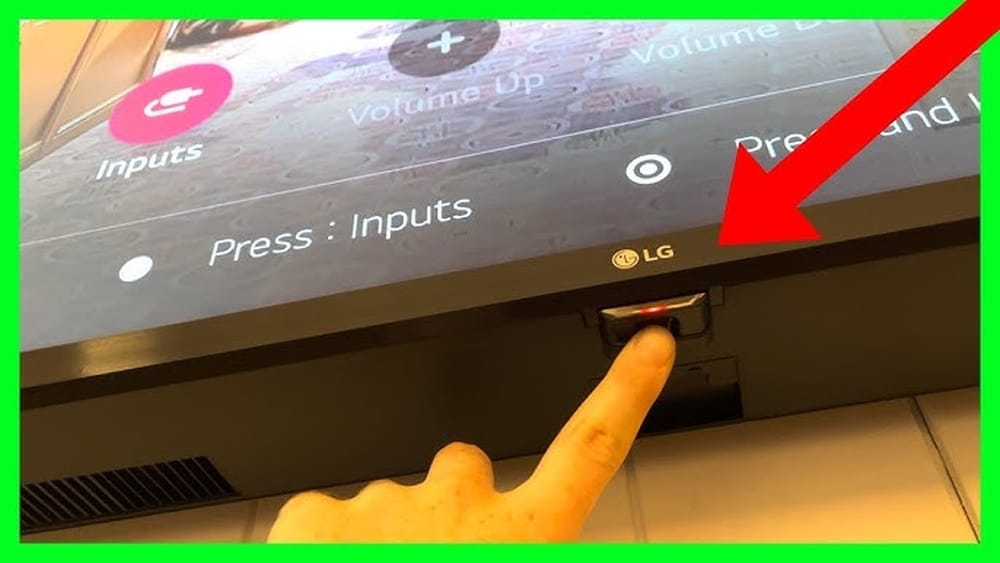
Most LG TVs have a physical control button on the body of the TV. This button is often placed under the LG logo, at the bottom edge of the screen, or on the back panel. The button may be a single joystick-style control or a cluster of small buttons.
Newer LG Smart TVs support mobile apps that mimic the remote and offer extra features. Many models also support voice assistants and can connect to smart home systems. If your TV is older, you might have fewer options, but you’re not out of luck.
Let’s look at all the ways you can control your LG TV without the remote, step by step.
Using The Physical Buttons On The Tv
When you lose the remote, your first and fastest option is the set of buttons located directly on the TV. These physical controls are built into every LG TV, although their location and design may differ.
Locating The Buttons
- Front Center or Bottom Edge: Many LG TVs have a small joystick or button right under the logo at the center bottom edge.
- Back or Side Panel: On some older or budget models, the buttons are on the back or side, often near the power cord.
- Button Types: Newer TVs often use a joystick button that you can press, hold, or move in four directions. Older models may have separate buttons labeled Power, Menu, Volume, and Channel.
Basic Controls
With the joystick or button cluster, you can:
- Turn the TV On/Off: Press and hold the button.
- Change Volume/Channel: Move the joystick left/right (volume) or up/down (channel), or press labeled buttons.
- Open Menu: Tap the button once or hold for two seconds to access the on-screen menu.
- Select Inputs: Navigate to the input/source menu and choose HDMI, AV, etc.
Limitations
Physical buttons let you do basic things but might not offer full control. For example, entering Wi-Fi passwords or adjusting picture settings can be slow or impossible without a remote or app.
Pro Tip: If the button is hard to find, check your TV’s manual (available online by searching your model number).
Credit: play.google.com
Using The Lg Tv Plus Mobile App
If you have a Smart LG TV (usually webOS models from 2014 onward), you can use the official LG TV Plus app. This app turns your smartphone into a remote control.
Setting Up The App
- Download: Get “LG TV Plus” from the Google Play Store (Android) or App Store (iOS).
- Connect to Wi-Fi: Make sure your TV and phone are on the same Wi-Fi network.
- Pairing: Open the app. It will search for nearby LG TVs. Select your TV. A code will appear on the TV screen; enter it on your phone to connect.
Main Features
- Full Remote Control: All buttons of the physical remote are available on your phone.
- Touchpad Navigation: Use your finger to swipe and select, like a smart remote.
- Keyboard Input: Type text (e.g., Wi-Fi passwords, app searches) directly from your phone.
- Launch Apps: Open Netflix, YouTube, and other apps with one tap.
- Adjust Settings: Control picture, sound, and other TV settings.
Benefits And Drawbacks
Benefits:
- Convenient for daily use.
- Keyboard makes text input easier.
- Some versions let you share photos/videos from your phone to the TV.
Drawbacks:
- Both TV and phone must be on the same Wi-Fi.
- If your TV is not already connected to Wi-Fi, you may need to use physical buttons to set it up first.
Non-Obvious Insight: If you change your Wi-Fi network, you’ll need another way to reconnect your TV, since the app won’t find it until both are on the same network.
Alternative Remote Apps
If your TV is not compatible with LG TV Plus, or you want more options, there are universal remote apps. Some use your phone’s IR blaster (if it has one), and others use Wi-Fi.
Popular Universal Remote Apps
- AnyMote Universal Remote
- Peel Smart Remote
- Sure Universal Remote
These apps offer basic remote functions. However, success depends on your TV model and your phone’s hardware. IR blasters are rare in new phones, but many older Android devices have them.
How To Use Universal Apps
- Install the app on your phone.
- Select LG TV from the device list.
- Point phone at TV (if using IR) or connect via Wi-Fi if supported.
- Test functions: Try power, volume, and menu buttons.
Practical Tip: Universal apps are a good backup if the official app doesn’t work or if your TV is older and doesn’t support network control.

Credit: www.youtube.com
Using Hdmi-cec Control
HDMI-CEC (Consumer Electronics Control) is a feature that lets you control your TV with another device’s remote, such as a streaming stick or Blu-ray player. LG calls this feature SimpLink.
How Hdmi-cec Works
When you connect a CEC-compatible device (like a Roku, Fire Stick, or PlayStation) to your LG TV via HDMI, the device’s remote can control basic TV functions, such as power and volume.
Setting Up Simplink
- Connect Device: Plug in your HDMI-CEC device.
- Enable SimpLink: Use the TV’s physical button (Menu > General > SimpLink/HDMI-CEC) to turn on SimpLink.
- Use Device Remote: Try using the streaming device’s remote to adjust volume, switch inputs, or power the TV on/off.
Supported Functions
- Power On/Off
- Volume Up/Down
- Switch Inputs (on some devices)
- Playback Control (play/pause, etc., for media devices)
Common Issues
- Not all functions may work with every device.
- SimpLink names and menu locations may vary by TV model.
Non-Obvious Insight: If you have a soundbar connected via HDMI-ARC, HDMI-CEC can let you control both TV and soundbar volume with one remote.
Using Voice Assistants
Many LG Smart TVs support voice control through built-in microphones (on Magic Remotes) or through connected smart speakers like Google Home or Amazon Alexa.
Controlling Tv With Google Assistant
If your LG TV supports Google Assistant:
- Use the “Hey Google” phrase on a connected smart speaker or phone.
- Say commands like “Turn on LG TV,” “Set volume to 15,” or “Launch YouTube on LG TV.”
Controlling Tv With Alexa
For Alexa-enabled TVs or if you have an Amazon Echo:
- Enable the LG ThinQ skill in your Alexa app.
- Link your LG account.
- Use commands like “Alexa, turn on the TV” or “Alexa, change input to HDMI 2.”
Setup Steps
- Connect TV to Wi-Fi (may need manual setup if not done).
- Sign in to your LG account on the TV.
- Link the TV to your preferred voice assistant following the TV’s on-screen instructions.
Voice Commands
- Power on/off
- Volume up/down
- Mute/unmute
- Change channels or inputs
- Open apps
Practical Example: “Hey Google, increase LG TV volume to 20.”
Limitation: If your TV is fully powered off (not in standby), voice commands may not work unless Wake-on-LAN is enabled.
Pairing A Universal Remote
If you prefer physical buttons, you can use a universal remote. These are available from many brands, cost between $10 and $30, and work with most LG TVs.
How To Pair A Universal Remote
- Buy a compatible universal remote (check packaging for LG TV support).
- Insert batteries into the remote.
- Find the LG TV code in the manual.
- Program the remote: Usually, this means holding “Setup” and entering the code.
- Test all functions: Power, volume, and menu.
Benefits Of Universal Remotes
- No Wi-Fi needed.
- Works with both old and new TVs.
- Can control multiple devices (TV, DVD, soundbar) with one remote.
Universal Remote Comparison
Here’s a quick look at some popular universal remotes for LG TVs:
| Model | Price Range | Number of Devices Supported | Special Features |
|---|---|---|---|
| GE Universal Remote | $10–15 | 2–4 | Simple setup, basic functions |
| Logitech Harmony 650 | $50–70 | Up to 8 | Color screen, advanced macros |
| One For All Streamer Remote | $20–30 | 3 | Shortcut buttons for streaming apps |
Expert Tip: Basic remotes work well for simple tasks, but premium models like Harmony offer more customization.
Using A Keyboard Or Mouse
Many LG Smart TVs support USB keyboards and mice. This is helpful if you need to type, search apps, or navigate menus without a remote.
How To Connect
- Plug a USB keyboard or mouse into the USB port on your TV.
- The TV should recognize it instantly.
- Use the keyboard to navigate menus, type passwords, and control some functions.
Supported Features
- Arrow keys and Enter for navigation
- Volume and channel (some keys may map automatically)
- Text input in search boxes and browser apps
- Mouse pointer for app navigation
Limitations
- Not all TV menus support keyboard shortcuts.
- Some advanced features (e.g., input selection) may still require the physical button or remote.
Non-Obvious Insight: A wireless keyboard with a touchpad gives you almost full control for streaming, browsing, and searching.

Credit: www.wikihow.com
Troubleshooting Tv Control Without A Remote
Sometimes, even after trying all options, you may face issues. Here are common problems and how to solve them:
Tv Is Not Connected To Wi-fi
Problem: Can’t use mobile apps or voice assistants.
Solution: Use the physical TV button to access Settings > Network > Wi-Fi. Enter your Wi-Fi password using the joystick/button. If it’s too hard, try a USB keyboard.
Tv Not Responding To App
Problem: The app can’t find the TV.
Solution:
- Make sure both phone and TV are on the same Wi-Fi.
- Restart both devices.
- Reinstall the app if needed.
Lost Access To All Controls
Problem: Physical button is broken, and no remote/app works.
Solution: Try a universal remote, or contact LG support for a replacement. In the meantime, see if your HDMI device remote (with CEC) can control the TV.
Comparing Control Methods
To help you choose the best solution, here’s a comparison of common ways to control an LG TV without the original remote.
| Method | Main Requirements | Main Features | Limitations |
|---|---|---|---|
| Physical Buttons | Button access on TV | Power, volume, input, basic menu | Slow, limited functions |
| Mobile App | Smart TV, Wi-Fi | Full remote, keyboard, app control | Needs Wi-Fi, setup required |
| Universal Remote | Compatible remote | All basic functions | Needs programming, extra purchase |
| HDMI-CEC | CEC device, HDMI cable | Basic TV control via another remote | Not all features, setup needed |
| Keyboard/Mouse | USB port, keyboard/mouse | Navigation, typing, menu control | Not all menus supported |
| Voice Assistant | Smart speaker, linked TV | Hands-free control, smart home | Setup required, not all models |
When To Buy A Replacement Remote
While you can control your LG TV in many ways, there are times when buying a replacement remote makes sense.
When Is It Necessary?
- Physical button is broken or unreachable.
- TV is mounted on a wall, and buttons are hard to access.
- You need fast access to advanced settings.
- You use multiple features (apps, inputs, smart features) daily.
Where To Buy
- Official LG Store: Best for guaranteed compatibility.
- Online retailers: Amazon, Best Buy, Walmart.
- Electronics stores: Carry basic universal remotes.
Caution: Check model compatibility before buying. Some LG TVs require a “Magic Remote,” which has a pointer function and voice control.
Cost
- Basic remotes: $10–$20
- Magic Remotes: $20–$40
Pro Tip: Magic Remotes can often be paired by holding the “OK” button after inserting batteries.
Preventing Future Remote Issues
Once you’ve solved your immediate problem, it’s wise to prepare for next time.
Easy Tips
- Attach a tracker: Small Bluetooth trackers (like Tile or AirTag) help you find your remote fast.
- Designate a spot: Always return the remote to a specific place.
- Backup option: Keep a universal remote or the LG TV Plus app set up on your phone.
- Extra batteries: Store spare batteries near the TV.
Real-world Example: Recovering Control Step-by-step
Let’s walk through a scenario to see how these methods fit together.
Situation: You lost your LG TV remote. The TV is on, but you need to switch from HDMI1 to Netflix and adjust the volume.
- Physical Button: You locate the joystick under the LG logo. You use it to open the menu, but it’s slow to navigate.
- Mobile App: You install LG TV Plus. You realize the TV is not connected to Wi-Fi, so you use the joystick to open network settings, then plug in a USB keyboard to type the Wi-Fi password.
- Once connected, you pair the app and control the TV from your phone. You launch Netflix and adjust the volume easily.
- Later, you buy a universal remote as a backup.
Key Insight: Combining basic controls (joystick, keyboard) with smart solutions (mobile app) gives you full control, even with no remote.
Frequently Asked Questions
How Can I Turn On My Lg Tv Without A Remote?
Most LG TVs have a power button either under the LG logo on the front or at the back. Press it once to turn on the TV. If your TV is wall-mounted or the button is hard to reach, you can also use the LG TV Plus app (if your TV supports it) or a universal remote.
Can I Control My Lg Tv With My Phone If The Tv Is Not On Wi-fi?
No, your TV and phone must be on the same Wi-Fi network to use the LG TV Plus app or similar mobile apps. If your TV is not connected, use the physical buttons or a USB keyboard to access network settings and connect to Wi-Fi first.
What Should I Do If The Physical Button On My Lg Tv Is Broken?
If the button is broken, your best options are:
- Use a universal remote (most are compatible with LG TVs).
- Try controlling the TV with an HDMI-CEC device’s remote.
- As a last resort, contact LG support to repair the button or buy a replacement remote.
Is There A Way To Reset My Lg Tv Without A Remote?
Yes, you can perform a basic reset using the physical button. Press and hold the power button for about 10 seconds. For a factory reset, you’ll usually need full menu access, so using a USB keyboard or the LG TV Plus app is best.
Does Every Lg Tv Work With Universal Remotes?
Almost all LG TVs support universal remotes for basic functions (power, volume, channels). However, advanced features like voice control or pointer navigation (on Magic Remote models) may require an official LG Magic Remote. Always check compatibility before buying.
Controlling your LG TV without the remote is easier than many people think. With physical buttons, mobile apps, universal remotes, HDMI-CEC devices, and voice assistants, you have a full toolbox of solutions. While some features may need a bit of setup or creativity, you’ll never be stuck staring at a blank screen. For more details on LG TV features and official support, visit the LG Support Center. Now, you can enjoy your TV—no remote required.