
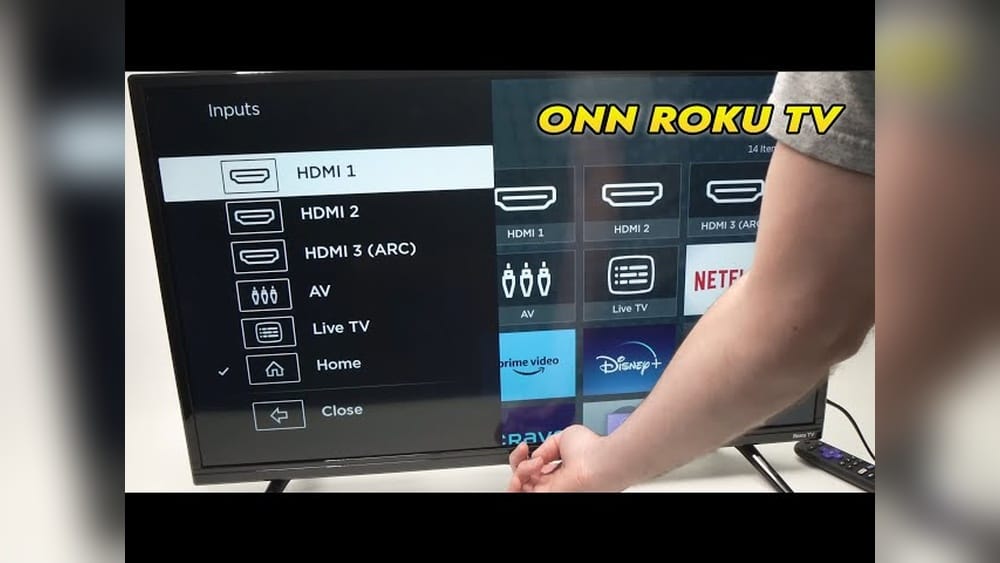
Losing a remote can feel frustrating, especially if you want to watch your favorite show or adjust your Onn TV settings. Many people think a TV is useless without its remote, but that’s not true. There are several smart and practical ways to control an Onn TV without a remote. With a few easy tricks, you can turn your TV on, change the channel, adjust the volume, and even use advanced features. This guide will explain the best methods, give practical steps, and help you avoid common mistakes. Whether your remote is lost, broken, or just out of batteries, you’ll find a solution here. Let’s explore how to make your Onn TV work for you, even when the remote is missing.
Using The Physical Buttons On Onn Tv
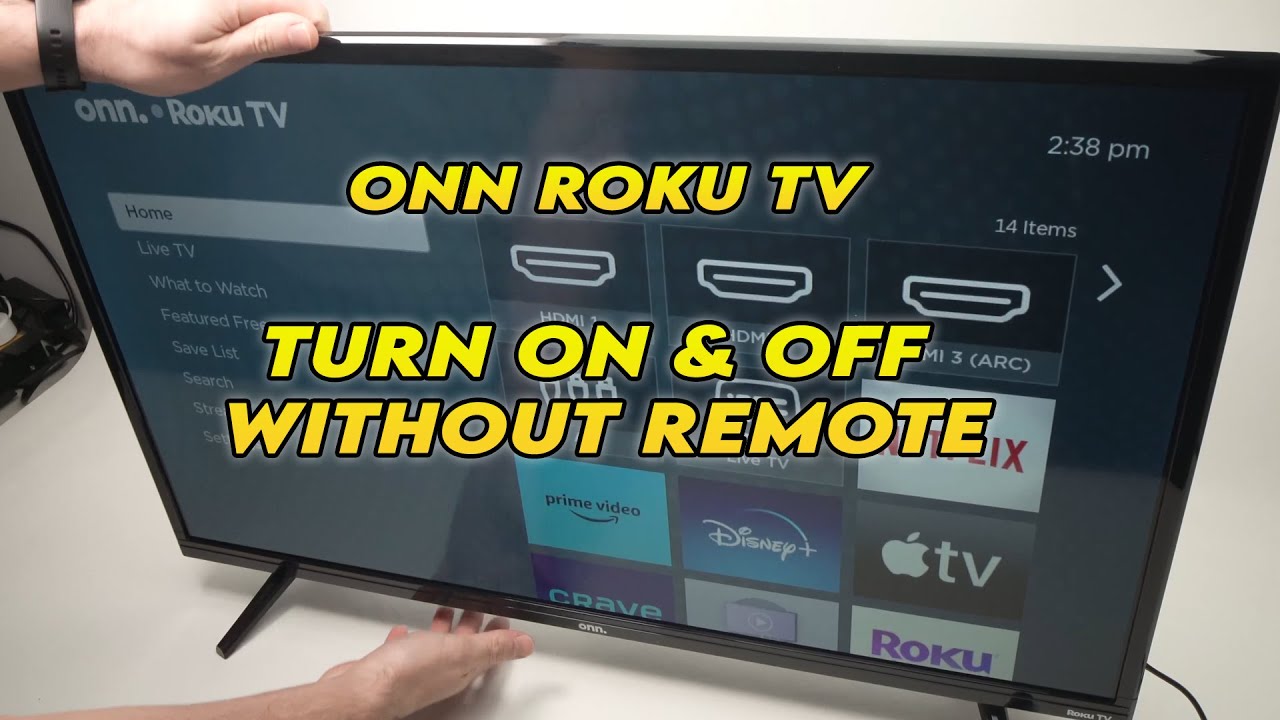
Most Onn TVs have physical buttons located either on the bottom, side, or back of the TV. These buttons allow you to perform basic functions directly.
Finding The Buttons
Look for a small row of buttons. On newer models, you’ll often find them underneath the screen, near the front. Older models might have buttons on the right or left edge, or even on the back panel.
What The Buttons Do
The typical buttons are:
- Power: Turns the TV on/off.
- Volume Up/Down: Adjusts sound levels.
- Channel Up/Down: Switches channels.
- Menu/Input: Opens the main menu or changes input source.
Some TVs combine functions, so one button may do more than one thing. Pressing and holding can activate different modes.
Using The Buttons
- Power On/Off: Press the power button once to turn the TV on. Hold it for 3 seconds to turn it off.
- Volume Control: Use volume up/down buttons to adjust sound.
- Channel Change: Channel up/down buttons let you move through available channels.
- Menu Navigation: Press the menu button to bring up settings. Use channel and volume buttons to navigate.
Limitations
Physical buttons are useful for basic functions. However, you cannot access advanced settings or smart TV features easily. For tasks like connecting to Wi-Fi or using streaming apps, you’ll need other methods.
Non-obvious insight: Some Onn TVs require you to press two buttons at once for certain features, like factory reset. Check your TV’s manual or look up your model online if you’re unsure.
Controlling Onn Tv With A Smartphone
Modern TVs, including Onn, often support smartphone remote apps. This is one of the easiest ways to regain full control.
Compatible Apps
Onn TVs running Roku OS or Android TV can be controlled by official apps:
- Roku Remote App: For Onn Roku TVs.
- Google TV / Android TV Remote App: For Onn Android TVs.
Both apps are free and available for iOS and Android.
Setting Up The App
To use your phone as a remote:
- Download the app from your phone’s app store.
- Connect phone and TV to the same Wi-Fi network.
- Open the app and let it search for your TV.
- Select your TV from the list.
- Start controlling: The app gives you power, volume, channel, menu, and even voice control.
Example: If you have an Onn Roku TV, download the Roku app, connect both devices to Wi-Fi, and the app will automatically detect your TV.
Benefits Of Smartphone Control
- Full-featured control: Access all TV features, including streaming apps.
- Keyboard input: Typing passwords or searching is easier.
- Voice commands: Some apps allow you to speak commands.
- Touch navigation: Swipe and tap to control the TV.
Limitations And Troubleshooting
- Both the TV and phone must be on the same Wi-Fi.
- If the TV is not connected to Wi-Fi, use physical buttons to reconnect.
- The app may not work on older TVs without smart features.
Non-obvious insight: Many people forget that smartphone apps can adjust settings that physical buttons cannot, like picture mode or parental controls.

Credit: play.google.com
Using Universal Remotes
A universal remote is a handy tool that works with almost any TV brand, including Onn.
Types Of Universal Remotes
Universal remotes come in several styles:
- Basic universal remotes: Simple controls for power, volume, channel.
- Advanced universal remotes: Can control multiple devices and offer smart features.
Compatibility
Most universal remotes support Onn TVs. Before buying, check for “Onn” in the compatibility list or packaging.
Setting Up A Universal Remote
- Insert batteries into the remote.
- Find the Onn TV code in the remote’s manual.
- Press and hold the setup button on the remote.
- Enter the code using number buttons.
- Test the remote: Try power, volume, and channel functions.
If the code doesn’t work, repeat with another code listed for Onn TVs.
Comparison: Universal Remote Vs Original Remote
Here’s a quick comparison for clarity:
| Feature | Original Remote | Universal Remote |
|---|---|---|
| Brand-specific functions | Yes | No |
| Setup needed | No | Yes |
| Controls multiple devices | No | Yes |
| Price range | $10-$20 | $10-$50 |
| Availability | Only Onn | Most stores |
Tips For Choosing A Universal Remote
- Choose one with learning features if you have other devices.
- Buy from a trusted brand to avoid compatibility issues.
- Avoid very cheap remotes; they often lack proper support.
Using Hdmi-cec Functionality
HDMI-CEC (Consumer Electronics Control) lets you control your Onn TV with another device, like a game console or streaming stick.
What Is Hdmi-cec?
This feature allows devices connected via HDMI to communicate. For example, if you connect a PlayStation, Xbox, or Roku stick, you can turn on the TV and adjust settings using their remotes.
Setting Up Hdmi-cec
- Plug the device (like a streaming stick) into your TV’s HDMI port.
- Enable HDMI-CEC in the TV menu using physical buttons or a temporary remote.
- Use the connected device’s remote to control power, volume, and input.
Supported Devices
- Game consoles: PlayStation, Xbox, Nintendo Switch.
- Streaming devices: Roku, Amazon Fire Stick, Apple TV.
- Blu-ray players: Many modern players support HDMI-CEC.
Example
If you have an Xbox, turning it on will also turn on your Onn TV. You can use the Xbox controller to adjust volume or switch inputs.
Limitations
- HDMI-CEC must be enabled on both TV and device.
- Some functions might not work, depending on device.
Non-obvious insight: HDMI-CEC often goes by other names like “Anynet+,” “Simplink,” or “Bravia Sync.” Check your device’s settings for these terms.
Using Voice Assistants
Many Onn TVs are compatible with Google Assistant or Amazon Alexa. If your TV is connected to Wi-Fi, you can use voice commands.
Setting Up Voice Assistant Control
- Connect your TV to Wi-Fi (use physical buttons if needed).
- Link your TV to your Google or Alexa account.
- Use your phone, smart speaker, or compatible device to issue commands.
Common Commands
- “Turn on the TV.”
- “Change to channel 5.”
- “Set volume to 15.”
- “Open YouTube.”
Benefits
- Hands-free control.
- Access advanced settings easily.
- Works even if your remote is lost.
Limitations
- Requires smart TV model and Wi-Fi.
- Setup can be tricky without a remote.
Non-obvious insight: Voice assistants can often change input sources, but may not access deep menu settings without extra steps.
Using Infrared (ir) Blaster Apps
Some Android smartphones have IR blasters that can mimic remote controls.
What Is An Ir Blaster?
An IR blaster sends infrared signals, just like a remote. Not all phones have this feature, but if yours does, you can control your TV directly.
Setting Up
- Install an IR remote app from the app store.
- Select Onn TV from the device list.
- Point your phone at the TV and test the controls.
Example
Popular IR apps include “AnyMote,” “Peel Smart Remote,” and “Mi Remote. ” These apps let you power on/off, change channels, and adjust volume.
Limitations
- Only works on phones with IR blaster hardware.
- Range is limited to direct line-of-sight.
Using Streaming Device Remotes
If you have a streaming device (like Roku, Fire Stick, Chromecast), you can often use its remote to control basic TV functions.
Supported Devices
- Roku
- Amazon Fire Stick
- Apple TV
- Chromecast with Google TV
How It Works
- Plug the streaming device into your TV.
- Setup the device using its own remote.
- Control TV power and volume from the streaming device remote, if supported.
Example
The Roku remote can power your Onn TV on/off and control volume, thanks to HDMI-CEC.
Comparison: Streaming Device Remote Vs Smartphone App
| Feature | Streaming Device Remote | Smartphone App |
|---|---|---|
| Physical buttons | Yes | No |
| Requires Wi-Fi | No | Yes |
| Advanced settings access | No | Yes |
| Keyboard input | No | Yes |
| Voice control | Some models | Yes |
Limitations
- Some remotes only control volume and power, not channels or menu.
- Device must support HDMI-CEC.
Using Replacement Onn Remotes
If you prefer the original experience, buying a replacement remote is an option. These remotes are made for Onn TVs and offer full compatibility.
Where To Buy
- Walmart: Onn is Walmart’s house brand.
- Online retailers: Amazon, eBay, official Onn website.
Cost
Replacement remotes usually cost $10–$20.
Setting Up
Most replacement remotes are plug-and-play. Insert batteries, point at TV, and use.
Comparison: Replacement Remote Vs Universal Remote
| Feature | Replacement Remote | Universal Remote |
|---|---|---|
| Brand compatibility | Onn only | Multiple brands |
| Setup required | No | Yes |
| Advanced features | Yes | Sometimes |
| Price range | $10–$20 | $10–$50 |
Practical Tips
- Check the model number on your TV to get the right remote.
- Avoid third-party knockoffs; they may lack full functionality.
Using Pc Or Laptop To Control Onn Tv
If your Onn TV is a smart model, you can sometimes control it via a computer.
Methods
- Web-based remote: Use a browser to access TV controls (for Android TV).
- Streaming apps: Apps like Plex or Kodi allow basic control.
How To Set Up
- Connect TV and PC to the same Wi-Fi.
- Open the remote app or website.
- Select your TV and control functions.
Limitations
- Not all Onn TVs support PC control.
- Advanced features may be limited.
Troubleshooting Common Issues
Controlling your Onn TV without a remote can sometimes present challenges. Here are solutions to frequent problems.
Tv Not Responding To Physical Buttons
- Check if the TV is plugged in.
- Try holding the power button for 10 seconds to force restart.
- If buttons are unresponsive, unplug TV for one minute, then plug back.
Smartphone App Cannot Find Tv
- Ensure both devices are on the same Wi-Fi.
- Restart your TV and phone.
- Update the app to the latest version.
Universal Remote Not Working
- Double-check the code you entered.
- Try another code from the manual.
- Replace batteries if needed.
Hdmi-cec Not Functioning
- Enable HDMI-CEC in both TV and connected device settings.
- Use a high-quality HDMI cable.
- Restart both TV and device.
Voice Assistant Not Responding
- Make sure your TV is connected to Wi-Fi.
- Re-link your account if needed.
- Update your TV’s firmware.
Credit: www.youtube.com
Tips To Avoid Losing Your Remote Again
While you now know how to control your Onn TV without a remote, it’s smart to avoid future trouble.
- Use a remote holder: Attach a pocket to the side of your couch or TV stand.
- Label your remote: Add a bright sticker so it stands out.
- Set a routine spot: Always put the remote in the same place.
- Buy a backup: Keep a spare universal remote handy.
Data point: Surveys show that nearly 33% of people lose their remote at least once a month. Simple habits can save time and frustration.
When To Seek Professional Help
If none of these solutions work, your TV may have a hardware issue.
- Buttons not working: Could be a circuit problem.
- TV not responding to any remote: Infrared sensor may be broken.
- Wi-Fi not connecting: Software or hardware issue.
In these cases, contact Onn customer support or visit a repair shop.

Credit: play.google.com
Frequently Asked Questions
Can I Use My Onn Tv Without Any Remote At All?
Yes. Almost all Onn TVs have physical buttons for power, volume, and channel control. For advanced features, use a smartphone app, universal remote, or streaming device remote.
Is There A Free Way To Control Onn Tv If I Lose The Remote?
Absolutely. Download the official Roku or Android TV app on your smartphone. As long as both devices are on the same Wi-Fi, you can control your TV for free.
Will Any Universal Remote Work With Onn Tv?
Most universal remotes support Onn TVs, but it’s best to check compatibility before buying. Look for “Onn” in the remote’s manual or packaging.
Can I Use Voice Commands To Control Onn Tv?
If your Onn TV supports Google Assistant or Alexa, you can use voice commands to turn it on, change channels, and adjust volume. Setup requires linking your TV to the voice assistant.
What Should I Do If My Onn Tv Is Not Responding To Any Method?
First, unplug your TV for one minute and plug back in. If it still doesn’t respond, try a universal remote or smartphone app. If nothing works, contact Onn support or read more at WikiHow.
Controlling your Onn TV without a remote is not only possible, but often simple. Whether you use physical buttons, a smartphone app, universal remote, HDMI-CEC, or voice assistant, you have many options. With the right approach, you can unlock every feature—even without the original remote.
Remember these tips for next time, and enjoy your TV hassle-free.