

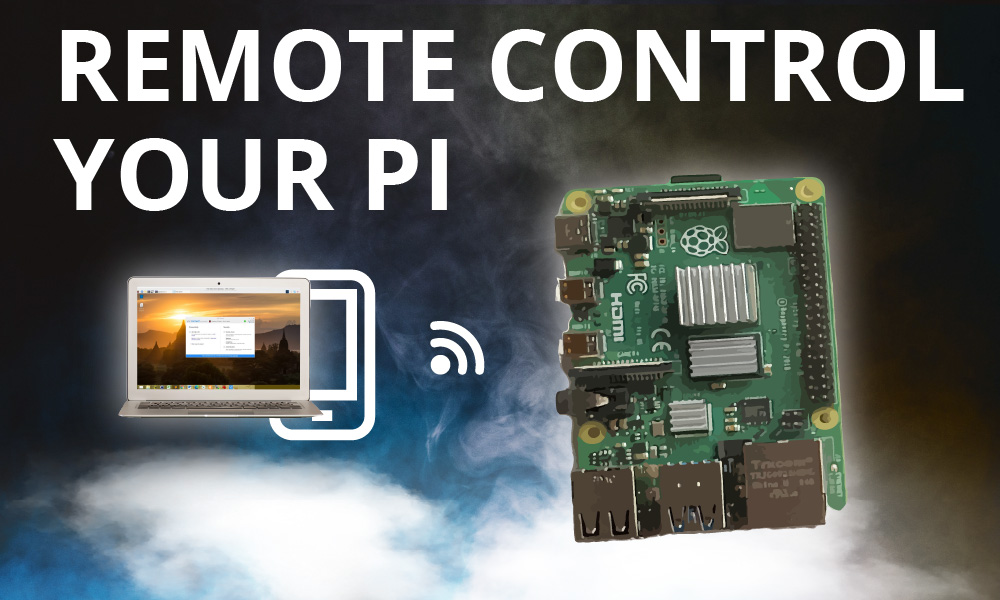
Controlling your Raspberry Pi remotely is one of the most useful features for makers, students, and professionals. With remote control, you can leave your Pi running in a corner, a server rack, or even across the globe, and still manage it like you’re sitting right in front of it. This guide will show you exactly how to set up and use remote control, step by step. You’ll learn about the best tools, real-world examples, practical troubleshooting, and even a few advanced tricks that many beginners miss. Whether you want to control a robot, monitor sensors, or run a web server, you’ll find actionable advice here.
Why Remote Control Is Essential For Raspberry Pi
The Raspberry Pi is a small, affordable computer. It’s often used for projects where a screen, keyboard, and mouse are not practical. For example, you might run a Pi as a home automation hub, a media server, or a weather station. In these cases, going to the device every time you need to update software or check logs would be frustrating.
Remote control solves this problem. Using your laptop, phone, or another computer, you can connect to your Pi over your local network or even from the internet. This saves time, keeps your workspace tidy, and opens up new project ideas.
Many people also use remote access to:
- Install software without extra monitors
- Fix problems from anywhere
- Share access with teammates or students
- Control devices in hard-to-reach places
Core Methods For Remote Raspberry Pi Control
There are several main ways to control your Raspberry Pi remotely. Each has its own setup steps, benefits, and best use cases. Here, we’ll look at the most popular options and help you choose what’s right for your project.
1. Ssh (secure Shell)
SSH is the most common way to control a Pi remotely. It lets you open a terminal session from another device and run commands as if you were in front of the Pi. SSH is secure, reliable, and works on nearly any network.
Key Features
- Text-based control (no desktop interface)
- Encrypted connection for security
- Works on Linux, Windows, and Mac
How To Enable Ssh
- On your Raspberry Pi, open a terminal and enter:
sudo raspi-config
- Go to Interfacing Options > SSH and select Enable.
- Note your Pi’s IP address. Run:
hostname -I
- From your main computer, open a terminal (or use PuTTY on Windows) and type:
ssh pi@
Use the default password raspberry (unless you changed it).
When To Use Ssh
- Running scripts
- Updating software
- Troubleshooting
Common Mistake
Many beginners forget to enable SSH before removing the Pi’s screen and keyboard. If you do, create a file named ssh (no extension) on the SD card’s boot partition. This enables SSH at startup.
2. Vnc (virtual Network Computing)
VNC lets you see your Pi’s desktop from another computer. It’s like looking at a remote screen and controlling the mouse and keyboard.
Key Features
- Full desktop access
- Good for graphical apps
- Simple for beginners
How To Enable Vnc
- Run:
sudo raspi-config
- Go to Interfacing Options > VNC and select Enable.
- Download VNC Viewer on your main computer.
- Enter your Pi’s IP address in VNC Viewer to connect.
When To Use Vnc
- Using graphical programs (e.g., web browsers, code editors)
- Teaching or demos
Vnc Vs Ssh: Quick Comparison
| Feature | SSH | VNC |
|---|---|---|
| Interface Type | Text (terminal) | Full desktop GUI |
| Resource Usage | Very low | Higher (needs more RAM/CPU) |
| Best For | Command-line tasks | Graphical tasks |
| Setup Difficulty | Easy | Easy |
3. Remote Desktop Protocol (rdp)
RDP is another way to control the Pi’s desktop, especially from Windows PCs. RDP is built into Windows, so you don’t need extra software.
How To Set Up Rdp
- Install the RDP server on your Pi:
sudo apt update
sudo apt install xrdp
- On your Windows PC, open Remote Desktop Connection and enter your Pi’s IP address.
Pros And Cons
- Easy on Windows
- Sometimes smoother than VNC
- Can have issues with some desktop environments (like Wayland)
4. Web-based Control
Some apps let you control your Pi from a web browser. For example, Webmin gives you a web dashboard for managing files, running commands, and monitoring resources.
Example: Setting Up Webmin
- Install Webmin:
sudo apt install software-properties-common
sudo add-apt-repository universe
wget -qO - http://www.webmin.com/jcameron-key.asc | sudo apt-key add -
sudo add-apt-repository "deb http://download.webmin.com/download/repository sarge contrib"
sudo apt update
sudo apt install webmin
- Open your browser and go to https: //
:10000/
Use Cases
- Managing multiple Pis
- Viewing logs and system stats
- Changing settings without command line
5. Mobile Apps
There are several mobile apps for SSH, VNC, and even special Raspberry Pi control apps. For example:
- JuiceSSH (Android)
- Prompt (iOS)
- VNC Viewer (iOS/Android)
These apps are ideal for checking in on your Pi when you’re away from your computer.
6. Iot And Cloud-based Control
If you want to control your Pi from anywhere in the world, consider cloud-based platforms like Dataplicity, Remote.it, or BalenaCloud. These services create a secure tunnel from your Pi to their cloud, so you don’t need to set up complex network rules.
Example: Using Remote.it
- Install the Remote.it software on your Pi.
- Register your device online.
- Use the web dashboard or app to connect from anywhere.
Pros
- No need to open ports on your router
- Works behind firewalls
- Good for commercial or education use
Cons
- Some features may require payment
- Reliant on third-party servers

Credit: info.kmtronic.com
Setting Up Your Raspberry Pi For Remote Access
Getting remote access working smoothly needs careful setup. Follow these steps for a secure and reliable experience.
Prepare Your Raspberry Pi
- Update your system for best security:
sudo apt update && sudo apt upgrade
- Set a strong password for the ‘pi’ user:
passwd
- Consider creating a new user and disabling the default ‘pi’ user.
Connect To Your Network
- Use Ethernet for stability if possible. If not, set up Wi-Fi using ‘raspi-config’ or the Raspberry Pi Imager tool.
- Find your Pi’s IP address with:
hostname -I
- For headless setup (no screen/keyboard), you can enable Wi-Fi and SSH by placing ‘wpa_supplicant.conf’ and an empty ‘ssh’ file in the SD card’s boot partition before first boot.
Assign A Static Ip
If your Pi’s IP changes, remote access will break. Assign a static IP in your router or edit the Pi’s network config.
Example: Setting A Static Ip (dhcp Reservation)
- Log in to your router’s web interface.
- Find the connected devices list.
- Reserve the current IP for your Pi’s MAC address.
This keeps your Pi’s address stable, so you always know where to connect.
Secure Your Remote Connections
Security is crucial. Here are key steps:
- Change default passwords immediately.
- Use SSH keys instead of passwords for SSH.
- Disable password login for SSH if possible (edit `/etc/ssh/sshd_config`).
- Install a firewall:
sudo apt install ufw
sudo ufw allow 22/tcp
sudo ufw enable
- Keep your Pi updated to patch security flaws.
What About Internet (remote) Access?
If you want to access your Pi from outside your home, you need extra steps:
- Use a cloud service like Remote.it or Dataplicity (easiest and safest for beginners).
- Or, set up port forwarding on your router, but this can be risky unless you know what you’re doing. Always use strong passwords and consider using a VPN.
Using Ssh: More Than Just The Basics
SSH is powerful. Many users miss its advanced features, which can make your workflow much smoother.
Ssh Key Authentication
Instead of typing your password every time, you can use SSH keys.
How To Set Up Ssh Keys
- On your main computer, run:
ssh-keygen
Press enter to accept the defaults.
- Copy your key to the Pi:
ssh-copy-id pi@
- Now, SSH will log you in without a password.
Ssh Port Forwarding
You can use SSH to access web interfaces on your Pi securely, even from outside your network.
Example
If you run a web server on your Pi at port 8080:
ssh -L 8080:localhost:8080 pi@
Now, you can open http://localhost:8080/ on your main computer and see the Pi’s web server.
Ssh Tunneling For Other Services
You can forward other ports (like VNC) using SSH. This keeps your connection encrypted and safe.
Advanced Remote Desktop: Vnc, Rdp, And Alternatives
Sometimes, you need more than just a terminal. Here’s how to get the best desktop experience.
Optimizing Vnc Performance
- Lower the screen resolution if the connection is slow.
- Use wired Ethernet instead of Wi-Fi for less lag.
- Try different VNC clients; some are faster than others.
- Disable desktop effects on your Pi (like animations).
Using Rdp With Different Desktop Environments
If you install a new desktop environment (like XFCE), you may need to restart the RDP server:
sudo systemctl restart xrdp
Some desktop environments (like Wayland) don’t work well with RDP. Stick to X11 for best results.
Comparing Remote Desktop Options
Here’s a quick look at desktop options for Raspberry Pi:
| Method | Best For | Main Limitation | Platform Support |
|---|---|---|---|
| VNC | Graphical apps | Needs more bandwidth | Windows, Mac, Linux, Mobile |
| RDP | Windows users | Not all desktops supported | Windows (built-in), Mac, Linux |
| X2Go | Fast remote desktop | Setup more complex | Windows, Mac, Linux |
File Transfer: Moving Data To And From Your Pi
Remote control isn’t just about running commands. You’ll often want to transfer files—scripts, logs, pictures, videos—between your Pi and your main computer.
Scp: Secure Copy
SCP is built into most Linux and Mac computers. On Windows, you can use WinSCP or FileZilla.
Example: Copy A File From Your Pi
scp pi@:/home/pi/myfile.txt /Users/yourname/Desktop/
Example: Copy A File To Your Pi
scp /Users/yourname/myfile.txt pi@:/home/pi/
Sftp: Secure Ftp
Most file transfer apps support SFTP (SSH File Transfer Protocol). It’s more user-friendly, lets you drag and drop files, and works with the same login details as SSH.
Samba: Windows File Sharing
If you want your Pi to appear like a shared folder in Windows, set up Samba.
Setup Steps
- Install Samba:
sudo apt install samba samba-common-bin
- Edit the config:
sudo nano /etc/samba/smb.conf
Add at the end:
[share]
path = /home/pi/shared
writeable = Yes
create mask = 0777
directory mask = 0777
public = no
- Create the folder:
mkdir /home/pi/shared
- Set a password for Samba:
sudo smbpasswd -a pi
- Restart Samba:
sudo systemctl restart smbd
Now, you can access your Pi’s shared folder from any Windows or Mac device.
Troubleshooting Remote Access Problems
Even with the best setup, things can go wrong. Here are some of the most common problems—and how to fix them.
Can’t Connect: Check The Basics
- Is your Pi powered on?
- Is it connected to the network?
- Is SSH/VNC enabled?
- Are you using the correct IP address?
Connection Refused Or Timeout
- The service (SSH, VNC, etc.) May not be running.
- Check SSH: `sudo systemctl status ssh`
- Check VNC: `sudo systemctl status vncserver-x11-serviced`
- Firewall or router may be blocking the port.
- Wi-Fi signal could be weak or dropping.
Wrong Password Or Authentication Failed
- Make sure you’re using the right username (default is pi).
- If you changed the password, update your saved credentials.
- If using SSH keys, check permissions: The `.ssh` folder on the Pi must have correct permissions (700 for the folder, 600 for the private key).
Ip Address Changed
- Assign a static IP or DHCP reservation in your router.
- Use a network scanner app to find your Pi.
Desktop Not Showing (vnc/rdp)
- The Pi may not be running a desktop environment.
- Try rebooting the Pi.
- Check that the VNC/RDP service is running.
Advanced Debugging Tips
- Use the command `ping
` to check connectivity. - Check logs:
- SSH: `cat /var/log/auth.log`
- VNC: `cat ~/.vnc/.log`
- Try connecting from another device to see if the problem is with your main computer.
Security Best Practices For Remote Access
Remote access is powerful—but it opens your Pi to new risks. Here’s how to keep your device safe.
Change Default Passwords
Never use the default raspberry password. Attackers know it.
Use Ssh Keys, Not Passwords
Keys are much harder to guess or brute-force.
Keep Your System Updated
Run:
sudo apt update && sudo apt upgrade
At least once a month.
Limit Access
- Only enable services (SSH, VNC, etc.) You really need.
- Restrict access to trusted IP addresses if possible.
Use A Vpn For Internet Access
If you must control your Pi from outside your local network, use a VPN. This encrypts all traffic and hides your Pi from attackers.
Monitor Logs
Regularly check logs for failed login attempts or strange activity.
Disable Unused Accounts
Remove or disable any user accounts you don’t need.
Two-factor Authentication
Some advanced tools (like Webmin) support two-factor authentication for extra security.

Credit: www.youtube.com
Real-world Examples And Use Cases
Remote control isn’t just for tech demos. Here are examples where it adds real value.
- Home Automation: Control lights, sensors, and cameras from anywhere in your house.
- Remote Weather Station: Collect data from your garden or rooftop and log in to check the stats.
- Classroom Management: Teachers can log in to multiple Pis for coding lessons, updates, or troubleshooting.
- Media Center: Update your Pi-based media server without unplugging your TV.
- Robotics: Debug and update your robot’s code while it’s moving or in a difficult place.
- IoT Devices: Deploy and manage sensors in remote locations (e.g., farms, research stations).
Many companies and universities use remote-controlled Pis to run experiments or monitor systems over long periods.
Useful Tools For Remote Control
There are many helpful tools you might not know about:
- Tmux or screen: Keep terminal sessions alive, even if your connection drops.
- MDNS/Bonjour: Use `raspberrypi.local` instead of an IP address to connect (especially handy on local networks).
- ZeroTier: Create a virtual network so your Pi and computers are on the same network anywhere in the world.
- NoMachine: A fast remote desktop tool, often smoother than VNC.
- Port Knocking: Add another layer of security to open ports only when needed.
Comparing Remote Control Methods
Here’s a summary comparing the main methods:
| Method | Setup Difficulty | Security Level | Best Use Case |
|---|---|---|---|
| SSH | Easy | High (with keys) | Command-line tasks, scripting |
| VNC | Easy | Medium (use encrypted connection) | Graphical applications |
| RDP | Medium | Medium | Windows users, desktop control |
| Webmin | Medium | High (with HTTPS) | Web-based system management |
| Cloud Services | Very easy | High (depends on provider) | Remote access from anywhere |
Tips And Tricks Beginners Often Miss
- Use ‘raspberrypi.local’ instead of the IP address for easier access (works if you have Bonjour/mDNS installed).
- Automate startup tasks using `rc.local` or systemd services, so your Pi is always ready for remote use after a reboot.
- Monitor your Pi’s temperature and resources remotely with commands like `vcgencmd measure_temp` and `htop`.
- Set up email alerts if your Pi loses network or reboots.
- Try headless install images to skip the need for a screen/keyboard entirely.
Credit: picockpit.com
Frequently Asked Questions
How Can I Control My Raspberry Pi From My Phone?
You can use SSH or VNC apps, such as JuiceSSH for command-line access or VNC Viewer for desktop control. Both are available for iOS and Android. Make sure your Pi is on the same network, or use a cloud service for internet access.
Is Remote Control Safe? Can Hackers Access My Raspberry Pi?
Remote control is safe if you use strong passwords, SSH keys, and keep your system updated. Avoid opening ports to the internet unless necessary. For extra safety, use a VPN or a trusted cloud service. Always disable unused services.
What If I Lose My Raspberry Pi’s Ip Address?
Use a network scanner app like Fing on your phone to find devices on your network. Or, connect the Pi to a screen and run `hostname -I`. Assign a static IP or use `raspberrypi.local` for easier access.
Can I Use Multiple Remote Control Methods At The Same Time?
Yes, you can enable SSH, VNC, and web-based tools together. Just be careful: the more services you run, the more you need to secure your Pi. Only enable what you use and keep everything updated.
Where Can I Learn More About Raspberry Pi Networking And Security?
The official Raspberry Pi Documentation is a great place to start: Raspberry Pi Documentation. You’ll find in-depth guides, security tips, and troubleshooting help.
Controlling your Raspberry Pi remotely unlocks its true potential. With just a few setup steps, you can manage projects, fix problems, and explore new ideas from anywhere. As you gain experience, you’ll discover even more tools and techniques to make remote access fast, safe, and powerful.
The key is to start simple, secure your setup, and build your skills over time.