
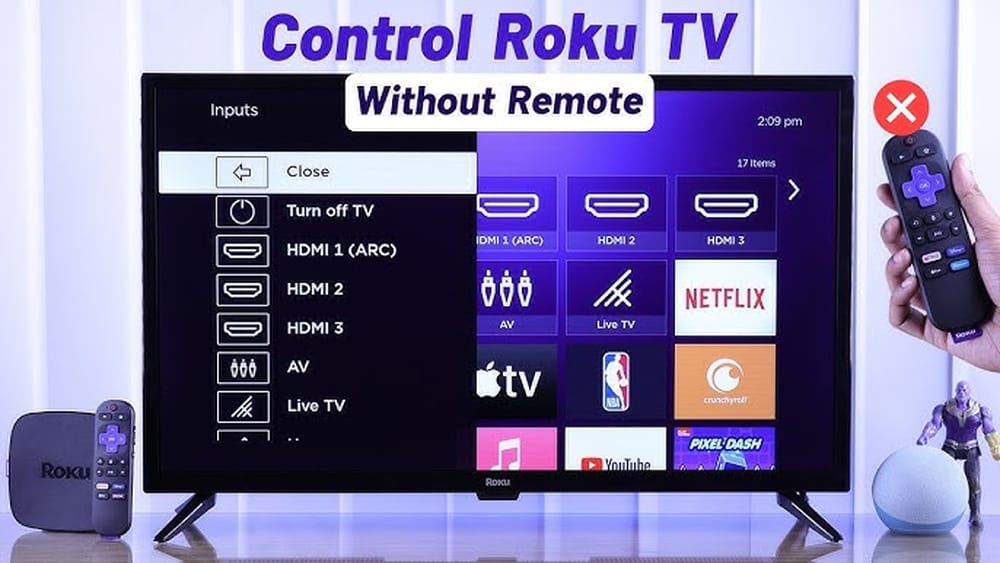
Losing your Roku TV remote can be stressful, especially when you want to relax and watch your favorite shows. But don’t worry—modern Roku TVs offer several ways to control them without the original remote. Whether your remote is lost, broken, or simply out of reach, you can still access all the features of your Roku TV.
Today, smart devices, Wi-Fi, and built-in TV buttons make it possible to manage your TV with just a few simple steps. This guide will walk you through every method you can use, highlight important details, and help you regain control of your Roku TV—no remote required.
Understanding How Roku Tv Works Without A Remote
Roku TVs are designed for flexibility. Most models have backup controls and support for mobile apps. The main thing to remember is that Roku TVs connect to your home Wi-Fi network. This means you can control the TV from other devices on the same network.
But there are some limits. For example, if your TV is not connected to Wi-Fi, some methods won’t work. Also, not all Roku TVs have the same buttons on the TV itself—older models might only have a power button, while newer ones have a small joystick or more buttons.
Knowing your model will help you choose the right solution.
Using The Roku Mobile App
The easiest and most popular way to control a Roku TV without a remote is with the Roku mobile app. This free app is available for both Android and iOS devices.
How To Set Up The Roku App
- Download the Roku app from the Google Play Store or Apple App Store.
- Make sure your mobile device is connected to the same Wi-Fi network as your Roku TV.
- Open the app and select your Roku TV from the list of available devices.
- Tap “Remote” at the bottom of the screen to bring up a full remote control interface.
With this app, you can:
- Turn your TV on and off (on most models)
- Navigate menus and channels
- Enter text using your phone’s keyboard
- Launch streaming apps
- Adjust volume (on some models)
Practical Tips And Limitations
- If your Roku TV is off, the app may not find it. Some Roku TVs support Wake-on-LAN, allowing the TV to turn on via Wi-Fi. If your TV does not, you might need to press the physical power button the first time.
- The app works only if your TV and phone are on the same Wi-Fi network. If your Wi-Fi changes or the TV is not connected, see the section on connecting without Wi-Fi.
Common Mistakes
- Trying to use the app before connecting your TV to Wi-Fi. The app cannot find the TV if it’s not connected.
- Forgetting to update the Roku app, which can cause connection problems or bugs.
Non-obvious Insights
Most people don’t realize the Roku app can also act as a private listening device. Plug headphones into your phone and listen to your TV privately, a feature not available on all physical remotes.
You can also use the app to add or remove channels and change display settings more quickly than with the remote.
Using Physical Buttons On The Roku Tv
Almost all Roku TVs have physical buttons. Their location and function depend on the brand (TCL, Hisense, Sharp, etc. ) And the model year.
Where To Find The Buttons
- Bottom center: Some TVs have buttons under the Roku logo.
- Back right or left edge: Common for wall-mounted TVs.
- Back center: Some models have a joystick or button set on the back.
What The Buttons Can Do
Most Roku TVs have at least a power button. Many have a joystick-style button that lets you:
- Turn the TV on/off
- Navigate up/down/left/right
- Select inputs
- Access the main Roku home menu
On basic models, you may only be able to turn the TV on/off and change the input.
Example: Tcl Roku Tv Button Controls
Here is a typical layout for a TCL Roku TV:
| Button Action | Function |
|---|---|
| Press Once | Power On/Off |
| Hold for 2 Seconds | Open Menu |
| Tap Quickly | Navigate Menu |
| Press and Hold | Select Option |
Limitations
Using physical buttons is less convenient for browsing menus or typing passwords. However, they are essential if your TV is not connected to Wi-Fi and you need to set up a network.
Pro Tip
Many users don’t check the TV’s manual. The manual usually explains button functions in detail. You can find your TV’s manual on the manufacturer’s official website if you lost the paper copy.
Connecting Roku Tv To Wi-fi Without A Remote
If your Roku TV is not connected to Wi-Fi and you don’t have the remote, things get tricky. But there are still ways to connect it:
Method 1: Using Mobile Hotspot
If your TV was previously connected to a Wi-Fi network, you can “trick” it by setting up a mobile hotspot with the same name (SSID) and password.
- On your phone or another device, set up a Wi-Fi hotspot.
- Use the exact same SSID (network name) and password as your TV’s last Wi-Fi.
- Your Roku TV should automatically connect to this network.
- Once connected, use the Roku mobile app to control the TV.
- Change the Wi-Fi settings on your TV to the new network if needed.
Method 2: Using Ethernet (if Supported)
Some Roku TVs (especially Hisense and TCL models) have an Ethernet port.
- Plug an Ethernet cable from your router to your TV.
- The TV should connect to the internet automatically.
- Use the Roku app to control the TV or set up Wi-Fi.
Method 3: Using A Usb Keyboard
Some Roku TVs support USB keyboards.
- Plug a USB keyboard into the TV’s USB port.
- Use the keyboard’s arrow keys and Enter to navigate menus and enter Wi-Fi details.
Table: Wi-fi Connection Methods Without Remote
| Method | Tools Needed | Works If |
|---|---|---|
| Mobile Hotspot | Smartphone | TV was connected to Wi-Fi before |
| Ethernet Cable | Ethernet cable, router | TV has Ethernet port |
| USB Keyboard | USB keyboard | TV supports USB input |
Hidden Insight
Most users don’t realize that using a mobile hotspot can restore control over their Roku TV without a remote. This method works especially well if you moved to a new house or changed your Wi-Fi router.

Credit: www.wikihow.com
Universal Remote And Hdmi-cec
Another way to control your Roku TV is by using a universal remote or the HDMI-CEC feature.
Using A Universal Remote
Many universal remotes work with Roku TVs. Make sure to buy a remote that supports “Roku TV,” not just “Roku streaming stick” (they use different codes).
- Buy a compatible universal remote.
- Follow the instructions to program the remote for your TV model.
- Use the universal remote to turn on, adjust volume, and navigate menus.
Hdmi-cec (consumer Electronics Control)
HDMI-CEC lets you control your Roku TV with another device’s remote, like your soundbar or DVD player, if connected by HDMI.
- Make sure HDMI-CEC is enabled in your TV’s settings.
- Use the remote from your other device to control basic TV functions.
Comparison: Universal Remote Vs. Hdmi-cec
| Feature | Universal Remote | HDMI-CEC |
|---|---|---|
| Setup Required | Yes, program codes | Enable in settings |
| Controls | Full TV functions | Basic (power, volume, input) |
| Extra Cost | Yes, buy remote | No, uses existing remotes |
| Compatibility | Most Roku TVs | Most HDMI devices |
Common Mistake
Some people buy a universal remote for “Roku” and are disappointed to find it only works with streaming sticks, not Roku TVs. Always check the packaging for “Roku TV” support.
Using Voice Control
Many newer Roku TVs support voice control through digital assistants like Amazon Alexa, Google Assistant, or Apple HomeKit.
Setting Up Voice Control
- Open the Roku app on your phone.
- Go to “Settings” and link your Roku account to your voice assistant.
- Use commands like:
- “Turn on Roku TV.”
- “Launch Netflix on Roku TV.”
- “Change input to HDMI 1.”
What You Can Do With Voice Commands
- Launch apps by name
- Change inputs
- Play/pause/fast forward/rewind
- Turn the TV on/off (if supported)
Real-world Example
You can say, “Hey Google, turn on my Roku TV” if your devices are connected properly. This is useful if you want to control the TV hands-free or if the remote is lost.
Limitation
Voice control setup requires the TV to be connected to Wi-Fi, so it won’t help if the TV is not set up yet.
Using Web-based Remote Controls
Some websites offer browser-based remotes for Roku TVs. These can be useful if you have a laptop or desktop on the same network as your TV.
How They Work
- You visit a site like Remoku (https: //remoku.tv/).
- The site scans your network for Roku devices.
- You use an on-screen remote from your browser.
Security Note
Be careful with third-party websites. Only use trusted sources, and avoid entering personal information.
When To Use
Browser-based remotes are helpful if you don’t have a smartphone, but your TV is already on your home Wi-Fi.
Using A Replacement Roku Remote
If you often lose or break your remote, consider buying a replacement. There are two main types:
- Roku Simple Remote – uses infrared, must be pointed directly at the TV.
- Roku Voice Remote – uses Wi-Fi Direct, works from anywhere in the room.
Make sure you buy the right remote for your TV. Not all Roku TVs support Wi-Fi remotes.
Setting Up A Replacement Remote
- Insert batteries into the remote.
- For IR remotes, point and use. For Wi-Fi remotes, pair by holding the pairing button (usually in the battery compartment) until the light flashes.
- Follow on-screen instructions to complete pairing.
Key Insight
Many people buy generic remotes that only support basic functions (power, volume, channel) but not advanced Roku features. Always check compatibility before buying.
:max_bytes(150000):strip_icc()/Rokuhome-c8e944a9c88a4e74bfcf10950b95a1ca.jpg)
Credit: infinitepicker.com
Advanced Tips: Managing Roku Tv Settings Without A Remote
Controlling a Roku TV without a remote isn’t just about turning it on and off. You may need to change Wi-Fi networks, adjust display settings, or perform a factory reset.
Changing Wi-fi Network
If you need to switch networks, use the Roku app or a physical button to navigate to Settings → Network → Set up connection.
If your TV is not connected to Wi-Fi and you can’t use the app, use the mobile hotspot trick.
Factory Reset
To perform a factory reset without a remote:
- Find the reset button on your TV (usually a small hole labeled “RESET” near the ports).
- Use a paperclip to press and hold the button for at least 10 seconds.
- Wait for the TV to restart.
After a factory reset, you’ll need to set up your TV again. This is helpful if you plan to sell or give away your Roku TV, or if you’re having serious software problems.
Adjusting Picture And Sound Settings
Most basic settings can be adjusted using the Roku app or physical buttons. For advanced settings (like picture mode or audio output), the app is usually the easiest way.
Hidden Insight
Not all users know that you can add a Bluetooth audio device (like headphones or speakers) to some Roku TVs using the Roku app. This is great for late-night viewing.
Troubleshooting Common Issues
Sometimes, even with all these methods, things can go wrong. Here are the most frequent problems and how to solve them:
Roku App Can’t Find The Tv
- Make sure both devices are on the same Wi-Fi.
- Restart your router and TV.
- Disable VPNs or firewalls that might block the connection.
Tv Won’t Turn On
- Check if the TV is unplugged.
- Try the power button on the TV itself.
- If still no response, unplug the TV for 60 seconds and plug it back in.
Physical Buttons Not Working
- Dust or debris can block buttons. Gently clean the area.
- If the button is stuck, press gently several times.
- Check your model’s manual—some buttons are hidden or require a combination to work.
Universal Remote Not Pairing
- Double-check the code you entered.
- Try a different code for your brand.
- Replace the batteries in the remote.
Mobile Hotspot Method Not Working
- Confirm the SSID and password match exactly.
- Make sure your mobile data is on.
- Some phones do not support 5GHz hotspots—try 2.4GHz if possible.
Credit: www.youtube.com
Real-world Examples: How People Solve Roku Tv Issues Without A Remote
Case 1: Moved House, Lost Wi-fi Connection
Sarah moved to a new apartment and realized her Roku TV was not connected to Wi-Fi. She had lost her remote during the move. Using her old router’s name and password for her mobile hotspot, she got the TV online and used the Roku app to reset the network.
Case 2: Broken Remote, Urgent Meeting
John needed his Roku TV for a Zoom call. The remote was broken. He quickly downloaded the Roku app, connected his phone to Wi-Fi, and used the app to select the HDMI input for his laptop.
Case 3: Elderly Parents
Mark’s parents kept losing their remote. He bought a universal remote with large buttons and programmed it for their Roku TV. Now they can control the TV without any confusion.
When To Buy A New Remote Or Tv
If you often lose your remote or find app controls frustrating, buying a new remote can save time. Genuine Roku remotes cost around $15–$30, while universal remotes start at $10.
If your TV’s buttons don’t work, and the app won’t connect, it might be time to consider a new TV. Older Roku TVs (5+ years) may not support the latest app features or Wi-Fi standards.
The Future Of Remote-free Tv Control
Smart TVs are getting smarter. In the next few years, expect more voice control, gesture recognition, and even AI-powered controls. But for now, using your phone as a remote is the fastest and most reliable method.
If you want to explore the latest trends and updates, you can check out the official Roku support page at Roku Support.
Frequently Asked Questions
What If My Roku Tv Is Not Connected To Wi-fi And I Lost The Remote?
If your Roku TV is not connected to Wi-Fi, use a mobile hotspot with the same SSID and password as your previous network. This lets the TV connect automatically. Then use the Roku app to set up a new network.
Can I Use My Roku Tv Without Any Remote At All?
Yes, you can use the physical buttons on your TV to turn it on, adjust basic settings, and sometimes navigate menus. For full control, the Roku mobile app is the best solution.
Will Any Universal Remote Work With Roku Tv?
No, only remotes marked for “Roku TV” will work. Remotes for “Roku streaming stick” or “Roku box” are not compatible with Roku TVs. Always check the packaging for compatibility.
Is The Roku App Safe To Use?
Yes, the official Roku app is safe and free. Download it from the Google Play Store or Apple App Store. Avoid third-party remote apps, which may have ads or malware.
What Should I Do If None Of These Methods Work?
If all else fails, buy an official Roku remote or a compatible universal remote. As a last resort, you may need to contact Roku customer support or visit a service center.
Gaining control over your Roku TV without a remote is easier than you might think. With the right steps, you can access all your favorite entertainment without any stress. Whether you use your smartphone, physical buttons, or a universal remote, you never have to let a lost remote ruin your day.