
Losing your Samsung TV remote can be frustrating, especially when you want to relax and watch your favorite show. Many people don’t realize that there are several ways to control a Samsung TV without a remote. Whether your remote is lost, broken, or just out of batteries, you’re not stuck.
Today’s smart TVs, including Samsung models, offer alternative controls using the TV’s own buttons, smartphone apps, voice commands, and even third-party devices. In this guide, you’ll discover practical solutions to keep your viewing experience smooth, plus expert tips to avoid common mistakes.
If you’ve ever struggled with a missing remote, you’ll find everything you need here to regain control quickly and easily.
Understanding Your Samsung Tv’s Built-in Controls
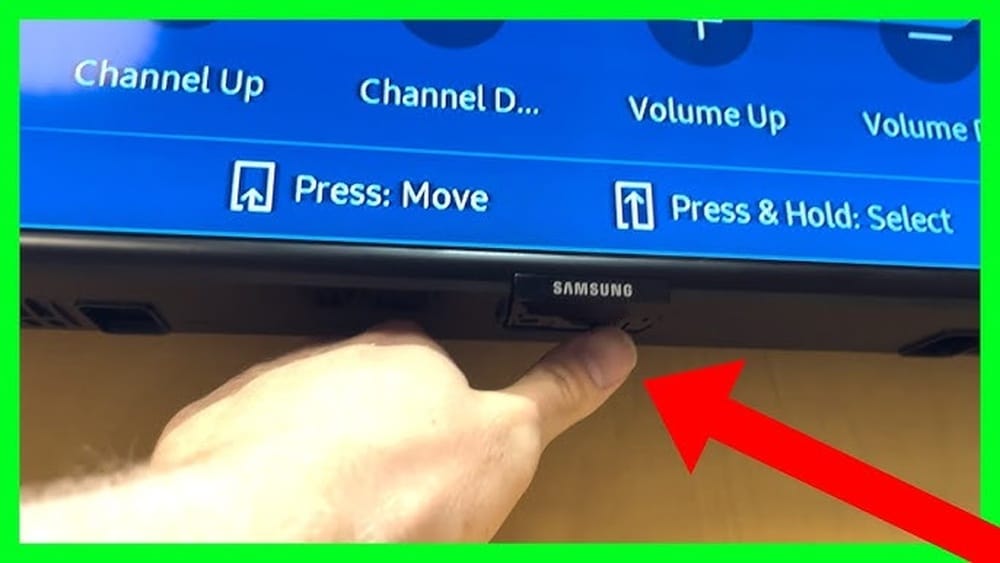
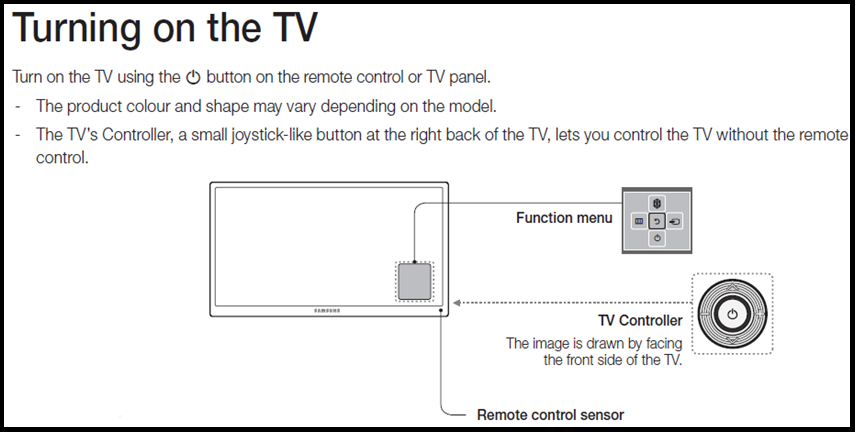
Most Samsung TVs come with manual control buttons. These are usually found on the bottom edge, the side, or the back of the TV. The position depends on the model and year. Some TVs have a single button, while others feature a small joystick or a set of physical buttons.
Common Button Types
- Single Button: Works like a joystick. Pressing, holding, or moving in different directions performs different functions (power, volume, channel, input).
- Multi-Button Layout: Includes separate buttons for power, volume, channel, and input/source.
Finding The Buttons
- Bottom Center: Many 2017-2024 Samsung TVs have a single button under the Samsung logo.
- Back Right or Left: Older models may have a row of buttons behind the right or left bezel.
- Side Panel: Some TVs, especially large ones, place buttons along the side edge.
How To Use The Manual Buttons
- To turn on/off: Press and hold the main button.
- To change volume or channel: Press the button in short bursts or move the joystick left/right (volume) and up/down (channel).
- To change input/source: Use the main button to bring up the menu, then toggle to the input option.
Non-obvious tip: On TVs with a joystick, holding the button often opens the full menu, and pushing in different directions navigates the options, just like a game controller.
Using The Samsung Smartthings App
Samsung’s SmartThings app turns your smartphone into a powerful TV remote. It’s free and works with most Samsung smart TVs from 2016 onward. Here’s how to get started:
Setting Up Smartthings
- Download the App: Find “SmartThings” in the Google Play Store or Apple App Store.
- Connect to Wi-Fi: Make sure your TV and phone are on the same Wi-Fi network.
- Open the App: Sign in with your Samsung account (create one if needed).
- Add Your TV:
- Tap the “+” button.
- Choose “Device.”
- Select “TV,” then “Samsung.”
- Follow the prompts. Your TV should appear on the list if it’s on and connected to Wi-Fi.
- Pairing: Enter the PIN shown on your TV screen (if prompted) in the app.
Using Your Phone As A Remote
Once connected, you’ll see a remote interface on your phone. You can:
- Turn the TV on/off
- Adjust volume
- Change channels
- Launch apps
- Use the number pad
- Navigate menus with swipe gestures
Expert insight: The SmartThings app doesn’t work if your TV is fully off (not in standby mode), as it needs to be connected to Wi-Fi. If your TV is unplugged or completely powered down, manual buttons are your only option.
Comparison: Smartthings App Vs. Physical Remote
Here’s a quick look at how the app stacks up to the original remote:
| Feature | Physical Remote | SmartThings App |
|---|---|---|
| Turn On/Off | Yes (IR) | Yes (Standby Only) |
| Menu Navigation | Yes | Yes |
| Voice Control | Some Models | Yes (Via Phone Mic) |
| Number Pad | Yes | Yes |
| App Launch | Yes (Smart Remotes) | Yes |
| Works When TV is Off | Yes | No |
Non-obvious insight: The SmartThings app often updates faster than the TV’s firmware, so you may get new features or bug fixes on your phone before they appear on the TV itself.
Controlling Samsung Tv With Voice Assistants
Many Samsung TVs support voice control through Bixby, Alexa, or Google Assistant. This can be useful if your remote is lost but your TV is set up for voice commands. You may need to activate voice control using the TV’s settings first.
Bixby Voice Control
Samsung’s own assistant, Bixby, is built into many recent models. If you’ve set it up before, you can activate Bixby by saying “Hi Bixby” near the TV’s microphone (on compatible models).
- Turn TV on/off
- Adjust volume
- Change channels
- Open apps
If your TV doesn’t have a built-in mic, this won’t work without the remote.
Using Amazon Alexa Or Google Assistant
If you have a smart speaker (like Echo or Google Home) linked to your Samsung account and TV, you can control the TV hands-free.
- “Alexa, turn off the TV.”
- “Hey Google, change the channel to ESPN.”
To set this up, both the TV and the speaker must be on the same Wi-Fi network, and you need to link your Samsung account in the Alexa or Google Home app.
Practical tip: If voice setup is incomplete, you’ll need to use the TV’s manual buttons to access network settings and complete the linking process.
Third-party Universal Remote Apps
If you don’t want to use SmartThings, there are third-party apps that can control Samsung TVs, especially older models with IR receivers.
Popular Universal Remote Apps
- Peel Smart Remote
- Sure Universal Remote
- Mi Remote
These apps use your phone’s IR blaster, if available, or Wi-Fi for smart features.
Setting Up
- Download the app from your phone’s app store.
- Select your TV brand and model.
- Test basic functions like power and volume.
Important note: Not all phones have an IR blaster. Most iPhones and many recent Androids do not. Check your device specs before installing.
Common mistake: Users often choose any universal app without checking if their phone has the required hardware. If it doesn’t, the app won’t work.
Using A Wired Mouse Or Keyboard
Samsung smart TVs support USB mice and keyboards. This can be a lifesaver for navigation if you lose your remote.
How To Connect
- Find a USB port on the TV (usually on the back or side).
- Plug in a wired USB mouse or keyboard.
- Wait a few seconds for the TV to recognize the device.
You’ll see a cursor on the screen (with a mouse) or be able to type/search (with a keyboard).
Functions You Can Control
- Navigate menus
- Open apps
- Type in search boxes
- Adjust settings
Expert insight: Not all settings are accessible with a keyboard or mouse, but you can do most daily tasks, especially in smart apps like YouTube or Netflix.
Comparison: Mouse/keyboard Vs. Remote
| Action | Remote | Mouse/Keyboard |
|---|---|---|
| Menu Navigation | Yes | Yes (Mouse) |
| Typing/Search | Slow (Number Pad) | Fast (Keyboard) |
| Change Input/Source | Yes | Partial |
| Power On/Off | Yes | No |
Non-obvious tip: Wireless (Bluetooth) keyboards may require you to access the TV’s Bluetooth pairing menu—which you might not be able to do without a remote. Wired USB is usually plug-and-play.
Hdmi-cec: Control Samsung Tv With Other Devices
HDMI-CEC (Consumer Electronics Control) is a feature that lets you control multiple devices (like your TV, soundbar, or streaming box) with a single remote. On Samsung TVs, this feature is called Anynet+.
How Hdmi-cec Works
If your TV is connected to a device (like a Blu-ray player or Apple TV) that supports HDMI-CEC, you can use that device’s remote to control basic TV functions.
- Power on/off
- Volume control
- Input switching
Enabling Anynet+ (hdmi-cec)
- Use the TV’s manual buttons to open Settings.
- Navigate to “General” > “External Device Manager.”
- Turn on “Anynet+ (HDMI-CEC).”
If your TV is already set up, plugging in a compatible device activates the feature automatically.
Real-world example: If you have a PlayStation or Roku connected, their remotes can turn the TV on/off and adjust volume—even if you lost your Samsung remote.
Important note: Not all HDMI cables support CEC. Use high-quality cables marked as “CEC” or “High Speed.”

Credit: www.youtube.com
Purchasing A Replacement Remote
Sometimes the best solution is the simplest: buy a replacement remote. Samsung offers official remotes, but there are also reliable third-party options.
Types Of Replacement Remotes
- Official Samsung Remotes: Identical to the original; full compatibility.
- Universal Remotes: Work with many brands; require setup.
- Third-Party Smart Remotes: May offer extra features like voice control or a touchpad.
Choosing The Right Remote
- Check your TV’s model number (found on the back or in settings).
- Ensure the remote matches your TV’s year and series.
- Read customer reviews to avoid compatibility issues.
Common mistake: Buying the cheapest universal remote without checking compatibility. Some remotes don’t support all smart features.
Where To Buy
- Samsung’s official website
- Major retailers (Best Buy, Amazon)
- Electronics stores
Tip: Universal remotes like Logitech Harmony can control multiple devices, not just your TV, but may be overkill for simple needs.
Troubleshooting: What If Nothing Works?
If you’ve tried all the methods above and still can’t control your Samsung TV, here are steps to diagnose and fix the issue.
Power And Connectivity Checks
- Ensure the TV is plugged in and turned on.
- Check for a working power outlet.
- Confirm your Wi-Fi is working for app-based controls.
Tv Not Responding To Manual Buttons
- Some TVs have a “child lock” or “hotel mode” that disables manual buttons. Try unplugging the TV for 30 seconds to reset.
- If buttons are physically stuck or broken, contact Samsung support.
App Not Finding Tv
- Make sure your phone and TV are on the same Wi-Fi network.
- Restart both devices.
- Update the TV’s firmware (if possible via USB).
Voice Assistant Not Working
- Re-link your Samsung account in the Alexa/Google Home app.
- Check the TV’s microphone settings.
When To Call For Help
If all else fails, contact Samsung customer service. There may be a hardware issue with your TV.
Non-obvious insight: Some hotels or public places disable all manual controls on Samsung TVs for security. In these cases, only authorized staff can unlock the settings.

Credit: www.ytechb.com
Practical Tips For Everyday Use
To avoid future remote problems:
- Attach a remote tracker (like a Tile or AirTag) to your remote.
- Keep a universal remote as backup.
- Enable SmartThings app on all family phones.
- Place your TV where manual buttons are easy to reach.
- Use HDMI-CEC so you can always power on/off with another device.
Bonus tip: Take a photo of your TV’s model and serial number. This makes it easier to buy compatible accessories or get support.
When To Use Each Method: Quick Reference
For fast decision-making, here’s a summary of the best method for each situation:
| Situation | Best Method | Backup Options |
|---|---|---|
| Remote lost, TV is on | SmartThings app | Manual buttons, universal app |
| Remote lost, TV is off | Manual buttons | Replacement remote |
| Remote broken, need fast control | Manual buttons | SmartThings app, USB mouse |
| Want full smart TV features | SmartThings app | Official remote |
| Multiple devices, one remote | HDMI-CEC | Universal remote |
| Typing/searching in apps | USB keyboard | SmartThings app |
The Future Of Remote-free Tv Control
Samsung and other TV brands are moving toward remote-free control. Upcoming models may rely more on voice, gesture, and smartphone integration. Some 2023–2024 Samsung TVs already offer advanced voice assistants and support for smart home integration.
- Matter standard: Samsung TVs will support this open smart home protocol, making it even easier to control your TV with devices from other brands.
- Gesture control: Some high-end models may include cameras for hand gesture commands.
Industry data: According to a 2023 survey by Statista, about 38% of smart TV users now use a phone app as a backup remote at least once a week. This trend will likely grow.
If you plan to buy a new TV, consider models with multiple control options and easy integration with your smart home setup.
Frequently Asked Questions
Can I Control My Samsung Tv Without A Remote If It’s Completely Off?
If your TV is completely off (not in standby), smartphone apps and voice assistants won’t work because the TV isn’t connected to power or Wi-Fi. Use the manual buttons on the TV to turn it on first. Once powered on, you can switch to app or voice control.
What Should I Do If The Manual Buttons Don’t Work On My Samsung Tv?
First, check if the TV is locked (some models have a “key lock” setting). Try unplugging the TV for 30 seconds and plugging it back in. If the buttons are still unresponsive, there may be a hardware issue. Contact Samsung support for help.
Are Universal Remotes Safe To Use With Samsung Smart Tvs?
Yes, most universal remotes are safe and work well for basic controls like volume and power. For smart features (like app navigation), make sure the remote is compatible with your specific Samsung model. Always check the packaging or product description.
Can I Use My Iphone Or Android As A Permanent Remote?
You can use your iPhone or Android with the SmartThings app for all regular functions. Many users never go back to the physical remote. The only limitation: if your TV is off or disconnected from Wi-Fi, the app can’t turn it on.
Where Can I Find More Official Help Or Manuals For My Samsung Tv?
Visit the official Samsung Support website. There you’ll find manuals, troubleshooting guides, and live chat with customer service.
Controlling your Samsung TV without the remote is easier than you might think. With built-in buttons, smartphone apps, voice assistants, and universal remotes, you’re never locked out of your entertainment. The key is to set up backup methods before you need them.
That way, the next time your remote disappears, you’re always in control.
Credit: www.samsung.com