
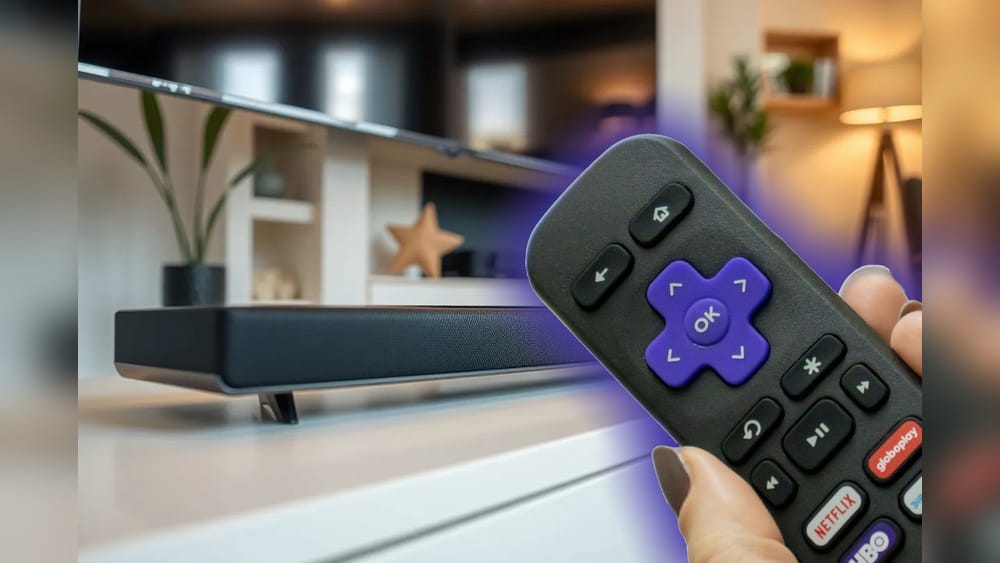
If you’ve ever wished you could control your entire home entertainment system with just one remote, you’re not alone. Many people find it annoying to juggle multiple remotes for their TV, soundbar, and streaming devices like Roku. The good news: if you own a Roku remote and a soundbar, you might be able to simplify your setup. Learning how to control your soundbar with a Roku remote means less clutter and more convenience every time you watch your favorite shows or listen to music.
But making this work isn’t always straightforward. Different soundbars use different connection methods, and not all Roku remotes are created equal. Some users get stuck on pairing, while others struggle to adjust volume or mute their soundbar from the Roku remote.
This guide aims to clear up all confusion, step by step. You’ll learn which Roku remotes work, how to set things up, and how to troubleshoot common issues. Along the way, you’ll get expert tips that most beginners miss. By the end, you’ll be able to control your soundbar with your Roku remote confidently—and enjoy a much smoother home theater experience.
Understanding Roku Remotes And Soundbar Compatibility
Before you start pressing buttons, it’s important to know if your Roku remote and soundbar can actually work together. Not every combination will support full control. Here’s what you need to check first.
Types Of Roku Remotes
Roku offers a few different remotes. The main types include:
- Simple IR remotes: Use infrared and only control the Roku device. They can’t control most soundbars.
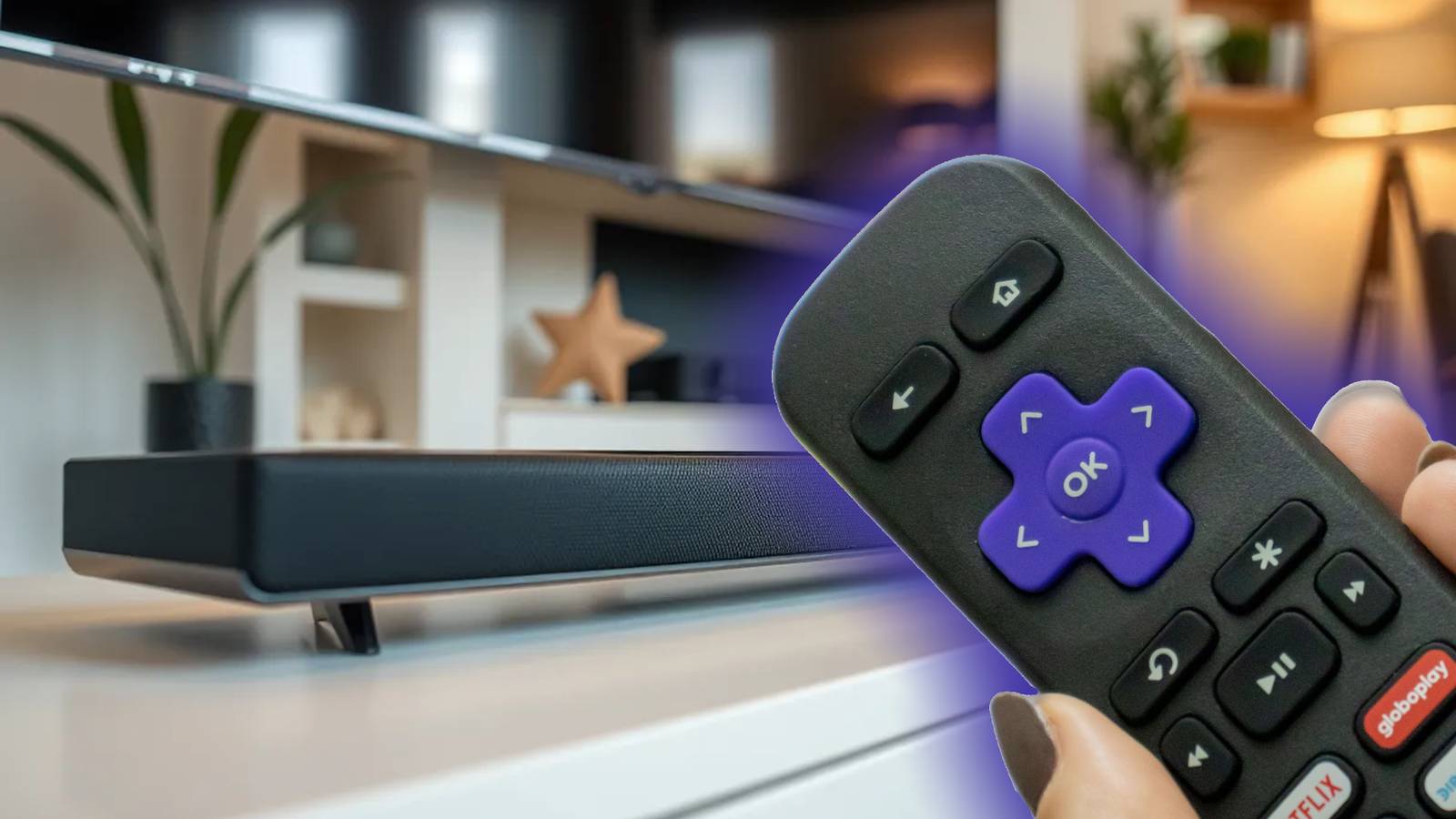
- Voice remotes (Enhanced/Pro): Connect via wireless signals and often include TV power, volume, and mute buttons. These are usually required for soundbar control.
- Roku Voice Remote Pro: The newest, with rechargeable battery and extra features.
Check your remote for volume and mute buttons. If it has these, you’re on the right track. If not, you’ll need to upgrade.
Soundbar Connection Methods
Most soundbars connect to the TV using:
- HDMI ARC (Audio Return Channel)
- Optical audio cable
- RCA or 3.5mm analog cables
- Bluetooth
For Roku remote control, HDMI ARC is the most reliable method. This connection supports CEC (Consumer Electronics Control), allowing devices to talk to each other. If your soundbar and TV support HDMI ARC and CEC, your chances are high.
Compatibility Table
Here’s a quick overview comparing popular soundbar connection types and their compatibility with Roku remote control:
| Connection Type | Roku Remote Volume Control | Notes |
|---|---|---|
| HDMI ARC/CEC | Yes (Best Option) | Supports power, volume, and mute |
| Optical Audio | Sometimes | Depends on TV CEC passthrough |
| Analog (RCA/3.5mm) | No | No CEC support |
| Bluetooth | No | Separate control needed |
Soundbar Brands And Cec Support
Most major soundbar brands (like Samsung, Sony, LG, Vizio, Bose) support HDMI ARC and CEC. However, some low-cost or older models may not. Always check your soundbar’s manual for “CEC,” “Anynet+,” “BRAVIA Sync,” “Simplink,” or similar terms. These are brand-specific names for CEC.
Insider Tip: Even if your soundbar uses optical, some TVs can still pass CEC signals to it. But this is rare and usually less reliable.
Preparing Your Devices: The Right Setup
Once you’ve confirmed your Roku remote and soundbar are compatible, it’s time to set up your devices for success. A little planning here saves hours of frustration later.
1. Connect Your Soundbar To Tv With Hdmi Arc
- Find the HDMI ARC port on your TV. It’s usually labeled “ARC” or “eARC.”
- Plug one end of a high-speed HDMI cable into the TV’s ARC port.
- Plug the other end into your soundbar’s HDMI ARC port.
- Turn on both your TV and soundbar.
Pro Tip: Use the HDMI cable that came with your soundbar, or buy a certified high-speed cable. Cheap cables can cause CEC issues.
2. Enable Cec On Tv And Soundbar
Many TVs have CEC turned off by default. To allow your Roku remote to control the soundbar, CEC must be enabled.
- Go to your TV’s settings menu.
- Look for CEC options (brand names vary: “Anynet+” for Samsung, “BRAVIA Sync” for Sony, “Simplink” for LG, “Vizio CEC” for Vizio).
- Turn CEC On.
- On your soundbar, check for a CEC/ARC option and enable it if needed.
Non-Obvious Insight: Some TVs hide CEC settings under “External Device Manager” or “HDMI Settings.” If you can’t find it, search your TV model online.
3. Set Soundbar As Tv’s Default Audio Output
- In your TV’s sound settings, select the soundbar (HDMI ARC) as the default speaker.
- This ensures all audio (including Roku) routes through the soundbar.
4. Connect Roku To Tv
- Plug your Roku streaming device into any available HDMI port (not the ARC port).
- Power on your Roku.
5. Install Fresh Batteries In Your Roku Remote
A weak battery can cause pairing failures or slow response. Use new, high-quality batteries.
Pairing Your Roku Remote To Control The Soundbar
With the physical setup complete, you need to program the Roku remote to control your soundbar’s volume and mute functions. This can be done during the Roku setup process or later via the settings menu.
Step-by-step Pairing Process
- Navigate to Roku Home Screen: Press the Home button on your Roku remote.
- Go to Settings: Scroll down and select Settings.
- Select Remotes & Devices: Choose Remotes or Remotes & Devices, then Set up remote for TV control.
- Choose Your Remote: Select your connected remote.
- Follow On-Screen Instructions: Roku will try to identify your TV brand and sound setup. It may play a sound or ask you to confirm volume changes.
- Select ‘Yes’ When You Hear Sound: If you hear the music or volume change, confirm. If not, follow the prompts to try again or select your TV/soundbar brand manually.
Important: Roku’s programming is designed for TVs, but because soundbars connected via HDMI ARC act as the TV’s speaker, volume buttons should control the soundbar.
What If Roku Doesn’t Recognize Your Soundbar?
- Choose your TV brand instead. Since the TV is sending audio to the soundbar, the remote often works.
- Some users need to try several brands or codes before finding the one that works with their setup.
Example: If you have a Samsung TV and a Vizio soundbar, set up the remote for “Samsung.” The TV will send the volume command to the soundbar via CEC.
How Roku Remote Controls Soundbar Functions
Once paired, your Roku remote can send commands to the TV, which then passes them to your soundbar using CEC. Here’s what you can (and can’t) do:
What You Can Control
- Volume Up/Down: Adjust the soundbar’s volume.
- Mute: Instantly silence the soundbar.
- Power (sometimes): Some remotes can power off the TV and soundbar together.
What You Cannot Control
- Soundbar input selection: You’ll need your soundbar’s remote for changing inputs (e.g., switching from TV to Bluetooth).
- Soundbar sound modes: Advanced features like surround, bass, or dialogue enhancement usually need the original soundbar remote.
- Bluetooth pairing: Not supported via Roku remote.
Comparison Of Features
Here’s a summary to clarify what Roku remote typically controls:
| Function | Roku Remote | Soundbar Remote |
|---|---|---|
| Volume Up/Down | Yes | Yes |
| Mute | Yes | Yes |
| Power On/Off | Sometimes | Yes |
| Input Select | No | Yes |
| Audio Modes | No | Yes |
Non-Obvious Insight: If you only use your soundbar for TV/Roku audio, you may never need the soundbar’s original remote again.

Credit: www.youtube.com
Troubleshooting Common Problems
Even with the right setup, things can go wrong. Here’s how to solve the most frequent issues when controlling your soundbar with a Roku remote.
Roku Remote Volume Buttons Not Working
- Check CEC Is Enabled: On both TV and soundbar.
- Restart Devices: Power off and unplug your TV, Roku, and soundbar for 1 minute. Plug them in and try again.
- Update Roku and TV Firmware: Outdated software can cause problems. Go to Settings > System > System update on your Roku.
- Re-pair the Remote: Repeat the setup steps in the Roku menu.
Volume Lag Or Delay
- High-Speed HDMI Cable: Replace with a certified cable if you notice lag.
- Simplify Connections: Avoid using HDMI splitters or adapters.
- Reduce Distance: Keep devices close together.
Soundbar Not Responding After Tv Update
Some TV software updates reset CEC settings. Go back into your TV’s menu and re-enable CEC.
Roku Remote Only Controls Tv, Not Soundbar
If your TV’s CEC implementation is weak, the volume buttons may only affect the TV speakers. Solutions:
- Try a different HDMI port (always use the one labeled ARC).
- Consult your TV and soundbar manuals for CEC quirks.
Factory Reset (last Resort)
If nothing works, factory reset your Roku, soundbar, and TV. This can clear hidden bugs, but you’ll need to set everything up from scratch.
Advanced Tips For Power Users
If you want the smoothest, most reliable experience, these advanced tips can help.
Universal Remotes
Some users upgrade to universal remotes like Logitech Harmony. These can control Roku, soundbar, TV, and even game consoles with one device. This is useful if you have a more complex setup.
Hdmi-cec Brand Names
Knowing your TV’s CEC name helps with setup:
- Samsung: Anynet+
- Sony: BRAVIA Sync
- LG: Simplink
- Vizio: CEC
- Toshiba: Regza Link
Check these settings if you have problems.
Hdmi Earc Support
If your TV and soundbar both support eARC (the latest HDMI ARC version), use it. eARC offers more bandwidth and better CEC reliability.
Using Roku Soundbars
Roku sells its own soundbars (like the Roku Streambar and Roku Smart Soundbar). These are designed to be fully controlled by the Roku remote and offer the smoothest experience. For other brands, HDMI ARC/CEC is your best option.
Hidden Menus And Settings
Some TVs have advanced CEC settings in hidden or service menus. Search for your TV model online to find if these exist.

Credit: www.youtube.com
When Control Might Not Work
There are a few cases where you simply can’t control your soundbar with your Roku remote, no matter what you try.
Reasons For Incompatibility
- No HDMI ARC/CEC: If your TV or soundbar lacks these, remote control isn’t possible.
- Old Soundbar: Some older soundbars don’t support CEC.
- TV’s CEC Is Buggy or Limited: Not all TVs handle CEC well, especially cheaper models.
- Using Bluetooth or Analog Connections: No way for Roku remote to send commands.
If your setup falls into these categories, you’ll need to use the soundbar’s own remote or consider upgrading your hardware.
Real-world Examples
Example 1: Modern Tv And Soundbar
- TV: 2022 Samsung QLED (with Anynet+ CEC and HDMI ARC)
- Soundbar: 2021 LG model with HDMI ARC
- Roku Remote: Voice Remote with volume buttons
Result: After enabling Anynet+ and connecting the soundbar to ARC, the Roku remote adjusts the soundbar volume and mute perfectly.
Example 2: Older Tv, New Soundbar
- TV: 2014 Vizio (no HDMI ARC)
- Soundbar: 2022 Vizio with HDMI ARC
- Roku Remote: Enhanced Voice Remote
Result: No ARC on the TV means CEC won’t work. Roku remote can’t control the soundbar. User must use the soundbar remote.
Example 3: Roku Streambar
- Device: Roku Streambar (soundbar and Roku in one)
- Remote: Included Roku Voice Remote
Result: Full control of sound, no setup required. The easiest solution for Roku users.
Credit: www.makeuseof.com
Comparison: Roku Remote Vs. Other Universal Remotes
It’s helpful to compare the Roku remote with popular universal remotes, especially if you’re considering an upgrade.
| Feature | Roku Voice Remote | Universal Remote (e.g., Harmony) |
|---|---|---|
| Controls TV | Yes | Yes |
| Controls Soundbar | Yes (with CEC) | Yes (more direct) |
| Controls Multiple Devices | No | Yes |
| Voice Search | Yes | Some models |
| Setup Complexity | Simple | Moderate/Advanced |
| Price | Low | Medium to High |
Advice: For most users, the Roku remote is enough. If you have more devices, a universal remote may be worth the investment.
Tips For A Seamless Experience
Here are some final tips to make everyday use smoother:
- Label Your Cables: Mark your HDMI ARC and Roku cables to avoid confusion.
- Keep Software Updated: Regularly update your Roku, TV, and soundbar firmware.
- Minimize Remote Clutter: Store unused remotes in a drawer, but keep the soundbar remote handy for rare adjustments.
- Don’t Block IR Sensors: If your soundbar uses IR for power/volume, make sure it’s not hidden behind objects.
- Use Roku Mobile App: The Roku app (for iOS/Android) can also control your Roku device, but not your soundbar.
Frequently Asked Questions
How Do I Know If My Roku Remote Can Control My Soundbar?
Check for volume and mute buttons on your Roku remote. If your remote has these, and your soundbar is connected to the TV via HDMI ARC with CEC enabled, it should work. You may need to program the remote in Roku settings.
Why Doesn’t My Roku Remote Change The Soundbar Volume?
The most common reasons are CEC is disabled on your TV or soundbar, your soundbar isn’t connected via HDMI ARC, or your remote doesn’t support TV control. Double-check all connections and settings.
Can I Control My Bluetooth Soundbar With My Roku Remote?
No. Bluetooth soundbars can’t be controlled by Roku remotes. Only soundbars connected via HDMI ARC (with CEC) can receive volume commands from Roku.
Do I Need A Special Hdmi Cable For This To Work?
Use a high-speed HDMI cable for the ARC port. Some cheap or old HDMI cables may not support CEC features. If you have issues, try replacing the cable.
Is There An Alternative If My Roku Remote Can’t Control My Soundbar?
You can use a universal remote like Logitech Harmony for full control, or consider upgrading to a soundbar and TV that support HDMI ARC and CEC. As a last resort, use the soundbar’s original remote for volume and power.
Bringing your home theater under one remote’s control is one of the best ways to simplify your TV time. While not every setup is compatible, most modern TVs, Roku remotes, and soundbars can work together with the right connections and settings. Take your time, follow the steps, and don’t be afraid to try a different HDMI port or cable if things don’t work right away. For more technical details or advanced troubleshooting, you can also check the official Roku Support page. With a little patience, you’ll soon enjoy the freedom of controlling your soundbar with your Roku remote—and a cleaner coffee table, too.