
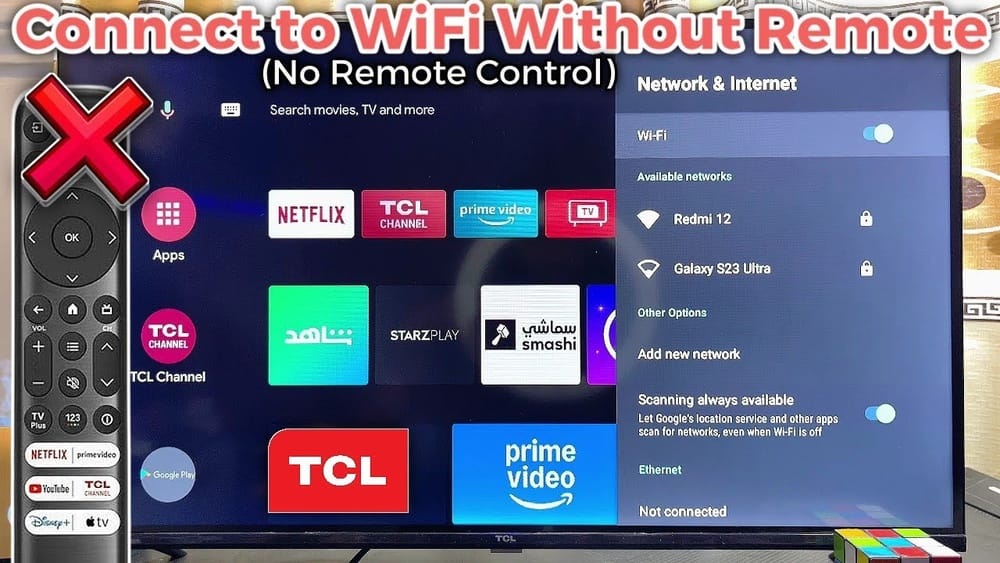
Losing your TCL TV remote can be surprisingly stressful. You may need to change the channel, adjust the volume, or even switch inputs, but you’re suddenly stuck. Things get more complicated if your TV isn’t connected to WiFi, which means most smartphone remote apps won’t work.
Before you rush out to buy a new remote, know that you’re not out of options. There are several practical ways to control your TCL TV without a remote or WiFi. Many of these methods are simple, and you may even have everything you need right at home.
This guide explores all possible solutions, from using physical buttons and universal remotes to creative workarounds with devices like game controllers. You’ll also learn about hidden risks, common mistakes, and how to get your TV back under control quickly. Whether you need a short-term fix or a longer-term solution, you’ll find answers here.
Understanding Your Tcl Tv’s Built-in Controls
Every TCL TV has physical buttons somewhere on the frame. These are often overlooked, but they’re your first line of defense if you lose your remote. The location and functions of these buttons can vary by model, so let’s break it down.
Where To Find The Buttons
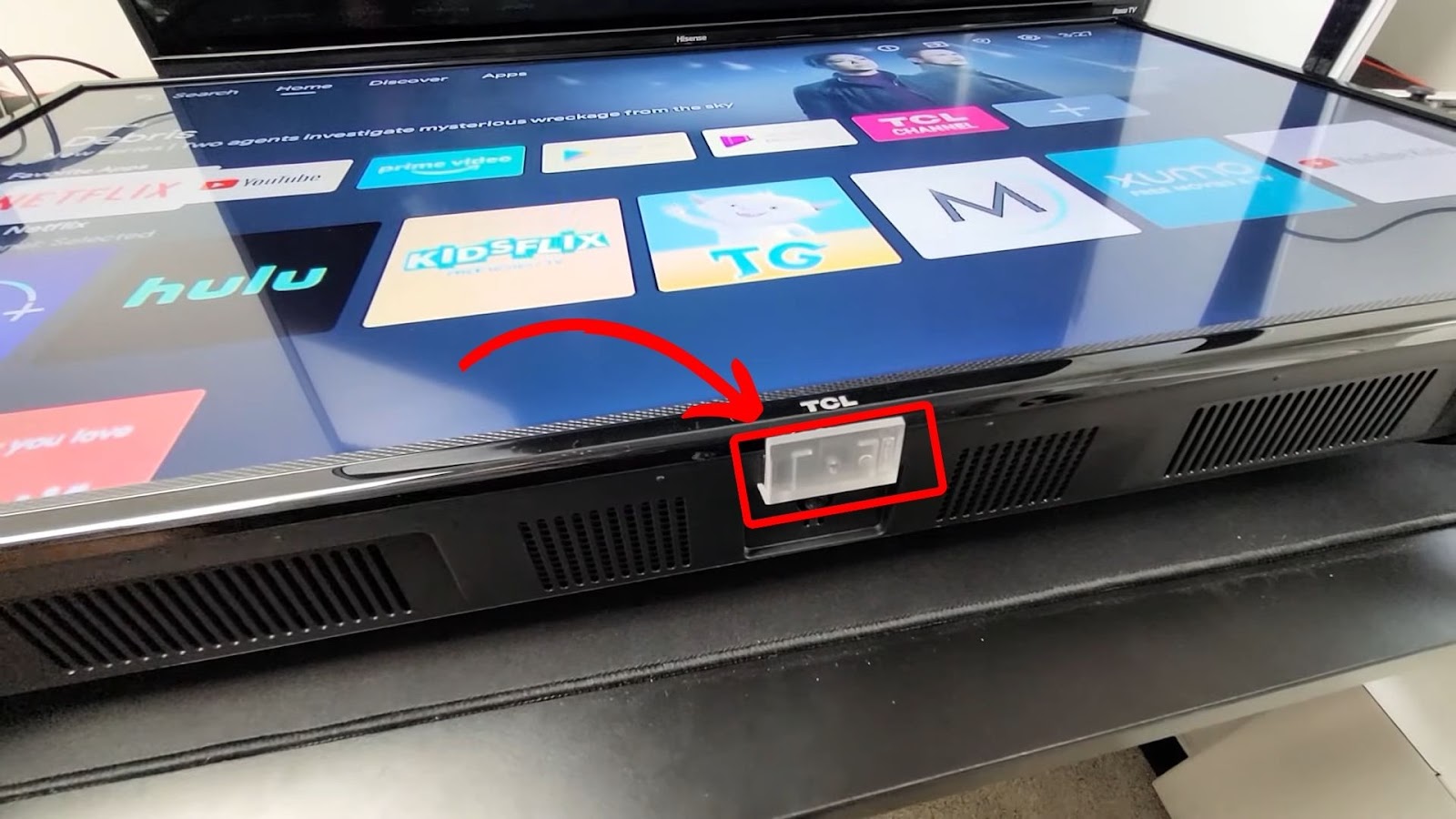
Most TCL TVs have a small panel of buttons on the underside of the front bezel, the back right, or along the bottom edge. On newer models, these buttons are sometimes hidden for design reasons—look closely for a small bump or label.
Typical Button Locations:
- Bottom center (look under the TCL logo)
- Back right or left corner
- Side edge (rare, mostly older models)
What The Buttons Do
The number and type of buttons depends on your model. Most TCL TVs include:
- Power (on/off)
- Volume up/down
- Channel up/down
- Input/source
- Some have a menu or OK/select button
On basic models, you may only find a single button that requires short or long presses to perform different functions. Check your TV’s manual if you’re unsure, or search for your model online.
How To Use The Buttons
Navigating without a remote can feel awkward at first. Here’s how to handle basic tasks:
- Power On/Off: Press the power button.
- Change Volume/Channel: Use the volume or channel buttons, usually found next to the power button.
- Switch Input: Press the “Input” or “Source” button, then use channel or volume buttons to move between options. Press power or menu to select.
- Access Menu: If there’s a menu button, press it to open settings. Use the other buttons to navigate.
Non-obvious insight: Some TCL TVs combine all functions into one button. Press for power, tap quickly for volume, hold for source, and so on. Trial and error helps if your button isn’t labeled.
Using Universal Remotes Without Wifi
A universal remote can control your TCL TV without needing WiFi. This is often the fastest, most reliable solution, especially for longer-term use.
Choosing The Right Universal Remote
Not all universal remotes are equal. Here’s what matters:
- Infrared (IR) required: Your TCL TV reads signals via infrared. Choose a universal remote that sends IR signals, not just Bluetooth or WiFi.
- TCL compatibility: Most universal remotes support TCL, but double-check the box or manual.
- Button layout: Pick one with all the buttons you need (input, menu, navigation arrows).
Some popular universal remotes:
- GE Universal Remote
- Philips Universal Remote
- RCA Universal Remote
Setting Up A Universal Remote
Most universal remotes include a code list. Here’s how to set it up:
- Insert batteries into the remote.
- Find the TCL code in the remote’s manual.
- Turn on your TV using the TV’s power button (if needed).
- Press and hold the “setup” button (or similar) until the light on the remote turns on.
- Enter the TCL code using the remote’s number buttons.
- Test the remote by pressing power, volume, or input.
If one code doesn’t work, try others from the list. Some remotes have auto-search if you don’t know your code.
Table: Universal Remote Features Comparison
To help you pick, here’s a quick comparison of three popular universal remotes:
| Remote | Works with TCL | Controls Other Devices | IR-Based | Easy Setup |
|---|---|---|---|---|
| GE Universal Remote | Yes | Yes (up to 4) | Yes | Yes |
| Philips Universal Remote | Yes | Yes (up to 3) | Yes | Yes |
| RCA Universal Remote | Yes | Yes (up to 4) | Yes | Moderate |
Common Mistakes With Universal Remotes
- Wrong type: Buying a remote that only uses Bluetooth (many don’t support TCL TVs).
- Missing batteries: Forgetting to install or replace batteries.
- Incorrect code: Not all codes work—try several before giving up.
- Blocked IR sensor: Objects in front of the TV’s sensor will block signals.
Alternative Control Methods Using Cables And Accessories
If you don’t want to buy a universal remote, you can use other devices and accessories to control your TCL TV. Some of these solutions are creative and work surprisingly well.
Using A Wired Keyboard Or Mouse
Many TCL smart TVs have USB ports. You can connect a USB keyboard or mouse to control basic functions.
Steps:
- Find a spare USB keyboard or mouse.
- Plug it into a USB port on your TV.
- Wait for detection (the TV should show a message).
- Use the arrow keys (keyboard) or pointer (mouse) to navigate menus.
This method works best for changing settings, selecting input sources, or accessing streaming apps.
Example: You can press the “Home” or “Menu” button on the keyboard (if present) to return to the main menu. Arrow keys let you move around, and “Enter” selects.
Non-obvious insight: Not all TCL TVs support keyboards or mice, especially older non-smart models. If your TV doesn’t recognize the device, try a different USB port or restart the TV.
Hdmi-cec Control
If you have another device connected via HDMI (like a game console or streaming stick), you may be able to control your TCL TV through HDMI-CEC (Consumer Electronics Control).
How Hdmi-cec Works
HDMI-CEC lets devices send basic commands to the TV, like power on/off or input switching.
Example Devices:
- PlayStation or Xbox consoles
- Amazon Fire Stick
- Roku Streaming Stick
Steps To Use Hdmi-cec:
- Connect your device to the TV via HDMI.
- Turn on the device (e.g., your PlayStation).
- Wait a few seconds—the TV may turn on and switch input automatically.
- Use your device’s controller to navigate menus. Some controllers can adjust volume or power.
Pro tip: The name for CEC can differ by brand. On TCL, it may be called “T-Link.” On your device, look for settings named “HDMI-CEC,” “Device Link,” or similar.
Table: Cec Control Features By Device
| Device | Turns TV On/Off | Switches Input | Controls Volume | Menu Navigation |
|---|---|---|---|---|
| PlayStation 4/5 | Yes | Yes | No | Partial |
| Amazon Fire Stick | Yes | Yes | Yes (some models) | Yes |
| Roku Stick | Yes | Yes | Yes | Yes |
Limitations: CEC controls are often basic. You may not be able to access all TV menus, but they’re useful for power and input switching.
Using A Wired Game Controller
Some TCL smart TVs recognize USB game controllers. Plugging one in may let you navigate menus or select inputs. This works best if your TV uses Android TV or Google TV.
Steps:
- Connect a USB game controller (PlayStation, Xbox, or generic).
- Wait for detection.
- Use the D-pad or joystick to move through menus.
- Press “A” or “X” to select.
This is less reliable than a keyboard, but it’s worth trying if you have a controller handy.
Borrowing Or Finding A Replacement Remote
If you don’t want to buy a universal remote, consider borrowing one from a friend, using a remote from another TCL TV, or searching for a replacement.
Remote From A Similar Tcl Tv
Most TCL TVs use similar remote codes, especially within the same product line (e. g. , all Roku TCL TVs). If you have access to another TCL remote, try it.
- Test basic buttons first (power, volume, input).
- If it works, you can use it until you get your original remote back.
Buying An Official Replacement
Official TCL remotes can be found online or at electronics stores. Make sure you buy one that matches your TV model.
- Model number: Find this on the back of your TV.
- Check compatibility: Not all TCL remotes work with all models.
- Shipping time: Ordering online means waiting, so use other solutions while you wait.
Table: Remote Replacement Options
| Solution | Cost | Time to Obtain | Ease of Use | Reliability |
|---|---|---|---|---|
| Borrow a remote | Free | Immediate | Easy | High (if compatible) |
| Buy official remote | Medium | 2–7 days | Easy | Very high |
| Universal remote | Low–Medium | Same day or 1–2 days | Moderate | High |

Credit: www.wikihow.com
Using Infrared (ir) Blasters On Phones And Tablets
Many people don’t realize their older phones or tablets may have a built-in infrared blaster. This feature lets your device act as a remote control, independent of WiFi.
Which Devices Have Ir Blasters?
- Many Samsung, Xiaomi, LG, and Huawei phones (especially older models)
- Some tablets
Newer iPhones and most new Android phones no longer include IR blasters. Check your device’s specs.
How To Use An Ir Blaster
- Install a remote control app that supports IR (e.g., “Peel Smart Remote” or “Mi Remote”).
- Open the app and select TV as the device type.
- Choose TCL as the brand.
- Point your phone’s top edge at your TV and test the buttons.
Non-obvious insight: IR blaster apps don’t need WiFi or Bluetooth. They send signals directly to the TV’s sensor, just like a physical remote.
Limitations
- Physical line-of-sight required: Make sure nothing blocks the phone’s IR emitter.
- Not all apps are reliable: Try a few to see which works best for TCL TVs.
Emergency Solutions For Input Switching
Sometimes, the main problem is not volume or channel, but switching input to a device like a streaming stick or game console. Without a remote or WiFi, this can be tricky.
Physical Button Method
As mentioned earlier, most TCL TVs include an input button. Use it to cycle through HDMI ports.
Tip: Inputs usually change with a single button press, but some TVs require you to press and hold, or use volume/channel buttons to move and select.
Power Cycling Method
If you connect a device like a game console, turning it on while the TV is off may force the TV to switch to that input automatically (via CEC). This doesn’t work on all TVs, but it’s worth a try.
Using External Devices
Plugging in a device (like a Fire Stick or Chromecast) and powering it on may trigger the TV to detect and switch to the new input.
Non-obvious insight: If your TV doesn’t auto-switch inputs, unplug other HDMI devices to reduce the number of options. This makes it easier to select the right one with the physical button.
Credit: alvarotrigo.com
Avoiding Common Pitfalls
While trying to control your TCL TV without a remote or WiFi, beginners often make mistakes that waste time or cause frustration.
Overlooking Physical Buttons
Many people forget or can’t find the TV’s built-in buttons. Always check carefully; they’re often small or hidden.
Buying The Wrong Remote
- Some universal remotes only work with cable boxes or DVD players, not TVs.
- Others are “smart” remotes that need WiFi/Bluetooth, which won’t help if your TV isn’t online.
Using The Wrong Phone App
Most phone remote apps need the TV and phone on the same WiFi network. If your TV isn’t connected, these won’t work—unless your phone has an IR blaster.
Damaging Usb Ports
Be gentle when connecting keyboards, mice, or controllers. Forcing plugs can damage the TV’s ports, leading to more problems.
Not Resetting The Tv
If your TV gets stuck, unplug it for a minute, then plug it back in. This simple step can solve many unresponsive button or accessory issues.
When To Consider A New Remote
While temporary fixes work, nothing beats the convenience of a proper remote. If you use your TV daily, getting a replacement should be a priority.
Signs You Need A New Remote
- You regularly need to adjust settings.
- You use streaming apps that require navigation.
- You have guests or family who aren’t comfortable with workarounds.
Where To Buy
- Online: Amazon, Best Buy, Walmart, or TCL’s official website
- In-store: Electronics or department stores
Pro tip: Bring your TV’s model number to ensure compatibility.
Tcl Tv Models And Control Options
TCL offers different smart TV platforms. Your options may vary based on the type.
Tcl Roku Tvs
Roku TCL TVs often have a single button under the logo. Universal remotes and IR blaster apps work well. Most physical buttons offer power and input, but not full navigation.
Tcl Android/google Tvs
These often have more physical buttons and broader support for keyboards/mice. Game controllers are more likely to work.
Tcl Smart Tvs (non-roku, Non-android)
Older or basic TCL smart TVs may offer only power and volume. Universal remotes are usually the best solution here.
Pro insight: For model-specific help, search your TV’s model number plus “manual” or “buttons” online. TCL’s official support pages are a good resource.
Troubleshooting When Nothing Works
What if you’ve tried all the above and still can’t control your TCL TV? Don’t panic—here are steps to try before calling for repair.
Step 1: Power Cycle The Tv
Unplug your TV for 60 seconds, then plug it back in. This can reset unresponsive buttons or USB ports.
Step 2: Try All Usb Ports
If your keyboard, mouse, or controller isn’t detected, try different USB ports. Some ports only support power, not data.
Step 3: Remove Obstructions
Make sure nothing is blocking the IR sensor (usually near the bottom of the TV).
Step 4: Check For Child Lock Or Hotel Mode
Some TCL TVs have a “hotel mode” or “child lock” that disables buttons. These are rare but can be turned off via the menu (if you can access it). Otherwise, consult the manual or TCL support.
Step 5: Factory Reset (last Resort)
If you need to reset the TV to default settings but can’t access the menu:
- Find the reset button—a small hole on the back or side.
- Use a paperclip to press and hold for 15–30 seconds.
- The TV will reboot and restore factory settings.
Warning: This erases all your settings and accounts. Only use if other methods fail.

Credit: www.youtube.com
Real-world Examples
Case 1: Navigating Without A Remote
Maria lost her TCL Roku TV remote. She found the single button under the logo and learned that a quick press changed inputs, while holding it powered off the TV. She used a borrowed universal remote until her replacement arrived.
Case 2: Using A Keyboard
Ahmed’s TCL Android TV wasn’t responding to the remote, and he had no WiFi. He plugged in a USB keyboard and used the arrow keys to access the settings menu and select his HDMI input. He later bought a new remote.
Case 3: Leveraging Hdmi-cec
Jake uses a PlayStation 5. When he turns on his console, his TCL TV powers on and switches inputs automatically. He controls volume with his PlayStation controller, thanks to HDMI-CEC.
These examples show that there’s usually a solution, even if it’s not obvious at first.
Frequently Asked Questions
How Can I Turn On My Tcl Tv Without The Remote?
Find the physical power button on your TCL TV. It’s usually under the TCL logo, on the back right, or along the bottom edge. Press it once to turn on the TV. If your TV uses a single multi-function button, a quick press should power it on.
Can I Control My Tcl Tv With My Phone If I Have No Wifi?
Only if your phone has a built-in IR blaster. Most iPhones and many modern Android phones do not. If your phone has an IR blaster, download a compatible remote app, point your phone at the TV, and use the app to control it. Otherwise, most apps require WiFi.
What Can I Do If My Tcl Tv’s Buttons Are Not Working?
First, unplug the TV for 60 seconds and plug it back in. Try all the buttons again. Make sure nothing is blocking them. If they still don’t work, your TV may be in hotel/child lock mode, or the buttons may be broken. In that case, you’ll need a universal or replacement remote.
Is There A Way To Switch Hdmi Inputs Without A Remote Or Wifi?
Yes. Use the Input or Source button on the TV itself (if available). Press it to cycle through HDMI ports. If your TV supports HDMI-CEC, turning on a connected device (like a game console) may automatically switch the input.
Are Universal Remotes Safe For Tcl Tvs?
Yes, as long as you choose a remote that supports infrared (IR) and TCL TVs. Most basic universal remotes are safe and compatible. Avoid remotes that require WiFi/Bluetooth only or are designed for cable boxes.
If you need more information about TCL TVs and their features, visit the TCL Technology Wikipedia page.
Losing your TCL TV remote or being stuck without WiFi can feel limiting, but with the right knowledge, you can regain control. Explore these options, stay patient, and soon you’ll be back to watching your favorite shows without missing a beat.