
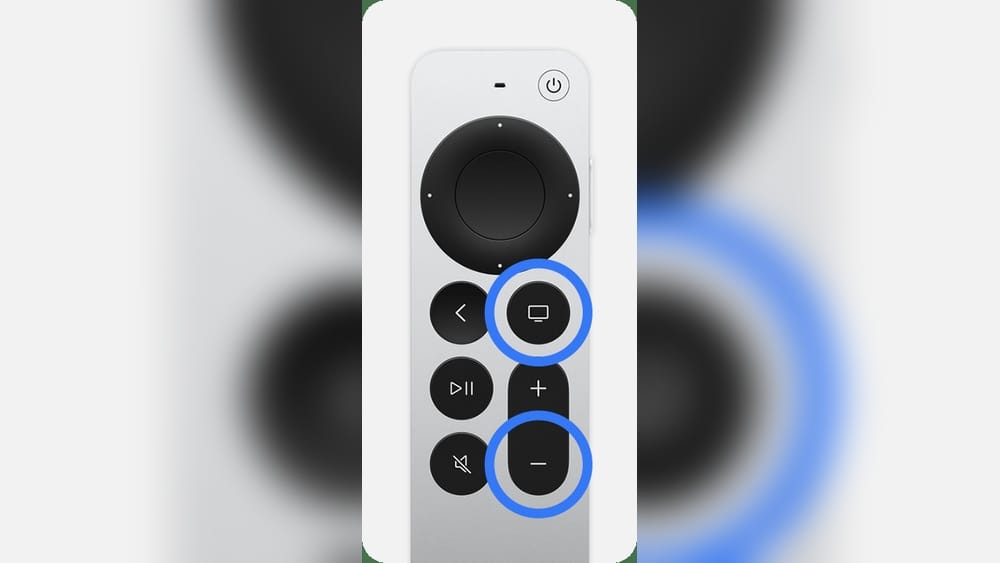
Every modern living room seems to have a pile of remotes: one for the TV, another for the soundbar, maybe a streaming box, and often, confusion about which does what. The Apple TV Remote (also called Siri Remote) promises to change that. But many users don’t realize it can do more than just control Apple TV. With the right setup, you can use your Apple TV remote to control your TV’s volume—and sometimes even your soundbar or receiver. This small feature can make your entertainment setup much simpler and more enjoyable.
In this guide, you’ll learn how to control your TV’s volume with your Apple TV remote, no matter if you have a new Siri Remote or an older model. You’ll discover common problems, quick fixes, advanced tricks, and answers to the questions many users ask.
Whether you’re tired of juggling remotes or want to help someone set up their system, you’ll find straightforward advice here.
Understanding Apple Tv Remote Volume Control
Most people think the Apple TV remote is only for the Apple TV box. But thanks to HDMI-CEC and infrared (IR) technology, it can also control your TV’s volume. Understanding how this works helps you set up your system properly and fix problems if they come up.
How It Works
The Apple TV remote can send commands to your TV in two ways:
- HDMI-CEC: HDMI Consumer Electronics Control lets devices connected by HDMI “talk” to each other. If your TV supports HDMI-CEC, Apple TV can tell the TV to change the volume.
- Infrared (IR): The remote can send IR signals just like a regular TV remote. This is useful for older TVs or when HDMI-CEC isn’t available.
Siri Remote Generations
Not all Apple TV remotes are the same. Here’s a quick comparison:
| Remote Generation | Main Features | Volume Control |
|---|---|---|
| 1st Gen Siri Remote (2015) | Glass touch surface, menu button | IR & HDMI-CEC |
| 2nd Gen Siri Remote (2021) | Aluminum, circular clickpad, new power button | IR & HDMI-CEC |
| 3rd Gen Siri Remote (2022) | USB-C charging, similar design to 2nd Gen | IR & HDMI-CEC |
Tip: Not sure which remote you have? Look for the circular clickpad (2nd/3rd gen) or glass touch surface (1st gen).
What You’ll Need
- Apple TV 4th generation or newer
- HDMI cable (preferably high-speed)
- Compatible TV (most modern TVs support HDMI-CEC or IR)
- Apple TV remote
Setting Up Volume Control On Your Apple Tv Remote
Getting volume control to work is usually simple, but the best method depends on your TV and audio system.
Step 1: Connect Apple Tv Properly
- Plug your Apple TV into the TV’s HDMI port.
- Use the HDMI port labeled “ARC” or “eARC” if your TV and sound system support it. This helps with audio device control.
- Turn on your TV and Apple TV.
Step 2: Enable Hdmi-cec On Your Tv
HDMI-CEC is sometimes turned off by default. Each TV brand calls it something different:
| TV Brand | HDMI-CEC Name |
|---|---|
| Samsung | Anynet+ |
| LG | Simplink |
| Sony | BRAVIA Sync |
| Panasonic | Viera Link |
| Toshiba | Regza Link |
| Philips | EasyLink |
- Go to your TV’s settings menu and find HDMI-CEC (by its brand name).
- Turn it ON.
- Restart your TV and Apple TV.
Insight: On some TVs, HDMI-CEC is hidden under advanced settings or external device control.
Step 3: Set Up Volume Control In Apple Tv Settings
- Open Settings on your Apple TV.
- Go to Remotes and Devices.
- Select Volume Control.
- Choose one of these options:
- Auto (default): Apple TV will try HDMI-CEC first. If not available, it uses IR.
- TV via IR: Uses infrared signals.
- Off: Disables volume control from the remote.
- If your TV isn’t responding, choose Learn New Device and follow the instructions to teach your Apple TV remote your TV’s IR commands.
Practical Tip: If your TV is older than 2012, try IR mode, as HDMI-CEC may not work well.
Step 4: Test And Adjust
- Point your Apple TV remote at the TV or soundbar.
- Press the volume up or down button.
- If it works, you’re all set.
- If not, check that nothing is blocking the signal and your TV is set to the correct HDMI input.
Common Mistake: Forgetting to point the remote at the TV when using IR—HDMI-CEC works through the HDMI cable, but IR needs a direct line of sight.

Credit: www.youtube.com
Troubleshooting Volume Control Problems
Even with the right setup, you might run into issues. Here’s how to fix the most common ones.
Volume Buttons Do Nothing
- Check HDMI-CEC: Make sure it’s enabled on your TV.
- Restart Devices: Unplug your TV and Apple TV for 30 seconds, then plug back in.
- Try IR Mode: In Apple TV settings, switch from Auto to TV via IR.
- Update Software: Make sure your Apple TV and TV have the latest firmware.
Wrong Device Responds
If you have a soundbar or receiver, sometimes the Apple TV remote changes the wrong volume.
- In Remotes and Devices, select which device to control.
- If you use HDMI ARC/eARC, make sure the TV’s audio output is set correctly.
Remote Not Learning Commands
When using “Learn New Device,” some remotes won’t program correctly.
- Try moving closer to the Apple TV box during setup.
- Remove any objects blocking the front of the TV or Apple TV.
- If it still fails, your TV may not support learning, or you may need to use HDMI-CEC.
Volume Jumps Or Stutters
- Turn off other HDMI devices to see if there is a conflict.
- Check for double volume commands in your TV’s settings.
Non-Obvious Insight: Some HDMI switches or splitters block CEC signals. If you use one, connect Apple TV directly to the TV for setup.
Advanced Volume Control Tips
After you’ve set up basic volume control, you may want more features or to solve trickier problems.
Controlling Soundbars And Receivers
Many users have their TV connected to a soundbar or home theater receiver. Here’s how to control those:
- If your soundbar is connected by HDMI ARC/eARC, enabling HDMI-CEC on both devices usually lets the Apple TV remote control volume.
- For older soundbars with IR, use “Learn New Device” to program the Apple TV remote.
- Some receivers may need their own settings adjusted. Look for “CEC Control” or “System Audio Control.”
Using Universal Remote Features
The Apple TV remote can learn commands from most IR remotes. This is handy if you want one remote for everything.
- Go to Apple TV Settings > Remotes and Devices > Learn Remote.
- Follow the on-screen instructions using your TV or soundbar remote.
- You’ll be able to use the Apple TV remote to control power, volume, and sometimes input selection.
Power And Volume Sync
With the newer Siri Remotes (2nd and 3rd gen), the power button can turn your TV and receiver on/off if HDMI-CEC is active. Volume control should stay in sync.
- Make sure all devices are set to allow HDMI-CEC.
- If you see devices not powering on together, unplug everything for a minute and try again.
Using Voice To Control Volume
You can ask Siri to change the volume on your Apple TV. Try holding the Siri button and saying:
- “Turn the volume up”
- “Lower the volume”
- “Mute the TV”
Note: Voice volume commands work only if your TV or sound system supports HDMI-CEC and is set up with Apple TV.
Using External Audio Devices
If you use headphones or a Bluetooth speaker, the Apple TV remote’s volume buttons will control the connected audio device instead of the TV. This can be useful for late-night viewing.
- Pair your Bluetooth device in Settings > Remotes and Devices > Bluetooth.
- Adjust volume using the remote as usual.
Hidden Detail: Some TVs or soundbars do not allow volume control over Bluetooth. In these cases, use their own remote or physical buttons.
Comparing Apple Tv Remote Volume Control With Other Systems
How does the Apple TV remote’s volume control stack up against other popular streaming devices? Here’s a quick look:
| Device | Volume Control Methods | Customizable? |
|---|---|---|
| Apple TV (Siri Remote) | HDMI-CEC, IR, learned commands | Yes |
| Roku Remote | IR, some HDMI-CEC | Limited |
| Amazon Fire TV Remote | IR, HDMI-CEC | No |
| Google Chromecast Remote | IR, HDMI-CEC | Yes |
Key Point: The Apple TV remote is one of the few that lets you teach it commands from other remotes, making it very flexible.
Common Mistakes And How To Avoid Them
1. Not Enabling Hdmi-cec
This is the most frequent error. If your TV’s HDMI-CEC is off, the Apple TV remote can’t control the volume over HDMI.
2. Using The Wrong Hdmi Port
Some TVs have only one ARC/eARC port that supports audio device control. Make sure your Apple TV is plugged into the right one.
3. Obstructed Ir Signal
If you use IR, anything blocking the front of your TV or soundbar can stop the volume commands.
4. Outdated Firmware
Older software on your TV or Apple TV can cause problems. Check for updates if things aren’t working right.
5. Skipping The “learn New Device” Step
If your TV or soundbar isn’t supported, don’t skip this step—it often solves stubborn problems.
Expert Insight: Sometimes, a quick power cycle (unplugging for 30 seconds) fixes issues that seem complicated. Try this before changing settings.
Credit: www.reddit.com
Voice Control And Accessibility Features
Apple TV is designed with accessibility in mind. If you have limited mobility or vision, these features help control your TV’s volume and more.
Voice Control
- Hold the Siri button and speak commands like “Turn volume up” or “Mute.”
- Use Dictation to enter text in search fields.
Accessibility Shortcuts
- Go to Settings > Accessibility for features like VoiceOver, Zoom, and Reduce Motion.
- You can assign a shortcut (triple-click) to enable these quickly.
Alternative Controls
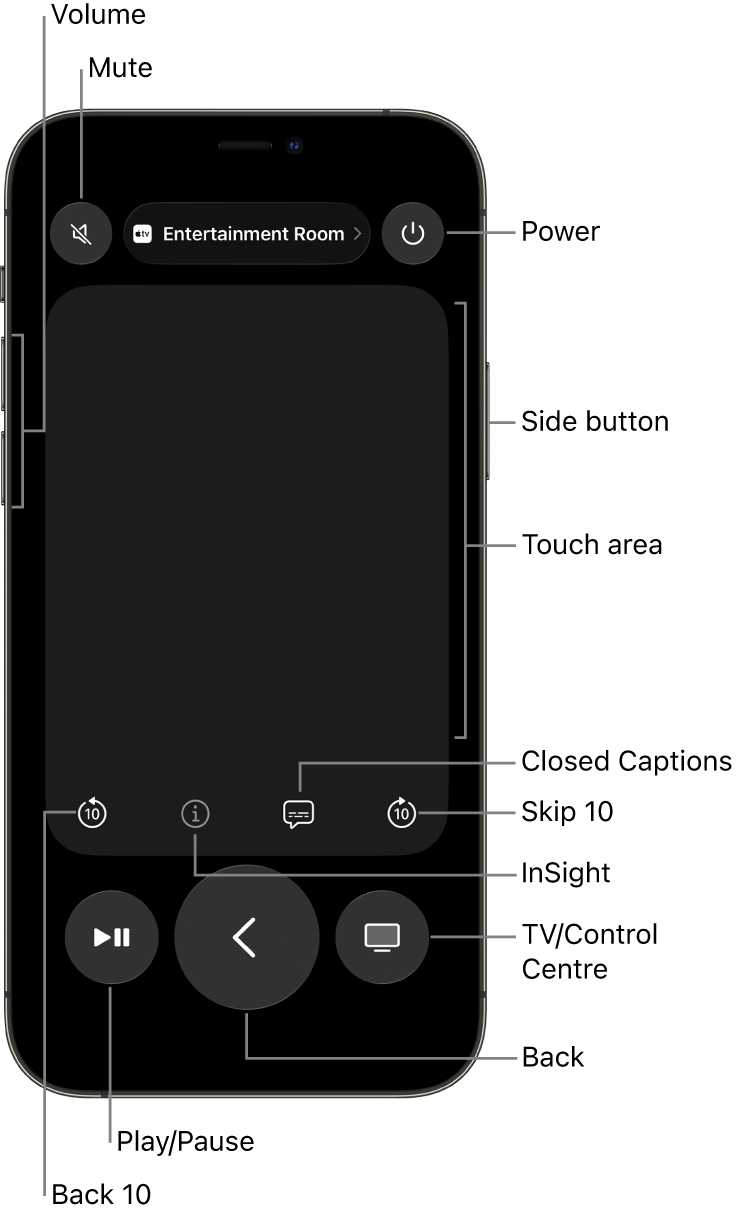
- Use the Apple TV Remote app on your iPhone or iPad. It mirrors the physical remote and includes volume control.
- Set up HomeKit scenes to control multiple devices, including volume, with a single tap or Siri command.
Pro Tip: If you lose your Apple TV remote, you can use your iPhone as a temporary replacement, including for volume control (if your phone has IR or your setup supports HDMI-CEC).
Real-world Examples
To make these ideas clearer, here are a few situations Apple TV users often face.
Example 1: Modern Setup With Soundbar
Scenario: You have a new LG TV and a Sonos soundbar connected via HDMI ARC.
- Enable Simplink (HDMI-CEC) on your LG TV.
- Make sure your Sonos soundbar supports HDMI-CEC.
- In Apple TV settings, set Volume Control to Auto.
- The Apple TV remote should now control your soundbar’s volume directly.
Example 2: Older Tv, No Hdmi-cec
Scenario: Your 2010 Samsung TV doesn’t support HDMI-CEC.
- In Apple TV settings, choose “Learn New Device.”
- Use your Samsung TV remote to program volume up, volume down, and mute.
- Apple TV remote now controls volume with IR—just point it at the TV.
Example 3: Multiple Devices
Scenario: TV, soundbar, and Apple TV all connected. Volume changes the TV, but you want to control the soundbar.
- In TV settings, set “Audio Output” to the soundbar.
- In Apple TV, set Volume Control to use the soundbar (if possible) or program IR commands.
- If your soundbar supports CEC, make sure it’s turned on.
Underrated Detail: On some systems, you may need to power cycle all devices after changing settings for them to “see” each other over HDMI-CEC.
Security And Privacy Considerations
Most people don’t think about privacy with their TV remote, but there are a few things to know.
- HDMI-CEC only sends basic control commands. It does not send personal information.
- Siri voice commands are processed by Apple. You can turn off Siri in Apple TV settings if you prefer not to use it.
- Your volume and device settings are stored locally, not in the cloud.
For more about privacy with Apple devices, visit the Apple Privacy page.
When To Upgrade Your Devices
Sometimes, older TVs or soundbars just won’t play nicely with Apple TV remote volume control. Here’s when to consider upgrading:
- Your TV doesn’t support HDMI-CEC and has limited IR compatibility.
- You want voice control or to control multiple devices with one remote.
- Your remote is physically damaged or not charging.
Newer Apple TV remotes are available separately and work with most Apple TV boxes from 2015 onward.
Money-Saving Tip: Before buying a new TV, check if a firmware update or a universal IR receiver for your soundbar can solve your problem.
Maximizing Your Apple Tv Remote Experience
Here are a few extra ideas to get the most out of your setup:
- Customize button functions in Settings. For example, the Home button can open the TV app or the home screen.
- Set up HomeKit to control your TV and other smart devices together.
- Pair multiple remotes if different family members want their own.
- Use the “Find My” feature (on 3rd gen Siri Remote) if you lose your remote.
Little-Known Fact: You can pair Bluetooth keyboards or game controllers with Apple TV for easier navigation and typing.
Frequently Asked Questions
Can I Control My Tv’s Volume With Every Apple Tv Remote?
Most Apple TV remotes (Siri Remote, 1st-3rd generation) can control TV volume using either HDMI-CEC or IR. The white or aluminum Apple Remote (for older Apple TVs) does not support this feature.
Why Won’t My Apple Tv Remote Change The Volume?
Common reasons include HDMI-CEC being turned off on your TV, using the wrong HDMI port, an obstructed IR sensor, or outdated firmware. Try enabling CEC, checking connections, or using the “Learn New Device” feature in Apple TV settings.
Can I Use My Iphone To Control Tv Volume Through Apple Tv?
Yes, if your setup supports HDMI-CEC, the Apple TV Remote app on iPhone can send volume commands through Apple TV. If your TV only supports IR, the iPhone app cannot control volume directly.
Will The Apple Tv Remote Control My Soundbar Or Receiver Volume?
If your soundbar or receiver supports HDMI-CEC or IR, the Apple TV remote can control their volume. Use “Learn New Device” in Apple TV settings to program the remote if your soundbar uses IR.
Is There A Way To Mute The Tv With The Apple Tv Remote?
Yes, the Siri Remote has a dedicated mute button (2nd and 3rd gen). For older remotes, you can program a mute command in “Learn New Device. ” You can also ask Siri to mute the TV if HDMI-CEC is enabled.
Your Apple TV remote can be much more than a simple streaming tool. With the right setup, it becomes the heart of your home theater control, reducing clutter and letting you focus on enjoying your favorite shows and movies. Take the time to set it up properly, explore advanced features, and you’ll have a smoother, more satisfying entertainment experience.
If you ever get stuck, remember to check for updates, revisit your settings, and use the troubleshooting tips above. Happy viewing!
Credit: support.apple.com