
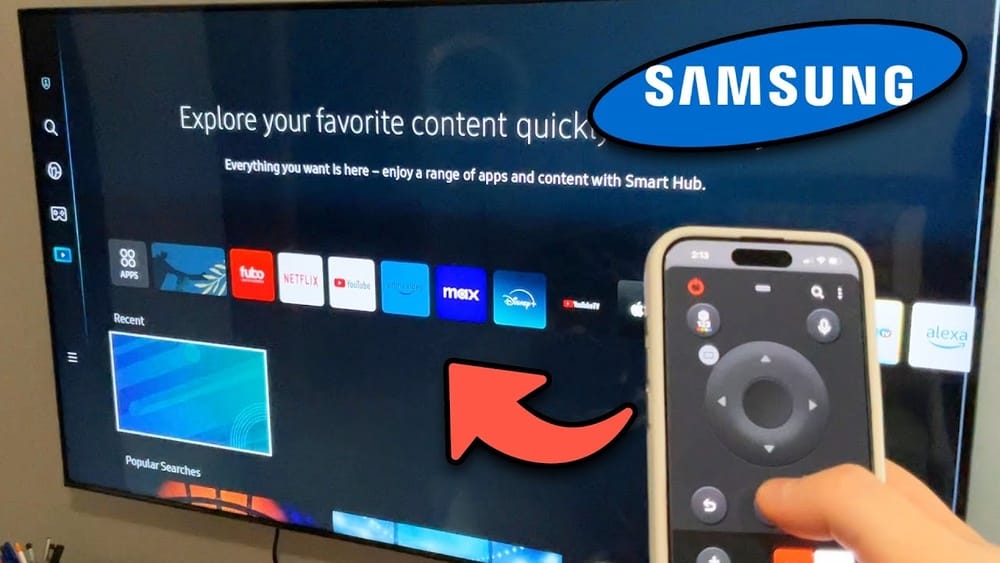
Losing your TV remote can be frustrating. Maybe you dropped it, your pet hid it, or the batteries died at the wrong moment. But in today’s world, your smartphone can do almost everything your remote can, and often more. You don’t need to rush to the store for a replacement or search under the couch for hours. With just a few steps, you can control your TV using your phone—even if you have no remote at all.
This guide walks you through simple, practical ways to turn your phone into a TV remote. You’ll learn how to set it up, what you need, and common mistakes to avoid. We’ll cover different types of TVs, including smart TVs, older models, and streaming devices.
By the end, you’ll know how to change channels, adjust volume, and even use advanced features with only your phone in hand.
Understanding How Phones Can Control Tvs
Before you start, it helps to know how a phone can talk to a TV. Most solutions use one of these methods:
- Infrared (IR) blaster: Some phones have a built-in IR blaster. This sends signals just like a traditional remote.
- Wi-Fi network: Many smart TVs and streaming devices connect to your home Wi-Fi. Your phone can send commands over the same network.
- Bluetooth: Some TVs and sticks support Bluetooth pairing for controls.
- Manufacturer apps: TV brands make their own apps for remote control.
- Third-party universal remote apps: These can work across different brands and devices.
The method you use depends on your phone and TV. Not every phone or TV supports all options. Let’s break down how each works and who can use them.
Requirements: What You Need To Get Started
Controlling your TV with your phone isn’t magic. You need:
- A smartphone (Android or iPhone).
- A TV—smart or non-smart, but options vary.
- Internet connection (for Wi-Fi methods and smart TVs).
- App installation (for most solutions).
- IR blaster (only for some Android phones).
If you have a smart TV, you have more options. If your TV is older and not connected, check if your phone has an IR blaster. If not, you may need extra hardware.
Non-obvious tip: Not all Androids have an IR blaster, and iPhones never do. Check your phone’s specs before searching for IR-based apps.
Using Your Phone As A Remote: Main Methods
1. Manufacturer Official Remote Apps
Most big TV brands offer their own official remote apps. These are usually reliable, safe, and updated regularly. Here are some top examples:
- Samsung: SmartThings app
- LG: LG ThinQ app
- Sony: TV SideView (Android TV Remote)
- Vizio: SmartCast Mobile
- TCL: Roku app (for TCL Roku TVs)
- Philips: Philips TV Remote
How to use:
- Download the app from Google Play or the App Store.
- Make sure your phone and TV are on the same Wi-Fi network.
- Open the app and let it scan for your TV.
- Select your TV. Sometimes you need to enter a code shown on your TV.
- Start controlling!
Key advantage: These apps often let you use features your remote can’t, like typing with your phone’s keyboard or casting photos.
2. Universal Remote Apps
If your TV brand doesn’t have an app, or you want one app for many devices, try a universal remote app.
Popular choices:
- Universal TV Remote Control (Android)
- AnyMote Universal Remote (Android)
- Peel Smart Remote (Android)
- Sure Universal Remote (Android & iOS)
- Roku Official App (works with Roku TVs and sticks)
- Mi Remote (for Xiaomi phones with IR)
How to use:
- Download and install the app.
- Choose your TV brand and model.
- Connect via Wi-Fi or IR (if your phone supports it).
- Test commands to check it works.
Note: Free apps often show ads. Paid versions usually remove ads and add more features.
3. Using Phones With Ir Blaster
Some Android phones come with an IR blaster. This lets your phone send signals just like a remote. It’s especially useful for older TVs or those not connected to Wi-Fi.
How to check for IR blaster:
- Look at the top edge of your phone for a small, black window (often next to the headphone jack).
- Search your phone’s specs online.
Setting up:
- Download an IR remote app (Mi Remote, AnyMote, etc. ).
- Open the app and add your TV brand/model.
- Point your phone at the TV and test.
Insight: IR works even if your TV is not connected to the internet or Wi-Fi is down. But IR only works in direct line of sight—walls and furniture can block the signal.
4. Controlling Streaming Devices
If you use a streaming stick or box (Roku, Fire TV, Chromecast, Apple TV), you can control both the device and, often, the TV.
- Roku: Roku app (Android/iOS)
- Fire TV: Amazon Fire TV app
- Chromecast: Google Home app
- Apple TV: Apple TV Remote in Control Center (iPhone)
These apps let you:
- Navigate menus
- Play/pause videos
- Enter text with your phone’s keyboard
- Turn the TV on/off (if supported)
Example: With Roku, the app can control your TV’s volume if the stick is connected via HDMI-CEC.
5. Voice Control With Virtual Assistants
Modern TVs and streaming devices support voice control using Google Assistant, Alexa, or Siri.
- Google Assistant: “Hey Google, turn on the TV”
- Alexa: “Alexa, turn the volume up on Living Room TV”
- Siri: “Hey Siri, play YouTube on Apple TV”
How to set up:
- Link your TV or streaming device to your smart home app.
- Use the app or smart speaker to control the TV.
Non-obvious insight: Voice commands often need your TV and phone to be on the same network, and you might need to enable certain settings (like HDMI-CEC or device discovery).
6. Casting And Screen Mirroring As Remote
While not a direct remote, casting or screen mirroring lets you use your phone to control what’s on the TV.
- Open a video app (YouTube, Netflix, etc.)
- Tap the cast icon
- Select your TV or streaming device
Now, your phone becomes the controller for playback, pause, volume, and more.
Bonus: Some TVs and sticks support mirroring your phone’s screen, so you can show photos, apps, and more.
Step-by-step Guide: Setting Up Your Phone As A Tv Remote
Here’s a simple process that works for most people:
- Check your TV type: Is it smart (Wi-Fi enabled) or old (no Wi-Fi)?
- Choose the method: Official app (best), universal app, IR (for old TVs), or streaming device app.
- Connect to Wi-Fi: For smart TVs, ensure both devices are on the same network.
- Download the app: Use Google Play or App Store.
- Pair your devices: Follow the prompts to connect.
- Test the controls: Try power, volume, and channel buttons.
- Explore extra features: Many apps let you type, search, or even use your phone as a mouse.
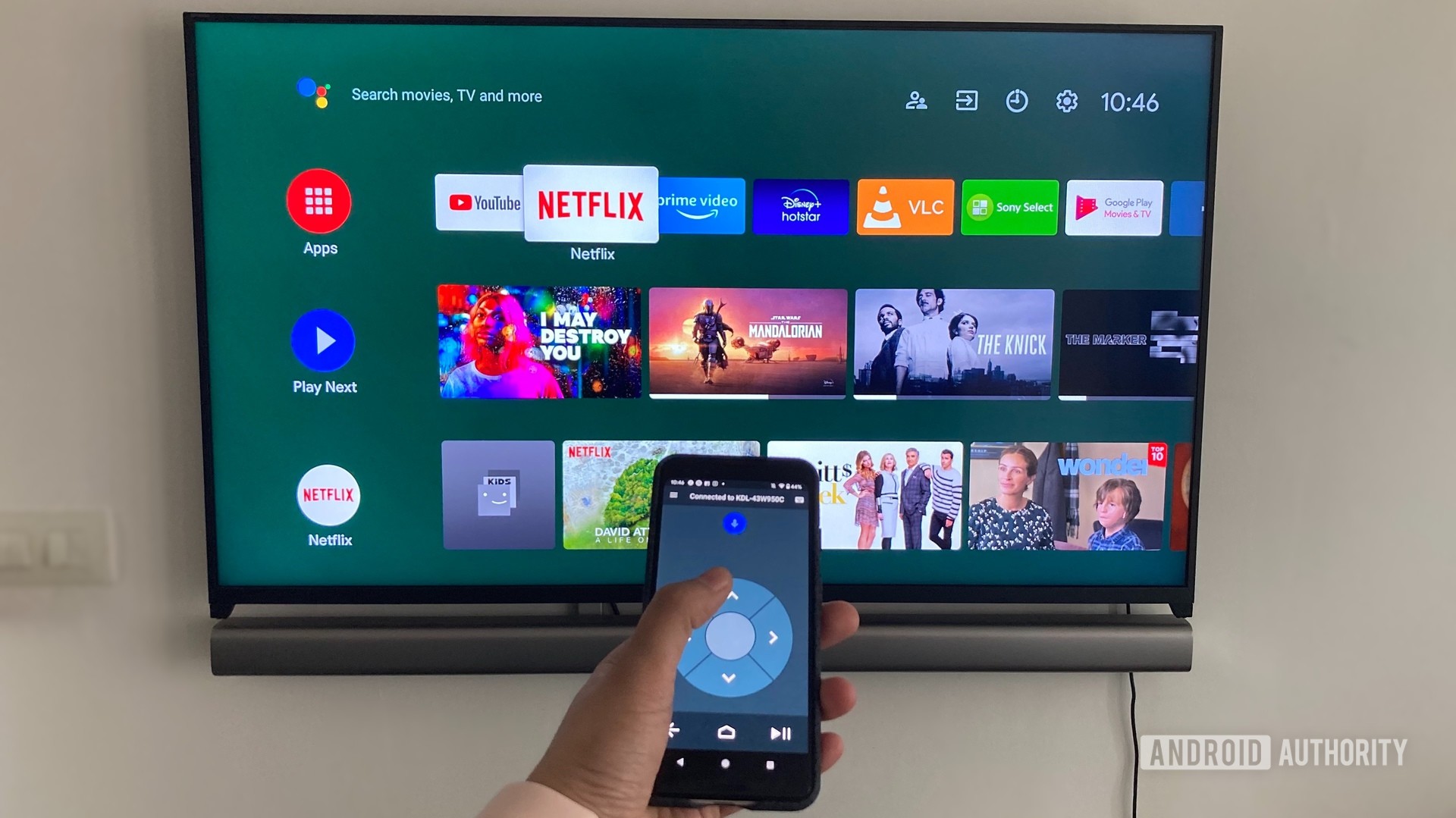
Common beginner mistake: Forgetting to connect both TV and phone to the same Wi-Fi network. This is the number one reason remote apps “can’t find” your TV.
Credit: www.androidauthority.com
When Your Tv Is Not Smart: Special Cases
If your TV is not a smart TV (no Wi-Fi, no Bluetooth), your options are limited to:
- Phones with IR blaster
- Adding a streaming stick (Roku, Fire TV, Chromecast)
- Buying an external IR blaster for your phone
External IR blasters plug into your phone’s headphone jack or charging port and act as a remote sender. They’re not expensive but require extra setup.
Example: You can buy an IR blaster dongle for $5–$20 online, then use a universal remote app to control almost any TV.
Note: These solutions aren’t as smooth as smart TV apps but work in a pinch.
Comparison: Main Methods To Control Tv With Phone
Here’s how the main options compare for convenience, compatibility, and features:
| Method | Works With | Setup Difficulty | Main Features | Limitations |
|---|---|---|---|---|
| Official TV Brand App | Smart TVs, recent models | Easy | Full control, keyboard, advanced features | Brand-specific, needs Wi-Fi |
| Universal Remote App | Many TVs, old & new | Medium | Works with multiple brands | Ads, may need IR blaster |
| IR Blaster | Any IR remote TV | Easy | No Wi-Fi needed | Phone must have IR |
| Streaming Device App | Roku, Fire TV, Chromecast, Apple TV | Easy | Remote + extra features | Device-specific |
| Voice Assistant | Smart TVs, streaming devices | Medium | Hands-free control | Setup needed, limited commands |
Credit: www.samsung.com
Top Remote Apps For Major Tv Brands
Let’s look at the best apps for popular TV brands:
| TV Brand | Official App | Platforms | Extra Features |
|---|---|---|---|
| Samsung | SmartThings | Android, iOS | Smart home, keyboard, screen mirror |
| LG | LG ThinQ | Android, iOS | Voice, keyboard, TV settings |
| Sony | TV SideView | Android, iOS | Program guide, search |
| Vizio | SmartCast | Android, iOS | Cast, input switch, settings |
| TCL (Roku) | Roku | Android, iOS | Voice, keyboard, private listening |
| Philips | Philips TV Remote | Android, iOS | Keyboard, app launcher |
Insider tip: For TCL and Hisense Roku TVs, the Roku app is often better than the brand’s own app.
Real-life Examples
Example 1: Maria lost her Samsung TV remote. She downloaded the SmartThings app, connected her phone and TV to Wi-Fi, and within five minutes had full control—including using her phone to type YouTube searches.
Example 2: John’s old LG TV isn’t smart. His Xiaomi phone has an IR blaster, so he downloaded Mi Remote, pointed his phone at the TV, and turned it on with a tap.
Example 3: Priya uses a Fire TV Stick. The remote broke, but the Amazon Fire TV app on her iPhone let her search, change volume, and even use Alexa—all without buying a new remote.
Security And Privacy Considerations
Remote apps often ask for permissions: Wi-Fi access, Bluetooth, sometimes even your location. Here’s what you should know:
- Only download apps from trusted sources (Google Play, App Store).
- Read reviews to check for security concerns or spammy behavior.
- Be careful with third-party apps that want more permissions than needed.
- Most brand apps do not collect personal data, but always check the privacy policy.
Pro tip: If you only use the app as a remote, you can usually deny location access without any problems.
Pros And Cons Of Controlling Tv With Your Phone
It’s not all perfect. Here’s a balanced look:
Pros:
- Always have a remote (your phone)
- More features (keyboard, search, casting)
- Can control multiple devices with one app
- Good for lost or broken remotes
Cons:
- Drains phone battery faster
- Needs Wi-Fi for most methods
- Can be slow to connect or sync
- Not as simple as a physical remote for guests
Troubleshooting Common Problems
Even with the right app and setup, things can go wrong. Here’s how to fix the most frequent issues:
- TV not found on app: Check both devices are on the same Wi-Fi network. Restart both if needed.
- App crashes or freezes: Update the app. Clear cache or reinstall if needed.
- IR remote doesn’t work: Make sure your phone supports IR and nothing blocks the signal.
- Delayed response: Wi-Fi interference or slow network can cause lag.
- Voice commands not working: Check that the TV is linked in your assistant’s app and microphone permission is enabled.
Advanced tip: If your TV supports HDMI-CEC, enabling this in the TV settings can help your phone app control power and input switching better.
Practical Tips For Everyday Use
- Save battery: Lower your phone’s screen brightness when using it as a remote.
- Shortcut: Add the remote app to your phone’s home screen for quick access.
- Update apps: Manufacturers often fix bugs and add features, so keep your app up to date.
- Guest mode: Some apps allow guest remote use, helpful when friends visit.
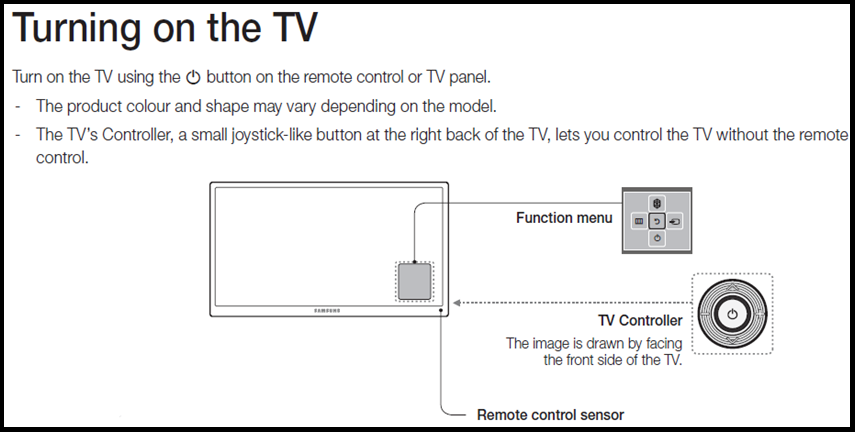
Real-world insight: Not all TVs wake up from sleep with a remote app command. Sometimes, you must turn the TV on with the physical power button, then use your phone for everything else.
How To Control Tv Volume, Change Channels, And More
Most remote apps include all the basics:
- Power on/off
- Volume up/down
- Mute
- Change channels
- Navigate menus
- Input/source switch
Advanced features in some apps:
- Voice search
- Keyboard for typing
- App launching (YouTube, Netflix)
- Screen mirroring
- Settings access
Tip: Some apps let you customize the remote layout or create macros (e.g., turn on TV and open Netflix with one tap).
Can You Control Tv With Phone If Remote Is Lost?
Yes, in most cases! Here’s a quick reference:
| TV Type | Needed for Phone Control | Best Method |
|---|---|---|
| Smart TV (Wi-Fi) | Same Wi-Fi network | Official/Universal app |
| Non-Smart TV | Phone with IR or external IR blaster | IR remote app |
| Streaming Device | Device app, same Wi-Fi | Roku, Fire TV, etc. app |
| Bluetooth-enabled TV | Pair via app/Bluetooth | Brand or universal app |

Credit: www.youtube.com
What If You Need A Physical Remote?
Sometimes, you must use a real remote to pair the TV with Wi-Fi or do the first setup. If you’re stuck in such a loop:
- Try using a USB keyboard with your TV (many smart TVs support this).
- Borrow a remote from a friend with the same TV brand/model.
- Buy a universal remote as a backup.
Pro tip: Once your TV is connected to Wi-Fi and paired with your app, you rarely need the physical remote again.
When To Consider Buying A Replacement Remote
If you have guests, older family members, or just want a backup, a physical remote can still be handy. Universal remotes are cheap and work with most TVs.
But for daily use, your phone is more than enough for most people.
Note: If your TV is very old (pre-2000s), phone remote solutions may not work at all—external IR blaster or a physical replacement is your only option.
Staying Up To Date: Future Trends
More TVs are becoming part of the smart home. In the future, you’ll see:
- More voice control and AI integration
- Advanced apps with gesture control
- TV control from smartwatches or wearables
- Easier setup (auto-pairing over Wi-Fi or Bluetooth)
Example: Google’s new Android TV Remote app combines IR, Wi-Fi, and Bluetooth for wide compatibility.
For more on smart TV trends, see this overview of Smart TVs.
Frequently Asked Questions
Can I Control My Tv With My Phone If My Tv Is Not A Smart Tv?
Yes, but only if your phone has an IR blaster or you use an external IR blaster. Non-smart TVs can’t connect over Wi-Fi, so universal remote apps using IR are your best option.
Will Using My Phone As A Remote Drain The Battery Quickly?
Remote apps use some battery, especially if the screen stays on. But most use less power than gaming or video apps. Lowering your screen brightness and closing the app when not needed will help.
Is It Safe To Use Third-party Universal Remote Apps?
Most are safe if downloaded from official stores. But always check reviews, update regularly, and avoid apps that ask for too many permissions. Stick to popular, well-rated options.
What Should I Do If My Phone Can’t Find My Tv?
First, check that both devices are on the same Wi-Fi network. Restart both phone and TV. If using IR, make sure nothing is blocking the IR sensor. Double-check app settings and TV pairing options.
Do I Need Internet Access All The Time To Use My Phone As A Remote?
You need Wi-Fi for setup and most features on smart TVs. But IR-based remote apps work without internet. Once set up, many functions (like volume or channel) work even if your home internet is down, as long as your local network is active.
Losing your TV remote isn’t the end of the world. With the right app and setup, your phone becomes a powerful, flexible remote control—often better than the original. Whether you have a modern smart TV, an older model, or a streaming device, there’s a way to control your TV without the traditional remote.
Just follow the steps above, avoid common mistakes, and enjoy a smoother, smarter TV experience.