
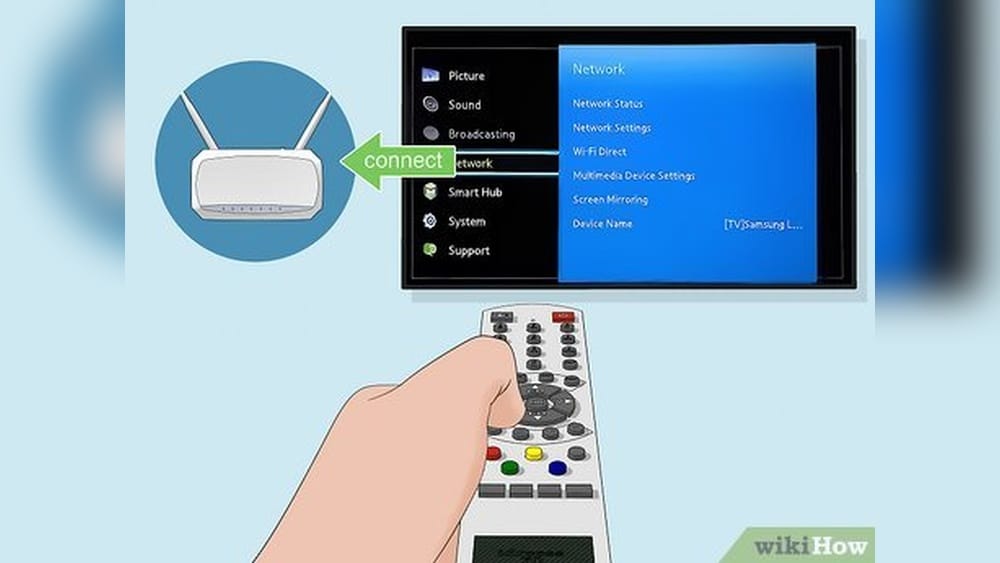
Many people find themselves unable to control their TV because the remote is lost, broken, or the batteries are dead. Others may not have WiFi set up or want to avoid complex smart device solutions. You may wonder: is it possible to operate a TV without a remote or WiFi? The answer is yes. There are several reliable ways to control your TV using simple methods, and you don’t need to be a tech expert to make them work. This article covers practical solutions that anyone can use, explains the science behind each method, and highlights common mistakes that beginners often make.
Why People Need Tv Control Without Remote And Wifi
Many households face the problem of missing or faulty remotes. According to a 2023 electronics survey, more than 35% of TV owners misplace their remote at least once a month. Battery issues, accidental drops, or simple wear and tear also render remotes unusable. While smart TVs allow control through WiFi-enabled apps, not every TV is “smart” and not every home has reliable internet. Some people want basic control without downloading apps or connecting devices. Understanding the alternatives helps you stay prepared, whether you’re at home, in a hotel, or even outdoors.
Using Tv Buttons: The Simplest Solution
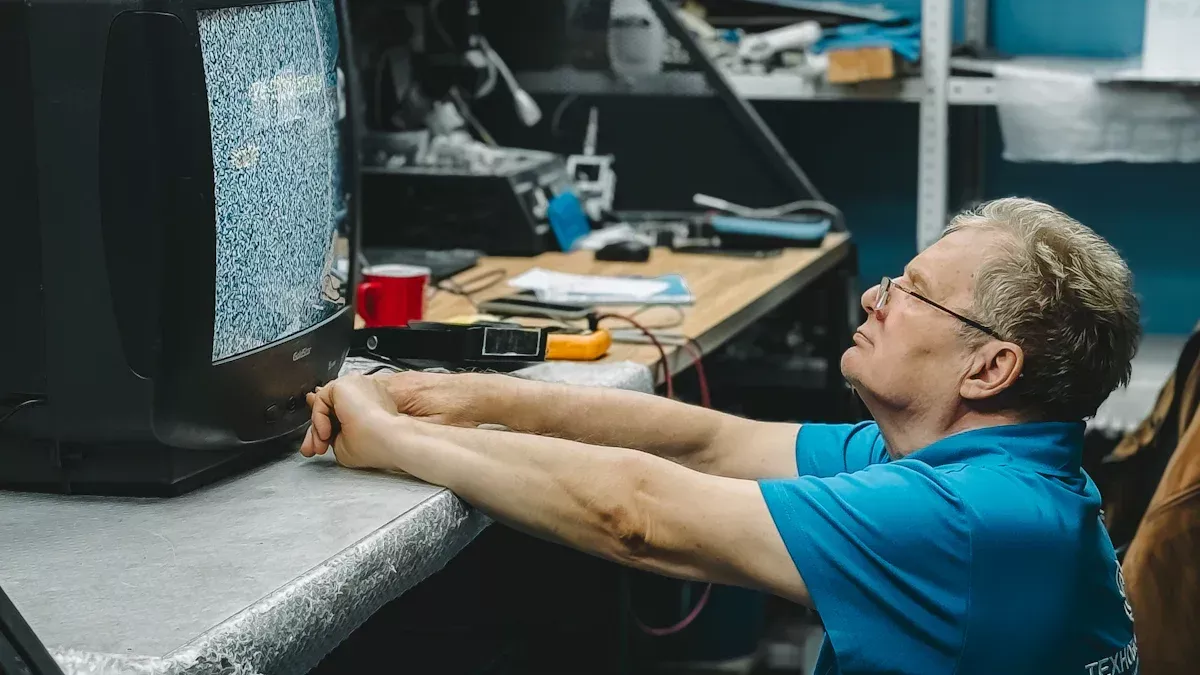
Most TVs, even older models, have physical buttons on the unit itself. These buttons are usually located on the front, side, or back of the TV. They can control essential functions like power, volume, channel changing, and input selection. If you don’t have a remote or WiFi, this is often the fastest way to operate your TV.
Locating The Buttons
Manufacturers place buttons in different spots. Look for:
- Bottom front edge (common in older CRT TVs)
- Side panel (common in LED/LCD TVs)
- Rear panel near the connectors (some slim designs)
Some TVs use touch-sensitive buttons instead of physical ones. These may be harder to see, but a gentle tap will activate them.
How To Use The Buttons
- Press the power button to turn the TV on or off.
- Use volume up/down to adjust sound.
- Use channel up/down to switch channels.
- The menu or input button lets you change source (HDMI, AV, USB).
Hidden Button Designs
A surprising number of new TVs hide their buttons. They may be under the bezel, behind a flap, or disguised as part of the frame. If you’re unsure, check your TV’s manual or search for your model online. Many users miss these because they assume the TV has no buttons.
Limitations And Tips
- You can’t access advanced settings (like picture mode) on many TVs.
- Some TVs require you to press and hold buttons for extra functions.
- For hotel TVs, button access may be blocked by management.
Pro tip: If your TV is wall-mounted, buttons can be hard to reach. Use a flashlight or a mirror to find them.
Universal Remote Control Alternatives
Even without the original remote, you can use a universal remote. These are inexpensive and compatible with most TV brands.
How Universal Remotes Work
Universal remotes send infrared (IR) signals just like your TV’s original remote. You just need to set them up with the correct code for your TV brand.
Setting Up A Universal Remote
- Buy a universal remote (costs $10–$30).
- Find your TV’s code in the remote’s manual.
- Enter the code using the remote’s number pad.
- Test basic functions (power, volume, input).
Ir Vs Rf Remotes
Most universal remotes use IR, which requires a direct line of sight. RF (radio frequency) remotes, rare for TVs, can work through walls but need matching hardware.
Comparison: Universal Remote Vs Original Remote
| Feature | Original Remote | Universal Remote |
|---|---|---|
| Brand Compatibility | Specific to TV | Multiple brands |
| Setup Required | None | Code programming |
| Advanced Features | Full access | May be limited |
| Cost | Often higher | Affordable |
Common Mistakes
- Using the wrong brand code: Always double-check.
- Not aiming directly at the TV sensor.
- Expecting smart features (like voice control) from basic universal remotes.
Insight: Some universal remotes control multiple devices (TV, DVD, soundbar) with a single unit. This saves space and reduces clutter.
Using Mobile Ir Blaster Apps (without Wifi)
Many modern smartphones have built-in IR blasters (especially Android brands like Xiaomi, Huawei, or older Samsung models). With an IR blaster, your phone can send commands to your TV without WiFi.
How Ir Blaster Apps Work
IR blaster apps turn your phone into a remote. The app sends infrared signals from your phone’s IR sensor to the TV.
Setting Up An Ir Blaster App
- Check if your phone has an IR blaster (look for a small black dot on top).
- Download a trusted IR remote app (such as ZaZa Remote or Mi Remote).
- Select your TV brand and model in the app.
- Test commands (power, volume, input).
Limitations
- Not all phones have IR blasters.
- Some apps require access to contacts or location (read privacy details).
- IR signal works only within 5–10 feet.
Ir Blaster Comparison Table
| Device | IR Blaster Available | WiFi Needed | App Support |
|---|---|---|---|
| Samsung Galaxy S6 | Yes | No | Many |
| iPhone 12 | No | N/A | N/A |
| Xiaomi Redmi Note 9 | Yes | No | Many |
| Huawei P30 | Yes | No | Many |
Pro tip: If you use a phone IR blaster, avoid using thick cases that block the sensor.
External Ir Blaster Devices
If your phone lacks an IR blaster, you can buy a small external IR blaster device. These plug into your phone’s headphone jack or USB port and let you control your TV with apps.
How External Ir Blasters Work
An external IR blaster converts digital signals from your phone into infrared commands. The app controls the device, which sends signals to the TV.
Setup Steps
- Buy an IR blaster (costs $5–$20).
- Plug it into your phone’s audio jack or USB.
- Download the compatible app.
- Select your TV brand/model.
- Test basic functions.
Limitations And Tips
- Some newer phones lack headphone jacks.
- USB IR blasters need proper drivers.
- Always check device compatibility before buying.
Insight: Many users think IR blasters need WiFi, but they do not. They work with infrared light, not wireless internet.
Using Hdmi-cec Control
HDMI-CEC (Consumer Electronics Control) is a feature in many TVs that lets you control the TV using a device connected by HDMI, like a DVD player, set-top box, or streaming stick.
How Hdmi-cec Works
If you connect a device (like a Blu-ray player) to your TV’s HDMI port, you can use that device’s remote to control some TV functions. This works even without WiFi.
Setting Up Hdmi-cec
- Make sure your TV supports HDMI-CEC (check the manual).
- Connect a compatible device (DVD player, streaming stick).
- Enable HDMI-CEC in TV settings (may be called Anynet+, Bravia Sync, Simplink, etc. ).
- Use the device’s remote to control TV power, volume, and input.
Hdmi-cec Comparison Table
| TV Brand | HDMI-CEC Name | Supported Devices | Common Functions |
|---|---|---|---|
| Samsung | Anynet+ | Streaming, Blu-ray, Set-top | Power, Volume, Input |
| Sony | Bravia Sync | Streaming, DVD, AV | Power, Input |
| LG | Simplink | Streaming, Blu-ray | Power, Volume |
| Panasonic | Viera Link | DVD, Streaming | Power, Input |
Limitations
- Not all TVs or devices support HDMI-CEC.
- Functions are sometimes limited (can’t change channels).
- Must use compatible cables.
Pro tip: HDMI-CEC must be enabled in both TV and device settings. Many people forget this step.
Credit: www.lb-link.com
Using Set-top Box Remotes
If you use a set-top box (cable or satellite), its remote often has a “TV control” mode. You can program the set-top box remote to operate your TV.
How To Program A Set-top Box Remote
- Find your TV code in the set-top box manual.
- Enter programming mode on the remote (usually holding a button).
- Enter the code.
- Test TV functions (power, volume).
Which Functions Are Supported?
- Power on/off
- Volume up/down
- Input selection
Channel changing usually works only for the set-top box, not the TV.
Common Mistakes
- Using the wrong code for TV brand.
- Not holding the programming button long enough.
Insight: Some universal set-top box remotes can control multiple TVs, but advanced settings may not be accessible.
Controlling Tv With Keyboard Or Mouse
A few modern TVs (especially smart TVs) support control via USB keyboard or mouse. This method doesn’t need WiFi and works for basic navigation.
How Usb Control Works
- Plug a USB keyboard or mouse into the TV’s USB port.
- Use arrow keys or mouse movement to navigate menus.
- Press Enter to select options.
Limitations
- Only works on TVs with USB support for input devices.
- Some TVs accept only specific keyboards/mice (check manual).
- Not all TV functions are available.
Example: LG and Samsung smart TVs allow menu navigation and some basic control through USB devices.
Pro tip: Wireless keyboards with USB dongles work as well, but avoid Bluetooth (needs WiFi).
Credit: www.youtube.com
Using Wired Remote Control Ports
Some TVs (especially older or commercial models) have a wired remote control port (often called an RS-232 or serial port). You can connect a wired remote or a computer for control.
How Wired Remote Works
- Plug a compatible remote or cable into the port.
- Use physical buttons on the remote.
- Some advanced setups allow computer control (requires software).
Limitations
- Requires special cable or remote.
- Not common in home TVs, more in professional setups.
Insight: Wired control is reliable and unaffected by wireless interference, but few people know about this option.
Tv Control Through External Devices (dvd/blu-ray Players)
Some DVD and Blu-ray players have built-in TV control functions. Their remotes can operate TV basics (power, volume, input) if programmed correctly.
How To Set Up
- Find your TV code in the player’s manual.
- Enter code on the player’s remote.
- Test TV functions.
Example
Sony Blu-ray player remotes often work with Sony TVs and many other brands.
Limitations
- Only basic functions supported.
- Not all players support TV control.

Credit: www.youtube.com
Using Smart Plug For Power Control
If you just need to turn the TV on or off, a smart plug can be helpful. It doesn’t control channels or volume, but it can power the TV.
How Smart Plugs Work
- Plug the TV into the smart plug.
- Turn the plug on/off using its physical button.
No WiFi is needed if the smart plug has manual controls.
Limitations
- Only controls power, not TV functions.
- TV must be set to turn on automatically when plugged in.
Pro tip: Some TVs stay in standby after power is restored. This method works best with TVs that turn on when power returns.
Emergency Solutions: Using Household Items
Sometimes, you don’t have any remote, app, or device available. There are creative ways to control your TV using household items.
Using A Toothpick Or Pen
If your TV’s buttons are recessed or hard to press, use a toothpick or pen tip to reach them.
Using A Mirror
For wall-mounted TVs with hard-to-see buttons, use a mirror to spot and press them.
Using A Magnet
Rarely, some touch-sensitive buttons respond to a magnet swipe (check your model online).
Insight: Many people overlook simple tools they already have at home.
Troubleshooting Common Tv Control Problems
When you try alternative control methods, you might face issues. Here are common problems and solutions:
Tv Does Not Respond
- Make sure the TV is plugged in and powered.
- Check for child lock or hotel lock modes.
Buttons Not Working
- Dirt or dust can block button function—clean gently.
- Some TVs require a combination press (e.g., hold power and volume together).
Remote Codes Not Accepted
- Double-check brand and model.
- Try the next code listed in the manual.
Ir Blaster Not Working
- Remove phone case.
- Align phone directly with TV sensor.
Safety And Precautions
When using alternative control methods:
- Avoid forcing buttons—they can break.
- Don’t use metal objects (like scissors) near TV buttons.
- When plugging devices into USB or HDMI, do so gently to avoid damage.
- Always check device compatibility before buying external accessories.
How To Find Your Tv Model For Compatibility
To use universal remotes, IR blaster apps, or set-top box remotes, you need your TV’s model number. Here’s how to find it:
- Check the back or side of the TV for a sticker.
- Look in the TV’s settings menu (if accessible).
- Search receipts or warranty documents.
Insight: Many people guess their TV brand and model, but accurate information is key for successful setup.
Cost Comparison Of Tv Control Methods
Here’s a quick overview of the average costs for each method:
- Using TV buttons: Free
- Universal remote: $10–$30
- IR blaster app: Free (if phone supports)
- External IR blaster: $5–$20
- Set-top box remote: Usually free if you have the box
- HDMI-CEC: Free (needs compatible device)
- USB keyboard/mouse: $10–$50
- Smart plug: $15–$40
Pro tip: Buying a universal remote is often the best balance of cost and convenience.
Non-obvious Insights Beginners Miss
- TV button location varies by model. Some users overlook hidden or disguised buttons, assuming their TV has none.
- IR blaster apps do not need WiFi. Many people mistakenly download WiFi remote apps that won’t work without internet.
- HDMI-CEC must be enabled in both TV and device settings. It’s not active by default.
- Universal remotes require correct code. Trying random codes rarely works; always use the manual or brand list.
- USB keyboard/mouse works only on select TVs. Not all TVs support this feature.
When To Replace Your Remote
If you find alternative methods inconvenient or limited, consider replacing your remote. Here’s when it’s time:
- Original remote is lost or broken.
- TV buttons are hard to reach or missing.
- You want full access to TV settings.
Replacement remotes can be ordered online, and universal remotes work for most brands.
The Future Of Tv Control Without Remote And Wifi
As TVs become smarter, manufacturers are adding more physical controls and compatibility with external devices. Voice control and app-based remotes are popular, but basic methods—like TV buttons and universal remotes—remain important for those without WiFi. Learning these methods keeps you prepared for emergencies and helps you get the most from your TV.
Frequently Asked Questions
How Can I Turn My Tv On Without A Remote Or Wifi?
You can use the power button on the TV itself. Most TVs have a physical button located on the front, side, or back. If you can’t find it, check your TV’s manual or search for your model online.
Can I Change Channels Without A Remote?
Yes, use the channel up/down buttons on the TV. If your TV has no visible buttons, try using a universal remote or an IR blaster app (if your phone supports it).
Is It Possible To Control Tv Volume Without Wifi?
Absolutely. Use the volume buttons on the TV or a universal remote. HDMI-CEC and set-top box remotes can also control volume if set up correctly.
What If My Tv Has No Buttons At All?
Some modern TVs hide their buttons or use touch-sensitive controls. Check the edges and back of your TV, or consult your manual. Universal remotes and IR blaster apps are alternatives if you can’t find buttons.
Are Universal Remotes Safe For All Tv Brands?
Yes, most universal remotes are designed to work with multiple brands. Always check compatibility and use the correct programming code for your TV.
Controlling your TV without a remote and WiFi is simpler than many expect. With the right approach, you can handle essential functions and even access advanced features. Whether you use physical buttons, a universal remote, IR blaster apps, or connected devices, you’ll be able to enjoy your TV without hassle. If you want more details or technical specifications, you can read further at Wikipedia. With these strategies, you’ll never be stuck staring at a blank screen again.