
Few things are more frustrating than losing control of your TV, especially when your Vizio remote is nowhere to be found and your home WiFi is down. If you’re in this situation, you might think you’re out of options—but you’re not. There are several practical ways to control a Vizio TV without a remote or WiFi. Many of these solutions are simple, cost nothing, and use items you already have at home. Others require a bit of creativity or a small investment. In this guide, you’ll discover all the methods that work, step-by-step instructions, common pitfalls, and some tips most people overlook.
This article is designed for anyone—tech-savvy or not—who needs to change channels, adjust volume, or turn a Vizio TV on or off without the standard tools. Whether you misplaced your remote, your batteries are dead, or you can’t connect to your wireless network, you’ll find a reliable solution here.
Understanding Vizio Tv’s Built-in Controls
You may not realize it, but every Vizio TV has some form of physical controls. Manufacturers add these buttons as a backup in case remotes are lost or stop working. The location and type of buttons can differ by model, but most Vizio TVs offer a few basic functions accessible without extra equipment.
Where To Find The Buttons
Most Vizio TVs have physical buttons on the back or side of the television. Some models hide them underneath the bottom edge or behind the right or left panel. Common button placements include:
- Lower right or left on the back panel
- Underneath the front bezel (bottom center)
- Along the side, near the HDMI or USB ports
If you can’t see the buttons, run your hand gently along the edges of the TV. You’ll feel small raised controls or see a row of symbols.
What Can You Control?
Physical buttons usually let you:
- Power on/off the TV
- Volume up/down
- Channel up/down
- Input/source selection
- Menu navigation (on some models)
However, not all TVs have a full set. Some have only a single button that cycles through options, while others provide a joystick or several separate buttons.
How To Use Them
- Power: Press the “Power” button to turn the TV on or off.
- Volume/Channel: Use the “+” or “-” buttons to adjust volume or change channels. Sometimes, you must press a “Menu” or “Function” button first.
- Input Selection: Look for a button labeled “Input” or “Source.” Press it to switch between HDMI, AV, or TV inputs.
- Navigating Menus: If your model has a “Menu” button, press it to open settings. Use arrow keys (if present) to navigate.
Example
Suppose you have a Vizio D-Series TV. The buttons are under the bottom-right corner. Pressing the leftmost button turns the TV on. The next two adjust volume, and the last one changes the input source.
Non-obvious Tip
Some newer Vizio models use a single multi-function button. If you press and hold, it powers the TV. Tapping cycles through volume, channel, and input. This is not obvious at first glance, so try different press-and-hold combinations.
Using A Universal Remote (no Wifi Needed)
If you can’t use the physical buttons comfortably or want more control, a universal remote is your next best option. Universal remotes are sold in electronics stores, supermarkets, and online.
How Universal Remotes Work
Universal remotes use infrared (IR) signals to communicate with TVs. Most Vizio TVs have an IR sensor, usually at the bottom center of the screen.
Setting Up A Universal Remote
- Buy a compatible universal remote. Look for one that lists Vizio as a supported brand.
- Insert fresh batteries into the remote.
- Find the Vizio code in the remote’s instruction manual. Codes are usually 4 or 5 digits.
- Program the remote by holding down the “Setup” button, then entering the Vizio code.
- Test the remote by pressing the power and volume buttons.
Example Codes
Common Vizio TV codes include 11758, 11756, and 10178. Double-check your remote’s manual for more.
Advantages Of Universal Remotes
- Inexpensive (often under $15)
- No WiFi or Bluetooth required
- Controls multiple devices (TV, soundbar, DVD player)
Limitation
Not all universal remotes support every Vizio TV feature. Advanced settings like SmartCast may not work.
Pro Tip Most People Miss
Older universal remotes might lack codes for recent Vizio models. Buy a new remote, or use the “auto-search” mode, which cycles through all codes until your TV responds.

Credit: www.wikihow.com
Hdmi-cec: Control With Another Device
HDMI-CEC (Consumer Electronics Control) lets you use a device like a DVD player, game console, or streaming stick to control your TV—even without WiFi or a Vizio remote.
What Is Hdmi-cec?
HDMI-CEC is a feature in modern HDMI devices that allows them to control each other over the HDMI cable. For example, turning on your PlayStation or Roku can turn on your TV and change the input.
How To Use Hdmi-cec On Vizio Tvs
- Connect the device (like a Blu-ray player or streaming stick) to your TV’s HDMI port.
- Turn on the device. Many TVs will automatically switch to the correct input and power on.
- Use the device’s remote to navigate basic TV functions—power, input, sometimes volume.
Enabling Hdmi-cec
If HDMI-CEC is off, use the physical buttons to open the TV’s menu and look for “CEC” or “HDMI Control” under System or Settings. Turn it on.
Devices That Support Hdmi-cec
- PlayStation and Xbox consoles
- Roku and Amazon Fire TV sticks
- Most Blu-ray and DVD players
Example
If you have a Roku stick plugged into HDMI 1, pressing the Roku remote’s Home button can turn on your TV and set it to HDMI 1, all without touching the Vizio remote.
Table: Hdmi-cec Compatibility
Here’s a quick look at which devices commonly support HDMI-CEC with Vizio TVs:
| Device Type | Brand Example | Supports HDMI-CEC? | Can Control TV Power? |
|---|---|---|---|
| Streaming Stick | Roku, Fire TV | Yes | Yes |
| Game Console | PlayStation 4/5, Xbox One/Series | Yes | Yes |
| Blu-ray Player | Sony, LG, Samsung | Yes | Yes |
| Soundbar | Vizio, Samsung | Sometimes | Sometimes |
Extra Insight
Some HDMI-CEC features are off by default. If the TV’s menu is hard to navigate with only the physical buttons, try plugging and unplugging the HDMI device—some TVs prompt you to enable CEC automatically.
Using A Wired Keyboard Or Mouse
Most Vizio Smart TVs have a USB port. Plugging in a standard wired keyboard or mouse can help you control basic functions and even navigate menus.
How To Connect
- Find the USB port on your TV. It’s usually on the side or back.
- Plug in a USB keyboard or mouse.
- Wait a few seconds for the TV to recognize the device.
What You Can Do
- Use arrow keys on the keyboard to move through menus.
- Press Enter to select.
- Press Esc or Backspace to go back.
- Some models let you use the spacebar to pause/play if streaming.
Mouse Support
A mouse usually moves a pointer on screen. Left-click to select, right-click to go back.
Limitations
- Not all Vizio TVs support keyboard/mouse input.
- You cannot change channels or volume with a keyboard unless in menu mode.
Example
If you want to change the input source, plug in a keyboard, press the “Menu” button on the TV, and use the arrow keys to select “Input. ” Press Enter to switch.
Non-obvious Tip
If you have a wireless keyboard with a USB dongle (not Bluetooth), it often works the same way as a wired keyboard. Most people don’t try this, assuming only remotes work.
Credit: www.reddit.com
Ir Blaster Apps On Old Phones (without Wifi)
Some older smartphones have built-in IR blasters that send signals just like a remote. This works without WiFi.
How To Check If Your Phone Has An Ir Blaster
- Look for a small black window on the top edge of your phone.
- Models like the Samsung Galaxy S6, LG G5, and some Xiaomi phones have IR blasters.
Setting Up The Ir Blaster App
- Download an IR remote app like “Universal TV Remote” from your app store.
- Open the app and select “Vizio” as the brand.
- Point your phone at the TV and test the power, volume, and input buttons.
Advantages
- No cost if you have an old phone.
- Works instantly without setup.
Limitation
Most new smartphones do not have IR blasters. If you’re using an iPhone or most Android phones made after 2017, this option won’t work.
Insight
Many people forget about their old phones in a drawer. If you or a family member has an old Samsung or LG device, you can turn it into a spare remote in under five minutes.
Use The Vizio Tv’s Smartcast Button (if Present)
Some Vizio models have a SmartCast button on the TV itself. This button opens the SmartCast home screen, allowing you to start streaming or adjust settings.
How To Use It
- Press the SmartCast button on the TV (look for the Vizio “V” logo or a button labeled “Smart”).
- Navigate using nearby buttons or the joystick to select apps or settings.
What You Can Control
- Launch apps (Netflix, YouTube, etc.)
- Adjust some settings
- Access input selection
Limitation
Not all Vizio TVs have a SmartCast button. If your model is older or entry-level, you might only see basic controls.
Buying A Replacement Vizio Remote
If you’ve tried everything above and still need more control, buying a replacement remote is a reliable option. You can find official and third-party remotes online or in electronics stores.
Types Of Replacement Remotes
- Official Vizio remotes: Guaranteed to work with your model.
- Universal remotes: Cheaper, work with many brands.
- Third-party Vizio remotes: Often identical to the original, but less expensive.
How To Find The Right Remote
- Check your TV’s model number (on the back or in the manual).
- Search online for “Vizio remote for [model number].”
- Read reviews to ensure compatibility.
Price Comparison
Here’s a quick look at typical prices for different remote types:
| Remote Type | Price Range (USD) | Pros | Cons |
|---|---|---|---|
| Official Vizio Remote | $15–$30 | Full compatibility, quality build | More expensive |
| Universal Remote | $7–$20 | Cheap, works with multiple brands | Limited features |
| Third-Party Vizio Remote | $10–$18 | Affordable, often same layout | Quality varies |
Pro Tip
If you need a remote immediately, some stores like Walmart, Target, or Best Buy carry universal remotes. Otherwise, order online for a better price, but check shipping times.
Using Cable Or Satellite Remotes
If you have a cable or satellite box, its remote may be able to control your Vizio TV. Providers like Comcast, DirecTV, and Dish offer remotes that work with many TV brands.
How To Program Your Cable/satellite Remote
- Find the programming code for Vizio TVs in your remote’s manual or provider’s website.
- Press the “Setup” button on the remote.
- Enter the code and follow prompts.
- Test power and volume buttons to confirm.
Example
Comcast Xfinity remotes often use codes like 11758 or 10864 for Vizio TVs.
Limitations
- May only control basic functions (power, volume, input)
- Advanced TV features and SmartCast may not work
Overlooked Detail
If your cable remote is already paired with your box, you can usually switch modes (TV/Cable) to control the TV. Look for a “TV” button at the top.
Preventing Future Remote And Wifi Problems
After you’ve regained control of your TV, it makes sense to prepare for next time. A little prevention saves a lot of hassle.
Keep A Backup Remote
- Buy a cheap universal remote as a spare.
- Store it in a fixed place, like a drawer near the TV.
Use Labels And Velcro
- Attach Velcro strips to the back of your remote and the TV stand. This keeps the remote in one place.
- Label remotes with permanent marker or stickers.
Battery Maintenance
- Replace batteries every 6–12 months.
- Use high-quality alkaline batteries to avoid leaks.
Keep A Wired Keyboard Handy
- Store an extra USB keyboard near the TV for emergencies.
Document Model Numbers
- Take a photo of your TV’s model and serial number for quick online searches.
Table: Preventive Tools And Tips
| Tool/Tip | Purpose | How It Helps |
|---|---|---|
| Backup universal remote | Spare control option | Works if main remote is lost/broken |
| Velcro strips | Remote storage | Prevents losing the remote |
| Wired keyboard | Emergency menu control | Access basic functions if remote fails |
| Photo of model number | Quick identification | Find compatible remotes or support info |
Common Mistakes To Avoid
When trying to control a Vizio TV without a remote or WiFi, many people make the same errors. Avoiding these will save you time and frustration.
Relying Only On The Remote App
Most Vizio Smart TVs can be controlled with the Vizio SmartCast app, but it requires WiFi. If your network is down or you never set up the app, it won’t work. Always have a physical backup.
Forgetting To Check For Hidden Buttons
Many people search for the remote for hours, not realizing there are physical buttons on the TV itself. Always check your TV’s edges and bottom panel.
Using The Wrong Remote Codes
If you try to program a universal or cable remote, the wrong code will not work. Double-check the code lists for your specific remote and TV model.
Ignoring Hdmi-cec Setup
HDMI-CEC can be a lifesaver, but it’s often turned off by default. If you have a compatible device, make sure to enable CEC in your TV’s menu.
Assuming All Keyboards Work
Not every keyboard or mouse will be compatible. If one doesn’t work, try another brand or a basic wired model.
Pro Insight
Sometimes, a remote may stop working due to blocked IR sensors or dead batteries. Clean the area around the TV’s sensor and check the batteries before trying other methods.
Advanced Troubleshooting
If none of the above solutions work, your TV may have a deeper problem. Here’s what you can do:
Power Cycling
Unplug the TV from the wall, wait 60 seconds, and plug it back in. This can reset minor glitches with the buttons or ports.
Inspecting Ports And Connections
Check for dust or debris in the physical buttons, HDMI, and USB ports. Clean gently with a dry cloth.
Factory Reset
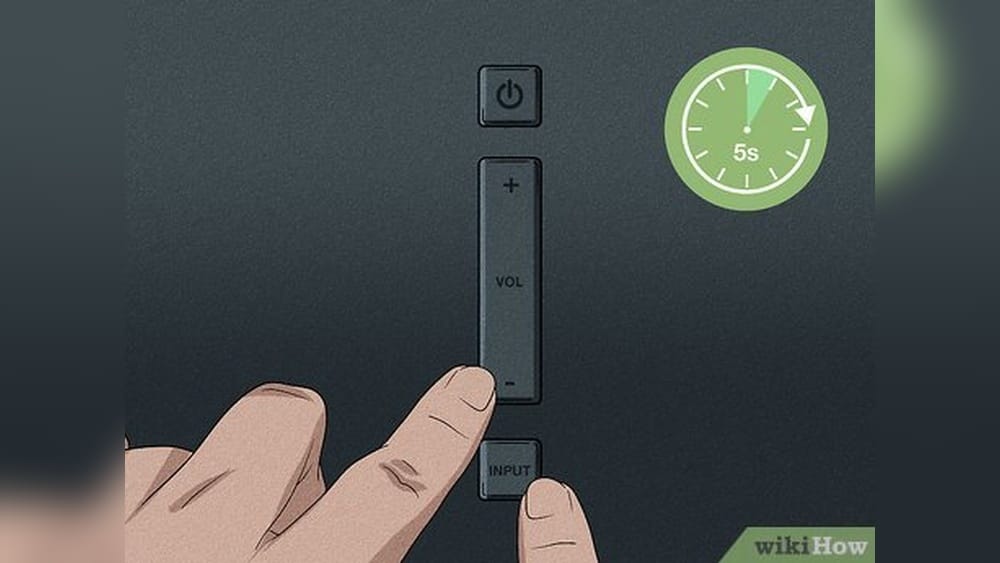
Some Vizio TVs let you perform a factory reset using only physical buttons. Usually, this involves holding down both the “Input” and “Volume Down” buttons for 10–15 seconds. Be aware this erases all settings.
Contacting Vizio Support
If all else fails, contact Vizio’s customer service. They can help diagnose hardware issues or recommend the right replacement remote.
For more technical troubleshooting, Vizio’s official support page is helpful: Vizio Support.
Frequently Asked Questions
Can I Control My Vizio Tv With My Phone If I Have No Wifi?
No, most Vizio TV control apps (like SmartCast) require WiFi. However, if your phone has an IR blaster, you can use a remote control app without WiFi. Most modern phones don’t have this feature, but some older Android models do.
Where Are The Physical Buttons On My Vizio Tv?
The location varies by model. Check the lower right or left on the back, underneath the bottom bezel, or along the side near the ports. Run your fingers along the edges to find small raised buttons or a joystick.
Will A Universal Remote Work With Every Vizio Tv?
Most universal remotes work with Vizio TVs using the correct setup codes. However, some older or very new TV models may not be compatible with all universal remotes, so check the product’s compatibility list first.
Can I Use A Keyboard Or Mouse To Control My Vizio Tv?
Many Vizio Smart TVs support USB keyboards or mice for menu navigation, text input, and some basic functions. Plug in a wired or wireless (with USB dongle) keyboard to the TV’s USB port. Volume and channel changes may not be possible.
What Should I Do If None Of These Methods Work?
If you’ve tried all the above, your TV may need service. Check the power supply, clean the ports, and try a factory reset using the TV’s buttons if possible. If the issue continues, contact Vizio Support for help or consider purchasing an official replacement remote.
Taking charge of your Vizio TV without a remote or WiFi doesn’t have to be a struggle. With these solutions, you can always find a way to enjoy your favorite shows, even when technology isn’t on your side. Prepare a backup plan now, and next time you lose your remote or WiFi, you’ll be ready in seconds.

Credit: www.reddit.com