
If you use Windows 10 or Windows 11, you might have noticed a small keyboard popping up on your screen when you don’t expect it. This is the Touch Keyboard and Handwriting Panel Service. For people with touchscreen laptops or tablets, it can be helpful. But for many users, it becomes an unnecessary distraction, taking up space and even slowing down the computer. Disabling this service can make your device feel cleaner and faster.
Let’s explore what this service does, why you might want to turn it off, and how to do it safely. We’ll cover different methods for disabling it, what can go wrong, and how to fix problems if they happen. If you’re worried about making mistakes, don’t worry—we’ll guide you step by step and highlight common errors.
What Is The Touch Keyboard And Handwriting Panel Service?
The Touch Keyboard and Handwriting Panel Service is a built-in Windows service. Its job is to make sure the on-screen keyboard, handwriting recognition, and some tablet input features work properly. This is especially useful for devices without a physical keyboard, like tablets or touchscreen laptops.
Key functions of this service:
- Enables the on-screen touch keyboard
- Supports handwriting recognition for stylus or touch input
- Powers the emoji panel and some touch-related popups
While it’s important for touch devices, many desktop or laptop users with regular keyboards never need these features. In those cases, the service runs in the background and can use a small amount of system resources.
Reasons To Disable The Service
Not everyone needs the Touch Keyboard and Handwriting Panel Service. Here are some reasons why you might want to turn it off:
- Resource Savings: Every background service uses some CPU and memory. Disabling unneeded services can make your computer a little faster—especially if you have a low-end device.
- Reduce Annoyance: Sometimes, the on-screen keyboard appears when you don’t want it—like when plugging in a USB device or logging in. Turning off the service stops this.
- Cleaner Experience: For desktop users, the service adds unnecessary options and icons. Disabling it keeps your interface simple.
- Security Concerns: Fewer running services means fewer things that could go wrong or be exploited by malware, though this service is rarely a target.
Practical example: If you use a desktop PC with a regular keyboard and mouse, you will likely never need the on-screen keyboard. Disabling the service makes sense.
Credit: www.top-password.com
Before You Begin: Considerations And Precautions
Disabling system services can sometimes cause problems. Here are some things to check before you start:
- Touch and Pen Users: If you use a touchscreen or stylus, you may lose handwriting and touch keyboard features.
- Shared Devices: Other users might need touch input, especially if you share your computer.
- Admin Rights Needed: You must have administrator access to change system services.
Non-obvious insight: Disabling this service can also affect emoji and special character panels in Windows 10/11—even on devices without touchscreens.
Tip: Before making changes, create a System Restore Point. This lets you undo changes if you run into trouble.
How To Disable Touch Keyboard And Handwriting Panel Service
There are several ways to turn off this service. Each has pros and cons. Some methods work for all users, while others are better for advanced users or IT professionals. We’ll cover each method in detail.
Method 1: Using The Services App
This is the most direct way to disable the service. It works for most Windows 10 and 11 systems.
- Press Windows + R to open the Run dialog box.
- Type `services.msc` and press Enter.
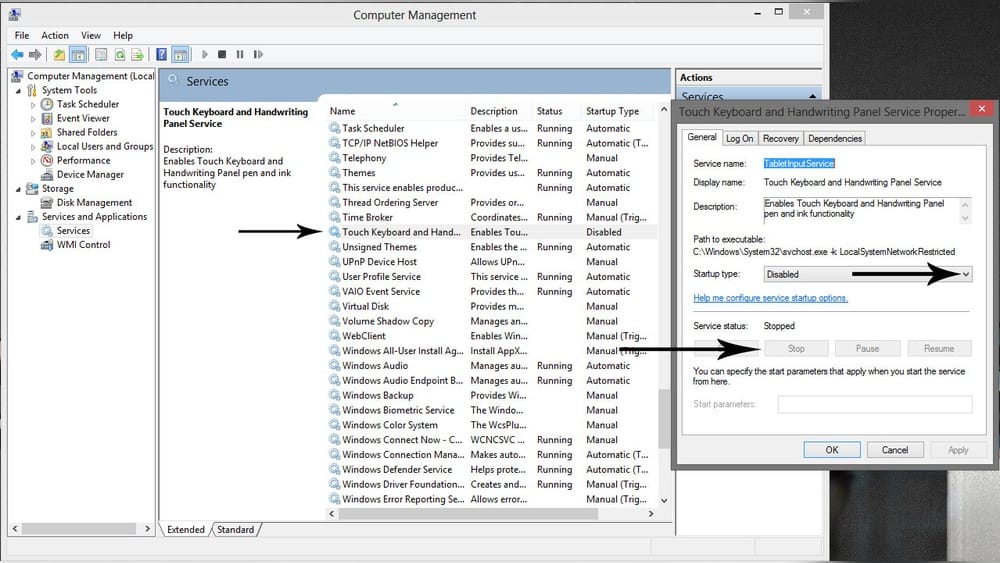
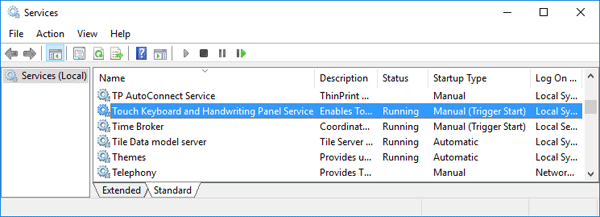
- In the Services window, scroll down and find Touch Keyboard and Handwriting Panel Service.
- Right-click it and select Properties.
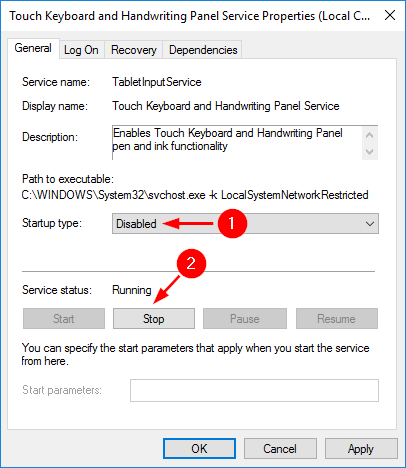
- In the Startup type dropdown menu, select Disabled.
- Click Stop to end the service now (optional).
- Click OK to save your changes.
After restarting your computer, the service will not start automatically.
Pros And Cons
| Method | Pros | Cons |
|---|---|---|
| Services App | Easy, graphical, reversible | Needs admin rights, may reset after big updates |
Method 2: Using System Configuration (msconfig)
Another way is through System Configuration.
- Press Windows + R and type `msconfig`, then press Enter.
- Go to the Services tab.
- Find Touch Keyboard and Handwriting Panel Service in the list.
- Uncheck the box next to it.
- Click Apply and then OK.
- Restart your computer.
This method is similar to the Services app but works for disabling multiple services at once.
Method 3: Using Command Prompt
For those who prefer a command-line approach, you can use the sc config command.
- Search for cmd in the Start menu.
- Right-click Command Prompt and choose Run as administrator.
- Type this command:
sc config "TabletInputService" start= disabled
- Press Enter.
To stop the service immediately, type:
net stop "TabletInputService"
Non-obvious insight: This method is scriptable, so IT admins can use it to disable the service on many computers at once.
Method 4: Using Group Policy Editor (windows Pro/enterprise)
If you have Windows Pro or Enterprise, you can use Group Policy to block the service.
- Press Windows + R, type `gpedit.msc`, and press Enter.
- Navigate to Computer Configuration > Administrative Templates > System.
- Find and double-click Don’t run specified Windows applications.
- Set it to Enabled.
- Click Show, then add `TabTip.exe` (the on-screen keyboard program).
- Click OK and restart.
Note: Group Policy is not available in Windows Home. For those users, stick to the other methods.
Method 5: Using The Registry Editor
Advanced users only. This method can disable the service at a deep system level.
- Press Windows + R, type `regedit`, and press Enter.
- Go to:
HKEY_LOCAL_MACHINESYSTEMCurrentControlSetServicesTabletInputService
- In the right pane, double-click Start.
- Change the value to 4 (this means ‘disabled’).
- Click OK and close the Registry Editor.
- Restart your computer.
Warning: Editing the registry can cause problems if you make mistakes. Always back up the registry first.
Method 6: Disabling The Touch Keyboard Button From Taskbar
Sometimes you only want to hide the keyboard button, not fully disable the service.
- Windows 10: Right-click the taskbar, then uncheck Show touch keyboard button.
- Windows 11: Right-click the taskbar, select Taskbar settings, then turn off the Touch keyboard switch.
This hides the button but does not stop the service in the background.
Credit: www.top-password.com
What Happens After Disabling The Service?
When the Touch Keyboard and Handwriting Panel Service is disabled:
- The on-screen keyboard will not open automatically, even in text fields without a keyboard.
- Handwriting recognition and emoji panel features may stop working.
- Some accessibility functions may be affected.
If you use a touchscreen device, you might lose the ability to input text using only the screen. On a desktop, you likely won’t notice any negative effects.
Comparing Device Types And Impact
Here’s a quick look at how disabling this service affects different device types:
| Device Type | Impact When Disabled |
|---|---|
| Desktop PC | No effect (unless using accessibility tools) |
| Laptop (no touchscreen) | No effect |
| Laptop (with touchscreen) | No on-screen keyboard, handwriting, or emoji panel |
| Tablet | Major loss of input features; not recommended |
Practical tip: Test all your input methods (keyboard, mouse, touch, stylus) after disabling the service to confirm you don’t lose anything important.
How To Re-enable The Service If Needed
If you need to bring the service back, it’s easy to undo your changes.
- Services app: Set the Startup type to Manual or Automatic, then click Start.
- Msconfig: Re-check the service box and restart.
- Command Prompt:
sc config "TabletInputService" start= auto
net start "TabletInputService"
- Registry Editor: Set the Start value back to 2 (Automatic) or 3 (Manual), then reboot.
Always check if your device needs touch or handwriting features before disabling the service again.
Common Mistakes And How To Avoid Them
Disabling system services is not risk-free. Here are mistakes users often make, and how to avoid them:
- Disabling on a Touch Device: Many people turn off the service on a tablet or touchscreen laptop, then lose all touch input options.
- Tip: Only disable if you have a regular keyboard and mouse.
- Not Restarting: Some changes don’t take effect until you restart.
- Tip: Always reboot after changing service settings.
- Editing the Wrong Registry Key: Mistyping in the registry can cause major problems.
- Tip: Double-check the path before editing.
- Not Backing Up First: If you skip creating a restore point, you can’t easily undo mistakes.
- Tip: Always make a system restore point before major changes.
- Using Group Policy on Home Edition: This method only works on Pro/Enterprise.
- Tip: Use Services or Command Prompt on Home editions.
Non-obvious insight: Some Windows updates might re-enable the service, especially after big feature updates. Check your settings after updates if you want the service to stay off.
Troubleshooting: If Something Goes Wrong
Disabling the Touch Keyboard and Handwriting Panel Service usually goes smoothly, but sometimes you can run into issues. Here’s what to do if problems pop up:
The On-screen Keyboard Still Appears
- Make sure you disabled the correct service.
- Some apps use their own keyboard panels. Check app settings.
Lost Pen Or Touch Input
- Re-enable the service using one of the methods above.
- Check for updated drivers for your device.
Can’t Type In Some Apps
- Certain accessibility tools rely on this service.
- Try enabling the service again to see if the issue resolves.
Windows Update Re-enables The Service
- After a big update, repeat the disabling steps.
- For IT admins: Use scripts or Group Policy for mass deployment.
System Restore Doesn’t Work
- If you can’t undo changes, try enabling the service manually using the Services app, Command Prompt, or Registry Editor.
Other System Services Affected
- If you notice unrelated issues, double-check that you only changed the intended service.
Advanced: Automating The Process For Multiple Devices
If you manage many computers (for example, in an office or school), you might want to disable this service everywhere. Here are tips:
- Batch Scripts: Use the Command Prompt method in a `.bat` file:
sc config "TabletInputService" start= disabled
net stop "TabletInputService"
- PowerShell Scripts: For more control, PowerShell can disable the service on remote devices.
Set-Service -Name "TabletInputService" -StartupType Disabled
Stop-Service -Name "TabletInputService"
- Group Policy: Use Group Policy Objects (GPOs) to apply settings to many computers.
Tip: Always test scripts on one computer first. Some environments, like hospitals or schools, need touch features—don’t disable them without checking.
Extra: What About Accessibility?
The Touch Keyboard and Handwriting Panel Service is important for people who use accessibility features. Disabling it may remove needed support for:
- On-screen keyboard for users with physical disabilities
- Handwriting input for people who can’t type
- Easy emoji and symbol entry
If you, or someone sharing your device, relies on these tools, keep the service enabled.
Note: Microsoft provides detailed accessibility guidance and updates. If you want more details, check out the official Microsoft Accessibility Support page.
Real-world Example: Disabling The Service In A Business
A small design studio with 25 desktop PCs noticed the on-screen keyboard popping up during logins. None of the computers had touchscreens. The IT manager used a batch script to disable the Touch Keyboard and Handwriting Panel Service on all machines.
As a result, login times improved, and employees stopped complaining about the keyboard. No one lost access to any needed features.
Key lesson: On non-touch devices, disabling the service can improve speed and reduce distractions, with no negative side effects.
Comparing Resource Usage: Enabled Vs Disabled
How much does this service really affect your computer? On most modern machines, it uses very little memory or CPU, but on older systems, every bit counts.
| Service State | Average RAM Used | CPU Usage |
|---|---|---|
| Enabled | 5-20 MB | 0-0.1% (idle) |
| Disabled | 0 MB | 0% |
Insight: If you have a modern PC, the difference is small. But on a device with only 2-4 GB of RAM, every MB matters.
When Not To Disable The Service
While it may be tempting to disable all unused services, there are situations where you should leave the Touch Keyboard and Handwriting Panel Service running:
- If you use a touchscreen or stylus regularly.
- If you need the on-screen keyboard for accessibility.
- If you’re not sure whether you need handwriting or emoji panels.
- If your device is shared with others who might need touch input.
In these cases, hiding the keyboard button (from the taskbar) is safer than disabling the service entirely.
Quick Recap: Steps To Disable Safely
- Check if your device really needs touch or handwriting features.
- Create a System Restore Point.
- Use the Services app (or another preferred method) to disable the service.
- Restart your computer.
- Test all input methods after disabling.
- If problems occur, re-enable the service.

Credit: www.youtube.com
Frequently Asked Questions
How Do I Know If I Need The Touch Keyboard And Handwriting Panel Service?
If your device has a touchscreen or you use a stylus for handwriting, you need the service. If you have a desktop or laptop with only a physical keyboard and mouse, you probably don’t need it.
Will Disabling This Service Affect My Physical Keyboard Or Mouse?
No, turning off the service does not affect regular keyboards or mice. It only disables the on-screen keyboard, handwriting panel, and related features.
Can I Disable The Service On Windows Home Edition?
Yes, you can use the Services app, msconfig, Command Prompt, or Registry Editor methods. Group Policy is not available on Home editions.
Why Does The On-screen Keyboard Keep Coming Back After Updates?
Major Windows updates can reset some services to their default state. After an update, repeat the disabling steps to keep the service off.
Is It Safe To Disable The Touch Keyboard And Handwriting Panel Service?
For most desktop and non-touch laptop users, it is safe. Always create a restore point before making system changes, in case you need to undo them.
Disabling unnecessary background services can make your Windows experience smoother and cleaner. Just remember—if you rely on touch, handwriting, or accessibility features, keep the Touch Keyboard and Handwriting Panel Service enabled. Always back up your system before making big changes, and check your settings after major Windows updates.
By following the steps above, you can control when and how these features appear, making your device work the way you want.