
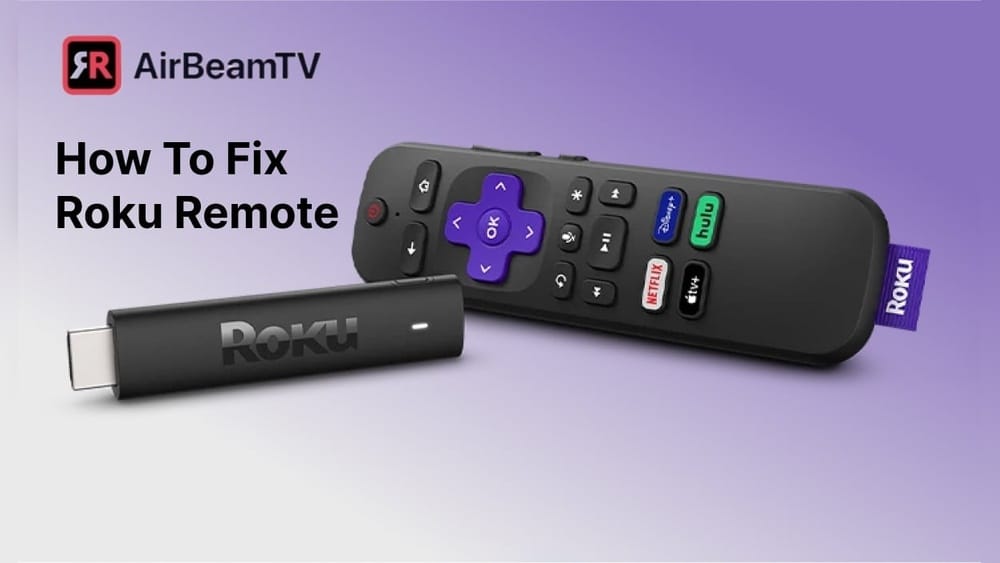
If your Roku remote control stops working, it can quickly turn streaming from a pleasure into a headache. Many people panic when their remote does not respond, but most problems have simple solutions. This guide will walk you through every step to identify, fix, and prevent issues with your Roku remote. Whether you have a simple remote, voice remote, or Roku remote app, you’ll find proven strategies to get back to your favorite shows fast.
Let’s break down what to do, why common fixes work, and what to try if nothing seems to help. Along the way, you’ll find practical tips, real-world examples, and expert advice for a smoother streaming experience.
Understanding Your Roku Remote Types
Before you start troubleshooting, it’s important to know which Roku remote you have. Roku makes different remotes, and the fix depends on the type.
| Remote Type | Connection Method | Key Features |
|---|---|---|
| Simple Remote | Infrared (IR) | Basic navigation, line-of-sight needed |
| Voice Remote | Wi-Fi Direct | Voice commands, no line-of-sight, pairing required |
| Enhanced Voice Remote | Wi-Fi Direct/Bluetooth | Headphone jack, personal shortcuts, pairing required |
| Roku Remote App | Wi-Fi (mobile device) | Full remote functions, keyboard, private listening |
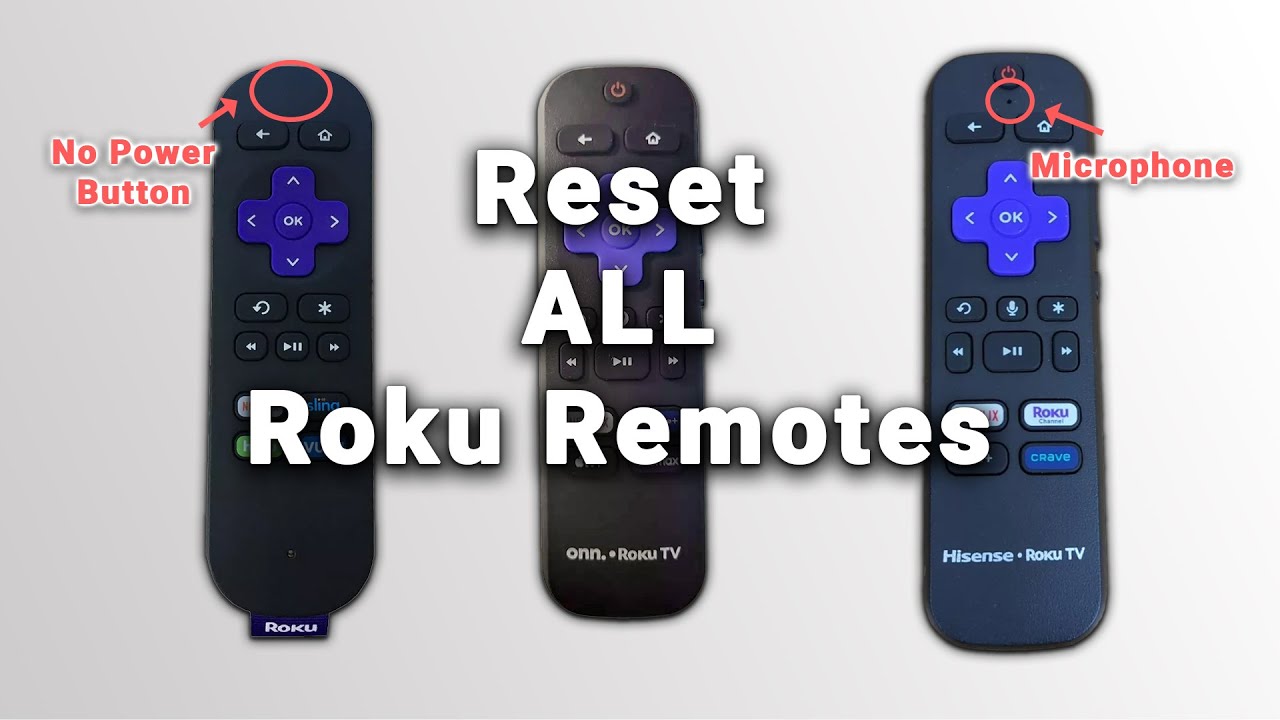
Simple remotes use an infrared beam and require a clear line between the remote and Roku player. Voice remotes and advanced models use Wi-Fi Direct or Bluetooth, so they can work through walls but need to be paired with your Roku.
Knowing your remote type is the first step. Check the battery cover for a pairing button—if you see one, you have a voice or enhanced remote. If not, it’s a simple IR remote.
Quick Checks Before Troubleshooting
Many Roku remote problems have easy fixes. Try these steps first:
- Check the batteries. Weak or dead batteries are the most common cause of unresponsive remotes. Replace both batteries with fresh ones, even if the old ones seem new.
- Remove obstacles. For IR remotes, make sure nothing blocks the path between the remote and your Roku device.
- Restart your Roku device. Sometimes the Roku player itself may freeze. Unplug it from power, wait 10 seconds, and plug it back in.
- Try the remote app. Download the Roku mobile app on your smartphone and see if it controls your Roku. If it works, the problem is likely with the remote.
If your remote still doesn’t work, move on to more targeted troubleshooting steps.
Fixing Simple Ir Roku Remotes
Simple IR remotes are easy to test and fix because their technology is straightforward.
Common Problems
- Dead or weak batteries
- Blocked signal path
- Physical damage to the remote
Step-by-step Solutions
- Test with new batteries. Always use two identical, fresh batteries. Cheap or mismatched batteries can cause problems.
- Check the IR emitter. Point your smartphone camera at the front of the remote and press any button. If you see a faint purple flash through the camera (not visible to the eye), the remote is sending a signal. No flash means the remote is faulty.
- Clear the path. Remove any objects in front of the TV or streaming stick.
- Test on another Roku player. If possible, test the remote with another Roku device. If it works, your original player might be the issue.
When To Replace
If the remote fails the camera test and new batteries don’t help, it’s likely broken. Replacement is the best option.
Non-obvious tip: Some TVs have IR interference from direct sunlight or energy-saving lamps. Try dimming bright lights or closing curtains to see if that restores function.
Fixing Roku Voice Remotes
Voice remotes use Wi-Fi Direct or Bluetooth, so their problems are different from IR remotes.
Common Problems
- Lost pairing with the Roku device
- Wi-Fi signal interference
- Outdated remote firmware
Repairing A Voice Remote
- Remove and reinsert batteries. Open the battery compartment, remove batteries, wait 5 seconds, then reinsert them.
- Restart the Roku device. Unplug the power cable for 10 seconds, then reconnect.
- Re-pair the remote. Press and hold the pairing button (in the battery compartment) for 5 seconds until the LED starts flashing. The Roku screen should show a pairing dialog.
- Wait for confirmation. After a few seconds, the remote should pair and start working.
Advanced Fixes
- Move closer to the Roku device. Wi-Fi Direct remotes may lose connection at long range or through thick walls.
- Switch Wi-Fi channels. If you have many devices on the same Wi-Fi channel, interference can cause problems. Change your router’s Wi-Fi channel to reduce congestion.
- Update Roku firmware. An outdated Roku system can cause pairing issues. Use the mobile app to navigate to Settings > System > System update and check for updates.
Expert insight: Some routers have a feature called “Wi-Fi Isolation” that blocks devices from talking to each other. If your remote won’t pair, check your router settings for this option.
Credit: www.youtube.com
Fixing Enhanced Voice Remotes
Enhanced Voice Remotes add features like a headphone jack or personal shortcut buttons. They use Wi-Fi Direct, Bluetooth, or both.
Troubleshooting Steps
- Replace batteries with high-quality ones. Advanced features use more power and cheap batteries may not last.
- Check for headphone jack issues. If the remote is stuck in “private listening” mode, unplug and re-plug the headphones.
- Re-pair using the pairing button. Same steps as the basic voice remote.
- Restart both Roku and remote. Unplug the Roku, remove remote batteries, wait, then reconnect and power on.
Special Problems
- Audio stuck in headphones. Sometimes, removing the headphones too quickly causes the Roku to keep sending audio to the remote. Re-insert and remove the headphones slowly.
- Shortcut button errors. These may not work if the remote is not fully paired. Re-pair to fix.
- Personal listening delay. There can be a delay when using Bluetooth headphones. This is normal, but if it’s severe, try wired headphones.
Non-obvious tip: Enhanced remotes can lose pairing after a big Roku system update. Always re-pair after major updates.
Using The Roku Mobile App As A Remote
If your physical remote is not working, the Roku mobile app is a reliable backup. It’s available for both iOS and Android.
How To Set Up
- Connect your phone to the same Wi-Fi network as your Roku.
- Open the Roku app and select your device.
- Use the on-screen remote to control your Roku just like the physical one.
Extra Features
- Keyboard input: Type with your phone’s keyboard for faster searches.
- Voice commands: Tap the microphone icon to search or control playback.
- Private listening: Listen through your phone’s headphones.
If the app can’t find your Roku, make sure both devices are on the same Wi-Fi network and the Roku is powered on.
Pro tip: Keep the app installed as a backup for lost or broken remotes.
Resetting Your Roku Remote
If all else fails, a reset can solve many stubborn remote issues.
How To Factory Reset
- Remove the batteries.
- Unplug the Roku device from power.
- Wait at least 10 seconds.
- Reconnect the Roku device.
- Wait for the home screen.
- Insert the batteries and hold the pairing button for 5-10 seconds.
This resets the connection and often clears up weird glitches.
Caution: Resetting will not erase your Roku settings or channels. It only affects the remote pairing.
Dealing With Battery Drain Issues
Some Roku remotes, especially voice models, are known to eat through batteries quickly.
Causes
- Always-on voice listening
- Stuck buttons
- Defective remotes
Solutions
- Use high-quality alkaline batteries. Avoid cheap brands or mixing old and new batteries.
- Turn off voice wake. In Roku settings, disable “Hey Roku” voice activation if you don’t use it.
- Check for stuck buttons. Press each button to ensure none are jammed.
- Update firmware. Battery drain problems are often fixed with firmware updates.
If battery life is still poor, contact Roku support. Sometimes, they replace remotes under warranty for battery issues.
Fixing Roku Remote Volume Or Power Problems
If your Roku remote controls your TV’s volume or power but stops working, try these steps:
- Check TV compatibility. Not all TVs work with Roku remotes. Check the Roku support site for compatible brands.
- Re-program the remote. Go to Settings > Remotes & Devices > Remotes > Set up remote for TV control and follow the prompts.
- Replace batteries. Weak batteries can cause volume/power buttons to fail even if other buttons work.
- Update Roku software. Some TV brands need the latest Roku firmware for full compatibility.
Insider tip: TVs from the same brand can have different IR codes. If the first setup doesn’t work, try setting up as a different but similar brand.
Fixing Roku Remote Not Pairing
Sometimes, the remote just won’t pair no matter what you try. Here’s how to solve stubborn pairing problems.
Steps
- Reduce Wi-Fi interference. Move other electronics or routers away from the Roku device.
- Use the mobile app to update your Roku. If you can’t pair the remote, use the app to check for updates.
- Try pairing in a different room. Sometimes, interference in one room blocks pairing.
- Factory reset the Roku player. Go to Settings > System > Advanced system settings > Factory reset. WARNING: This erases all your Roku settings and channels.
If the remote still won’t pair, it may be defective.
Physical Damage And Cleaning Your Remote
Physical drops, spills, or dust can break remotes or stop buttons from working.
What To Check
- Look for cracks or missing pieces. Even small cracks can let in dust or moisture.
- Gently shake the remote. If you hear rattling, something is loose inside.
- Clean the remote. Dust or sticky residue under the buttons can cause problems.
How To Clean
- Remove batteries.
- Use a soft, dry cloth to wipe the outside.
- For sticky buttons: Dip a cotton swab in isopropyl alcohol, squeeze out excess, and rub around the button edges.
- Let dry fully before inserting batteries.
Important: Never use water or spray cleaners directly on the remote.
When To Buy A New Roku Remote
Sometimes, a remote just can’t be fixed. Here’s when to buy a new one:
- Cracked case or broken buttons
- Failed IR or camera test (for simple remotes)
- Won’t pair after all troubleshooting steps
- Severe battery drain that persists with updates
You can buy official Roku remotes from the Roku website or major retailers. Avoid cheap, generic remotes, as they may not support all features.

Credit: www.ifixit.com
Comparing Roku Remote Alternatives
If you need a replacement, here’s a quick comparison of options.
| Remote Option | Pros | Cons |
|---|---|---|
| Official Roku Remote | Full compatibility, TV control, voice features | More expensive |
| Roku Mobile App | Free, advanced features, keyboard, private listening | Requires phone and Wi-Fi |
| Universal Remote | Controls multiple devices, easy to find | May not support all Roku features |
| Third-Party Replacement Remote | Cheaper, works for basic functions | Some features may not work (voice, TV control) |
Pro insight: For streaming sticks (Roku Streaming Stick/Stick+), only Wi-Fi Direct remotes work. IR-only remotes will not function.
Common Mistakes When Fixing Roku Remotes
Many users overlook simple errors. Avoid these pitfalls:
- Mixing old and new batteries
- Not pointing IR remotes directly at the Roku
- Forgetting to re-pair after a Roku update
- Assuming any universal remote will work (not all support Roku codes)
- Ignoring router settings that block pairing
Always double-check these basics before assuming your remote is dead.
How To Prevent Future Roku Remote Problems
A little care goes a long way. Here’s how to avoid remote problems:
- Change batteries every 4-6 months. Don’t wait for them to die.
- Keep the remote clean and dry. Avoid eating or drinking near the remote.
- Update your Roku device regularly. Firmware updates fix bugs.
- Store the remote safely. Don’t drop or toss it on hard surfaces.
- Use high-quality batteries. This prevents leaks and reduces replacement frequency.
Bonus tip: If you use the mobile app as a backup, you’re never stuck if your main remote fails.
When To Contact Roku Support
If you’ve tried all fixes and your remote still doesn’t work, it’s time to get help.
- Warranty check: Most Roku remotes are covered for one year.
- Serial number: Find it on the battery cover or in Roku settings.
- Contact options: Visit Roku Support for warranty claims and troubleshooting help.
Pro insight: Keep your purchase receipt and serial number handy to speed up support.

Credit: www.reddit.com
Frequently Asked Questions
Why Does My Roku Remote Keep Disconnecting?
This often happens with voice remotes if there’s Wi-Fi interference, low batteries, or after a Roku system update. Move your Roku device closer to the router, change Wi-Fi channels, and check for updates. Also, try re-pairing the remote after unplugging both devices.
Can I Use My Roku Without A Remote?
Yes. Download the Roku mobile app and connect your phone to the same Wi-Fi network as your Roku. The app lets you control everything, including navigation, typing, and voice search. For setup after a factory reset, you’ll need the remote or a temporary universal IR remote.
How Do I Know If My Roku Remote Is Ir Or Wi-fi?
Simple IR remotes have no pairing button and require a clear line of sight. Wi-Fi Direct (voice) remotes have a pairing button in the battery compartment and work without direct line of sight. You can also check the Roku website for your model’s remote type.
My Roku Remote Volume/power Buttons Stopped Working. What Should I Do?
First, replace the batteries. If that doesn’t help, re-program the remote under Settings > Remotes & Devices > Remotes > Set up remote for TV control. Make sure your TV brand is supported and the Roku firmware is up to date.
Where Can I Buy A Genuine Replacement Roku Remote?
Official Roku remotes are sold on the Roku website, Amazon, Best Buy, and other major retailers. Avoid third-party sellers on auction sites—they may sell remotes that don’t support all features or are of poor quality.
Getting your Roku remote working again is often quick and easy. By understanding your remote type, following the right steps, and avoiding common mistakes, you can usually fix problems yourself—often in minutes. Keep your mobile app handy as a backup, and remember: a little care and regular updates will keep your streaming experience smooth and stress-free.