

Imagine coming home late at night. You want to lock your Kwikset Smart Lock quickly from outside, but you’re not sure which way works best. Many people feel confused about locking these smart locks, especially if they use them for the first time. Whether you’re worried about security, want to lock your door easily, or need to explain the process to family members, knowing exactly how to lock your Kwikset Smart Lock from outside gives peace of mind. This guide will show you every method, step-by-step, with practical advice, real examples, and clear explanations. You’ll learn how to use the keypad, app, physical key, and even voice assistants to lock your door from outside. By the end, you’ll feel confident and secure every time you leave your home.
Understanding Kwikset Smart Locks
Kwikset is a well-known brand for smart locks, trusted by millions worldwide. Their smart locks offer keyless entry, advanced security, and easy integration with smart home systems. Common models include Kwikset SmartCode, Kwikset Halo, and Kwikset Aura. Each lock combines traditional strength with modern technology. Before learning to lock them from outside, it helps to understand their features and how they work.
SmartCode models feature a keypad for PIN entry, allowing you to lock and unlock without a key. Halo and Aura locks add Wi-Fi and Bluetooth options, so you can control them remotely. Most Kwikset smart locks also include a physical key slot as a backup. If you’re using a smart lock for the first time, check your model name and features in the manual or on the lock itself. This ensures you use the right locking method.
Why Locking From Outside Matters
Locking your door from the outside isn’t just about convenience—it’s about safety. Imagine leaving your home and forgetting to lock the door. With a smart lock, you can secure your home quickly and easily. Some models offer auto-lock, but not all do, so manual locking is sometimes needed. Locking from outside also helps when:
- You leave in a hurry and want to make sure your door is locked.
- You need to secure your home while family or guests are inside.
- You want to double-check if the lock engaged properly.
A locked door gives peace of mind, knowing your home is safe from intruders. Learning all the ways to lock your Kwikset Smart Lock from outside means you never have to worry about leaving your home unprotected.
Methods To Lock Kwikset Smart Lock From Outside
Kwikset offers several ways to lock their smart locks from outside. The best method depends on your lock model, setup, and personal preference. Let’s explore each method in detail.
1. Using The Keypad Lock Button
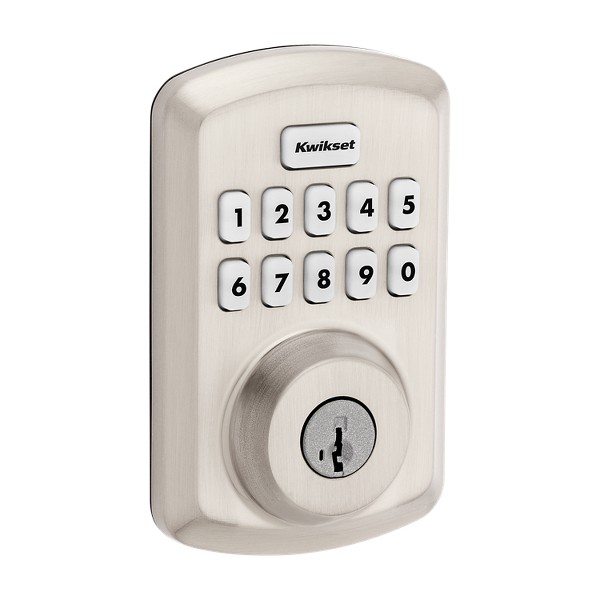
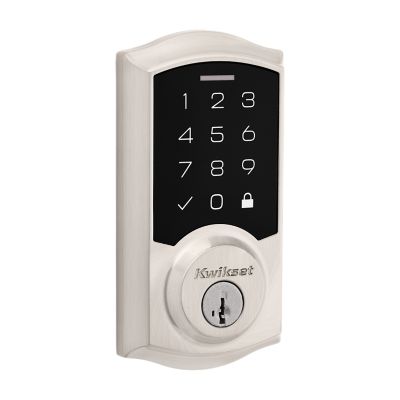
Most Kwikset SmartCode models have a lock button on the keypad. This is the simplest way to lock your door from outside.
Steps:
- Close the door securely.
- Press the lock button (usually marked with a padlock symbol or “LOCK”) on the keypad.
- The lock will engage, and you’ll hear a beep or see an indicator light.
- Pull the door to check that it’s locked.
Benefits:
- Fast and easy for all users.
- No need for a phone or app.
- Works even if the battery is low (unless fully depleted).
Example: If you’re leaving for work, just press the lock button after closing the door. No code is needed to lock—only to unlock.
2. Locking With A Physical Key
All Kwikset smart locks include a traditional key slot. This method is reliable if you prefer physical keys or your lock’s battery is dead.
Steps:
- Insert the Kwikset key into the lock.
- Turn the key clockwise (direction may vary by model).
- Remove the key. The door is now locked.
Benefits:
- Works even if batteries fail.
- Familiar for guests or family members.
- No need for apps or codes.
Tip: Keep a backup key in your bag or car for emergencies.
3. Locking Via Mobile App
Some Kwikset locks, like Halo and Aura, connect to Wi-Fi or Bluetooth and can be controlled through the Kwikset mobile app.
Steps:
- Download the Kwikset app and pair it with your lock.
- After closing the door, open the app on your smartphone.
- Tap the lock icon to engage the lock.
- Check for confirmation (sound, app notification, or indicator light).
Benefits:
- Lock from anywhere (Wi-Fi models).
- Useful if you forget to lock before leaving.
- Can check lock status remotely.
Example: You’re already in your car and realize you forgot to lock the door. Use the app to lock it instantly.
4. Locking With Auto-lock Feature
Some Kwikset models offer an auto-lock feature. The lock will automatically engage after a set time when the door closes.
Steps:
- Enable auto-lock in the settings (usually via keypad or app).
- Close the door. Wait for the set time (often 30 seconds).
- The lock will activate automatically.
Benefits:
- No need to remember to lock.
- Good for busy families.
- Reduces risk of forgetting.
Non-obvious Insight: Auto-lock only works if the door is closed firmly. If the door isn’t shut fully, the lock may fail or jam.
5. Locking With Voice Assistant
Some Kwikset smart locks integrate with Amazon Alexa, Google Assistant, or Apple HomeKit. You can lock the door using voice commands.
Steps:
- Set up smart home integration (follow Kwikset instructions).
- Close the door.
- Say the command: “Alexa, lock the front door,” or similar.
- Voice assistant confirms lock status.
Benefits:
- Hands-free locking.
- Useful if your hands are full.
- Can lock from outside if you have a smart device nearby (like a phone or smartwatch).
Tip: Make sure your device is connected to your home network for remote locking.
6. Locking With Remote Control Fob
Some older Kwikset models include a remote control fob. This works like a car remote, allowing you to lock the door from a short distance.
Steps:
- Press the lock button on the fob.
- Wait for confirmation (beep or light).
Benefits:
- Quick and convenient.
- No phone needed.
Note: Remote fobs are less common in newer models.
7. Locking With Smart Home Automation
If you use smart home automation (like IFTTT or SmartThings), you can set up rules to lock your Kwikset Smart Lock automatically.
Example Automation:
- Lock the door when you leave home (geofencing).
- Lock at a certain time every night.
Benefits:
- Customizable.
- Enhances security.
- No manual action needed.
Non-obvious Insight: Automation can sometimes fail if your device loses Wi-Fi connection. Always check lock status after automation runs.
Detailed Steps For Popular Kwikset Models
Different Kwikset Smart Lock models may have unique locking methods. Here’s a breakdown for the most popular ones.
Kwikset Smartcode 888
- Lock using keypad: Press the lock button after closing the door.
- Lock using key: Insert and turn the physical key.
- Lock using Z-Wave app: If connected, use your smart home app to lock.
Kwikset Halo
- Lock using app: Open the Kwikset app and tap the lock icon.
- Lock using keypad: Press the lock button.
- Lock using voice: Use Alexa or Google Assistant for remote locking.
- Auto-lock: Enable in app settings for automatic locking.
Kwikset Aura
- Lock using Bluetooth app: Use the Kwikset app within Bluetooth range.
- Lock using keypad: Press the lock button.
- Lock using key: Insert and turn the key.
Kwikset Premis (apple Homekit)
- Lock using HomeKit app: Tap lock in the Apple Home app.
- Lock using keypad: Press the lock button.
- Lock using key: Insert and turn the key.

Credit: www.youtube.com
Comparison Of Locking Methods
It helps to see which method suits your needs best. Here’s a comparison of locking methods for Kwikset Smart Locks.
| Locking Method | Requires Phone | Works if Battery Dead | Speed | Remote Capability |
|---|---|---|---|---|
| Keypad Button | No | No | Fast | No |
| Physical Key | No | Yes | Fast | No |
| Mobile App | Yes | No | Medium | Yes |
| Voice Assistant | Yes/No | No | Medium | Yes |
| Auto-Lock | No | No | Varies | Yes |
| Remote Fob | No | No | Fast | No |
Common Mistakes When Locking Kwikset Smart Lock From Outside
Even experienced users make mistakes when locking their smart locks. Avoid these errors to keep your home secure.
- Not closing the door fully: If the door isn’t shut tightly, the lock may not engage.
- Low battery: If the lock battery is low, keypad or app methods may fail. Check battery status regularly.
- Wrong lock button: Some models have multiple buttons—press the correct one to lock.
- Relying only on auto-lock: Always double-check that auto-lock is enabled and working.
- Forgetting backup key: Keep a physical key in case electronic methods fail.
- Poor Wi-Fi connection: Remote locking needs a stable connection. Test your app before leaving.
- Incorrect voice command: Make sure your smart assistant is set up for your lock.
Non-obvious Insight: Sometimes, environmental factors like extreme cold can affect lock performance. If you live in such areas, lubricate your lock and check for updates regularly.
Tips For Reliable Locking
Want to make locking your Kwikset Smart Lock from outside foolproof? Here are practical tips:
- Check battery status monthly. Most locks blink or beep if batteries are low.
- Test all locking methods before relying on them. Try the app, voice, and keypad to see which works best for you.
- Teach family members and guests how to lock the door. Everyone should know at least two methods.
- Enable auto-lock if you often forget to lock your door.
- Set up notifications in the Kwikset app for lock status updates.
- Keep your app updated. New versions fix bugs and improve reliability.
- Use the physical key as a backup, especially for elderly or less tech-savvy users.
- Place a reminder sticker near your door to check the lock before leaving.
Security Features Of Kwikset Smart Locks
Kwikset smart locks are designed for high security. Here are some features that help keep your home safe:
- ANSI/BHMA Grade 2 or 1 certification (depends on model)
- Anti-bump and anti-pick technology
- Tamper alarms: Alerts if someone tries to force the lock
- Encryption: Protects digital commands
- Temporary codes: Create codes for guests or cleaners
- Lock status indicators: LED lights show if the lock is engaged
Example: If you host Airbnb guests, you can send a temporary code and instruct them to lock the door with the keypad lock button.
Troubleshooting Locking Problems
Sometimes, your Kwikset Smart Lock may not lock properly from outside. Here’s how to solve common issues.
Keypad Won’t Lock
- Check battery: Replace if low or dead.
- Clean keypad: Dirt can block buttons.
- Check for error codes: Some locks flash lights or beep for errors.
App Won’t Lock
- Check Wi-Fi or Bluetooth: Ensure connection is strong.
- Update app: Install latest version.
- Restart phone: Simple resets often fix app issues.
Physical Key Won’t Turn
- Lubricate lock: Use lock-friendly lubricant.
- Check for obstructions: Remove any debris.
- Try backup key: Sometimes keys wear out.
Auto-lock Not Working
- Re-enable feature: Sometimes settings reset after power loss.
- Check door alignment: Door must be fully closed.
- Update firmware: New firmware improves reliability.
If you can’t solve the issue, contact Kwikset support or a locksmith for help.
Real-life Examples
Let’s look at how different users lock their Kwikset Smart Lock from outside:
Family with Children: The parents teach their kids to press the lock button on the keypad every time they leave. They also enable auto-lock as backup.
Tech-savvy Professional: Uses the Kwikset app to lock the door from the office if they forget. Also sets up voice commands with Alexa.
Elderly User: Prefers the physical key and keeps a spare with a neighbor. Uses keypad lock button when possible.
Airbnb Host: Creates temporary codes for guests and instructs them to lock with the keypad. Checks lock status with the app after guests leave.
Busy Homeowner: Sets up automation to lock the door at midnight every night.
Credit: www.kwikset.com
Data: Kwikset Lock Usage Patterns
Research shows that over 60% of Kwikset Smart Lock users prefer the keypad lock button for daily locking. About 25% use the mobile app, while 10% rely on auto-lock. Only 5% use physical keys regularly, often as a backup.
| Method | Percentage of Users |
|---|---|
| Keypad Lock Button | 60% |
| Mobile App | 25% |
| Auto-Lock | 10% |
| Physical Key | 5% |
Insight: Even with advanced technology, most users prefer simple, direct locking methods. This shows the importance of teaching all users the basic keypad lock button.
Maintenance For Reliable Locking
Keeping your Kwikset Smart Lock in good condition ensures reliable locking from outside.
- Replace batteries every 6–12 months, or sooner if your lock signals low battery.
- Clean keypad and key slot regularly to prevent dirt buildup.
- Update firmware via app for security patches.
- Lubricate the lock mechanism yearly (use graphite, not oil).
- Check door alignment; misaligned doors may prevent locking.
Upgrading Your Locking Experience
If you find your current locking method slow or unreliable, consider upgrading:
- Switch to a model with Wi-Fi for remote locking.
- Add smart home integration for automation.
- Install a keypad with bigger buttons for easier use.
- Use accessories like smart door sensors to confirm if the door is closed.
Example: Upgrading from SmartCode 888 to Kwikset Halo gives you Wi-Fi control and app notifications.
Comparison: Kwikset Vs Other Smart Locks
Kwikset isn’t the only smart lock brand. Here’s how their locking methods compare to competitors like Schlage and Yale.
| Brand | Keypad Lock | App Lock | Auto-Lock | Physical Key | Voice Control |
|---|---|---|---|---|---|
| Kwikset | Yes | Yes | Yes | Yes | Yes |
| Schlage | Yes | Yes | Yes | Yes | Yes |
| Yale | Yes | Yes | Yes | No | Yes |
Insight: Kwikset offers more backup options (keypad, key, app, voice), making it ideal for families and users who want flexibility.
Safety Precautions
Locking your Kwikset Smart Lock from outside is safe, but follow these precautions:
- Never share your PIN or app login with strangers.
- Change codes regularly, especially after guests or cleaners leave.
- Keep your phone locked to protect app access.
- Set up lock status notifications for alerts.
- If you lose your physical key, rekey the lock immediately.
When To Call Support
Some problems require professional help:
- Lock won’t engage after multiple tries.
- Keypad stops working even with new batteries.
- App shows errors you can’t fix.
- Lock makes unusual noises or jams.
Contact Kwikset customer support or visit their official site for troubleshooting guides: Kwikset Official Support.
Credit: www.kwikset.com
Frequently Asked Questions
How Do I Lock A Kwikset Smart Lock From Outside Without Using A Phone?
You can use the keypad lock button or the physical key. Simply press the lock button after closing the door, or insert and turn the key to lock manually.
Can I Lock My Kwikset Smart Lock Remotely If I Forget?
Yes, if your lock supports Wi-Fi (like Kwikset Halo), use the Kwikset app to lock from anywhere. Make sure your app and lock are set up for remote access.
What Should I Do If The Lock Won’t Engage When Pressing The Keypad Button?
First, check the battery status. If the battery is low or dead, replace it. Also, ensure the door is fully closed and clean the keypad if dirty.
Is It Safe To Rely On Auto-lock For Security?
Auto-lock is convenient, but always double-check that it’s enabled and working. It’s safer to combine auto-lock with manual checks, especially for important doors.
How Can I Make Sure My Lock Is Secure When Using Voice Assistants?
Always use secure voice commands and require confirmation. Set up lock status notifications, and never share your smart home device with strangers.
Locking your Kwikset Smart Lock from outside is easy once you know all the methods. Whether you prefer the keypad, app, physical key, voice command, or automation, Kwikset gives you the flexibility to secure your home in the way that suits you best.
With regular maintenance, proper setup, and a clear understanding of each method, you can leave your home confidently every time.