
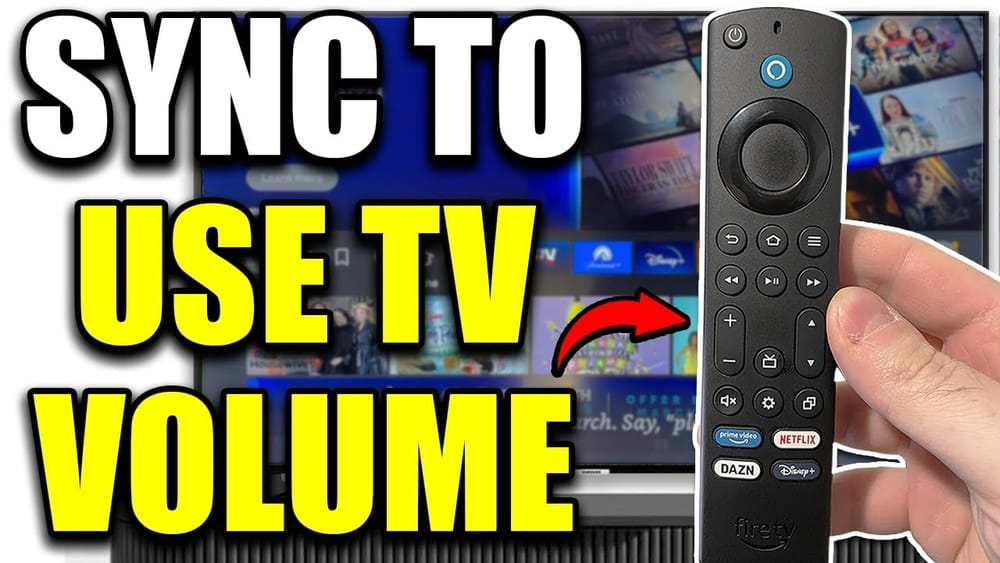
Many people enjoy streaming shows and movies using their Amazon Fire TV device. But when it comes to controlling the volume with a Fire TV remote, things can get tricky. Maybe your remote isn’t adjusting your TV’s volume, or you’re wondering how to set it up to control your soundbar. The good news is that you can make your Fire TV remote control the volume—if you know how. This guide shows you how to set up your Fire TV remote for volume control, troubleshoot common problems, and get the best experience possible.
Whether you have a basic Fire TV Stick or a 4K Max, you’ll find practical steps and tips. You’ll also learn about compatibility, device settings, and some small details that make a big difference. If you want to enjoy your favorite content without juggling multiple remotes, this article gives you everything you need.
Understanding Fire Tv Remote Volume Control
Not all Fire TV remotes are created equal. Some can control your TV’s volume, while others cannot. It’s important to know what your remote can do before you start.
Fire TV remote types:
- Basic Fire TV Remote – Controls Fire TV navigation only.
- Fire TV Voice Remote – May have volume buttons, mute, and power.
- Alexa Voice Remote (2nd Gen and newer) – Includes volume, mute, and power. Can control compatible TVs, soundbars, and receivers.
If your remote has volume buttons and a power button, you’re likely able to control TV volume and power. If not, you’ll need to upgrade your remote.
Why Volume Control Sometimes Doesn’t Work
Many users are surprised when their Fire TV remote doesn’t control the volume right away. The most common reasons are:
- The remote is not paired with the TV or audio device.
- The TV or soundbar does not support HDMI-CEC or IR control.
- The remote is an older model without volume buttons.
- The Fire TV device needs updated settings or software.
Knowing these basics helps avoid frustration and wasted time.
Checking Your Fire Tv Remote And Device Compatibility
Before setting up volume control, check if your hardware supports it.
Identify Your Remote Model
Look at your remote. Does it have volume up/down and mute buttons? If yes, you have a compatible model. If not, you’ll need to get a newer remote. The Alexa Voice Remote (2nd Gen or newer) is most common and works with most Fire TV devices.
Check Fire Tv Device And Tv Compatibility
Most Fire TV Sticks and Cubes support volume control, but very old models may not.
TV compatibility matters too:
- Your TV must support HDMI-CEC (Consumer Electronics Control) for volume and power control through HDMI.
- If you use a soundbar or receiver, they must also support HDMI-CEC, or you’ll need to set up IR (infrared) control.
How To Check Hdmi-cec Support
- Look in your TV’s settings menu for CEC options. It might be called Anynet+ (Samsung), Bravia Sync (Sony), Simplink (LG), or something similar.
- Make sure CEC is enabled on your TV.
- Connect your Fire TV device directly to a TV HDMI port that supports CEC.
If your TV or audio system lacks HDMI-CEC, your Fire TV remote can still control volume if it supports IR (infrared) signals.
Setting Up Fire Tv Remote For Volume Control
Now that you’ve checked your hardware, you’re ready to set up your Fire TV remote to control volume. Follow these steps for a smooth setup.
Pair Or Re-pair Your Fire Tv Remote
- Go to Settings on your Fire TV (navigate to the gear icon).
- Select Controllers & Bluetooth Devices.
- Choose Amazon Fire TV Remotes.
- Select Add New Remote or pick your remote to re-pair.
A properly paired remote is necessary for volume control to work.
Set Up Equipment Control
- In Fire TV Settings, go to Equipment Control.
- Select Manage Equipment.
- Choose TV and follow the prompts to set up your TV.
- The Fire TV will try to detect your TV brand. Confirm or select your brand manually.
- Test the volume control when prompted. If it works, save the settings.
If you use a soundbar or audio receiver:
- In Manage Equipment, select Add Equipment.
- Add your Soundbar or AV Receiver.
- Follow the prompts to select the brand and test volume control.
Tip: If the volume test fails, try entering a different brand or repeat the setup. Sometimes, the remote works with similar brands or alternative codes.
Enable Hdmi-cec On Your Tv
Even with setup complete, CEC must be enabled:
- Go to your TV’s settings menu.
- Find the CEC option (sometimes under external device settings).
- Turn on CEC.
- Restart both your TV and Fire TV device.
Non-obvious insight: Some TVs have CEC turned off by default, even if the feature is advertised. Always double-check.
Using Ir (infrared) Control
If your TV or soundbar doesn’t support HDMI-CEC, the Fire TV remote sends infrared (IR) signals to control volume and power. Point the remote directly at the device, as IR requires line-of-sight.
Common mistake: Covering the IR emitter with your hand or blocking the remote’s line can prevent volume control from working.
Troubleshooting Fire Tv Remote Volume Problems
Even after setup, volume control may not work as expected. Here’s how to fix common issues.
Volume Buttons Not Working
If pressing the volume buttons does nothing:
- Confirm the remote has fresh batteries.
- Make sure the remote is paired with your Fire TV.
- Check that the Fire TV is set up to control your TV or soundbar (see Equipment Control above).
- Restart your TV and Fire TV device.
- Ensure CEC is enabled on your TV.
Volume Buttons Control The Wrong Device
If your volume controls a different device (like a soundbar instead of your TV), adjust the settings:
- Go to Settings > Equipment Control > Manage Equipment.
- Select Change TV or Change Soundbar.
- Redo the setup with the correct brand.
Remote Suddenly Stops Controlling Volume
This can happen after a software update or power outage.
- Re-pair the remote.
- Repeat Equipment Control setup.
- Reset your Fire TV device (unplug for 30 seconds, then plug back in).
- Check if CEC settings were reset on your TV.
Non-obvious tip: Some TVs reset CEC and audio settings after firmware updates. If volume stops working suddenly, review all settings.
Using Fire Tv Voice Commands For Volume
If your remote supports Alexa, you can say:
- “Alexa, volume up.”
- “Alexa, mute the TV.”
This works even if the volume buttons don’t, as long as the Fire TV device is set up for equipment control.

Credit: www.youtube.com
Comparing Fire Tv Remotes: Which Models Support Volume Control?
Here’s a quick comparison of current and older Fire TV remote models and their features.
| Remote Model | Volume Buttons | Power Button | IR/CEC Control | Alexa Support |
|---|---|---|---|---|
| Basic Fire TV Remote | No | No | No | No |
| Alexa Voice Remote (1st Gen) | No | No | No | Yes |
| Alexa Voice Remote (2nd Gen) | Yes | Yes | Yes | Yes |
| Alexa Voice Remote Pro | Yes | Yes | Yes | Yes |
| Fire TV Cube (built-in) | Yes | Yes | Yes | Yes |
Key takeaway: Only remotes with dedicated volume and power buttons can control your TV’s volume directly.
Using Fire Tv Remote To Control Soundbars And Receivers
Many people connect their Fire TV to a soundbar or AV receiver for better audio. You can set your Fire TV remote to control these devices, but there are some details to consider.
Setting Up Soundbar Or Receiver Control
- Go to Settings > Equipment Control > Manage Equipment.
- Select Add Equipment, then choose Soundbar or AV Receiver.
- Select the brand and follow the prompts to test volume and power.
- If the first code doesn’t work, try other suggested codes.
Important: Not every soundbar or receiver brand is supported. Some may require manual setup or won’t work with Fire TV remote IR codes.
Hdmi-cec Pass-through
If your soundbar is connected to the TV via HDMI-ARC, and your TV supports CEC, you may only need to set up your TV as the main device. The volume commands will pass through to the soundbar automatically.
Example: With a Samsung TV and a Bose soundbar (both CEC-enabled), controlling the TV’s volume with your Fire TV remote also adjusts the soundbar.
Ir Control Limitations
When using IR, point the remote at the soundbar or receiver for volume adjustments. Obstacles or positioning can block the signal.
Non-obvious insight: Some soundbars have CEC turned off by default. Enable CEC in your soundbar’s menu to let volume control pass through from the TV.

Credit: www.wikihow.com
Optimizing Your Fire Tv Remote Experience
Once your Fire TV remote controls the volume, there are ways to make the experience even better.
Customize Remote Settings
Fire TV lets you adjust some remote behaviors:
- Power on/off: Set whether the remote turns just the TV off, or both TV and soundbar.
- Input switching: Some remotes can switch TV inputs—set this up in Equipment Control > Input Switching.
Use Alexa For Hands-free Control
If you have a Fire TV Cube or an Echo speaker paired with your Fire TV, you can control volume hands-free:
- “Alexa, set volume to 15.”
- “Alexa, mute.”
- “Alexa, turn off the TV.”
Add Multiple Devices
You can set up your Fire TV remote to control more than one device (TV, soundbar, receiver). Use Manage Equipment to add or remove devices as needed.
Use The Fire Tv App As A Remote
The Amazon Fire TV app (for iOS and Android) can also control your Fire TV, but it does not support volume or power control. It’s useful as a backup for navigation, but for volume, use the physical remote.
Replace Or Upgrade Your Remote
If your current remote lacks volume buttons, you can buy an Alexa Voice Remote (2nd Gen or Pro) separately. It’s an affordable upgrade and works with most Fire TV devices.
Pro tip: The Alexa Voice Remote Pro has a remote finder feature—double-press the Fire TV Stick’s button, and the remote beeps to help you find it.
Common Mistakes And How To Avoid Them
Even experienced users make mistakes when setting up Fire TV remote volume control. Here’s how to avoid them:
- Not enabling HDMI-CEC: If you skip this step, volume and power control won’t work.
- Blocking IR signals: Obstacles between the remote and device block volume commands if using IR.
- Choosing the wrong brand during setup: Make sure you pick the correct brand, or volume control may not work.
- Low batteries: Weak batteries cause unreliable remote performance.
- Not saving settings: Always finish the setup process and save your selections.
- Overlooking firmware updates: Update your Fire TV and TV software regularly to fix bugs and add new features.
Insider advice: Some TVs need to be restarted after enabling CEC to recognize new devices. Unplug your TV for 30 seconds after setup.
When To Reset Your Fire Tv Remote
If nothing works, try resetting your Fire TV remote.
How to reset:
- Unplug your Fire TV device from power.
- Hold the Left, Menu (three lines), and Back buttons together for 12 seconds.
- Release, wait 5 seconds, then remove the remote’s batteries.
- Plug in the Fire TV device and wait 1 minute.
- Insert the batteries and press the Home button.
This resets the remote and often fixes stubborn problems.
Real-world Example: Fixing Volume Control On A Samsung Tv
Let’s look at a real example. Suppose you have a Fire TV Stick 4K and a Samsung TV.
- Plug the Fire TV Stick into the TV’s HDMI port.
- On the TV, go to Settings > General > External Device Manager.
- Turn on Anynet+ (HDMI-CEC).
- On the Fire TV, go to Settings > Equipment Control > Manage Equipment.
- Choose TV, select Samsung, and follow the prompts.
- Test the volume and power. If it works, you’re done.
If it doesn’t, try redoing the Equipment Control setup, or unplug your TV for 30 seconds and try again.
Stat to know: Over 90% of modern TVs support HDMI-CEC, but it’s often turned off by default.
:max_bytes(150000):strip_icc()/how-to-fix-it-when-firestick-remote-volume-not-working-3311bc38484946a5a8d101e4318b7f8a.jpg)
Credit: www.lifewire.com
Comparison: Fire Tv Remote Vs. Other Streaming Device Remotes
How does the Fire TV remote stack up against competitors like Roku and Apple TV?
| Feature | Fire TV Remote | Roku Remote | Apple TV Remote |
|---|---|---|---|
| Volume Control | Yes (with compatible remote) | Yes (most models) | Yes |
| Power Button | Yes | Yes | Yes |
| Voice Control | Alexa | Roku Voice | Siri |
| Remote Finder | Yes (Pro model) | Yes (some models) | No |
| Custom Buttons | Yes (Pro model) | Yes (on select models) | No |
Takeaway: The Fire TV remote offers strong volume and voice features, especially with the Pro model.
Advanced Tips: Getting The Most From Your Fire Tv Remote
Want to go beyond basic volume control? Here are a few advanced ideas.
Program Custom Buttons (pro Remote Only)
On the Alexa Voice Remote Pro, you can set up two custom buttons to launch apps or Alexa routines. This doesn’t affect volume, but makes your streaming more convenient.
Control Tv Input
You can set your Fire TV remote to switch inputs on your TV if supported. In Equipment Control, set up input switching and test.
Create Alexa Routines
Use Alexa to create routines that include volume changes, TV power, and other smart devices. For example, “Alexa, movie time” could dim your lights, power on the TV, and set the volume.
Use Hdmi-cec For More Devices
If you have multiple HDMI-CEC devices (like a Blu-ray player and soundbar), set up your Fire TV so it controls everything through your TV’s CEC menu.
Warning: Too many CEC devices can sometimes cause conflicts. If devices keep turning on or off unexpectedly, try disconnecting one and see if it helps.
Alternatives: Universal Remotes And Smart Home Integration
If you have a complex setup or want more control, consider these alternatives.
Universal Remotes
A universal remote (like Logitech Harmony) can control your Fire TV, TV, soundbar, and more from one device. Setup is more complex, but great for larger home theaters.
Smart Home Integration
Pair your Fire TV and TV with Alexa, Google Assistant, or Apple HomeKit for voice and app control. For example, use an Echo speaker to control TV volume even without the remote.
Real-world example: A visually impaired user can say, “Alexa, volume up,” and the TV adjusts, no remote needed.
Using The Tv’s Own Remote
Some modern TVs (especially Samsung, LG, Sony) can control Fire TV devices with their own remote, thanks to HDMI-CEC. This is useful if you prefer the TV’s remote.
Fire Tv Remote Volume Control: Quick Reference Guide
To summarize the steps for making your Fire TV remote control volume:
- Make sure you have a remote with volume buttons.
- Pair the remote with your Fire TV device.
- In Fire TV settings, set up Equipment Control for your TV/soundbar.
- Enable HDMI-CEC on your TV and soundbar.
- If using IR, make sure the remote points at the device.
- Test and adjust as needed.
If you run into problems, recheck settings, batteries, and compatibility.
Frequently Asked Questions
How Do I Know If My Fire Tv Remote Can Control Volume?
Check if your remote has volume up/down and a mute button. If yes, it can control volume. Older remotes without these buttons cannot control TV or soundbar volume.
Why Is My Fire Tv Remote Not Controlling The Tv Volume?
Common reasons include HDMI-CEC being disabled on your TV, the remote not being paired properly, wrong device selected during setup, or blocked IR signals. Check all settings and restart your devices.
Can I Control A Soundbar With My Fire Tv Remote?
Yes, if your Fire TV remote supports equipment control and your soundbar is compatible. Set up your soundbar in Settings > Equipment Control > Manage Equipment, and enable CEC on the soundbar if available.
Does The Fire Tv Mobile App Control Volume?
No, the Amazon Fire TV app for iOS or Android cannot control your TV’s volume or power. It’s for navigation, voice search, and text entry only.
Where Can I Buy A Fire Tv Remote With Volume Control?
You can buy the Alexa Voice Remote (2nd Gen or Pro) from Amazon or major retailers. Make sure it’s compatible with your Fire TV model. For official compatibility, see Amazon’s official compatibility list.
Getting your Fire TV remote to control volume isn’t hard—but it does require the right equipment and settings. Once set up, you’ll enjoy seamless volume and power control, making your streaming experience smoother and more enjoyable. With these steps, tips, and troubleshooting advice, you’re ready to get the most out of your Fire TV system.