
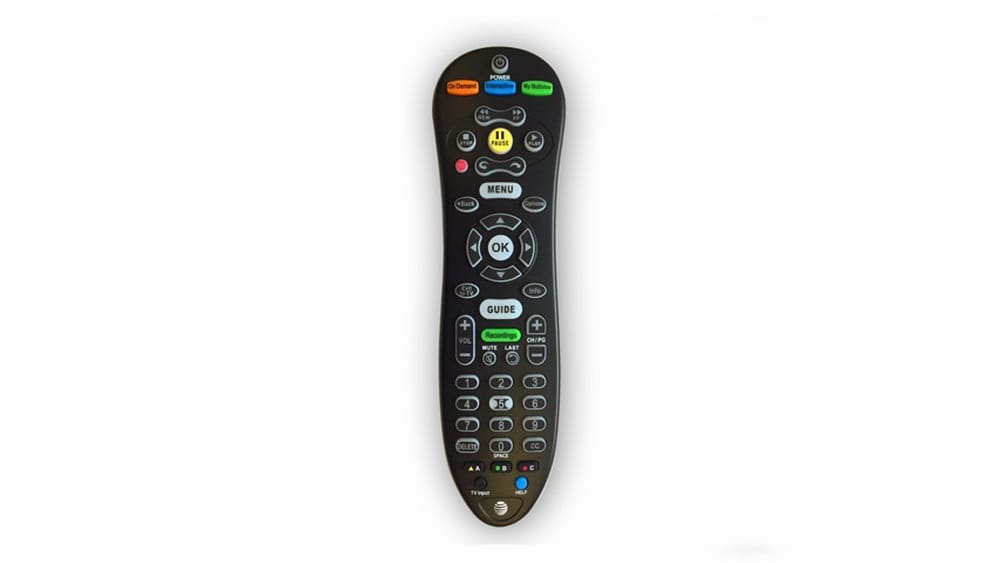
Programming an AT&T remote control can feel confusing if you’ve never done it before. With so many buttons, different devices, and several remote models, it’s easy to make mistakes. But learning how to program your AT&T remote is valuable—it saves time, reduces frustration, and lets you control multiple devices with one simple tool.
Whether you want to connect your remote to your TV, audio system, or another device, clear steps and practical advice make the process easier.
This guide helps you understand everything about programming an AT&T remote control. You’ll learn about different remote models, step-by-step setup instructions, troubleshooting, and helpful tips. Even if English isn’t your first language, every section uses simple words and clear explanations.
By the end, you’ll feel confident handling your remote and making it work exactly how you want.
Understanding At&t Remote Controls
AT&T offers several remote controls for its TV and entertainment services. Each model has different features and programming steps. Knowing which remote you have is the first step to successful setup.
Common At&t Remote Models
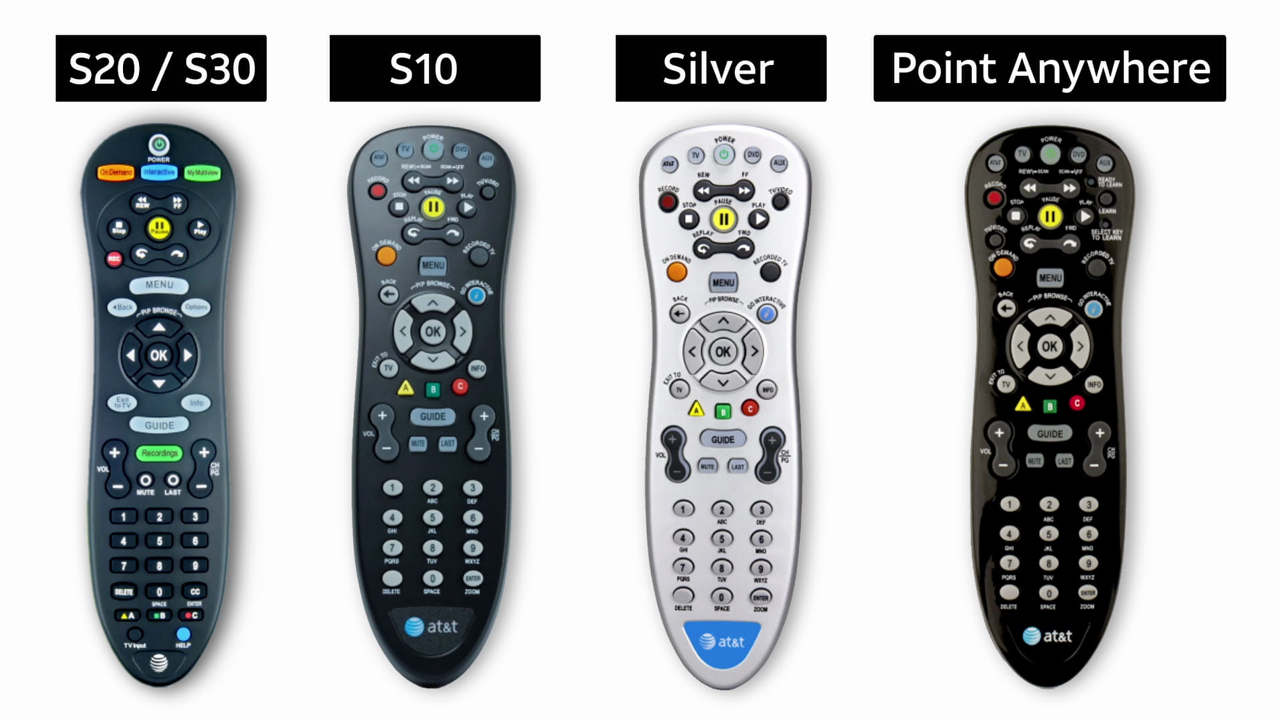
Most AT&T customers use one of these remote controls:
- S10: Older model, often used with U-verse TV
- S20: Newer, simple design, basic features
- S30: Latest model, more advanced, controls multiple devices
- Point Anywhere Remote: Uses radio frequency, not infrared, works through walls
- Silver Remote: Older, larger, supports many devices
Each remote works with AT&T U-verse receivers but can also control TVs, audio equipment, Blu-ray players, and more. Over the years, some models have become rare as AT&T updates its hardware, but most universal programming steps remain similar.
How Remotes Work
AT&T remotes send signals to your devices. Most use infrared (IR) light, which needs a clear path from the remote to the device. The Point Anywhere Remote uses radio frequency (RF), so you don’t need to point directly at the device. Knowing your remote’s technology helps you avoid setup mistakes.
For example, if your living room setup has devices inside a cabinet, an IR remote may not work unless the cabinet door is open. An RF remote, on the other hand, can control devices even if there are walls or objects in the way.
This small detail is important for households with complex setups or when you want to hide equipment.
Identifying Your Remote
Check the label on the back of your remote or look for model numbers in the battery compartment. AT&T’s official support site shows photos of each model for easy identification. Some remotes also have a colored strip or a unique button layout that makes them stand out.
If you’re unsure, compare the shape and button positions to pictures online. Many users overlook this simple check and end up following the wrong instructions, leading to frustration.
Key Features And Buttons
While each model is different, most share these important buttons:
- Power: Turns devices on or off
- TV: Switches remote to TV mode
- DVD: Switches remote to DVD/Blu-ray mode
- AUX: For audio or extra devices
- Menu: Opens the TV or device menu
- Guide: Opens channel guide
- Volume and Channel: Adjusts sound and changes channels
Some models also have colored shortcut buttons (like A, B, C, D) for extra features. The S30, for example, has a simplified button arrangement to make programming easier for beginners. Knowing these buttons helps you follow programming steps without confusion.
If you’re unfamiliar with English labels, keep your remote nearby to match button names with their position.
Preparing To Program Your At&t Remote
Before you start, a few simple preparations make the process smoother.
Gather Necessary Items
You need:
- The AT&T remote
- The device you want to control (TV, audio receiver, etc.)
- Working batteries in the remote
- Access to your device’s brand and model number
Sometimes, device model numbers are printed on the front or back of the device. Having this information ready will save you time, especially if you need to look up device codes online. If you have multiple devices to program, write down each brand and model beforehand.
Common Programming Methods
Most AT&T remotes use one of these programming methods:
- Manual Code Entry: You enter a device code using the remote’s buttons.
- Automatic Search: The remote scans for codes until it finds one that works.
- RF Setup (Point Anywhere Remote): Special process, no codes needed.
Manual code entry is faster when you have the correct code, but automatic search is useful if your device is less common or you lost your code list. The RF setup is unique to the Point Anywhere Remote, making it ideal for hard-to-reach devices.
Finding Device Codes
Device codes are four-digit numbers that match your device’s brand. AT&T includes code lists in the remote’s manual and on their website. If you don’t have the manual, you can find codes online.
Each remote model may have its own code list, so make sure you use the right one. For example, S10 codes may be different from S30 codes for the same TV brand. Some brands have several possible codes, so don’t worry if the first one doesn’t work.
Example: Tv Codes
For popular TV brands, typical codes include:
- Samsung: 1004, 1005, 1072
- LG: 1000, 1097, 1120
- Sony: 1008, 1106, 1131
- Vizio: 1176, 1270, 1316
If your brand isn’t listed, AT&T’s support site has a full database. Some less-known brands may require more tries using automatic search. Remember, entering the wrong code won’t harm your remote or device—it just won’t work.
These codes let your remote talk to your TV. Using the correct code is essential. If you accidentally use a code for a different brand, the remote might control only some functions, or none at all.
Credit: www.att.com
Step-by-step Guide: Programming Your At&t Remote
Now you’re ready to program your remote. Follow these steps carefully.
Programming With Manual Code Entry
This method is reliable and works for most devices.
- Turn on the device you want to control (TV, audio, etc. ).
- Press and hold the mode button (TV, DVD, or AUX) on your remote for five seconds.
- Enter the device code using the number buttons. The mode button will flash to confirm.
- Release the mode button and test. Try Power, Volume, and Mute to see if the remote works.
- If the remote doesn’t work, repeat steps 2–4 with another code.
Some devices may need you to press the Enter button after entering the code, depending on your remote model. If unsure, check the remote’s manual. Give each code a fair test—sometimes you need to wait a few seconds after entering the code before testing.
Programming With Automatic Search
If you don’t know your device’s code, use this method.
- Turn on the device you want to control.
- Press and hold the mode button until it flashes.
- Press the Scan button (or 922 on some remotes).
- The remote will send codes one by one. When the device turns off, press Enter to save the code.
- Test the remote. If it doesn’t work, repeat the process.
This process can take several minutes, especially for older devices or less common brands. Be patient. Some remotes will blink or pause after each code. If you miss the moment when the device responds, you may need to start over.
Keep your finger near the Enter button and watch your device closely.
Programming The Point Anywhere Remote
This remote uses RF and pairs differently.
- Insert batteries in the remote.
- Press and hold the Pair button on the receiver until the light flashes.
- Press and hold the Pair button on the remote until it flashes.
- The remote and receiver will connect automatically.
No codes are needed, and you can control devices from another room. If pairing doesn’t work the first time, repeat the steps and check that the batteries are fresh. The RF signal is very reliable, but metal walls or electronics may rarely cause interference.
Programming For Multiple Devices
AT&T remotes can control more than one device. For example, you can program the TV, audio system, and DVD player.
- Assign each device to a mode button (TV, DVD, AUX).
- Repeat programming steps for each device.
- After setup, use the mode buttons to switch between devices.
For example, you can use the TV button for your television, AUX for your soundbar, and DVD for your streaming box. Always check which mode is active before pressing Power or Volume. Some users label the remote with a sticker to remember which button controls which device.
Example: Programming An S30 Remote To A Samsung Tv
- Turn on your Samsung TV.
- Press and hold TV button for 5 seconds.
- Enter the code 1004.
- Release the TV button.
- Test Power and Volume.
- If it doesn’t work, try code 1005 or 1072.
With newer TVs, codes may change as manufacturers update their hardware. If none of the suggested codes work, check AT&T’s online support for updated codes.
Quick Tips For Successful Programming
- Make sure you have the correct device code.
- Replace batteries if the remote doesn’t respond.
- Keep the remote pointed at the device during setup (for IR remotes).
- If automatic search takes too long, try manual code entry.
If your device is slow to respond, give it a few seconds after each button press. Sometimes, device firmware can cause a delay before accepting remote commands.
Troubleshooting Common Problems
Programming doesn’t always work the first time. Here’s how to fix common issues.
Remote Not Responding
- Check and replace batteries.
- Make sure you’re using the correct mode button.
- Clear any objects between remote and device (for IR remotes).
If your remote has been dropped or exposed to moisture, buttons might stick or not work. In this case, wipe the remote with a dry cloth and gently press each button to free any that are stuck.
Wrong Device Turns On
- Double-check which mode button you pressed.
- Re-program the remote using the correct code.
Mixing up mode buttons is a common mistake, especially in households with multiple devices. If you notice the wrong device responding, reset and try again.
Buttons Not Working
- Some codes only control basic functions. Try another code for full functionality.
- Test Power, Volume, Mute, and Menu. If only some work, try a different code.
Volume and input buttons are often not supported by the first code you try. Don’t be discouraged—sometimes the second or third code works better for your device.
Automatic Search Fails
- Move closer to the device.
- Restart the process and be patient—some brands have many codes.
If you have an older device, automatic search might take longer. If possible, find the manual online for a list of codes specific to your brand.
Resetting Your Remote
If nothing works, reset the remote:
- Remove batteries.
- Press every button once.
- Re-insert batteries.
- Try programming again.
Resetting clears old codes and fixes stuck buttons. This is especially helpful if your remote has been used with multiple devices before.
Credit: www.att.com
Data Table: Device Compatibility By Remote Model
Here’s a quick look at which AT&T remotes work with different devices.
| Remote Model | TV | Audio | Blu-ray/DVD | Set-top Box |
|---|---|---|---|---|
| S10 | ✔️ | ✔️ | ✔️ | ✔️ |
| S20 | ✔️ | ✔️ | ✔️ | ✔️ |
| S30 | ✔️ | ✔️ | ✔️ | ✔️ |
| Point Anywhere | ✔️ | ✔️ | ✔️ | ✔️ |
| Silver Remote | ✔️ | ✔️ | ✔️ | ✔️ |
All models can handle multiple devices, but newer remotes may offer better performance. In particular, the S30 and Point Anywhere remotes are designed for today’s smart TVs and complex home theater systems.
Comparing Manual Code Entry Vs. Automatic Search
Choosing the right programming method saves time and improves reliability.
| Method | Speed | Success Rate | Best For | Drawbacks |
|---|---|---|---|---|
| Manual Code Entry | Fast (1-2 min) | High | Known device brands | Need code list |
| Automatic Search | Slow (5-10 min) | Medium | Unknown device model | May miss advanced functions |
| RF Pairing | Very fast (1 min) | Very high | Point Anywhere Remote | Limited to RF devices |
Manual code entry is best if you have the code. Automatic search is useful for older or rare devices. If you have a smart TV or device released in the last few years, check for updated code lists online for better results.
Practical Tips And Non-obvious Insights
Most guides miss these helpful details. Here’s how to avoid common mistakes and improve your experience.
Using The Right Code List
Many people use the wrong code list for their remote model. AT&T has separate lists for S10, S20, and S30 remotes. Always check you have the correct list. The wrong list causes failed programming.
Some code lists are available in multiple languages or large print, which can help if you’re not comfortable with English or have vision difficulties.
Testing More Than Power
After programming, beginners often test only the Power button. But some codes only turn the device on or off, not control volume or menu. Always test:
- Volume Up/Down
- Mute
- Menu
- Input/Source
If these don’t work, try another code—even if Power works. Skipping this step can lead to frustration later, especially if you switch between devices often.
Fine-tuning Volume Control
AT&T remotes let you set Volume control to always adjust one device, like your TV or audio system. This prevents frustration when the remote switches modes. To set volume control:
- Hold Enter and Volume Up together.
- Enter the code for your chosen device (TV or audio).
- Release buttons.
This keeps volume working for your favorite device, even in other modes. It’s very useful if you use a soundbar or external audio system and don’t want to change modes each time you adjust the volume.
Locking Remote Modes
If you share your remote with family, locking a mode prevents accidental changes. To lock:
- Hold Enter and Mode button together.
- Enter lock code (usually 922).
- Release buttons.
This stops others from switching modes or programming mistakes. It’s a smart idea if kids or guests often use your remote.
Using At&t’s Online Support
AT&T offers a full support page with code lists, troubleshooting, and video tutorials. If you’re stuck, visit AT&T Support for help. Their site updates regularly with new codes and advice. You can even chat with support if you need step-by-step guidance.
Advanced Features
Most users only use basic remote functions. But AT&T remotes can do more:
Programming Macros
A macro is a sequence of commands. For example, one button can turn on TV, receiver, and set-top box. On S30 and newer remotes:
- Hold Enter and Macro button (often “A” or “B”).
- Press each device mode button in order.
- Release buttons.
Macros save time and reduce steps. They’re especially useful in home theater setups where you want everything to turn on or off together.
Setting Favorite Channels
You can program favorite channels for quick access. On S30 remotes:
- Press Menu.
- Select Favorites.
- Add your favorite channels.
This lets you skip channel surfing and go straight to your preferred shows. If someone else in your family watches different channels, each user can save their own favorites list.
Changing Input Sources
Some remotes let you change your TV’s input (HDMI, AV, etc.) directly. After programming, use the Input or Source button to switch between devices. This is useful for connecting game consoles or streaming devices.
If your remote’s Input button doesn’t work, try programming with a different code or consult your TV’s manual for special instructions.
Real-world Example: Programming For A Home Theater
Imagine you have an AT&T S30 remote and want to control your TV, soundbar, and Blu-ray player. Here’s how to do it:
- TV Setup: Find your TV brand code, enter it using manual code entry.
- Soundbar Setup: Use AUX mode, enter soundbar code.
- Blu-ray Player Setup: Use DVD mode, enter code.
After setup, use mode buttons to switch devices. Test all functions—Power, Volume, Mute, Play, Pause. If any don’t work, try another code. Set volume control to the soundbar for best audio.
For example, in a family room, you might watch cable on TV, then switch to a Blu-ray movie without needing three remotes. This setup makes your entertainment system easier for guests, seniors, and kids to use.
Data Table: Typical Programming Success Rates
AT&T tracks how often customers succeed with each method. Here’s the data:
| Programming Method | Success Rate | Common Issues |
|---|---|---|
| Manual Code Entry | 80% | Wrong code, old device |
| Automatic Search | 65% | Long setup, limited functions |
| RF Pairing | 95% | RF not supported |
Manual code entry is most reliable if you have the correct code. RF pairing is almost always successful if your receiver supports it. For rare or very old devices, success rates may be lower, so patience and multiple tries help.

Credit: www.att.com
Safety And Accessibility Tips
Programming a remote is safe, but a few tips help everyone, especially seniors or people with disabilities.
- Use large print code lists if you have vision problems.
- Ask a friend or family member for help if you struggle with small buttons.
- Place devices within easy reach during setup.
- AT&T remotes have backlit buttons for night use.
If you have arthritis or reduced hand strength, consider using a remote holder or grip to make the remote easier to handle. Some remotes have textured surfaces to help with grip.
Frequently Asked Questions
How Do I Find My Device’s Code For At&t Remotes?
Check the remote’s manual or AT&T’s support website. Each remote model has its own code list. You need your device’s brand and sometimes model number. If you can’t find the code, use automatic search or visit AT&T Support.
Can I Program My At&t Remote To Control More Than One Device?
Yes, most AT&T remotes support multiple devices. Use the mode buttons (TV, DVD, AUX) for each device. Program them one at a time using the correct codes. After setup, switch between devices with the mode buttons.
What Should I Do If My Remote Doesn’t Work After Programming?
First, check batteries and make sure you used the correct code. Try another code or use automatic search. Reset the remote by removing batteries and pressing all buttons once. If problems continue, contact AT&T support.
Why Do Some Buttons Work But Others Don’t After Programming?
Some codes only control basic functions like Power. Volume and Menu may not work with every code. Try different codes for your device until all functions work. Always test multiple buttons after programming.
Is There A Way To Lock My At&t Remote To One Device?
Yes, you can lock mode buttons. Hold Enter and the mode button together, enter the lock code (usually 922), and release. This stops accidental changes and keeps the remote focused on one device.
Programming your AT&T remote doesn’t have to be complicated. By understanding your remote model, using the right codes, and following clear steps, you can control all your devices easily. With a few practical tips and troubleshooting, even beginners succeed quickly.
If you ever get stuck, AT&T’s online support offers extra help. Now you can enjoy your entertainment system without hassle—everything at your fingertips.