
Programming your Cox remote control can make watching TV much easier. No more juggling different remotes for your TV, sound system, or cable box. But many people find the process confusing and give up halfway. This guide will take you through every step, explain what you need to know, and help you fix common problems. Even if you’ve never programmed a remote before, you’ll be able to do it with confidence by the end.
You’ll learn about different Cox remote models, how to find the right codes, and what to do if something doesn’t work. We’ll also cover some practical tips that most guides miss, like how to save your favorite settings and recover if you press the wrong button.
Plus, you’ll see clear comparisons between popular Cox remotes and a section for frequently asked questions.
Understanding Cox Remote Controls
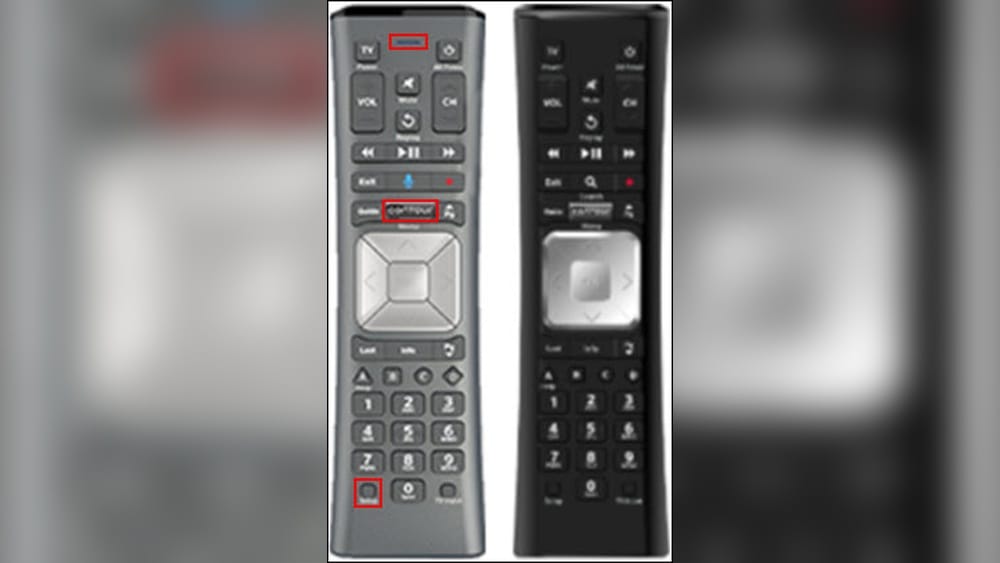
Cox offers several remote control models, each with its own features and buttons. The most common are the Contour Remote, Mini Box Remote, and the older URC series. Knowing your remote model is important because the programming steps can change depending on the model.
Why Model Matters
Some remotes have voice control, while others use simple infrared signals. For example, the Contour Voice Remote can connect via radio frequency (RF), letting you control your TV even if the remote isn’t pointed at it. Older remotes need a direct line of sight.
Here’s a quick comparison of three popular Cox remotes:
| Remote Model | Key Feature | Programming Method | Voice Control |
|---|---|---|---|
| Contour Voice Remote | Voice search, RF control | Pairing + Code entry | Yes |
| Mini Box Remote | Simple design, IR only | Manual code entry | No |
| URC 8820 | Controls up to 4 devices | Manual code entry | No |
Tip: Check the remote’s model number on the back or inside the battery cover.
The Importance Of Device Codes
Every TV, soundbar, or receiver has a specific device code. These codes tell your remote how to talk to your device. If you use the wrong code, some buttons might work while others don’t. Always use the code that matches your exact device brand and model.
Preparing To Program Your Cox Remote
Before you start, gather all the items you need. This will make the process smoother and help you avoid mistakes.
- Identify your remote model. Look for labels like “Contour,” “Mini Box,” or “URC.”
- Know your device brand and model. You’ll need this for code lookup.
- Fresh batteries. Weak batteries can cause programming to fail.
- Device manuals. Some TVs or soundbars have special instructions.
Non-obvious insight: Some newer TVs have energy-saving modes that can block remote signals during setup. Make sure your TV is fully powered on and not in “eco” or “sleep” mode before starting.

Credit: www.youtube.com
Finding The Right Codes For Your Device
One of the most important steps is getting the correct code. Cox provides code lists for each remote model, but there are a few different ways to find yours:
Using The Cox Code Finder
The easiest way is the official Cox Code Finder online. Enter your remote model and device brand, and it gives you the right code. You can visit the official Cox support site or use the printed code list that came with your remote.
Code List Examples
Here are some sample codes for common TV brands for the Contour remote:
| Brand | Common Code 1 | Common Code 2 | Common Code 3 |
|---|---|---|---|
| Samsung | 12051 | 10812 | 10060 |
| LG | 11423 | 10178 | 11265 |
| Sony | 10000 | 11100 | 11300 |
| Vizio | 11756 | 11758 | 10864 |
Note: Codes can change even for the same brand, depending on the device’s year or model.
When You Can’t Find The Code
If your device is not listed, try the “auto-search” method on your Cox remote. This scans all possible codes until it finds one that works.
How To Program A Cox Remote Control: Step-by-step
Programming steps depend on your remote model. Below, you’ll find instructions for the three most popular Cox remotes.
Programming The Contour Voice Remote
The Contour Voice Remote is the most modern Cox remote. It can control your Cox box, TV, and audio devices.
Step 1: Pair The Remote To Your Cox Receiver
- Turn on your TV and Cox receiver.
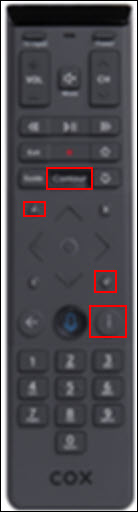
- Press and hold the Contour and Info buttons together until the LED turns solid red (about 5 seconds).
- Follow the on-screen prompts. If no prompts appear, enter the 3-digit pairing code shown on your TV.
Step 2: Program Tv Power And Volume
- Press and hold the Setup button until the remote light changes from red to green.
- Enter the 4- or 5-digit code for your TV brand.
- The LED will blink green twice if successful.
- Test the Power and Volume buttons. If they work, setup is complete.
- If not, repeat with a different code.
Practical tip: Some TVs need multiple codes before one works fully. If only volume works, but not power, try the next code in the list.
Step 3: Program Audio Devices (optional)
- Hold Setup until the light turns green.
- Enter the code for your soundbar or receiver.
- Test Volume and Mute buttons.
Programming The Cox Mini Box Remote
The Mini Box remote is compact and basic.
- Turn on your TV.
- Press and hold the Setup button until the LED blinks twice.
- Enter the TV code.
- Test Power and Volume.
- If not working, repeat with a different code.
Common mistake: Pressing the wrong button sequence can reset the remote. Always start with Setup.
Programming The Urc Series Remotes
These older remotes (like URC 8820 or URC 8820-MOTO) can control up to four devices.
- Turn on the device you want to control.
- Press and hold the Setup button until the red light stays on.
- Press the device key (TV, AUX, DVD, etc. ).
- Enter the 4-digit code.
- Release Setup. The light should blink off.
- Test the remote.
Non-obvious insight: If you hold Setup too long, the remote may exit programming mode. Release as soon as the light turns steady.
Credit: www.cox.com
Auto-search Code Programming
If you can’t find your device code, you can use the “auto-search” feature to let the remote test all possible codes.
How To Use Auto-search
- Turn on your TV or device.
- Press and hold Setup until the LED stays on.
- Press the device key (TV, AUX, etc. ).
- Press and release the Power button repeatedly, pausing for 1-2 seconds each time.
- When the device turns off, press Enter to save the code.
Warning: This method can take several minutes but works when code lists fail.
Programming More Than One Device
Many Cox remotes can control more than just your TV. For example, you can program it to control a soundbar, Blu-ray player, or receiver.
Steps:
- Press and hold Setup.
- Press the device button (AUX, DVD, etc. ).
- Enter the code for your second device.
- Test the controls.
Pro tip: Some remotes let you “punch through” volume control, so your TV or soundbar always controls volume, no matter what device is selected.

Credit: urcsupport.com
Resetting Your Cox Remote
If things get confusing or the remote starts acting strangely, a reset can help.
How To Reset
- Remove one battery.
- Press any button for 3 seconds to discharge.
- Reinsert the battery.
- For Contour remotes, you can also hold Setup until the LED blinks green twice, then enter 9-8-1. The remote will reset to factory settings.
Practical tip: After a reset, you’ll need to reprogram your devices.
Troubleshooting Common Problems
Programming doesn’t always work the first time. Here’s how to solve the most common issues.
Buttons Don’t Work
- Check you used the right code for your device.
- Try another code from the list. Some brands have multiple codes.
- Make sure batteries are fresh.
Remote Only Controls Some Functions
- Some codes only support basic commands. Try another code for full features.
- For soundbars, sometimes only volume works. Use your TV’s audio output settings.
The Remote Is Unresponsive
- Reset the remote.
- Make sure nothing is blocking the signal between the remote and your device.
- For RF remotes, re-pair to the Cox box.
The Remote Changes Channels But Not Volume
- You may have programmed the remote for the Cox box but not for your TV’s volume. Repeat programming for the TV.
Non-obvious insight: Sometimes HDMI-CEC settings on your TV or soundbar can interfere with remote commands. Try turning off HDMI-CEC (also called Anynet+, Simplink, etc.) if you have issues.
Advanced Features And Tips
Cox remotes are not just for basic TV control. Here are some features and tricks that can make your experience better.
Voice Commands (contour Remotes)
With the Contour Voice Remote, you can press and hold the Mic button to search for shows, channels, or actors. For example, say “ESPN” to jump to the sports channel.
Favorite Channels
Some Cox remotes let you set favorite channels for quick access. Check your remote’s manual for instructions.
Remote Finder
If you lose your Contour Voice Remote, press the Remote Finder button on your Cox box (if available). The remote will beep.
Programming For Multiple Tvs
You can use one remote for several TVs, but you’ll need to reprogram each time you change rooms. For permanent multi-room setups, order extra remotes.
Understanding The Limitations
Not all functions may be available for every device or code. For example, some smart TV features (apps, streaming) may require the original TV remote.
Here’s a summary of what Cox remotes can and cannot do:
| Feature | Supported | Notes |
|---|---|---|
| Power On/Off | Yes | Works with most codes |
| Volume/Mute | Yes | Some soundbars need special codes |
| Input/Source | Partial | May not work for all brands |
| Smart TV Apps | No | Use the original TV remote |
| Voice Search | Contour only | Requires compatible receiver |
What To Do If You Lose Your Remote
Losing your Cox remote is frustrating, but you have options:
- Order a replacement from Cox online or visit a Cox store.
- Use the Cox Contour app on your smartphone as a temporary remote.
- Universal remotes: Many third-party remotes can control Cox boxes, but setup is different. Check compatibility before buying.
Practical tip: Write down your programmed codes and keep them somewhere safe. This will save time if you ever need to reprogram a new remote.
Keeping Your Remote Up To Date
Some Contour remotes receive automatic updates from the Cox box. But if your remote isn’t responding to new devices, try these steps:
- Pair the remote to the Cox box again.
- Check for software updates on your Cox receiver.
- Visit the Cox support site for new code lists.
Non-obvious insight: If you recently bought a new TV or soundbar, wait a few weeks. Cox may update their code list to support new models.
Safety And Care Tips
A well-maintained remote lasts longer and works better.
- Keep the remote clean. Dirt can block buttons.
- Avoid dropping it. This can loosen internal parts.
- Replace batteries together. Mixing old and new batteries can cause leaks.
- Keep away from liquids. Even a small spill can ruin the remote.
When To Contact Support
If you’ve tried all steps and your remote still doesn’t work, it may be defective. Contact Cox support for help. They can guide you through advanced troubleshooting or send a replacement.
For more help, visit the official Cox Remote Support page.
Frequently Asked Questions
How Do I Know Which Cox Remote I Have?
Check the label on the back or inside the battery cover. The model name (like Contour, Mini Box, or URC) is usually printed there. You can also compare the button layout to pictures on the Cox support website.
Can I Program My Cox Remote Without A Code?
Yes, most Cox remotes have an auto-search feature. This lets the remote scan for the right code automatically. The process can take a few minutes but works if you don’t know your device’s code.
Why Do Some Buttons On My Cox Remote Not Work After Programming?
This usually happens if you used a code that only supports basic functions. Try programming the remote with a different code for your device. Also, make sure your device is compatible with universal remotes.
Can One Cox Remote Control More Than One Device?
Yes, most Cox remotes can control multiple devices (such as TV, soundbar, and Blu-ray player). You must program each device separately using the correct code and device button.
What Should I Do If My Cox Remote Stops Working Completely?
First, check the batteries. If that doesn’t help, try resetting the remote and reprogramming it. If the problem continues, the remote may be broken. Contact Cox for a replacement or use the Cox Contour app as a temporary fix.
Programming your Cox remote control doesn’t have to be hard. With the right steps, a bit of patience, and this guide, you’ll have your remote working in no time. Enjoy more convenience and control over your TV experience—no more hunting for lost remotes or struggling with the wrong buttons.
If you ever run into problems, remember that Cox support is just a call or click away.