
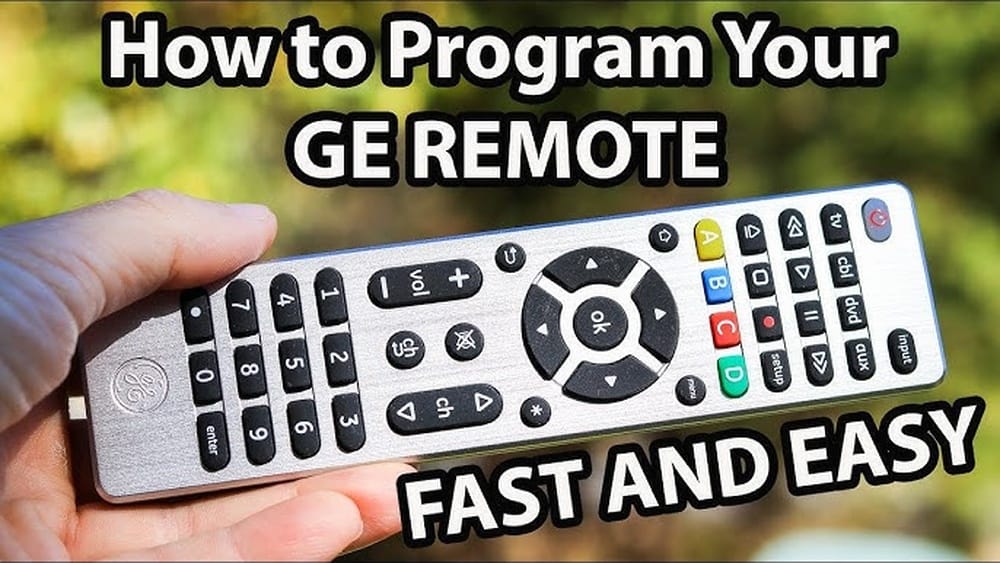
Programming a universal remote can feel complicated, but it doesn’t have to be. The General Electric (GE) Universal Remote Control is a popular choice for controlling multiple devices like TVs, DVD players, cable boxes, and streaming devices with a single controller. If you’re tired of juggling remotes or your original remote is lost or broken, learning to program your GE universal remote is a smart move. This guide covers everything you need to know — from finding the right codes to troubleshooting common issues, with practical tips, clear steps, and even advanced features you might not know about.
Let’s dive in and make your universal remote truly universal.
Understanding Your Ge Universal Remote
Before you program your remote, it’s important to know what model you have and what it can do. GE offers several types of universal remotes, and features can vary.
Types Of Ge Universal Remotes
GE universal remotes come in models that control 2, 4, 6, or even 8 devices. Common models include the 33709, 24922, and 40081. Some remotes have simple layouts with just TV and DVD controls, while others have extra buttons for DVR, audio, and streaming devices.
How Universal Remotes Work
A universal remote works by sending infrared signals using programmed codes. Each device brand (like Samsung, Sony, or LG) uses unique codes. The remote translates your button press into a signal your device understands.
Why Model Numbers Matter
The remote’s model number is usually found inside the battery compartment or on the back. You need this number to find the right code list and instructions, as code lists change between models. Using the wrong code list can lead to frustration.
Non-obvious insight: Many beginners overlook the importance of matching the code list to the remote model. If your remote doesn’t program correctly, double-check that you’re using the right list.
What You Need Before Programming
Preparation makes the process smooth and quick. Make sure you have:
- Fresh batteries in your remote. Weak batteries can cause programming to fail.
- The device you want to control (like your TV or soundbar) powered on.
- The brand and type of your device (TV, DVD, streaming box, etc. ).
- The remote model number to get the correct code list.
- A clear line of sight between remote and device, since most GE remotes use IR (infrared) signals.
Practical tip: If your device is older or from a less common brand, keep the remote’s manual or code list handy. Not all brands are printed on the remote.
Finding The Correct Codes
To program your GE universal remote, you need the correct code for your device. Codes are usually 3, 4, or 5 digits.
Where To Find Device Codes
- User manual: Most remotes come with a booklet of codes by brand and device type.
- GE website: The official site offers searchable code lists by model number: Jasco (Official GE Codes).
- Inside battery cover: Some remotes have code lists or a QR code inside the battery compartment.
- Online databases: If you’ve lost your manual, sites like Wikipedia have links to universal remote resources.
Example: Typical Code List Entry
| Device Type | Brand | Codes |
|---|---|---|
| TV | Samsung | 0105, 0942 |
| TV | Sony | 0002, 0834 |
| DVD | Panasonic | 0490, 0677 |
| Streaming | Roku | 0898, 0903 |
Non-obvious insight: Some brands have multiple codes. Always try the first code listed, but if it fails, work down the list.
Step-by-step: Programming Your Ge Universal Remote
There are two main ways to program your remote: Direct Code Entry and Auto Code Search. Direct Code Entry is faster if you have the code, while Auto Code Search helps if you don’t.
Method 1: Direct Code Entry
This is the most reliable and quickest method.
- Turn on the device you want to control.
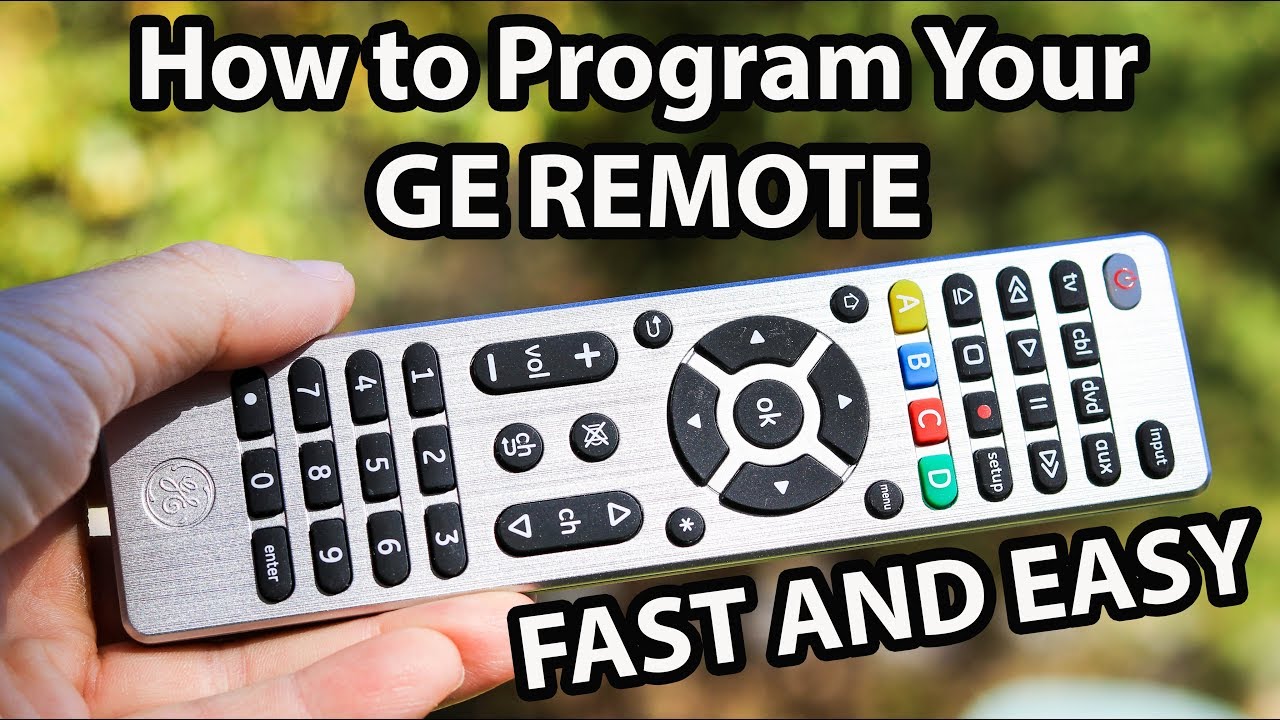
- Press and hold the Setup button (it might be labeled “Code Search” on older remotes) until the red indicator light stays on, then release.
- Press the device button (like TV, DVD, AUX). The light blinks once, then stays on.
- Enter the code for your device using the remote’s number pad. The light should turn off after the last digit.
- Test the remote by pressing Power or another function (like Volume Up). If it works, programming is done.
- If not, repeat steps 2–5 with the next code in the list.
Example: Programming A Samsung Tv
- Turn on your Samsung TV.
- Hold Setup until the red light stays on.
- Press TV (the light blinks, then stays on).
- Enter 0105 (light turns off).
- Press Power. If the TV turns off, you’re done.
Method 2: Auto Code Search
Use this if you don’t know the code or your brand isn’t listed.
- Turn on the device.
- Hold Setup until the red light stays on, then release.
- Press the device button (TV, DVD, etc. ).
- Press and release the Power button repeatedly (every 1-2 seconds). The remote cycles through all codes for that device type.
- When the device turns off, press Enter or OK to save the code.
- Test other buttons (like volume or menu). If they work, programming is complete.
Tip: Go slowly when pressing Power. If you miss the correct code, you’ll have to start over.
Troubleshooting Common Problems
Even when you follow instructions, issues can happen. Here’s how to fix them.
Problem: The Remote Doesn’t Work After Programming
- Check batteries: Weak batteries can cause failed programming.
- Re-enter code: You might have entered the code too quickly or made a mistake.
- Try all codes: Some brands use multiple codes.
- Reset remote: Remove batteries, press all buttons, reinstall batteries, and try again.
Problem: Only Some Buttons Work
- Try another code: The code may not fully match your device. Many brands have several codes—test all for best results.
- Device-specific features: Not all remotes support advanced features (like Smart TV apps).
- Update your code list: Newer devices may need updated codes.
Problem: Device Turns Off During Auto Search, But No Buttons Work
- You may have passed the correct code. Restart the process and go more slowly.
Problem: Remote Controls Wrong Device
- Check device button: Make sure you pressed the correct device button before entering the code.
Problem: Device Not Listed
- Try Auto Code Search or look for “other” or “miscellaneous” in code lists.
Advanced Tip: Brand-specific Quirks
Some brands (like LG or Vizio) might use codes from other brands. Don’t hesitate to try codes for similar brands if your device doesn’t respond.
Resetting Your Ge Universal Remote
If you need to start over, you can reset your remote to factory settings.
- Remove the batteries.
- Press every button at least once (to drain power).
- Reinstall fresh batteries.
Alternatively, some remotes have a reset procedure:
- Hold Setup until the light stays on.
- Enter 0000 (or check your manual for model-specific reset code).
- The indicator light should blink and turn off.
Insight: Resetting clears all programmed codes, so you’ll need to reprogram every device.

Credit: byjasco.com
Understanding Device Modes And Special Functions
GE remotes can control more than just TVs. Knowing the right device mode is key to programming.
Common Device Modes
- TV: For standard televisions
- DVD or Blu-Ray
- AUX: Auxiliaries like soundbars, game consoles, streaming boxes
- CBL: Cable boxes
- STRM: Streaming devices (on newer remotes)
Some remotes use labels like “SAT” for satellite or “AUD” for audio.
Switching Between Devices
After programming, you must press the correct device button (like TV or DVD) before using its functions. If you forget, the remote might control the wrong device.
Example: If you want to adjust the TV volume, press TV first. If you want to play a DVD, press DVD.
Using Learning And Macro Features
Some advanced GE remotes have learning and macro functions.
Learning Function
This lets your universal remote “learn” commands from another remote, button by button.
- Place both remotes facing each other.
- Hold Setup and enter the learning mode (see your manual).
- Press the button on your universal remote, then the same button on the original remote.
- The light blinks to confirm.
This feature is rare on basic GE remotes, but is valuable if your device uses unique codes.
Macro Programming
A macro lets you program a series of actions (like turning on TV and cable box together).
- Enter macro mode (see your remote’s manual).
- Record the sequence (e.g., TV Power, CBL Power).
- Save the macro to a button.
Macros save time, especially for home theater setups.
Real-world Example: Programming Multiple Devices
Imagine you have a GE 4-device universal remote, a Samsung TV, a Sony Blu-ray, and a Roku.
- TV: Program with code 0105 for Samsung TV.
- DVD: Program with code 0834 for Sony Blu-ray.
- AUX: Use code 0903 for Roku.
- Test each device by pressing the device button first, then using basic controls.
If you want to control volume for all devices from the TV, look for a “volume lock” feature in your manual.
Data Comparison: Ge Universal Remote Models
Different models offer different features. Here’s a quick look at three popular models:
| Model | Devices Controlled | Learning Feature | Backlit Buttons | Streaming Support |
|---|---|---|---|---|
| 33709 | 4 | No | No | Basic |
| 24922 | 6 | Yes | Yes | Good |
| 40081 | 8 | Yes | Yes | Advanced |
Tip: If you need to control more than 4 devices or want backlit buttons, choose a higher-end model.
Data Table: Popular Device Codes
Here’s a handy table of common codes for popular brands. Always check your manual for updates.
| Device Type | Brand | Common Codes | Notes |
|---|---|---|---|
| TV | Samsung | 0105, 0942 | Try all codes if first fails |
| TV | LG | 0156, 0001 | Some LG devices use GoldStar codes |
| DVD | Sony | 0834, 0717 | Older models may need other codes |
| Streaming | Roku | 0898, 0903 | Roku Stick not supported |
Note: Streaming sticks (like Roku Stick or Fire Stick) often use Bluetooth, not infrared, and may not work with most universal remotes.
Tips For Success
Programming a universal remote is easier with these practical strategies:
- Write down codes you use. If you need to reprogram later, you’ll save time.
- Test all functions. Don’t stop at Power; test Volume, Mute, Menu, and Input.
- Keep the code list safe. Tape it to your remote or keep a photo on your phone.
- Update your codes. As new devices come out, manufacturers update code lists online.
- Be patient. Some devices are trickier than others. If it doesn’t work the first time, try again with another code.
Beginner tip: Don’t assume the first code always works. Sometimes the third or fourth code is the best match for your device.

Credit: www.amazon.com
Advanced Programming: Punch-through And Volume Lock
Higher-end GE remotes support “punch-through” and “volume lock” features.
- Volume Lock: Lets you set the volume buttons to always control one device (like your TV), no matter what mode you’re in.
- Channel Lock: Locks the channel controls to a specific device (like a cable box).
How to Set Volume Lock (example procedure):
- Hold Setup until the light stays on.
- Enter the code for Volume Lock (see your manual, often 993).
- Press the device button you want to lock (like TV).
Now, volume buttons always control your TV, even if you’re in DVD or AUX mode.
Non-obvious insight: This is useful in home theater setups, so you don’t accidentally change the soundbar volume when you mean to adjust TV sound.
When Universal Remotes Don’t Work
Universal remotes are powerful, but they have limits.
- Smart TVs: Some functions (like streaming apps) may not be supported.
- Bluetooth devices: Most GE remotes use infrared, not Bluetooth. Devices like the Amazon Fire Stick or some streaming sticks cannot be controlled.
- Very new or very old devices: The remote’s code list may not cover the latest or rarest brands. Check for updates online.
Alternative solution: If your device isn’t supported, consider an upgraded universal remote or using the original remote’s mobile app.
Credit: www.youtube.com
Keeping Your Remote Up To Date
While GE remotes do not update automatically, new code lists are released regularly. Check the official website for the latest codes, especially if you buy a new device.
Pro Tip: Save a PDF or printout of the code list for quick reference.
Environmental And Practical Tips
- Avoid sunlight: Infrared signals are weakened by direct sunlight or strong lights.
- Clean the remote: Dust and dirt can block buttons.
- Store safely: Keep your remote away from water and food spills.
Statistic: According to a consumer survey, 23% of universal remote problems are due to weak batteries or dirty contacts.
Ge Universal Remote Vs. Other Brands
How does the GE universal remote compare to other popular universal remotes?
| Brand | Max Devices | Learning Feature | Price Range | Main Strength |
|---|---|---|---|---|
| GE | 8 | Some models | $10–$25 | Affordable, simple |
| Logitech Harmony | 15 | Yes | $70–$250 | Smart home/advanced |
| Philips | 6 | No | $15–$30 | Easy setup |
| RCA | 8 | No | $12–$35 | Wide compatibility |
Insight: For most households, the GE universal remote offers the best value for basic needs. If you want smart home integration or voice control, you’ll need a more expensive model.
Frequently Asked Questions
How Do I Know Which Code List To Use For My Ge Universal Remote?
Always check the remote’s model number (usually inside the battery compartment or on the back). Match this number with the code list from the official GE site or your manual. Using the wrong list is a common cause of programming failure.
Can I Program A Ge Universal Remote Without The Original Remote?
Yes. You don’t need the original remote. The GE universal remote sends its own signals using the right code. However, for advanced “learning” features, you’ll need the original remote to teach special commands.
Why Doesn’t My Universal Remote Work With My Roku Or Fire Stick?
Most streaming sticks (like Roku Stick or Amazon Fire Stick) use Bluetooth, not infrared. Standard GE universal remotes can only control devices with IR receivers. If your streaming device has IR, try the codes; otherwise, it won’t work.
How Do I Program My Remote If My Device Brand Isn’t Listed?
Use the Auto Code Search method. This makes the remote cycle through all possible codes until it finds one that works. It can take a few minutes, but it’s the best method for unlisted brands.
Where Can I Get Help If My Remote Still Doesn’t Work?
Check the official support site: Jasco (Official GE Codes). You’ll find manuals, code lists, and troubleshooting guides. For rare issues, look for user forums or device-specific support pages.
—
A universal remote like the GE model can make your home entertainment system simpler and more organized. With the right code and a bit of patience, you can control multiple devices with one controller. Always keep your code list handy, check for updates, and don’t hesitate to use advanced features like macros or learning if your model supports them.
With these steps, you’ll enjoy a clutter-free, convenient entertainment setup — and no more searching for lost remotes.