
Programming an LG remote control can transform how you interact with your home electronics. Whether you want to manage your TV, soundbar, Blu-ray player, or streaming device, a properly programmed remote brings everything together, reducing clutter and frustration. Yet, many users find the process confusing or give up before unlocking all the features their remote can offer.
This guide will walk you through the essentials and provide step-by-step methods for programming an LG remote control, including troubleshooting, using advanced features, and helpful tips for different LG remotes.
Understanding Lg Remote Controls
The world of LG remote controls is broader than many realize. LG offers several types, each designed for specific devices and user needs. Recognizing which remote you have is the first step toward programming it successfully.
Main Types Of Lg Remotes
- Standard LG Remote: Usually comes with basic LG TVs. Offers standard buttons for power, volume, channels, and input selection.
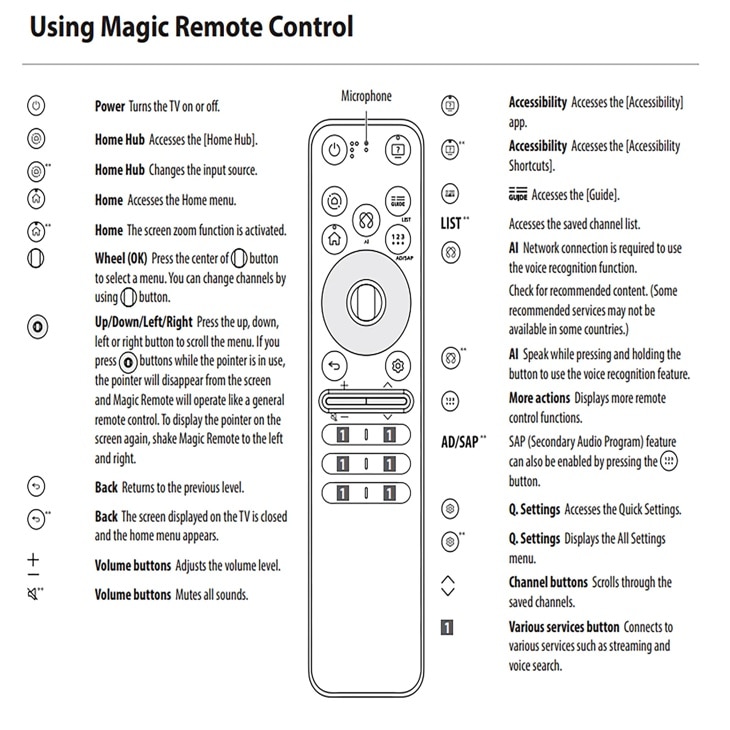
- LG Magic Remote: A smart remote with a pointer, scroll wheel, and voice command functions. Designed for LG Smart TVs and supports advanced features.
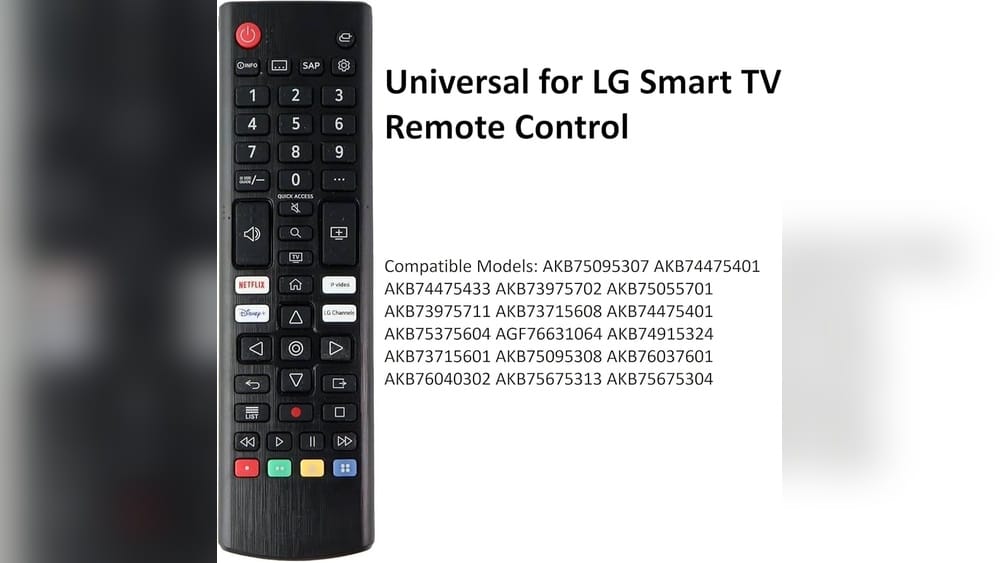
- Universal LG Remote: Can control multiple devices, not just LG products. Useful for managing several electronics with one remote.
- Third-party Universal Remotes: Brands like Logitech Harmony or RCA can be programmed to work with LG devices using LG’s remote codes.
Why Remotes Need Programming
Programming links your LG remote to your TV or other devices. Without this process, the remote may not control all functions or may not work at all. Programming is essential if you:
- Replace your original remote
- Add new devices (soundbar, Blu-ray, etc.)
- Want to reduce the number of remotes you use
How Lg Remote Programming Works
Programming an LG remote involves entering codes, syncing via Bluetooth or infrared, or using automatic search methods. The right method depends on your remote model and the devices you want to control.
Preparation: What You Need Before Programming
Before you start, a little preparation saves time and avoids common mistakes.
- Identify your remote model. Check the back or inside the battery cover for the model number.
- Know your device’s brand and model. This helps when searching for programming codes.
- Have fresh batteries. Weak batteries can cause syncing failures.
- Find a clear line of sight. Infrared remotes need to point directly at the device.
Many beginners overlook the importance of model numbers. They try to program using codes from a different remote, which won’t work. Always double-check this detail.

Credit: www.youtube.com
Programming A Standard Lg Tv Remote
If you have a basic LG remote (not Magic or Universal), programming is usually straightforward. These remotes typically control only the TV they came with. However, if you need to re-sync after replacing the TV or remote, follow these steps.
Steps To Program A Standard Lg Tv Remote
- Insert batteries into the remote.
- Turn on your LG TV manually.
- Point the remote at the TV.
- Press and hold the ‘Power’ button on the remote. Hold for 5 seconds.
- Wait for the TV to respond. The TV should turn off, indicating the remote is now paired.
If your TV doesn’t respond, check the batteries and ensure there are no obstructions. For most LG TVs made after 2010, remotes are pre-programmed, and no extra codes are needed. If the remote still doesn’t work, it may be incompatible with your TV model.
How To Program An Lg Magic Remote
The LG Magic Remote offers more features, but also requires a few extra steps for pairing. It uses Bluetooth, which allows for voice commands, pointer control, and smart features.
Initial Pairing Process
- Insert fresh batteries into the Magic Remote.
- Turn on your LG Smart TV.
- Point the remote at the TV.
- Press and hold the ‘Wheel (OK)’ button for 5 seconds.
- Wait for the pairing confirmation message on the TV screen. It usually says, “Remote has been registered.”
If you see “Registration failed,” make sure you’re within 10 feet of the TV, and try again. Sometimes, interference from other Bluetooth devices can cause issues.
Re-registering Or Resetting The Magic Remote
If your Magic Remote becomes unresponsive or you get a new TV, you may need to reset it.
- Press and hold the ‘Back’ and ‘Home’ buttons together for 5 seconds. The remote will flash and unregister.
- Repeat the initial pairing process.
Many users forget that Magic Remotes must be paired with each new TV. Simply moving the remote from one LG TV to another will not work without re-registering.
Programming An Lg Universal Remote
The LG Universal Remote can control multiple devices, like your TV, Blu-ray player, and soundbar. Programming this remote involves entering device-specific codes.
Finding The Right Code
Each device (TV, DVD, soundbar) has a unique code. These codes are often found in your remote’s manual or on LG’s website. Codes are usually 3 to 5 digits.
Common Lg Device Codes
Here’s a sample of codes for popular brands.
| Device Brand | Common Code(s) |
|---|---|
| LG TV | 10178, 10700, 10017 |
| Samsung TV | 10812, 10060 |
| Sony DVD Player | 21516, 21033 |
| Pioneer Soundbar | 31609, 30014 |
If you can’t find your code, use the auto-search method explained below.
Programming Steps For Universal Remotes
- Turn on the device you want to program (TV, DVD, etc. ).
- Press and hold the ‘Setup’ button on your remote until the LED indicator lights up.
- Press the device button (TV, DVD, AUX) for the device you’re programming.
- Enter the device code using the remote’s number keys. The LED should turn off.
- Test the remote by pressing Power or Volume. If it works, you’re done.
If the device doesn’t respond, try the next code on the list. Some brands have several codes.
Auto-search Method
If you don’t know the code:
- Turn on the device.
- Hold ‘Setup’ until the LED lights.
- Press the device button (e.g., TV).
- Press Power repeatedly (up to 100 times) until the device turns off.
- Press ‘Enter’ to save the code.
This method takes longer but is useful for less common brands.
Programming Third-party Universal Remotes For Lg Devices
Sometimes you want to use a universal remote from another brand, like Logitech Harmony or RCA. These remotes come with their own instructions but follow the same basic principles.
Programming With Pre-installed Code Libraries
- Find your remote’s manual or database. Most universal remotes have online code libraries.
- Enter the setup mode, usually by holding ‘Setup’ or a similar key.
- Choose the device type (TV, audio, etc. ).
- Enter the code for LG devices. For example, LG TVs often use code 11423 or 10178.
- Test the remote.
Learning Mode
Advanced universal remotes can “learn” commands from your original LG remote by placing them head-to-head and pressing corresponding buttons. This is helpful if your LG device uses rare codes.
Credit: www.replacementremotes.com
Programming Lg Remote For Soundbars And Audio Devices
Many users want to control their soundbar or home theater system with their LG remote. Not all LG remotes support this, but the Magic Remote and some Universal Remotes do.
Lg Magic Remote Sound Sync
Newer LG TVs and Magic Remotes support LG Sound Sync for easy audio control.
- Connect your LG Soundbar to the TV via HDMI ARC or Optical.
- Go to TV settings: All Settings > Sound > Sound Out.
- Select ‘LG Sound Sync’ or ‘Optical/HDMI ARC’.
- Your Magic Remote should now control volume and mute functions.
If using a non-LG soundbar, you may need to program the remote using audio device codes. The process is like the universal remote steps above.
Troubleshooting Common Programming Issues
Even with careful following of instructions, problems sometimes occur. Here’s how to tackle the most common issues.
The Remote Doesn’t Pair
- Replace the batteries.
- Get closer to the device. Bluetooth remotes work best within 10 feet.
- Reset the remote (for Magic Remotes, hold ‘Back’ and ‘Home’).
- Unplug the TV for 1 minute, then try pairing again.
Device Responds To Some Buttons, Not Others
- Try a different code. Not all codes enable every function.
- Manual learning. Some universal remotes allow you to “teach” commands from the original remote.
- Check for obstructions. IR remotes need a clear path.
Lg Remote Controls Wrong Device
If multiple devices are controlled, sometimes the remote can send signals to the wrong device (like TV and soundbar). Use device selection buttons to switch control, or reprogram the remote to focus on one device at a time.
Remote Was Working, Now It’s Not
- Interference. Wireless routers, microwaves, or other electronics can interfere with Bluetooth or IR signals.
- Firmware update needed. Check your TV or device for software updates.
- Physical damage. Dropping the remote can break internal components.
Advanced Features: Voice, Pointer, And Quick Access
Programming your LG remote isn’t just about basic functions. Many remotes, especially the Magic Remote, offer advanced features.
Voice Control
The Magic Remote supports voice commands for searching content, changing settings, and more.
- Press and hold the microphone button.
- Speak your command (“Search YouTube for cats” or “Volume up”).
- Release the button.
Voice control works best when the TV is connected to the internet. Make sure your TV’s language settings match your spoken language.
Pointer And Scroll Wheel
- Pointer: Move the remote to control an on-screen cursor.
- Scroll Wheel: Use the wheel to scroll through menus or zoom in/out.
These features are only active when the remote is properly paired.
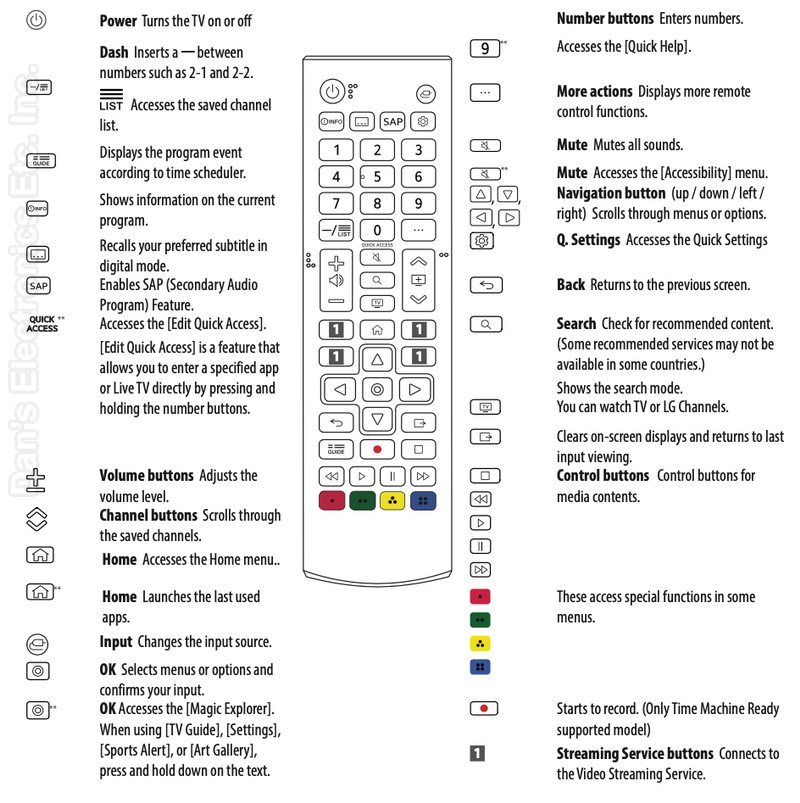
Quick Access Buttons
Some LG remotes have quick access keys for Netflix, Prime Video, or other services. These are pre-set, but you can often reassign or program new quick access slots.
- Hold down a number key (1-9) until the Quick Access menu appears.
- Choose the app or input you want.
- Press OK to assign.
Now, just hold that number key to jump directly to your favorite app.
When To Use The Lg Tv Plus Mobile App
LG also offers a mobile app called LG TV Plus (or LG ThinQ for newer models). This turns your smartphone into a remote control.
Connecting The App
- Download LG TV Plus from the App Store or Google Play.
- Connect your phone and TV to the same Wi-Fi network.
- Open the app and select your TV from the list.
- Follow on-screen instructions to pair.
Now you can control your TV, enter text, and even stream content from your phone.
Benefits And Limitations
- Easier text entry for searching and web browsing.
- Lost your remote? Use your phone as a backup.
- Can’t control other devices (like soundbars or DVD players) from the app.
Lg Remote Programming: Comparison Table
Programming steps and features can vary by remote type. Here’s a summary of key differences.
| Remote Type | Programming Method | Devices Controlled | Special Features |
|---|---|---|---|
| Standard LG Remote | Simple pairing | LG TV only | Basic TV functions |
| Magic Remote | Bluetooth pairing | LG Smart TV, some soundbars | Voice, pointer, app control |
| Universal LG Remote | Code entry / auto search | TV, DVD, soundbar, more | Multiple device control |
| Third-party Universal | Code entry, learning mode | Many brands/devices | Macro, scene, smart home |
Tips For Successful Lg Remote Programming
Programming an LG remote is usually straightforward, but a few insider tips can make the process smoother.
- Try codes in order. Most code lists are organized by popularity; start at the top.
- Don’t rush auto-search. Pause between presses to give your device time to respond.
- Label your remotes. If you use more than one, add a sticker or color dot to avoid confusion.
- Keep manuals and code lists handy. Many people throw these away, but they’re useful for troubleshooting.
- Update device firmware. Outdated software can prevent remotes from working properly.
One thing beginners often miss: after programming, test all key functions (power, volume, input, menu) – not just power. Sometimes, a code will turn the device on/off but won’t control volume or inputs. Try other codes if this happens.
Credit: www.lg.com
Common Programming Mistakes To Avoid
Mistakes can make remote programming frustrating. Here’s what to watch out for:
- Using the wrong code. Always check you’re using a code for your exact device model.
- Not pointing the remote at the device. IR remotes need a clear path.
- Skipping the pairing step. Magic Remotes must be paired every time you change TVs.
- Ignoring battery life. Weak batteries cause pairing failures.
- Trying to program incompatible devices. Not all remotes can control all device types.
Future Of Lg Remote Controls: Smart Homes And Ai
As technology advances, LG remotes are becoming smarter. Newer models can control not just TVs, but also lights, thermostats, and home assistants. LG’s ThinQ platform integrates with Google Assistant, Amazon Alexa, and other smart home systems.
For example, you can use voice commands through your Magic Remote to dim the lights or check the weather. Some universal remotes support programming routines, like “Movie Night,” which turns on your TV, dims the lights, and starts Netflix with one button.
The line between remote controls and smart home hubs is blurring. If you’re buying a new LG TV or remote, consider one that supports these features.
Lg Remote Programming: Quick Reference Table
For a fast overview, here’s a summary of main programming actions and what they’re used for.
| Action | Remote Type | Purpose | Key Steps |
|---|---|---|---|
| Pairing | Magic Remote | Connect remote to TV | Hold ‘OK’ for 5 sec |
| Code Entry | Universal Remote | Control new device | Enter device code |
| Auto-Search | Universal Remote | Find unknown code | Press Power repeatedly |
| Manual Reset | Magic Remote | Unpair/repair remote | Hold ‘Back’ + ‘Home’ |
| Learning Mode | Third-party Universal | Copy functions | Place remotes head-to-head |
Frequently Asked Questions
How Do I Find The Right Code For My Lg Universal Remote?
You can find codes in your remote’s manual or on the official LG support website. If your brand or model isn’t listed, use the auto-search method described earlier. For more details, check LG’s official support.
What Should I Do If My Lg Remote Stops Working?
First, replace the batteries and try pairing again. If it still doesn’t work, reset the remote (for Magic Remotes, hold ‘Back’ and ‘Home’ together) and check for obstructions. If problems continue, check for device firmware updates or consider replacing the remote.
Can I Use My Phone As An Lg Remote?
Yes, you can use the LG TV Plus or LG ThinQ app. Download it to your smartphone, connect both your phone and TV to the same Wi-Fi, and follow the pairing instructions.
Why Does My Lg Remote Only Control Some Functions?
If your remote only controls power or volume, but not all features, try programming it with a different code. Some codes only partially support certain devices. Also, check that you’re using the correct device selection button.
Are Lg Remotes Compatible With Non-lg Tvs And Devices?
LG Universal Remotes can control many brands, but not all functions may work. For full compatibility, use the correct code and test all key features after programming. For advanced setups, a third-party universal remote may offer better support.
Programming an LG remote control opens up a world of convenience and simplicity in your home entertainment system. With the right steps, a little patience, and the tips shared here, you’ll enjoy seamless control over your devices—and spend less time hunting for the right remote.
Take a few minutes to program your remote properly, and you’ll be rewarded with a smoother, more enjoyable viewing experience.