
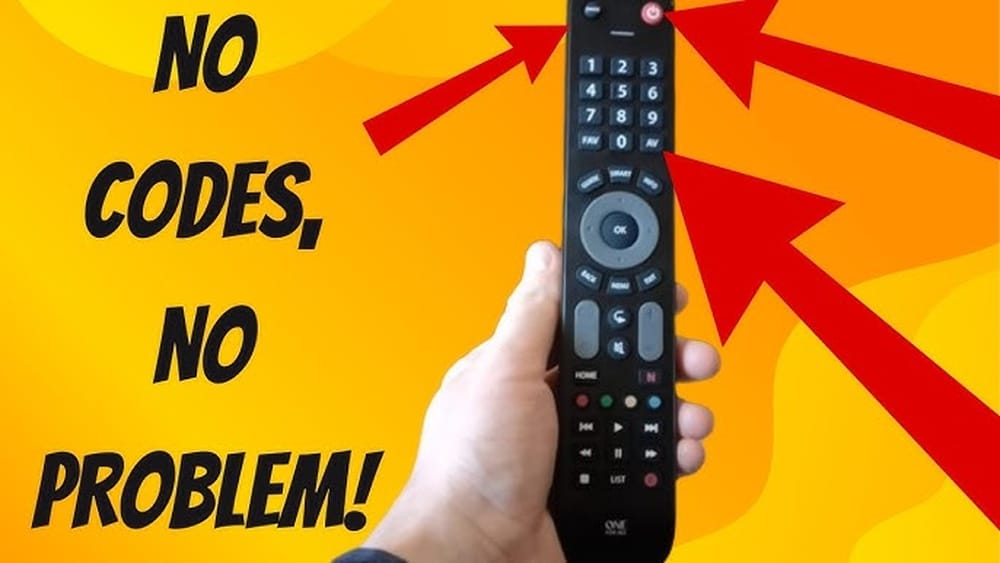
Programming a One for All remote control can change how you use your TV and home devices. With just one remote, you can control your TV, soundbar, DVD player, and even streaming boxes. It saves time, reduces clutter, and makes entertainment simpler.
But many people find the setup process confusing. Different codes, devices, and instructions can make things seem harder than they are. This article explains, step by step, how to program a One for All remote control for any device. You will also find solutions to common problems, tips for specific brands, and answers to questions most users forget to ask.
By the end, you’ll use your universal remote like a pro, even if you’ve never done it before.
Understanding One For All Remotes
One for All is a well-known brand in the world of universal remote controls. Their remotes are designed to work with almost any TV, audio system, or video device from different manufacturers. The main advantage is that you only need one remote for all your home electronics. This reduces confusion and the number of remotes lying around.
There are different types of One for All remotes:
- Simple universal remotes: Control basic functions for one or two devices.
- Multi-device remotes: Handle up to eight devices, including TVs, streaming boxes, and soundbars.
- Learning remotes: Can copy signals from your original remotes.
- Smart remotes: Connect to apps or voice assistants for extra features.
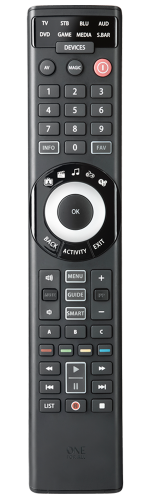
Most people use multi-device remotes because they support common devices like Samsung TVs, Sony audio systems, and Roku or Apple TV streaming boxes. Newer One for All models often have extra buttons for smart TV features or colored buttons for streaming services.
Key Features
- Device buttons: Labeled TV, DVD, STB, etc., to select which device to control.
- Setup button: Used to start the programming process.
- LED indicator: Shows when the remote is in programming mode.
- Code entry: Allows you to enter specific manufacturer codes.
- Learning mode: Lets you copy commands from another remote.
- Macro buttons: Combine multiple actions into one button press.
Understanding these features helps you follow the programming steps more easily. If your remote looks different, check the model number on the back or inside the battery cover. Each model’s manual can be found on the One for All website for extra help.
Before You Start: Preparation Steps
Programming your remote goes faster if you prepare in advance. Many users skip these steps and run into problems later.
- Check the batteries: Fresh, high-quality batteries are essential. Weak batteries can cause the remote to malfunction during setup.
- Identify your device brand and model: Write down the exact model name of your TV or other device. This makes finding the correct code easier.
- Find the user manual or code list: Most One for All remotes come with a printed code list. You can also download it from the official One for All website.
- Turn on your device: The device you want to control should be powered on, not in standby mode.
- Clear the remote’s memory (if needed): If the remote was used before, it might help to reset it. Usually, you hold the Setup button until the LED blinks twice, then enter a reset code (like 981 for many models).
Common Mistakes In Preparation
- Skipping the battery check, which leads to failed programming.
- Not writing down the device model, making code search harder.
- Trying to program with the device turned off.
A few minutes of preparation can save you from repeating the process or making small errors.
How To Program A One For All Remote: Manual Code Entry
The most reliable way to program your remote is manual code entry. This means entering a specific code for your device brand.
Step-by-step Manual Code Entry
- Find the device code: Look up your device’s code in the One for All code list. For example, Samsung TV codes are often 2051 or 0587.
- Switch the remote to setup mode: Press and hold the Setup button until the LED light blinks twice.
- Select the device button: Press the button labeled TV, DVD, or the device you want to control.
- Enter the code: Type the 4-digit code using the number buttons. The LED should blink twice if the code is accepted.
- Test the remote: Try turning the device off, adjusting volume, or changing channels. If the device responds, setup is complete.
If the device does not respond, repeat the steps with the next code listed for your brand. Most brands have several codes due to different models and years.
Example: Programming A Sony Tv
Suppose you want to control a Sony TV. Here’s how it looks:
- Find Sony TV codes (e.g., 0810, 1685, 1904).
- Press and hold Setup until the LED blinks twice.
- Press TV.
- Enter 0810.
- Test power, volume, and menu buttons.
If it doesn’t work, try 1685, then 1904.
When To Use Manual Code Entry
Manual code entry is best if:
- You know your device’s brand and model.
- You have the code list.
- The device is from a popular brand.
Non-obvious Insight
Many users do not know that the order of codes matters. The first code listed is usually for newer models. If your device is older, try the last code on the list first.
Programming Without Codes: Auto-search Method
If you don’t have the code list or your device is less common, use the auto-search or code scan method. The remote cycles through all possible codes until it finds one that works.
Steps For Auto-search
- Turn on your device.
- Hold the Setup button until the LED blinks twice.
- Press the device button (TV, DVD, etc. ).
- Press and release the Power button repeatedly (or sometimes the Channel Up button). Each press sends a new code.
- Watch the device: When it turns off, stop pressing. This means the remote found the correct code.
- Lock in the code: Press the Setup button again to save the code.
Tips For Auto-search
- Move slowly. Press the button every 1-2 seconds.
- If you go past the correct code, you must start again.
- Some remotes use the Volume Up button instead of Power.
When To Use Auto-search
- You lost the code list.
- Your device brand is not in the list.
- Manual codes did not work.
Non-obvious Insight
The auto-search method can take a long time—sometimes over 100 button presses. Be patient, and avoid distractions during the process.
Advanced Programming: Learning Mode And Macros
Some One for All remotes have learning mode and macro programming. These features let you add missing functions or create custom commands.
Using Learning Mode
Learning mode copies a button from your original remote to the One for All remote.
- Place both remotes face to face, about 1 inch apart.
- Hold the Setup button on the One for All remote until the LED blinks twice.
- Press the button to learn (e.g., Volume Up).
- Press and hold the same button on your original remote.
- Wait for the LED to blink on the One for All remote (shows it learned the function).
Repeat for other buttons as needed.
Macro Programming
A macro lets you control multiple devices with one button. For example, you can turn on the TV, soundbar, and set the volume with a single press.
- Hold the Setup button until the LED blinks twice.
- Press the Macro button (often labeled M1, M2, or Magic).
- Enter the sequence of commands (e.g., TV Power, AV Input, Soundbar Power).
- Press Setup again to save.
Macros are useful if you always follow the same routine, like starting a movie night.
Common Problems In Learning And Macros
- Not holding the remotes close enough.
- Interference from lights or other electronics.
- Macros that are too long (most remotes limit to 4-5 commands).
Device-specific Tips And Examples
Different brands and device types sometimes need special attention.
Tvs
Most One for All remotes handle TVs easily, but smart TVs from brands like Samsung, LG, and Sony often have unique codes. If the remote controls volume and channels but not smart features, you may need to use learning mode for buttons like Netflix or input select.
Soundbars And Audio Systems
Soundbars from Bose, LG, or Sony might not respond to standard TV codes. Use the AUX or Audio device button on your remote, and try auto-search if codes fail. Some soundbars only accept IR (infrared) signals, not Bluetooth or Wi-Fi commands.
Streaming Devices
Devices like Roku or Apple TV often need special remote models or codes. Basic commands like power and volume usually work, but menus and streaming buttons might not. Some One for All models have pre-programmed buttons for Netflix, YouTube, or Amazon Prime.
Dvd And Blu-ray Players
Most players from major brands use standard codes. If you have a universal remote from before 2015, new Blu-ray players might not be supported. In this case, try learning mode to add missing functions.
Example: Programming For A Roku
- Select the STB (set-top box) device button.
- Enter the code for Roku (usually 3061).
- Test navigation and OK buttons.
- For missing features, use learning mode if available.
Comparison: Manual Code Entry Vs Auto-search
Choosing between manual code entry and auto-search depends on your situation. The table below compares the two methods:
| Feature | Manual Code Entry | Auto-Search |
|---|---|---|
| Speed | Faster if code is known | Slower, may take 5-10 minutes |
| Success Rate | High for common brands | Works for almost any device |
| When to Use | Code list is available | Code list is missing |
| User Skill Needed | Basic | Basic, but more patience |
| Common Problems | Wrong code entry | Going past correct code |
If you have the code list, manual entry is usually best. If not, auto-search works for nearly any device.
Troubleshooting Common Problems
Programming a universal remote is usually quick, but some issues are common. Here’s how to solve them.
Remote Not Responding
- Check batteries: Replace with new, high-quality batteries.
- Reset the remote: Hold Setup until LED blinks twice, then enter 981.
- Check device: Make sure the device is powered on and not in standby.
Wrong Buttons Control Wrong Functions
- Try a different code for your device.
- Use learning mode to assign correct commands.
Device Responds To Some Buttons Only
- Some codes only cover basic functions.
- Try the next code in the list.
- Add missing commands using learning mode.
Led Does Not Blink
- Batteries may be dead or installed incorrectly.
- Remote might be damaged; try resetting.
Device Not Supported
- Very old or new devices may not be compatible.
- Check for firmware updates or buy a newer One for All model.
Example: Fixing A Volume Problem
If the volume button on your One for All remote does not control your soundbar, but other buttons work, try programming the AUX button with the soundbar’s code. If that fails, use learning mode to copy the volume command from the original soundbar remote.
Resetting Your One For All Remote
If things go wrong or you want to start fresh, you can reset your remote.
Steps To Reset
- Hold the Setup button until the LED blinks twice.
- Enter 981 on the keypad.
- The LED blinks twice again, and all settings are erased.
After resetting, you must reprogram all devices.
When To Reset
- You cannot remember which codes were entered.
- Remote behaves strangely or stops working.
- Changing all devices in your setup.
Resetting is safe and will not damage your remote.
Quick Reference: Common Brand Codes
To save time, here are some popular codes for TVs and streaming devices. Always check your remote’s manual for the full list.
| Brand | Device Type | Common Codes |
|---|---|---|
| Samsung | TV | 2051, 0587, 0812 |
| LG | TV | 1423, 0178, 0037 |
| Sony | TV | 0810, 1685, 1904 |
| Roku | Streaming Box | 3061, 2426 |
| Bose | Soundbar | 1256, 1536 |
| Pioneer | Audio System | 1084, 1002 |
If your brand is not listed, use the auto-search method.

Credit: www.revoxremotes.com
How To Program Extra Devices (up To 8)
Many One for All remotes can control multiple devices at once. Here’s how to add more devices.
- Choose a device button (TV, STB, DVD, AUX, Audio, etc. ).
- Program each device using manual code entry or auto-search.
- Switch between devices by pressing the device button before using other controls.
Example: You can control a TV, a soundbar, and a streaming box with one remote. Each device gets its own button and code.
Tips For Managing Multiple Devices
- Label your remote with stickers if you forget which button is which.
- Some remotes support “mode lock” to keep volume controls on one device (like always controlling soundbar volume).
- If a device does not have its own button, use AUX or Audio.
Using One For All Remotes With Smart Tvs
Smart TVs from brands like Samsung, LG, and Sony often have unique features, such as voice assistants or smart menus. One for All remotes usually handle basic commands like power, volume, and channels. However, special buttons (like Netflix or voice) may not work unless you use learning mode.
Example: Lg Smart Tv
- Program with the LG code (like 1423).
- Test power, volume, input, and menu buttons.
- For webOS or smart home buttons, copy them using learning mode if your remote supports it.
Some advanced smart TV features (like voice search) can only be used with the original remote.
Comparison: One For All Vs. Original Remotes
It’s helpful to know what you gain or lose by switching to a universal remote.
| Feature | One for All Remote | Original Remote |
|---|---|---|
| Controls Multiple Devices | Yes | No |
| Easy to Replace | Yes | Sometimes hard |
| Supports Smart Features | Basic, some advanced with learning mode | All features |
| Price | Usually lower | Often higher |
| Setup Needed | Yes | No |
A One for All remote is best for convenience and reducing clutter, but may not fully replace all advanced functions of the original remote.
Additional Tips For Success
- Keep your code list in a safe place. You may need it if you buy new devices.
- Update your remote if you have a smart model. Some models let you download new codes.
- Use online resources. The One for All official website has manuals and troubleshooting guides.
- Clean your remote regularly. Dirt on the IR sensor can cause problems.
- Test all buttons after programming, not just power and volume.
- Check compatibility before buying a new device.
Many users forget to test all buttons, leading to confusion later when a function does not work. Always check menu, input, and streaming buttons if you use them often.

Credit: www.youtube.com
When To Upgrade Your Remote
If your remote is older than 8-10 years, it may not support new devices. Upgrading gives you access to more codes, smarter features, and better compatibility.
Signs it’s time to upgrade:
- Your remote does not recognize new TVs or streaming boxes.
- You must use learning mode for most buttons.
- The remote is slow, or buttons do not respond well.
Modern One for All remotes often support smart home devices and new brands.
For more on universal remotes and device compatibility, you can visit the Wikipedia universal remote page.
Frequently Asked Questions
How Do I Find The Correct Code For My Device?
Check the code list included with your One for All remote or download it from the official website. Find your device’s brand and model, then try the codes in order. If no code works, use the auto-search method.
Can I Program My One For All Remote Without The Original Remote?
Yes. You can use manual code entry or auto-search methods. However, for learning mode (to copy special functions), you need the original remote.
Why Does My Remote Only Control Some Functions Of My Device?
Some codes support only basic functions (like power and volume). Use learning mode to add missing commands, or try a different code from the list.
How Many Devices Can A One For All Remote Control?
Most models can control 3 to 8 devices. Check your remote’s device buttons to know the limit. Each device gets its own programming slot.
My Remote Stopped Working After Programming. What Should I Do?
Replace the batteries, reset the remote (usually by holding Setup and entering 981), and reprogram your devices. If problems continue, check for hardware damage or consider a replacement.
Using a One for All remote saves time and keeps your home organized. With the steps and tips above, you can program your remote for any device—even if you are new to universal remotes. Testing all buttons and using the right setup method ensures full control and a better entertainment experience.
Credit: www.oneforall.com