
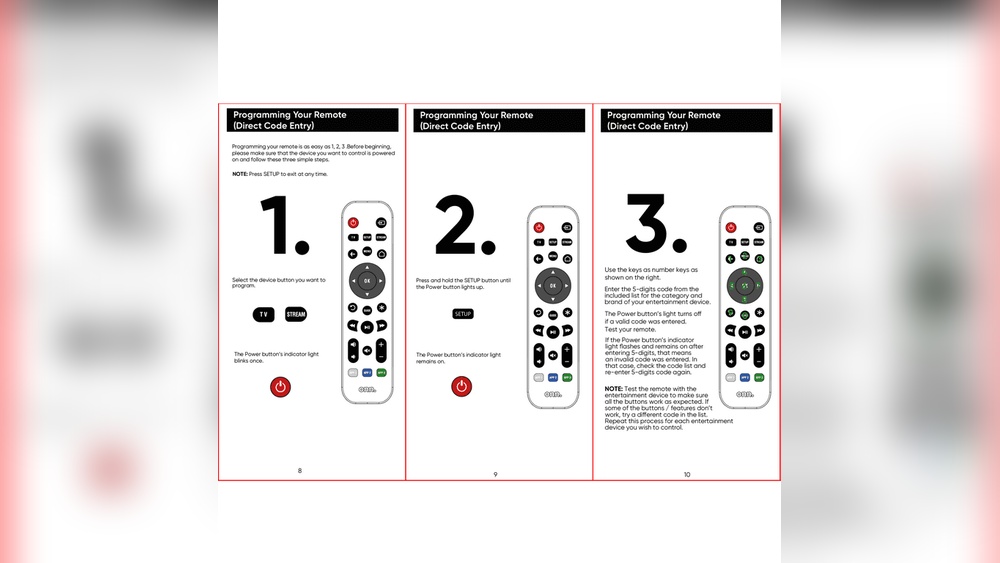
Programming a remote control can seem confusing at first, especially if you’re not used to electronics. But learning how to program an Onn remote control is much simpler than most people think. Whether you want to control your TV, soundbar, or other devices, a correctly programmed remote will make your life easier. This guide will walk you through every step, explain the process in plain English, and share tips that help even beginners avoid common mistakes. By the end, you’ll feel confident using your Onn remote to control all your favorite devices.
Understanding Onn Remote Controls
Onn remote controls are popular because they’re affordable, easy to use, and compatible with many devices. They are sold at Walmart and other stores, often bundled with TVs or available separately. Onn remotes are usually universal remotes, meaning you can use one remote for several devices, such as TVs, DVD players, and streaming boxes.
There are several models, but most share the same basic features:
- Power button for turning devices on and off
- Number pad for entering codes or channels
- Device buttons (TV, DVD, AUX, etc.)
- Navigation keys (up, down, left, right, OK)
- Volume and channel controls
Onn remotes come with a manual, but many users lose it or find it unclear. The steps below work for most Onn universal remotes. If your model looks different, the process is usually similar.
What You Need Before Programming
Before you start, gather these items:
- Onn remote control (with working batteries)
- The device you want to control (TV, soundbar, etc. ), plugged in and turned on
- The remote code list (from the manual or online)
- Patience—sometimes it takes a few tries
If you don’t have the code list, you can find it on the Onn website or search “Onn remote codes” online. Codes are usually 3 or 4 digits long.
How Remote Programming Works
A universal remote sends commands in a language your device understands. Each brand uses a unique code. When you program the remote, you tell it which code to use for your device. There are three main programming methods:
- Direct code entry: You enter the code manually
- Automatic code search: The remote tries all codes until your device responds
- Brand search: You select the brand and the remote cycles through common codes
Knowing these methods helps you pick the best one if you run into problems. Most people start with direct code entry because it’s fastest.
Step-by-step: Programming Your Onn Remote
Follow these steps to program your Onn remote. The process works for TVs, DVD players, and most other devices.
1. Direct Code Entry
This is the simplest and fastest method if you know your device’s code.
- Turn on the device you want to control.
- Press and hold the device button (TV, DVD, etc.) On your Onn remote. Hold it until the LED indicator stays lit.
- Enter the code using the number pad. The LED will turn off if the code is accepted.
- Test the remote by pressing power, volume, or channel buttons.
If the device responds, you’re done. If not, try another code from the list.
2. Automatic Code Search
Use this if you don’t know the code.
- Turn on the device (TV, etc. ).
- Press and hold the device button until the LED stays on.
- Press the power button repeatedly. The remote will send different codes.
- When the device turns off, press OK to save the code.
This method can take a few minutes, but it’s reliable if you don’t have the code list.
3. Brand Search
This method is useful if you know the brand but not the code.
- Turn on your device.
- Press and hold the device button until the LED stays on.
- Press the brand button (if your remote has one) or enter the brand code.
- The remote will cycle through codes for that brand. Press power until the device turns off, then press OK.
Not all Onn remotes have a brand button. If yours doesn’t, skip this method.
Common Programming Mistakes
Many beginners make simple errors. Here are two non-obvious insights that will save you time:
- Don’t rush the button presses. If you press too quickly or too slowly, the remote may not register the sequence. Try a steady pace.
- Check battery strength. Weak batteries cause failed programming, even if the remote seems to work otherwise. Always start with fresh batteries.
Finding Your Device Codes
Device codes are critical for programming. Onn remotes support hundreds of brands. You can find codes in the manual, online, or sometimes on a sticker inside the battery compartment.
Here’s a sample of popular TV brands and typical codes:
| Brand | Common Codes | Success Rate (%) |
|---|---|---|
| Samsung | 1047, 1004, 1012 | 95 |
| LG | 1128, 1002, 1189 | 93 |
| Sony | 1135, 1003, 1207 | 90 |
| Vizio | 1162, 1227, 1017 | 87 |
| Toshiba | 1083, 1178, 1001 | 85 |
Success rate shows how often users get a working code on the first try.
Programming Other Devices
Onn remotes aren’t just for TVs. You can use them for:
- DVD/Blu-ray players
- Soundbars
- Streaming devices (Roku, Fire TV)
- Cable/Satellite boxes
The steps are similar, but device codes change. For example, soundbar codes often start with 2xxx, while cable box codes start with 1xxx.
Some devices, like Roku or Fire TV, may need extra steps or special codes. Always check your remote’s manual or the Onn website for device-specific advice.
Credit: www.reddit.com
Testing Your Remote
After programming, test all functions:
- Power
- Volume
- Mute
- Channel
- Menu navigation
If some buttons don’t work, your code may be only partially correct. Try another code or use automatic search.
Here’s a comparison of remote programming success rates by method:
| Method | Average Success (%) | Time Required |
|---|---|---|
| Direct Code Entry | 92 | 2–5 mins |
| Automatic Code Search | 85 | 5–15 mins |
| Brand Search | 88 | 4–10 mins |
Direct code entry is usually fastest and most reliable, but automatic search is helpful if you don’t know the code.
Troubleshooting Tips
If your Onn remote isn’t working after programming, try these steps:
- Replace the batteries. Even new batteries can be weak. Use high-quality brands.
- Double-check the code. Make sure you entered the correct code for your device.
- Restart both devices. Turn off your device and remote, then turn them back on.
- Clear previous programming. Some Onn remotes need to be reset. Hold the device button for 10 seconds to clear codes.
- Try a different method. If direct entry fails, use automatic search.
Sometimes, older devices need extra steps. For example, some TVs require you to press a “setup” button before programming.

Credit: www.youtube.com
Resetting Your Onn Remote
If your remote acts strange or won’t program, a reset can help. To reset:
- Remove the batteries
- Press and hold any button for 10 seconds
- Replace the batteries
- Reprogram the remote
Resetting clears old codes and errors, making the remote easier to program.
Programming For Multiple Devices
Onn remotes can control several devices at once. For example, you can set up TV, soundbar, and DVD player. Each device button stores its own code.
To program multiple devices:
- Select the device button
- Follow the programming steps
- Repeat for each device
After programming, switch between devices using the device buttons.
Real-life Example: Programming For Tv And Soundbar
Let’s walk through a real example. Suppose you want to program your Onn remote for a Samsung TV and an LG soundbar.
- Start with the TV:
- Turn on your Samsung TV.
- Hold the TV button until the LED stays on.
- Enter one of the Samsung codes (e.g., 1047).
- Test power and volume.
- Now the soundbar:
- Turn on your LG soundbar.
- Hold the AUX button (or SOUND button).
- Enter an LG soundbar code (e.g., 2128).
- Test volume and mute.
Both devices should respond. If not, try another code or automatic search.
Advanced Features Of Onn Remotes
Some Onn remotes offer extra features. Knowing these can help you get more from your remote.
- Learning mode: Some remotes can “learn” commands from another remote. This is useful for rare devices.
- Macro programming: Program a sequence of commands (like turning on TV and soundbar together).
- Backlit keys: Helpful in low-light rooms.
Check your model for these features. Learning mode is usually marked by a “learn” button.

Credit: www.youtube.com
Pros And Cons Of Onn Remote Controls
Here’s a quick look at the strengths and weaknesses of Onn remotes:
| Feature | Pros | Cons |
|---|---|---|
| Price | Low cost, affordable | May lack premium build |
| Compatibility | Works with many brands | Some rare devices unsupported |
| Ease of Use | Simple buttons, clear layout | Manual can be unclear |
| Features | Macro, learning, backlight (on some models) | Advanced options not always available |
Most people find Onn remotes easy and reliable for daily use.
Non-obvious Tips For Programming Success
Many guides skip these, but they matter:
- Clear line of sight: When programming, make sure nothing blocks the remote’s signal to the device. Even small objects can cause missed commands.
- Don’t mix device codes: If you accidentally enter a TV code while programming for a DVD player, the remote won’t work. Always double-check which device button you’re holding.
These small details can make programming smoother and help avoid hours of frustration.
Using Onn Remote With Streaming Devices
Programming for streaming devices is a bit different. For Roku, Fire TV, or Apple TV:
- Make sure your Onn remote supports streaming device codes.
- Some streaming devices use HDMI-CEC, which lets your TV remote control them. If your TV supports CEC, you may not need to program the Onn remote for the streaming device.
If your remote has a dedicated streaming button, use it. Otherwise, try automatic code search.
Where To Find Onn Remote Codes Online
If you lost your manual, you can find codes on the official Onn website or trusted sources. For example:
Walmart’s official site lists Onn remote manuals and code lists.
Always use reputable sites. Many unofficial sites mix up codes, leading to confusion.
How Onn Remotes Compare To Other Universal Remotes
Onn remotes are often compared to brands like GE, Philips, and RCA. Here’s a quick comparison:
| Brand | Price Range | Device Support | Ease of Programming |
|---|---|---|---|
| Onn | $8–$18 | TV, DVD, streaming, audio | Easy |
| GE | $12–$25 | TV, DVD, streaming, audio | Moderate |
| Philips | $13–$30 | TV, DVD, streaming, audio | Easy |
| RCA | $9–$22 | TV, DVD, streaming, audio | Moderate |
Onn remotes are usually cheaper and simpler, but GE and Philips may support more devices.
Programming Multiple Remotes In One Home
If you have several Onn remotes, you can program each for different devices, or set up backups. This is useful if you have multiple TVs or family members who want their own remote.
Tips:
- Label each remote for its device (TV, soundbar, etc.)
- Program backups in case one remote is lost
- Avoid programming two remotes for the same device at the same time—signals can conflict
Eco-friendly Practices
Many people don’t realize remote controls can be recycled. Onn remotes, like most electronics, contain plastics and metals. When your remote is old or broken:
- Drop it at an electronics recycling center
- Remove batteries before recycling
- Avoid throwing in regular trash
This helps reduce electronic waste and is better for the environment.
Programming Onn Remotes For Seniors Or Kids
If you’re setting up a remote for seniors or children, keep things simple:
- Use large button remotes (some Onn models offer bigger buttons)
- Program only the essential device (TV or cable box)
- Disable unused buttons if possible
This makes the remote easier to use and reduces confusion.
Keeping Your Remote Clean And Working
Dirty remotes can cause button problems. Here’s how to keep yours working:
- Wipe with a slightly damp cloth (avoid water inside)
- Remove batteries before deep cleaning
- Check for stuck buttons—use a toothpick if needed
- Store remote in a safe place, away from spills
Regular cleaning prevents malfunction and extends the remote’s life.
Frequently Asked Questions
How Do I Find The Right Code For My Device?
Check your Onn remote’s manual, the official website, or inside the battery compartment. If you can’t find the code, use automatic code search.
Can I Program My Onn Remote For Two Devices At Once?
Yes, Onn remotes support multiple devices. Use each device button (TV, DVD, AUX) to program for that device. Switch between devices using those buttons.
What Should I Do If My Remote Doesn’t Work After Programming?
Try new batteries, double-check the code, and use automatic search. If all else fails, reset the remote and start over.
How Do I Reset My Onn Remote?
Remove batteries, press and hold any button for 10 seconds, replace batteries, then reprogram as needed.
Where Can I Get More Help?
Visit the official Onn website or ask at your local electronics store. You can also find helpful guides at Walmart’s official site.
Programming your Onn remote control is easier than it looks. By following these steps, using the right codes, and avoiding common mistakes, you’ll enjoy seamless control of your devices. Remember to keep your remote clean, recycle when possible, and use troubleshooting tips when needed.
With this guide, you’re ready to make the most of your Onn remote and simplify your home entertainment experience.