
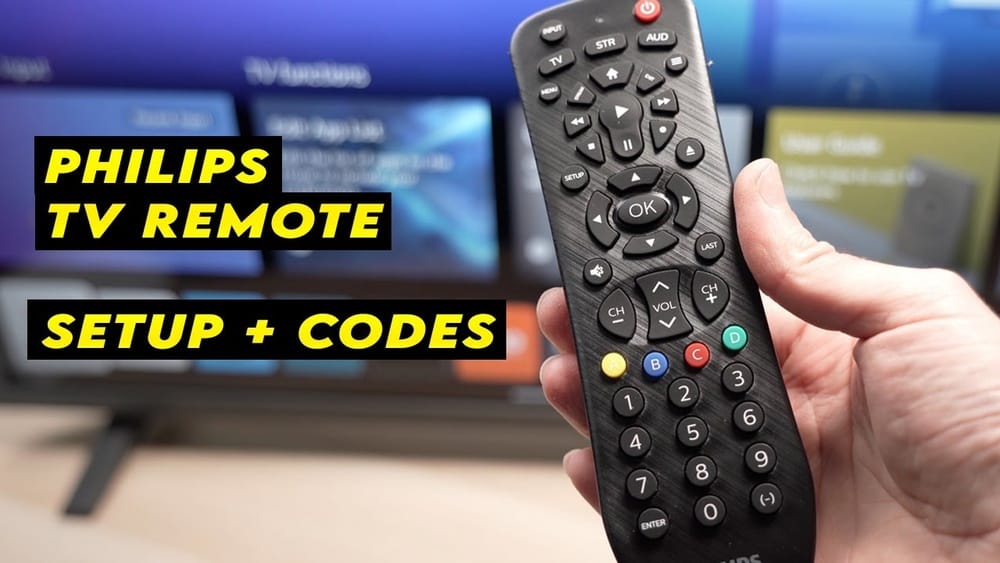
Programming a Philips Remote Control can seem confusing at first. You might wonder: Will it work with my TV? What steps do I follow? How do I fix errors? This guide will help you do it easily, even if English isn’t your first language. With clear steps, practical tips, and answers to common questions, you’ll learn everything needed to set up your Philips remote control and enjoy a smoother home entertainment experience.
Understanding Philips Remote Controls
Philips is a leading brand for electronics. Their remote controls are designed to work with many devices, not just Philips TVs. You can use them with DVD players, cable boxes, and even some sound systems. Most Philips remotes are universal remotes. This means you can use one remote for several devices.
There are different models of Philips remotes. Some are basic, with only TV functions. Others are more advanced and can control up to five devices. The key is to know your model. Usually, you find the model number on the back or inside the battery compartment.
Universal remotes save space and reduce confusion. Instead of having three or four remotes, you only need one. But before programming, check if your remote supports your device. If your device is very new or very old, it may not be compatible.
Preparing To Program Your Philips Remote
Before you start programming, gather what you need. This step avoids mistakes and saves time.
- Identify the device you want to control: TV, DVD, cable box, or another.
- Find the remote model number. This is often on the back or inside the battery area.
- Get the device code list. Philips remotes use codes to connect to devices. The code list is usually in the manual. If you don’t have the manual, you can find code lists online.
- Check batteries. Low batteries can cause problems. Use fresh AA or AAA batteries as required.
- Clear any obstructions. Make sure the remote can “see” the device (no obstacles blocking the signal).
Some beginners forget to check batteries or look for codes. This often leads to frustration. Make sure you do these steps first.
Credit: www.documents.philips.com
Methods To Program A Philips Remote Control
There are three main ways to program your Philips remote:
- Direct Code Entry
- Auto Search
- Manual Programming (Learning Mode)
Each method works for different situations. Let’s look at each one in detail.
Direct Code Entry
This is the fastest and most common method. You enter a numeric code to connect the remote to your device.
Steps:
- Turn on your device (TV, DVD, etc. ).
- Press and hold the “Setup” button on your Philips remote until the red light stays on.
- Press the device button (TV, DVD, AUX, etc.) You want to program.
- Enter the device code using the number buttons. (Find the code in the manual or online.)
- Release the “Setup” button. The red light should turn off.
- Test the remote. Try power, volume, and other functions.
If it works, you’re done. If not, repeat with another code.
Example
Suppose you have a Samsung TV. You find the code list and see the Samsung code is 1004.
- Press and hold “Setup”
- Press “TV”
- Enter 1004
- Release “Setup”
- Test the remote
Some codes work better than others. Sometimes, you need to try more than one code.
Auto Search Method
If you don’t know the device code, you can use auto search. This method takes more time but is useful when codes are missing.
Steps:
- Turn on your device.
- Press and hold “Setup” until the red light stays on.
- Press the device button (TV, DVD, etc. ).
- Press and release the “Power” button repeatedly. The remote will send codes one by one.
- When the device turns off, press “Setup” again to lock the code.
This method is slower. Sometimes, you need to press “Power” 30-40 times. But it’s helpful if you can’t find the code.
Manual Programming (learning Mode)
Some Philips remotes have a “learning mode. ” This lets you copy functions from another remote.
Steps:
- Place the Philips remote and the original remote facing each other, about 2 inches apart.
- Press and hold “Setup” on the Philips remote until the red light stays on.
- Press the button you want to program (for example, “Volume Up”).
- Press the same button on the original remote.
- The red light blinks to show the function has been learned.
- Repeat for other buttons.
- Press “Setup” to finish.
This method is useful when you want to copy special functions. But not all Philips remotes support this.
Philips Remote Control Code Lists
Device codes are essential for programming. Philips remotes work with hundreds of brands. Here are some common codes for popular devices.
Sample Device Codes
| Brand | Device Type | Common Codes |
|---|---|---|
| Samsung | TV | 1004, 1012, 1046 |
| Sony | TV | 1086, 1135, 1201 |
| LG | TV | 1126, 1178, 1240 |
| Philips | TV | 1002, 1019, 1083 |
| Toshiba | TV | 1154, 1190, 1230 |
| Panasonic | TV | 1163, 1247, 1274 |
| RCA | TV | 1101, 1131, 1196 |
| Vizio | TV | 1132, 1179, 1255 |
If your device brand isn’t listed, check the full code list from Philips or online. Some devices have more than one code. Try each one until your remote works perfectly.
Troubleshooting Common Programming Problems
Programming doesn’t always go smoothly. Here are solutions for frequent issues.
Remote Not Responding
If the remote doesn’t work after programming, check these:
- Batteries: Are they fresh and installed correctly?
- Correct device button: Did you press TV, DVD, or another button?
- Obstructions: Is there anything blocking the signal?
- Code entered correctly: Did you type the right code?
Device Functions Not Working
Sometimes, only some buttons work. For example, power works, but volume doesn’t.
- Try a different code for your device.
- Some codes only cover basic functions. Others cover advanced features.
- Use learning mode if your remote supports it.
Remote Light Not Staying On
The setup light should stay on during programming. If it blinks or turns off:
- Replace batteries.
- Hold the “Setup” button longer.
- Check if your remote model supports the device.
Device Turns Off During Auto Search, But Doesn’t Turn On
When using auto search, your device may turn off, but not turn back on.
- Lock the code when the device turns off.
- Then, turn the device on and test all functions.
- If only power works, repeat auto search.
Advanced Programming Features
Some Philips remotes offer extra features. These can make your home setup easier.
Programming Multiple Devices
You can use one Philips remote for TV, DVD, cable box, and more. Each device has its own button.
Steps:
- Program each device using its button (TV, DVD, SAT, AUX).
- Use code entry or auto search for each one.
- Switch between devices by pressing the button.
This feature is very useful for people with home theaters. You save time and avoid confusion.
Custom Macro Functions
A few advanced Philips remotes allow you to program “macro” buttons. These buttons do several actions with one press.
Example: You press one button, and it turns on TV, switches input, and starts DVD player.
How To Use Macros
- Find the macro button (sometimes labeled “M1” or “Macro”).
- Follow the manual to program a series of actions.
- Test the macro to see if it works.
Not all remotes have this feature. It’s common in higher-end models.
Learning Mode For Unique Functions
If your device has special buttons (like a “Netflix” key), use learning mode to copy that function.
- Place remotes face to face.
- Use learning steps described above.
- Copy only the unique buttons you need.
Learning mode helps when codes don’t cover all functions.
Comparing Philips Remotes
Choosing the right Philips remote depends on your needs. Here’s a comparison of three popular models.
| Model | Number of Devices Supported | Learning Mode | Macro Support | Price Range (USD) |
|---|---|---|---|---|
| SRP2003/27 | 3 | No | No | 10–15 |
| SRP5107/27 | 7 | Yes | Yes | 20–30 |
| SRP9232A/27 | 8 | Yes | Yes | 30–50 |
If you only need to control a TV, a basic model is enough. For more devices and advanced features, choose a higher model.
Practical Tips For Successful Programming
Programming is easier with some smart habits.
- Read the manual first. Even if you think you know the steps, manuals often have extra tips.
- Keep the remote pointed at the device during setup.
- Be patient. Sometimes, it takes several tries to find the right code.
- Write down working codes for future use.
- Store your code list safely. If you lose it, you’ll need to search again.
Two Non-obvious Insights
- Multiple codes may work, but not equally well. If your remote works but is missing some functions, try other codes for the same brand. Some codes cover more features.
- Programming order matters. When setting up multiple devices, start with the TV. If you program another device first, it can confuse the remote and cause errors.

Credit: www.youtube.com
Philips Remote Control Vs. Other Brands
How does a Philips remote compare to other universal remotes? Here’s a quick comparison.
| Feature | Philips | GE | Logitech |
|---|---|---|---|
| Supported Devices | Up to 8 | Up to 4 | Up to 15 |
| Learning Mode | Yes (advanced models) | No | Yes |
| Macro Functions | Yes (advanced models) | No | Yes |
| Price Range (USD) | $10–$50 | $10–$25 | $30–$200 |
| Setup Complexity | Medium | Easy | High |
Philips remotes offer a balance between price and features. GE remotes are simpler but support fewer devices. Logitech remotes are powerful but more expensive and complex.
Resetting A Philips Remote Control
Sometimes, you need to reset your remote. Maybe you programmed the wrong code, or your remote stopped working.
How To Reset
- Remove the batteries.
- Press and hold any button for 10 seconds to clear memory.
- Insert new batteries.
- Program the remote again as described above.
Resetting clears all programmed codes. It’s useful when you want to start fresh.
Updating Device Codes
Device codes change over time. New TVs or devices may need updated codes.
- Check the Philips website for the latest codes.
- Download code lists if available.
- Some remotes can be updated via USB or online. Check your model’s manual.
If your device is new and not in the code list, updates may solve this problem.
Programming For Smart Tvs And Streaming Devices
Modern Philips remotes can control smart TVs and some streaming devices (like Roku, Fire TV).
Smart Tvs
- Use the code list for your smart TV brand.
- If codes don’t work, try auto search.
- Some smart functions (like apps) may not be supported unless your remote has learning mode.
Streaming Devices
- Not all Philips remotes support streaming devices.
- For Roku, Fire TV, or Apple TV, check if your remote supports them.
- Use learning mode to copy basic functions if direct codes don’t work.
Beginners often miss that streaming devices need special codes or learning mode.

Credit: manuals.plus
Battery Life And Maintenance
A remote with weak batteries often loses programmed codes or fails to send commands.
- Use quality batteries. Cheap batteries cause problems.
- Replace batteries every 6–12 months, even if the remote works.
- Clean the remote regularly. Dust can block buttons.
- Store the remote away from heat and moisture.
If your remote stops working suddenly, check batteries first.
When To Buy A New Remote
If your Philips remote is old or damaged, consider buying a new one.
- If buttons stick or don’t work, cleaning may help.
- If the remote is cracked or doesn’t respond after reset, a new remote is better.
- New models support more devices and functions.
Buying a new remote is often easier than fixing old ones. Check the latest models for new features.
Using A Philips Remote With Other Devices
Philips remotes can control more than TVs.
- DVD players: Use code list or auto search.
- Cable boxes: Most remotes support popular brands.
- Sound systems: Some advanced remotes control speakers.
Some devices (like projectors or air conditioners) may not be supported. Always check compatibility.
Safety And Warranty Information
Programming a remote is safe, but avoid pressing too many buttons at once. If your remote stops working, check warranty details.
- Philips remotes usually have a 1-year warranty.
- If your remote is defective, contact Philips support.
- Don’t open the remote unless you know what you’re doing. You may void the warranty.
For official support, visit the Philips Support page.
Frequently Asked Questions
How Do I Find The Correct Device Code For My Philips Remote?
The device code is usually in the remote’s manual or online code list. If you don’t have the manual, search for your remote model and device brand online. Try each code until your remote works. If codes aren’t available, use the auto search method.
Can I Program A Philips Remote Without The Original Remote?
Yes. Most Philips remotes use code entry or auto search to connect to devices. You only need the original remote if you want to use learning mode to copy unique functions.
What Should I Do If Only Some Buttons Work After Programming?
Try a different code for your device. Some codes only cover basic functions. Using learning mode can help copy missing functions. Also, check if your remote supports the device fully.
How Can I Reset My Philips Remote Control?
Remove the batteries. Press and hold any button for 10 seconds. Insert new batteries. Then, reprogram your devices. Resetting clears old codes and fixes most errors.
Is It Possible To Update My Philips Remote For Newer Devices?
Some advanced Philips remotes allow code updates via USB or online. Check your model’s manual for instructions. For older remotes, use auto search or learning mode for newer devices.
Setting up a Philips remote control may sound difficult, but with the right steps and patience, you can enjoy a simple, organized home entertainment system. Follow this guide, try the methods, and use practical tips to make your programming easy and successful.
Remember to check for updates and keep your code list safe for future use. With a well-programmed remote, you save time and enjoy your devices without stress.