
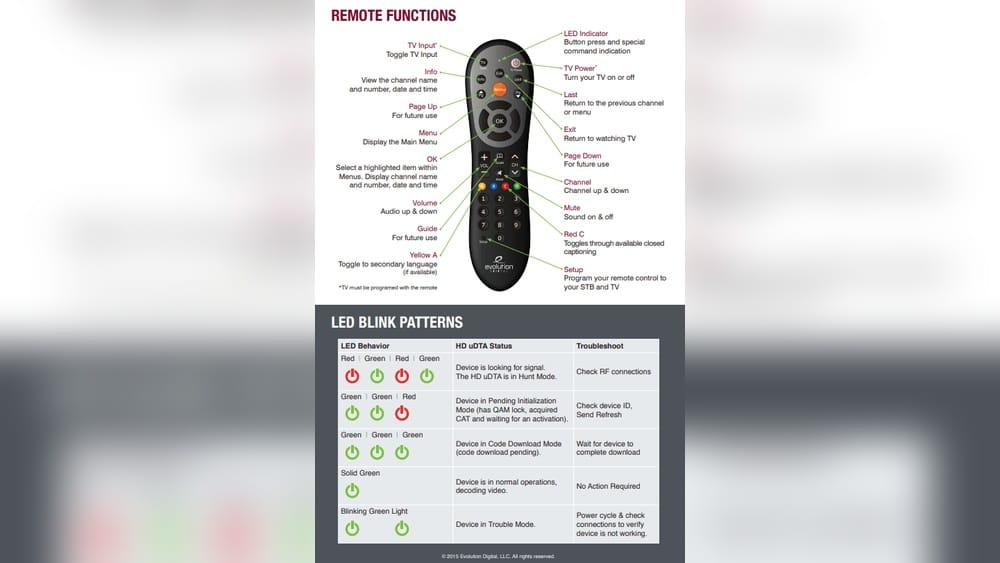
Programming a universal remote control to a TV is a simple task, but many people struggle with it. The challenge often comes from confusing instructions, missing codes, or small mistakes that stop the remote from working. If you’ve ever bought a universal remote and felt lost, you’re not alone.
The good news is that with clear guidance, anyone can do this without calling a technician or buying a new remote. In this guide, you’ll find step-by-step instructions, practical tips, and insights that make programming your universal remote easy, even if English is not your first language.
Universal remotes are popular because they let you control several devices with one controller. This saves space and reduces clutter. Whether your old TV remote is broken or you want to simplify your living room, learning how to program a universal remote is a skill worth having.
This article covers everything you need to know, including different programming methods, troubleshooting, and mistakes beginners often make. You’ll also find examples, comparison tables, and a helpful FAQ section at the end.
What Is A Universal Remote Control?
A universal remote control is a device designed to operate different brands and types of TVs, DVD players, cable boxes, and other electronics. Unlike the remote that comes with your TV, a universal remote can be programmed to work with almost any device in your home.
Universal remotes are useful for:
- Replacing lost or broken remotes
- Controlling multiple devices with one remote
- Making your home entertainment system simpler
Some advanced universal remotes can connect to smart devices, adjust settings, and even control lights. But most people use basic models for TVs.
Types Of Universal Remotes
There are many types of universal remotes. Some are basic, with simple buttons and limited functions. Others are advanced, with touch screens or voice control.
| Remote Type | Main Features | Price Range |
|---|---|---|
| Basic Universal Remote | Controls 2-4 devices, manual programming, simple buttons | $10-$25 |
| Advanced Universal Remote | Controls 8+ devices, LCD screen, smart home features | $40-$150 |
| Learning Remote | Copies signals from original remotes, customizable | $25-$60 |
Most homes use basic remotes because they are affordable and easy to set up.
How Universal Remotes Work
Universal remotes work by sending infrared (IR) signals to your devices. Each device responds to a unique code. When you program the remote, you teach it the code for your TV, so it can communicate correctly.
Remote manufacturers include lists of codes for different TV brands and models. You can usually find these codes in the remote’s manual or on the manufacturer’s website. If you don’t have the manual, searching online is often faster.
Some remotes use auto-search or code search methods if you can’t find the code. These methods test different codes until the TV responds.
Preparing To Program Your Universal Remote
Before you start, take a few minutes to get ready. This will make the process smoother and help you avoid common mistakes.
- Check the batteries: Make sure your remote has fresh batteries. Weak batteries can stop the remote from working during programming.
- Find your TV brand and model: Write down the brand (like Samsung, LG, Sony) and model number. This will help you find the correct code.
- Get the remote’s manual: If you have it, keep it nearby. If not, search online for your remote’s model and download the manual.
- Clear the area: Make sure nothing blocks the remote’s signal to the TV.
Many people skip these steps and later wonder why their remote won’t program. A few minutes of preparation can save you hours of frustration.
Methods To Program A Universal Remote To A Tv
There are three main ways to program a universal remote:
- Direct Code Entry
- Auto Code Search
- Manual Programming (Learning Remotes)
Each method works a bit differently. Let’s look at each one closely.
Direct Code Entry
This is the fastest and most common method. You enter a code for your TV brand directly into the remote.
Steps For Direct Code Entry
- Turn on your TV: Use the TV’s power button, not the remote.
- Find the code: Look up the code for your TV brand in the remote’s manual or online.
- Press the setup button: On most remotes, hold the Setup button until the light turns on.
- Select device type: Press the button for TV on the remote.
- Enter the code: Use the number buttons to type in the code.
- Test the remote: Press Power or Volume. If the TV responds, you’re done.
If the remote doesn’t work, repeat with the next code. Many brands have several codes.
Example
Suppose you have a GE universal remote and a Samsung TV. The code for Samsung is 0101.
- Hold Setup until the light stays on.
- Press TV.
- Type 0101.
- Press Power. If the TV turns off, the code worked.
Auto Code Search
If you can’t find the right code, use auto code search. The remote will try all possible codes until the TV responds.
Steps For Auto Code Search
- Turn on your TV.
- Hold Setup until the light stays on.
- Press TV.
- Press Power repeatedly: The remote will send different codes each time you press Power.
- Wait for the TV to turn off: When it does, stop pressing.
- Press Enter: This saves the code.
Auto code search can take several minutes, especially for popular brands with many codes.
Practical Tip
Move slowly. If you press too fast, you might skip the right code. Wait a few seconds between presses.
Manual Programming (learning Remotes)
Some remotes can “learn” from your original TV remote. This is useful if you can’t find the code or have a rare TV.
Steps For Learning Remotes
- Place the universal remote and original remote facing each other (about 2 inches apart).
- Press and hold the learning button on the universal remote.
- Press the button on the original remote you want to copy (like Power).
- Press the same button on the universal remote to store the signal.
- Repeat for other buttons.
Manual programming is slower but works for any device.
Credit: www.officecatch.com.au
Common Mistakes And How To Avoid Them
Many beginners make small errors that stop the remote from working. Here are some mistakes to watch for:
- Wrong code entry: Double-check the code before entering.
- Weak batteries: Always use new batteries.
- Not pointing at TV: Point the remote directly at the TV during programming.
- Skipping steps: Follow the instructions carefully.
- Not saving the code: Some remotes require you to press Enter or OK to save.
One non-obvious insight: Even after successful programming, some buttons may not work (like menu or input). This happens if the code matches most functions but not all. Try another code if this occurs.
Troubleshooting Tips
If your remote doesn’t work after programming, try these steps:
- Check batteries: Replace them if weak.
- Try another code: Many brands have several codes.
- Reset the remote: Remove batteries and hold Power for 10 seconds.
- Clear obstacles: Ensure nothing blocks the remote’s signal.
- Check TV sensor: Clean the TV’s sensor area.
If none of these work, check the remote’s manual for advanced troubleshooting.
Comparison Table: Common Remote Problems And Solutions
| Problem | Possible Cause | Solution |
|---|---|---|
| No response from TV | Wrong code, weak batteries | Try new code, replace batteries |
| Some buttons work, others don’t | Partial code match | Try another code |
| Remote won’t enter setup mode | Sticky button, dead batteries | Clean buttons, replace batteries |
| Signal blocked | Obstacles in line of sight | Clear area between remote and TV |
Credit: www.youtube.com
Finding Your Tv’s Remote Code
Every TV brand has its own set of remote codes. These codes are usually 3 to 5 digits. Here’s how to find them:
- Remote’s manual: The easiest place to find codes.
- Manufacturer’s website: Most companies have code lists online.
- Online code databases: Sites like Remote-Codes.com offer large code collections.
- Customer support: If you can’t find the code, call or email the remote manufacturer.
Some TVs, especially older models or rare brands, may not appear in code lists. In this case, use auto code search or learning mode.
Example List: Popular Tv Brands And Sample Codes
- Samsung: 0101, 0007, 0019
- LG: 0156, 0178, 0022
- Sony: 0128, 0013, 0002
- Vizio: 0178, 1017, 0030
- Toshiba: 0154, 0060, 0120
Always try the codes one by one, starting from the top. Some brands have dozens of codes.
Programming Different Types Of Universal Remotes
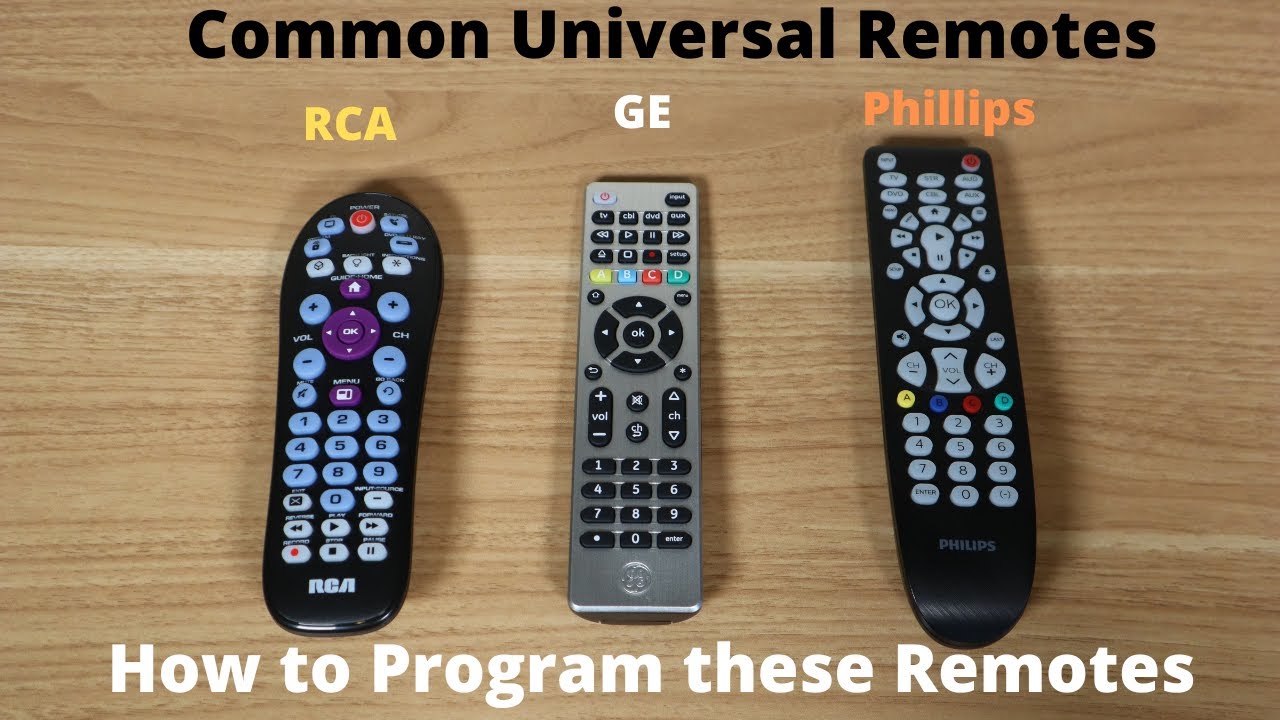
Universal remotes come from many brands, and each has a slightly different programming method. Let’s look at three popular brands:
Ge Universal Remotes
- Has a Setup button.
- Codes are listed in the manual.
- Use direct code entry or auto search.
Rca Universal Remotes
- Uses Code Search and Device buttons.
- Manual programming is possible.
Logitech Harmony
- Advanced remotes with app-based setup.
- Connect to computer or smartphone.
- Supports thousands of devices.
| Brand | Programming Method | Special Features |
|---|---|---|
| GE | Direct code entry, auto search | Easy setup, basic functions |
| RCA | Code search, manual entry | Supports more devices |
| Logitech Harmony | App-based setup | Smart home integration, advanced control |
Most people use GE or RCA remotes because they are cheap and support many TVs.
Advanced Features And Programming
Some universal remotes offer advanced options:
- Macro programming: Set up one button to control several devices at once (for example, turn on TV and sound system together).
- Custom button mapping: Change what each button does.
- Smart home integration: Control lights, thermostats, and more.
To use these features, check your remote’s manual or the manufacturer’s website. Advanced programming is usually only available in expensive models.
Practical Examples
Let’s look at two real-life situations:
Example 1: Programming A Universal Remote For An Old Tv
Maria has an old Philips TV and lost the original remote. She buys a basic universal remote.
- She checks the manual and finds codes: 0002, 0020, 0047.
- She follows the direct code entry steps.
- The first code doesn’t work, but the second code (0020) lets her turn the TV on and off.
Example 2: Using Auto Code Search For A Rare Tv Brand
John owns a rare Haier TV. He can’t find the code in the manual.
- He uses auto code search.
- After pressing Power about 15 times, the TV turns off.
- He presses Enter to save the code.
These examples show that patience and careful steps are important.
Programming Universal Remotes For Smart Tvs
Smart TVs sometimes need special codes or updated remotes. Here’s what you should know:
- Some smart TVs only work with specific universal remotes.
- Check if your remote supports smart TV functions (like streaming apps).
- Use the latest code lists from the manufacturer.
If your smart TV has Bluetooth or Wi-Fi, you may need an advanced remote like Logitech Harmony.
Programming Universal Remotes For Multiple Devices
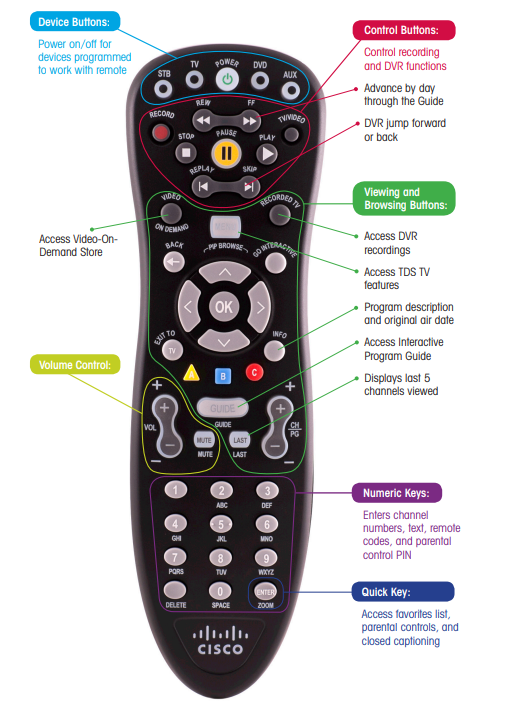
Many universal remotes can control more than just your TV. You can also program them for DVD players, cable boxes, or sound systems.
Follow the same steps:
- Choose the device button (TV, DVD, AUX).
- Enter the code for that device.
- Test the remote.
Some remotes can store codes for up to 8 devices. Write down your codes in case you need to reprogram later.
When To Buy A New Universal Remote
If your remote is old or doesn’t support your TV, it may be time to buy a new one. Here’s how to know:
- Remote doesn’t support your TV brand
- Buttons are worn out or sticky
- Battery contacts are corroded
- Remote is missing setup features
New remotes are affordable and often easier to program. Check reviews and features before buying.
Comparing Universal Remote Features
Universal remotes have many features. Here’s a comparison table to help you choose:
| Feature | Basic Remote | Advanced Remote |
|---|---|---|
| Device Support | 2-4 devices | 8+ devices |
| Smart TV Control | Limited | Full |
| Macro Programming | No | Yes |
| Learning Function | No | Yes |
| Price | $10-$25 | $40-$150 |
Choose a remote based on your needs and budget.
Important Safety And Maintenance Tips
To keep your universal remote working well:
- Avoid water: Keep the remote dry.
- Clean regularly: Wipe buttons with a dry cloth.
- Change batteries yearly: Even if the remote works, old batteries can leak.
- Store codes: Write down your codes or save them digitally.
A non-obvious insight: Battery leaks are a common cause of remote failure. If you see white powder in the battery compartment, clean it and replace the batteries.
Quick Programming Checklist
If you want a fast overview, here’s a checklist:
- Install new batteries.
- Find your TV’s code.
- Enter setup mode.
- Select TV device.
- Enter the code.
- Test functions.
- Save the code.
If you miss a step, the remote may not work.
Credit: tdstelecom.com
External Resources
For more information and code lists, visit Wikipedia. This site offers history, code databases, and tips for different remote brands.
Frequently Asked Questions
How Do I Reset My Universal Remote?
Most remotes reset by removing the batteries and holding the Power button for 10 seconds. Replace batteries and start programming again. Some remotes have a Reset button inside the battery compartment.
What If None Of The Codes Work For My Tv?
Try auto code search or learning mode. If your remote supports learning, copy the signal from your original remote. If all else fails, contact the remote manufacturer.
Can Universal Remotes Control Smart Tvs?
Yes, but check if your remote supports smart TV functions. Some smart TVs need special codes or advanced remotes. Look for remotes with smart TV support.
Why Do Some Buttons Not Work After Programming?
This happens if the code matches basic functions but not advanced ones. Try another code or use learning mode. Not all codes support menu or input buttons.
How Many Devices Can A Universal Remote Control?
Most basic remotes control 2-4 devices. Advanced models can control 8 or more. Check your remote’s manual for details.
Programming a universal remote to your TV is easier than it seems. With careful steps and a bit of patience, you can quickly control your TV and other devices from one remote. If you run into problems, remember the troubleshooting tips and try different codes.
Universal remotes make your home simpler and more comfortable. Save your codes, keep your remote clean, and enjoy hassle-free TV control.