
Programming your Cox remote control to your TV can feel confusing at first. Many people worry about pressing the wrong buttons or getting stuck on error codes. The good news is, you do not need to be a tech expert to set up your remote. With the right steps, you can connect your Cox remote to nearly any TV brand and unlock features like volume control, power on/off, and input selection from one device. This guide will walk you through the process step-by-step, help you avoid common mistakes, and explain practical tips that most beginners miss. By the end, you will understand how to program your Cox remote for both basic and advanced functions, compare remote models, and troubleshoot any problems that come up. Let’s make your TV setup easier and smarter.
Understanding Cox Remote Controls
Cox offers several remote control models, each with its own features and programming methods. Knowing which remote you have is important because the process can change depending on the model.
Most common Cox remotes:
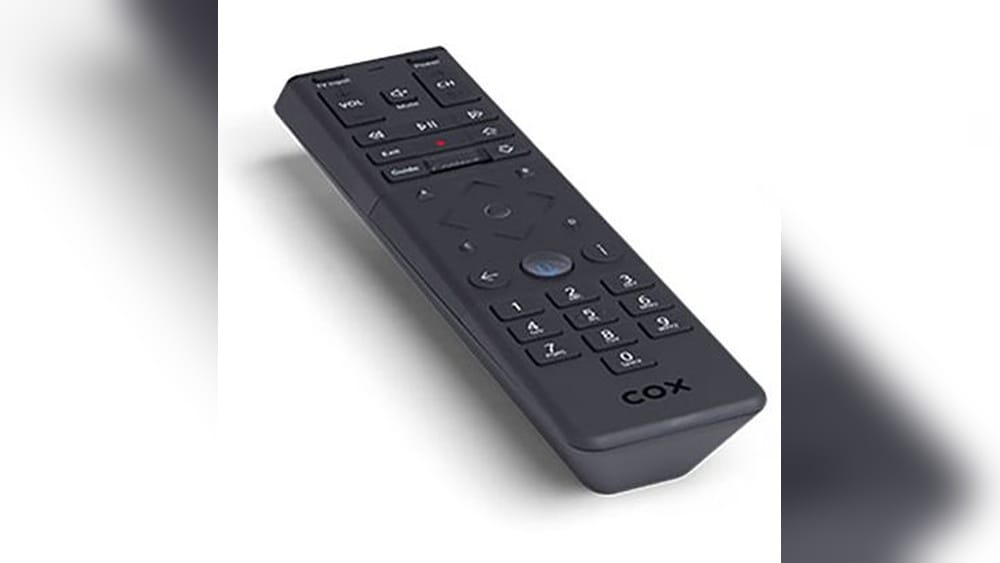
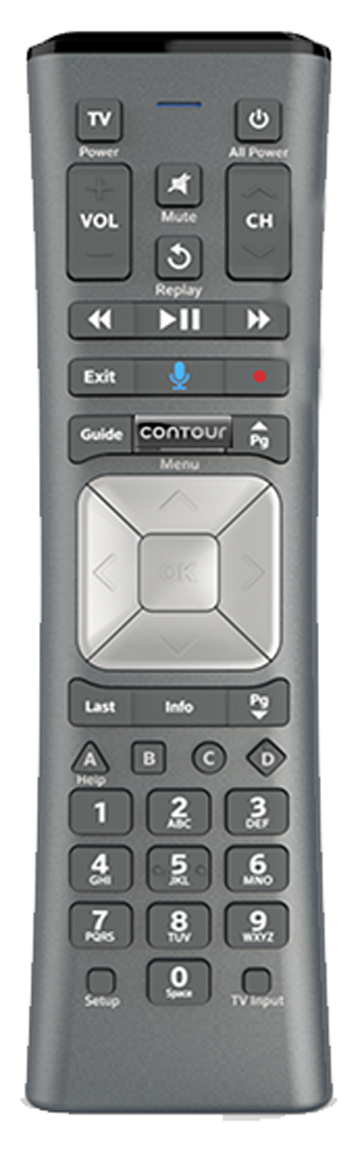
- Contour remote (newer, voice-enabled)
- URC8820 (classic, universal)
- URC3220 (older model)
- Mini remote (simple, fewer buttons)
Each model has slightly different buttons and programming codes. If you are not sure which remote you have, look for the model number printed on the back or inside the battery compartment.
Features You Get After Programming
Once your Cox remote is programmed to your TV, you can:
- Control power and volume
- Change input/source
- Mute audio
- Use advanced functions like voice search (Contour model)
- Access TV menus
Most remotes also let you control other devices (audio systems, Blu-ray players) after programming. However, this guide focuses on TV setup, which is the most requested feature.
Differences Between Cox Remote Models
Here is a quick comparison of the four main Cox remotes:
| Remote Model | Voice Control | Device Support | Programming Method | Popular TV Brands Supported |
|---|---|---|---|---|
| Contour | Yes | TV, Audio, Streaming | Auto & Manual | Samsung, LG, Sony, Vizio |
| URC8820 | No | TV, Audio, DVD | Manual | Samsung, Toshiba, Panasonic, Philips |
| URC3220 | No | TV, DVD | Manual | Sony, Sharp, RCA, Insignia |
| Mini Remote | No | TV only | Simple Manual | LG, TCL, Hisense |
This table shows that the Contour remote is the most advanced. If you have this model, you get voice commands and easier setup. Older models need manual code entry but still work well with most TV brands.
Preparing For Programming
Before you start, make sure you have:
- The Cox remote control (with working batteries)
- Your TV turned on
- The user manual for your Cox remote (optional, but helpful)
- The remote codes for your TV brand
Where To Find Tv Codes
TV codes are special numbers that tell the remote how to talk to your TV. You can find them:
- In the Cox remote manual
- On the Cox website
- Printed inside the battery cover (sometimes)
- Online search (e.g., “Cox remote codes for Samsung TV”)
If you cannot find the code, do not worry. Most remotes have an auto-search feature that will find the right code for you.
Important Tips Before Starting
- Double-check batteries: Weak batteries can cause setup errors.
- Clear line of sight: Make sure nothing blocks the remote and TV.
- Know your remote model: The process changes for each model.
- Write down your TV brand and model: Some brands use multiple codes.
- Have patience: Programming takes a few minutes, but rushing can lead to mistakes.
These tips help you avoid the most common beginner errors. Many people skip checking batteries or rush through code entry, leading to frustration.

Credit: www.cox.com
Step-by-step Programming For Cox Remotes
Let’s break down the programming process for each major Cox remote.
Programming The Contour Remote
The Contour remote is easy to set up. It supports both automatic and manual programming.
Automatic Programming
- Turn on your TV.
- Press and hold the Setup button until the LED light turns green.
- Press the TV button once.
- Enter the four-digit code for your TV brand. If you do not know the code, press the Setup button and wait for the LED to blink.
- The remote will try to connect automatically. If successful, the LED will blink twice.
Test the remote:
- Press Power. If the TV turns off, programming is complete.
- Try Volume and Mute.
If these buttons work, you are done.
Manual Programming (auto-search Method)
- Hold the Setup button until the LED turns green.
- Press the TV button.
- Press Power repeatedly. The remote will cycle through codes.
- When the TV turns off, press Enter to save the code.
This method is useful if you do not know your TV code or if your TV brand is not listed.
Programming Urc8820 Remote
The URC8820 is a classic Cox remote. It uses manual code entry.
- Turn on your TV.
- Press and hold the TV button until the LED stays on.
- Enter the three-digit code for your TV.
- Release the TV button.
Test the remote:
- Press Power and Volume.
- If they work, setup is complete.
If not, try a different code from the list.
Programming Urc3220 Remote
Setup steps are similar to the URC8820:
- Turn on your TV.
- Press and hold Setup until the light stays on.
- Press TV.
- Enter the code for your TV brand.
- The LED will blink twice to confirm.
Test with Power and Volume. If they do not work, try again with another code.
Programming The Mini Remote
The Mini Remote is the simplest:
- Turn on your TV.
- Hold Setup until the light stays on.
- Press TV.
- Enter the code.
- Test Power and Volume.
If your TV does not respond, use the auto-search method by holding Setup and pressing Power until the TV turns off.
Common Programming Mistakes
Many users make mistakes during setup. Here are the most frequent:
- Entering the wrong code (double-check numbers)
- Not holding buttons long enough
- Skipping battery checks
- Programming the wrong device button (e.g., DVD instead of TV)
- Not testing all functions (some codes only control power, not volume)
If your remote only turns the TV on/off but does not adjust volume, try another code. Sometimes, a code works partially.
Advanced Programming Options
Once your remote works with your TV, you can unlock more features.
Programming For Multiple Devices
Most Cox remotes allow you to control other devices, such as:
- Audio receivers
- Blu-ray players
- Streaming boxes
To set up multiple devices:
- Press and hold the device button (e.g., AUX, DVD).
- Enter the device code.
- Test all buttons.
This lets you use one remote for several devices, reducing clutter.
Programming Input/source Buttons
Some remotes have a Input or Source button. If you want to switch from TV to HDMI or AV:
- After programming, press Input to cycle through options.
- If this does not work, check your TV code. Not all codes support input control.
Customizing Remote Functions
The Contour remote supports advanced customization:
- Reassign device buttons (TV, Audio)
- Program favorite channels
- Use voice search for channels or shows
To customize:
- Press Setup.
- Follow on-screen instructions or manual steps.
This feature is often missed by beginners. Customization makes your remote more powerful.
Troubleshooting Problems
If your Cox remote does not work after programming, do not panic. Most issues are easy to fix.
Remote Not Responding
- Check batteries: Replace with fresh ones.
- Clear obstructions: Remove anything blocking the remote and TV.
- Double-check code entry: Try again slowly.
- Try another code: Some TV brands use multiple codes.
- Reset the remote: Remove batteries, wait 30 seconds, reinsert.
Only Some Buttons Work
If only power works, but volume or mute does not:
- Try a different code for your TV.
- Some codes only control basic functions.
Led Light Not Blinking
- Make sure you are pressing the right button for your remote model.
- Hold the button longer.
- Change batteries.
Tv Not Listed In Code List
- Use auto-search feature.
- Search online for updated codes.
- Contact Cox support for help.
Voice Control Not Working (contour Remote)
- Make sure you are signed in to your Cox account.
- Check if your remote supports voice.
- Update firmware if possible.
Comparing Cox Remote Programming To Other Brands
To help you understand how Cox remotes compare to other popular remotes, here is a quick data table:
| Brand | Programming Steps | Auto-Search | Voice Control | Device Support |
|---|---|---|---|---|
| Cox | 3-5 steps | Yes | Contour model only | TV, Audio, Streaming |
| DirecTV | 5-7 steps | No | No | TV, Audio |
| Comcast | 3-6 steps | Yes | Yes | TV, Streaming |
| Roku | Simple | No | No | Streaming only |
Cox remotes are competitive, especially with the Contour model’s voice features and device support.
Practical Tips For Easy Programming
Programming your Cox remote does not have to be stressful. Here are some practical tips that most beginners miss:
- Use slow, steady button presses: Rushing can cause errors.
- Test all functions after programming: Check power, volume, mute, and input.
- Try codes in order: Start with the first code listed for your TV brand.
- Keep the manual nearby: Helps with troubleshooting.
- Write down the working code: If you reset or change remotes, you will not have to search again.
- Check for firmware updates: Some remotes (Contour) can update for new TV brands.
- Use online resources: Cox’s website and support forums have updated code lists and troubleshooting guides.
- Set up remote in a quiet room: Ambient noise can confuse voice remotes.
- Avoid reflective surfaces: Mirrors or shiny tables can block IR signals.
- Store backup batteries: Save time during setup.
These tips are often overlooked but can make setup faster and easier.
Programming Cox Remote For Popular Tv Brands
Let’s cover specific steps and codes for the most popular TV brands in the US.
Programming For Samsung Tvs
- Samsung is one of the most common brands.
- Typical Cox remote codes: 0812, 0060, 0702
- Try code 0812 first.
Steps:
- Turn on Samsung TV.
- Press and hold Setup until LED is solid.
- Press TV.
- Enter 0812.
- Test Power and Volume.
If it does not work, try the next code.
Programming For Lg Tvs
- LG codes: 0178, 1758, 1423
- Use code 0178 first.
Steps:
- Turn on LG TV.
- Hold Setup.
- Press TV.
- Enter 0178.
- Test functions.
Programming For Sony Tvs
- Sony codes: 0000, 0810, 1904
- Start with 0000.
Steps:
- Turn on Sony TV.
- Hold Setup.
- Press TV.
- Enter 0000.
- Test all buttons.
Programming For Vizio Tvs
- Vizio codes: 1758, 0178, 1017
- Use 1758 first.
Steps:
- Turn on Vizio TV.
- Hold Setup.
- Press TV.
- Enter 1758.
- Test power and volume.
Programming For Tcl Tvs
- TCL codes: 2014, 2067
- Start with 2014.
Steps:
- Turn on TCL TV.
- Hold Setup.
- Press TV.
- Enter 2014.
If not working, use auto-search.
These brand-specific tips save time and reduce frustration. Many users do not realize that trying codes in order increases success rate.
Resetting Your Cox Remote
Sometimes, you may want to reset your remote to start over or fix bugs.
To reset:
- Remove batteries.
- Wait 30 seconds.
- Reinsert batteries.
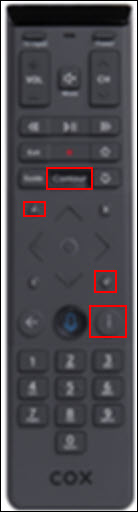
- Hold Setup for 10 seconds.
This clears previous programming. After reset, you will need to reprogram for your TV.
Credit: www.cox.com
When To Contact Cox Support
If you have tried all steps and your remote still does not work:
- Check the Cox website for updated guides and codes.
- Contact Cox customer support via phone or online chat.
- Request a replacement remote if yours is defective.
Cox support can walk you through advanced troubleshooting or send you a new remote if needed. For official resources, visit Cox Remote Support.
Expert Insights And Non-obvious Tips
Many people think programming a remote is just about entering codes. However, there are a few advanced insights:
- IR vs RF remotes: Some Cox remotes use infrared (IR), others use radio frequency (RF). RF remotes (Contour Voice) work even if you are not pointing at the TV. If your remote is RF, try programming from anywhere in the room.
- Firmware updates can change code lists: Especially for newer TVs, updating your remote may be needed. Check the Cox website for firmware instructions.
- Some TVs need menu access for full setup: For advanced functions (input control, menu navigation), your TV must support remote menu commands. If it does not, you may only get basic power and volume.
- Universal remotes may require device selection: If you have multiple devices, always select the correct device button before programming or using.
- Older TVs may require longer setup times: If your TV is over 10 years old, programming may take extra steps or more code attempts.
These insights help you get the most out of your Cox remote and avoid common roadblocks.
Credit: www.cox.com
Frequently Asked Questions
How Do I Find The Correct Code For My Tv?
You can find TV codes in your Cox remote manual, on the Cox website, or inside the battery compartment. If you do not know the code, use the auto-search feature by holding the Setup button and pressing Power until your TV turns off.
What Should I Do If My Remote Only Turns The Tv On/off But Does Not Control Volume?
This usually means the code you entered controls only basic functions. Try entering another code from the list for your TV brand. Some brands have multiple codes, and only certain codes unlock full remote functions.
Can I Use One Cox Remote For Multiple Devices?
Yes. Most Cox remotes let you control TV, audio systems, Blu-ray players, and streaming devices. Press and hold the correct device button (TV, AUX, DVD) and enter the device’s code. Test all functions to make sure setup is complete.
How Do I Reset My Cox Remote?
To reset, remove the batteries, wait 30 seconds, reinsert them, and hold the Setup button for 10 seconds. This will clear previous programming. You will need to reprogram your TV and other devices.
Where Can I Get Help If My Remote Does Not Work?
You can visit the Cox support website, search for updated codes online, or contact Cox customer service by phone or chat. They can help with troubleshooting and send a replacement remote if needed. For official resources, check Cox Remote Support.
Final Thoughts
Programming your Cox remote control to your TV is not as hard as it seems. With careful steps, the right codes, and patience, you can connect your remote to almost any TV. Testing all functions is important, and trying codes in order saves time. Advanced features like voice control and device customization make your remote more powerful. If you run into problems, troubleshooting steps or Cox support can help. Following this guide, you will enjoy a smarter, easier TV experience with your Cox remote.