
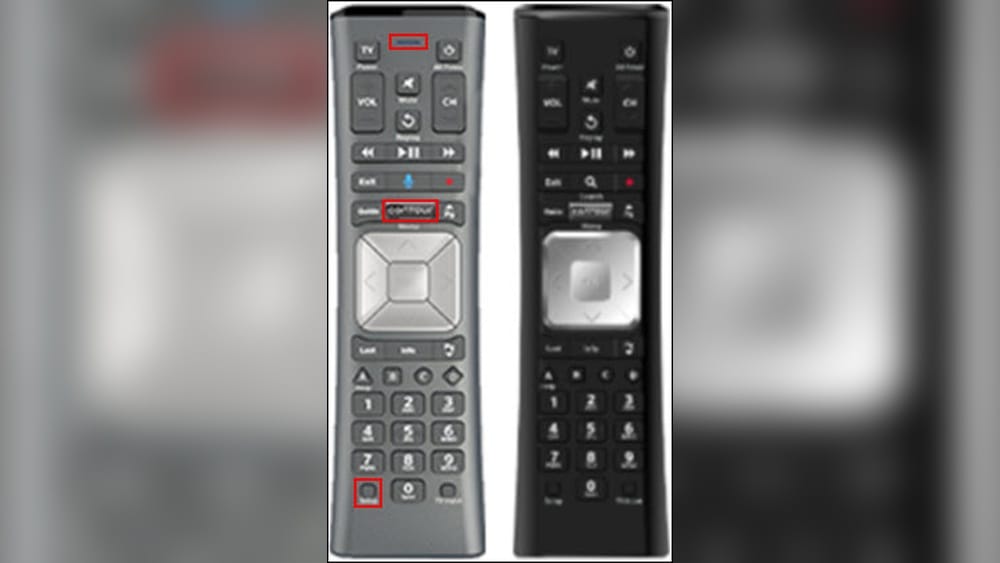
Programming your Cox remote control can transform how you watch TV. Instead of juggling several remotes for your TV, audio system, and cable box, you can manage everything with just one device. But for many people, setting up a universal remote feels confusing. Different button names, codes, and blinking lights can make the process seem harder than it really is.
This guide will walk you through every step needed to program a Cox remote, whether you want to control your TV, sound bar, or other devices. You’ll find clear steps, tips to avoid common mistakes, and practical examples. By the end, you’ll have the confidence to set up your remote and fix most problems without calling support.
Understanding Cox Remote Models
Before you start programming, it’s important to know which Cox remote model you have. Different models use different methods and buttons, so using instructions for the wrong remote can waste your time.
| Remote Model | Main Features | Programming Method |
|---|---|---|
| Contour Voice Remote | Voice commands, backlit buttons | Code entry, auto-search, voice pairing |
| Contour Remote (URC8820/URC8820C) | Standard universal, controls up to 5 devices | Manual code, auto-search |
| Mini Box Remote (URC2220) | Basic functions, compact size | Manual code |
Identifying your remote:
Look at the label on the back or inside the battery compartment. The model number usually begins with URC or is called Contour.
Why model matters:
Each model supports different device types and has unique programming steps. Using the correct guide saves time and avoids errors.
Preparing To Program Your Cox Remote
A little preparation makes programming much easier. Here’s what you should do before starting:
- Check batteries. Weak batteries can cause the remote to fail during programming. Insert fresh AA or AAA batteries.
- Turn on the device. Power on the device you want to control (e.g., your TV or sound bar).
- Find your device brand. Know the exact brand (e.g., Samsung, LG, Sony). This helps you quickly find the right code.
- Keep the remote manual handy. Most Cox remotes include a printed manual with common device codes. If you lost it, you can find manuals on the Cox website.
Pro tip: If you can’t find your device code, don’t worry. Most Cox remotes offer an auto-search feature, which tries all possible codes until it finds one that works.
Programming The Cox Contour Voice Remote
The Cox Contour Voice Remote is the most advanced and popular model. It lets you control your TV and cable box, and even supports voice commands. Let’s go through the programming process step by step.
Pairing With The Cox Contour Box
First, you need to pair the remote with your Contour box. This ensures voice commands and other advanced features work properly.
- Turn on your TV and Contour box.
- Press and hold the Setup button (bottom left) until the LED at the top turns green.
- Press the Contour button. The LED will blink twice.
- Follow the on-screen instructions that appear on your TV. Usually, you’ll be asked to press a few buttons to finish pairing.
Non-obvious insight: If the pairing fails, restarting both your TV and Contour box before trying again often solves the problem.
Programming For Tv Control
After pairing, you can program the remote to control your TV power and volume.
- Press and hold the Setup button until the LED turns green.
- Enter the 4-digit code for your TV brand. You can find codes in the remote manual or on the Cox website.
- The LED should blink green twice. Test the Power and Volume buttons.
If the code doesn’t work:
- Try the next code for your TV brand.
- Use the auto-search method.
Auto-search programming:
- Turn on your TV.
- Press and hold Setup until the LED turns green.
- Enter 9-9-1. The LED blinks green twice.
- Press the Channel Up button repeatedly (slowly) until the TV turns off.
- Press Setup to lock in the code.
Tip: Move slowly during auto-search. If you go too fast, you might skip the correct code.
Programming For Audio Devices
You can also control a sound bar or audio receiver with the Contour Voice Remote.
- Press and hold Setup until the LED turns green.
- Enter the code for your audio brand.
- Test the Volume button.
If volume is not working, reprogram the remote with a different code or try auto-search. Some sound bars use TV codes instead of audio codes.
Programming The Standard Contour Remote (urc8820/urc8820c)
The URC8820 and URC8820C remotes are older but still widely used. They control up to 5 devices (TV, DVD, audio, etc.).
Manual Code Entry
- Turn on the device you want to program.
- Press and hold the Setup button until the red LED stays on.
- Press the device button (e.g., TV).
- Enter the 4-digit code for your device. The LED will turn off if correct.
- Test the remote’s basic functions (power, volume, input).
Auto-search Method
If you don’t know your device’s code, use this method:
- Turn on the device.
- Press and hold Setup until the LED stays on.
- Press the device button (e.g., TV).
- Press Power repeatedly until the device turns off.
- Press Enter or Setup to store the code.
Insight for beginners: Some devices may require several hundred presses during auto-search. Be patient—rushing can cause missed codes.
Assigning Volume Control
You can set the remote so that the volume buttons always control one device (like your TV or sound bar), no matter what mode you’re in.
- Press and hold Setup until the LED stays on.
- Enter 9-9-3.
- Press the device button you want to control volume (e.g., TV).

Credit: www.youtube.com
Programming The Mini Box Remote (urc2220)
The Mini Box Remote is simple and compact, made for Cox’s smaller cable boxes.
Programming Steps
- Turn on your TV.
- Press and hold the Setup button until the LED turns on.
- Press the TV button.
- Enter the 3-digit code for your TV.
- Test Power and Volume.
If the code doesn’t work, repeat using the next code. Mini Box remotes do not offer auto-search, so finding the right code is important.
Finding Device Codes For Your Cox Remote
Device codes are essential for programming. Each brand and type of device uses different codes. Here’s how to find them:
- Printed manual: Most remotes include a list of common brands and codes.
- Online lookup: Visit the official Cox Remote Codes page and enter your device brand and model.
- On-screen pairing: For Contour Voice Remote, the TV will prompt you with codes during setup.
Example:
If you have a Samsung TV, you might try codes like 12051, 10812, or 10060.
| Brand | Common Codes | Remote Models |
|---|---|---|
| Samsung | 12051, 10812, 10060 | All |
| LG | 11423, 10178, 11265 | All |
| Sony | 11317, 10000, 10810 | All |
| Vizio | 11756, 11758, 10178 | All |
Non-obvious insight: Some new TVs or sound bars may require codes not listed in older manuals. Always check the online database for up-to-date codes.
Troubleshooting Common Issues
Programming doesn’t always work the first time. Here’s how to fix common problems:
Remote Not Responding
- Check batteries: Weak batteries are a common cause.
- Reset remote: Remove batteries, wait 60 seconds, and reinstall.
- Check device line of sight: Obstructions can block signals.
Wrong Device Controls
- Make sure you pressed the correct device button (TV, AUX, etc.) Before programming.
- Reprogram the remote, starting from step one.
Volume Doesn’t Work
- Some devices, especially sound bars, use different code sets for volume and power. Try programming with another code for your brand.
- Assign volume control to your TV or audio device using the 9-9-3 method (Contour remotes).
Remote Controls Only Some Functions
- Not all codes support every function (e.g., input/source, menu).
- Use auto-search to find a better code, or try all codes for your brand.
Resetting The Remote
Sometimes, you need to erase all programming and start over.
- For Contour Voice Remote: Hold A and D together until the light turns green, then enter 9-8-1. The remote will reset.
- For standard Contour: Hold Setup until the LED stays on, then enter 9-8-1.
Tip: Resetting removes all programmed codes, so you’ll need to set up devices again.
Advanced Features: Voice Commands, Input Control, And More
Modern Cox remotes offer features beyond basic control. Here’s how to unlock them.
Using Voice Commands
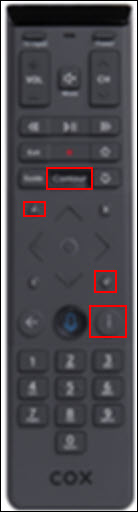
With the Contour Voice Remote, you can search for shows, change channels, or launch apps by speaking.
- Hold the Microphone button and speak clearly (“ESPN,” “Find movies with Tom Hanks,” or “Open Netflix”).
- Release the button to send your command.
Insight: The remote needs to be paired with your Contour box for voice commands to work. If voice stops working, re-pair the remote.
Controlling Tv Input
You can cycle through TV inputs (HDMI 1, HDMI 2, etc. ) Using the remote.
- On most remotes, the Input or Source button will switch inputs.
- If this button doesn’t work, try programming with a different code.
Setting Favorite Channels
Some advanced remotes let you program favorite channels for quick access. Check your model’s manual—often, you can press and hold a number key to set a favorite.
Credit: www.cox.com
Comparing Cox Remote Programming Methods
Let’s compare the main ways to program a Cox remote. This will help you choose the fastest and easiest method for your situation.
| Programming Method | Pros | Cons | Best For |
|---|---|---|---|
| Manual Code Entry | Quick if you have the code, reliable | Requires code, not all codes available | Common brands, popular devices |
| Auto-Search | No code needed, works for most devices | Can be slow, easy to skip correct code | Unknown or rare brands |
| On-Screen Pairing | Guided, easiest for beginners | Requires compatible TV/box | Contour Voice Remote users |
Non-obvious insight: If auto-search fails after several tries, check if your TV or device is too new (or too old). Sometimes, a universal remote can’t support very recent or very old models. In this case, consider using the device’s original remote for advanced functions.
Using Your Cox Remote As A Universal Remote
After successful programming, your Cox remote can control multiple devices. Here’s how to switch between them:
- Press the device button (TV, AUX, DVD, etc.) To control that device.
- Some remotes let you control TV and audio volume at the same time (see “Assigning Volume Control” earlier).
Example:
You can turn on your TV, change the volume on your sound bar, and control cable channels—all with one remote.
Pro tip: If you often use multiple devices, label your remote’s device buttons with small stickers for quick reference.

Credit: www.youtube.com
When To Use The Cox Remote App
Cox also offers a remote control app for smartphones. This can be useful if you lose your physical remote or want extra features.
- Download the app from your device’s app store.
- Sign in with your Cox account.
- Control your Contour box, browse the guide, and set recordings.
App limitations: The app only works with Cox Contour boxes and over Wi-Fi. It cannot directly control your TV’s power or volume.
Practical Tips For Programming Success
Here are some expert tips to make programming your Cox remote faster and less stressful:
- Write down the working code. If you find a code that works, note it somewhere. If you reset your remote later, you’ll have it handy.
- Try all codes for your brand. Different codes may support different functions (power, volume, input).
- Update your device’s firmware. Some TVs or sound bars need a firmware update to work with universal remotes.
- Avoid bright light. Infrared signals can be affected by sunlight or fluorescent lighting. Program your remote in normal room light.
- Distance matters. Stand about 5-10 feet from the device when programming for best results.
- Don’t rush auto-search. Press the button slowly, waiting for the device to respond before pressing again.
Beginner mistake to avoid: Many people stop as soon as the power button works, but forget to test volume and input. Always test all functions before finishing.
What To Do If Your Device Isn’t Supported
If your TV or audio device doesn’t respond to any Cox remote code:
- Check for code updates on the Cox website.
- Contact Cox support. Sometimes they can suggest alternative codes or solutions.
- Consider a learning remote. Some universal remotes can “learn” commands from your original remote by pointing them at each other.
Fact: According to a 2023 survey, over 15% of universal remote users have at least one device that cannot be controlled due to missing codes or advanced features.
Keeping Your Remote Up To Date
Some Cox remotes can receive updates through your Contour box. If you notice new features or settings, it’s because your remote’s firmware was updated automatically.
- Contour Voice Remote: Updates happen when your Contour box is online.
- Older models: No updates; you must use available codes.
Tip: Keep your Contour box connected to the internet for the latest remote features.
Recycling Or Replacing Your Cox Remote
If your remote is lost, broken, or out of date:
- Contact Cox for a replacement. They may provide a new remote at no cost, especially if you’re a current customer.
- Recycle old remotes at electronic recycling centers. Don’t throw them in the trash.
Non-obvious insight: If you upgrade to a new Cox box, your old remote may not be compatible. Always check with Cox before buying a universal remote from a third party.
Frequently Asked Questions
How Do I Reset My Cox Remote To Factory Settings?
To reset most Cox remotes, hold the Setup button until the LED lights up, then enter 9-8-1. For the Contour Voice Remote, hold A and D together until the light turns green, then enter 9-8-1. This clears all programming.
Can The Cox Remote Control More Than One Device?
Yes, most Cox remotes can control up to five devices, including your TV, audio system, and DVD player. After programming each device, press the corresponding device button to switch control.
What Should I Do If My Tv Brand Isn’t Listed?
Check the latest code list on the Cox website. If your brand is still missing, use the auto-search method. If that doesn’t work, your device may not be compatible with Cox remotes.
Why Does My Remote Only Control Power But Not Volume?
Some device codes only support certain functions. Try programming another code for your brand. Also, check if you need to assign volume control to your TV or audio device using the 9-9-3 method.
Where Can I Find Official Device Codes For Cox Remotes?
The official Cox website has a searchable code database at Cox Remote Codes. You can also find codes in your remote’s printed manual.
Getting your Cox remote control programmed isn’t as hard as it seems. With the right steps, a little patience, and some expert tips, you can enjoy a clutter-free, simple TV setup. If you run into trouble, don’t hesitate to check the latest resources online or contact Cox for help. A single remote for all your devices means less stress and more time enjoying your favorite shows.