
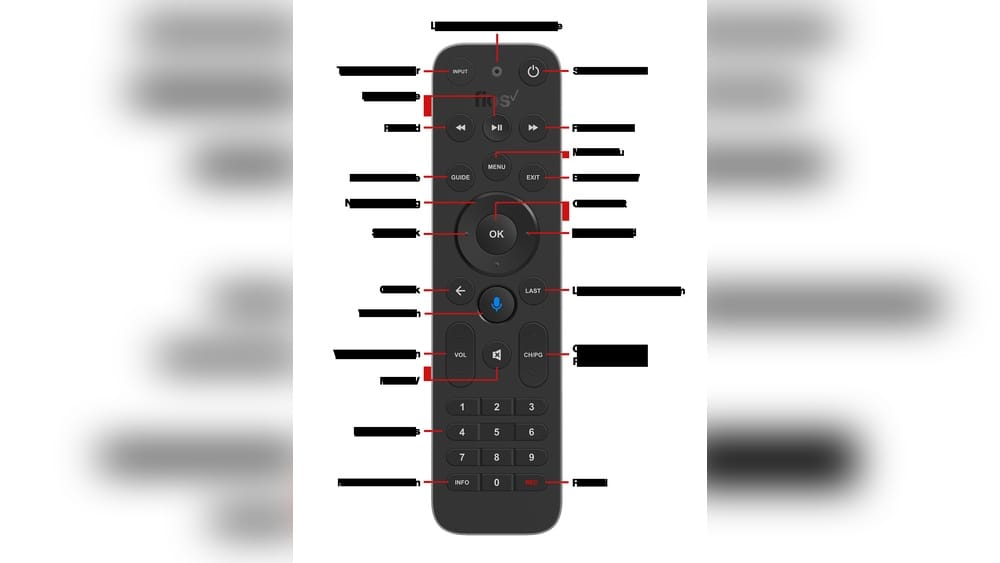
Programming your Fios remote control might seem simple at first, but it can be tricky if you’re not familiar with the process. Many people struggle to connect their remote to their TV or audio system, especially with so many Fios remote models available. But once you know the steps, you can control all your devices with just one remote, making your viewing experience smoother and more enjoyable.
This guide will walk you through everything you need to know about programming your Fios remote—no matter which model you have. You’ll learn step-by-step instructions, discover common mistakes, and get practical tips for troubleshooting. We’ll also compare the most popular remote models, explain key features, and answer the most frequently asked questions.
By the end, you’ll have all the knowledge you need to confidently set up and use your Fios remote like a pro.
Understanding Fios Remote Control Models
Before you start programming, it’s important to know which Fios remote control model you have. Verizon has released several different remotes over the years, and each one has its own setup method. The most common models are:
- Fios TV Voice Remote
- Fios TV One Remote
- Fios P265 Remote
- Fios P283 Remote
- Fios Big Button Remote
Here’s a quick comparison to help you identify your remote:
| Remote Model | Main Features | Supports Voice? | TV/Audio Programming |
|---|---|---|---|
| Fios TV Voice Remote | Voice search, Bluetooth, backlit keys | Yes | Yes |
| Fios TV One Remote | Sleek design, easy setup, universal control | No | Yes |
| P265 Remote | Traditional design, supports most TVs | No | Yes |
| P283 Remote | Big buttons, simple layout | No | Yes |
| Big Button Remote | Extra-large buttons, high contrast | No | Yes |
Knowing your remote model is crucial because programming steps can differ. If you’re not sure, check the back or bottom of your remote for the model number.
Why Program Your Fios Remote?
Programming your Fios remote offers more benefits than most people realize. Here’s why you should take the time to set it up properly:
- Universal Control: Control your TV, soundbar, and Fios box with one device.
- Simplified Experience: No more searching for different remotes.
- Enhanced Features: Use voice commands, quick access buttons, or special functions.
- Accessibility: Larger buttons and programmable features can help people with limited vision or mobility.
Many users don’t realize their Fios remote can control devices beyond the set-top box. For example, you can adjust your TV’s volume, power, and even switch input sources—all from the Fios remote. This is especially helpful if you’ve lost your original TV remote or want to reduce clutter.
What You Need Before Programming
Before starting, make sure you have:
- Your Fios remote control
- A working TV (and audio system, if you want to control it)
- Fresh batteries in the remote
- Your set-top box powered on
It’s also smart to keep your TV brand name handy. Some steps may require you to enter a code specific to your TV’s manufacturer. You can usually find these codes in your remote’s manual or on the Verizon website.
Step-by-step: Programming The Fios Tv Voice Remote
The Fios TV Voice Remote is the newest and most advanced model. It uses Bluetooth, so you don’t always need to point it directly at the set-top box. Here’s how to program it:
Pairing The Remote With Your Set-top Box
- Turn on your TV and Fios set-top box.
- Hold the Play/Pause and O buttons on your remote at the same time.
- Wait for the blue LED light to blink. This means the remote is in pairing mode.
- Follow the on-screen instructions. Your TV will display a message when pairing is successful.
Programming The Remote To Control Your Tv
- Press the Menu button.
- Use the navigation arrows to select Settings.
- Go to Voice Control > Fios TV Voice Remote > Program Fios TV Voice Remote.
- Select Manual Setup.
- Choose your TV brand from the list.
- Follow the on-screen prompts to test the power and volume buttons.
- If it works, select Yes to save. If not, try the next code.
Programming The Remote For Audio Devices
- Go to Menu > Settings > Voice Control > Fios TV Voice Remote > Program Voice Remote.
- Select Audio Device.
- Choose your device’s brand.
- Follow the instructions to test and save the setup.
Pro Tip: If your remote doesn’t work with your TV or audio device after setup, try repeating the steps with a different brand code.
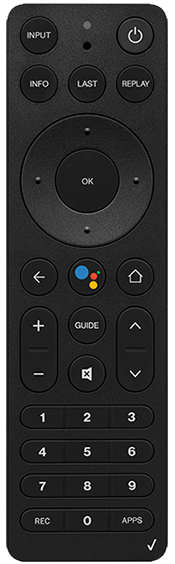
Credit: www.verizon.com
Step-by-step: Programming The Fios Tv One Remote
The Fios TV One Remote is common in many homes. It doesn’t have voice search but is easy to program.
Programming For Tv Control
- Turn on your TV and Fios set-top box.
- Press and hold the OK and 0 buttons together. Release when the red LED blinks twice.
- Enter the 3-digit TV code for your brand. (You can find these online or in the remote’s manual.)
- The LED will blink twice if the code is accepted.
- Test the power and volume buttons. If they don’t work, repeat with a different code.
Programming For Audio Device Control
- Press and hold OK and 2 until the LED blinks twice.
- Enter the audio device code.
- Test the mute and volume buttons.
Insider Tip: If you can’t find your TV code, try the auto-search method. After pressing OK and 0, slowly press the Channel Up button until your TV turns off. Press OK to save the code.
Step-by-step: Programming The Fios P265 Remote
The P265 is a traditional, non-voice remote. Many people still use it.
Programming For Tv
- Turn on your TV and Fios set-top box.
- Press and hold the OK and FiOS TV buttons together. Release when the red LED blinks twice.
- Enter the TV code using the number pad.
- The LED blinks twice for a correct code.
- Test power and volume. If not working, try another code.
Auto-search Programming
If you don’t know the code:
- Hold OK and FiOS TV until the LED blinks twice.
- Press 9-2-2.
- Aim the remote at your TV. Press the Play button once every second. When the TV turns off, press OK.
Programming For Audio Devices
Repeat the above steps, but use the AUX button instead of FiOS TV.
Less-Known Fact: The P265 remote can store only one code per device type (TV, AUX). If you reprogram it for a new device, the old code is erased.
Step-by-step: Programming The Fios P283 And Big Button Remotes
These remotes are popular with users who need larger buttons or a simple layout.
Programming For Tv
- Turn on your TV.
- Hold OK and 2 together until the LED blinks twice.
- Enter your TV brand’s code.
- The LED blinks twice if the code is accepted.
- Test the remote.
Programming For Audio Devices
- Hold OK and AUX (or 2) until the LED blinks twice.
- Enter the audio device code.
- Test the remote.
Practical Insight: If you use a soundbar connected directly to your TV (not the Fios box), you may need to program the remote for both TV and audio device.
Common Programming Mistakes (and How To Avoid Them)
Even if you follow the steps, things can go wrong. Here are the most common issues:
- Wrong Code: Using the wrong brand code is the top problem. Try all codes listed for your brand.
- Remote Not in Programming Mode: Make sure the LED blinks before entering codes.
- Dead Batteries: Weak batteries can prevent successful programming.
- Obstructions: For non-Bluetooth remotes, make sure nothing blocks the signal.
- Audio Device Connected to TV: If your soundbar is connected to the TV (not the box), program the remote for both.
Advanced Tip: Some TVs require HDMI-CEC (“Consumer Electronics Control”) enabled for all functions. Check your TV’s settings menu for this option.
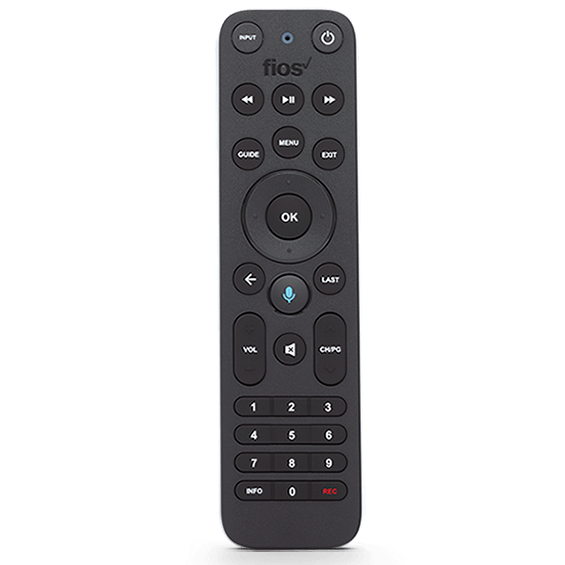
Credit: www.verizon.com
Troubleshooting Your Fios Remote
If your Fios remote is not working after programming, don’t panic. Try these troubleshooting steps:
- Check the Batteries: Replace with new ones.
- Confirm Line of Sight: For infrared remotes, make sure you’re pointing directly at the device.
- Reset the Remote: Most Fios remotes can be reset by holding certain buttons (see your manual).
- Reprogram the Remote: Sometimes, you need to repeat the programming steps.
- Update Set-Top Box Software: Outdated software can cause problems. Restart your box or check for updates in the settings menu.
- Check for Interference: Fluorescent lights or other electronics can interfere with remote signals.
Here’s a simple comparison of common problems and solutions:
| Problem | Possible Cause | Solution |
|---|---|---|
| Remote not responding | Dead batteries, line of sight blocked | Replace batteries, clear any obstacles |
| TV controls not working | Wrong code, incorrect setup | Try different codes, reprogram the remote |
| Volume controls only work on set-top box | Audio device not programmed | Program audio device with correct code |
| Voice commands not working | Bluetooth not paired, outdated firmware | Re-pair remote, update set-top box |
Little-Known Fact: Some Fios remotes can “learn” controls from other remotes. Check your model’s manual for advanced features.
Resetting Your Fios Remote To Factory Settings
Sometimes, you may want to start fresh—especially if you’ve changed TVs or audio devices. Resetting the remote will erase all programmed codes.
Resetting The Fios Tv Voice Remote
- Hold Menu and 0 together for a few seconds.
- The LED will blink blue, then red.
- Follow on-screen instructions to re-pair the remote.
Resetting The Fios P265, P283, Or Tv One Remote
- Hold OK and 2 together until the LED blinks twice.
- Enter 9-8-1.
- The LED will blink three times. All codes are erased.
Warning: After resetting, you must reprogram the remote for your TV and audio devices.
Special Features And Customization
Fios remotes offer more than basic control. Here are some features you might not know about:
- Backlit Keys: Some remotes have illuminated buttons for easy use in the dark.
- Voice Commands: The Fios TV Voice Remote lets you search channels, shows, or apps using your voice.
- Favorite Channels: Program shortcuts for your favorite channels.
- Accessibility Options: Big Button remotes help users with limited vision or dexterity.
You can also adjust settings like button sensitivity and audio delay in the Fios set-top box menu.
Using Your Fios Remote For More Than Tv
Your Fios remote can be programmed to control:
- Soundbars
- Home theater receivers
- Streaming devices (in some cases)
For soundbars or receivers, follow the same programming steps but use the correct code for your device’s brand. For example, if you have a Bose soundbar, enter the Bose code when prompted.
Expert Note: Some advanced audio systems require programming through the audio device’s menu, not just the remote.
Fios Remote Codes: How To Find And Use Them
Each TV and audio device brand uses a different code. Verizon provides a list of codes in the remote’s manual and on their official support website.
If your brand is not listed, try the auto-search method. This lets the remote cycle through possible codes until it finds the right one.
Here’s a sample of popular TV codes for the Fios P265 remote:
| TV Brand | Sample Codes |
|---|---|
| Samsung | 331, 004, 005 |
| LG | 210, 113, 005 |
| Sony | 352, 111, 321 |
| Vizio | 424, 505, 417 |
| TCL | 488, 535, 586 |
Note: Codes can change over time. Always check the latest list from Verizon’s official support page.
Tips For A Smoother Programming Experience
Programming a Fios remote isn’t always perfect on the first try. Here are some tips to help:
- Be Patient: Sometimes, you need to try several codes before finding the right one.
- Check for Interference: Keep the remote and device clear of other electronics.
- Keep the Remote Close: For Bluetooth models, stay within 20 feet of the set-top box.
- Update Your Set-Top Box: An outdated box may not recognize new remotes.
- Test All Functions: After programming, test power, volume, mute, and input buttons.
Hidden Insight: Some remotes allow for partial programming. For example, you can program only the volume keys to control your soundbar but leave the rest for the TV.
When To Replace Your Fios Remote
Remotes don’t last forever. Signs you may need a new one include:
- Buttons don’t respond even with fresh batteries
- Physical damage (cracks, missing buttons)
- Frequent signal drops
- Unusual delays after pressing buttons
If you need a replacement, you can order one directly from Verizon or buy from authorized retailers. Always check for compatibility with your set-top box model.
Programming Multiple Devices
Many users want to control more than one device with their Fios remote. Here’s what you need to know:
- Most Fios remotes can control at least two devices (TV and audio).
- The programming process is the same for each device, but you must use the right device button (TV, AUX, etc. ).
- You can’t program two TVs to one remote at the same time.
- For complex setups (like a projector and sound system), consider a universal remote.
Pro Tip: If you switch audio devices, reprogram the remote for the new device to avoid conflicts.
Using The Fios Remote App
Verizon offers a Fios TV app that can turn your smartphone into a remote control. While not a replacement for the physical remote, it’s a handy backup.
Features include:
- Channel surfing
- On-demand browsing
- DVR management
- Parental controls
To use the app, download it from your device’s app store and sign in with your Verizon account.
Fact: The app works over Wi-Fi, so you don’t need to be in the same room as your set-top box to use some features.
Maximizing The Lifetime Of Your Fios Remote
To get the most from your Fios remote:
- Change batteries regularly (every 6-12 months)
- Avoid dropping or exposing to liquids
- Clean buttons gently with a soft cloth
- Store in a safe place when not in use
If your remote starts acting up, try resetting and reprogramming before replacing it.
Where To Find More Help
If you’re still having trouble, Verizon offers:
- Online support with guides and videos
- Phone support for live help
- Local Verizon stores for in-person assistance
For more in-depth support, visit the official Verizon Fios Remote support page: Verizon Fios Remote Support.
Frequently Asked Questions
How Do I Know Which Fios Remote Model I Have?
Check the back or bottom of your remote for a model number, usually printed near the battery compartment. Compare it with the descriptions in this guide for a quick match.
Can I Use One Fios Remote For Multiple Tvs?
No, each Fios remote is designed to control only one TV at a time. For multiple TVs, you’ll need a separate remote for each.
What Should I Do If The Remote’s Volume Buttons Don’t Work?
Try reprogramming the remote with a different code for your TV or audio device. Check for HDMI-CEC settings on your TV, and make sure the remote is in TV mode.
Is It Possible To Program The Fios Remote Without The Original Tv Remote?
Yes, you don’t need the original TV remote. Just follow the programming steps using the code for your TV brand or use the auto-search feature.
Does The Fios Voice Remote Work With All Fios Set-top Boxes?
The Fios TV Voice Remote is compatible with Fios TV One and Fios TV One Mini set-top boxes. It may not work with older boxes.
Setting up your Fios remote control doesn’t have to be complicated. With the right steps, you’ll enjoy seamless control of your TV and audio devices. Whether you’re pairing the latest voice remote or troubleshooting a classic model, this guide has you covered. For more support, check out Verizon’s official resources and don’t be afraid to try different codes—sometimes the solution is just a few button presses away.

Credit: www.youtube.com