
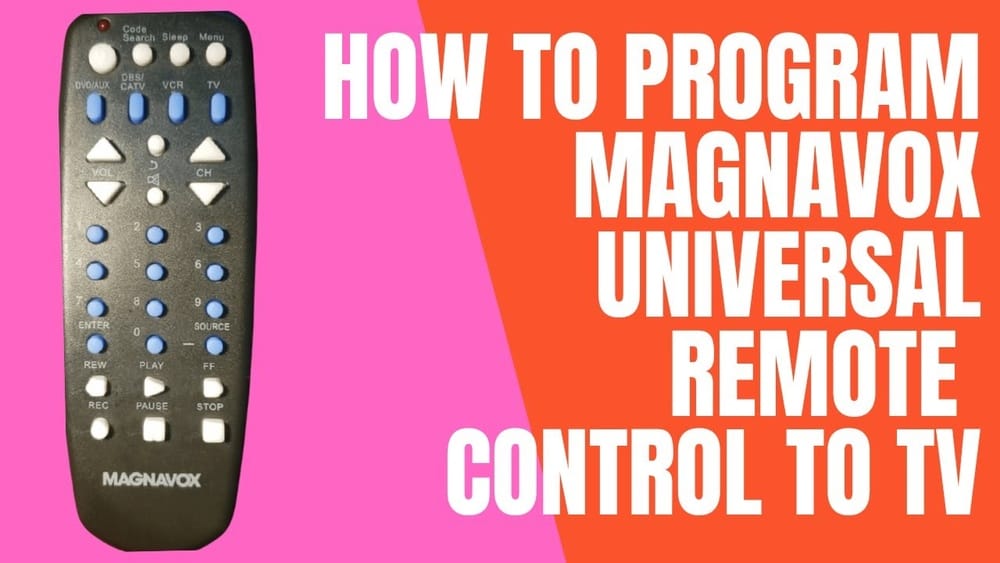
Programming a universal remote can feel like a puzzle—especially if you’re not a tech expert or if English isn’t your first language. The Magnavox Universal Remote Control is a popular choice for its affordability and wide compatibility, but many people struggle with setting it up. This guide will show you, step by step, how to program your Magnavox universal remote, no matter the device you want to control. Whether you’re connecting it to a TV, DVD player, or streaming box, you’ll find clear instructions, troubleshooting tips, and answers to common questions, all in simple, easy-to-understand English.
What Is A Magnavox Universal Remote Control?
A universal remote control is a single device that can operate multiple electronics, like your TV, DVD player, sound bar, or cable box. Magnavox is a trusted brand known for making remotes that work with hundreds of different devices. Instead of juggling several remotes, you can use one to control everything.
Magnavox universal remotes come in different models. Some have extra buttons for advanced features, while others focus on the basics. Most use a system of codes to “learn” how to control your specific devices. Before you begin, it’s good to know which model you have, but the programming process is similar for most Magnavox remotes.
Why Use A Magnavox Universal Remote?
People often choose a Magnavox universal remote for a few key reasons:
- Convenience: Control all your devices with one remote.
- Replacement: If you lose the original remote, a universal remote is usually cheaper and easier to find.
- Compatibility: Magnavox supports a wide range of brands and device types.
- Simplicity: Fewer remotes mean less confusion for everyone in the home.
Many users are surprised to learn that a universal remote can even add features your old remote didn’t have, like controlling streaming devices or soundbars. Of course, these benefits depend on proper programming, which is what this guide will help you achieve.
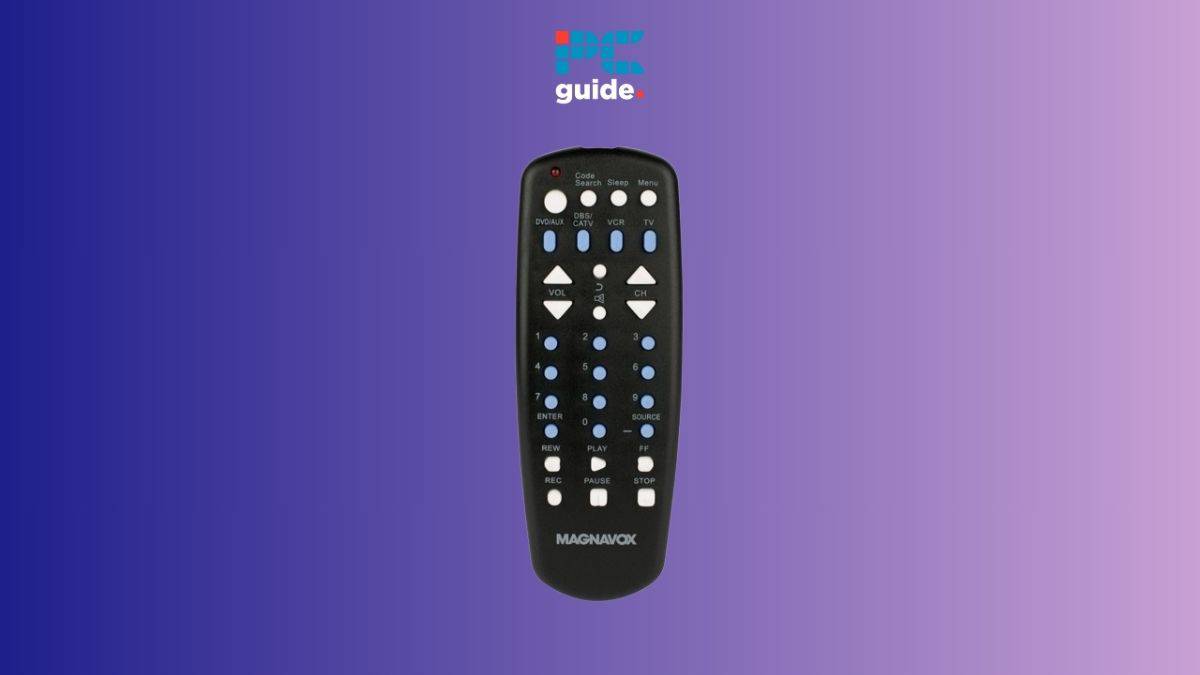
Credit: www.pcguide.com
What You Need Before You Start
Programming a Magnavox universal remote is not difficult, but you will need a few things:
- Magnavox universal remote (with working batteries)
- The device you want to control (TV, DVD player, etc. ), plugged in and turned on
- The device code list for your remote (usually in the manual or online)
- Patience—it may take a few tries to get it right
Tip: If you lost the manual, most code lists are available on the Magnavox website or from reliable sources like Remote Code List.
Understanding Device Codes
Every Magnavox remote uses device codes—numbers that tell the remote how to talk to your TV, DVD player, or another device. These codes are usually 3, 4, or 5 digits. Each brand and device type has its own set of codes. For example, a Sony TV and a Samsung TV will have different codes.
There are two main ways to program your remote:
- Direct Code Entry: Type the code for your device directly into the remote.
- Auto Code Search: The remote tries codes one by one until it finds the right one.
Direct entry is usually faster if you have the code list. Auto search is useful if you don’t know the code or the brand.
Step-by-step: How To Program Magnavox Universal Remote By Code Entry
This is the most common and reliable method. Follow these steps:
- Turn on your device (TV, DVD, etc. ).
- Find the code for your device brand. Check your manual or look it up online.
- Press and hold the “Setup” button on your Magnavox remote until the LED light turns on (usually red or green). If your model doesn’t have a “Setup” button, press and hold the device button (like “TV”).
- Press the device button (for example, “TV,” “DVD,” or “AUX”).
- Enter the code using the number buttons on your remote.
- The LED light will turn off if the code is accepted.
- Test the remote: Try turning the device off and on, changing the volume, or other functions.
If the device doesn’t respond, repeat the steps with a different code from the list. Sometimes one brand has several possible codes, and only one will work for your device.
Example: Programming A Tv
Let’s say you want to program your Magnavox remote to control a Samsung TV:
- Turn on the TV.
- Find Samsung TV codes (e.g., 12051, 10812).
- Hold “Setup” until the LED stays on.
- Press “TV.”
- Enter 12051. The light should turn off.
- Test the power and volume buttons.
If it doesn’t work, try the next code.
Step-by-step: Programming By Auto Code Search
If you don’t know the code, or direct entry doesn’t work, use the auto search method:
- Turn on the device you want to control.
- Press and hold “Setup” until the LED light stays on.
- Press the device button (“TV,” “DVD,” etc. ).
- Press and release the “Power” button repeatedly (sometimes you need to press another button, like “Channel Up”). The remote will send a new code each time.
- When the device turns off, press “Enter” or “OK” to save the code.
This process can take a few minutes. If you pass the correct code (the device turns off, but you keep pressing), restart the process.
Common Device Codes For Magnavox Universal Remote
Here are some popular brands and their common codes:
| Brand | TV Codes | DVD Codes | Streaming Box Codes |
|---|---|---|---|
| Samsung | 12051, 10812, 10060 | 20490, 20573 | 31868 |
| Sony | 10000, 11100, 11300 | 20490, 20533 | 31759 |
| LG | 11423, 10178, 11265 | 20591, 20741 | 31868 |
| TCL | 12434, 11756 | 20675 | 31759 |
| Magnavox | 10054, 10675, 10855 | 20503, 20539 | 31759 |
Always check your specific device’s manual or online for the most up-to-date codes.
How To Program Magnavox Universal Remote Without A Code
If you can’t find the code for your device, don’t worry. Magnavox remotes have a code search feature that lets you program without a code:
- Turn on the device.
- Press and hold “Setup” until the LED stays on.
- Press the device button.
- Press and release “Power” (or “Play” for DVD/VCR). The LED will blink.
- Point the remote at your device and keep pressing “Power” every few seconds.
- When the device turns off, press “Enter” or “OK” to save.
If you accidentally skip the right code, start again.
Non-obvious insight: Some devices require a few seconds after each press to respond, especially older TVs. Don’t press too fast, or you may miss the correct code.
How To Program For Multiple Devices
Magnavox universal remotes can control more than just TVs. You can add DVD players, soundbars, streaming boxes, and more. The process is the same for each device—just select the right device button, like “DVD” or “AUX,” and use the correct code.
If your remote has limited device buttons, you may need to decide which devices are most important. Some newer remotes allow “learning mode,” where you can copy functions from another remote.
Tip: Label which device is programmed to each button. This avoids confusion later, especially for family members.
Troubleshooting Programming Problems
Even with clear instructions, things can go wrong. Here’s how to solve common problems:
The Device Doesn’t Respond
- Double-check batteries in the remote.
- Make sure you’re using the right code for your device and brand.
- Point the remote directly at the device, with no obstacles.
- Try all possible codes for your brand.
- Use the auto search method if none of the codes work.
The Remote Only Controls Some Functions
- Some codes provide basic functions (power, volume) but not advanced features (menu, input, etc. ).
- Try other codes for your device—sometimes one works better than another.
- Certain newer devices may not support all universal remotes.
The Remote Loses Programming
- If your remote stops working after battery changes, reprogram it.
- Some remotes have a “memory” feature; check your model’s manual.
The Led Light Does Not Stay On
- The “Setup” button must be pressed firmly and held long enough.
- Weak batteries can cause this issue.

Credit: www.youtube.com
Advanced Features: Learning Mode And Macros
Some Magnavox universal remotes offer learning mode. This lets you copy commands from your original remote. For example, you can program a button to open your TV’s smart menu or switch inputs.
How To Use Learning Mode
- Place the Magnavox remote and the original remote facing each other, a few inches apart.
- Press and hold “Setup” until the light stays on.
- Press the button on the Magnavox remote you want to program.
- Press and hold the matching button on the original remote until the light blinks.
- Repeat for other buttons as needed.
What Are Macros?
A macro is a sequence of actions assigned to one button. For example, you can program a macro to turn on your TV, switch to HDMI input, and start your streaming device—all with one press. Not all Magnavox remotes support macros, but if yours does, check the manual for setup instructions.
Comparing Magnavox Universal Remote Models
Choosing the right Magnavox remote can make programming easier. Here’s how some popular models compare:
| Model | Device Support | Learning Mode | Backlit Buttons | Price Range (USD) |
|---|---|---|---|---|
| MC345 | 4 Devices | No | No | $10–$15 |
| MC348 | 8 Devices | Yes | Yes | $15–$25 |
| PM435S | 4 Devices | No | No | $9–$13 |
| SRP5107/27 | 7 Devices | Yes | Yes | $18–$28 |
If you want to control multiple devices or need advanced features, choose a model with learning mode and more device support.
How To Reset Magnavox Universal Remote
Sometimes, the best way to fix a stubborn remote is to reset it to factory settings. Here’s how:
- Remove batteries from the remote.
- Press and hold the power button for 30 seconds.
- Re-insert the batteries.
- Reprogram the remote for your devices.
Some models may have a reset code—check your manual. Resetting will erase all programmed codes.
Non-obvious insight: Resetting can fix strange issues like buttons not responding or devices turning on/off randomly.
Tips For Success
Programming a universal remote is not always perfect on the first try. Here are some practical tips:
- Write down the correct code for each device once you find it. This saves time if you ever need to reprogram.
- Keep the code list or manual in a safe place.
- Be patient—some devices take longer to respond.
- Try all programming methods (code entry, auto search, learning mode) if you have trouble.
- Update your remote if your device is very new and your remote is older. Some remotes can’t control the latest smart TVs or streaming boxes.
When The Magnavox Universal Remote Won’t Work
Most Magnavox remotes work with 90% of major brands and devices, but some exceptions exist:
- Very new devices (released after your remote was made)
- Devices that use Bluetooth or Wi-Fi instead of infrared (IR)
- Some smart TVs with voice or motion features
If your device is not responding, check if it uses IR. Universal remotes only work with IR-controlled devices.
Magnavox Universal Remote Vs. Other Brands
How does Magnavox compare to other universal remotes? Here’s a quick look:
| Feature | Magnavox | GE | RCA | One For All |
|---|---|---|---|---|
| Device Support | Up to 8 | Up to 6 | Up to 8 | Up to 8 |
| Learning Mode | Some models | No | Some models | Yes |
| Backlit Buttons | Some models | No | No | Yes |
| Price Range | Low-Mid | Low | Low-Mid | Mid |
Magnavox remotes offer a good balance of features and price, with solid device compatibility. If you need advanced features, make sure to pick a model that supports them.

Credit: manuals.plus
Safety And Care Tips
A universal remote is a small device, but caring for it can prevent problems:
- Avoid dropping the remote. Physical damage can break the buttons or circuits.
- Keep it clean. Dust and spills can make buttons stick.
- Replace batteries in pairs, and use quality batteries for longer life.
- Store away from heat or moisture to avoid damage.
Some remotes have removable covers for cleaning—check your manual for details.
Upgrading Or Replacing Your Remote
If your Magnavox remote is several years old or not working with your new devices, it might be time for an upgrade. Modern universal remotes support more devices and have extra features like backlit buttons, smart device support, or even voice control.
Look for these features if you’re buying a new remote:
- Device compatibility: Make sure your TV, streaming box, and other devices are supported.
- Learning mode for special functions.
- Backlighting if you use the remote in the dark.
- Easy-to-read buttons for all users.
Many online retailers and local stores carry Magnavox universal remotes. For the latest models and code lists, check the official Philips Universal Remotes page.
Frequently Asked Questions
How Do I Find The Correct Code For My Device?
You can find the device code in the Magnavox remote manual or on the official Magnavox website. If you don’t have the manual, try a trusted online source. Always use the code that matches both the brand and device type (TV, DVD, etc.).
What Should I Do If No Code Works For My Device?
If none of the codes work, try the auto code search method. This lets the remote test every code until it finds one that works. If your device is too new or uses Bluetooth/Wi-Fi, it may not be compatible with universal remotes.
Can I Program The Remote For More Than One Device?
Yes, Magnavox universal remotes can control multiple devices, like your TV, DVD player, and streaming box. Each device button stores its own code. Just repeat the programming process for each device.
Why Are Some Buttons Not Working After Programming?
Some codes only control basic functions. Try other codes for your brand—sometimes one code works better than another. If your device uses special features, those may not be supported by all universal remotes.
How Do I Reset My Magnavox Universal Remote To Start Over?
Remove the batteries, press and hold the power button for 30 seconds, then replace the batteries. This resets most models. You’ll need to reprogram your devices afterward.
Programming a Magnavox universal remote is a straightforward process once you know the steps. With a bit of patience and the right codes, you’ll have one remote for all your devices—making your home entertainment setup simpler and more enjoyable. Whether you’re replacing a lost remote, upgrading, or just want less clutter, the Magnavox universal remote is a practical solution for everyday use.