
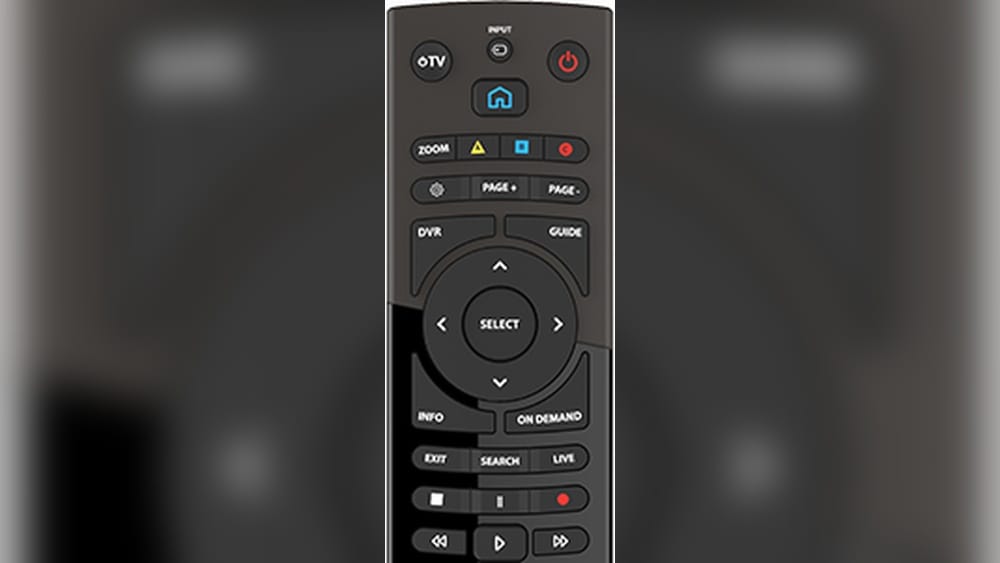
Programming an Optimum remote control can feel confusing for many users, especially if you’re not a technical person. The good news is, you don’t need advanced skills to get your remote working with your TV, sound system, or cable box. With some patience, clear instructions, and a little troubleshooting, you can set up your Optimum remote control in a short time. This guide explains every step, from understanding your remote model to fixing common problems. You’ll also learn important tips that most beginners overlook, so you can avoid frustration and make your entertainment setup work smoothly.
Understanding Optimum Remote Controls
Optimum provides several types of remote controls, each with its own features and programming steps. Knowing your remote model is the starting point. Most users have one of these types:
- Altice One Remote: Sleek, voice-enabled, controls TV and cable box.
- Optimum UR2-CBL-CV04: Classic style, popular with older Optimum boxes.
- Optimum UR5U-8780L: Universal remote, works with many devices.
- Optimum One Remote: Newer universal, with easy pairing features.
Why does the model matter? The steps to program your remote depend on its type. For example, some remotes use codes, while others can pair automatically or use voice commands. You can usually find the model number on the back of the remote or inside the battery cover.
Remote Features At A Glance
Here’s a quick comparison of common Optimum remote models and their features:
| Remote Model | Voice Control | Universal Support | Popular Devices Supported | Programming Method |
|---|---|---|---|---|
| Altice One | Yes | Yes | TV, Soundbar, Cable Box | Automatic/Manual |
| UR2-CBL-CV04 | No | Yes | TV, Audio | Code Entry |
| UR5U-8780L | No | Yes | TV, Audio, DVD | Code Entry/Auto |
| Optimum One | Limited | Yes | TV, Sound System | Auto Pairing |
Non-obvious insight: Many users try to program the remote without checking the model, leading to failed attempts and wasted time. Always check your remote type first.
Preparing To Program Your Optimum Remote
Before you start programming, get everything ready:
- Check batteries: Weak batteries cause setup errors.
- Know your device brand: You’ll need this for code entry.
- Have the TV or audio device ON: The remote needs to “see” the device during setup.
- Find the programming codes: For older remotes, you need device-specific codes (usually in the manual or online).
- Clear obstacles: Remove anything blocking the remote’s signal to your devices.
Practical tip: Take a picture of your device model numbers. This helps if you need to search for codes or contact support later.
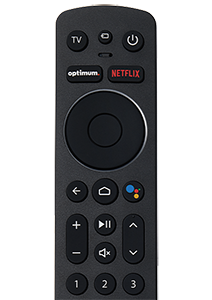
Credit: www.optimum.net
Programming Methods Explained
Optimum remotes use three main programming methods:
- Manual Code Entry: Inputting a specific code for your device.
- Auto-Search: The remote cycles through codes automatically.
- Pairing (for newer remotes): The remote pairs with your device using simple steps.
Let’s break down these methods for each common Optimum remote model.
Manual Code Entry
This is the classic way to program most universal remotes.
Steps:
- Turn on the device (TV, soundbar, etc. ).
- Press and hold the TV (or appropriate device) button and the SELECT/OK button at the same time.
- Release both buttons when the indicator light stays on.
- Enter the 3-digit or 4-digit code for your device brand.
- The indicator light should turn off. Test the remote by pressing the POWER button.
Non-obvious insight: If your device turns off but other buttons don’t work (like volume), try the next code on the list. Some brands have multiple codes.
Auto-search Programming
If you don’t know your device’s code, use auto-search.
Steps:
- Turn on the device.
- Hold the TV and SELECT/OK buttons until the light stays on.
- Press the CH+ button repeatedly, slowly, until the device turns off.
- Press MUTE or OK to lock in the code.
This process may take a few minutes, especially with uncommon brands.
Pairing For Modern Remotes
Newer models like the Altice One and Optimum One Remote use easier pairing steps.
- Press and hold the HOME and VOL+ buttons until the LED blinks.
- Follow on-screen prompts (on your TV) to complete pairing.
- If you see a code on the TV, enter it on the remote.
Pairing lets the remote “talk” to your device directly, with no codes needed for many brands.
Quick Reference: Programming Steps By Remote Type
| Remote Model | Programming Method | Key Steps |
|---|---|---|
| Altice One | Pairing | Home + VOL+, follow on-screen instructions |
| UR2-CBL-CV04 | Code Entry/Auto | TV + SELECT/OK, enter code or use CH+ to search |
| UR5U-8780L | Code Entry/Auto | Device + SELECT/OK, enter code or auto-search |
| Optimum One | Pairing | Home + VOL+, on-screen pairing |
Finding The Right Device Code
Programming a remote often fails because users pick the wrong code. Here’s how to find the correct one:
- Use the Optimum code list: The code list comes with the remote or is available on Optimum’s website.
- Search online: Type “Optimum remote code [your device brand]” in a search engine.
- Use the auto-search method: If you can’t find your brand, let the remote search for you.
Some device brands have many models, so you may need to try a few codes before you get one that works fully. For example, Samsung TVs often use several possible codes.
Pro tip: Write down the working code for future use. If you reset your remote, you can reprogram it quickly.
Step-by-step Programming: Real-world Examples
Let’s walk through programming for the most common scenarios.
Programming Optimum Remote To Tv
Suppose you have a Samsung TV and a UR2-CBL-CV04 remote.
- Turn on your TV.
- Hold TV and SELECT/OK until the light stays on.
- Enter the first Samsung code: 10060.
- The light should turn off. Test by pressing POWER.
- If the TV doesn’t respond, repeat with the next code.
Programming Optimum Remote To Soundbar Or Audio Device
Audio devices often need different codes. Let’s use a Bose soundbar as an example.
- Turn on the soundbar.
- Hold the AUX (or AUDIO) and SELECT/OK buttons.
- Enter the Bose code (for example, 30189).
- Test volume and mute buttons.
Beginner mistake: Some remotes require you to set the “audio mode” before programming. Check your remote’s manual if the code doesn’t work.
Programming Optimum Remote To Cable Box
Most Optimum remotes work with their cable boxes out of the box. If you need to reprogram:
- Make sure the cable box is connected and powered on.
- Hold CBL and SELECT/OK.
- Enter the Optimum box code (often 01376).
- Test channel and menu buttons.
If your remote doesn’t respond, it may need to be reset (explained later).
Special Features And Customizations
Optimum remotes do more than just basic control. Here are features you might not know:
- Volume Lock: Set the remote to always control TV or audio volume, no matter the mode.
- Input Selection: Switch between HDMI, AV, and other inputs directly.
- Backlight: Some remotes have a light for use in the dark.
- Voice Control: Use voice commands with Altice One.
How to set Volume Lock:
- Hold SETUP until the light stays on.
- Enter the volume lock code (often 993).
- Press the device button (TV or AUDIO).
Now, the volume buttons always control the selected device.
Troubleshooting Common Problems
Programming doesn’t always go as planned. Here’s how to solve the most common issues:
Remote Not Responding
- Check and replace batteries.
- Make sure nothing is blocking the remote’s signal.
- Try resetting the remote (see next section).
Device Turns Off, But Other Buttons Don’t Work
- This means you have the wrong code or only partial compatibility.
- Try another code for your device brand.
Volume Or Mute Doesn’t Work
- Some TVs or soundbars need a separate code for volume.
- Try programming the volume lock feature.
Remote Paired, But Not Controlling Cable Box
- Unpair and re-pair the remote.
- Check if your cable box firmware is up to date.
Led Blinking Or Stays On
- A stuck LED can mean a programming error. Remove batteries for 10 seconds and try again.
Non-obvious insight: If your remote suddenly stops working, check for interference from LED lights or other electronics. Some devices can block or confuse remote signals.
Resetting Your Optimum Remote
If everything fails, a full reset can help.
- Remove the batteries.
- Hold down the POWER button for 10 seconds.
- Reinsert the batteries.
- Reprogram your devices as described above.
A reset clears all previous programming, so you’ll need to set up your devices again.
Programming Advanced Devices
Some users want to control more than just a TV or cable box. Optimum universal remotes can often control:
- DVD/Blu-ray players
- Streaming devices (like Roku, Apple TV)
- Game consoles (limited support)
- Multiple TVs or audio devices
Example: To add a streaming device, look up the code for your device and program it to the AUX button.
Caution: Not all features (like menu navigation) will work with every brand or device.
Comparing Manual Code Entry Vs. Auto-search
Which method should you use? Here’s a direct comparison:
| Method | Speed | Ease of Use | Accuracy | When to Use |
|---|---|---|---|---|
| Manual Code Entry | Fast (if you have the code) | Medium | High | You have the code and want quick setup |
| Auto-Search | Slow | Easy | Medium | You don’t know the code or have unusual devices |
Advice: Try manual entry first if you have the code. If it fails, switch to auto-search.
Tips For Best Performance
Programming your Optimum remote is just the start. For smooth operation:
- Keep the remote and devices in line of sight. Avoid putting your cable box behind cabinet doors.
- Change batteries every 6-12 months. Weak batteries cause dropped signals.
- Update your cable box firmware regularly. New updates improve compatibility.
- Store the codes you use. Many people forget them after setup, causing extra work if the remote resets.
- Clean the remote. Dust and dirt can block button contacts.
Non-obvious insight: Using rechargeable batteries can sometimes cause lower power output. Standard alkaline batteries are more reliable for remotes.
When To Replace Your Remote
Sometimes, remotes wear out or get damaged. Signs you may need a new one:
- Buttons stick or don’t work after cleaning.
- Remote only works at very close range.
- Physical damage (cracks, water damage).
You can buy a replacement directly from Optimum or online retailers. Make sure to get the correct model for your cable box.

Credit: www.youtube.com
Using A Smartphone As A Remote
Some Optimum cable boxes support control through the Optimum TV app on your smartphone. This can be handy if you lose your remote.
To set up:
- Download the Optimum TV app from the App Store or Google Play.
- Sign in with your Optimum account.
- Follow prompts to connect the app to your cable box over Wi-Fi.
- Use on-screen buttons to control channels, volume, and more.
Limitation: The app may not control your TV’s power or volume unless your TV is a supported smart model.
Safety And Maintenance
Remotes are low-risk, but some simple care keeps them working longer:
- Avoid dropping the remote.
- Keep away from moisture.
- Clean with a soft, dry cloth. No water or cleaners.
- Replace batteries if the remote is not used for a long time.
Pro tip: Use a silicone cover to protect your remote from spills and drops.
Resources For More Help
If you run into problems, these resources are useful:
- Optimum support site: Official guides, code lists, and troubleshooting help.
- YouTube tutorials: Many Optimum users post video walkthroughs.
- Customer support: Call Optimum if your remote isn’t working after trying all steps.
For a full list of device codes and advanced programming, check the official guide at Optimum Support.
Frequently Asked Questions
How Do I Find The Code For My Tv Brand?
You can find your TV’s code in the remote manual or the Optimum support website. If you don’t have the manual, search online for “Optimum remote code [your TV brand]”. If that fails, use the auto-search programming method.
What Should I Do If The Remote Won’t Program To My Device?
First, check that you’re using the correct programming method for your remote model. Make sure your device is turned on and the batteries are fresh. Try both manual code entry and auto-search. If it still doesn’t work, your device may not be compatible, or the remote may need to be reset.
Can I Program My Optimum Remote To Control More Than One Device?
Yes, most Optimum remotes can control your TV, cable box, and one audio device (like a soundbar). Use the correct button (TV, AUX, CBL) during programming. Remember, each button can usually be programmed to a different device.
How Do I Reset My Optimum Remote To Factory Settings?
To reset, remove the batteries, hold the POWER button for 10 seconds, then replace the batteries. You’ll need to reprogram your devices afterward. Some remotes have a reset button combination in the manual—check your model instructions.
Why Does My Optimum Remote Only Change Channels But Not Adjust Volume?
This usually means the remote is controlling the cable box, not the TV or audio device. Program the volume lock feature to your TV or audio device. If the problem continues, try reprogramming with a different code.
Setting up your Optimum remote control doesn’t have to be difficult. With patience and the right steps, you can control your TV, cable box, and more from one device. Always check your remote model, use the best programming method for your situation, and keep your codes handy.
If you run into trouble, Optimum’s support resources and community forums are there to help. Soon, you’ll enjoy hassle-free control of your home entertainment system.

Credit: www.youtube.com