
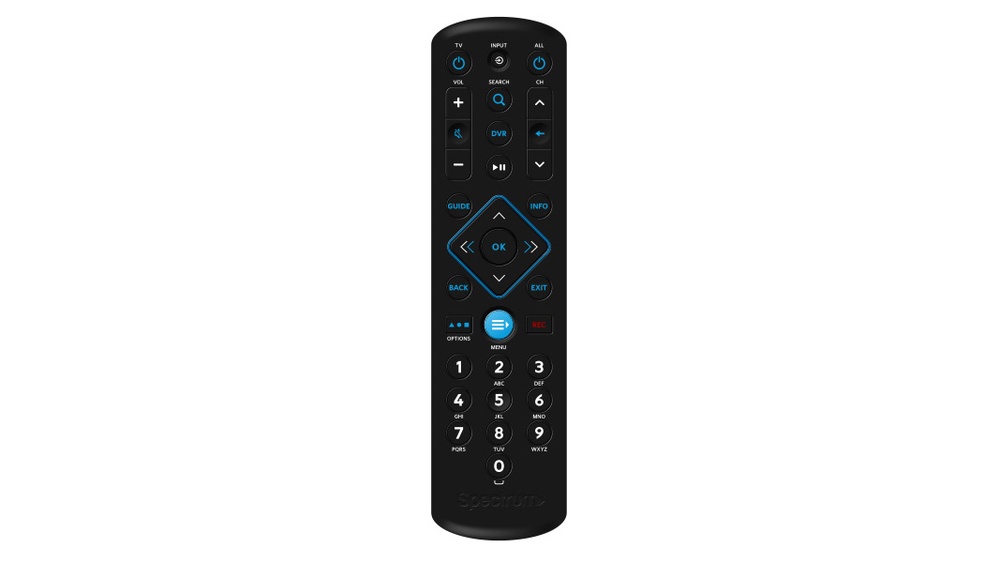
Programming your Spectrum remote control can make life much simpler. Instead of juggling multiple remotes for your TV, soundbar, or other devices, you can use one remote for almost everything. Many people find the process confusing at first, but once you know the steps, it’s actually straightforward.
This article will guide you through the process with detailed explanations, practical tips, and clear examples. Whether your Spectrum remote is new or you’re reprogramming it after setup, you’ll learn how to handle every step with confidence.
Understanding Spectrum Remote Controls
Before you start, it’s important to know which Spectrum remote you have. Spectrum provides several models, each with its own features and programming methods. The most common models include:
- Spectrum Guide Remote (URC1160)
- Spectrum 1060BC2/1060BC3
- Spectrum Remote Control SR-002-R
- Spectrum Universal Remote
Each model may look slightly different, but most have similar buttons and can be programmed using similar steps. You can usually find the model number on the back or inside the battery compartment.
Why does the model matter? Some programming codes and steps vary by model. Using the correct guide saves time and avoids mistakes.
What You Can Control With Your Spectrum Remote
Spectrum remotes are designed to control more than just your cable box. Depending on the model, you can use them to operate your:
- Television
- Soundbar or audio receiver
- DVD/Blu-ray player
- Streaming devices
Most people program their remote for the TV and soundbar, but if you use other devices, it’s possible to add those too. This flexibility is one reason why learning to program your remote is so valuable.
Before You Start: What You Need
To program your Spectrum remote, gather these items first:
- Your Spectrum remote
- Fresh batteries (if your remote is not responding well)
- The device you want to control (TV, soundbar, etc.)
- Device brand and model number
- Access to the Spectrum remote code list (available online or in the remote’s manual)
Having all these ready reduces frustration and makes the programming process smoother. A common beginner mistake is not knowing the device brand or code list, which can cause delays.
How Programming Works: Basic Concepts
Programming a remote means teaching it how to send the right signals for your TV or device. This usually involves entering a code that matches your device’s brand. There are two main methods:
- Direct Code Entry: You enter a specific code for your device brand.
- Auto-Search (Code Search): The remote cycles through all codes until it finds one that works.
Both methods reach the same goal, but direct code entry is faster if you have the code. Auto-search is useful if your brand is less common or you can’t find the code.
Step-by-step: Programming Your Spectrum Remote To A Tv
Let’s walk through the two main methods for programming your Spectrum remote. These steps cover most Spectrum remotes, especially the URC1160 and 1060BC2/1060BC3 models.
Method 1: Direct Code Entry
- Turn on your TV (manually).
- Find the correct code for your TV brand. You can get this from the Spectrum manual or their official support page.
- Press and hold the “TV” button on your Spectrum remote. Some remotes require you to press and hold both the “TV” and “OK/SEL” buttons together until the LED light turns on.
- Enter the code using the number buttons. The LED light will blink when the code is accepted.
- Release the “TV” button. The light should stay on, then turn off.
- Test the remote. Try turning the TV off and on, adjusting the volume, or changing input.
If it works, you’re done. If not, repeat with the next code in the list.
Example
If you have a Samsung TV, and the code is 12051:
- Hold “TV” and “OK/SEL” until the LED stays on.
- Enter 12051.
- The LED blinks, then turns off.
- Test the remote on your TV.
Method 2: Auto-search (code Search)
If you don’t have the code or your TV is a less common brand:
- Turn on your TV manually.
- Hold the “TV” button (or “TV” + “OK/SEL” on some remotes) until the LED stays on.
- Press the “CH+” button repeatedly. Each time you press, the remote tries a new code. Do this slowly—wait a second between presses.
- When the TV turns off, stop pressing “CH+”.
- Press “OK/SEL” or “Enter” to save the code.
- Test the remote functions (power, volume, input).
Pro Tip
Sometimes the TV will turn off, but not all buttons work (like volume or input). If this happens, repeat the process. The first code to turn off your TV isn’t always the perfect match.
Common Programming Codes For Popular Tv Brands
Here are some codes for well-known TV brands. These are for reference—always check your manual or Spectrum website for the latest codes.
| TV Brand | Common Code(s) |
|---|---|
| Samsung | 12051, 10812, 10702 |
| LG | 11423, 10178, 11265 |
| Sony | 10810, 11317, 10000 |
| TCL/Roku TV | 11756, 12434 |
| Vizio | 11758, 11756, 10864 |
| Hisense | 12183, 12098 |
| Panasonic | 10250, 10051 |
| Philips | 11454, 10054 |
| Sharp | 10093, 10165 |
| Toshiba | 11524, 10156 |
Tip: If your brand isn’t listed, check the complete code list online or in your remote’s manual.

Credit: urcsupport.com
Programming Spectrum Remote For Other Devices
You can also program your Spectrum remote to control devices such as a soundbar, Blu-ray player, or streaming box. The process is similar to programming for a TV.
Steps For Other Devices
- Turn on the device (for example, your soundbar).
- Press and hold the device button (like “AUX” or “DVD”).
- Find the correct device code for your brand and enter it.
- Release the device button. The LED should blink or turn off.
- Test the remote functions (volume, mute, power).
Example: Programming For A Soundbar
If you have a Bose soundbar and the code is 31934:
- Hold the “AUX” button until the light stays on.
- Enter 31934.
- The LED blinks, then turns off.
- Test power and volume.
Auto-search For Other Devices
If you don’t have the code, use the auto-search method:
- Hold the device button.
- Press “CH+” or “Play” repeatedly until the device responds.
- Save the code by pressing “OK/SEL”.
Non-obvious insight: For some soundbars, you may need to program the remote to control volume through the soundbar instead of the TV. This often requires a “mode” switch on the remote or in your Spectrum receiver settings.
Troubleshooting Common Problems
Even with clear instructions, you might face some issues during programming. Here’s how to solve the most common ones.
The Remote Won’t Program
- Check batteries. Weak batteries can stop the remote from working.
- Try another code. Some brands have several codes; the first might not work.
- Reset your remote. Remove batteries, press every button once, then reinsert batteries.
- Check device compatibility. Some very new or very old devices may not work with standard codes.
Some Buttons Don’t Work
- Volume or input not responding? Try a different code for your device. Sometimes the first code only supports basic functions.
- Input button issues. For some TVs, the input button won’t work unless you use a specific code.
Tv Turns Off, But Won’t Turn On With Remote
This usually means the code is only partly compatible. Repeat the code search and try a different code.
The Remote Controls The Cable Box, Not The Tv
- Make sure you programmed the correct device button (e.g., “TV” and not “CBL”).
- Switch between “CBL” and “TV” modes if your remote has a mode switch.
Resetting The Spectrum Remote
If you want to start over or the remote is acting strangely, you can reset it:
- Remove the batteries.
- Hold down the “1” button for 60 seconds.
- Reinsert the batteries.
- Program the remote again.
This trick solves many strange behavior issues.
Using Advanced Features
Spectrum remotes offer more than just power and volume. Some advanced features can make your viewing experience even better.
Programming Volume And Channel Lock
- Volume Lock: Keeps the volume buttons controlling the same device, no matter which mode the remote is in.
- Channel Lock: Keeps the channel buttons working only for the cable box.
How To Set Volume Lock
- Press and hold “SETUP” (or “MENU”) until the LED blinks twice.
- Enter 993 (for most remotes).
- Press the device button you want to lock volume to (e.g., “TV” or “AUX”).
- The LED blinks twice.
Now, volume buttons will always control the device you picked.
Programming Input Button
Some remotes let you program the “INPUT” or “SOURCE” button to always switch your TV’s input.
- Press and hold “SETUP” until the LED blinks twice.
- Enter 994.
- Press “INPUT”.
- Press the device button you want to control.
Learning Function (for Advanced Models)
A few Spectrum remotes have a learning function. This means you can “teach” your Spectrum remote by pointing your old remote at it and copying the button signals.
- Hold “SETUP” until the LED blinks twice.
- Press 975.
- Press the button on the Spectrum remote you want to program.
- Point your old remote at the Spectrum remote, and press the same button.
- The LED blinks if it worked.
Non-obvious insight: Not all models have this feature, but if yours does, it can solve problems with rare or new devices.
Programming Spectrum Remote To Control Multiple Devices
Spectrum remotes can control up to four devices, depending on the model. The most common setup is TV, cable box, soundbar, and DVD or Blu-ray player.
How To Switch Between Devices
- Press the button for the device you want to control (“TV,” “CBL,” “AUX,” “DVD”).
- The LED light will blink to show which mode you’re in.
Device Priority
When you press a button (for example, volume), the remote checks which device mode is active. If you set up “volume lock,” the remote will always control your chosen device’s volume, no matter the mode.
Here’s how device priority works in practice:
| Button Pressed | Device Mode | Action |
|---|---|---|
| Volume Up | TV | TV volume increases |
| Channel Up | CBL | Cable box changes channel |
| Mute | AUX | Soundbar mutes |
Practical tip: If you want all volume buttons to control your soundbar, use the volume lock feature after programming the soundbar.
Spectrum Remote Models: Key Differences
Understanding your remote model helps you follow the correct programming steps. Here are three main Spectrum remote types and their distinguishing features:
| Model | Device Buttons | Special Features | Programming Method |
|---|---|---|---|
| URC1160 | TV, CBL, DVD, AUX | Backlit keys, learning mode | Code entry, auto-search, learning |
| 1060BC2/1060BC3 | TV, CBL, DVD, AUX | Basic functions, no learning | Code entry, auto-search |
| SR-002-R | TV, CBL, AUX | Slim design, fewer buttons | Code entry, auto-search |
If you’re not sure about your model, look for the number inside the battery compartment or on the back label.
Remote Codes: Why Some Devices Don’t Work
Not all devices will respond to Spectrum remote codes. Why? Sometimes a device is too new, too old, or uses a rare IR signal. Here’s what to do if your device doesn’t respond:
- Check for the latest code list online. Manufacturers add new codes often.
- Try the learning function if your remote supports it.
- Contact Spectrum support for advice or possible remote replacement.
Insider’s tip: Some newer devices use Bluetooth or Wi-Fi remotes, which are not compatible with Spectrum’s infrared signals. In these cases, you must use the original remote for advanced features.

Credit: www.youtube.com
Reprogramming The Remote After A Reset Or Battery Change
If you reset your remote or change the batteries, you may need to reprogram it. Most remotes will keep their programming, but occasionally you’ll lose stored codes. Here’s how to minimize problems:
- Write down your codes after programming.
- Use fresh batteries to avoid memory loss.
- Test remote functions after any reset.
Pro tip: If your remote loses programming often, it may have a hardware problem. Consider requesting a replacement from Spectrum.
Programming Spectrum Remote For Audio Receivers
Many people connect their TV to an audio receiver for better sound. You can program your Spectrum remote to control the receiver’s volume and power.
Steps
- Turn on your audio receiver.
- Hold down the “AUX” button until the LED stays on.
- Enter the receiver’s code (for example, Yamaha: 11769).
- Test the volume and power functions.
If you use the receiver for all sound, set the volume lock to AUX so the remote always controls the receiver’s volume.
Programming For Smart Tvs And Streaming Devices
Smart TVs and streaming boxes (like Roku, Apple TV, or Fire TV) often require special codes. Spectrum remotes can usually control the TV power and volume, but not all smart functions.
- For Roku TVs, use the TV programming method.
- For stand-alone Roku/Apple TV boxes, you may be able to program basic power and navigation, but not voice search or advanced features.
- For Amazon Fire TV, Spectrum remotes generally do not support programming due to the use of Bluetooth.
Non-obvious insight: If you have a universal remote with a “learning” feature, you can program individual buttons for unique functions, even if no code exists.
Practical Tips For Everyday Use
Here are some practical tips to get the most out of your Spectrum remote:
- Label your remotes if you have more than one, to avoid confusion.
- Keep your code list handy for quick fixes.
- Clean the remote regularly—dust and dirt can block signals.
- Use fresh batteries every 6-12 months for best performance.
- Store your old remotes in a safe place in case you need to reprogram.

Credit: www.spectrum.net
Saving Time: Using The Spectrum Tv App As A Backup
If you ever lose your remote or it stops working, the Spectrum TV app (available for smartphones and tablets) lets you control your cable box and some TV functions. While it’s not a full replacement, it’s a helpful backup during emergencies.
When To Get A Replacement Remote
If your remote is physically damaged, won’t program after several attempts, or the buttons are unresponsive even with new batteries, contact Spectrum for a replacement. Remotes are usually free with your cable service, but some advanced models may have a fee.
Frequently Asked Questions
What If I Can’t Find The Code For My Tv Brand?
Try the auto-search method to find a working code. If this doesn’t help, check Spectrum’s official website for updated code lists or contact their support team for assistance.
Can I Program My Spectrum Remote To Control My Streaming Stick (like Fire Tv)?
Spectrum remotes usually control basic TV functions like power and volume. Most streaming sticks (especially Fire TV) use Bluetooth, which the Spectrum remote does not support. You’ll need to use the original remote for advanced features.
My Remote Was Working, But Now It Doesn’t Control The Tv. What Should I Do?
First, replace the batteries. If the problem continues, try reprogramming the remote using the code entry or auto-search method. Sometimes after a power outage or battery change, remotes lose their programming.
How Do I Program The Remote For Both My Tv And Soundbar?
Program the TV first (using the “TV” button and code), then the soundbar (using the “AUX” button and code). To make the volume buttons always control the soundbar, use the volume lock feature described earlier.
Where Can I Find Spectrum Remote Codes Online?
You can find the most up-to-date code lists on the Spectrum support site.
Programming your Spectrum remote control is a smart way to make your home entertainment simpler and more enjoyable. With a little patience and the right steps, you can control your TV, cable box, and audio equipment from one remote. Remember, every device and remote model can be a little different, so keep your manual and code list nearby.
And if you ever get stuck, Spectrum’s support team and online resources are always there to help. Happy watching!