
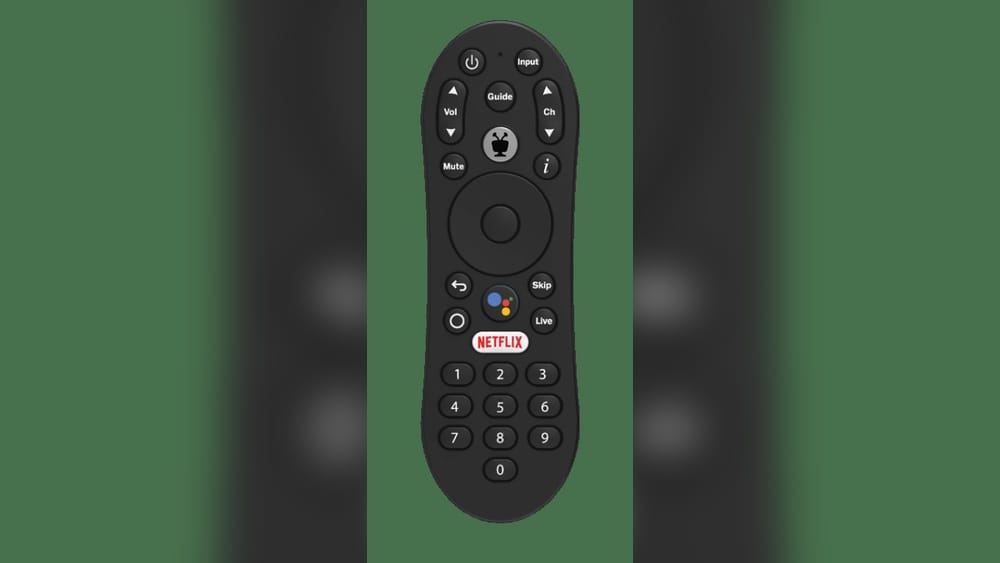
Programming your TiVo remote control can feel confusing at first, but it’s actually a simple process once you know the steps. Whether you want to control your TV, sound system, or other devices, learning how to program the TiVo remote saves you time and frustration. Many users don’t realize that the TiVo remote can manage multiple devices, improve their daily routines, and even reduce clutter. This guide will show you everything you need to know—step by step—so you can get the most from your TiVo remote.
Programming your remote also helps you avoid juggling several remotes or searching for the right button in the dark. Once you’ve set it up, you can turn on your TV, adjust the volume, and access your favorite channels or streaming apps with just a few clicks.
Even better, if you have guests or family members, a single, well-programmed remote makes things much simpler for everyone. This guide is designed for users at all levels, from first-time TiVo owners to those upgrading to a new remote.
Understanding Tivo Remote Types
Before you start programming, it’s important to know which TiVo remote you have. TiVo has released several remotes over the years, and each has slightly different features. The main types include:
- Classic TiVo remote: Basic buttons, no voice control.
- TiVo Slide Remote: Features a built-in keyboard.
- TiVo VOX/Voice remote: Includes voice search and control.
- TiVo Peanut remote: Iconic shape, standard for older models.
While these are the most common, there are also a few special edition remotes, such as limited color versions or remotes bundled with specific TiVo DVRs. If you have a remote that looks different from the main types above, it’s likely still compatible, but double-check on the TiVo website for exact features and programming instructions.
Each remote works with different TiVo DVRs and has unique programming steps. If you aren’t sure which remote you have, check the model number on the back or compare the shape and buttons with images from the TiVo website.
Why Remote Type Matters
Programming steps can vary. For example, the TiVo VOX remote uses Bluetooth for voice, while older remotes use infrared (IR). Some advanced remotes can control more devices, like audio receivers or streaming boxes, while basic remotes only work with TVs.
An important detail: Bluetooth remotes can communicate with your DVR through walls or cabinets, while IR remotes require a clear line-of-sight. If you’re setting up your entertainment system in a cabinet or behind a wall-mounted TV, knowing this difference can save you frustration later. Also, keep in mind that only some remotes support programming for audio devices or custom button assignments.
Preparing To Program Your Tivo Remote
Programming your TiVo remote starts with preparation. You’ll need:
- Fresh batteries: Weak batteries cause programming errors.
- Device codes: Each TV or audio device has a unique code.
- Access to your TiVo DVR: Programming is often done through the menu.
It’s also helpful to have a pen and paper ready to write down codes you try, especially if your device brand has multiple codes. This helps you avoid repeating the same codes and keeps you organized.
Finding Device Codes
The correct code is essential. TiVo provides a list of codes for popular brands. For example, Samsung TVs might use codes like 1001 or 1002, while Sony could use 2001 or 2002. You can find the full list in your TiVo manual or online at the TiVo support site.
If your device brand is less common, the list might be longer. Try each code in order. Sometimes, the first code works for most models, but older or newer TVs may require a different one. If you’re not sure which code applies, try searching “[Your TV Brand] TiVo remote code” in your favorite search engine—many users share their experiences in forums.
Common Mistake: Skipping Battery Check
Many people try to program their remote with old batteries. This leads to frustration when the remote doesn’t respond. Always start with new or fully charged batteries.
A less obvious tip: even if your remote works for normal use, weak batteries can cause the programming mode to fail. The remote needs strong power to send special signals during setup, which is why fresh batteries make a difference.
Step-by-step: Programming Your Tivo Remote For Tv Control
Programming your TiVo remote to control your TV is usually the first step. Here’s a clear process for the most common remotes:
- Turn on your TV.
- Hold the TiVo and TV Power buttons together for 5 seconds. The light on the remote should stay on.
- Enter the device code for your TV brand using the number buttons.
- Press Enter. The light should blink and turn off.
- Test the remote: Press TV Power. If the TV turns off, the programming worked.
If the TV doesn’t respond, try another code. Sometimes brands have multiple codes, so you may need to repeat the process.
Be patient. Some TVs respond slowly after programming, so wait a few seconds before testing the power button. If you have a smart TV, it may need a different code than older models.
Example: Programming For Samsung Tv
- Find Samsung code: 1001
- Hold TiVo + TV Power for 5 seconds
- Enter 1001
- Press Enter
- Test power button
If unsuccessful, try code 1002.
You might notice that after entering the correct code, your TV might react differently—some turn off instantly, others take a few seconds. If you see any reaction (like the TV volume bar appearing), that usually means you’re close. Try testing other buttons as well.
Non-obvious Insight: Multiple Codes Per Brand
Many brands have several codes. Beginners often give up after one failed attempt. Always try every code for your brand before assuming your remote won’t work.
Another tip: Some TV models may share hardware with other brands due to licensing. If all codes for your brand fail, try codes for similar brands or companies that made parts for your TV.
Programming Tivo Remote For Audio Devices
The TiVo remote can also control your audio system. This is useful if you have a soundbar or AV receiver.
- Turn on your audio device.
- Hold TiVo and Volume Up buttons for 5 seconds.
- Enter the device code for your audio brand.
- Press Enter.
- Test volume controls.
If the device doesn’t respond, repeat with another code.
Audio devices sometimes use different codes even within the same brand, especially if you have a soundbar versus a full AV receiver. Make sure you are using the correct device type when searching for codes.
Practical Example: Programming For Bose Soundbar
- Bose code: 3031
- Hold TiVo + Volume Up
- Enter 3031
- Press Enter
- Test volume
If your soundbar doesn’t respond, try muting and switching inputs. Some codes only support limited features.
Common Mistake: Not Testing All Functions
Many users only test power. Always check volume, mute, and input—some codes work for power but not other functions.
If your device responds only partially, try another code. Sometimes, one code turns the device on/off, but only a different code will control the volume or mute. It’s best to test all relevant buttons each time you try a new code.
Another beginner mistake is not aiming the remote directly at the audio device during setup. Audio equipment often has smaller IR receivers, so accuracy matters.

Credit: tivoprod–qa.sandbox.my.site.com
Advanced Programming: Tivo Vox And Bluetooth Remotes
Modern TiVo remotes, like the VOX, use Bluetooth for voice control and IR for device control. Here’s how to set them up:
- Pair the remote with your TiVo DVR: Go to Settings > Remote & Devices > Remote Control Pairing.
- Follow on-screen instructions to pair via Bluetooth.
- Program TV and audio functions: Use the steps above, but access the programming menu through Settings.
For some TiVo DVRs, you may need to press and hold the TiVo and Back buttons until the remote light flashes, then select the remote on the screen.
Bluetooth Advantages
Bluetooth remotes don’t require line-of-sight. You can control your TiVo even if the box is hidden behind the TV.
Another advantage: Bluetooth remotes often have a “find my remote” feature. If you lose your remote, you can press a button on your DVR, and the remote will beep to help you find it. This is especially helpful in homes with kids or pets.
Bluetooth also makes setup faster. After pairing, your DVR can walk you through programming for TV, audio, and streaming devices on the screen.
Data Table: Tivo Remote Features Comparison
Below is a comparison of main TiVo remotes:
| Remote Type | TV Control | Audio Control | Voice Search | Bluetooth |
|---|---|---|---|---|
| Classic TiVo | Yes | No | No | No |
| TiVo Slide | Yes | No | No | No |
| TiVo VOX | Yes | Yes | Yes | Yes |
| TiVo Peanut | Yes | No | No | No |
Notice that only the newer VOX remotes support both Bluetooth and audio device control. If you want to control everything with one remote, consider upgrading.
Troubleshooting Tivo Remote Programming
Sometimes, programming doesn’t work on the first try. Here are common issues and solutions:
Remote Doesn’t Respond
- Check batteries: Replace with new ones.
- Verify code: Try another code for your device.
- Line-of-sight: Ensure nothing blocks the IR signal.
- Reset remote: Hold TiVo and Clear buttons for 5 seconds.
Also, check for interference from sunlight or other remotes. Strong lights can block IR signals. If you use a remote control app on your smartphone, make sure it is not sending signals at the same time.
Tv Controls Work, Audio Doesn’t
- Try alternate audio codes: Some devices have multiple codes.
- Check for compatibility: Not all audio devices support remote control.
If your soundbar or receiver is a newer model, check the manufacturer’s website for special instructions. Some require enabling IR control in their settings.
Bluetooth Pairing Issues
- Restart DVR and remote: Sometimes a reboot fixes pairing.
- Move closer: Bluetooth has a limited range.
If pairing still fails, remove batteries from the remote for 10 seconds, then try again. Sometimes, interference from other Bluetooth devices (like speakers or headphones) can cause issues—try turning those off during setup.
Data Table: Troubleshooting Steps
Here is a quick reference:
| Problem | Possible Cause | Solution |
|---|---|---|
| No response | Dead batteries | Replace batteries |
| TV won’t power off | Wrong code | Try other codes |
| Audio not controlled | Device not compatible | Check device manual |
| Bluetooth not pairing | Out of range | Move closer |
For persistent problems, unplug your TiVo DVR for a minute, then plug it back in. This can clear stuck settings and allow a fresh start.
Resetting Your Tivo Remote
If your remote acts strangely or refuses to program, a reset may help.
- Hold TiVo and Clear buttons together for 5 seconds.
- Light will blink. Remote returns to factory settings.
After resetting, you must reprogram for TV and audio.
Resetting can also solve issues like buttons not working, remote lag, or accidental programming errors. If your remote was paired to another TiVo box, resetting will unpair it and let you start fresh.
Non-obvious Insight: Resetting Clears All Codes
Many users don’t realize that a reset removes all programmed codes. After a reset, you must repeat the programming steps for each device.
It’s a good idea to write down your working codes before resetting. This way, you can quickly re-enter them without searching again.
Using Remote Codes For Universal Programming
If you want your TiVo remote to act as a universal remote, you need to use the correct codes for each device. Not every TiVo remote can control every device, but most can handle TVs and some audio systems.
Universal programming is especially useful if you have a simple setup. If you want to control a TV, soundbar, and basic streaming device, a TiVo remote is often enough. But for more complex setups, you may need a dedicated universal remote.
Finding Codes Online
TiVo’s official site and user forums have updated code lists. For rare brands, searching online can help. For example:
tivo Support
Online forums are also a good place to find new codes as users discover them for newer devices not yet in the official list.
Example: Programming For Multiple Devices
- TV code: 1001 (Samsung)
- Audio code: 3031 (Bose)
- Follow programming steps for each device
Test each device after programming. Sometimes, programming one device can accidentally overwrite another, especially on older remotes.
Common Mistake: Forgetting To Save Codes
Some remotes require you to press a button to save the code. If you skip this, the programming won’t work.
For example, after entering the code, always press Enter or OK (depending on your remote) to lock in the code. If you just wait or press another button, the code may not be saved.
Customizing Tivo Remote Settings
You can customize button functions for your remote in the TiVo menu.
- Go to Settings > Remote & Devices > Button Customization
- Change functions like input, mute, or even assign quick-access to Netflix or Hulu
- Save changes
This is useful if you have unique needs, like switching inputs often or using streaming apps.
Advanced remotes let you set up macros—pressing one button to do several actions. For example, you can program a button to turn on your TV and switch to HDMI at the same time.
Example: Assigning Netflix To A Button
- Go to customization menu
- Select desired button (e.g., “A” button)
- Assign Netflix function
- Save
Now, whenever you press “A,” your TiVo will open Netflix directly.
Upgrading Your Tivo Remote
If your remote is old, upgrading to a newer model can offer extra features.
Benefits Of Newer Remotes
- Voice search: Find shows faster.
- Bluetooth pairing: No line-of-sight needed.
- Multi-device control: Manage TV, audio, and streaming boxes.
Other advantages include improved button design, backlighting for night use, and better durability. Some new remotes even have rechargeable batteries, which can save money over time.
Data Table: Upgrade Comparison
Compare features of upgrading:
| Feature | Old Remote | New VOX Remote |
|---|---|---|
| Voice Control | No | Yes |
| Bluetooth | No | Yes |
| TV & Audio Control | TV only | TV & Audio |
| Custom Buttons | No | Yes |
Non-obvious Insight: Remote Compatibility
Not all TiVo remotes work with every TiVo DVR. Always check compatibility before buying a new remote.
For example, VOX remotes need a TiVo BOLT, Roamio, or newer DVR. Peanut remotes may not support modern features on newer systems.
Credit: support.summit-broadband.com
Programming Tivo Remote For Streaming Devices
Some TiVo remotes can control streaming devices like Roku or Apple TV, but this depends on model.
- Find code for your streaming device
- Follow programming steps (usually via TiVo + Input button)
- Test functions
If your streaming device isn’t listed, try codes for similar brands, as many use the same IR signals.
Example: Programming For Roku
- Roku code: 4001
- Hold TiVo + Input
- Enter 4001
- Press Enter
- Test navigation buttons
If your remote doesn’t control navigation (up, down, left, right), it may only support power and volume.
Common Mistake: Expecting Full Control
TiVo remotes usually only control basic functions (power, volume, input) for streaming devices—not advanced navigation.
If you want to use all features of your streaming device, keep its dedicated remote handy.
Programming Tivo Remote For Multiple Tvs
If you have more than one TV, you can program your TiVo remote to work with each.
- Find codes for each TV
- Program one TV at a time
- Some remotes support “mode” switching to control more than one device
For homes with more than one TiVo DVR, you can program each remote to a different box. Label your remotes or assign custom buttons for each room.
Example: Switching Modes
- Use mode button to switch between TV1 and TV2
- Program each mode with the correct code
Read your remote manual to see if “mode” is supported. Most TiVo remotes only allow two modes: one for TV, one for audio.
Non-obvious Insight: Limited Modes
Most TiVo remotes only support two modes (TV and audio). Don’t expect to manage three or more devices.
For larger setups, consider a full universal remote.
Using Tivo Remote With Cable/satellite Boxes
While TiVo remotes mainly control TVs and audio, some can manage basic functions on cable or satellite boxes.
- Find box code
- Program using TiVo + Input
- Test power and input
This is handy if you use a cable or satellite box alongside your TiVo DVR.
Example: Controlling Directv Box
- DirecTV code: 5001
- Hold TiVo + Input
- Enter 5001
- Press Enter
- Test power
Some features like channel guide or DVR menu won’t work, but you can turn the box on/off and switch inputs.
Common Mistake: Expecting Full Functionality
TiVo remotes usually don’t support advanced cable box features like guide or menu navigation.
If you need full control, use your cable/satellite remote or a third-party universal remote.
Tips For Successful Remote Programming
Getting the most from your TiVo remote means following best practices:
- Start with new batteries.
- Use the correct device code.
- Test all functions: Power, volume, input.
- Try all codes for your brand.
- Reset if needed.
- Check compatibility before upgrading.
- Customize buttons for your needs.
- Pair via Bluetooth for advanced remotes.
- Don’t expect full control over all devices.
- Keep codes handy for future changes.
Other tips:
- If your TV or device is slow to respond, try holding buttons for a second longer.
- Store your codes in your phone or a notebook for quick reference.
- Show family members how to use the programmed remote to avoid confusion.
Real-world Example
John tried to program his TiVo remote for his LG TV. The first code didn’t work. He tried two more codes and finally succeeded. He also programmed the remote for his Yamaha soundbar and customized the input button for quick switching.
He noticed that the volume only worked after trying a different code for the soundbar, even though the TV code worked on the first try. Writing down both successful codes saved him time when he replaced the batteries later.
Credit: www.tivocommunity.com
Frequently Asked Questions
How Do I Find The Correct Code For My Tv Or Audio Device?
You can check your TiVo manual or visit the official support site. The code lists are organized by brand. If your device isn’t listed, try searching online or using the TiVo code search feature.
Can My Tivo Remote Control More Than One Device?
Most TiVo remotes control a TV and one audio device. Some advanced remotes can manage streaming devices or cable boxes, but usually only basic functions.
What Should I Do If Programming Fails?
Try new batteries first. Then, use a different code for your device. If nothing works, reset the remote and start again. Make sure you’re following the programming steps exactly.
Are All Tivo Remotes Compatible With Every Tivo Dvr?
No. Some newer remotes, like the VOX, only work with specific TiVo models. Always check compatibility before buying a replacement or upgrade.
How Can I Customize Buttons On My Tivo Remote?
Go to the TiVo menu: Settings > Remote & Devices > Button Customization. Here, you can assign new functions to certain buttons, like quick-access to apps or switching inputs.
Programming your TiVo remote unlocks more convenience in your home. With the right codes and careful steps, you can control your TV, audio, and even some streaming devices—all from one remote. This saves time and reduces clutter. Remember to check compatibility, use fresh batteries, and try all codes for your brand.
If you ever get stuck, resetting your remote and starting fresh is often the fastest solution. With these tips, your TiVo remote will become a powerful tool for your entertainment setup.