
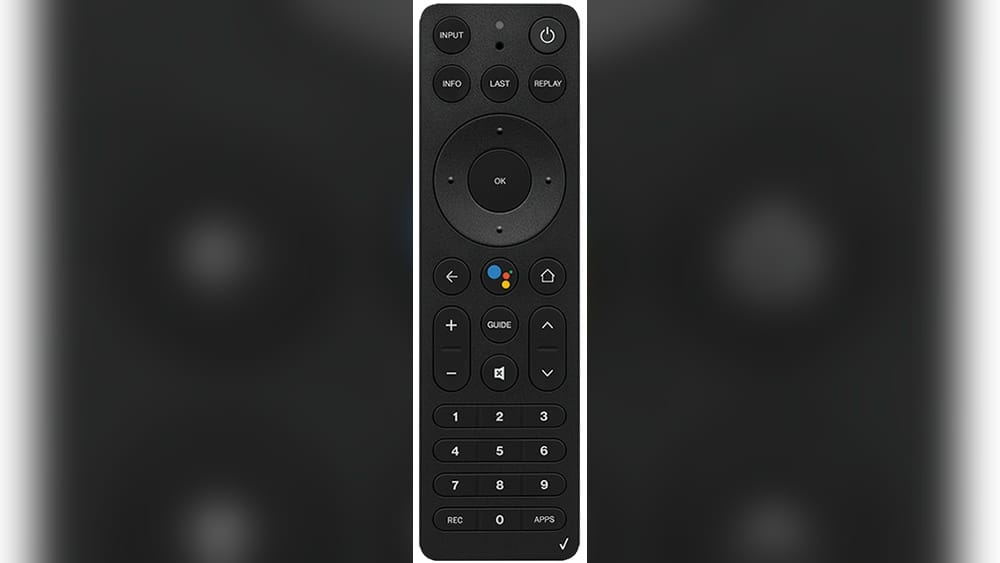
Programming your Verizon Fios remote control can make your TV experience much smoother. With the right steps, you can control your TV, soundbar, and other devices with just one remote. But, for many people, the process seems confusing or overwhelming. Maybe you just got a new Fios remote, or your current one lost its settings. Whatever the reason, you want an easy, clear guide to help you set up your remote fast, without mistakes.
This article is your hands-on, practical guide to programming any Verizon Fios remote control. We’ll cover all main Fios remote models, step-by-step programming for TVs, troubleshooting, and even advanced tips. You’ll also find useful tables, real-life examples, and a FAQ section to answer common questions. By the end, you’ll feel confident programming your remote, even if you’re not a tech expert.
Understanding Verizon Fios Remote Models
Before you start, it’s important to know which Fios remote you have. Verizon has released several models, and the steps can vary. The three most common are:
- Fios TV Voice Remote
- Fios TV One Remote
- Fios P265 (2-button remote)
- Fios P283 (big button remote)
- Older Universal Remotes (like the Philips RC1445302/00B)
Each remote is slightly different in look and features. Newer models have voice control, while older ones use standard buttons. It’s helpful to check the back or inside the battery compartment for the model number. If you’re unsure, compare your remote’s buttons to Verizon’s official support page or images in this article.
Here’s a quick comparison of the most common Fios remotes:
| Remote Model | Main Features | Release Year | Works With |
|---|---|---|---|
| Fios TV Voice Remote | Voice commands, backlit buttons | 2018–present | Fios TV One, VMS4100 |
| Fios TV One Remote | Simple layout, no voice | 2017–2018 | Fios TV One, VMS4100 |
| Fios P265 | Standard universal remote | 2012–present | All Fios set-top boxes |
| Fios P283 | Large buttons, easy to use | 2015–present | All Fios set-top boxes |
| RC1445302/00B | Older universal remote | 2008–2013 | Legacy boxes |
Knowing your model makes the next steps much easier. If you can’t find your exact model, don’t worry — most programming steps are similar.
What You Need Before Programming
To avoid frustration, gather everything you’ll need before you start:
- Your Verizon Fios remote control
- The TV or device you want to control
- Device brand name (e.g., Samsung, LG, Sony)
- Device code list (often in your remote’s manual or online)
- Batteries (make sure your remote has fresh ones)
Having the device code is important. This is a special number that matches your remote to your TV or device. Verizon provides printed code lists in the box and online. If you can’t find the code, you can use auto-search methods explained later.

Credit: www.youtube.com
How To Program The Fios Tv Voice Remote
The Fios TV Voice Remote is the newest and most popular. It lets you use voice commands and can control most TVs.
Pairing With The Fios Tv Box
- Turn on your Fios TV and TV box.
- Point the remote at the TV.
- Press and hold the “Play/Pause” and “0” buttons together for about 5 seconds.
- The remote’s LED light will start blinking. Release the buttons.
- Wait for the on-screen message confirming pairing.
The remote is now linked to your Fios TV box.
Programming To Control Your Tv
- Press the “Menu” button on the remote.
- Go to Settings > Voice Control > Fios TV Voice Remote > Program Voice Remote.
- Choose “Manual Setup”.
- Select your TV brand from the list.
- Follow the on-screen steps. The TV will turn off and on during setup.
If your TV brand isn’t listed, choose “Other Brands” and follow the steps. If programming fails, try again or use the auto-search method.
Programming For Volume And Power
If the remote doesn’t control your TV’s volume or power after setup:
- Go to Menu > Settings > Remote Control > Program Remote.
- Select “Manual Setup”.
- Enter your TV’s brand.
- Test the Volume and Power buttons.
If they work, you’re done. If not, try a different code or the auto-search feature.
Programming For Audio Devices
You can also control a soundbar or audio receiver:
- Go to Menu > Settings > Voice Control > Program Voice Remote > Manual Setup.
- Choose Audio Device.
- Select your audio brand and follow instructions.
Some brands need extra steps. If your device is not responding, check that it’s compatible with IR (infrared) remotes.
How To Program The Fios Tv One Remote
The Fios TV One Remote is very similar to the Voice Remote but without voice features.
Pairing With The Tv Box
- Turn on your TV and Fios TV box.
- Press and hold the “OK” and “2” buttons together for 5 seconds.
- The LED will flash, showing pairing mode.
- Wait for the on-screen confirmation.
Programming For Tv Control
- Press Menu on your Fios remote.
- Go to Settings > Remote Control > Program Remote.
- Choose Manual Setup.
- Pick your TV brand.
- Follow the prompts to test Volume and Power.
If your TV doesn’t respond, try another code for your brand.
How To Program Fios Universal Remotes (p265, P283, Rc1445302/00b)
Older Fios remotes like the P265 and P283 use device codes. The process is manual but quick if you follow the steps.
Finding The Right Device Code
- Check your remote’s user guide for the code list.
- Visit the Verizon website and search for your remote’s model and code list.
- If you can’t find the code, use the auto-search method explained below.
Programming Your Tv
- Turn on your TV.
- Press and hold the “OK” and “0” buttons together. The red LED will stay on.
- Enter the 3-digit TV code for your brand.
- Release the buttons.
- Press TV Power. If the TV turns off, programming worked.
If your TV doesn’t turn off, repeat the steps with another code.
Auto-search Method (when Code Is Unknown)
If you don’t have the device code:
- Turn on your TV.
- Press and hold OK and 2 together. Release when the red LED stays on.
- Press and hold the “CH+” button. The remote will send codes to your TV.
- When your TV turns off, release the button immediately.
- Press OK to lock in the code.
This process can take a few minutes. Be patient and don’t hold the button too long after your TV reacts.
Programming For Audio Devices
Follow the same steps above, but use the AUX button instead of TV, and the code for your audio device.
How To Program Other Devices (soundbars, Receivers)
Many people want their Fios remote to control more than just the TV. You can program it for soundbars, audio receivers, and even some Blu-ray players.
Steps For Audio Device Programming (universal Remotes)
- Turn on the audio device.
- Press and hold OK and AUX (or the device button).
- Enter the code for your soundbar or receiver.
- Release the buttons.
- Press AUX Power. If the device turns off, programming is complete.
What If The Device Doesn’t Respond?
- Make sure the soundbar or receiver is set to receive IR signals (some use Bluetooth by default).
- Try all codes for your brand.
- Use the auto-search method.
Some brands, like Bose, Sonos, or Yamaha, may need special codes or won’t work with all Fios remotes. Check your device manual for IR setup.
Tips For Success When Programming
Programming doesn’t always work the first time. Here are expert tips to avoid common mistakes:
- Check batteries: Weak batteries cause failed programming.
- Point directly at device: Remotes use IR signals, which need a clear path.
- Enter codes slowly: Rushing can cause mistakes.
- Try all codes for your brand: Some brands have multiple codes.
- Reboot devices if stuck: Unplug your TV and box for 30 seconds, then try again.
Troubleshooting Common Problems
Sometimes, things don’t work as planned. Here’s how to fix the most common problems.
My Remote Won’t Pair With The Tv Box
- Make sure your TV box is on and working.
- Try new batteries.
- Stand close to the box when pairing.
- Restart the box by unplugging it.
Volume Or Power Not Working After Programming
- Try a different code for your TV brand.
- Repeat the setup steps carefully.
- Check if your TV uses Bluetooth for remote control (some smart TVs do).
- Update your TV’s firmware if possible.
Remote Controls The Box But Not The Tv
- Check that you programmed the TV section, not just the Fios box.
- Use manual code entry instead of auto-search.
- Confirm you have the right code list for your remote model.
Ir Vs. Rf Problems
Some newer Fios remotes use RF (radio frequency) for the box, but need IR (infrared) for your TV. Make sure you’re pointing the remote at your TV when programming.
When To Reset Your Remote
If nothing works, reset your remote and start over:
- For most Fios remotes: Hold OK and 2 until the LED blinks red twice.
- For Voice Remote: Go to Menu > Settings > Voice Control > Reset Voice Remote.
This wipes old codes and lets you start fresh.
Advanced Features: Voice Commands, Accessibility, And Shortcuts
Modern Fios remotes do more than just change channels.
Voice Commands
The Fios TV Voice Remote lets you say commands like:
- “Go to ESPN”
- “Record this show”
- “Turn on subtitles”
To use, press and hold the microphone button and speak. Release to send the command.
Accessibility Features
- Backlit buttons: Easier to use in the dark.
- Large button models: For those with vision or dexterity challenges.
- Audio feedback: Some remotes beep during pairing.
Customizing Shortcuts
You can set up favorite channels or functions:
- Go to Menu > Settings > Remote Control > Customize Buttons.
- Choose which button does what.
This feature is model-dependent, but common on newer Fios remotes.
Real-world Example: Programming For A Samsung Tv
Let’s walk through a real-life example. Suppose you have a Samsung TV and a Fios TV Voice Remote.
- Turn on your Samsung TV and Fios box.
- Press and hold Play/Pause + 0 until the LED blinks.
- On the TV screen, go to Menu > Settings > Voice Control > Program Voice Remote > Manual Setup.
- Choose Samsung as your TV brand.
- Follow the prompts. The screen will tell you to test the volume and power.
- If the remote works, select Yes. If not, try the next code.
If you can’t find Samsung in the list, use “Other Brands” and follow the auto-search method.

Credit: www.amazon.com
Table: Most Common Tv Codes For Fios Remotes
Below are some popular TV brands and their most common codes for Fios universal remotes. Use these if you want to try manual programming:
| Brand | Common Codes | Notes |
|---|---|---|
| Samsung | 331, 004, 333 | Try all codes if the first fails |
| LG | 210, 113, 001 | Some LG TVs use newer codes |
| Sony | 352, 111, 352 | Repeat process for Smart TVs |
| TCL | 180, 179, 268 | Often labeled as Roku TV |
| Vizio | 089, 091, 086 | Vizio soundbars use different codes |
You can find more codes in your remote’s manual or on the Verizon support site.
Table: Fios Remote Programming Steps By Model
Different Fios remotes have slightly different setup steps. Here’s a quick reference:
| Remote Model | Pair with TV Box | Program TV Control | Reset Steps |
|---|---|---|---|
| Voice Remote | Play/Pause + 0 | Menu > Settings > Voice Control | Menu > Settings > Reset Voice Remote |
| TV One Remote | OK + 2 | Menu > Settings > Remote Control | OK + 2 (hold) |
| P265/P283 | N/A | OK + 0, then code | OK + 2 (hold) |
This quick guide helps if you’re switching between remotes in your household.
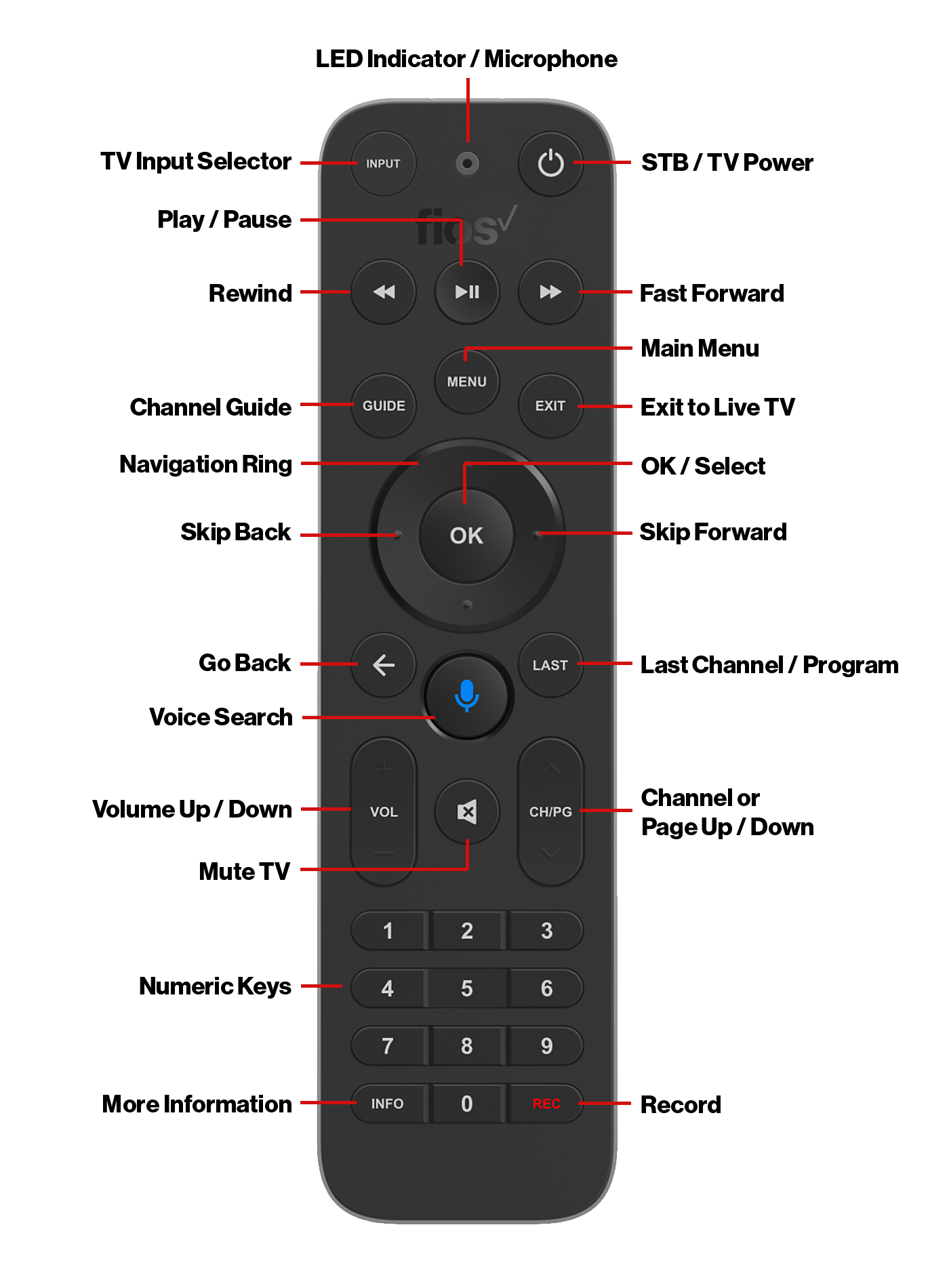
Credit: espanol.verizon.com
Programming Without A Code List: What You Need To Know
Many users lose their code list. Here’s what to do:
- Use the auto-search method (hold CH+ until the device responds).
- Search for your code online. Verizon’s official support page lets you look up codes by entering your remote and device brand.
- Ask Verizon support via chat or phone.
Pro Tip: Not all TV models are in printed code lists. Newer TVs may need online code lookup or the auto-search method.
What If My Fios Remote Still Won’t Work?
If you’ve tried all steps and your remote still won’t control your TV or device, consider these tips:
- Check for physical damage: Buttons might be worn out.
- Clean the remote: Dust can block button contacts.
- Replace with a new remote: Universal remotes are affordable.
- Update your Fios TV box: Go to Menu > Customer Support > Top Support Tools > Reboot Fios TV Box.
- Contact Verizon support: Sometimes, there are device-specific issues.
In rare cases, your TV may not support IR programming from third-party remotes.
Saving Your Remote’s Settings
After you program your remote, settings should stay, even if you unplug devices. But if you change batteries or reset your box, you might need to re-program.
Tip: Take a photo of your code list or write down successful codes. This can save time in the future.
How To Program Multiple Tvs Or Devices
If you have more than one TV or device in your home, each remote can be programmed separately:
- Label remotes: Use stickers to avoid confusion.
- Program each remote for each TV/device: Follow the steps above for each device.
Some universal remotes can store codes for multiple devices (TV, AUX, DVD). Check if your model supports this.
Programming The Remote For Seniors Or Kids
If you’re setting up for someone who wants a simple remote:
- Use the P283 big button remote for easier handling.
- Program only the essential buttons (power, volume, channel).
- Use the Favorite channels feature to limit options.
- Tape over unused buttons for simplicity.
Using The Fios Remote App As An Alternative
Verizon also offers a Fios TV Mobile app. This isn’t the same as the physical remote, but you can control your Fios TV box from your phone or tablet. It’s handy if your remote is lost or broken, and works over Wi-Fi.
You can download it from your device’s app store. Pairing is simple and instructions are given in the app. For more details, see the Verizon Support page.
Non-obvious Insights For Beginners
- Codes can vary by TV model, not just brand. If you have a Samsung from 2010 and a Samsung from 2023, they may need different codes. Don’t give up if the first code doesn’t work.
- Some remotes can learn commands from your TV’s original remote. This is called “learning mode” and is available on some advanced universal remotes, but not standard Fios remotes.
- Not all HDMI-CEC (“one-touch play”) features work with the Fios remote. Even if your TV turns on with the Fios remote, advanced features like volume sync may require the TV’s original remote or more setup.
Frequently Asked Questions
Why Won’t My Fios Remote Control The Volume On My Tv?
Most likely, your remote is paired with the Fios box but not fully programmed for your TV. Go back to the programming menu and try manual code entry for your TV brand. Also, check your TV’s audio settings — some TVs need to have “IR” or “external speakers” enabled to work with universal remotes.
Can I Use One Fios Remote For Multiple Tvs?
No, each Fios remote is designed to control one TV and one Fios box at a time. You can program different remotes for different TVs, but they won’t work for two TVs in different rooms at once.
How Do I Reset My Verizon Fios Remote To Factory Settings?
For most Fios remotes, hold OK and 2 until the LED blinks. This resets all programming. For the Voice Remote, go to Menu > Settings > Voice Control > Reset Voice Remote.
What Should I Do If My Fios Remote’s Buttons Stop Working?
First, replace the batteries. If that fails, clean the remote with a soft cloth. If buttons are still stuck, the remote may be damaged. Replacement remotes are available from Verizon or electronics stores.
Is There A Way To Control My Fios Box If I Lose My Remote?
Yes. Download the Fios TV Mobile app on your smartphone or tablet. It lets you control your Fios TV box over Wi-Fi. You can also use the buttons on the front of your Fios box for basic functions.
—
Programming your Verizon Fios remote control doesn’t have to be stressful. With the right steps, a little patience, and the tips in this guide, you can quickly set up your remote to control your TV and audio devices. Whether you use the latest Voice Remote or a classic universal model, you’ll enjoy a better, simpler TV experience. If you ever get stuck, Verizon’s support is just a call or click away. Enjoy your new control and the freedom from juggling multiple remotes!