
Setting up your entertainment system can feel confusing, especially when you have a new remote and TV in front of you. The Xfinity remote control is designed to make your life easier, letting you control your TV, soundbar, and other devices from one place. But before you can enjoy that convenience, you need to program it correctly. Many people struggle with this step, often missing out on helpful features or getting frustrated with devices that don’t respond. Whether you’re new to Xfinity or just got a replacement remote, knowing exactly how to program it saves time and headaches.
This article will walk you through programming your Xfinity remote in clear, simple steps. You’ll learn about the different models, how to identify your remote, and the correct way to pair it with your TV, audio devices, and even your cable box.
We’ll cover troubleshooting common problems, provide tips for maximizing your remote’s features, and answer the most frequent questions users have. By the end, you’ll feel confident handling any Xfinity remote situation, so you can get back to what matters—enjoying your favorite shows.
Understanding Your Xfinity Remote Control
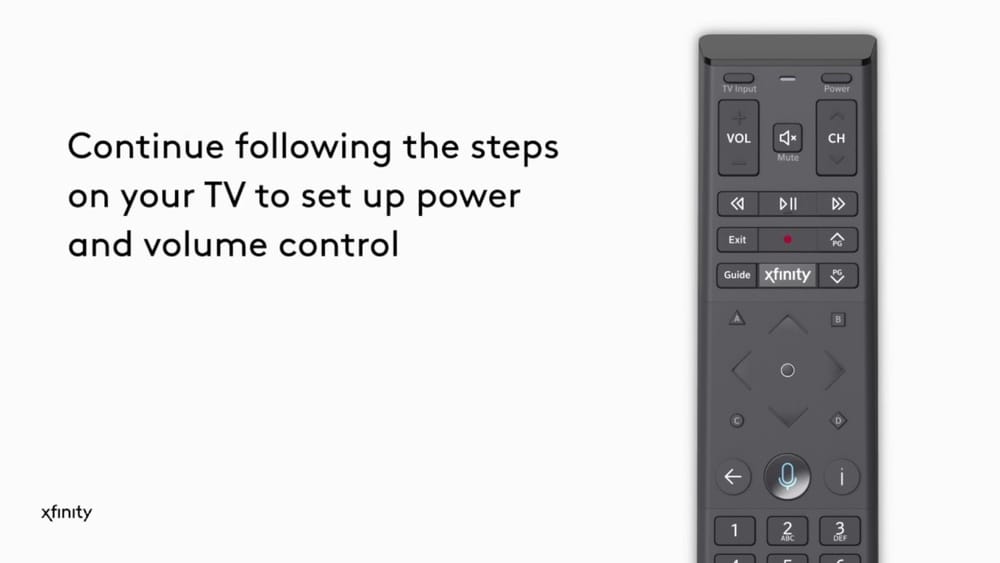
Before you start programming, it’s important to know which Xfinity remote model you have. Each model has its own programming steps and features. The most common Xfinity remotes are the XR2, XR5, XR11 (Voice Remote), XR15 (Voice Remote), and XR16 (Flex Remote). Some older models may still be in use, but these are the main versions found in most homes.
Key Xfinity Remote Models
- XR2: Simple layout, no voice control.
- XR5: Similar to XR2, with backlighting.
- XR11: Features voice control and a microphone button.
- XR15: Newer voice remote, no setup button.
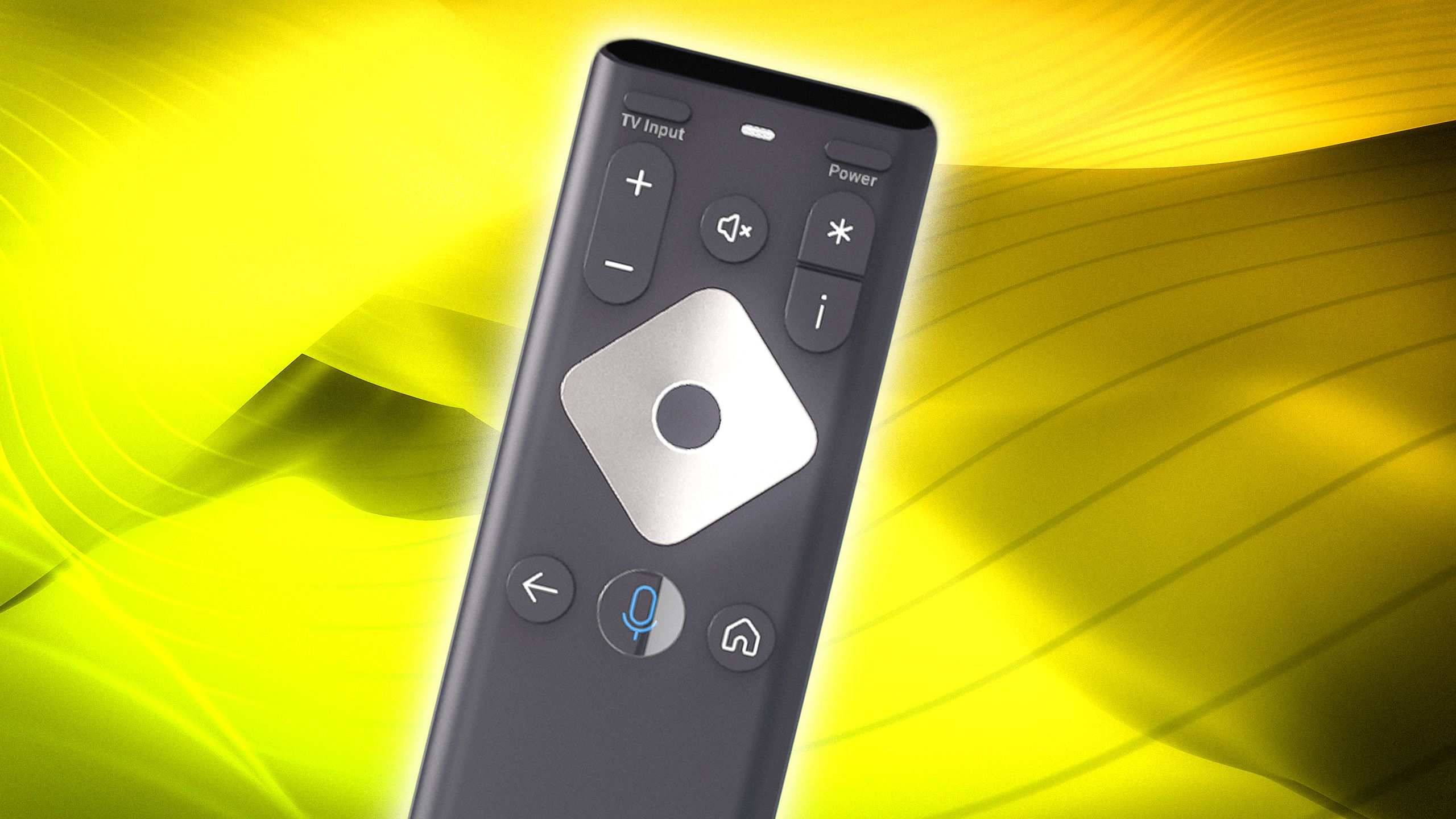
- XR16: Used with Xfinity Flex streaming devices, minimal buttons.
Your remote’s model number is usually printed on the back or inside the battery compartment. It’s a small detail, but identifying your remote correctly ensures you follow the right programming steps and avoid wasting time.
Main Functions And Buttons
While all Xfinity remotes share core features, some buttons might not be present on every model. Here are a few important ones:
- Power: Turns your TV or audio device on/off.
- TV Input: Changes the input source (HDMI, AV, etc. ).
- Setup: Used for programming (not on XR15/XR16).
- Microphone: For voice commands (on XR11, XR15, XR16).
- Volume/Mute: Controls sound on your TV or soundbar.
Knowing your model and button layout will make the next steps much easier.
Preparing To Program Your Xfinity Remote
Programming only takes a few minutes, but proper preparation prevents common mistakes.
- Find Your Remote Model: As explained above, check the label.
- Gather Device Information: You’ll need the brand and model number of your TV, soundbar, or audio receiver.
- Check Batteries: Weak batteries can cause setup to fail. Replace them if you’re unsure.
- Position Devices: Make sure your remote has a clear line to your TV or audio device.
- Have a Device Code List Ready: Device codes are 3–5 digit numbers that match your device brand. You can find these on the Xfinity website or in your remote’s manual.
Non-obvious tip: Most programming fails happen because of weak batteries, blocked sensors, or using the wrong device code. Double-check these before starting.
How To Program An Xfinity Remote To Your Tv
The method depends on your remote model. Below are step-by-step instructions for the most common Xfinity remotes.
Programming The Xr11 (voice Remote) And Xr15 (voice Remote)
These are the most popular remotes today.
- Turn on your TV.
- Press and hold the “Setup” button (XR11 only) until the LED turns green. For XR15, press and hold the “Xfinity” and “Mute” buttons together until the LED turns green.
- Enter the 5-digit code for your TV brand. The LED should flash green twice.
- Test the remote: Try turning the TV off and on, adjusting volume, and muting. If it doesn’t work, repeat with a different code.
- If your TV brand isn’t listed or codes don’t work, use the “search” method: After step 2, press the “Channel Up” button repeatedly until the TV turns off, then press “Setup” to lock in the code.
Example: To program a Samsung TV with an XR15 remote:
- Hold “Xfinity” + “Mute” until green light.
- Enter code “10812.”
- Test power and volume buttons.
Programming The Xr2 And Xr5 Remotes
Older but still widely used.
- Turn on your TV.
- Press and hold “Setup” until the LED turns green.
- Enter your TV’s code (find it in your manual or online).
- Test the remote.
- If codes don’t work, use the “search” method: After holding “Setup,” enter “991,” then repeatedly press “Channel Up” until the TV turns off.
Programming The Xr16 (flex Remote)
This remote is for Xfinity Flex streaming boxes.
- Point the remote at the Flex box and press the “Microphone” button.
- Follow on-screen instructions to pair with your TV.
- Most programming happens automatically, but you may need to confirm on the TV screen.
Insight: XR16 doesn’t support audio device programming. You can only control your TV and Flex box.
Common Mistakes To Avoid
- Entering the wrong code for your TV brand.
- Not holding the buttons long enough until the LED changes color.
- Forgetting to test all functions after programming (power, volume, mute).
- Standing too far from the TV or blocking the IR sensor.
How To Program Your Xfinity Remote To An Audio Device
You might want your Xfinity remote to control a soundbar or audio receiver along with your TV. This is possible on most voice remotes and newer models.
Programming The Xr11 Or Xr15 To An Audio Device
- Turn on your audio device (soundbar or receiver).
- Press and hold “Setup” (XR11), or “Xfinity” and “Mute” (XR15) until the light turns green.
- Enter the 5-digit code for your audio device’s brand.
- Test volume and mute.
- If it doesn’t work, repeat with another code for your brand.
Practical tip: Not all soundbars support universal remote codes. If yours doesn’t work, you may need to control volume using your TV’s speakers or the soundbar’s own remote.
Programming The Xr2 And Xr5 To Audio Devices
- Press and hold “Setup” until the LED turns green.
- Enter your audio device code.
- Test the functions.
What To Do If Your Device Isn’t Listed
If your soundbar or receiver isn’t in the code list, try searching online for updated codes or see if the manufacturer offers suggestions. Some newer devices support “learning mode,” which lets you teach the remote using your original soundbar remote.
Extra insight: Sometimes, TVs can pass volume commands to soundbars through HDMI (CEC). If programming fails, check your TV’s audio settings for options like “HDMI-CEC” or “Audio Return Channel (ARC).” This may allow your Xfinity remote to control sound indirectly.
Pairing Your Xfinity Remote With Your Xfinity Box
Controlling your Xfinity X1 or Flex box is essential for browsing channels, On Demand, and apps.
Pairing With Xfinity X1 Or Xfinity Flex Box
- Turn on your TV and Xfinity box.
- Press and hold the “Setup” button (XR11/XR15) until the LED turns green.
- Press the “Xfinity” button.
- Follow on-screen prompts to enter a 3-digit pairing code.
If you see “Remote paired successfully,” you’re done. If not, repeat the steps.
Unpairing Or Re-pairing Your Remote
If you get a new TV or box, you might need to reset your remote:
- For XR11 and XR15: Hold “A” + “D” (XR11) or “Setup” (XR15) until light turns green, then enter “981.”
- The remote will flash, and you can pair it with a new device.
Important note: Resetting removes all programmed devices, so you’ll need to reprogram your TV and audio devices.
Using Xfinity My Account App For Remote Setup
Xfinity offers a mobile app that can make remote programming easier.
- Download Xfinity My Account app on your smartphone.
- Log in with your Xfinity ID.
- Go to “Devices”, find your remote, and follow guided setup steps.
- The app will show you codes and walk you through programming.
This is especially useful if you lose your printed code sheet or have trouble finding your TV brand.
Non-obvious advantage: The app often updates with new device codes faster than printed lists, so it’s a good first stop for newer TVs or soundbars.
Troubleshooting Common Programming Problems
Even with careful steps, sometimes things don’t work as expected. Here are typical problems and solutions.
The Remote Doesn’t Control The Tv Or Audio Device
- Check for correct code: Try another code for your brand.
- Replace the batteries: Low battery power is a very common issue.
- Reposition yourself: Make sure nothing blocks the remote’s sensor.
- Reset the remote: Unpair and try again using the “981” reset method.
The Remote Only Controls Some Functions
If you can turn the TV on/off but not control volume, or vice versa:
- Some device codes only support limited functions. Try other codes for your brand.
- For audio devices, make sure your TV’s audio output is set correctly (e.g., TV speakers vs. external speakers).
Voice Commands Aren’t Working
- Make sure your remote model supports voice (XR11, XR15, XR16).
- Check if the microphone button is being held down while speaking.
- If your remote’s LED flashes red, it may need new batteries or re-pairing.
The Remote Is Not Responding At All
- Check batteries and replace if needed.
- Confirm the remote is paired with your box.
- Try resetting the remote (“981” code).
- If all else fails, contact Xfinity support for a replacement.
Pro tip: Sometimes, other electronics or sunlight can interfere with your remote’s infrared signal. Try programming in a different room or at a different time of day.
Quick Reference: Xfinity Remote Models And Features
Understanding the differences between Xfinity remote models helps you troubleshoot and use features more effectively. Here’s a comparison of the four main remotes:
| Model | Voice Control | Setup Button | Controls TV/Audio | Backlighting |
|---|---|---|---|---|
| XR2 | No | Yes | Yes | No |
| XR5 | No | Yes | Yes | Yes |
| XR11 | Yes | Yes | Yes | Yes |
| XR15 | Yes | No | Yes | Yes |
| XR16 | Yes | No | TV only | No |
Insight: Knowing your remote’s features prevents wasted time—many users try to program audio devices with XR16, not realizing it’s not supported.
Credit: www.afvt.org
Practical Tips For Using Your Xfinity Remote
Programming your remote is just the beginning. Here are ways to get more from your Xfinity remote:
- Voice Search: Use the microphone to search for shows, change channels, or launch apps. For example, say “ESPN” or “Show me action movies.”
- Favorites: Program your favorite channels for quick access.
- Accessibility: XR15 and XR11 remotes have “voice guidance” for visually impaired users.
- Parental Controls: Set up restrictions on your Xfinity box, then use your remote to lock channels or content.
- Sleep Timer: Some TVs support sleep timers, which you can activate with your remote if programmed correctly.
Lesser-known feature: The XR15 and XR16 can control TVs even inside cabinets, thanks to RF (radio frequency) signals, not just IR (infrared). This means you don’t need direct line-of-sight for every command.
When To Get A New Remote
Remotes wear out over time or get lost. Here’s how to know if you need a replacement:
- Buttons stick, don’t respond, or require extra pressure.
- The remote only works from very close range.
- The LED doesn’t light up, even with new batteries.
- You want new features like voice search or backlighting.
You can order a new remote from the Xfinity website, by calling customer service, or by visiting an Xfinity store. There’s usually no charge for replacing a defective remote.
Comparing Xfinity Remotes To Universal Remotes
Some users wonder if a universal remote is a better choice. Here’s how Xfinity remotes compare to popular universal remotes:
| Feature | Xfinity Remote | Universal Remote |
|---|---|---|
| Voice Control | Yes (XR11, XR15, XR16) | Sometimes (higher-end models) |
| Easy Pairing with Xfinity Box | Yes | No (may require extra setup) |
| Controls Multiple Devices | Yes (TV, audio, Xfinity box) | Yes (often more devices) |
| Backlighting | Yes (XR5, XR11, XR15) | Varies by model |
| Cost | Usually free with service | Extra purchase ($10–$50+) |
| Support | Direct from Xfinity | Manufacturer or online forums |
Real-world advice: Unless you need to control 4 or more devices, the Xfinity remote is simpler and more reliable for Xfinity users.
Programming Tips For Special Tv Brands
Some TV brands (like Vizio, TCL, or Hisense) can be tricky to program. Here are a few brand-specific tips:
- Samsung, LG, Sony: Usually support Xfinity codes. Try multiple codes if the first doesn’t work.
- Vizio: Use the latest code list from the Xfinity app—older code sheets may not work.
- TCL, Hisense: Use the Roku TV code if your TV runs Roku OS.
- Insignia, Sharp: May require special codes; check online if standard ones fail.
If your TV is a smart TV with built-in apps, you’ll still need to program the remote for power and volume.
Advanced Remote Functions
Once you’ve programmed your remote, try these advanced features:
- Channel Surfing: Press and hold the Channel Up or Down button to scroll quickly.
- Last Channel: The “Last” button jumps back to the previous channel.
- Input Selection: If programmed, the “Input” or “TV Input” button switches HDMI ports.
- Closed Captioning: Press the “CC” button (if present) to turn captions on/off.
- DVR Control: Use “Record,” “Pause,” and “Replay” for Xfinity X1 DVR functions.
Expert insight: Some functions depend on your TV brand and whether the code supports advanced commands. Always test features after programming.
How To Program A Replacement Xfinity Remote
If you replace your Xfinity remote, the programming process is the same, but here are a few pointers:
- Remove batteries from the old remote to avoid interference.
- Insert batteries into the new remote and follow the programming steps for your model.
- Pair with your Xfinity box before programming your TV or audio devices.
- Test all buttons, including voice commands if available.
If you have trouble, use the Xfinity My Account app or visit the official Xfinity support page for updated guides and codes.
Non-obvious tip: You can pair more than one remote with the same Xfinity box, which is useful for families who want separate remotes.

Credit: www.youtube.com
Maximizing Battery Life And Remote Durability
Xfinity remotes are built to last, but simple habits can extend their lifespan:
- Use quality batteries: Cheap batteries leak and corrode contacts.
- Replace both batteries at once: Mixing old and new reduces performance.
- Keep remotes away from direct sunlight and moisture.
- Clean the remote with a soft, dry cloth to prevent sticky buttons.
If a button sticks or stops working, a gentle tap or cleaning often fixes it. If not, it’s time for a replacement.
Comparing Programming Methods: Manual Vs. Automatic
You can program your remote manually (using codes) or automatically (using the app or on-screen pairing). Here’s how they stack up:
| Method | Speed | Success Rate | Best For |
|---|---|---|---|
| Manual (codes) | 3–10 minutes | High (if code available) | Older TVs, audio devices |
| Automatic (app/on-screen) | 2–5 minutes | Very high | Newer TVs, Xfinity boxes |
Advice: Start with automatic pairing if available; fall back to manual code entry if needed.

Credit: www.afvt.org
Frequently Asked Questions
How Do I Find The Code For My Tv Or Audio Device?
You can find device codes in your remote’s manual, on the Xfinity website, or using the Xfinity My Account app. If you don’t know your TV brand, check the label on the back of the TV. Try multiple codes if the first doesn’t work.
Can I Program My Xfinity Remote To Control More Than One Device?
Yes, most Xfinity remotes can control your TV, Xfinity box, and one audio device (like a soundbar). The XR16 (Flex) only supports TVs. For more devices, consider a universal remote.
What Should I Do If My Remote Suddenly Stops Working?
First, replace the batteries. If it still doesn’t work, try resetting the remote (“981” code). If it remains unresponsive, it may need to be replaced—contact Xfinity support.
Is There A Way To Program The Remote Without A Code?
Yes, most Xfinity remotes have a “search” or “auto-program” feature. After entering “991,” you can press “Channel Up” repeatedly until your device responds. This works if you can’t find or don’t know your device’s code.
Can I Use My Phone As An Xfinity Remote?
Xfinity offers a mobile remote function in the Xfinity Stream app, which can control your Xfinity box, but not your TV or audio devices. It’s a handy backup if your physical remote is lost or broken.
Programming your Xfinity remote doesn’t have to be frustrating. With the right steps and a little patience, you’ll unlock the full potential of your entertainment system—no more juggling remotes or struggling with volume. Whether you’re setting up a new home theater or just fixing a stubborn remote, the guidance above will help you enjoy your Xfinity experience to the fullest.
If you ever get stuck, remember that Xfinity support and online resources are always there to help.