
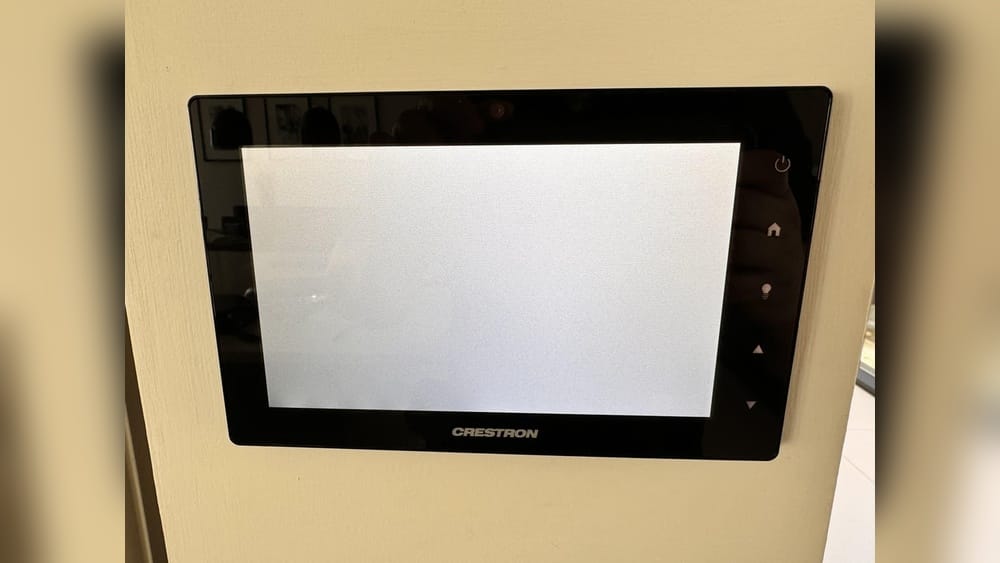
When your Crestron touch panel stops responding, freezes, or shows a blank screen, it can halt meetings, delay classes, or disrupt smart home controls. Knowing how to reboot a Crestron touch panel quickly and safely is a must-have skill for AV technicians, IT support, facility managers, and even end users. This article explains everything you need to know about rebooting Crestron touch panels. You’ll learn the step-by-step process for different panel types, when a simple reboot is enough, and when you may need deeper troubleshooting. Along the way, you’ll see real-world examples, discover common mistakes, and get expert tips to keep your Crestron system running smoothly.
Understanding Crestron Touch Panels
Crestron is a leading brand in automation and control solutions for meeting rooms, classrooms, and smart homes. Their touch panels act as the main user interface, letting you control lights, displays, audio, video, and more—all with a few taps.
One reason Crestron panels are so popular is their reliability and flexibility. They are designed to handle daily use in busy environments, from conference centers to large lecture halls, as well as homes with advanced automation. Their touch panels offer both intuitive controls for end users and robust backend options for administrators.
Types Of Crestron Touch Panels
Crestron offers several touch panel lines. The most common types include:
- Wired wall-mount panels (e.g., TSW series)
- Tabletop touch panels (e.g., TSW-760, TSW-1060)
- Wireless touch panels (e.g., TST-902)
- Older models (e.g., TPMC series)
Each model may have different reboot methods, so identifying your panel is important. For instance, some panels have a visible reset button, while others require navigating the software menu or accessing the device remotely. If you’re unsure, check the model number, usually labeled on the back or side.
| Panel Series | Mount Type | Reboot Method |
|---|---|---|
| TSW-760/1060 | Wall/Desk | Software/Power cycle |
| TST-902 | Wireless | Battery reset |
| TPMC-9 | Wall/Desk | Power cycle |
Why Reboot A Crestron Touch Panel?
Rebooting is not just for fixing problems. It’s a basic maintenance step and can solve various issues:
- Frozen screen or unresponsive touch
- Network connectivity drops
- Display glitches or incorrect UI
- Software updates requiring a restart
For example, after a scheduled network maintenance, touch panels might lose their connection to the processor and need a reboot to reconnect. Similarly, if a user uploads a new control interface or changes configuration settings, a reboot helps apply these changes smoothly.
However, a reboot is not a cure-all. Sometimes, deeper troubleshooting is needed, especially if the same issue keeps returning or if you see error messages that don’t go away after rebooting.
Before You Reboot: Quick Checks
It’s tempting to reboot at the first sign of trouble, but a few quick checks can save time and avoid unnecessary resets.
Is The Problem With The Panel Or The System?
Sometimes, the panel is fine but the control processor or network is the real issue. Check:
- Are other panels or devices also offline?
- Can you control anything from the Crestron app or web interface?
- Is there a system-wide outage?
If everything else works, the problem is likely with your touch panel. But if multiple panels or devices are affected, the problem could be with the central processor, network switch, or even a power outage in the building.
Non-obvious insight: Sometimes, a scheduled maintenance on the network or processor may temporarily disconnect panels. If you know about upcoming updates or changes, check with your IT or AV team first before troubleshooting further.
Power And Connections
A touch panel may seem “dead” due to loose cables or power issues.
- For wired panels, check that the power cable and network (PoE) are secure.
- For wireless panels, check the battery level and charging status.
- Inspect for obvious signs like flickering lights or physical damage.
A simple test is to gently wiggle the Ethernet or power cable at the back of the panel. If the panel flickers or turns on, the cable may have been loose. In some cases, cleaning the power contacts or replacing a worn-out cable can restore normal operation without needing a reboot.
Software Lockups
If the screen is stuck on one image or doesn’t respond, a soft reboot is often enough. But if the panel restarts repeatedly or shows error codes, more advanced troubleshooting may be needed.
For instance, a panel that keeps rebooting on its own could be experiencing a firmware bug or a corrupted configuration file. In these cases, rebooting alone won’t solve the problem, and you may need to update firmware or reload the control program.

Credit: www.youtube.com
How To Reboot Crestron Touch Panels: Step-by-step
This section gives clear steps for the most common Crestron touch panel types. Always try the software reboot first, as it’s safest for the device and settings.
Software (soft) Reboot
A software reboot restarts the panel without cutting power. This preserves logs and avoids stress on hardware.
Steps For Tsw Series (e.g., Tsw-760, Tsw-1060):
- Access the setup menu: Tap and hold the top right corner of the screen for 10 seconds, or until the setup menu appears. If nothing happens, try the top left or a combination (some panels are customized).
- Navigate to ‘Reboot’: Look for a button labeled Reboot or Restart Panel.
- Confirm reboot: Tap the reboot option and wait. The panel will go black, then show the Crestron logo as it restarts.
If you are unable to access the setup menu, confirm that the touch panel is not locked or password-protected. Some organizations add a passcode to prevent accidental changes.
For Tpmc Series:
- Press the hard reset button (usually on the back or side) quickly.
- Release and wait for the system to restart.
What To Expect
- The panel may take 1–2 minutes to fully reboot.
- All settings and user interfaces are preserved.
Sometimes, the panel may seem slow to respond after a soft reboot. Give it another minute before trying additional steps. If it hangs at the logo screen, a hard reboot may be needed.
Hard Reboot (power Cycle)
A hard reboot, or power cycle, cuts power completely. Use this only if the panel is frozen or the software menu is inaccessible.
For Wired Wall/tabletop Panels
- Locate the power cable: Most TSW panels use Power over Ethernet (PoE) or a direct DC adapter.
- Unplug the power source: If PoE, disconnect the Ethernet cable from the back of the panel or at the network switch. If using a DC adapter, unplug it from the wall or the panel.
- Wait 10–20 seconds: This lets the electronics fully discharge.
- Reconnect the cable: The panel should power up automatically.
Extra tip: For panels that are hard to reach, using a managed PoE switch allows you to cycle the port remotely—no need to physically unplug cables.
For Wireless Panels (e.g., Tst-902)
- Remove the panel from its dock.
- Take out the battery: Find the battery compartment (usually on the back).
- Wait 10 seconds.
- Reinsert the battery and power on.
Wireless panels may also have a small reset pinhole; use a paperclip to press and hold if removing the battery is not possible.
For Panels With Hidden Or Locked Mounts
If you cannot access cables, reboot from the control system’s web interface or Crestron Toolbox (requires admin access).
Non-obvious insight: Some wall-mounted panels are installed with security covers or in custom enclosures. Make sure you have the right tools and permissions before attempting to access them.
When To Use Each Method
- Software reboot: Use for minor problems or after updates.
- Hard reboot: Use for total freeze, blank screen, or unresponsive system.
A software reboot is less disruptive and helps maintain device health, while a hard reboot should be reserved for situations where nothing else works.
Important Notes
- Always warn users before rebooting in shared spaces.
- Save any unsaved settings or configurations before restart.
If you are managing a room with ongoing meetings or classes, consider scheduling the reboot during a break. Unexpected restarts can interrupt presentations or lessons.
Advanced Reboot And Reset Procedures
Sometimes, a basic reboot doesn’t fix the problem. Here are more advanced options.
Factory Reset
A factory reset erases all custom settings and restores the panel to its original state. This is a last-resort option.
Steps For Tsw Series:
- Enter the setup menu (as above).
- Navigate to Device Settings.
- Select Factory Reset (may also say “Restore Defaults”).
- Confirm and wait for the process to finish (may take up to 5 minutes).
Caution: All custom programming and files are erased. You’ll need to re-upload your project.
Factory resets are usually needed after a major firmware failure, when migrating a panel to a new system, or when returning a device at the end of a lease.
Remote Reboot (via Crestron Toolbox Or Web Interface)
If you have network access, you can reboot panels remotely.
Using Crestron Toolbox:
- Open Crestron Toolbox on your computer.
- Connect to the touch panel’s IP address.
- In the Device menu, choose Reboot.
- Confirm and monitor the restart.
Using Web Interface:
- Enter the panel’s IP address in a web browser.
- Log in (admin credentials required).
- Find the Reboot or Restart command.
Remote rebooting saves time, especially on large campuses or multi-room setups. It also helps when panels are installed in hard-to-reach places, like high walls or behind glass.
Non-obvious insight: If the panel is not responding to remote commands, check if the network port is blocked by a firewall or VLAN settings. Remote reboot only works if the panel is still reachable on the network.
Comparison Of Reboot Methods
To help you choose the right reboot method, see the comparison below:
| Reboot Method | Use Case | Risks | Time to Complete |
|---|---|---|---|
| Software Reboot | Minor glitches, UI refresh | None | 1–2 min |
| Hard Reboot (Power Cycle) | Frozen panel, no response | Possible file corruption | 2–3 min |
| Factory Reset | Severe errors, new setup | All settings lost | 5–7 min |
| Remote Reboot | Panels in remote locations | Network must be up | 1–3 min |

Credit: docs.crestron.com
Common Mistakes To Avoid
Even seasoned professionals make mistakes when rebooting touch panels. Here are some to watch out for:
- Unplugging the panel without warning: Users may lose unsaved work.
- Frequent hard reboots: This can stress hardware and corrupt files.
- Forgetting to check power/network connections: The issue might be a loose cable, not the panel itself.
- Using factory reset unnecessarily: This can wipe out months of programming.
- Ignoring firmware update notices: Sometimes, a required update causes repeated crashes.
Another mistake: Not documenting changes. If several technicians are involved, always record what you did. This avoids confusion and helps with future troubleshooting.
Real-world Scenarios And Solutions
Let’s look at how these steps apply in real settings.
Example 1: Meeting Room Freeze
A conference room TSW-1060 panel freezes before a big presentation. The IT support person:
- Checks the network switch (all lights normal).
- Tries a soft reboot via the setup menu—panel restarts, problem solved.
Tip: Always try the software reboot first in professional settings. This is less disruptive and usually fixes temporary glitches caused by heavy use or recent updates.
Example 2: Panel Won’t Power Up
A classroom panel is completely dark, even after a reboot. The facilities manager:
- Checks the Ethernet cable—finds it half unplugged.
- Plugs it back in, panel boots up.
Lesson: Always check physical connections before deeper troubleshooting. Damaged or loose cables are a common cause of “dead” panels.
Example 3: Remote Campus Reboot
A touch panel in a distant building is unresponsive. The AV technician:
- Logs into the Crestron Toolbox from his office.
- Reboots the panel remotely.
- Avoids a long walk, and the panel is back online in minutes.
If the remote reboot doesn’t work, the technician notes the panel’s IP address and checks network routes or switch status. Sometimes, remote issues reveal larger network problems.
Example 4: Wireless Panel Battery Issue
A wireless TST-902 panel fails during a lecture. The user:
- Checks the battery indicator—battery is dead.
- Replaces with a charged battery, and the panel works.
Insight: Battery issues are often mistaken for software problems. Always check the battery level on wireless panels before starting a reboot.
Example 5: Slow Response After Update
After a scheduled firmware update, a touch panel responds slowly. The integrator:
- Performs a software reboot to clear temporary files.
- Checks CPU usage in the setup menu.
- Finds a background process running—waits for it to complete, then the panel returns to normal.
Takeaway: Not all slowdowns require a hard reset. Sometimes, background tasks after updates can briefly affect performance.
When A Reboot Isn’t Enough
Sometimes, rebooting does not solve the issue. These cases need more advanced troubleshooting.
Persistent Freezes Or Crashes
- May indicate firmware bugs—check for updates.
- Could be a network issue—test the connection with another device.
- Possible hardware failure—contact your AV integrator or Crestron support.
If the same touch panel freezes every day, collect logs and error messages before contacting support. This information speeds up diagnosis and repair.
Error Messages After Reboot
If the panel shows error codes (like “No Connection to Processor”), try:
- Rebooting the control processor
- Checking network settings (IP, subnet, gateway)
- Ensuring the panel’s firmware matches the system version
Sometimes, a mismatch between processor and panel firmware causes connection errors. Keep both updated to avoid compatibility problems.
Panel Not Responding To Any Input
- Hardware failure is possible.
- If under warranty, contact Crestron support.
- Document the steps you took for easier service.
Physical damage, water exposure, or failed components can also cause total failure. In these cases, replacement may be required.
Preventive Maintenance Tips
Regular care reduces the need for emergency reboots. Here are some practical tips:
- Keep firmware up to date: Old software causes more crashes.
- Schedule regular reboots: A monthly restart clears memory and avoids slowdowns.
- Check cables and mounts: Make sure nothing is loose or damaged.
- Train users: Show them the basics of rebooting and reporting errors.
- Monitor system health: Use Crestron’s monitoring tools for large systems.
Extra advice: In high-traffic environments, keep spare cables and power supplies on hand. Quick swaps can reduce downtime if a cable fails unexpectedly.
Firmware Updates And Their Role
Firmware updates can prevent many touch panel issues that require reboots.
- Updates fix bugs, improve security, and add features.
- Always review release notes before updating.
- Schedule updates during low-use times to minimize disruption.
Delaying updates can leave your system vulnerable to known bugs or security risks. But always test updates on a non-critical panel first, especially in complex setups.
How To Update Firmware
- Download the latest firmware from the official Crestron website.
- Use Crestron Toolbox or the web interface to upload and install.
- Reboot the panel after installation.
Tip: Never interrupt a firmware update—this can “brick” the device.
If you manage many panels, consider using Crestron’s enterprise tools to push updates and monitor status. This saves time and ensures consistency across your organization.
Comparing Crestron To Other Touch Panel Brands
Understanding how Crestron compares to similar products helps set expectations.
| Brand | Reboot Method | Ease of Use | Remote Options |
|---|---|---|---|
| Crestron | Software, Power, Remote, Factory | High | Yes (Toolbox/Web) |
| AMX | Power, Menu | Medium | Limited |
| Extron | Power, Menu | High | No |
| Control4 | Power, Software | Medium | No |
Crestron stands out for its remote reboot and advanced software options, which are especially helpful in large organizations.
Another advantage: Crestron’s panels often integrate more deeply with enterprise monitoring systems, allowing for proactive alerts and remote fixes that reduce downtime.

Credit: www.reddit.com
Troubleshooting Checklist
When you’re not sure where to start, use this quick checklist:
- Is the panel powered?
- Are cables and network connections secure?
- Can you access the setup menu?
- Does a software reboot solve the problem?
- If not, does a hard reboot work?
- Are other devices affected?
- Is firmware up to date?
- Are there error codes or messages?
- Have you contacted your integrator or support?
Tip: Document each step you try. This helps if you need to call for help later.
A well-documented troubleshooting log can also reveal patterns over time—such as recurring issues after software updates or power outages.
When To Call For Professional Help
Not every issue can be fixed with a reboot. Get expert help if:
- The panel fails to boot after several attempts.
- There are repeated crashes after updates.
- You see hardware errors or physical damage.
- You need to reset a large number of panels at once.
Professional AV technicians have access to advanced tools and direct support lines with Crestron. They can also perform deeper diagnostics, such as checking processor logs, network traffic, or running hardware tests.
If your panel is still under warranty, avoid opening it yourself—this can void coverage.
Useful Resources
For more information, always refer to the official manuals and support resources. The Crestron website has detailed guides, firmware updates, and troubleshooting tools. You can find more about Crestron systems at Crestron Touch Screens.
Additionally, many universities and companies publish their own Crestron troubleshooting guides based on common campus setups. Joining industry forums or user groups can also provide real-world solutions and peer support.
Frequently Asked Questions
How Often Should I Reboot My Crestron Touch Panel?
A monthly reboot is usually enough for most environments. Some organizations schedule weekly restarts as preventive maintenance, especially in busy spaces. Reboot more often only if you notice glitches or slowdowns.
Can Rebooting Erase My Custom Settings Or Files?
A standard software or hard reboot does not erase custom settings or files. Only a factory reset will wipe all personalizations and return the panel to default settings.
What Should I Do If The Panel Doesn’t Power Up After Rebooting?
First, double-check the power and network cables. Try a different power source or Ethernet port if available. If the panel stays dark, contact your AV support or Crestron service for possible hardware repair.
Can I Reboot Multiple Panels At Once?
Yes, with Crestron Toolbox or certain enterprise management tools, you can reboot several panels remotely at once. This is especially useful in schools, offices, or campuses with many rooms.
Does Rebooting Fix All Issues With Crestron Touch Panels?
No, rebooting solves many simple glitches but cannot fix hardware failures, severe firmware bugs, or network outages. If problems continue after rebooting, deeper troubleshooting or professional help may be needed.
Keeping your Crestron touch panel running smoothly means knowing when and how to reboot—and when to call in experts. With the steps and tips in this guide, you’ll be ready to handle most issues quickly, minimize downtime, and keep meetings or classes on track. Remember, always start with the simplest solution, document your actions, and use official resources when in doubt.