
Requesting remote control in Zoom is a valuable skill that helps teams, educators, and support staff work together effectively. If you’ve ever needed to help a coworker solve a problem, demonstrate a process, or guide a student through software, you know how challenging it can be to explain steps over a call.
Zoom’s remote control feature changes that. It lets you control another person’s computer during a meeting— with their permission— making collaboration much easier. Yet, many users are unsure how to request remote control, what happens when you do, and how to use this tool safely.
This guide covers everything you need to know.
Whether you’re a beginner or you’ve used Zoom for years, this article gives you a clear, step-by-step understanding. We’ll cover the basics, walk through the request process, explain what to do if you run into problems, and share advanced tips that most users miss.
You’ll also see how remote control compares to other Zoom features and get answers to common questions. By the end, you’ll feel confident using remote control in Zoom for work, teaching, or IT support.
What Is Remote Control In Zoom?
Remote control in Zoom is a feature that allows one participant to control another participant’s computer during a meeting. This means you can move their mouse, type, open files, and use software as if you were sitting in front of their computer. The person sharing their screen must first allow you to take control. It’s a secure process designed for teamwork.
Remote control is popular in different situations:
- IT support: Help desk staff can fix problems directly on a user’s computer.
- Training: Teachers or trainers can demonstrate actions for students.
- Collaboration: Team members can work together on documents or presentations.
It’s important to note that remote control is not the same as screen sharing. With regular screen sharing, you only see the other person’s screen. Remote control lets you interact with their computer.
When And Why Use Remote Control In Zoom?
Many people use Zoom for meetings and presentations, but remote control unlocks new possibilities. Here’s when it’s most useful:
- Troubleshooting: If someone has a technical issue, it’s much faster to fix it yourself than guide them step by step.
- Software training: Teachers can show students exactly how to use a program by controlling their screen.
- Document editing: Collaborate on a document in real time, even if it’s stored on someone else’s computer.
- Presentations: Help a presenter advance slides or run a demo if they have trouble.
- Accessibility: Assist people with limited mobility by controlling their computer for them.
A key insight: Remote control is not just for IT experts. Anyone can use it to make online teamwork smoother and save time.
Credit: howdoi.daemen.edu
Basic Requirements For Remote Control
Before you request remote control in Zoom, there are some technical and account requirements. Not all users or meetings will have this option.
Zoom Account And Permissions
- Zoom version: Both you and the other participant need the Zoom desktop app (Windows or Mac). The web version and mobile app have limited support.
- Account type: Most Zoom accounts (free and paid) support remote control, but your organization’s admin may disable it.
- Screen sharing: The person whose screen you want to control must be sharing their screen. You cannot request control if they are not sharing.
- Host settings: The host can restrict remote control. If you don’t see the option, ask the host to check their settings.
Internet Connection
A stable internet connection is important. If either side has a weak connection, the remote control experience may lag or disconnect.
Security Considerations
Remote control is safe if you trust the other person. Zoom includes security features:
- The person sharing must approve your request.
- They can end your control at any time.
- All actions are visible.
How To Request Remote Control In Zoom: Step-by-step Guide
Requesting remote control is easy once you know where to look. Here’s how to do it in a typical meeting.
Step 1: Join The Zoom Meeting
Open the Zoom desktop app and join the meeting as usual. Make sure your app is updated for the latest features.
Step 2: Wait For Screen Sharing
Remote control only works when someone is sharing their screen. Politely ask the other person to start sharing if they haven’t already.
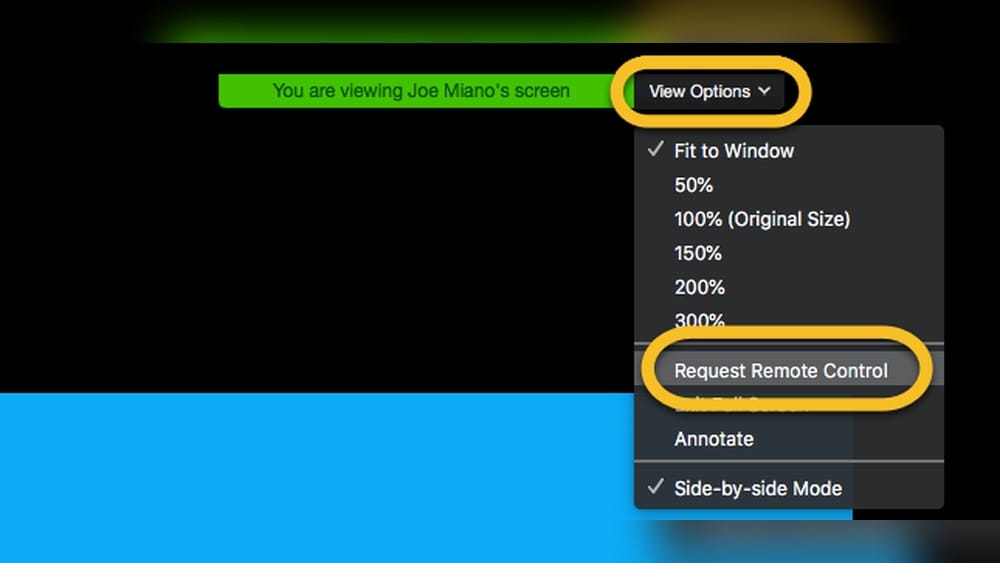
Step 3: Click ‘view Options’
Once screen sharing begins, look at the top of your Zoom window. You’ll see a black toolbar with various options.
- Click the View Options drop-down menu.
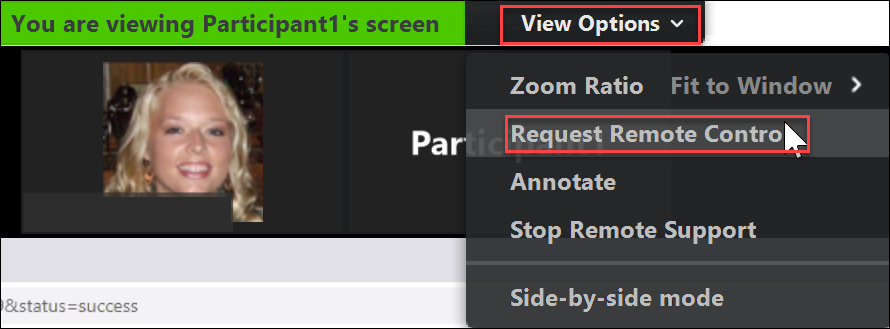
Step 4: Select ‘request Remote Control’
Inside the menu, you’ll see several choices. Click Request Remote Control.
Step 5: Wait For Permission
The other person will see a pop-up asking if they want to give you control. They must click Approve. Until they do, you cannot control their screen.
Step 6: Control The Screen
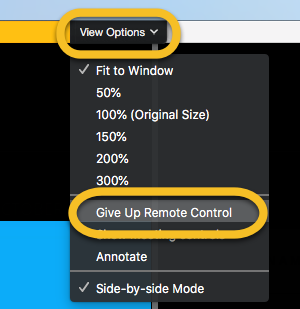
Once approved, you’ll see a notification. You can now move the mouse, click, and type on their computer. To stop, move your mouse to the top and click Give Up Remote Control.
Tip: You can use keyboard shortcuts, but some actions may be limited for security. For example, you might not be able to open certain system menus.

Credit: www.youtube.com
Comparison: Remote Control Vs. Screen Sharing Vs. Annotation
To understand remote control’s value, it helps to see how it compares with Zoom’s other collaboration tools. Here’s a quick side-by-side look:
| Feature | What You Can Do | Who Controls | Best For |
|---|---|---|---|
| Screen Sharing | Show your screen to others | Screen sharer only | Presentations, demos |
| Remote Control | Control someone else’s computer | Requester (with approval) | Support, training, collaboration |
| Annotation | Draw/highlight on shared screen | Anyone (if enabled) | Brainstorming, feedback |
A common mistake: Some users try to click and type during screen sharing, not realizing they need remote control permission.
Giving Remote Control To Another User
Sometimes, you are the one sharing your screen and need to give control to someone else. The process is just as simple:
- Share your screen as usual.
- In the toolbar, click Remote Control.
- Select the participant you want to give control to.
- They’ll get a notification and can start controlling your computer.
You can end their control at any time by clicking Give Up Remote Control.
Advanced Tips For Using Remote Control
Many users don’t realize how much flexibility Zoom’s remote control offers. Here are some advanced techniques:
Multiple Participants
You can give remote control to more than one person, but only one user can control at a time. The host can switch control between participants.
Keyboard Shortcuts
Common shortcuts like Ctrl+C and Ctrl+V work during remote control. However, system-level shortcuts (like Windows key + L) are usually blocked for safety.
Sharing Only A Portion Of Your Screen
If you want to keep some information private, share only a specific window or area. This limits what the remote user can access.
Dual Monitors
If you use dual monitors, Zoom lets you choose which screen to share and control.
Using Remote Control On Mobile Devices
Zoom’s mobile app supports limited remote control. You can request control of a shared screen from your phone or tablet, but it’s less precise.
Security And Privacy: Staying Safe
Giving someone remote control over your computer is a big step. Zoom takes privacy seriously, but you should too. Here’s how to protect yourself:
- Only approve control requests from people you trust.
- You can stop remote control at any time.
- All actions are visible; there’s no “stealth mode.”
- Hosts can restrict who can request control.
If you’re an IT admin, you can set organization-wide policies to allow or block remote control. For sensitive data or computers, disable the feature when not needed.
Common Problems And Troubleshooting
Even experienced Zoom users face challenges with remote control. Here’s how to solve the most frequent issues:
Remote Control Option Not Appearing
- Make sure you’re using the Zoom desktop app (Windows or Mac).
- Check that the host has enabled screen sharing and remote control.
- Update your Zoom app to the latest version.
Lag Or Delay
- Slow internet causes lag. Both users need a stable connection.
- Close other programs that use bandwidth.
- Lower the screen resolution if possible.
Keyboard Or Mouse Not Responding
- Sometimes, antivirus programs or system settings block remote control.
- The person sharing should check their computer’s security settings.
Access Denied
- Some organizations block remote control for security. Contact your IT admin if you need it enabled.
Losing Control Suddenly
- If the screen sharer stops sharing, you lose control.
- The host or user can end your control at any time.
If you still have problems, check Zoom’s support page or contact their help desk.
Real-world Examples
To see the value of remote control, let’s look at some examples:
- IT support at a university: A student can’t install software. The IT team requests remote control, installs the program, and the student is ready in minutes.
- Online math tutoring: A tutor asks for control and helps a student solve a problem directly in their homework app.
- Project collaboration: Two designers edit a PowerPoint file together, one sharing their screen, the other requesting control to make changes.
In each case, remote control saves time, reduces confusion, and improves the experience.
Zoom Remote Control Vs. Other Remote Access Tools
Zoom is not the only tool for remote control. How does it compare to alternatives like TeamViewer or Microsoft Quick Assist?
| Tool | Main Purpose | Ease of Use | Security Level | Extra Features |
|---|---|---|---|---|
| Zoom Remote Control | In-meeting collaboration | Very easy (within meeting) | High (user must approve) | Screen sharing, chat, video |
| TeamViewer | Full remote support | Requires install, setup | Very high (encrypted) | File transfer, unattended access |
| Microsoft Quick Assist | Windows support | Easy (Windows only) | High (Windows security) | Built into Windows 10/11 |
The main advantage of Zoom’s remote control is speed and simplicity during meetings. You don’t need to install extra software or share codes. But for full remote support, dedicated tools offer more features.
How To Enable Or Disable Remote Control As A Host Or Admin
If you’re a meeting host or an organization admin, you control who can use remote control.
For Meeting Hosts
- In the meeting, click the Security icon in the toolbar.
- Make sure Allow Remote Control is checked.
If you want to block it, uncheck the option.
For Admins (account Level)
- Go to the Zoom web portal.
- Under Settings, find the In Meeting (Basic) section.
- Enable or disable Remote Control.
- You can lock this setting for all users.
Tip: Some companies disable remote control for privacy. Always follow your organization’s policies.
Best Practices For Using Remote Control
To get the most from remote control, follow these tips:
- Communicate clearly: Tell the other person what you’re doing. Narrate your actions to avoid confusion.
- Limit access: Only share the minimum needed. For example, share one window instead of your whole screen.
- Respect privacy: Don’t open personal files or apps unless asked.
- End control when finished: Always click Give Up Remote Control when done.
A non-obvious insight: If you’re teaching or demonstrating, ask the other person to “take back” control and repeat the steps themselves. This helps them learn faster.
Accessibility And Remote Control
Remote control is a valuable tool for people with disabilities. For example, a person with limited hand movement can let someone else control their computer to fill out forms, adjust settings, or use software.
Zoom supports keyboard navigation and screen readers, making remote control accessible for many users. If you need extra accessibility features, check Zoom’s support for details.
Privacy Concerns And Data Protection
Some users worry about privacy when using remote control. Here’s what you should know:
- Remote control is always visible. You see the mouse move and actions happen in real time.
- No one can access your computer without your approval.
- All actions are limited to the shared screen or window.
- Zoom does not record your session unless the host starts recording.
If you handle sensitive data, stop sharing your screen before entering passwords or private information.
How To Use Remote Control On Mobile Devices
While the desktop experience is best, you can request and give remote control using a mobile device with some limitations.
- IOS (iPhone/iPad): You can control a shared screen, but with fewer features.
- Android: Similar support, but some features may be missing based on device.
To request control:
- Join a Zoom meeting from the app.
- Tap Share Content > Screen.
- When someone shares, tap the screen and look for the Remote Control icon.
You’ll get a simplified control panel, but actions like right-click may not be available.
Remote Control And Recording
If the host records a meeting, your remote control session may be included in the recording. However, only the actions visible on the shared screen are captured. Audio and chat are also recorded if enabled.
If you don’t want your remote session recorded, ask the host to pause or stop recording first.
Host Controls: Managing Remote Control Requests
As a host, you control who can request remote control. You can:
- Approve or deny requests.
- End control at any time.
- Remove participants from the meeting if needed.
A useful tip: If you’re running a large meeting, disable remote control except when needed. This prevents confusion or accidental sharing.
Educator Use Case: Remote Control In Online Teaching
Teachers can use remote control to help students understand new software, fix problems, or walk through assignments. Here’s a practical workflow:
- Student shares their screen with the class.
- Teacher requests remote control to demonstrate a process.
- Teacher gives back control for the student to practice.
This method is especially helpful for teaching coding, math software, or creative tools like Photoshop.
It Support Use Case: Faster Problem Solving
Remote control is a game-changer for IT support. Instead of long phone calls or emails, the support person joins a Zoom meeting, requests control, and solves the problem directly.
This reduces downtime and increases satisfaction. Many companies now use Zoom as their primary remote support tool.
Comparing Free Vs. Paid Zoom Accounts For Remote Control
Most remote control features are available on free (Basic) Zoom accounts. However, some advanced settings require a paid plan.
| Feature | Free Account | Paid Account |
|---|---|---|
| Request Remote Control | Yes | Yes |
| Host Management Tools | Basic | Advanced (lock settings, admin panel) |
| Large Meetings | No (limit 100) | Yes (up to 1000+) |
| Reporting & Analytics | No | Yes |
For most users, the free account is enough for basic remote control. If you manage many users or need extra controls, consider a paid plan.
Common Mistakes And How To Avoid Them
Many users make these mistakes when using remote control in Zoom:
- Requesting control before screen sharing starts: Always wait until the other person shares their screen.
- Not updating Zoom: Old versions may lack features or cause bugs.
- Not communicating: Always explain what you’re doing when controlling someone’s computer.
- Forgetting to end control: Always give up control when done to protect privacy.
If you avoid these mistakes, your remote control sessions will go smoothly.
Credit: www.wichita.edu
Legal And Ethical Considerations
Remote control is powerful, but it comes with responsibility. Always:
- Get clear permission before taking control.
- Don’t access files or data you don’t need.
- Follow your organization’s privacy policies.
- Be transparent about what you’re doing.
This builds trust and keeps everyone safe.
Additional Resources
For more detailed help, visit Zoom’s official support page at Zoom Support. You’ll find step-by-step guides, troubleshooting tips, and advanced configuration options.
Frequently Asked Questions
How Do I Request Remote Control If I Don’t See The Option?
Make sure you’re using the Zoom desktop app and the other participant is sharing their screen. If the option is still missing, check if the host or your organization’s admin has disabled remote control.
Can The Other Person See What I’m Doing During Remote Control?
Yes, all actions are visible in real time. The screen sharer can watch your mouse movements and keyboard input. There’s no way to control their computer secretly.
Is Remote Control Available On Mobile Devices?
Limited remote control is available on iOS and Android. You can request control of a shared screen, but some features (like right-click or advanced shortcuts) may not work.
Can I Record A Session With Remote Control?
Yes, if the host records the meeting, your remote control actions will be included in the screen recording. Only the shared screen and audio are recorded.
How Do I Stop Someone From Controlling My Computer?
Click Give Up Remote Control or stop sharing your screen at any time. You can also ask the host to remove the participant from the meeting if needed.
Mastering remote control in Zoom turns your meetings into powerful collaboration sessions. With the right steps, attention to security, and clear communication, you’ll save time, solve problems, and connect with others more effectively—no matter where you are.