
Resetting a remote control might sound simple, but it can become confusing—especially if you use a Dish remote control for your TV or satellite receiver. Many people face unresponsive buttons, pairing issues, or strange behaviors. Sometimes, pressing random buttons or replacing batteries does not fix the problem. If you have ever wondered how to reset your Dish remote and bring it back to normal, you are not alone. This guide will help you get your remote working again, even if you are not a technical person.
Dish remotes are used across millions of homes in the US and other countries, especially where satellite TV is popular. According to Dish Network’s own stats, over 7 million customers use their services, and most of them rely on the remote for daily operation.
Problems with the remote can interrupt your shows, movies, or sports, and lead to frustration. But the good news is, most Dish remote issues can be fixed with a reset.
This article will explain every method to reset a Dish remote, including step-by-step instructions, troubleshooting tips, and extra advice that beginners often miss. We will cover different models, explain what happens during a reset, and show you how to avoid common mistakes.
If you follow the steps, you can save time, avoid unnecessary calls to customer support, and get back to enjoying your favorite channels.
Understanding Dish Remote Control Models
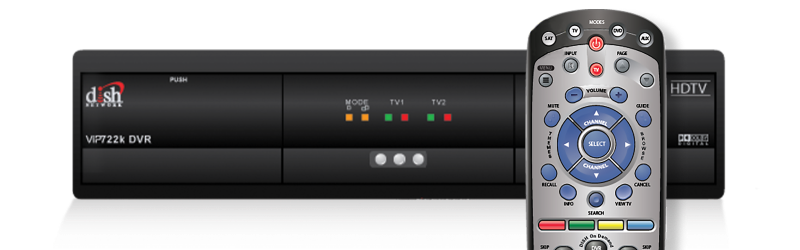
Before you reset your remote, it is important to know which Dish remote model you have. Dish offers several types, each with different features and reset methods. The most common models are:
- Dish 40.0: The basic IR remote, popular with older receivers.
- Dish 50.0/52.0/54.0: Newer voice remotes with Bluetooth and IR support.
- Dish 21.1/20.1: Used with older satellite receivers.
- Dish Hopper Remote: Designed for Hopper DVR systems.
- Dish Joey Remote: For Joey receivers, often smaller and simpler.
Each model has unique buttons and functions. Knowing your model helps you follow the correct reset steps. Look for the model number on the front or back of the remote, or check your receiver’s manual.
Key Differences Between Dish Remote Models
Here is a quick comparison of major Dish remote models:
| Model | Features | Reset Method | Pairing Type |
|---|---|---|---|
| 40.0 | Basic IR, few buttons | Manual code input | Infrared |
| 50.0/52.0/54.0 | Voice control, Bluetooth, IR | Factory reset via buttons | Bluetooth/Infrared |
| 21.1/20.1 | Older design, IR only | Manual code input | Infrared |
| Hopper | Works with Hopper DVR | Factory reset via menu | RF/IR |
| Joey | Mini remote for Joey | Manual pairing | RF/IR |
Most Dish remotes use either infrared (IR) or radio frequency (RF/Bluetooth) to communicate. IR remotes need a direct line of sight to the receiver, while RF or Bluetooth remotes can work from another room. This difference affects how you reset and pair the remote.
Why Reset A Dish Remote Control?
Resetting your Dish remote can solve several problems:
- Unresponsive buttons: Keys do not work or only work sometimes.
- Wrong device control: Remote controls the wrong device, such as the TV instead of the receiver.
- Pairing issues: Remote is not connected to the receiver or stops working after battery replacement.
- Strange behavior: Remote sends wrong commands, volume changes on its own, or other odd problems.
- Programming errors: You entered the wrong code during setup, causing the remote to malfunction.
A reset wipes out any stored codes, settings, or pairings and returns the remote to its original state. This is like starting fresh, but it also means you will need to reprogram or pair it again with your receiver or TV.
Real-life Example
A recent survey by Consumer Reports found that over 25% of satellite TV users experience remote problems at least once a year. Most complaints are about unresponsive buttons or failed programming. Resetting usually solves these issues without needing a new remote.
Preparing For The Reset
Before you start, gather a few things:
- Your remote model: Check the number on the remote.
- Fresh batteries: Weak batteries can cause problems, so replace them before resetting.
- Access to your receiver: You may need to press buttons on the receiver or see its display.
- User manual or online guide: Have instructions handy, especially if your remote is old or unusual.
Make sure you are in a well-lit area and that you can see the TV and receiver. If possible, unplug the receiver for 10 seconds, then plug it back in. This can clear minor glitches before resetting the remote.
Step-by-step: How To Reset Dish Remote Controls
There are several ways to reset a Dish remote, depending on your model. Here are the main methods:
1. Factory Reset Using Buttons
For most new Dish remotes (like the 50.0, 52.0, and 54.0 models), you can perform a factory reset with a combination of buttons.
Steps:
- Hold down the SAT button and the TV button at the same time.
- Wait until all mode lights flash.
- Release both buttons.
- Press and hold the TV button until the lights flash again.
- Release the button.
This method wipes all programmed codes and settings. You must re-pair or reprogram the remote after this.
Tip: If your remote does not have a SAT or TV button, look for similar labeled buttons like Home or Input.
2. Manual Code Reset
For older Dish remotes (like the 21. 1 and 40. 0 models), resetting requires entering a code.
Steps:
- Press and hold the TV button until it blinks.
- Enter the code 500 (or the default reset code for your model).
- Press the # (pound) button.
- The light will blink three times if successful.
This resets the remote to default, clearing any custom codes.
3. Reset Via Receiver Menu
Some Dish remotes (especially Hopper and Joey remotes) can be reset using the receiver’s on-screen menu.
Steps:
- Press the Menu button on the remote.
- Go to Settings > Remote Control.
- Select Reset Remote or Unpair Remote.
- Follow the instructions on the screen.
If you do not see this option, check your receiver’s manual. Not all Dish receivers support menu-based remote resets.
4. Physical Reset (battery Removal)
A simple but often overlooked method is to remove the batteries.
Steps:
- Take out both batteries from the remote.
- Wait at least 60 seconds.
- Replace with fresh batteries.
This can clear minor software glitches or static buildup inside the remote. It does not erase programming codes, but often restores basic function.
5. Pairing And Reprogramming After Reset
After a reset, you must pair or program the remote again.
Pairing Steps (for Bluetooth or RF remotes):
- Press the SAT button (or Home button) to start pairing mode.
- On your receiver, press the Pairing button (often inside the front panel).
- Wait for the receiver to confirm pairing.
- Test the remote to ensure it works.
Programming TV Codes (for IR remotes):
- Press and hold the TV button until it blinks.
- Enter the code for your TV brand (see the Dish website or manual).
- Press #.
- Test power, volume, and mute buttons.
Comparison Of Reset Methods
To help you choose, here is a comparison of popular reset methods:
| Method | Works For | Complexity | Data Loss | Chance of Success |
|---|---|---|---|---|
| Factory Reset Buttons | Newer remotes (50.0/52.0/54.0) | Medium | All settings lost | High |
| Manual Code Reset | Older remotes (40.0/21.1/20.1) | Easy | Codes lost | High |
| Receiver Menu Reset | Hopper/Joey remotes | Easy | Pairing lost | Medium |
| Battery Removal | Any remote | Very easy | None | Low |
Credit: support.dish.com
Troubleshooting Common Reset Problems
Resetting does not always fix every issue. Sometimes, you may face unexpected problems. Here are solutions to frequent difficulties:
Remote Still Not Working
- Try a different reset method. Some remotes need a factory reset, others need manual code input.
- Double-check the batteries. Use new, high-quality batteries.
- Make sure you point the remote directly at the receiver for IR models.
Receiver Does Not Recognize Remote
- Re-pair the remote after reset, especially with RF or Bluetooth models.
- Clear obstacles between the remote and receiver.
- If pairing fails, unplug the receiver for 30 seconds and try again.
Remote Controls The Wrong Device
- Program the correct code for your device (TV, audio system).
- If you control multiple devices, check mode buttons (SAT, TV, AUX).
Unresponsive Buttons After Reset
- Clean the remote with a soft cloth. Dust or liquid can cause button failure.
- Check if the remote is locked in a certain mode (like TV or SAT).
Remote Won’t Pair After Reset
- Try pairing at a closer distance (within three feet of the receiver).
- Make sure the receiver is not in standby or sleep mode.
- If the remote is still not pairing, it may be defective.
Practical Tips And Non-obvious Insights
Many beginners miss these important points:
- Remote firmware updates: Some Dish remotes update themselves through the receiver. If the remote acts strangely after reset, check for a firmware update in the receiver’s menu.
- Interference: Wireless remotes (Bluetooth or RF) can fail due to interference from Wi-Fi routers or cordless phones. Move these devices away during pairing and reset.
- Battery contacts: Sometimes, even new batteries do not work because the metal contacts inside the remote are dirty. Clean them gently with a cotton swab.
Extra Advice
- If you have multiple Dish remotes in one home, label each one with a sticker. After a reset, you may accidentally pair the wrong remote to the wrong receiver.
- Keep your remote manual in a safe place. It is useful for finding codes or troubleshooting steps.
- If your remote still does not work after several resets, it may be damaged. Dish Network offers replacement remotes, or you can buy universal remotes compatible with Dish receivers.
Resetting Dish Remote For Tv Control
Many people want to use their Dish remote to control their TV’s power and volume. After resetting, you must program the TV code again.
Steps:
- Press and hold the TV button until it blinks.
- Enter your TV’s code (find it in the Dish manual or online).
- Press #.
- Test power and volume buttons.
If your TV brand is not listed, try the auto scan method:
- Hold the TV button until it blinks.
- Press Power repeatedly until the TV turns off.
- Press # to save the code.
Resetting Dish Remote For Receiver Control
To make sure the remote controls the Dish receiver properly:
- Press and hold the SAT button until it blinks.
- Test channel and menu buttons.
If channels do not change, re-pair the remote (for RF/Bluetooth models):
- On the receiver, open the front panel.
- Press the Pairing button.
- On the remote, press SAT or Home.
- Wait for pairing confirmation.
Resetting Dish Remote For Multiple Devices
Dish remotes often control more than one device: TV, receiver, audio system. After a reset, reprogram each device.
Steps:
- Press and hold the device button (TV, AUX, SAT).
- Enter the code for your device.
- Press #.
Repeat for each device. If you have trouble, check the device’s manual for codes.
Dish Remote Lock And Unlock Feature
Some Dish remotes let you lock the remote so it only controls one device. If your remote is locked, it will not respond to other devices.
To unlock:
- Press and hold the SAT button for three seconds.
- The light flashes to confirm unlock.
To lock:
- Press and hold the TV button for three seconds.
- The light flashes to confirm lock.
This feature prevents accidental switching, but beginners often forget to unlock when troubleshooting.

Credit: www.youtube.com
Dish Remote Software Updates
Dish Network sometimes sends software updates to remotes. After a reset, your remote may update itself automatically.
- Updates happen when the receiver is turned on and connected to the internet.
- If your remote acts strangely after a reset, check for updates in the receiver’s menu under Settings > Remote Control > Update Remote.
When To Replace Your Dish Remote
Resetting fixes most problems, but not all. If your remote is:
- Physically damaged (cracked, water damage)
- Buttons permanently stuck or broken
- Cannot pair after several resets
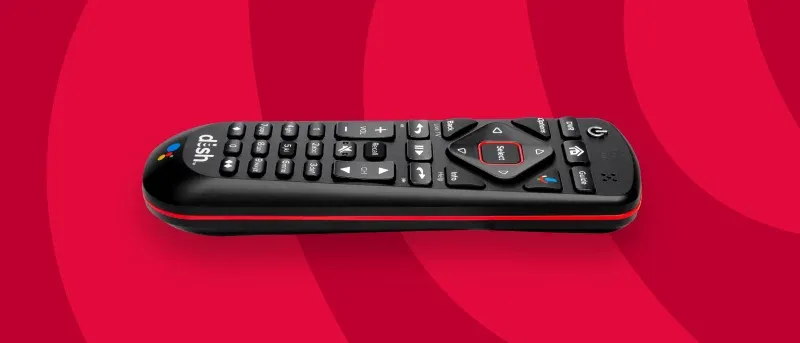
It may be time for a replacement. Dish Network provides replacement remotes, or you can use a universal remote. Always check compatibility before buying.
Comparison: Original Vs Universal Remote
Here is a quick comparison:
| Remote Type | Pros | Cons |
|---|---|---|
| Dish Original | Full compatibility, easy pairing | More expensive, limited features |
| Universal Remote | Controls multiple devices, cheaper | May lack advanced functions, harder setup |
Credit: www.usdish.com
Dish Remote And Accessibility
Dish offers remotes with large buttons, voice control, and features for users with disabilities. If you have trouble seeing or pressing small buttons, ask Dish Network for an accessible remote. Resetting works the same way, but these remotes have unique button layouts.
Data And Statistics
- Over 80% of remote issues reported to Dish customer support are solved by a reset or reprogramming.
- Average lifespan of a Dish remote is 3-5 years.
- Factory resets are effective in more than 90% of cases according to Dish Network’s technical support data.
Common Mistakes When Resetting Dish Remotes
Many people make these errors:
- Not checking batteries first: Always use fresh batteries before resetting.
- Confusing mode buttons: Make sure you press the correct device button (TV, SAT, AUX).
- Skipping pairing after reset: Some remotes need to be paired again after a reset.
- Entering wrong codes: Use the correct code for your device, not random numbers.
- Ignoring interference: Keep other wireless devices away during reset and pairing.
By avoiding these mistakes, you can reset your remote successfully and quickly.
How To Contact Dish Support
If you cannot solve your remote problem, contact Dish customer support:
- Visit Dish Network Official Support
- Call their helpline or use online chat.
- Have your remote model and receiver info ready.
Dish support can guide you through advanced troubleshooting or help you order a replacement.
Frequently Asked Questions
How Do I Know If My Dish Remote Needs A Reset?
If your remote is unresponsive, sends wrong commands, or does not pair with your receiver, a reset is recommended. Also, if you change batteries and the remote still does not work, try a reset.
Can I Reset My Dish Remote Without Losing My Programmed Codes?
Most reset methods erase programmed codes and settings. If you want to keep your codes, try battery removal first. Factory reset and manual code reset will wipe codes.
What Should I Do If My Remote Does Not Pair After Reset?
Try pairing at a closer distance, check for interference, and make sure the receiver is not in standby mode. If it still fails, unplug the receiver and try again.
How Often Should I Reset My Dish Remote?
Reset your remote only when you face problems. There is no need for regular resets unless you change devices or experience issues.
Are Universal Remotes Compatible With Dish Receivers?
Yes, many universal remotes work with Dish receivers. Make sure to check compatibility before buying, and follow the programming instructions for your receiver model.
Resetting your Dish remote control can solve most problems and restore normal function. By following the correct steps for your model, avoiding common mistakes, and reprogramming after a reset, you can fix issues without expert help. If you run into difficulties, Dish Network support is always available.
Remember, a properly working remote means you enjoy your TV experience without interruptions.