
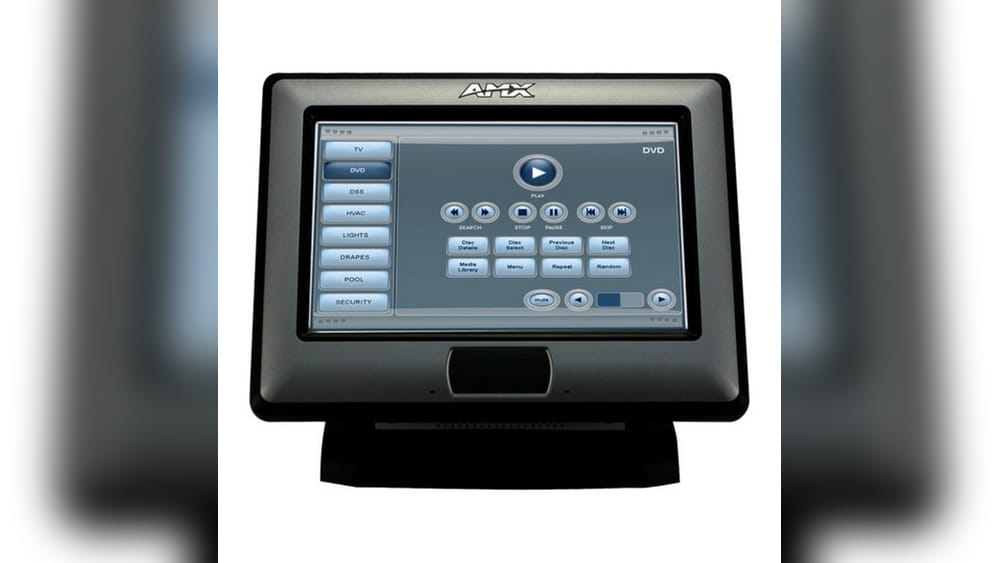
Resetting an AMX touch panel can solve many problems, from unresponsive screens to network issues. These panels control audio, video, and environment systems in meeting rooms, classrooms, and smart homes. If your AMX touch panel isn’t working right, you might be worried about losing custom settings or breaking something. This guide will show you how to reset an AMX touch panel safely, step by step. You’ll learn why resets are needed, what to do before you start, and how to avoid common mistakes.
AMX panels are advanced devices, but you don’t need to be a tech expert to reset one. With the right approach, you can restore your panel’s performance and avoid calling for expensive technical support. Let’s walk through the process, clear up some confusion, and give you tips that even experienced users sometimes miss.
Understanding Amx Touch Panels
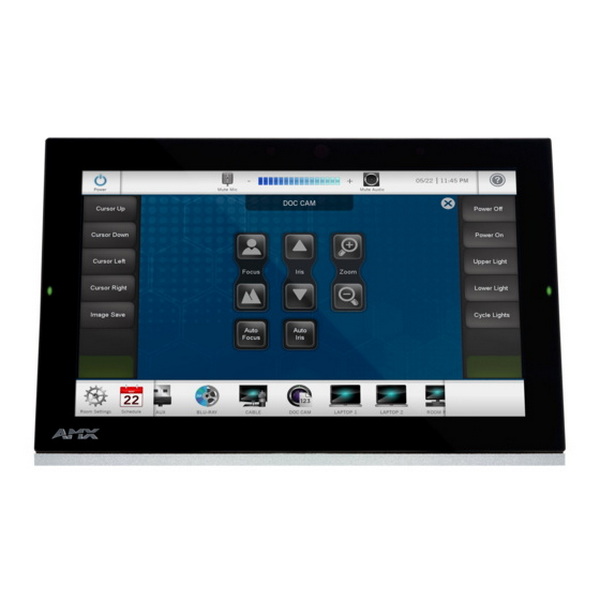
An AMX touch panel is a wall-mounted or tabletop device used to control systems like lights, projectors, audio, and video in a room. These panels run on specialized firmware and can be customized for different needs. They’re common in conference centers, hotels, schools, and luxury homes.
There are different models, such as the Modero G5, Modero X, and older Modero series. Most panels have similar reset methods, but some differences exist. Knowing your panel’s model helps you follow the right steps and avoid problems.
Common Reasons To Reset
- Unresponsive screen: Touch input is not working or lags.
- Network errors: Panel cannot connect to the server or control system.
- Frozen software: Panel is stuck on a screen or logo.
- Configuration issues: Settings are wrong or corrupted.
- Firmware glitches: After updates or power failures.
Resetting can clear these issues without needing major repairs.
Types Of Reset
There are two main types of reset:
- Soft reset: Restarts the panel without erasing user data or settings.
- Factory reset (hard reset): Returns the panel to its original state, removing all custom settings and files.
Choose the right type based on your problem. A soft reset is usually enough for minor glitches. Only use a factory reset when other steps fail.
Preparing For A Reset
Before you reset, take a few important steps to protect your settings and data.
Identify Your Panel Model
Check the label on the back or side of your panel. Write down the model number, like NXD-1200Vi or MXT-1001. You’ll need this for support or downloading firmware.
Backup Your Configuration
If your system uses a custom interface, ask your IT team or integrator for a backup. Most panels store configuration files locally or on a server. A reset can erase these files, so backup is critical.
Check Power And Network
Make sure the panel is connected to stable power. Interrupting a reset with a power cut can damage the device. Also, ensure you know the panel’s network settings, like IP address, in case you need to re-enter them.
Notify Other Users
Let others know you’ll be resetting the panel. This avoids surprises or confusion if the panel restarts during a meeting.
How To Perform A Soft Reset
A soft reset is the first troubleshooting step. It’s safe and doesn’t remove data.
Using The On-screen Menu
- Tap the Settings icon (usually a gear symbol).
- Navigate to System or Device Settings.
- Look for a Restart or Reboot option.
- Confirm and wait for the panel to restart.
This method works for most newer panels.
Manual Reboot
If the screen is unresponsive, try a manual reboot:
- Locate the power button (often on the side or back).
- Hold it for 5–10 seconds until the panel turns off.
- Wait 10 seconds, then press the button again to power on.
If your panel is powered by PoE (Power over Ethernet), you can disconnect and reconnect the network cable.
Power Cycling
For wall-mounted panels without easy access to buttons:
- Locate the panel’s power supply (often in a closet or behind the wall).
- Switch off the power for 15–20 seconds.
- Turn the power back on.
Power cycling clears temporary memory issues.
How To Perform A Factory Reset
A factory reset is more serious. It erases all custom settings, user data, and sometimes firmware changes. Only use this if a soft reset doesn’t fix the problem.
Using The Hidden Reset Menu
Many AMX panels have a hidden menu:
- Hold two corners of the touch screen at the same time (usually upper left and lower right) for 10–20 seconds.
- A maintenance or setup menu should appear.
- Look for Restore Factory Defaults or Reset to Factory.
- Follow the prompts to confirm.
This will restart the panel and erase custom configurations.
Hardware Reset Button
Some panels have a reset pinhole:
- Use a paperclip to press and hold the reset button for 10–15 seconds.
- The panel will turn off, then restart to the default state.
Check your panel’s manual for the exact location.
Web Interface Reset
If your panel is still reachable over the network:
- Open a browser and enter the panel’s IP address.
- Log in with admin credentials.
- Go to System, then Maintenance or Reset.
- Click Factory Reset and confirm.
This method works for panels with advanced firmware.
What Gets Erased?
- User interfaces and custom pages
- Saved schedules or automation scripts
- Network settings (IP, DNS, passwords)
- Firmware updates (sometimes)
After a factory reset, you may need to reinstall firmware or reload configuration files.
What To Do After A Reset
A reset is only the first step. Here’s how to get your panel working again.
Reconfigure Network Settings
Most panels default to DHCP. If your network uses static IP addresses:
- Open the Settings menu.
- Go to Network or Ethernet Settings.
- Enter the correct IP, subnet mask, gateway, and DNS.
- Save and restart.
Restore Configuration Files
If you have a backup:
- Connect a USB drive or use the web interface.
- Import configuration files (.TP4, .TP5, .TPD).
- Apply and test.
If you don’t have a backup, contact your system integrator.
Test Basic Functions
Try these to make sure everything works:
- Touch screen response
- Volume controls
- Device switching (projector, display, lights)
- Network connection
If something fails, check cables and settings.
Update Firmware (if Needed)
After a reset, you might need to update firmware:
- Download the latest firmware from the AMX website.
- Transfer to the panel via USB or network.
- Follow the on-screen instructions.
Only use official firmware to avoid damage.
Common Problems And Troubleshooting
Resetting an AMX touch panel usually solves most issues, but sometimes new problems appear. Here’s how to handle the most common ones.
Panel Stuck On Boot Logo
If the panel won’t start after a reset:
- Try another power cycle.
- Re-do the factory reset.
- Check for firmware compatibility (older firmware may not work on new hardware).
- Contact support if the problem continues.
Network Won’t Connect
If you can’t reach the network:
- Double-check network cables and switches.
- Make sure DHCP or static IP settings are correct.
- Reset the panel again if needed.
Touch Not Responding
If the touch screen is still frozen:
- Clean the surface gently with a microfiber cloth.
- Try a hardware reset or use the reset button.
- If the problem continues, the touch panel may need repair.
Configuration Lost
If you forgot to backup and lost your setup:
- Ask your IT team or integrator for help.
- Look for old configuration files on your computer or server.
- Consider rebuilding the interface from scratch, using the original design.
Credit: www.amx.com
Comparing Reset Methods
The right reset method depends on your situation. Here’s a quick comparison:
| Reset Method | Data Loss | Best For | Time Required |
|---|---|---|---|
| Soft Reset | None | Minor glitches, freezes | 1–2 minutes |
| Factory Reset | All data/settings erased | Major errors, new setup | 5–10 minutes |
| Firmware Reinstall | All data/settings erased | Software corruption, updates | 10–20 minutes |
A soft reset is safest. Use a factory reset only if you can restore settings or if the panel is unusable.
Tips For A Smooth Reset
Resetting sounds easy, but small mistakes can cause headaches. Here are some expert tips:
- Document settings: Write down network info, passwords, and device names before you start.
- Check for firmware updates: Sometimes a reset fixes one problem but reveals another. Update firmware after resetting.
- Keep backups off the panel: Store copies of configuration files on your computer or cloud. Never rely on the panel’s local storage.
- Use the official power supply: Powering the panel with the wrong adapter can cause resets to fail.
- Don’t rush: Let the panel finish each step. Interrupting a reset can cause permanent damage.
Credit: www.kelaidisplay.com
When To Call For Help
Sometimes, even after following all steps, problems remain. Here’s when to seek expert help:
- The panel won’t boot after several resets.
- Touch input is permanently lost.
- Firmware updates fail or the panel is “bricked.”
- You cannot access the panel’s network.
Contact your IT team, AV integrator, or AMX support. Provide details: panel model, firmware version, and what you’ve tried.
Real-world Examples
Let’s look at two real situations and how resets helped.
Meeting Room Panel Freezes
A university installed Modero G5 panels in meeting rooms. One day, a panel froze during a conference. The AV team tried a soft reset but the problem returned. They performed a factory reset, then reloaded the backup configuration. The panel worked perfectly and the meeting continued with only a short delay.
Network Settings Lost After Power Outage
In a corporate office, an AMX panel lost its network settings after a sudden power outage. The admin did a soft reset, but the panel still couldn’t connect. A factory reset restored default settings, and the admin re-entered the network info. The panel joined the network and worked as before.
These examples show that resets are powerful tools—but backups and preparation make the process smooth.
Data And Trends: Amx Panel Use And Support Requests
AMX touch panels are widely used. According to industry data, over 40,000 AMX panels are installed in North America alone (2022 data). About 20% of support requests to AV integrators are related to touch panel resets or software issues.
Most users face problems because:
- They don’t back up configurations.
- They use the wrong reset method.
- They update firmware incorrectly.
Learning proper reset steps can cut downtime by over 60%, based on integrator case studies.
Table: Amx Touch Panel Models And Reset Options
Here’s how common AMX models compare for reset methods:
| Model | Soft Reset | Factory Reset | Reset Button | Web Interface |
|---|---|---|---|---|
| Modero G5 | Yes | Yes | No | Yes |
| Modero X | Yes | Yes | Yes | No |
| MXT-1001 | Yes | Yes | No | Yes |
| NXD-1200Vi | Yes | Yes | Yes | No |
Check your model’s manual for exact steps.
Security And Privacy Considerations
Resetting a touch panel also affects security. Many panels store Wi-Fi passwords, admin credentials, and scheduling data. A reset removes this information, which can be good if you’re recycling or selling the panel.
However, if you forget to erase sensitive data before giving the panel to someone else, there’s a risk. Always perform a factory reset before transferring a panel to another user.
For extra security:
- Change default admin passwords after resetting.
- Delete unused user accounts.
- Set strong Wi-Fi passwords.
Mistakes To Avoid
Even experienced users make errors when resetting. Here are common mistakes and how to avoid them:
- Not backing up data: Always save your configuration before a factory reset.
- Wrong reset method: Don’t use a factory reset for small issues—try a soft reset first.
- Interrupting the reset: Wait for the panel to finish. Don’t unplug during a reset.
- Losing network info: Write down IP addresses and passwords before starting.
- Using old firmware: Install the latest firmware after a reset to avoid bugs.
Credit: www.amx.com
Advanced Tips For Power Users
For those comfortable with technology, here are extra tips:
- Remote resets: Many panels let you reset remotely via the web interface or SSH (if enabled).
- Scripting resets: In large systems, automate resets with scripts (ask your IT team).
- Logs and diagnostics: After a reset, check system logs to diagnose deeper issues.
- Custom firmware: Only install official firmware. Custom versions can “brick” the device.
Table: Troubleshooting After Reset
Quick reference for post-reset issues:
| Problem | Possible Cause | Solution |
|---|---|---|
| No display | Loose cable, power issue | Check cables, power supply |
| No network | Wrong IP settings | Re-enter network settings |
| Touch not working | Firmware bug, hardware fault | Reinstall firmware, contact support |
| Custom UI missing | No backup restored | Restore configuration files |
Additional Resources
For more details and downloads, visit the official AMX website. You’ll find manuals, firmware, and support contacts.
Frequently Asked Questions
What’s The Difference Between A Soft Reset And A Factory Reset On An Amx Touch Panel?
A soft reset restarts the panel without deleting your data or settings. It’s useful for minor problems like freezing or slow response. A factory reset erases all custom settings, user data, and configurations. The panel returns to its original state, which is helpful for major issues or when you want a fresh start.
Will I Lose My Custom Interface If I Reset The Panel?
Yes, a factory reset removes all custom interfaces, schedules, and files. If you want to keep your setup, always back up configuration files before resetting. A soft reset will not delete your interface.
How Do I Access The Hidden Reset Menu On My Amx Panel?
Hold two corners of the screen (usually upper left and lower right) for 10–20 seconds. The hidden menu will appear. From there, you can select Restore Factory Defaults or similar options. This method works on most modern panels.
What Should I Do If The Panel Doesn’t Respond After A Reset?
First, try a power cycle—unplug and replug the power. If it’s still stuck, repeat the factory reset or reinstall the firmware. If the problem continues, contact your IT team or AMX support. There may be a hardware fault or deeper software issue.
Is It Safe To Update Firmware After A Reset?
Yes, updating firmware after a reset is often recommended. Download the official firmware for your model from the AMX website. Follow on-screen instructions and never interrupt the update process.
Resetting an AMX touch panel is a practical way to fix many common problems. With careful preparation, backups, and the right reset method, you can restore your panel’s performance and avoid downtime. If you ever feel unsure, ask for help from your IT team or a certified AMX integrator. With these steps, you’ll be ready to keep your smart spaces running smoothly.