
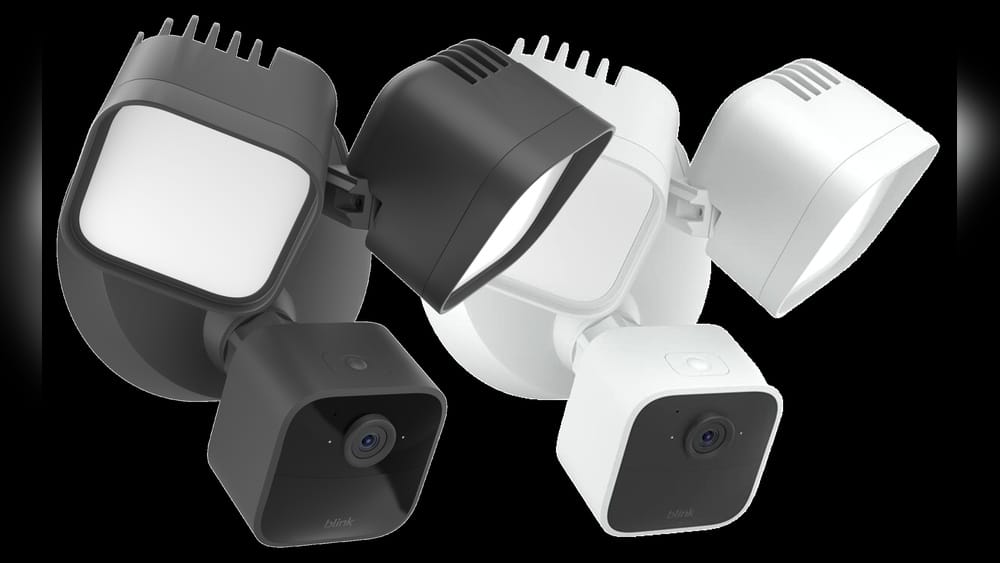
The Blink Floodlight Camera has become a popular choice for many homeowners who want a simple way to monitor their property and keep it safe. With motion detection, two-way audio, and bright LED lights, this device offers security and peace of mind.
But, like any smart device, sometimes things go wrong. Maybe your camera isn’t responding. Maybe you’re having trouble connecting it to Wi-Fi. Or perhaps you’re planning to sell or give it away. In these moments, knowing how to reset your Blink Floodlight Camera can save you time and stress.
Resetting your camera isn’t just pressing a button—it can mean several things, from a quick power cycle to a full factory reset. Each method solves different problems, and choosing the right one is important. This guide will explain all the ways to reset your Blink Floodlight Camera, why you might need to do it, and what to watch out for.
You’ll find step-by-step instructions, troubleshooting tips, and answers to common questions. Whether you’re a new user or have had your Blink for years, you’ll discover practical advice that helps you get your camera back to working condition—fast.
Understanding The Blink Floodlight Camera
Before you reset anything, it’s good to know what makes the Blink Floodlight Camera special. This device is more than just a light with a camera. It combines powerful LED floodlights with a smart security camera that can stream video, record clips, and send alerts to your phone. It connects to your Wi-Fi and works with the Blink app, making it easy to view footage and adjust settings.
Some key features include:
- Motion detection: The camera starts recording when it senses movement.
- HD video: Clear video, day or night.
- Two-way audio: Speak and listen through the camera.
- Siren: A loud alarm to scare off intruders.
- Cloud or local storage: Save clips online or on a USB drive via the Blink Sync Module.
The Blink Floodlight Camera is weather-resistant and can be used outdoors. It’s designed for easy installation and can be added to your existing Blink system. But like any smart gadget, issues can happen—Wi-Fi drops, app glitches, or hardware malfunctions. That’s when a reset becomes useful.
Reasons To Reset Your Blink Floodlight Camera
Resetting is not something you should do without a reason. It’s a tool to solve problems, and knowing when to use it can save you hassle. Here are the most common reasons people reset their Blink Floodlight Camera:
- Connectivity problems: The camera can’t connect to Wi-Fi, or keeps dropping the connection.
- Camera not responding: The device is frozen, doesn’t record, or doesn’t react to motion.
- App issues: The Blink app can’t find the camera, or settings won’t update.
- Changing networks: You’ve changed your Wi-Fi password or router and need to reconnect.
- Selling or giving away the camera: You want to remove your personal settings and data.
- Fixing software errors: Updates or bugs have caused the camera to act strangely.
- Battery or power problems: The camera won’t turn on or the floodlights won’t work, even after changing batteries.
A reset can fix many of these issues, but it’s not a magic cure-all. Sometimes, a simple restart is enough. Other times, you need a full factory reset. The next sections explain each method in detail.
Types Of Resets For Blink Floodlight Camera
Not all resets are the same. There are different levels, each with its own effects:
Power Cycle (soft Reset)
A power cycle is the simplest reset. It means turning the camera off and on again. This can fix temporary glitches.
How to do it:
- Remove the batteries from the camera or unplug its power source.
- Wait for 10–20 seconds.
- Reinsert the batteries or plug it back in.
When to use: If the camera is frozen, not responding, or showing minor issues.
Network Reset
A network reset is needed if the camera can’t connect to your Wi-Fi or you’ve changed your router or password.
How to do it:
- Open the Blink app on your phone.
- Go to the camera’s settings.
- Choose “Change Wi-Fi Network” or similar.
- Follow the prompts to connect the camera to your new Wi-Fi.
When to use: If you’ve changed Wi-Fi networks or your camera can’t connect to the internet.
Factory Reset
A factory reset erases all settings and returns the camera to its original state. This is the most complete reset.
How to do it:
- Locate the reset button on the camera (usually a small pinhole on the back or bottom).
- Use a paperclip or pin to press and hold the button for 10–15 seconds.
- Wait for the camera’s lights to flash, which signals the reset is complete.
- You’ll need to set up the camera again in the Blink app.
When to use: If nothing else works, or you’re selling/giving away the camera.
Comparison Of Reset Types
To help you see the differences, here’s a quick comparison:
| Reset Type | What It Does | When to Use | Requires Re-setup? |
|---|---|---|---|
| Power Cycle | Restarts the device | Minor glitches, freezing | No |
| Network Reset | Re-connects to Wi-Fi | Wi-Fi issues, new router | Yes, Wi-Fi setup only |
| Factory Reset | Restores default settings | Major issues, new owner | Yes, full re-setup |
Step-by-step: How To Power Cycle Your Blink Floodlight Camera
This is the easiest troubleshooting step and often fixes simple problems. Here’s how to do it safely:
- Turn off the camera: If your camera is battery-powered, remove the batteries. If it’s wired, unplug it from the power outlet.
- Wait: Leave the camera off for at least 10 seconds. This allows any leftover power to drain.
- Restart: Put the batteries back in or plug the camera back in.
- Check status: Wait for the camera’s lights to come on. Use the Blink app to see if it’s online and working.
Tip: Sometimes, cleaning the battery contacts helps if you notice corrosion or dirt.
Step-by-step: How To Perform A Network Reset
If your camera won’t connect after a Wi-Fi change, you’ll need to reconnect it. Here’s how:
- Open the Blink app: Make sure you’re logged in to your Blink account.
- Select the camera: Tap on the camera you want to reset.
- Go to settings: Look for a gear icon or menu for device settings.
- Choose “Change Wi-Fi Network”: This option may also be labeled as “Update Wi-Fi.”
- Follow the instructions: The app will guide you through connecting the camera to your new Wi-Fi. You’ll need your network name and password.
- Wait for confirmation: The app will tell you when the connection is successful.
Note: The camera must be in range of your Wi-Fi router during this process. If you move your router far from the camera, you might need to adjust their locations.
Step-by-step: How To Factory Reset Your Blink Floodlight Camera
A factory reset is more serious. It wipes all settings, so only do this if you’re sure. Follow these steps carefully:
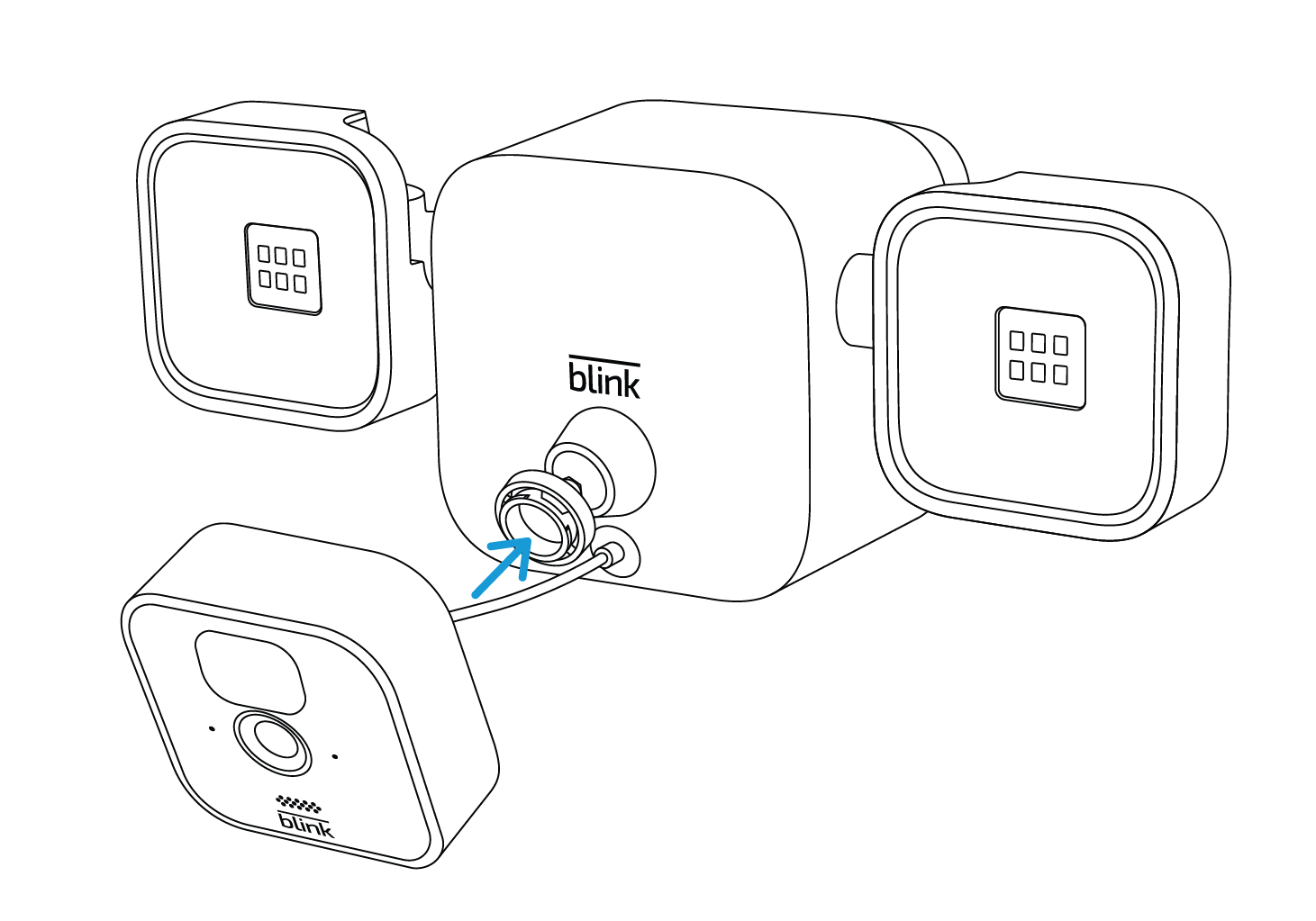
- Find the reset button: On most Blink Floodlight Cameras, the reset button is a tiny hole on the back or bottom of the camera. You may need a paperclip or pin.
- Press and hold: Insert the paperclip and press the button. Hold it for 10–15 seconds. The camera’s LED lights will blink, then turn off and on.
- Wait for reboot: The camera will restart. When the lights stop blinking, the reset is done.
- Remove from the Blink app: Open the Blink app, go to your device list, and remove the camera. This step is important if you’re giving the camera to someone else.
- Set up as new: If you want to use the camera again, you’ll need to add it back to the Blink app and go through the setup process.
Important: A factory reset deletes all clips stored on the device. Cloud footage may remain in your Blink account, but local clips are erased.
What To Expect After Resetting
Resetting your Blink Floodlight Camera can solve problems, but it also means you’ll lose some things. Here’s what changes:
- Camera settings: All custom settings, like motion zones and schedules, are erased after a factory reset.
- Wi-Fi connection: You’ll need to reconnect the camera to Wi-Fi.
- Blink app: The device will disappear from your app and must be added again.
- Saved video clips: Local clips are deleted. Cloud clips may still be available.
Tip: Always download any important video clips before resetting, especially if you need them for evidence or insurance.
Common Problems That A Reset Can Fix
A reset can solve many issues. Here are some real-world examples:
- Camera won’t turn on: If your camera stays dark, a power cycle may fix it. Check the batteries or power supply first.
- Motion alerts not working: A network reset can help if alerts have stopped after a Wi-Fi change.
- App won’t find the camera: A factory reset can fix this, especially if the camera was set up by someone else.
- Floodlights not coming on: Sometimes, a quick power cycle solves problems with the lights not responding to motion.
- Video is frozen or laggy: Network or power issues can cause this. Try a network reset first.
Credit: support.blinkforhome.com
When A Reset Won’t Help
Not every problem can be fixed with a reset. Here are cases where you might need extra help:
- Physical damage: If your camera is cracked, water-damaged, or has broken parts, a reset won’t fix it.
- Outdated firmware: If the camera’s software is too old, you may need to update it before resetting.
- Account problems: If you can’t log into the Blink app, resetting the camera won’t help. Contact Blink support for account issues.
- Network incompatibility: Some routers or mesh Wi-Fi systems may block the camera. Make sure your router supports 2.4 GHz Wi-Fi, as Blink cameras do not work on 5 GHz only.
If resetting doesn’t solve your issue, check the Blink support site or contact customer service for more advanced help.
Advanced Reset Tips And Troubleshooting
Sometimes, resetting doesn’t go as planned. Here are tips and non-obvious insights to help you succeed:
Use The Correct Tools
The reset button is small. Use a thin, non-metal object if possible to avoid damaging the button or the camera’s casing.
Check Battery And Power Before Resetting
Many users try to reset a camera that simply has dead batteries or a loose power cable. Double-check these first—sometimes the fix is easier than you think.
Wait For Confirmation Lights
After pressing the reset button, watch the camera’s lights. They usually blink or change color. If you don’t see this, try holding the button longer or check if the camera is getting power.
Remove Device From Blink App
If you skip this step, the camera may still be linked to your account, causing setup problems later. Always remove the device from your app, especially if you’re giving it away.
Update The Blink App
An outdated app can cause reset or setup steps to fail. Make sure you have the latest version from the app store before starting.

Credit: support.blinkforhome.com
Data Privacy And Security When Resetting
If you’re selling or giving away your Blink Floodlight Camera, a factory reset protects your privacy. Here’s why:
- Personal information: Your Wi-Fi details, email, and possibly video clips are stored on the device.
- Account access: The camera is tied to your Blink account. Without a reset, a new owner can’t add it to their account.
- Video evidence: Resetting ensures old footage can’t be recovered by someone else.
Tip: For extra safety, change your Blink account password after removing a device, especially if you gave it to someone you don’t know well.
How To Set Up Your Blink Floodlight Camera After A Reset
After a reset, your camera is like new. Here’s how to set it up again:
- Download the Blink app: If you haven’t already, get it from the App Store or Google Play.
- Create or log in to your Blink account: Use your email and password.
- Add a new device: Tap the plus (+) icon in the app, then select “Blink Floodlight Camera.”
- Follow the app instructions: The app will guide you through connecting to Wi-Fi, naming your camera, and setting up alerts.
- Test the camera: Make sure you can view live video and receive motion alerts.
Non-obvious insight: If you have multiple Blink devices, reset and add one camera at a time. Adding too many at once can cause network issues.
Comparison With Other Smart Cameras
How does resetting a Blink Floodlight Camera compare to other brands? Here’s a quick look:
| Brand | Reset Process | App Required? | Factory Reset Button |
|---|---|---|---|
| Blink | Reset button + app steps | Yes | Yes |
| Ring | Hold setup button for 15 sec | Yes | Yes |
| Arlo | Hold sync/reset button for 10 sec | Yes | Yes |
| Wyze | Hold setup button for 10 sec | Yes | Yes |
As you can see, most smart cameras use a similar process—a physical button and app-based re-setup. But each brand’s steps and terminology differ, so always check your device’s manual.
Common Mistakes To Avoid When Resetting
Resetting seems simple, but some mistakes can cause headaches:
- Not removing the device from the Blink app: This can stop you from setting up the camera again.
- Using the wrong reset method: Don’t do a full factory reset if a power cycle or network reset would solve the problem.
- Rushing the process: Hold the reset button long enough—if you let go too soon, the camera may not reset.
- Forgetting to save videos: All local footage is erased after a factory reset.
- Not updating the app or firmware: This can lead to errors during setup.
Non-obvious insight: If you have a Sync Module (used for Blink systems with multiple cameras), sometimes resetting the Sync Module, not the camera, fixes system-wide problems. Always check if the issue is with the camera or the hub.
When To Contact Blink Support
If you’ve tried all reset methods and your camera still won’t work, it’s time to get help. You should contact Blink support if:
- The camera won’t turn on, even after new batteries or power cycling.
- The reset button doesn’t respond.
- The camera won’t connect to your Wi-Fi, but other devices can.
- You see error messages in the app that don’t go away after a reset.
Having your camera’s serial number and details about your setup (Wi-Fi type, phone model, etc.) ready can help support solve your issue faster. For more information, you can visit the official Blink Support Center.
Frequently Asked Questions
How Do I Know If My Blink Floodlight Camera Has Been Reset?
After a factory reset, the camera’s LED lights will blink, then turn off and on. It will also disappear from your Blink app, and you’ll need to set it up again. If you see the camera asking to be added in the app, the reset worked.
Will I Lose My Video Recordings If I Reset My Camera?
A factory reset deletes all locally stored video clips on the camera. Cloud-stored clips in your Blink account may remain, but it’s best to download any important videos before resetting.
Can I Reset My Blink Floodlight Camera Remotely?
You can perform a network reset from the Blink app, but a full factory reset requires pressing the physical button on the camera. There is no way to do a factory reset remotely.
Do I Need To Reset The Camera If I Change My Wi-fi Password?
You don’t need a full reset. Just use the “Change Wi-Fi Network” option in the Blink app to reconnect the camera to your new Wi-Fi password or router.
What Should I Do If My Camera Still Doesn’t Work After Resetting?
If you’ve tried all reset options and the camera still has problems, contact Blink support. There may be a hardware issue that needs repair or replacement.
Resetting your Blink Floodlight Camera can seem complicated, but with these clear steps and tips, you’ll be able to handle most problems yourself. Remember, always try the simplest solution first—sometimes a quick power cycle is all you need. Resetting is a powerful tool, but use it wisely, and you’ll keep your home safe and your camera working smoothly.

Credit: support.blinkforhome.com