
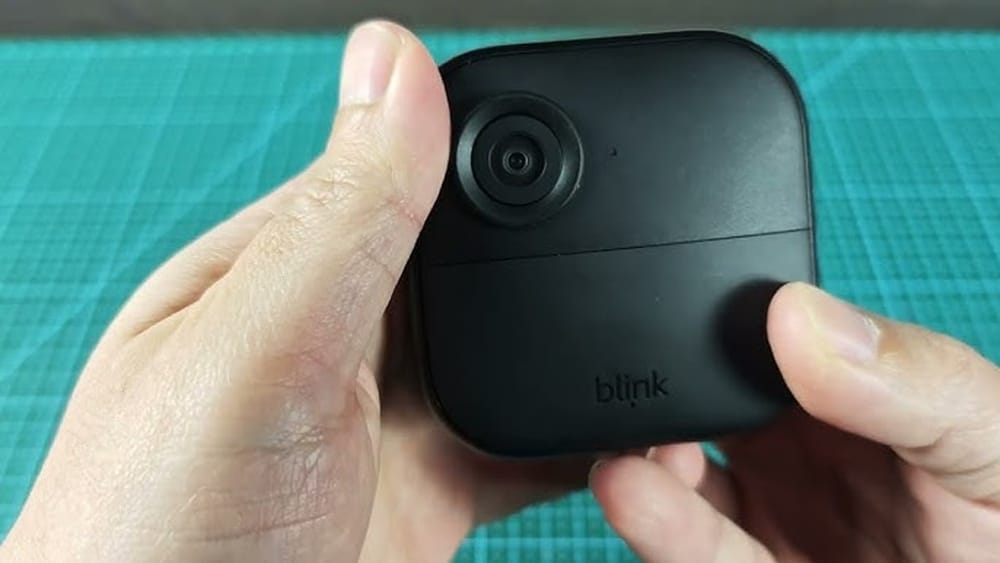
If your Blink Outdoor 4 Camera isn’t working as expected, a reset can often fix common issues. Maybe the camera isn’t connecting to Wi-Fi, the motion detection isn’t reliable, or live view keeps failing. Sometimes, you just want a fresh start after moving or changing your home setup. Resetting your Blink Outdoor 4 Camera can solve these problems and bring your device back to normal.
But before you jump into the reset process, it’s important to know what kind of reset you need. There are several ways to reset the camera, each one with a different result. Some methods only restart the camera, while others erase all your settings.
If you choose the wrong reset, you might lose your video clips or have to set up the camera again from scratch. This guide will help you understand each option and walk you through the steps, so you can confidently restore your Blink Outdoor 4 Camera.
Understanding Reset Options For Blink Outdoor 4 Camera
The Blink Outdoor 4 Camera offers four main reset methods. Each method is designed for a specific purpose and affects the camera in different ways. Knowing the difference can save you time and help protect your data.
1. Soft Reset
This is the simplest reset. It restarts the camera without changing any settings or deleting any files. Use this if your camera is frozen or lagging.
2. Power Cycle
A power cycle means turning the camera off and on again by removing and reinserting the batteries. This can solve minor glitches and connection problems.
3. Reset Sync Module
The Sync Module connects your camera to Wi-Fi and the Blink app. If the Sync Module fails, your camera will not work properly. Resetting the Sync Module can restore network connections.
4. Factory Reset
This is the most powerful reset. It erases all settings, removes the camera from your account, and deletes all video clips stored locally. Only use this if you want to start fresh or fix serious problems.
Each reset option comes with its own risks and benefits. For example, a factory reset is best for troubleshooting major issues, but it will erase all your settings. In the next sections, we’ll cover each reset method step by step.
When Should You Reset Your Blink Outdoor 4 Camera?
Not every problem needs a reset. Sometimes, changing a setting or updating the firmware is enough. But certain issues are best solved by resetting.
- Camera won’t connect to Wi-Fi
- Live view fails repeatedly
- Motion detection isn’t working
- Camera isn’t recording clips
- Sync Module offline
- App can’t find the camera
- Camera freezing or lagging
- Moving the camera to a new location
Resetting is also useful after major changes, like moving to a new house or updating your Wi-Fi router. If you notice the camera behaving strangely, a reset is often the best first step.
Preparing For Reset: What You Should Know
Before you reset your Blink Outdoor 4 Camera, take a few precautions to avoid losing important data:
- Back up video clips:
If your camera is storing clips locally (on a USB drive connected to the Sync Module), download any important files before doing a factory reset.
- Check battery level:
Make sure the camera batteries are charged. A reset can fail if the batteries die during the process.
- Note your settings:
Write down any custom settings, like motion sensitivity or notification preferences, so you can restore them after the reset.
- Update the Blink app:
Install the latest version of the Blink app for best compatibility. Some reset steps require the app.
- Have your Wi-Fi password ready:
You may need to reconnect your camera to Wi-Fi after a reset.
Now, let’s look at each reset method in detail.
How To Perform A Soft Reset On Blink Outdoor 4 Camera
A soft reset is a quick way to restart your camera without erasing any settings. This is the safest reset option and often fixes small problems.
Steps For Soft Reset
- Open the Blink app on your smartphone.
- Select your camera from the device list.
- Tap the settings icon (gear symbol).
- Scroll down and tap Restart Device if available.
If your app doesn’t show a restart option:
- Remove the batteries for 10 seconds, then reinsert them.
- Wait for the camera to turn back on (LED indicator flashes blue).
When To Use Soft Reset
- Camera is frozen or slow
- Live view not loading
- Minor app glitches
Soft resets are safe and quick. They won’t erase your video clips or settings.
Common Mistakes
- Removing batteries too quickly (wait at least 10 seconds)
- Forgetting to check battery charge before restarting
- Not waiting for the camera to fully power back up

Credit: www.youtube.com
Power Cycle: A Deeper Restart
A power cycle is stronger than a soft reset. It can fix issues related to hardware or Wi-Fi connection. This method is often used when the camera isn’t responding to commands or won’t reconnect to the Sync Module.
Steps For Power Cycle
- Remove the batteries from the camera.
- Wait 30 seconds for the camera to fully shut down.
- Reinsert the batteries. Make sure they are placed correctly.
- Watch for the LED indicator to flash blue, signaling the camera is starting up.
When To Use Power Cycle
- Camera won’t connect to Wi-Fi
- Sync Module offline
- Camera not responding to app commands
- After moving camera to a new location
Tips For Effective Power Cycle
- Use fresh batteries if the old ones are low
- Place the camera near the Sync Module for best reconnection
- Wait for the camera to fully restart before using the app
Example
If your camera stopped recording clips after a firmware update, a power cycle often restores normal function. Just removing and reinserting the batteries can solve many hidden problems.
Resetting The Sync Module: Restoring Connectivity
The Sync Module is a small device that connects your Blink cameras to Wi-Fi and the Blink app. If your Sync Module goes offline or loses connection, your camera will not work.
Resetting the Sync Module is often the best way to restore network connectivity and fix issues with multiple cameras.
Steps To Reset Sync Module
- Locate the Sync Module near your Wi-Fi router.
- Find the reset button (small hole) on the Sync Module.
- Use a paperclip or similar tool to press and hold the reset button for 5 seconds.
- Release the button. The LED indicator will flash blue and then green.
- Open the Blink app and add the Sync Module again by scanning the QR code on the back.
What Happens After Reset
- Sync Module disconnects from Wi-Fi
- Cameras linked to the module may go offline
- You need to reconnect the Sync Module to Wi-Fi using the app
When To Use Sync Module Reset
- Sync Module shows offline status in app
- Multiple cameras not connecting
- Problems after Wi-Fi router change
- Adding new cameras
Common Mistakes
- Not holding the reset button long enough
- Forgetting to re-add the Sync Module in the app
- Not placing the Sync Module close to the router
Data Table: Comparison Of Reset Methods
Here’s a quick comparison of the first three reset methods:
| Reset Method | Effect on Settings | Effect on Video Clips | Best For | Time Needed |
|---|---|---|---|---|
| Soft Reset | No change | None | Minor glitches | 1 minute |
| Power Cycle | No change | None | Connection issues | 2 minutes |
| Sync Module Reset | May need to reconnect cameras | None | Network problems | 3–5 minutes |
Factory Reset: Starting Fresh
A factory reset is the strongest reset option. It erases all settings, removes the camera from your Blink account, and deletes any local video clips stored on connected USB drives. Use this only when other reset methods have failed or when you want to set up the camera from scratch.
Steps For Factory Reset
- Remove the camera from the Blink app:
- Open the app and select the camera.
- Tap the settings icon.
- Scroll down and tap Delete Camera.
- Remove the batteries from the camera.
- Wait 30 seconds.
- Reinsert the batteries.
- If the camera has a reset button (check the manual), press and hold it for 10 seconds.
- Wait for the LED indicator to flash blue, then green.
- Add the camera back to your Blink account by scanning the QR code.
What Happens After Factory Reset
- All settings are erased
- Camera removed from account
- Local video clips deleted
- You must set up the camera again
When To Use Factory Reset
- Serious camera malfunctions
- Selling or giving away the camera
- After major firmware issues
- Wanting a completely fresh setup
Tips For Factory Reset
- Back up important video clips before starting
- Write down your preferred settings
- Make sure you have your Wi-Fi password ready
Example
If your camera keeps disconnecting from the app even after a power cycle and Sync Module reset, a factory reset is your best option. After resetting, you’ll need to set up the camera as if it’s new.
Comparing All Four Reset Methods
Let’s compare the four reset methods side by side:
| Reset Method | Erases Settings? | Removes Camera? | Deletes Video Clips? | Recommended For |
|---|---|---|---|---|
| Soft Reset | No | No | No | Minor issues |
| Power Cycle | No | No | No | Connection problems |
| Sync Module Reset | Yes (network) | No | No | Network failures |
| Factory Reset | Yes | Yes | Yes (local) | Major issues |

Credit: support.blinkforhome.com
Setting Up Your Blink Outdoor 4 Camera After Reset
After you reset your camera, you’ll need to set it up again. The steps are simple, but missing one can cause problems.
Steps To Re-setup
- Open the Blink app on your phone.
- Tap Add Device and select Outdoor Camera.
- Scan the QR code on the back of the camera.
- Follow the app instructions to connect the camera to your Wi-Fi.
- Place the camera in your desired location.
- Adjust settings like motion sensitivity, clip length, and notifications.
Important Points
- Use a strong Wi-Fi signal for best performance.
- Update the camera firmware after setup.
- Test motion detection and live view to confirm everything works.
Example
If you performed a factory reset, you’ll need to add the camera as a new device. The app will guide you through each step. Don’t forget to adjust the settings to match your preferences.
Troubleshooting Common Reset Problems
Resetting your Blink Outdoor 4 Camera usually works smoothly. But sometimes, things don’t go as planned.
Camera Won’t Restart After Reset
- Check battery placement and charge
- Wait up to 2 minutes for restart
- Try new batteries
Camera Not Connecting To Sync Module
- Make sure Sync Module is online (green light)
- Place camera closer to the module
- Reset Sync Module again
App Can’t Find Camera After Factory Reset
- Double-check QR code
- Restart your phone and app
- Make sure camera is powered on
Video Clips Missing After Reset
- Local clips are erased after factory reset
- Cloud clips may remain in your Blink account
- Download important clips before resetting
Data Table: Common Issues And Solutions
| Issue | Possible Cause | Solution |
|---|---|---|
| Camera won’t restart | Dead batteries | Replace batteries, wait 2 minutes |
| Sync Module offline | Wi-Fi problem | Reset Sync Module, check router |
| Camera not connecting | Distance from module | Move camera closer, retry setup |
| Missing video clips | Factory reset | Backup clips before reset |
Advanced Tips For Blink Outdoor 4 Camera Users
Resetting your camera is just the beginning. To get the most from your Blink Outdoor 4 Camera, try these advanced tips:
- Update firmware regularly for better performance and security.
- Use quality batteries (lithium) for longer life and reliable resets.
- Position the camera carefully to avoid false motion alerts.
- Check Wi-Fi speed. Slow internet can cause live view issues.
- Enable notifications in the Blink app for instant alerts.
- Protect your clips by using cloud storage or regular downloads.
Non-obvious Insights
Many users forget to reset the Sync Module when moving their cameras to a new home. This can cause the cameras to stay offline, even after a power cycle. Always reset the Sync Module when changing Wi-Fi networks.
Another common mistake is skipping the firmware update after a factory reset. Outdated software can cause new problems, even after you reset the camera. Make sure to update firmware immediately after setup.
Safety And Security Considerations
Resetting your Blink Outdoor 4 Camera affects your home security. If you reset all settings, your camera will stop recording and sending alerts until you set it up again. Make sure to plan resets during safe times, such as when you are home.
If you are selling or giving away your camera, always perform a factory reset to erase your personal data and clips. This keeps your privacy safe.

Credit: support.blinkforhome.com
How Blink Outdoor 4 Camera Compares To Other Outdoor Cameras
The Blink Outdoor 4 Camera is popular for its easy setup and wireless design. Let’s compare its reset process to other outdoor cameras:
| Camera Model | Reset Options | Ease of Use | Data Loss Risk |
|---|---|---|---|
| Blink Outdoor 4 | Soft, Power, Sync Module, Factory | High | Low (unless factory reset) |
| Ring Stick Up Cam | Power, Factory | Medium | Medium |
| Arlo Pro 4 | Soft, Factory | Medium | Medium |
| Wyze Cam Outdoor | Power, Factory | Low | High |
Blink Outdoor 4 stands out for its multiple reset options and easy setup. The risk of data loss is low unless you choose a factory reset.
Keeping Your Blink Outdoor 4 Camera Running Smoothly
Resetting is only part of keeping your camera in top shape. Regular maintenance and smart settings can prevent many problems:
- Clean the camera lens to avoid blurry images.
- Test motion zones to reduce false alarms.
- Check for firmware updates every month.
- Replace batteries before they die.
- Secure your Wi-Fi network for privacy.
Following these steps will reduce the need for resets and keep your camera working reliably.
Frequently Asked Questions
How Often Should I Reset My Blink Outdoor 4 Camera?
Resetting is only needed when you face technical problems. Regular resets are not required. If your camera works well, there is no need to reset it.
Will I Lose My Video Clips If I Reset The Camera?
Soft reset, power cycle, and Sync Module reset do not delete video clips. Only a factory reset erases local clips stored on connected USB drives. Always back up important clips before a factory reset.
Can I Reset My Blink Outdoor 4 Camera Without The App?
Yes, you can perform a power cycle or factory reset by removing batteries and pressing the reset button (if available). However, some steps, like adding the camera back to your account, require the Blink app.
What Should I Do If My Camera Still Doesn’t Work After Resetting?
Try a different reset method, check your Wi-Fi connection, and replace the batteries. If problems continue, contact Blink support or visit the official help page: Blink Support.
Is It Safe To Reset The Sync Module If Other Cameras Are Connected?
Yes, but all cameras linked to the Sync Module will disconnect temporarily. You’ll need to reconnect them after the reset. Make sure to plan this during a time when you don’t need constant monitoring.
Resetting your Blink Outdoor 4 Camera is a powerful tool for solving technical problems and starting fresh. By choosing the right reset method, preparing carefully, and following the steps, you can restore your camera and protect your home. With regular maintenance and smart settings, you’ll keep your camera running smoothly for years to come.