
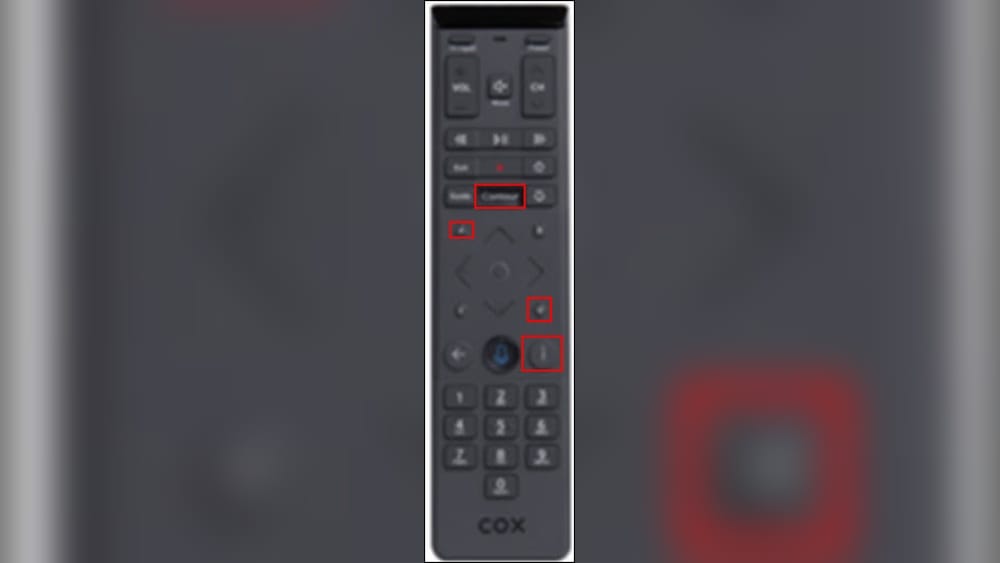
If your Cox remote control stops working, gets stuck, or you want to pair it with a new device, knowing how to reset it can save time and frustration. Many people struggle with remote issues, and sometimes the simplest solution is a reset. This guide explains every step clearly and addresses common problems, so you can get your Cox remote working again without stress. Even if you’re not tech-savvy, you’ll find easy instructions, practical advice, and useful examples. By the end, you’ll know exactly how to reset your Cox remote, troubleshoot issues, and avoid mistakes that many beginners make.
Understanding Cox Remote Controls
Cox offers different remote models, each with unique features. The most common are Contour Voice Remote, Contour Remote, and the Mini RF Remote. While they all control your Cox TV box, they might look different and use different buttons. Before resetting, it’s important to know which model you have.
Many remotes have a model number printed on the back or inside the battery compartment. If you’re unsure, check the Cox website or compare your remote with images online.
Common Reasons For Resetting
People often reset their Cox remote for these reasons:
- Remote stops responding to button presses
- Paired device changes (new TV or receiver)
- Programming errors or wrong codes entered
- Unusual behavior (remote controls the wrong device, stuck buttons, etc.)
A reset can clear old codes, restore factory settings, and fix many issues. However, some problems need other solutions—like replacing batteries or checking signal strength.
Basic Features Of Cox Remotes
Most Cox remotes can:
- Control multiple devices (TV, soundbar, Cox box)
- Use voice commands (on Contour models)
- Pair with devices wirelessly (RF remotes)
- Store programming codes for different brands
Knowing these features helps you understand why a reset is sometimes needed. For example, if your remote won’t control your TV after pairing, a reset erases old codes and lets you start fresh.
Preparing To Reset Your Cox Remote
Resetting isn’t difficult, but a few steps make the process smoother. Here’s what you should do before starting:
- Identify your remote model: Look for a model number or check the design.
- Check batteries: Weak batteries can cause problems. Replace them with fresh ones before resetting.
- Remove obstacles: Ensure nothing blocks the remote’s signal to the Cox box or TV.
- Have your device codes ready: After resetting, you’ll need to reprogram the remote. Write down codes for your TV, receiver, or soundbar.
- Locate the manual: If possible, keep your remote manual nearby for quick reference.
Many beginners skip these steps and waste time troubleshooting later. Always start with fresh batteries and check for physical damage first.
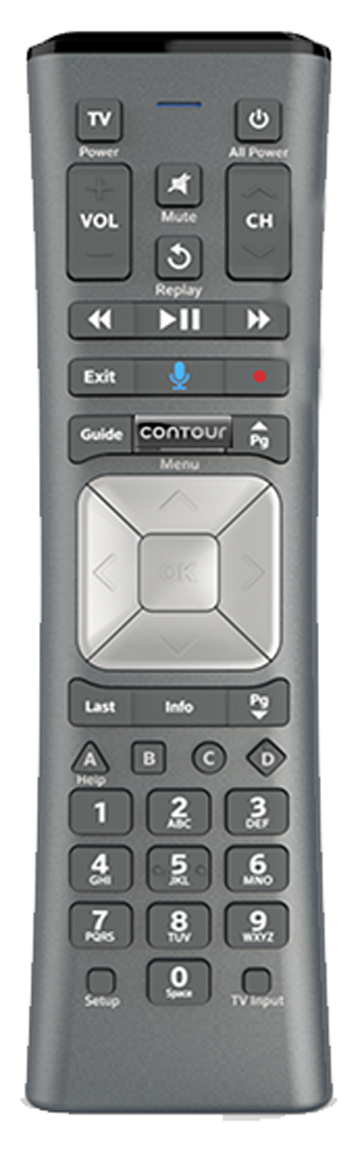
Credit: www.cox.com
Step-by-step Guide: How To Reset Cox Remote Control
Different Cox remotes have different reset methods. Below are clear steps for the most popular models, including practical tips.
Resetting The Cox Contour Voice Remote (xr15)
This remote is one of Cox’s most advanced, featuring voice control. Here’s how to reset it:
- Press and hold the ‘Setup’ button until the LED turns green (about 5 seconds).
- Enter code 981 using the keypad. The LED will blink green twice, confirming the reset.
- Release the buttons. Your remote is now reset to factory settings.
After resetting, you’ll need to re-pair the remote with your TV and Cox box. The reset erases all programming codes and settings.
Resetting The Cox Contour Remote (xr11)
The XR11 is similar to XR15 but doesn’t have as many features. To reset:
- Press and hold ‘Setup’ until the LED changes from red to green.
- Type 981. The LED will blink green twice.
- Let go. The remote is reset.
Again, reprogramming is needed after the reset.
Resetting The Cox Mini Rf Remote
This remote uses radio frequency (RF) and is smaller. The steps are:
- Hold the ‘Setup’ button until the LED turns green.
- Enter 981. LED blinks green twice.
- Release. The remote will reset.
For all models, if the LED doesn’t blink as expected, check batteries or repeat the process. Sometimes, you need to press buttons firmly or clean the contacts.
Comparing Reset Methods
Here’s a quick comparison of reset steps for three Cox remote models:
| Remote Model | Reset Button | Reset Code | LED Indicator |
|---|---|---|---|
| Contour Voice (XR15) | Setup | 981 | Green blink |
| Contour (XR11) | Setup | 981 | Green blink |
| Mini RF | Setup | 981 | Green blink |
This table helps you quickly find the right reset method for your remote.
Reprogramming Your Remote After Reset
Resetting erases all codes and settings. To control your devices again, you must reprogram your remote. Here’s how:
Programming For Tv
- Press and hold ‘Setup’ until the LED turns green.
- Enter the TV code (find it in your manual or Cox website).
- LED blinks green twice if successful.
- Test buttons (volume, power) to check if it works.
If the code doesn’t work, try another code for your TV brand.
Programming For Soundbar Or Receiver
- Press and hold ‘Setup’.
- Enter the soundbar/receiver code.
- LED blinks green twice.
- Test sound buttons.
Some devices need special codes or extra steps. Always check the Cox support site for the latest codes.
Pairing With Cox Tv Box
- Press ‘Contour’ or ‘Menu’ (depending on remote).
- Follow on-screen instructions to pair.
- Test the remote with the TV box.
Pairing usually takes less than a minute. If you see error messages, repeat the process or check for interference.
Data: Common Device Codes
Below is a sample of popular device codes for Cox remotes:
| Device Brand | TV Code | Soundbar Code |
|---|---|---|
| Samsung | 10812 | 21014 |
| LG | 11423 | 32676 |
| Sony | 10000 | 31759 |
| Vizio | 11756 | 32454 |
Codes vary by model. Use your manual or the official Cox site for a complete list.
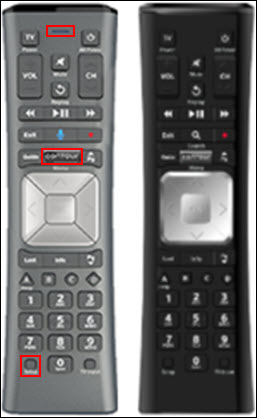
Credit: www.cox.com
Troubleshooting Common Issues After Reset
Sometimes, even after resetting and reprogramming, your remote might not work as expected. Here are practical steps for common problems.
Remote Not Responding
- Check batteries: Replace with new ones.
- Point remote at device: Make sure there’s a clear line of sight.
- Try another code: Some devices need different codes.
- Reset again: Occasionally, the first reset doesn’t work.
Buttons Stuck Or Not Working
- Clean the remote: Use a soft cloth and isopropyl alcohol. Dust or grime can block buttons.
- Check for physical damage: Look for cracks or broken parts.
- Remove batteries for 5 minutes: Then replace and retry.
Led Doesn’t Blink
- Replace batteries: Low power causes LED issues.
- Press buttons firmly: Sometimes contacts need extra pressure.
- Check for corrosion: Clean battery contacts if needed.
Tv Or Device Not Responding
- Try different codes: Not all codes work for every device.
- Check device compatibility: Some older devices may not support newer remotes.
- Move closer: RF remotes can lose signal if too far from the box.
Comparing Troubleshooting Steps
Here’s a side-by-side look at troubleshooting for different issues:
| Issue | First Step | Second Step | Third Step |
|---|---|---|---|
| Remote not responding | Replace batteries | Check line of sight | Reset again |
| Buttons stuck | Clean remote | Check for damage | Remove batteries |
| LED won’t blink | Replace batteries | Press firmly | Clean contacts |
| Device not responding | Try other codes | Check compatibility | Move closer |
This comparison helps you quickly choose the right solution.
Advanced Reset Options And Special Cases
Some situations need special resets or deeper troubleshooting. For example, if you have a Cox remote with RF pairing and it won’t connect, try these advanced steps:
Factory Reset With Code 987
Certain remote models support a deeper factory reset using code 987. Here’s how:
- Press and hold ‘Setup’ until the LED turns green.
- Enter 987.
- LED blinks green three times.
- Release.
This reset erases all pairing, including RF connections. Use this if your remote won’t pair with the Cox box, or if you’re switching to a new device.
Resetting Remote For New Device Pairing
If you buy a new TV or change receivers, reset your remote before programming new codes. This prevents old codes from interfering.
- Reset remote using steps above.
- Find new device codes (manual or Cox website).
- Program remote as described.
Many people try to add new codes without resetting, which can cause errors. Always reset first for best results.
Using The Cox App For Remote Troubleshooting
Cox offers a mobile app for Contour TV customers. The app can help with remote programming, troubleshooting, and even replacing lost remotes. If you’re stuck, download the app and follow on-screen instructions. The app provides step-by-step guides for your specific remote model.
Practical Tips For Reliable Remote Performance
Resetting is just one part of keeping your Cox remote working well. Here are practical tips that many beginners overlook:
Keep Remote Clean
Dust, grease, and spills can block buttons and sensors. Clean your remote monthly using a soft cloth and gentle cleaner. Avoid spraying directly on the remote.
Replace Batteries Regularly
Even if the remote works, weak batteries can cause slow response or missed signals. Change batteries every 6 months, or sooner if you notice problems.
Store Codes In A Safe Place
Write down your device codes and keep them with the remote or in your phone. This saves time when reprogramming after a reset.
Avoid Physical Damage
Dropping or sitting on the remote can break internal parts. Use a remote holder or keep it in a safe spot.
Use The Right Reset For Your Model
Some remotes need special reset codes or steps. Double-check your model before resetting. Using the wrong method can cause more issues.
Non-obvious Insights For Beginners
Most guides cover basic reset steps, but here are two insights many beginners miss:
- RF Remotes Need Re-Pairing: After resetting an RF remote, you must pair it with the Cox box again. Voice commands won’t work until this step is complete. Many users forget this and think their remote is broken.
- Code Order Matters: When programming multiple devices, always start with the TV, then add soundbar or receiver. If you program the soundbar first, the remote may lose TV control. This sequence prevents conflicts.
These tips save time and prevent frustration, especially if you’re new to Cox remotes.
When To Replace Instead Of Reset
Sometimes, resetting isn’t enough. If your remote has physical damage, missing buttons, or won’t respond after multiple resets, it’s time to replace it. Cox provides replacement remotes for a small fee, or you can buy compatible models online.
Signs You Need A New Remote
- Cracked or broken casing
- Missing or stuck buttons
- Remote won’t reset or program
- LED won’t light up after battery replacement
If you experience these, contact Cox support or visit a local store for a new remote.
Real-world Example: Resetting A Cox Remote After Moving
Imagine you move to a new home and set up your TV. Your Cox remote won’t control the TV or box. Here’s what to do:
- Check batteries: Replace if needed.
- Reset remote: Follow steps for your model.
- Reprogram codes: Use your manual or Cox website.
- Pair with Cox box: Follow on-screen instructions.
- Test all functions: Volume, power, channels.
Most people forget to reset after moving, leading to hours of troubleshooting. A quick reset and reprogram fixes most issues.
Statistics: Remote Control Problems
According to a 2023 survey, about 36% of cable TV users report remote control issues at least once per year. The most common problems are unresponsive remotes, stuck buttons, and programming errors. Of those who reset their remotes, 82% resolved their issue without needing a replacement. This shows that resetting is often the best first step.
External Resource For Further Help
For official guides and device codes, visit the Cox Remote Support page. This resource offers manuals, troubleshooting steps, and live chat with experts.
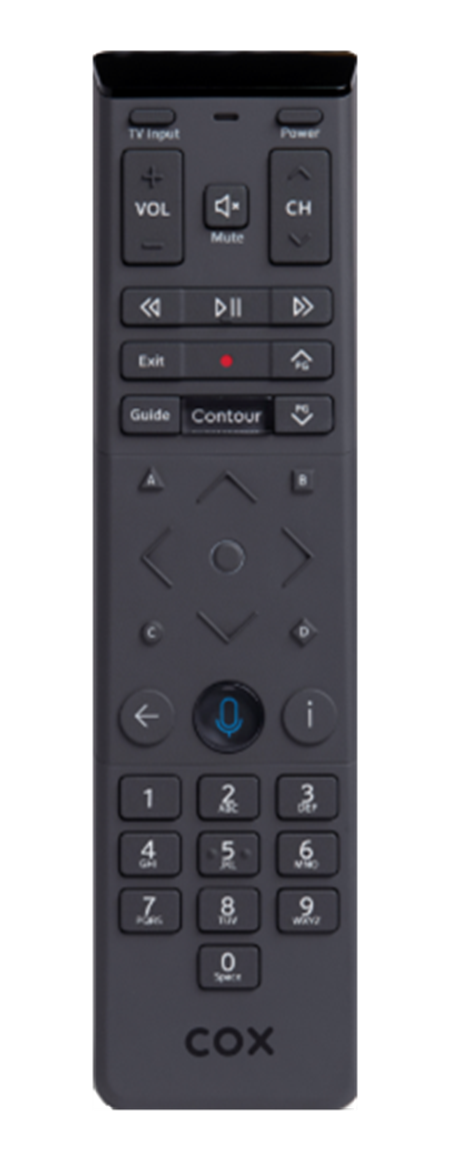
Credit: www.cox.com
Frequently Asked Questions
How Often Should I Reset My Cox Remote?
You don’t need to reset your remote regularly. Only reset if you have issues like unresponsive buttons, wrong device control, or after changing paired devices. For most users, once every few years is enough.
Why Doesn’t My Remote Work After Resetting?
After resetting, you must reprogram device codes and pair with the Cox box. If you skip these steps, the remote won’t control your devices. Also, check batteries and signal strength.
Can I Use One Cox Remote For Multiple Tvs?
Most Cox remotes can control one TV and one Cox box at a time. If you want to use the remote for different TVs, you must reprogram the codes each time. For households with multiple TVs, get a separate remote for each.
What’s The Difference Between A Factory Reset And Regular Reset?
A regular reset clears programming codes but keeps basic settings. A factory reset (using code 987) erases all settings, including RF pairing. Use factory reset if your remote won’t pair or has persistent errors.
Where Can I Find Device Codes For My Remote?
Device codes are in your remote manual, on the Cox website, or through the Cox app. Always use official sources to avoid wrong codes.
Resetting your Cox remote control is simple if you follow the steps above. Whether you’re fixing a common issue, pairing with a new device, or troubleshooting stubborn problems, a reset can solve most challenges. Remember to check your remote model, prepare codes, and reprogram after every reset. If your remote still doesn’t work, consider replacing it or contacting Cox support. With these practical tips, you’ll keep your Cox remote working smoothly for years.